

惯性聚合 高效追踪和阅读你感兴趣的博客、新闻、科技资讯
阅读原文 在惯性聚合中打开

推荐订阅源

F
Full Disclosure
WordPress大学
WordPress大学
小众软件
小众软件
Cloudbric
Cloudbric
AWS News Blog
AWS News Blog
腾讯CDC
量子位
人人都是产品经理
人人都是产品经理
大猫的无限游戏
大猫的无限游戏
freeCodeCamp Programming Tutorials: Python, JavaScript, Git & More
V
Vulnerabilities – Threatpost
Scott Helme
Scott Helme
Hugging Face - Blog
Hugging Face - Blog
博客园_首页
C
CXSECURITY Database RSS Feed - CXSecurity.com
The Hacker News
The Hacker News
奇客Solidot–传递最新科技情报
奇客Solidot–传递最新科技情报
IT之家
IT之家
Jina AI
Jina AI
Attack and Defense Labs
S
SegmentFault 最新的问题
Simon Willison's Weblog
The Cloudflare Blog
阮一峰的网络日志
阮一峰的网络日志
T
Tailwind CSS Blog
Last Week in AI
Last Week in AI
博客园 - 【当耐特】
Google Online Security Blog
美团技术团队
OSCHINA 社区最新新闻
OSCHINA 社区最新新闻
V
Visual Studio Blog
罗磊的独立博客
L
LINUX DO - 最新话题
博客园 - Franky
博客园 - 叶小钗
Apple Machine Learning Research
The Last Watchdog
The Last Watchdog
J
Java Code Geeks
AI
AI
C
Cisco Blogs
酷 壳 – CoolShell
酷 壳 – CoolShell
C
Cyber Attacks, Cyber Crime and Cyber Security
Cisco Talos Blog
Cisco Talos Blog
博客园 - 三生石上(FineUI控件)
雷峰网
雷峰网
Help Net Security
Help Net Security
钛媒体:引领未来商业与生活新知
钛媒体:引领未来商业与生活新知
云风的 BLOG
云风的 BLOG
I
Intezer
S
Securelist

Ittavern.com

Wimage - Hosting Open-Source Image Uploader with Podman and external S3 Storage Switching from Hugo to picopaper Encryption using SSH Keys with age in Linux ETag in nginx - Simple Resource Caching Sending nginx Logs to Loki with Grafana Alloy How to: Cisco ISE backup to SFTP repository with public key authentication Dummy IP & MAC Addresses for Documentation & Sanitization Deploying ISSO Commenting System for Static Content using Docker Generate a Vanity v3 Hidden Service Onion Address with mkp224o ssh-audit Primer - Audit your SSH Server mtr - More Detailed Traceroute - Network Troubleshooting My Personal Backup Strategy - August 2024 iperf3 - User Authentication with Password and RSA Public Keypair Adding a trash can to Linux with trash-cli Bandwidth Measurement using netcat on Linux Getting started with rsync - Comprehensive Guide Cron Jobs on Linux - Comprehensive Guide with Examples SSH Server Hardening Guide v2 Port Knocking with knockd and Linux - Server Hardening Getting started with rclone - Data transmission Getting started with dig - DNS troubleshooting Getting started with Fail2Ban on Linux Getting started with netcat on Linux with examples URL explained - The Fundamentals Troubleshooting Asking The Right Questions Create tmux layouts using bash scripts Getting started with tcpdump - Ittavern.com Curl on Linux - Reference Guide Getting started with nmap scripts My Offsite Backup - March 2023 Getting started with iperf3 - Network Troubleshooting ICMP echo requests on Linux and Windows - Reference Guide Simulate an unreliable network connection with tc and netem on Linux Detecting Rogue DHCP Server - Ittavern.com Basics of the Linux Bash Command History with Examples Getting started with GNU screen - Beginners Guide Basics of Power over Ethernet (PoE) Difference between RSS and Atom SSH Troubleshooting Guide - Ittavern.com Backup Guide - how to secure crucial data SSH - run script or command at login Linux - unmount a busy target safely Visual guide to SSH tunneling and port forwarding Online Security Guide - Ittavern.com My IT EDC tool kit v2212 10 prompts - 1000 AI generated images - openAI Dall-E SSH - How to use public key authentication on Linux Ways to support open-source projects Getting started with nmap - Ittavern.com nginx - simple and native authentication function Linux - How to work with complex commands EICAR test file - riskless method to test your antivirus and firewall solution Linux - connect to a serial port with screen Podman / Docker - expose port only to the localhost of the host machine Tmux - reload .tmux.conf configuration file My use cases for CyberChef Nginx - simple permanent or temporary redirects Getting started with tmux - Ittavern.com Tmux - synchronize the input of all panes within a window Nginx - check your public IP CyberChef - How to remove empty lines
Guide to Wireshark display filters
2022-12-25 · via Ittavern.com

The goal of this post

This post is a quick reference for using the display filters in Wireshark. The display filter is used to filter a packet capture file or live traffic, and it is essential to know at least the basics if you want to use Wireshark for troubleshooting and other evaluations.

In this post, I'll focus on the display filters for IPv4 only. Wireshark offers a wide range of tools that are out of this post's scope. IPv6 will be added at some point.

There is no way to list every filter, and I try to concentrate on the most commonly used ones. In general, it is recommended to use the right-click function to add specific protocols/ fields/ values, etc, to the filter.
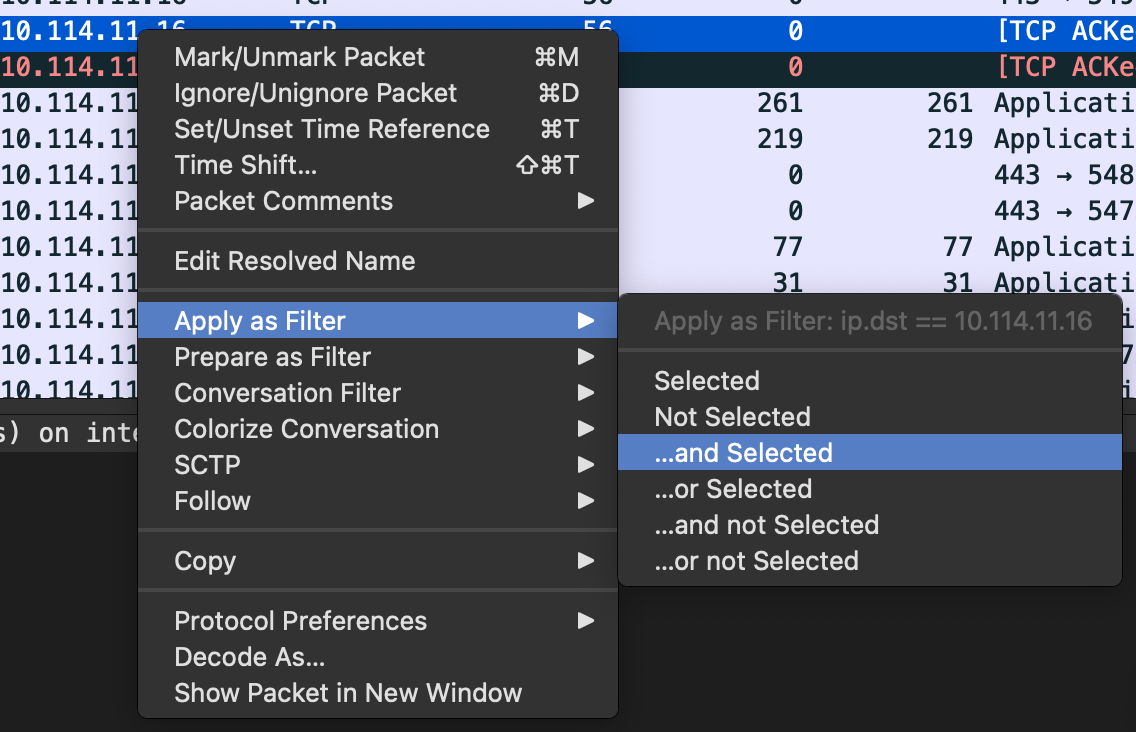
filter-selection

Nevertheless, a list of all display filters can be found here. I've added links to the specific category to every protocol in the rest of the post.

If you think I forgot something important or want to share more tips, feel free to reach out. I'd appreciate it, and I am happy to learn.

In an attempt to keep it to the basics, I left out topics like functions, variables, macros, arithmetic operators, and some other advanced things. As mentioned before, I'll add IPv6 filters, some more context for when I use certain filters, more topics like OSPF, HTTP/s, and so others, and some more functions.
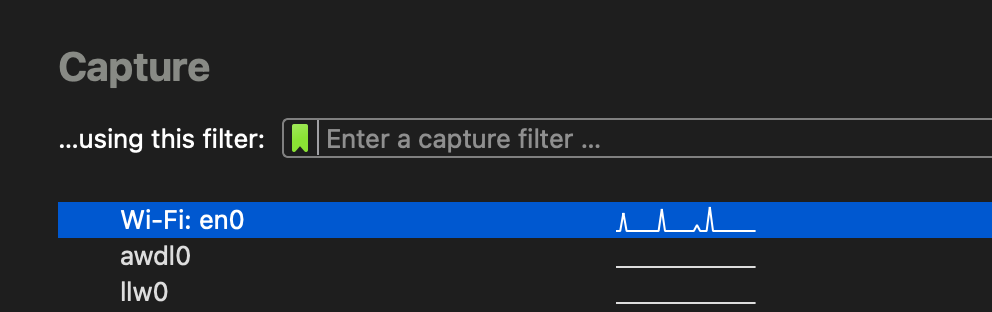
Difference display filter and capture filter #

Capture filter #

capture-filter

The capture filter - as the name suggests - is a filter for the capturing of packets itself. With this filter turned on, you can start packet capture, and everything filtered out won't be saved. This is mainly for long packet captures or connections/devices with a lot of traffic helpful, and often enough necessary. Capture filters can have a different syntax and won't be tackled in this post.
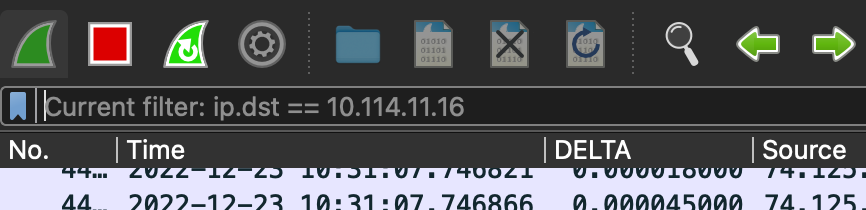
Display filter #

display-filter

The display filter hides filtered packets and is mainly used on already saved packet capture files or live traffic.


Just so you know the difference when you search for more commands.

Saving display filters #

There are two common ways to save filters. They can then be used in later sessions or help you switch between different filters, especially since certain filters can get very long.
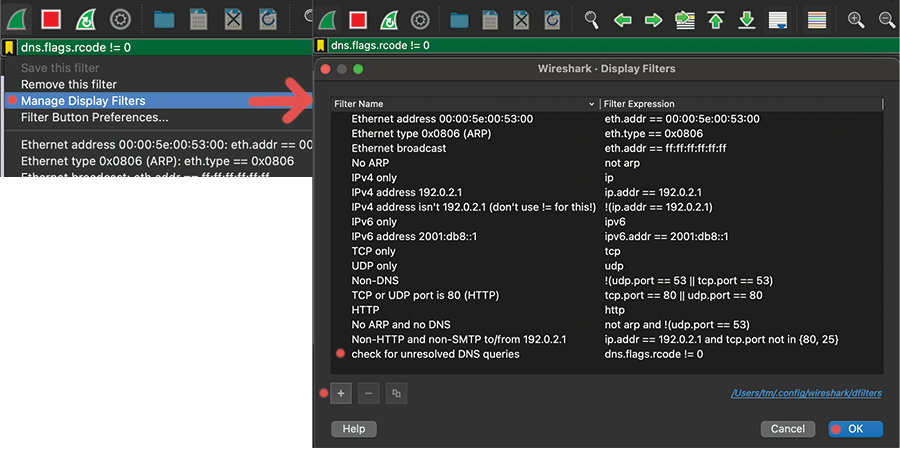

Display filter bookmark #

filter-bookmark

Display filter buttons #

filter-buttons

Color of the display filter bar #

Green:
Filter is accepted, syntax is ok
Red:
Filter is NOT accepted, syntax is wrong
Yellow:
Filter is accepted, syntax is ok, BUT the filter results might not be clear, e.x. if you reference a field that is present in multiple protocols
(haven't found too much information about it)

Operators #

Logical operators #

It runs from left to right and can be grouped with parentheses ().

Logical AND:
and / &&
Logical OR:
or / ||
Logical NOT:
not / !
e.x. !ip.src == 10.10.10.1 - this would filter out everything with the source IP of 10.10.10.1
(Logical XOR):
xor / ^^
Side note: read it multiple times, but does not work for me. I just 'craft' something like this:
(x and !y)or(!x and y)

Comparison operators #

Equal:
eq / ==
Not Equal:
ne / !=
Greater Than:
gt / >
Less Than:
lt / <
Greater than or Equal to:
ge / >=
Less than or Equal to:
le / <=

Content filter #

Filters for protocol, field, or slice that contains a specific value:
contains
'Does the protocol or text string match the given case-insensitive Perl-compatible regular expression':
matches / ~

Boolean #

The following formats are accepted:

option == 1
option == True
option == TRUE

option == 0
option == False
option == FALSE

Escape characters #

I prefer to use the 'raw string' function, instead of fighting with escape characters:
smb.path contains r"\\SERVER\SHARE"

List of escape sequences:

smb.path contains "\\\\SERVER\\SHARE"
\'          single quote
\"          double quote
\\          backslash
\a          audible bell
\b          backspace
\f          form feed
\n          line feed
\r          carriage return
\t          horizontal tab
\v          vertical tab
\NNN        arbitrary octal value
\xNN        arbitrary hexadecimal value
\uNNNN      Unicode codepoint U+NNNN
\UNNNNNNNN  Unicode codepoint U+NNNNNNNN

Time filter

frame.time >= "Dec 23, 2022 17:00:00" && frame.time <= "Dec 23, 2022 17:05:00"

This filter is a simple time filter. Right-click on frame.time / Arrival time in the frame, and add it to the filter to work with it. Directly right-clicking on the 'time' column and applying the filter won't work since it inserts another format. I bet you can configure this, but I never bothered to try.

If you want to add more filters, simply put the time segment into parentheses, and add the new filter after or before it.


Side note: I am not sure if I am happy with the following format, and I might change it at some point. It is food enough for now, though.

Full reference (eth)

You can choose between multiple MAC address formats:
aa-bb-cc-dd-ee-ff # dash delimiter
aa:bb:cc:dd:ee:ff # colon delimiter
aabb.ccdd.eeff # Cisco style
MAC / Ethernet address:
eth.addr==aa-bb-cc-dd-ee-ff # Source+Destination MAC address
eth.src==aa-bb-cc-dd-ee-ff # Source MAC address
eth.dst==aa-bb-cc-dd-ee-ff # Destination MAC address
VLAN:
eth.vlan.id==1

IP #

Full reference (ip)

Filter for IP protocol:
ip
Filter IP addresses:
ip.addr == 10.10.10.10 # source+destination IP address
ip.src == 10.10.20.50 # source IP address
ip.dst == 10.10.20.50 # destination IP address

Side note: You can filter whole subnets with CIDR notation like 10.10.20.0/24 too.

Filter packet TTL:
ip.ttl == 64

ICMP #

Full reference (icmp)

Filter for ICMP:
icmp
ICMP echo request (ping):
icmp.type == 8
ICMP echo reply (ping):
icmp.type == 0

ARP #

Full reference (arp)

Target MAC address:
arp.dst.hw_mac
Sender hardware address:
arp.src.hw
Target IP address:
arp.dst.proto_ipv4
Sender IP address:
arp.src.proto_ipv4

TCP #

Full reference (tcp)

Filter for TCP:
tcp
Filter TCP ports:
tcp.port == 53 # source+destination TCP port
tcp.srcport == 68 # source TCP port
tcp.dstport == 68 # destination TCP port

Side note: filtering 'TCP streams' is helpful, but it is easier to right click on the TCP segment, and filter there instead of tpying in a filter.

Examples #

General troubleshooting for packet loss:
tcp.analysis.flags && !tcp.analysis.window_update
displays all retransmissions, duplicate ACKs, other TCP errors. I'll use this in combination with IP filters to get a feeling for the connection quality.
Look for 3-way-handshakes:
((tcp.flags == 0x02) || (tcp.flags == 0x12) ) || ((tcp.flags == 0x10) && (tcp.ack==1) && (tcp.len==0))
Fitlers for TCP resets flag:
tcp.flags.reset==1

UDP #

Full reference (udp)

Filter for UDP:
udp
Filter UDP ports:
udp.port == 53 # source+destination UDP port
udp.srcport == 68 # source UDP port
udp.dstport == 68 # destination UDP port

DHCP #

Full reference (dhcp)

Filter for dhcp
dhcp
Filter for type (DORA)
dhcp.option.dhcp == 1 # Discover
dhcp.option.dhcp == 2 # Offer
dhcp.option.dhcp == 3 # Request
dhcp.option.dhcp == 5 # Discover
Search for hostname:
dhcp.option.hostname == "pleasejustwork"
Seach for various options:
dhcp.option.type == 3 # Search for a specific option number
dhcp.option.dhcp_server_id == 10.10.20.1 # Option: (54) DHCP Server Identifier
dhcp.option.type == 51 # Option: (51) IP Address Lease Time
dhcp.option.subnet_mask == 255.255.255.0 # Option: (1) Subnet Mask (255.255.255.0)
dhcp.option.router == 10.10.20.1 # Option: (3) Router
dhcp.option.domain_name_server == 9.9.9.9 # Option: (6) Domain Name Server
I won't list all of them, but you can find all options here.

Examples #

Search for a DHCP discover message of specific MAC address:
(dhcp.hw.mac_addr == aa:bb:cc:dd:ee:ff) && (dhcp.option.dhcp == 1)
(eth.src == aa:bb:cc:dd:ee:ff) && (dhcp.option.dhcp == 1)
Finding rogue DHCP server:
dhcp && !dhcp.option.dhcp == 1 && !dhcp.option.dhcp_server_id == 10.10.20.1
it is DHCP, it is not a discover message, and is not our DHCP server for this network
(udp.dstport == 68) && !(dhcp.option.dhcp_server_id == 10.10.20.1)
this is another option to check for the dst port '68' and filter out our DHCP server
Check if other DNS server are getting populated:
dhcp.option.dhcp == 2 && !(dhcp.option.domain_name_server == 9.9.9.9) && !(dhcp.option.domain_name_server == 149.112.112.112)

DNS #

Full reference (dns)

Filter for DNS queries:
dns
Filter for DNS queries:
dns.flags.response == 0
Filter for DNS responses:
dns.flags.response == 1
Filter the domain on the DNS quieries:
dns.qry.name == "ittavern.com" # Discover
Filter common DNS records:
dns.qry.type == 1 # A record
dns.qry.type == 28 # AAAA record
dns.qry.type == 16 # txt record
dns.qry.type == 5 # CNAME record
dns.qry.type == 33 # srv record
dns.qry.type == 15 # MX record
dns.qry.type == 2 # NS record
Filter for the DNS server answer:
dns.a == 94.130.76.189 # answer of a A record
dns.txt == "v=spf1 include:spf.protection.outlook.com -all" # answer of a TXT record request
and so on

Examples #

Look up what DNS servers are used:
(ip.dst == 10.64.0.1) && (dns)
Show only DNS traffic of one client:
dns && (ip.dst==10.10.20.1 or ip.src==10.10.20.1)
Check for slow responses:
dns.flags.rcode == 0 && dns.time > .3 # might needs some fine tuning depending on the env
Show DNS requests that couldn't be resolved:
dns.flags.rcode != 0