









I am a big fan of tmux, but there is - without adding plugins - a way to save and restore sessions or layouts. For this reason, I've decided to work on a bash script that restores and builds my favorite tmux layout at the start of the session. I've been testing it for the last couple of days, and it works well and saved me a ton of time.
Everyone has different requirements. I explain the commands so you can rebuild your favorite layout or session. And please remember that there are multiple ways to solve this.
The demo layout can be found at the bottom of this post.
I wanted to create a new tmux session for every project I'd start working on. Let us begin with the following framework.
tmux-project-x.sh
#!/bin/bash

session_name='project-x'

tmux has-session -t $session_name
if [ $? != 0 ]
then

    ### Create session ###
    tmux new-session               -ds $session_name

fi

tmux attach -t $session_name
In short, we define the session's name as a variable, check if this session exists, and if it does not, we create it. In the last step, we try to attach the tmux session.
Within this script, we can create our layout. Don't forget to make the script executable sudo chmod +x tmux-project-x.sh.
The creation of the script involves a lot of trial and error. I hope I can provide you with some tips to make things easier.
Side note: just in case, here is a link to the tmux primer.
Get an overview of all tmux sessions, windows and panes by pressing the Prefix + w shortcut. This allows you to get a quick overview and move fastly within your tmux environment.
To get a quick overview of the panes of the current window, press Prefix + q to get the panes numbered like this:
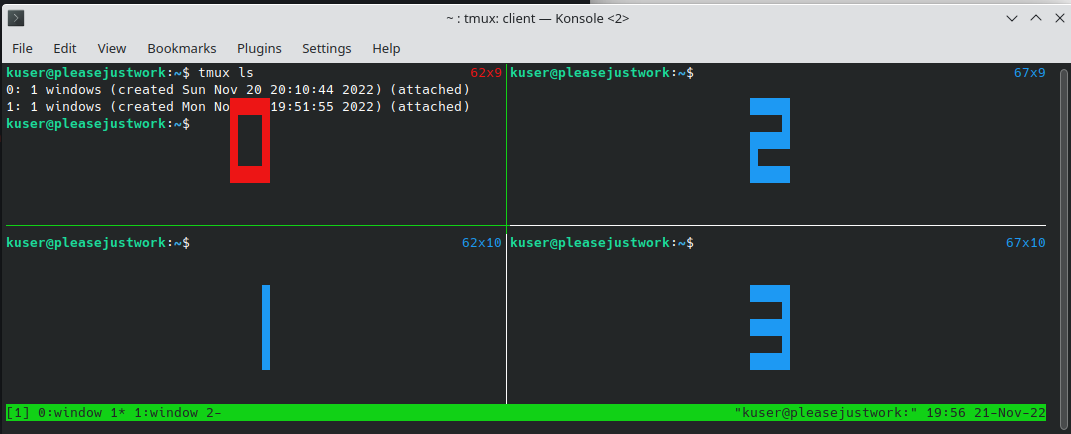
Just to provide you with a quick explanation of the syntax of the following commands.
tmux send-keys -t $session_name:1.0 'cd /random/path/' C-m C-ltmux send-keys # this is the tmux option, in this case it sends keystrokes-t $session_name # selects the session, in this case, the provided variable in this script:0.2 # choses the window and pane, in this case, the first window and pane number 2'cd /random/path/' # the keystrokes, in this case a simple command - at this point, it would not run the commandC-m # which means CTRL + m - this runs the previously sent commandC-l # send the final keystroke, which means CTRL + l - to clear the current command line - looks way cleaner, but is optionalJust to give you an idea of how a simple command can look and what everything means.
tmux new-window -t $session_name:1tmux rename-window -t $session_name:1 GENERALtmux select-window -t $session_name:1tmux select-pane -t 0tmux split-window -h -p 50 -t $session_name:0-p 50 # means 50% of the way ┌────────────────┐ ┌────────────────┐
│ │ │ │
│ │ │ │
│ ├───► ├────────────────┤
│ │ │ │
│ │ │ │
└────────────────┘ └────────────────┘
tmux split-window -v -p 50 -t $session_name:0-p 50 # means 50% of the way ┌────────────────┐ ┌───────┬────────┐
│ │ │ │ │
│ │ │ │ │
│ ├───► │ │ │
│ │ │ │ │
│ │ │ │ │
└────────────────┘ └───────┴────────┘
Side note: Since there is a lot of trial and error involved, you can kill a tmux session with Prefix + :kill-session.
There are many things you could do with this one. Toy around and see what works for you. Changing directories, creating temp files, open specific files, running commands, starting scripts or programs, and so on.
tmux send-keys -t $session_name:1.2 'cd /random/path/' C-m # change to another directorytmux send-keys -t $session_name:0.2 '~/random-script/' # without C-m the command will not be executed and only send to the terminaltmux send-keys -t $session_name:2.2 'htop' C-m # start htop in the third window (starts with 0) and pane number 2You can use color names like red or hex color codes like #ff1900
tmux set -g status-style bg=redtmux set -g status-style bg=#dc23a6tmux set -g pane-border-style fg=magentatmux set -g pane-active-border-style "bg=default fg=magenta"tmux set -g window-style "fg=#E4E2E1 bg=#332E33"tmux set -g window-active-style "fg=white bg=black"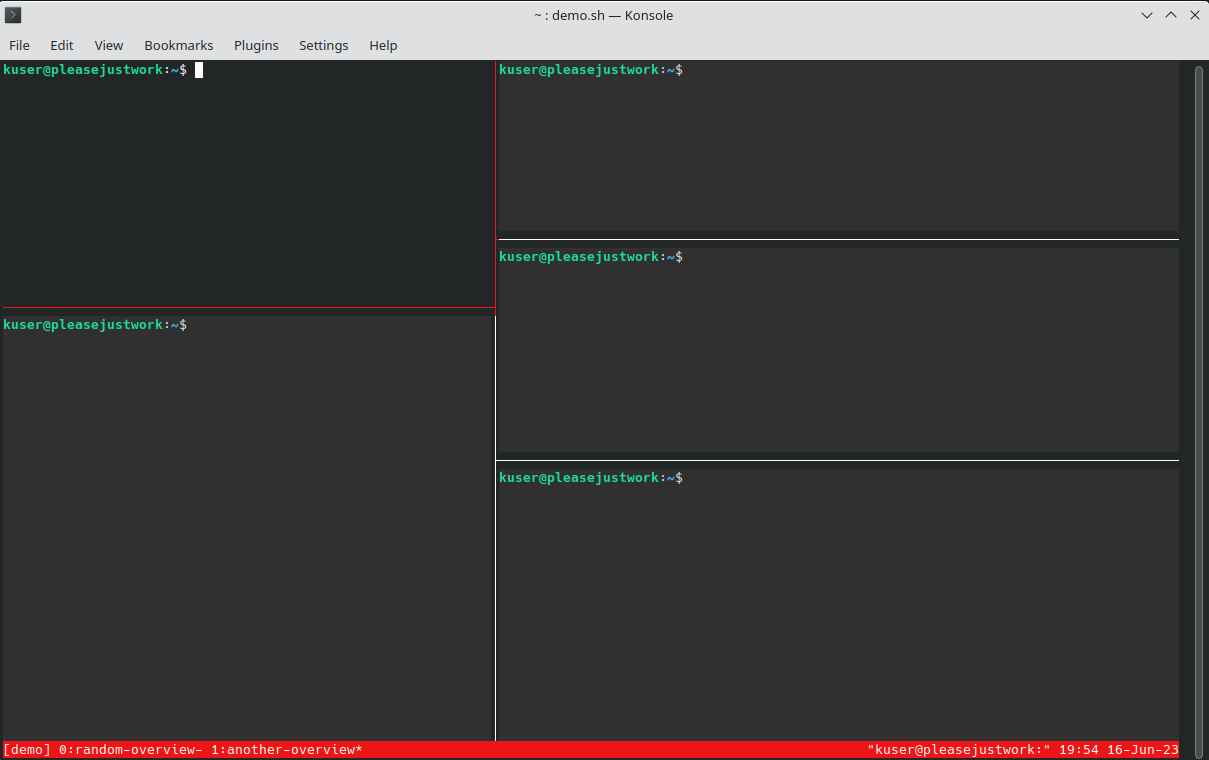
demo.sh
#!/bin/bash

session_name='demo'

tmux has-session -t $session_name
if [ $? != 0 ]
then

    # SESSION

    cd ~
    tmux new-session               -ds $session_name
    tmux set-window-option          -t $session_name     allow-rename off
    tmux rename-window              -t $session_name:0   random-overview

    # GENERAL OPTIONS / DESIGN

    tmux set                        -g status-style bg=red
    tmux set                        -g status-style bg=red
    tmux set                        -g pane-border-style "fg=white"
    tmux set                        -g pane-active-border-style "bg=default fg=red"
    tmux set                        -g window-style "fg=#E4E2E1 bg=#332E33"
    tmux set                        -g window-active-style "fg=white bg=black"

    # FIRST WINDOW

    tmux send-keys                  -t $session_name:0.0 'htop' C-m
    tmux split-window      -v -p 25 -t $session_name:0
    tmux send-keys                  -t $session_name:0.1 'echo hello' C-m

    # SECOND WINDOW

    tmux new-window                 -t $session_name:1
    tmux set-window-option          -t $session_name:1   allow-rename off
    tmux rename-window              -t $session_name:1   another-overview

    tmux split-window      -h -p 50 -t $session_name:1
    tmux split-window      -v -p 50 -t $session_name:1
    tmux split-window      -v -p 50 -t $session_name:1

    tmux select-pane                -t 0
    tmux split-window      -v -p 50 -t $session_name:1

    # SELECT DEFAULT PANE AFTER OPENING

    tmux select-window              -t $session_name:1
    tmux select-pane                -t 0
fi

tmux attach -t $session_name
As I mentioned before, there are multiple ways to do it. From the config file to random plugins. I am still using it since it provides me with a lot of flexibility and per-project customizability. If you have any questions or tips, feel free to reach out.
此内容由惯性聚合(RSS阅读器)自动聚合整理,仅供阅读参考。 原文来自 — 版权归原作者所有。