







Apple introduced the HomePod mini six years ago, in 2020.
I'm not one into smart speakers, but the feature that made me take a closer look was their ability to form stereo pairs, without any direct wired connection.
I know there are other speaker manufacturers with wireless speakers, but to my knowledge, Apple was just using AirPlay over WiFi... so how does it work?
Through the magic of buying two HomePods mini (pictured above), I found out. A video detailing the process is embedded below:
Setting up a HomePod mini (no Macs allowed)
Before exploring how Apple does the stereo pairing, I had to set up the speakers. Thinking like a long-time Mac owner, I did the simplest thing and plugged the hard-wired USB-C cable straight into my Mac.
Nothing happened.
Well, there was a little pulsing amber light, but nothing else:
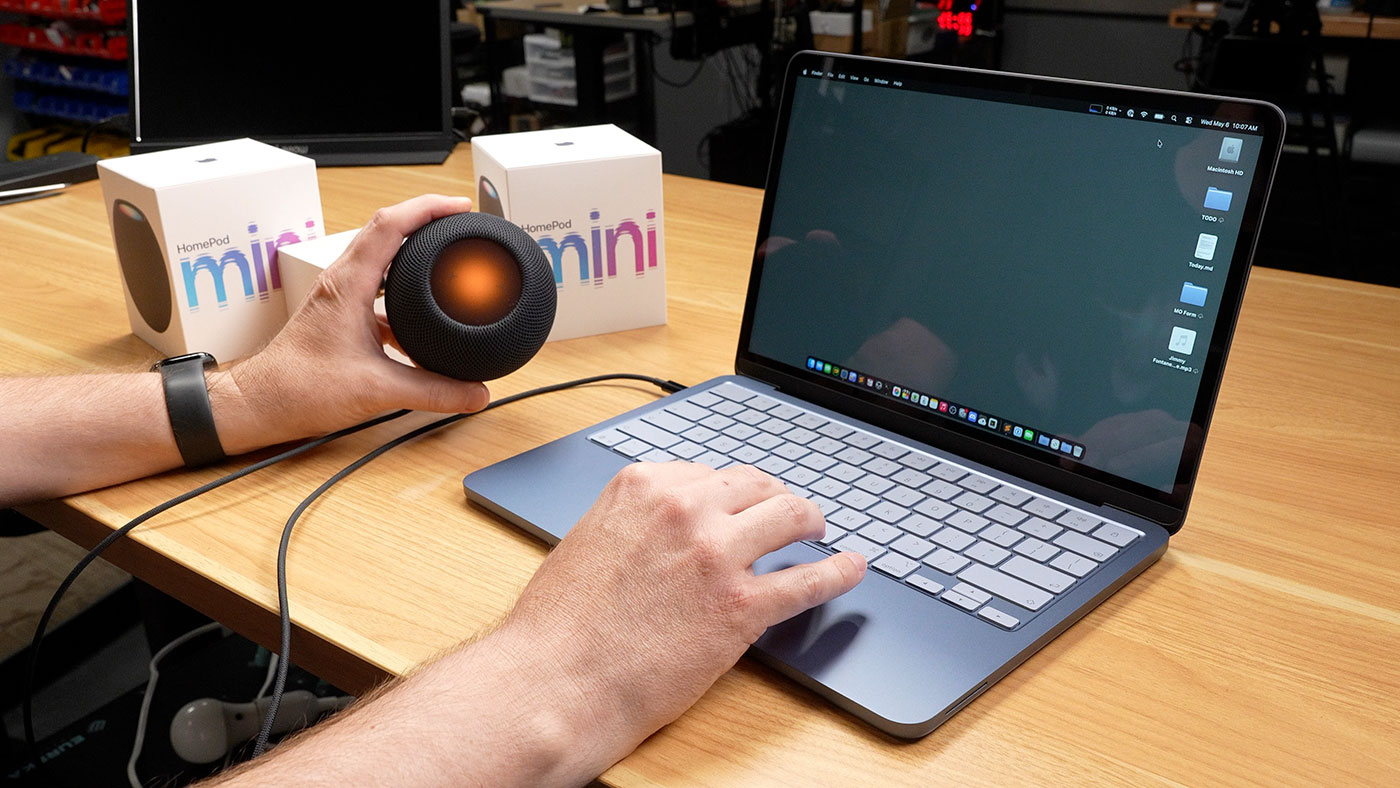
So I plugged it into the wall using the USB-C power adapter supplied in the box, and it seemed to boot up to a white pulsing top—a little better.
But I still couldn't connect on my Mac. Not a promising start, I was mostly surprised I couldn't just use it as a USB-C connected speaker—or at least as a Bluetooth speaker!
I browsed Apple's documentation and eventually found you can't use a Mac to set up HomePods:
You need an iPhone or iPad to set up HomePod. You can't set up HomePod with a Mac.
How dumb is that?
I pulled out my iPhone, and realized I had to attach my Apple account to the HomePods, and agree to a bunch of things just to get them to start working as speakers. Doesn't seem very smart to me.
Searching for PTP over WiFi with Wireshark
A viewer of my YouTube channel messaged me (and for the life of me, I can't remember who it was, or what platform he messaged me on) and hinted that Apple might be using a form of PTP for their HomePod minis, so I thought I'd play some audio and listen in with Wireshark.
I tried to enable Monitor mode on my Mac Studio's WiFi connection, but I wasn't able to get any packets that way. It works on wired Ethernet, but not WiFi. Probably some security issue in macOS 26 Tahoe.
Update: One of this blog's readers emailed me and said Wireshark can show the live traffic if you disassociate with the current WiFi network before beginning Monitor mode.
I did that (just click on the connected network in the WiFi menu to disconnect, while leaving WiFi on), checked the 'Monitor' checkbox in Wireshark's options for the WiFi connection (
en1on my Mac Studio), and can confirm you can monitor that way. Nice!
Luckily, Apple includes a 'Wireless Diagnostics' app on modern Macs which has a built in Sniffer tool, which sniffs all traffic given a Channel and Width setting.
The app is located in /System/Library/CoreServices/Applications alongside other gems like DVD Player and About This Mac. Open it, then before clicking anything in the diagnostics wizard that appears, click the Window menu and choose "Sniffer":
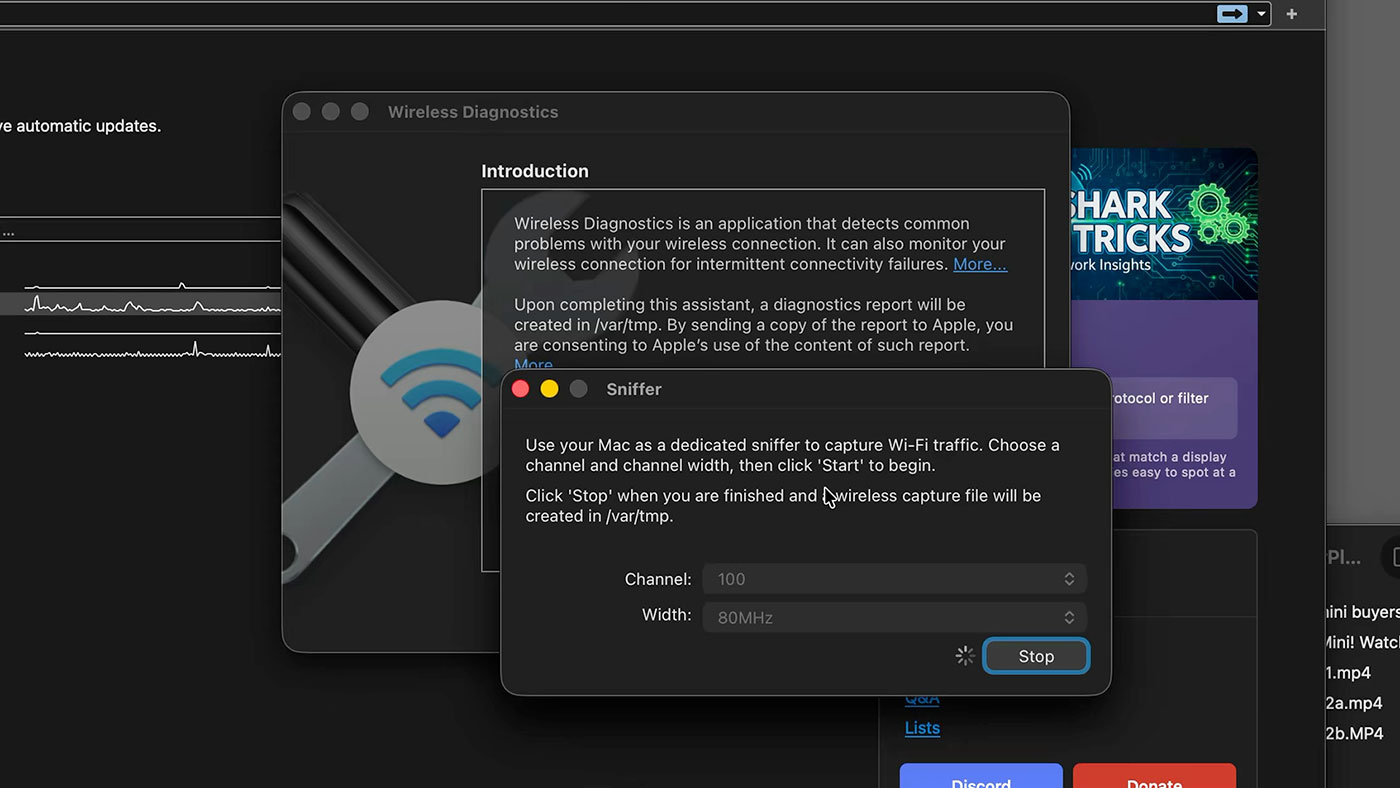
I made sure my Mac was connected to the same WiFi network (a 5 GHz WiFi network), and the defaults were selected for me (Channel 100, Width 80 MHz).
I clicked 'Start', and played back some audio from another Mac to the speakers. After about 10 seconds, I clicked 'Stop'. This generates a .pcap file inside /var/tmp, so I copied that out into my Downloads folder, and opened it with Wireshark.
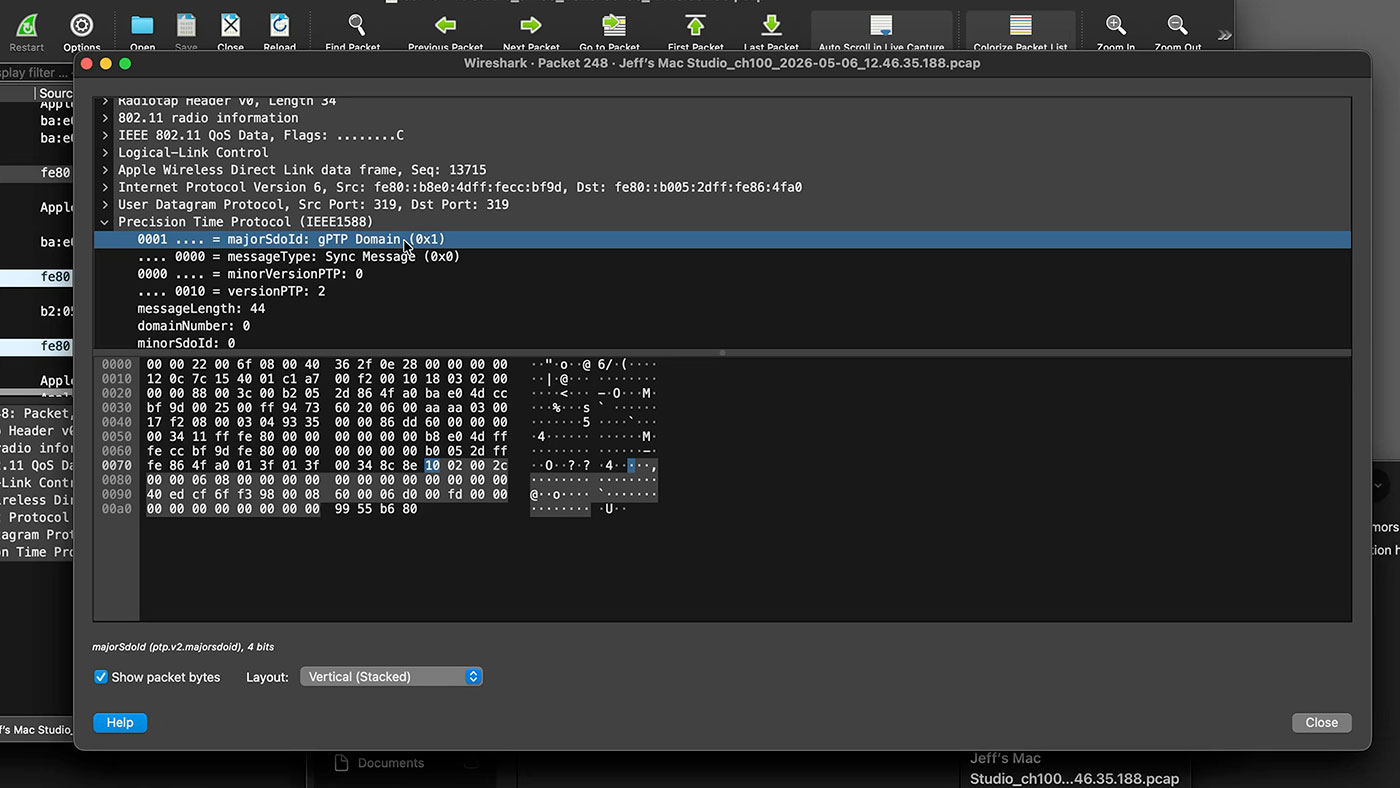
Browsing the packets, I quickly found what I was looking for: multiple sets of four PTPv2 packets:
- Sync
- Follow_Up
- Delay_Req
- Delay_Resp
These four packets are what PTP (Precision Time Protocol) uses to sychronize time between two computers1.
And in this case, the packets are wrapped up in a peer-to-peer connection between the speakers and my Mac, using Apple Wireless Direct Link, which is used for AirPlay, AirDrop, GameKit, and other high-speed direct connections.
Running through AWDL or over WiFi, PTP can use software-based timing to sync clocks on multiple HomePods to within a microsecond or so—good enough for A/V sync. And the standards they seem to be using are gPTP and IEEE 802.1AS, as part of the AVB (Audio Video Bridging) standard.
Apple using standards: gPTP and AVB
gPTP and AVB are new to me2.
Apple adopted the 2011 version of the 802.1AS standard for AirPlay 2 to make sure audio remains (almost) perfectly in sync between multiple speakers. It seems to also be what's used to sync the sound coming out of HomePods with video displayed on Macs, iPhones, iPads, and Apple TVs.
If all your devices have microsecond-accurate timing, frames on the display can sync up to multiple independent audio devices at the correct audio time, and you don't have either weird phase issues, or A/V de-sync that was a lot more prevalent a decade ago (and still happens far too often today).
This Aud-iOS blog post on Networked Audio on macOS has a lot of interesting context, but it's too bad the HomePods don't work as a standard 'Network AVB device', which seems like it'd be more compatible with other audio ecosystems.
To play back audio to AirPlay 2 devices from Linux, you have to use something like owntone-server or airplay2-rs—the latter explores how Apple's using gPTP in AirPlay. AirPlay (the first version) seems to have used NTP, but that can result in a few milliseconds of error—perceptible to the human ear.
I had speculated about how Apple handles audio with professional gear using Dante, Livewire, Ravenna, AES67, etc., and it looks like their AVB and gPTP system handles all that—but Apple seems to be content with microsecond-level sync.
Getting much better than 1 µs sync requires hardware PTP timestamping (or for WiFi, newer tech like FTM, or Fine Timing Measurement), and I haven't seen any way to get that on a Mac, at least not in any public documentation.