









Here is a current (as of July 2026) list of daisy-chainable monitors that support DisplayPort MST, USB-C, or Thunderbolt daisy chaining. I’ve maintained this list since 2019, and it has helped thousands of readers set up multi-monitor workstations with a single cable chain. Every monitor below has been verified to support daisy chaining when configured properly.
If you’re short on time, here are my top picks across five categories. Each one is currently in stock and verified to support daisy chaining. Scroll down for the full comparison table with 60+ monitors.
Why so many Dell monitors? Dell dominates the USB-C dock monitor category because they’ve invested more than any other brand in MST and Thunderbolt daisy chain support across their entire business lineup. Three of my five picks are Dell because, after testing and researching dozens of monitors, they consistently deliver the best combination of build quality, dock features, and reliable daisy chaining. Where a non-Dell monitor genuinely competes, I’ve included it.
| Category | Monitor | Key Specs | Why I Recommend It | Check Price |
|---|---|---|---|---|
| Best Budget | Dell P2425HE | 24″, 1080p, IPS, USB-C 90W, RJ45 | The cheapest USB-C dock monitor with MST from a major brand. One cable gives you power, ethernet, and daisy chaining to a second display. | Check Price on Amazon |
| Best Value | ViewSonic VG2758-2K | 27″, QHD, IPS, USB-C 100W, 100Hz, 5-port USB hub | The best non-Dell option at this price. 100Hz refresh, 100W USB-C charging, built-in 5-port USB hub, and confirmed daisy chain support, all for under $350. | Check Price on Amazon |
| Best Overall | Dell U2724DE | 27″, QHD, IPS Black, TB4 + DP MST, 90W | The best-balanced 27″ daisy chain monitor. IPS Black for deeper contrast, Thunderbolt 4 AND DisplayPort MST support, and 90W USB-C charging. Works with both Windows and Mac daisy chaining. | Check Price on Amazon |
| Best 4K | Dell U2725QE | 27″, 4K, IPS Black, TB4 + DP MST, 140W | 140W USB-C charges virtually any laptop. 4K with IPS Black panel. A complete dock replacement: one cable for power, display, data, and daisy chaining to a second monitor. | Check Price on Amazon |
| Best Ultrawide | Dell U3425WE | 34″, 3440×1440, IPS Black, TB4, 90W | Curved ultrawide that replaces two standard monitors and still supports Thunderbolt daisy chaining. Currently the only premium ultrawide with TB4 chaining support. | Check Price on Amazon |
Daisy chaining lets you connect multiple monitors in a series using a single video output from your computer. Instead of running separate cables from your PC to each display, you connect one cable from your PC to Monitor 1, then a second cable from Monitor 1 to Monitor 2, and so on.
The original and most common method. Your graphics card sends multiple display streams over a single DisplayPort cable, and each monitor in the chain picks up its own stream. Requirements:
The newer approach, increasingly common in 2024-2026 monitors. USB-C monitors with MST support work the same way as DisplayPort MST, but through a USB-C cable that also carries power and data. Thunderbolt 3/4 monitors can daisy chain natively through the Thunderbolt protocol. Benefits:
This table includes every currently available monitor I’ve verified to support daisy chaining via DisplayPort MST, USB-C MST, or Thunderbolt. Use the search box and column filters to narrow down by brand, size, resolution, chain type, or other features.
| Model | Brand | Size | Resolution | Panel | Refresh Rate | Chain Type | USB-C PD | Finish | Check Price |
|---|---|---|---|---|---|---|---|---|---|
| B248Y | Acer | 23.8″ | 1920×1080 | IPS | 75Hz | DP MST | – | Matte | Check Price |
| Vero B248Y E | Acer | 23.8″ | 1920×1080 | IPS | 75Hz | DP MST | – | Matte | |
| B277U | Acer | 27″ | 2560×1440 | IPS | 120Hz | USB-C MST | 90W | Matte | |
| 24E4CV | AOC | 23.8″ | 1920×1080 | IPS | 120Hz | USB-C MST | 90W | Matte | Check Price |
| 24P3CV | AOC | 23.8″ | 1920×1080 | IPS | 75Hz | USB-C MST | 65W | Matte | Check Price |
| 24P3CW | AOC | 23.8″ | 1920×1080 | IPS | 75Hz | USB-C MST | 65W | Matte | Check Price |
| 27E4CV | AOC | 27″ | 1920×1080 | IPS | 120Hz | USB-C MST | 90W | Matte | Check Price |
| Q27P3CV | AOC | 27″ | 2560×1440 | IPS | 75Hz | USB-C MST | 65W | Matte | Check Price |
| Q27P3CW | AOC | 27″ | 2560×1440 | IPS | 100Hz | USB-C MST | 90W | Matte | Check Price |
| Q27P4CV | AOC | 27″ | 2560×1440 | IPS | 120Hz | USB-C MST | 96W | Matte | Check Price |
| Q27U3CV | AOC | 27″ | 2560×1440 | IPS QD | 75Hz | USB-C MST | 96W | Matte | Check Price |
| U27E4CV | AOC | 27″ | 3840×2160 | IPS | 60Hz | USB-C MST | 90W | Matte | Check Price |
| CU34E4CV | AOC | 34″ | 3440×1440 | VA | 120Hz | USB-C MST | 90W | Matte | |
| PA278CV | ASUS | 27″ | 2560×1440 | IPS | 75Hz | DP MST | 65W | Matte | Check Price |
| PA278CGRV | ASUS | 27″ | 2560×1440 | IPS | – | USB-C MST | 96W | Matte | |
| PA32UCE | ASUS | 31.5″ | 3840×2160 | IPS | – | USB-C MST | 96W | Semi-Gloss | |
| PD2725U | BenQ | 27″ | 3840×2160 | IPS | – | TB3 | 90W | Matte | |
| PD2730S | BenQ | 27″ | 5120×2880 | IPS | – | TB4 | 90W | Semi-Gloss | |
| PD3225U | BenQ | 31.5″ | 3840×2160 | IPS | – | TB4 | 90W | Matte | |
| PD3226G | BenQ | 31.5″ | 3840×2160 | IPS | – | TB4 | 90W | Semi-Gloss | |
| P2425DE | Dell | 23.8″ | 2560×1440 | IPS | – | USB-C MST | 90W | Matte | |
| P2425HE | Dell | 23.8″ | 1920×1080 | IPS | – | USB-C MST | 90W | Matte | Check Price |
| U2424H | Dell | 23.8″ | 1920×1080 | IPS | 120Hz | DP MST | – | Matte | |
| U2424HE | Dell | 23.8″ | 1920×1080 | IPS | – | USB-C MST | 90W | Matte | |
| P2725DE | Dell | 27″ | 2560×1440 | IPS | – | USB-C MST | 90W | Matte | |
| P2725HE | Dell | 27″ | 1920×1080 | IPS | – | USB-C MST | 90W | Matte | |
| U2724D | Dell | 27″ | 2560×1440 | IPS Black | 120Hz | DP MST | – | Matte | |
| U2724DE | Dell | 27″ | 2560×1440 | IPS Black | – | TB4+DP MST | 90W | Matte | Check Price |
| U2725QE | Dell | 27″ | 3840×2160 | IPS Black | – | TB4+DP MST | 140W | Matte | Check Price |
| P3225DE | Dell | 31.5″ | 2560×1440 | IPS | – | USB-C MST | 90W | Matte | |
| U3225QE | Dell | 31.5″ | 3840×2160 | IPS Black | – | TB4+DP MST | 140W | Matte | |
| U3425WE | Dell | 34.1″ | 3440×1440 | IPS Black | – | TB4 | 90W | Matte | Check Price |
| U4025QW | Dell | 39.7″ | 5120×2160 | IPS Black | – | TB4 | 140W | Matte | |
| 524pm Series 5 Pro Conf | HP | 23.8″ | 1920×1080 | IPS | – | USB-C MST | 100W | Matte | |
| 524pu Series 5 Pro | HP | 24″ | 1920×1200 | IPS | – | USB-C MST | 100W | Matte | |
| 527pm Series 5 Pro Conf | HP | 27″ | 2560×1440 | IPS | – | USB-C MST | 100W | Matte | |
| 527pu Series 5 Pro | HP | 27″ | 2560×1440 | IPS | – | USB-C MST | 100W | Matte | |
| P24h-30 | Lenovo | 23.8″ | 2560×1440 | IPS | – | USB-C MST | 100W | Matte | |
| P24q-40 | Lenovo | 23.8″ | 2560×1440 | IPS | – | DP MST | – | Matte | |
| T24D-4v | Lenovo | 23.8″ | 1920×1200 | IPS | – | USB-C MST | 100W | Matte | |
| P27h-30 | Lenovo | 27″ | 2560×1440 | IPS | – | USB-C MST | 100W | Matte | Check Price |
| T27hv-30 | Lenovo | 27″ | 2560×1440 | IPS | – | USB-C MST | 90W | Matte | |
| P40w-20 | Lenovo | 39.7″ | 5120×2160 | IPS | – | TB4 | 100W | Matte | |
| 24BA850 | LG | 23.8″ | 1920×1080 | IPS | – | USB-C MST | 65W | Matte | |
| 27BA650 | LG | 27″ | 1920×1080 | IPS | – | USB-C MST | 65W | Matte | |
| 27BA65QB | LG | 27″ | 2560×1440 | IPS | – | USB-C MST | 65W | Matte | |
| 34BA75QE | LG | 34″ | 3440×1440 | IPS | – | USB-C MST | 90W | Matte | |
| 40WP95C-W | LG | 39.7″ | 5120×2160 | Nano IPS | – | TB4 | 96W | Matte | |
| 24B1U5301H | Philips | 23.8″ | 1920×1080 | IPS | – | USB-C MST | 100W | Matte | |
| 27B1U7903 | Philips | 27″ | 3840×2160 | IPS Black | – | TB4 | 90W | Matte | |
| 27E2F7901 | Philips | 27″ | 3840×2160 | IPS Black | – | TB4 | 96W | Matte | |
| ViewFinity S8 | Samsung | 27″ | 3840×2160 | IPS | – | TB4 | 90W | Matte | |
| ViewFinity S65TC | Samsung | 34″ | 3440×1440 | VA | – | USB-C MST | 90W | Matte | |
| VG2456 | ViewSonic | 24″ | 1920×1080 | IPS | – | USB-C MST | 60W | Matte | |
| VG2458 | ViewSonic | 24″ | 1920×1080 | IPS | – | DP MST | – | Matte | |
| VG2756-2K | ViewSonic | 27″ | 2560×1440 | IPS | – | USB-C MST | 60W | Matte | |
| VG2758-2K | ViewSonic | 27″ | 2560×1440 | IPS | 100Hz | USB-C MST | 100W | Matte | Check Price |
| VP2788-5K | ViewSonic | 27″ | 5120×2880 | IPS | – | TB4 | 100W | Matte |
macOS does not support DisplayPort MST for multiple extended displays. MST-connected monitors will mirror rather than extend on all current Macs, including Apple Silicon (M1 through M5). This is a macOS limitation, not a monitor issue.
For multiple independent displays from a Mac, you have three options:
All of the monitors on this list have been verified to be daisy-chainable when configured properly. Generally, this is a fairly easy process requiring at most a few adjustments in their OSD (on-screen displays) to enable the daisy chaining. Here is a sample from a ViewSonic monitor manual:
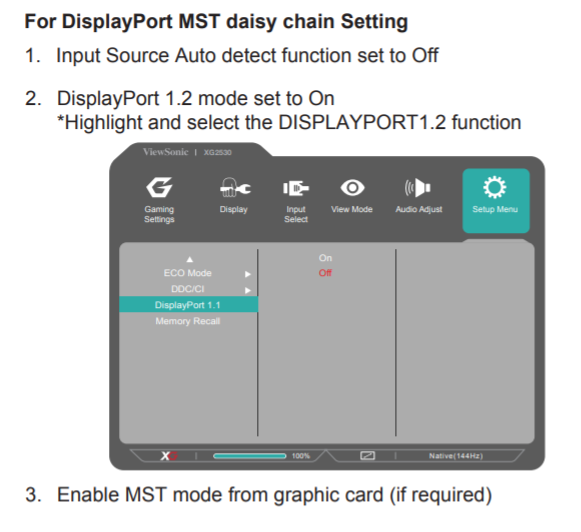
ViewSonic XG2530 Instructions
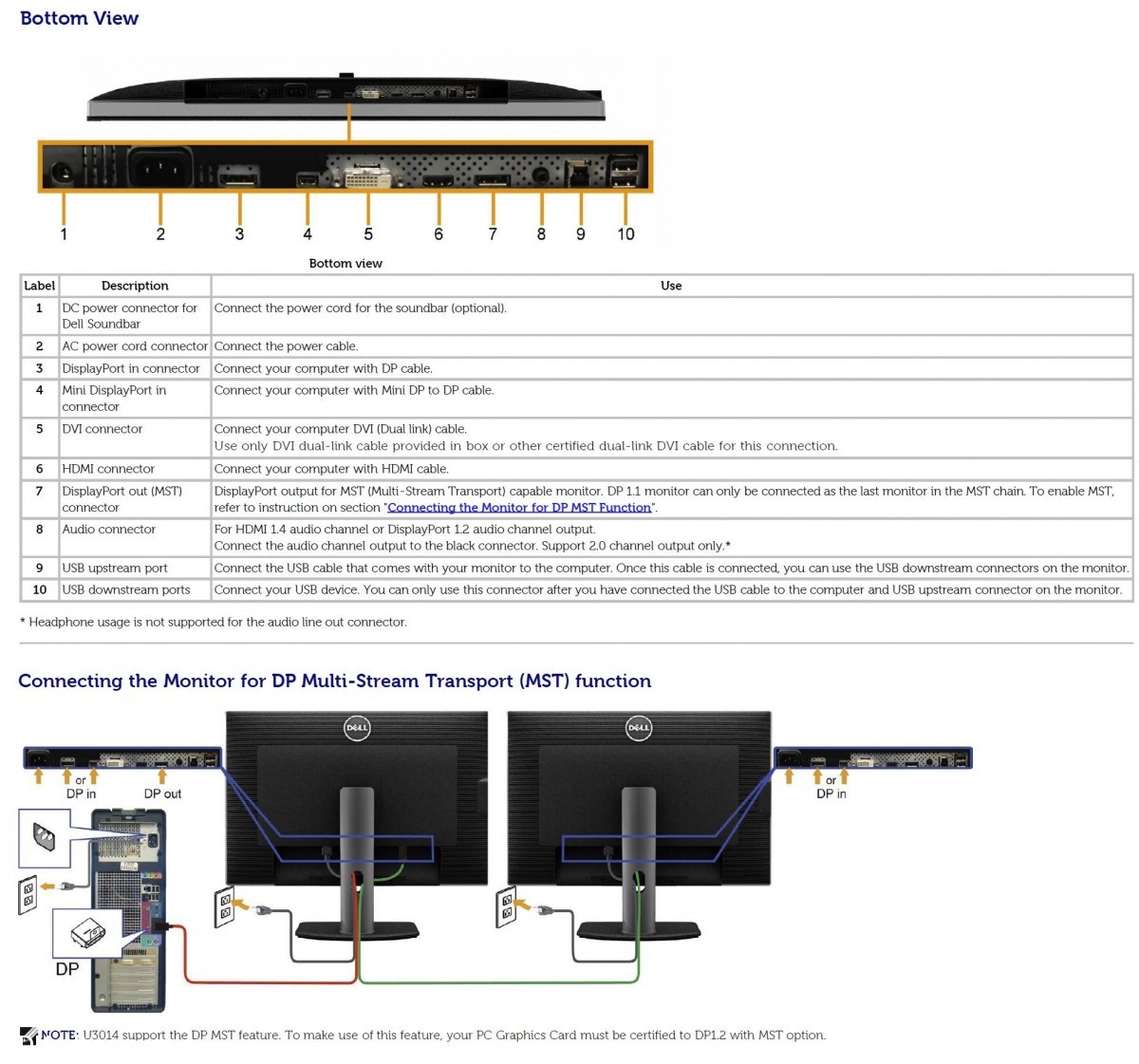
DisplayPort Daisy-Chaining Setup Diagram
It depends on your resolution and DisplayPort version. With DisplayPort 1.2, you can typically chain two 1080p or two 1440p monitors, or one 4K monitor. DisplayPort 1.4 increases bandwidth, allowing more displays or higher resolutions. Thunderbolt 4 typically supports two 4K displays in a chain. Your graphics card’s capabilities also matter, so check your GPU specs.
No. HDMI does not support Multi-Stream Transport (MST). Daisy chaining requires DisplayPort (1.2 or newer), USB-C with DisplayPort Alt Mode and MST, or Thunderbolt 3/4. If your computer only has HDMI outputs, you’ll need to use a separate cable for each monitor or use a splitter (which mirrors rather than extends your display).
No, there is no performance penalty in terms of image quality or refresh rate, as long as your GPU has enough bandwidth. The monitors in a daisy chain receive their own independent video streams. However, total bandwidth is shared across the chain, so running three 4K displays at high refresh rates may exceed your connection’s limits. For typical office/productivity use (60Hz), this is rarely an issue.
Not with DisplayPort MST. macOS does not support MST, so DP-connected monitors will mirror instead of extending your desktop. However, you CAN use Thunderbolt daisy chaining on Macs that support multiple external displays. Use monitors with Thunderbolt 3 or Thunderbolt 4 connections (marked “TB3” or “TB4” in the table above). Check Apple’s support page for your specific Mac model’s display limits.
SST (Single-Stream Transport) sends one video stream per cable, like a standard HDMI or DisplayPort connection. MST (Multi-Stream Transport) sends multiple independent video streams over a single cable, which is what makes daisy chaining possible. MST is a DisplayPort feature introduced in DisplayPort 1.2. You need to enable MST mode in your monitor’s OSD settings for daisy chaining to work.
You need standard DisplayPort cables (DP to DP or mini-DP to DP), USB-C cables with DisplayPort Alt Mode support, or Thunderbolt cables, depending on your monitors’ connection types. No special “daisy chain” cables exist. Just make sure your DisplayPort cables are rated for the version your monitors support (1.2 or 1.4). For USB-C/Thunderbolt, use cables that support data + video + power delivery.
These monitors were on previous versions of this list but are no longer readily available for purchase. They may still be found used or refurbished. If you already own one, they still work for daisy chaining.
Top Search Terms:
此内容由惯性聚合(RSS阅读器)自动聚合整理,仅供阅读参考。 原文来自 — 版权归原作者所有。