







2014-01-14 18:24 Clingingboy 阅读(582) 评论() 收藏 举报
FQ不易,转载
http://randomascii.wordpress.com/2011/08/23/xperf-analysis-basics/
I started writing a description of how to examine CPU Sampling data in xperf and realized that I needed a basics article to link back to. Here it is. Learn this before you go further.
Without symbols you can’t do much, so configuring your symbol path is important. I use a variation on this batch file prior to running xperfview. Configure the “localbuilds” and “OurSymbolServer” directories appropriately, but leave the Microsoft symbol server as is.
@rem Add local build directories
set SYMS=c:\build\localbuilds
@rem Put symbol servers at the end to avoid network trips looking for local symbols.
set SYMS=%SYMS%;SRV*c:\symbols*\\OurSymbolServer\symbols
@rem Microsoft’s symbol server.
set SYMS=%SYMS%;SRV*c:\symbols*http://msdl.microsoft.com/download/symbols
set _NT_SYMBOL_PATH=%SYMS%
If this dialog keeps popping up when you load symbols in xperfview:

then it means you’ve hit a UAC (User Account Control – admin/non-admin) bug. Follow the link to solve it.
You can also configure symbols by going to Trace->Configure Symbol Paths.
You load symbols by going to Trace->Load Symbols, or right clicking and selecting Load Symbols.
It’s worth mentioning that symbols are compressed and cached to c:\symcache. This is an efficient symbol cache that is used exclusively by xperfview. Set the _NT_SYMCACHE_PATH variable if you want to configure the location. I just leave it at its default.
Navigating the main window in xperfview is mostly a matter of zooming in and out. The obvious ways of doing this are in the right-click context menu. This menu lets you zoom in to the current selection, or zoom all the way out (Unzoom). I find this set of options frustrating. I like to zoom in and out a little bit. Zoom to selection is okay, I guess, but to have the only zoom-out option be “all the way out” is a bit silly.
The solution is to make sure you have a mouse with a mouse wheel. Hold down the control key and roll the wheel. That’s the way real programmers do it. I can’t use xperfview without a mouse wheel.
Xperfview defaults to having a particular set of graphs visible. The choice of graphs is biased towards people who are working on optimizing Windows itself, and is not as good a choice for those of us who are not actively working on the Windows scheduler. With that in mind, I recommend that you click on the flyout on the left side of the xperfview window and enable and disable graphs until it matches the correct set of graphs, conveniently shown here:
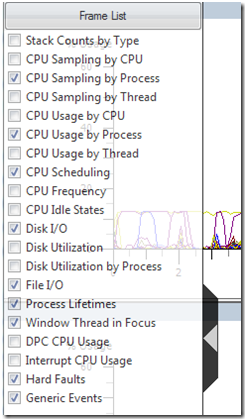
If you want CPU sampling by CPU, then go for it, but I think you’ll find it is usually not worth it.
In addition, you can change the order of graphs in order to get all of your favorites together. Just drag them around in this list to reorder them, and then double-click on the one you want to see.
Xperfview will remember the enabled/disabled state. That is good.
Xperfview will not remember the order of the graphs. You can’t win them all.
Selecting a region of interest in a trace is important because that lets you select which part of the trace you will invoke a summary table for. The diamonds on the CPU Scheduling graph and some other graphs are useful because they mark key points and because when selecting you can snap to them.
Once you’ve got a selection you can replicate it to other graphs by right clicking and selecting Clone Selection. This is often very useful.
That’s enough for now. I’ll add more basics later if they seem worth it.
此内容由惯性聚合(RSS阅读器)自动聚合整理,仅供阅读参考。 原文来自 — 版权归原作者所有。