










Typed DataSets in .NET
By February 03, 2004
As all of we know, we can specify the data type when we create a DataColumn for a DataTable. This is to enforce the runtime type-safety for the column so that only
Introduction
As all of we know, we can specify the Data type when we create a DataColumn for a DataTable. This is to enforce the runtime Type-safety for the column so that only data of specified data type can be stored in the column. In the same way, in most of the cases we prefer to make a DataSet itself as Type-safe so as to protect it from runtime mismatch. Hence Typed DataSets generate classes that expose each object the in the DataSet in Type-safe manner. These classes inherits directly from DataSet class.
Let us look into a small example which explain the Typed DataSet,
1. Using DataSet:
//Create DataAdapter
SqlDataAdapter daEmp = new SqlDataAdapter("SELECT empno,empname,empaddress FROM EMPLOYEE",conn);
//Create a DataSet Object
DataSet dsEmp = new DataSet();
//Fill the DataSet
daEmp.Fill(dsEmp,"EMPLOYEE");
//Let us print first row and first column of the table
Console.Write(dsEmp.Tables["EMPLOYEE"].Rows[0][0].ToString());
//Assign a value to the first column
dsEmp.Tables["EMPLOYEE"].Rows[0][0] = "12345";//This will generate runtime error as empno column is integer
If we observe above code we will get a runtime error when this code gets executed as the value assigned to the column (empno) does not take string value. Also any misspell of the column will generate a runtime error. And also we need to go thro the hierarchy to get the final value.
2. Using Typed DataSet:
//Create DataAdapter
SqlDataAdapter daEmp = new SqlDataAdapter("SELECT empno,empname,empaddress FROM EMPLOYEE",conn);
//Create a DataSet Object
EmployeeDS dsEmp = new EmployeeDS ();
//Fill the DataSet
daEmp.Fill(dsEmp,"EMPLOYEE");
//Let us print first row and first column of the table
Console.Write(dsEmp.EMPLOYEE[0].empno.ToString());
//Assign a value to the first column
dsEmp.EMPLOYEE[0].empno = "12345";//This will generate compile time error.
If we see above code, a typed dataset is very much similar to a normal dataset. But the only difference is that the sehema is already present for the same. Hence any mismatch in the column will generate compile time errors rather than runtime error as in the case of normal dataset. Also accessing the column value is much easier than the normal dataset as the column definition will be available in the schema.
How to Generate Typed DataSet?
A Typed DataSet can be generated in two ways,
Creating a Typed DataSet using Visual Studio .NET IDE
Let me explain a step by step procedure to create a Typed DataSet,
1. Open VS .Net IDE and Click on File -> New -> Project and Select Console Application.
2. Enter name for the project. Say TypedDataSetTest.
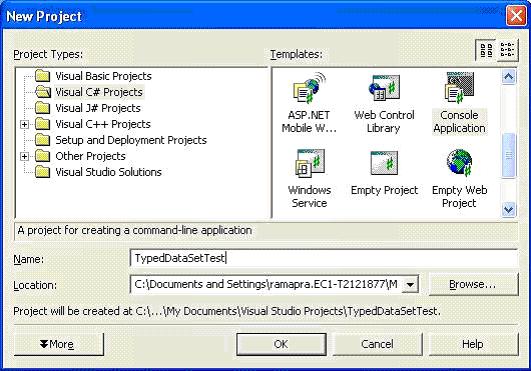
3. Right click on the solution and click on Add-> Add New Item will show a dialog box.
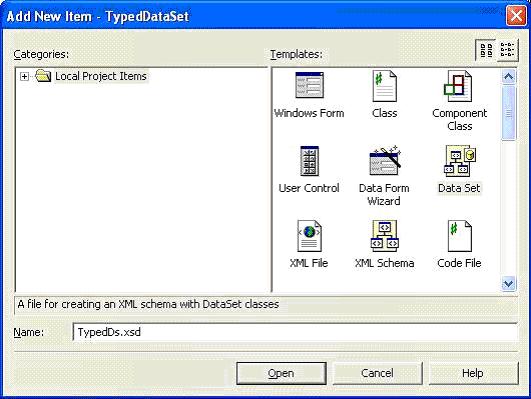
Select DataSet from templates pane, give the name (Say TypedDs.xsd) and click on Open. This will add file by name TypedDs.xsd to the solution.
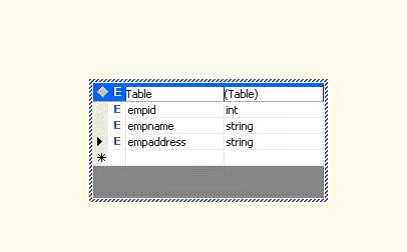
4. Click on the Server Explorer browse to the database and drop the table on the TypedDs.xsd file.
If we check the xml file for the same then we can see the schema for the table.
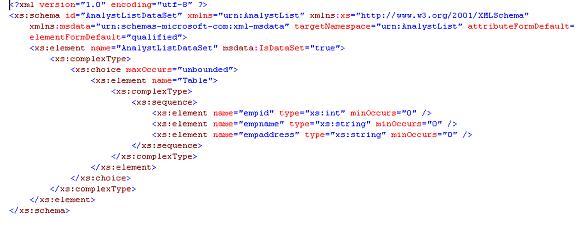
This dataset can be used in the same manner as the normal dataset to get the data.
此内容由惯性聚合(RSS阅读器)自动聚合整理,仅供阅读参考。 原文来自 — 版权归原作者所有。