



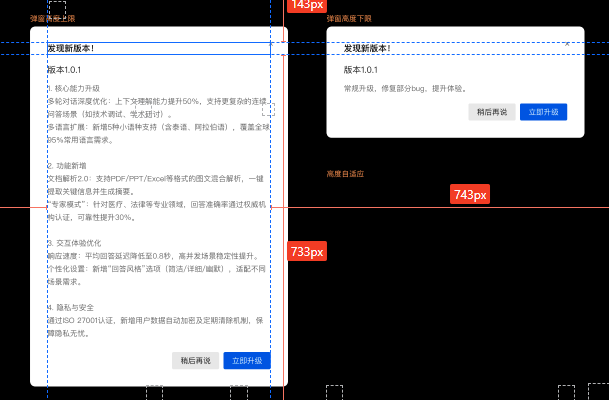
1、需求:有个应用在做升级的时候,显示版本信息时候,宽度的一样的情况下,需要动态高度,即是有一个最小的高度,最大的高度,超出最大高度则显示滑动条显示。
如下图所示:
2、明确需求后,开始动工:
2.1、创建一个Border,设置 MaxHeight="503" MinHeight="207"
<Window x:Class="autoHeightControl.MainWindow" xmlns="http://schemas.microsoft.com/winfx/2006/xaml/presentation" xmlns:x="http://schemas.microsoft.com/winfx/2006/xaml" xmlns:d="http://schemas.microsoft.com/expression/blend/2008" xmlns:mc="http://schemas.openxmlformats.org/markup-compatibility/2006" xmlns:local="clr-namespace:autoHeightControl" mc:Ignorable="d" Title="MainWindow" Height="450" Width="800"> <Grid> <Border Width="360" MaxHeight="503" MinHeight="207" Padding="30,10,30,20" Background="Gray" CornerRadius="10" x:Name="MainBorder" > <Grid> <Grid.RowDefinitions> <RowDefinition Height="Auto" /> <RowDefinition Height="Auto" /> <RowDefinition Height="*"/> <RowDefinition Height="Auto" /> </Grid.RowDefinitions> <TextBlock x:Name="ThemeTextBlock" Grid.Row="0" Margin="0,20,0,0" HorizontalAlignment="Left" FontSize="20" FontWeight="Bold" Text="发现新版本!" /> <!--新版本信息--> <Grid Grid.Row="1"> <TextBlock Text="新版本信息" TextWrapping="WrapWithOverflow" Margin="0 16 0 8" FontSize="16" FontWeight="SemiBold"></TextBlock> </Grid> <!--内容显示--> <Grid Grid.Row="2"> <ScrollViewer x:Name="Viewer" Margin="0,10" CanContentScroll="False" HorizontalScrollBarVisibility="Disabled" VerticalScrollBarVisibility="Auto" PanningMode="VerticalOnly"> <TextBlock x:Name="textContentBlock" TextWrapping="Wrap" Margin="0,0,10,10" FontSize="14" Text="发哈尽快老师的发发哈扣篮大赛好发的发哈尽" /> </ScrollViewer> </Grid><!--按钮区域--> <Grid Grid.Row="3"> <StackPanel Margin="0,10,0,0" HorizontalAlignment="Right" VerticalAlignment="Center" Orientation="Horizontal"> <Button HorizontalAlignment="Left" Background="#E7E7E7" Content="稍后再说" Foreground="#000000" /> <Button Margin="10,0" HorizontalAlignment="Right" Background="#0052D9" Content="立即升级" Foreground="#ffffff"/> </StackPanel> </Grid> </Grid> </Border> </Grid> </Window>
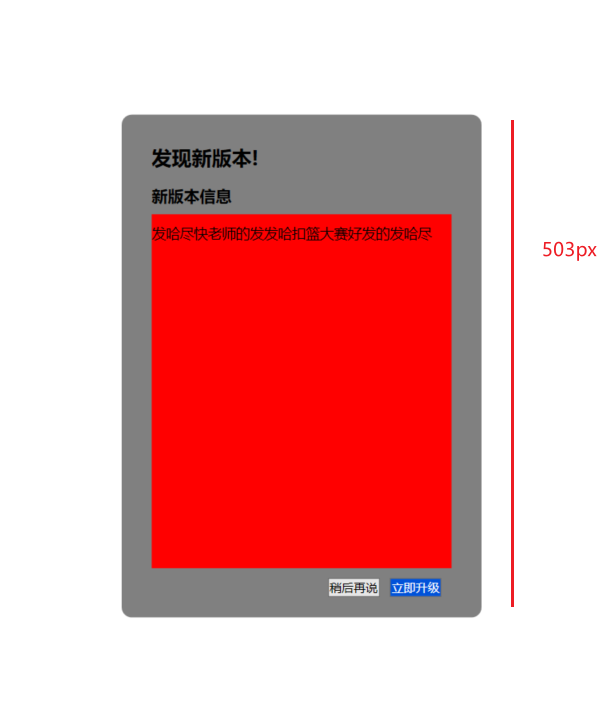
发现整个控件的高度,不会随着 textContentBlock 的内容大小自动适应高度,而是以最大的高度:503px 显示,如下图所示:
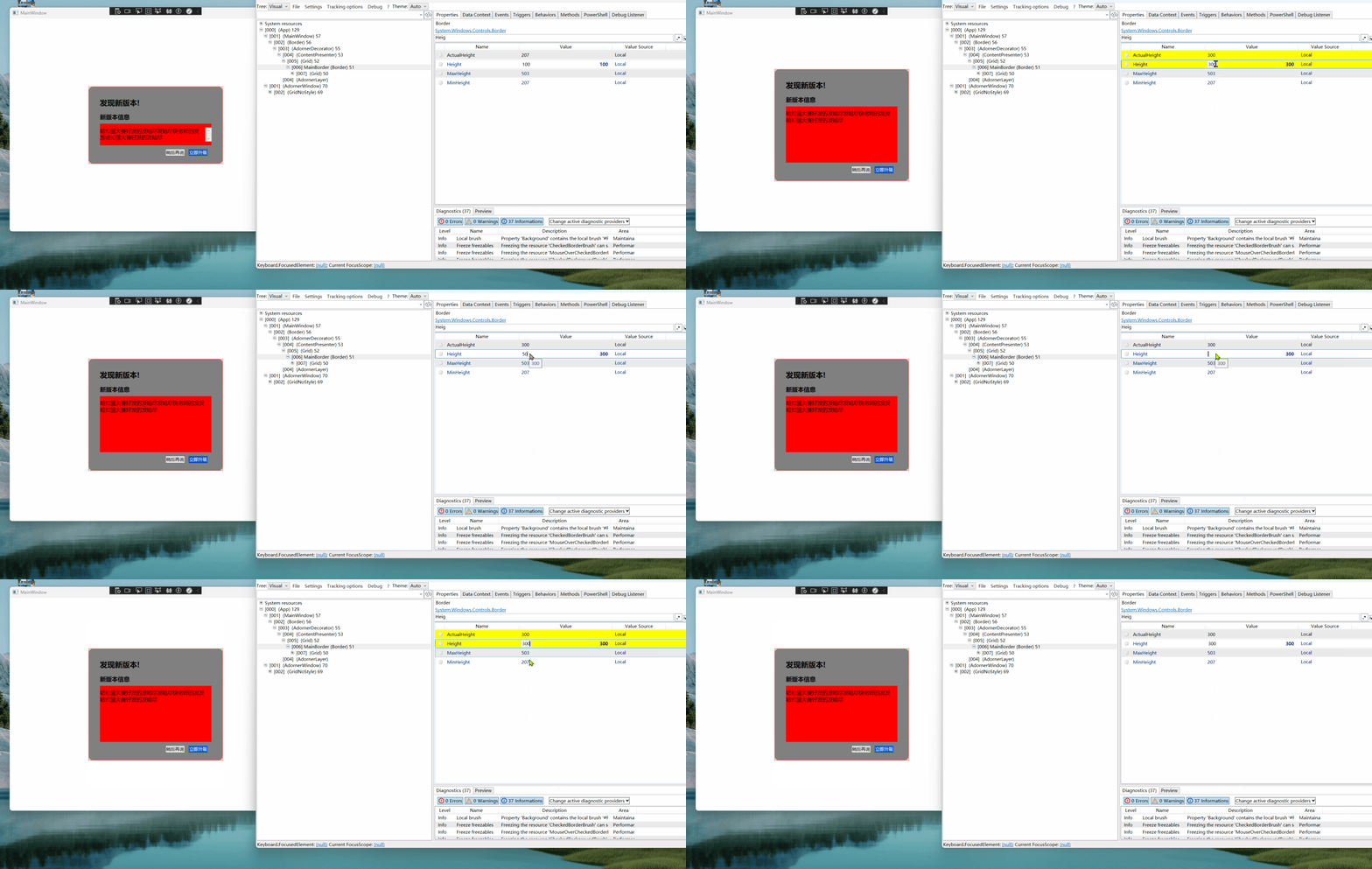
2.2、使用Snoop 监控MainBorder ,发现只有手动设置 最外层的 MainBorder 的 Height 属性才能修改整个控件的高度,而在超出MaxHeight ,则按MaxHeight 显示,小于MinHeight 则按 MinHeight显示
2.3、这样思路就转移到如何动态设置 MainBorder 的高度了。
由于 textContentBlock 外层套了一层 ScrollViewer,我们可以使用 ScrollViewer的 ExtentHeight 动态获取文本的高度
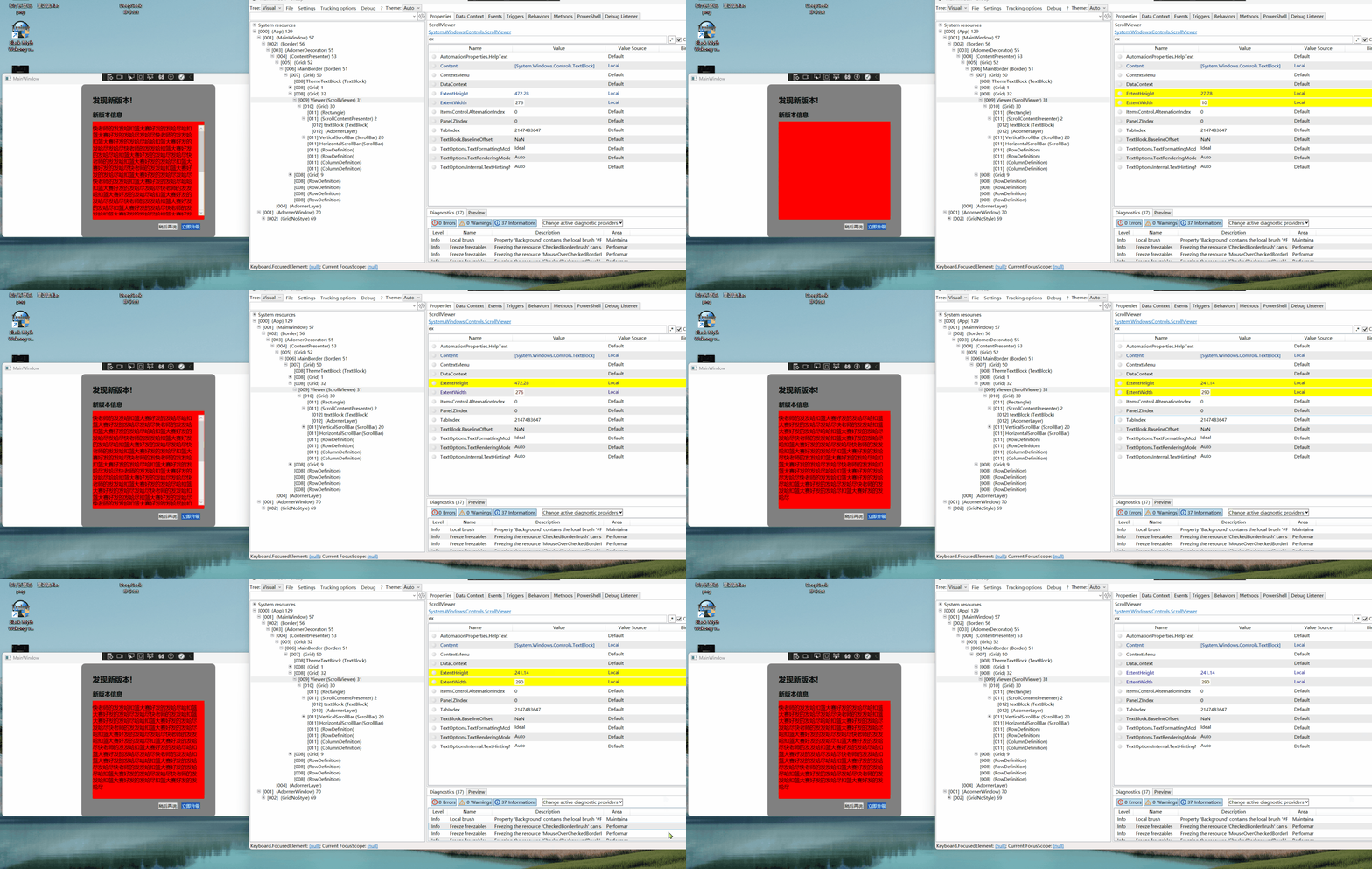
于是我们可以把 MainBorder 的高度 Height 与 ScrollViewer 的 ExtentHeight 关联起来
3、解决方法
3.1、新增一个 高度转换器
 public class HeightToHeightConverter : IValueConverter
 {
     public object Convert(object value, Type targetType, object parameter, CultureInfo culture)
     {
         return (double)value + 207;
     }

     public object ConvertBack(object value, Type targetType, object parameter, CultureInfo culture)
     {
         throw new NotImplementedException();
     }
 }
3.2、Mainborder 的高度增加与ScrollViewer 的 ExtentHeight 的绑定
<Window x:Class="autoHeightControl.MainWindow"
        xmlns="http://schemas.microsoft.com/winfx/2006/xaml/presentation"
        xmlns:x="http://schemas.microsoft.com/winfx/2006/xaml"
        xmlns:d="http://schemas.microsoft.com/expression/blend/2008"
        xmlns:mc="http://schemas.openxmlformats.org/markup-compatibility/2006"
        xmlns:local="clr-namespace:autoHeightControl"
        mc:Ignorable="d"
        Title="MainWindow" Height="450" Width="800">

   <Window.Resources>
        <local:HeightToHeightConverter x:Key="HeightToHeightConverter"></local:HeightToHeightConverter>
    </Window.Resources>


    <Grid>
        <Border
                 Width="360"
                 MaxHeight="503"
                 MinHeight="207"
                 Height="{Binding ElementName=Viewer,Path=ExtentHeight,Converter={StaticResource HeightToHeightConverter}}"
                    Padding="30,10,30,20"
                  Background="Gray"
                  CornerRadius="10"
                 x:Name="MainBorder"
                 >

            <Grid>
                <Grid.RowDefinitions>
                    <RowDefinition Height="Auto" />
                    <RowDefinition Height="Auto" />
                    <RowDefinition Height="*"/>
                    <RowDefinition Height="Auto" />
                </Grid.RowDefinitions>
                <TextBlock
                          x:Name="ThemeTextBlock"
                          Grid.Row="0"
                          Margin="0,20,0,0"
                          HorizontalAlignment="Left"
                          FontSize="20"
                          FontWeight="Bold"
                          Text="发现新版本!" />
                <!--新版本信息-->
                <Grid Grid.Row="1">
                    <TextBlock  Text="新版本信息" TextWrapping="WrapWithOverflow" Margin="0 16 0 8"   FontSize="16"
                FontWeight="SemiBold"></TextBlock>
                </Grid>

                <!--内容显示-->
                <Grid Grid.Row="2" Background="Red">


                    <ScrollViewer x:Name="Viewer"
                                  Margin="0,10"
                                  CanContentScroll="False"
                                  HorizontalScrollBarVisibility="Disabled"
                                  VerticalScrollBarVisibility="Auto"
                                  PanningMode="VerticalOnly">
                        <TextBlock x:Name="textBlock"  TextWrapping="Wrap" Margin="0,0,10,10" FontSize="14"
                                   Text="快老师的发发哈扣篮大赛好发的发哈尽哈扣篮大赛好发的发哈尽发哈尽快老师的发发哈扣篮大赛好发的发哈尽哈哈扣篮大赛好发的发哈尽发哈尽快老师的发发哈扣篮大赛好发的发哈尽哈扣篮大赛好发的发哈尽发哈尽快老师的发发哈扣篮大赛好发的发哈尽扣篮大赛好发的发哈尽快老师的发发哈扣篮大赛好发的发哈尽哈扣篮大赛好发的发哈尽发哈尽快老师的发发哈扣篮大赛好发的发哈尽哈哈扣篮大赛好发的发哈尽发哈尽快老师的发发哈扣篮大赛好发的发哈尽哈扣篮大赛好发的发哈尽发哈尽快老师的发发哈扣篮大赛好发的发哈尽扣篮大赛好发的发哈尽" />

                    </ScrollViewer>
                </Grid>

                <!--按钮区域-->

                <Grid Grid.Row="3">
                    <StackPanel
         Margin="0,10,0,0"
         HorizontalAlignment="Right"
         VerticalAlignment="Center"
         Orientation="Horizontal">
                        <Button
                                 HorizontalAlignment="Left"
             Background="#E7E7E7"
             Content="稍后再说"
             Foreground="#000000"
                         />

                        <Button
             Margin="10,0"
             HorizontalAlignment="Right"
             Background="#0052D9"
             Content="立即升级"
             Foreground="#ffffff"/>
                    </StackPanel>
                </Grid>
            </Grid>
        </Border>
    </Grid>
</Window>
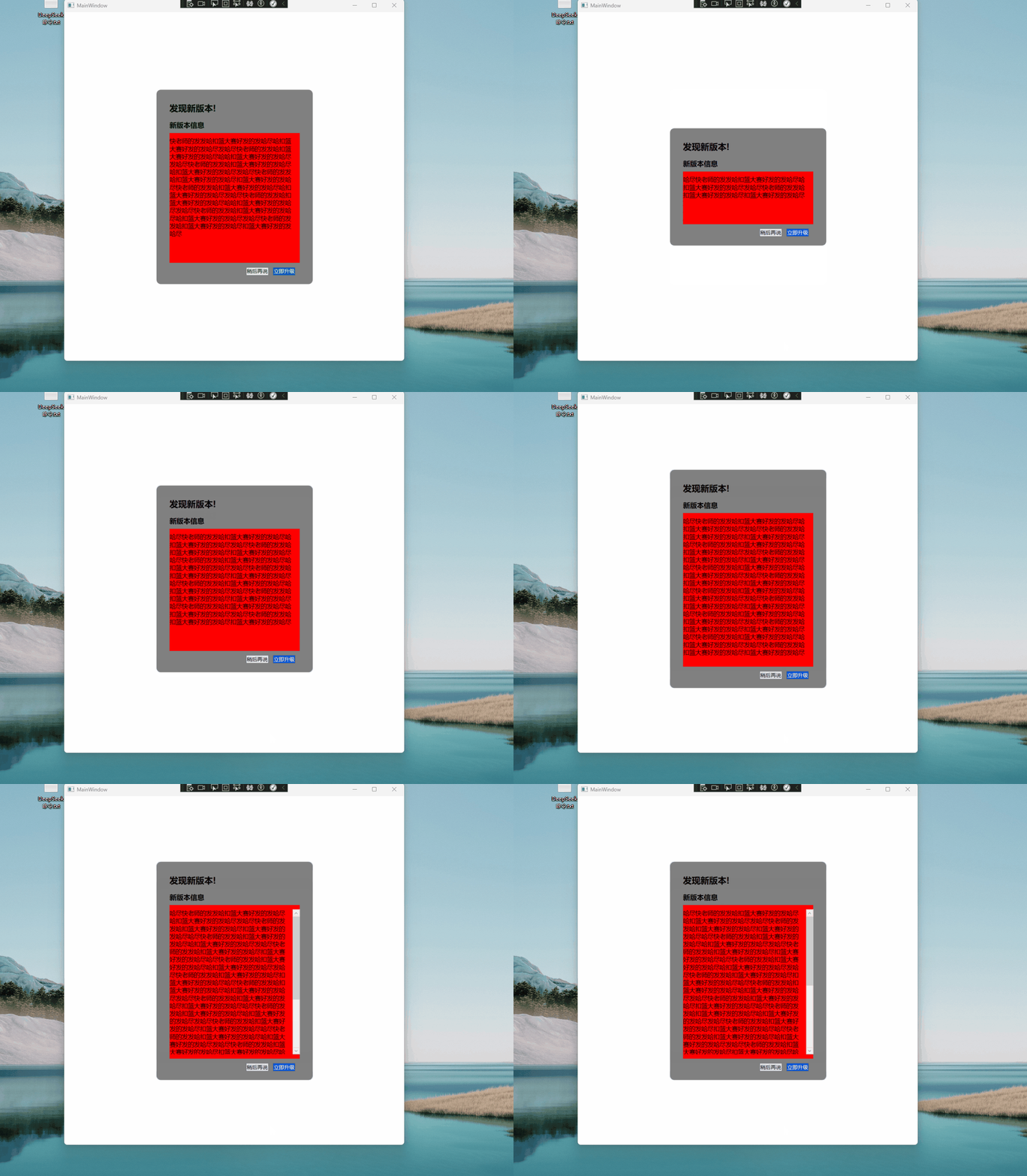
3.3、效果如下图:
代码地址:wutyDemo/autoHeightControl at main · wutangyuan/wutyDemo
参考资料:
ScrollViewer.ExtentHeight 属性 (System.Windows.Controls) | Microsoft Learn
此内容由惯性聚合(RSS阅读器)自动聚合整理,仅供阅读参考。 原文来自 — 版权归原作者所有。