








WPF的底层是使用Microsoft DirectX进行渲染的,WPF会判断软硬件环境来决定使用软件渲染管道还是硬件渲染管道。
这里涉及一个概念叫呈现层
我们可以通过下面这种方式来查看呈现层
1 RenderCapability.Tier >> 16
| 返回值 | 呈现层 | 说明 |
|---|---|---|
| 0x00000000 | 0 | 设备上没有可用于应用程序的图形硬件加速。 所有图形功能都使用软件加速。 DirectX 版本级别低于版本 9.0。 |
| 0x00010000 | 1 | 如果必要的系统资源可用且尚未耗尽,WPF 的大部分图形功能将使用硬件加速。 这对应于大于或等于 9.0 的 DirectX 版本。 |
| 0x00020000 | 2 | WPF 的大部分图形功能将使用硬件加速,前提是必要的系统资源尚未耗尽。 这对应于大于或等于 9.0 的 DirectX 版本。 |
呈现层 1 和呈现层 2 的图形硬件需求差异:
| Feature | 第 1 层 | 第 2 层 |
|---|---|---|
| DirectX 版本 | 必须高于或等于 9.0。 | 必须高于或等于 9.0。 |
| 视频 RAM | 必须大于或等于 60 MB。 | 必须大于或等于 120 MB。 |
| 像素着色器 | 版本级别必须高于或等于 2.0。 | 版本级别必须高于或等于 2.0。 |
| 顶点着色器 | 没有要求。 | 版本级别必须高于或等于 2.0。 |
| 多纹理单元 | 没有要求。 | 单元数必须大于或等于 4。 |
就现阶段硬件而言,大部分WPF应用是使用呈现层2进行渲染。但是也不排除会有一些老硬件仍在运行WPF应用程序。
这里我们可以做一些判断,针对老机器做一些适配以提高性能
假设我们有一个ListBox,里面显示一些文本和图片。
当呈现层是0或者1的时候,只显示文本。呈现层是2的时候,显示文本和图片
1、首先定义数据模型
1 public class Model
2 {
3     public string Content { get; set; }
4
5     public string Image { get; set; }
6 }
2、定义不同呈现层的数据模板
 1 <Window.Resources>
 2     <DataTemplate x:Key="SimpleTemplate">
 3         <TextBlock Text="{Binding Content}"></TextBlock>
 4     </DataTemplate>
 5
 6     <DataTemplate x:Key="FullTemplate">
 7         <Grid Height="300">
 8             <Grid.RowDefinitions>
 9                 <RowDefinition/>
10                 <RowDefinition Height="30"/>
11             </Grid.RowDefinitions>
12
13             <Image Source="{Binding Image}"></Image>
14             <TextBlock Text="{Binding Content}" HorizontalAlignment="Center" Grid.Row="1"></TextBlock>
15         </Grid>
16     </DataTemplate>
17 </Window.Resources>
3、在界面上增加一个ListBox控件
1  <Grid>
2      <ListBox Name="list"></ListBox>
3  </Grid>
4、使用模板选择器根据呈现层动态切换数据模板
 1  public class MyDataTemplateSelector : DataTemplateSelector
 2  {
 3      public override DataTemplate
 4          SelectTemplate(object item, DependencyObject container)
 5      {
 6          switch (MainWindow.RenderTier)
 7          {
 8              case 0:
 9              case 1:
10                  return Application.Current.MainWindow.FindResource("FullTemplate") as DataTemplate;
11              case 2:
12                  return Application.Current.MainWindow.FindResource("SimpleTemplate") as DataTemplate;
13          }
14
15          return null;
16      }
17  }
这里用到了模板选择器功能,可以参考前面的文章
https://www.cnblogs.com/zhaotianff/p/18380995
5、增加一些测试数据并绑定到列表上就可以看到效果
 1  public MainWindow()
 2  {
 3      InitializeComponent();
 4
 5
 6      models.Add(new Model() {Content = "image 1",Image = "1.jpg" });
 7      models.Add(new Model() { Content = "image 2", Image = "2.jpg" });
 8      models.Add(new Model() { Content = "image 3", Image = "3.jpg" });
 9
10      this.list.ItemsSource = models;
11      this.list.ItemTemplateSelector = new MyDataTemplateSelector();
12  }
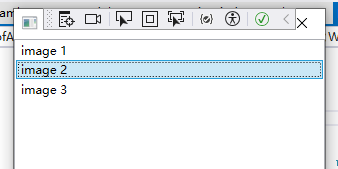
呈现层0/1运行效果
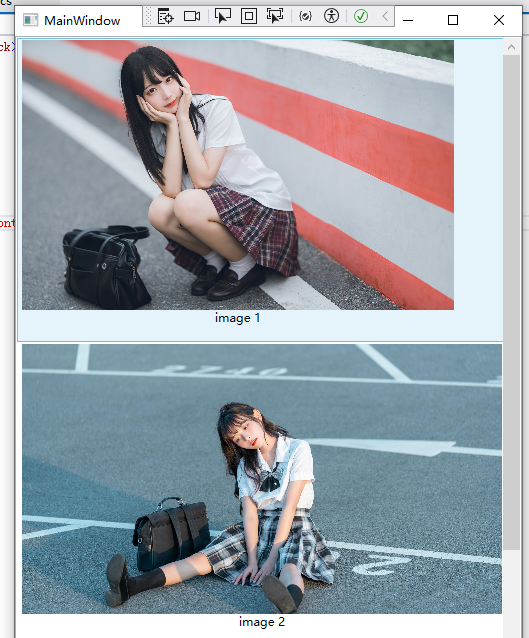
呈现层2运行效果
1、尽量使用StaticResource来查找资源而不是DynamicResource
我们可以通过一个示例来看一下
首先我们定义一个资源在App.xaml中
 1 <Application x:Class="WpfApp24.App"
 2              xmlns="http://schemas.microsoft.com/winfx/2006/xaml/presentation"
 3              xmlns:x="http://schemas.microsoft.com/winfx/2006/xaml"
 4              xmlns:local="clr-namespace:WpfApp24"
 5              xmlns:sys="clr-namespace:System;assembly=mscorlib"
 6              StartupUri="MainWindow.xaml">
 7     <Application.Resources>
 8         <ResourceDictionary>
 9             <sys:String x:Key="Res">HelloWorld</sys:String>
10         </ResourceDictionary>
11     </Application.Resources>
12 </Application>
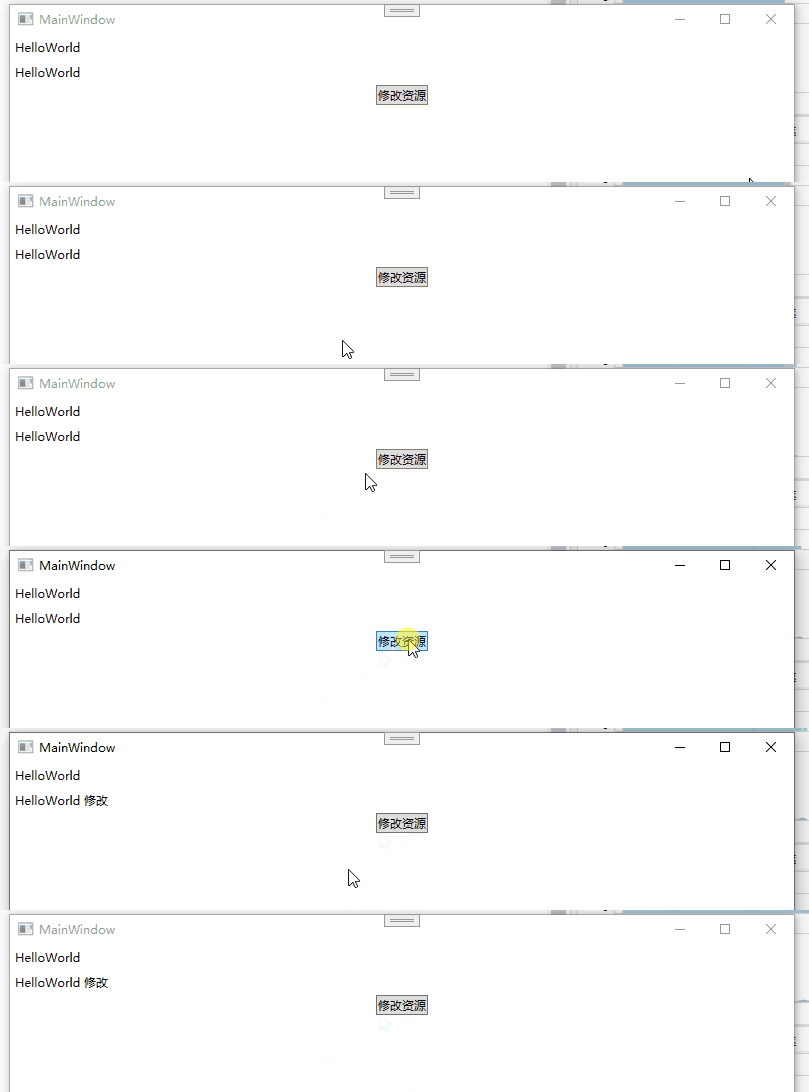
然后在界面上放置两个Label,并且绑定到这个资源。再放置一个按钮,用于修改资源
1  <StackPanel>
2      <Label Content="{StaticResource Res}"></Label>
3      <Label Content="{DynamicResource Res}"></Label>
4      <Button Content="修改资源" HorizontalAlignment="Center" VerticalAlignment="Center" Click="Button_Click"></Button>
5  </StackPanel>
当我们点击按钮时,修改资源
1  private void Button_Click(object sender, RoutedEventArgs e)
2  {
3      Application.Current.Resources["Res"] = "HelloWorld 修改";
4  }
运行效果
2、尽量不要定义内联资源
尽可能的重用资源,也就是将资源定义到资源字典中,并放到App.xaml中。
一般来说,我们已经习惯这样去做了。不要为了图方便,定义内联资源,这样不仅增加了维护的难度,也会降低程序性能。
此内容由惯性聚合(RSS阅读器)自动聚合整理,仅供阅读参考。 原文来自 — 版权归原作者所有。