








March 17, 2026
FreeBSD runs on this…

FreeBSD runs on this…
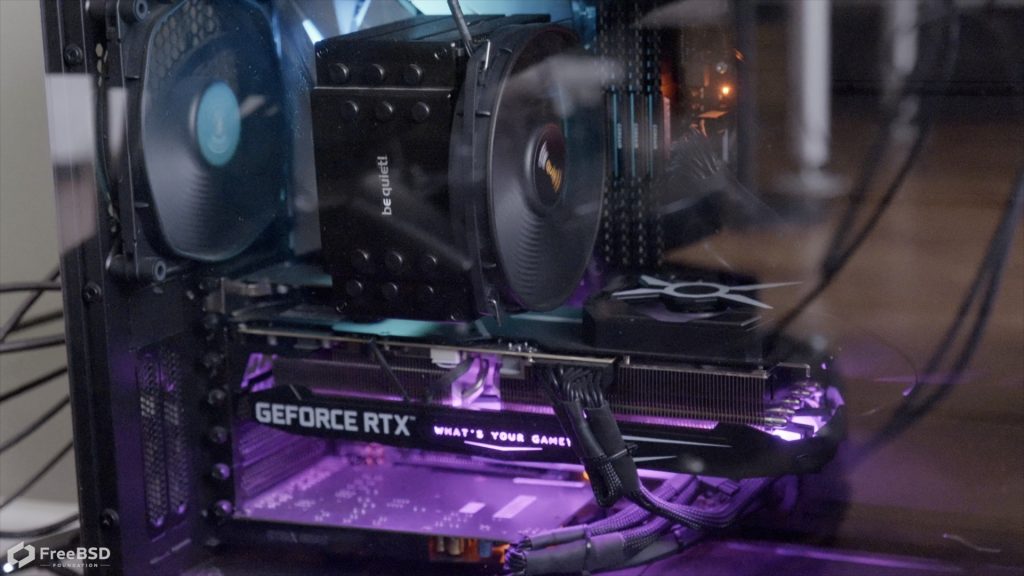
and FreeBSD runs on this…!
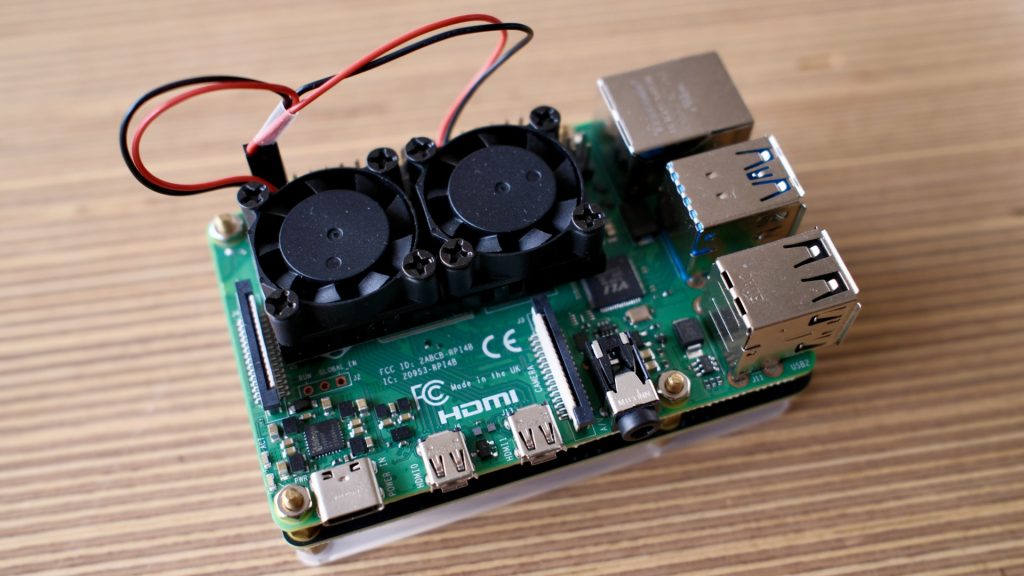
It’s easy to get FreeBSD running on a Raspberry Pi. It’s easy to manage multiple hard drives with ZFS. So we were wondering if it’s possible to make a simple NAS out of a Pi…
I’m using the latest 15.0 Release here — the project automatically generates images for the Pi, which makes life much easier. Download the FreeBSD-15.0-RELEASE-arm64-aarch64-RPI.img.xz image from here and transfer it to a micro SD card for the Pi. If you’re already au fait with putting images onto physical media, I’ll not say another word. If you’re new to it though, the ‘dd‘ command on any Unix-a-like operating system is your friend, or a GUI tool like Balena Etcher will also suffice.
Before we boot the Pi, there are a few things we need to be aware of. We all know FreeBSD as a rock solid server operating system, although over the last year or so there has been a lot of work going on to bring that stability to laptops and desktops. WiFi support is getting better, but as it’s not historically the connectivity of choice for servers, the Pi’s WiFi is currently not supported. That’s all to say, you’re going to want to connect your Pi to ethernet.
Secondly, monitoring the Pi’s boot before we have network connectivity is helpful — so plug a monitor in to the Pi’s HDMI port. The Pi I have here (a 4b) didn’t want to display anything initially, and I found (from this helpful Wiki page) that I had to edit config.txt on the boot SD card. Before we do that, one final caveat — FreeBSD doesn’t support the latest Pi 5 very well. For now it’s better to stick with the Pi4.
The EFI partition is MS-DOS format; mount it (if your OS hasn’t mounted it automatically) and change the [pi] section in config.txt to look like this:
[pi4]
hdmi_safe=0
armstub=armstub8-gic.bin
max_framebuffers=2
hdmi_force_hotplug=1
hdmi_group=1
hdmi_drive=2
hdmi_mode=16
Provided you’ve connected the ethernet to your network, and you have DHCP, it will get an IP address automatically when it boots.
By default the image has a ‘freebsd’ account, with a password of ‘freebsd’, and a root account with a password of … you get the idea. You can only ssh in with the freebsd account though, and su to root.
Let’s build a NAS
I was curious to know if I could make use of a couple of old hard drives I had sitting around, and if I could turn the Pi into a NAS by sharing files over the network.
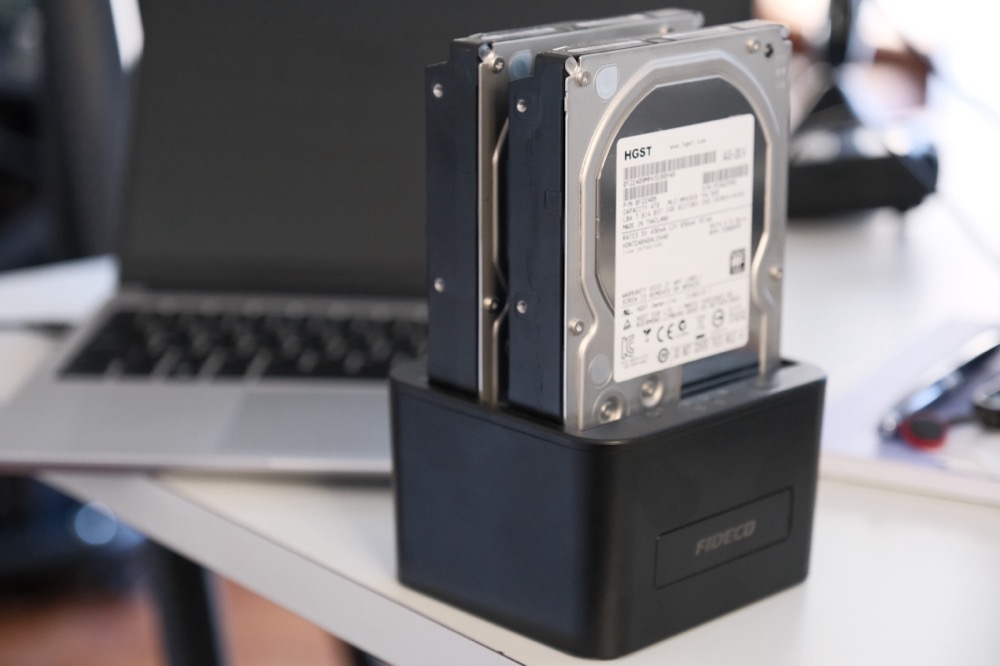
Not a recommendation for production
Plugging the USB caddy in and tailing /var/log/messages:
Mar  6 17:04:25 generic kernel: ugen0.4: <ASMedia ASM1156> at usbus0
Mar  6 17:04:25 generic kernel: umass0 on uhub0
Mar  6 17:04:25 generic kernel: umass0: <ASMedia ASM1156, class 0/0, rev 3.20/1.00, addr 3> on usbus0
Mar  6 17:04:25 generic kernel: umass0:  SCSI over Bulk-Only; quirks = 0x0
Mar  6 17:04:25 generic kernel: umass0:0:0: Attached to scbus0
Mar  6 17:04:25 generic kernel: da0 at umass-sim0 bus 0 scbus0 target 0 lun 0
Mar  6 17:04:25 generic kernel: da0: <ASMedia ASM1156 0> Fixed Direct Access SPC-4 SCSI device
Mar  6 17:04:25 generic kernel: da0: Serial Number AAAABBBB0490
Mar  6 17:04:25 generic kernel: da0: 400.000MB/s transfers
Mar  6 17:04:25 generic kernel: da0: 3815447MB (7814037168 512 byte sectors)
Mar  6 17:04:25 generic kernel: da0: quirks=0x2<NO_6_BYTE>
Mar  6 17:04:25 generic kernel: da1 at umass-sim0 bus 0 scbus0 target 0 lun 1
Mar  6 17:04:25 generic kernel: da1: <ASMedia ASM1156 0> Fixed Direct Access SPC-4 SCSI device
Mar  6 17:04:25 generic kernel: da1: Serial Number AAAABBBB0490
Mar  6 17:04:25 generic kernel: da1: 400.000MB/s transfers
Mar  6 17:04:25 generic kernel: da1: 3815447MB (7814037168 512 byte sectors)
Mar  6 17:04:25 generic kernel: da1: quirks=0x2<NO_6_BYTE>
Let’s create our storage pool with those two drives. I think we’ll mirror them:
root@generic:~ # zpool create -f store mirror da0 da1
root@generic:~ # zfs list
NAME    USED  AVAIL  REFER  MOUNTPOINT
store   384K  3.51T    96K  /store
Yes, it’s that easy!
We’ll want that zpool to come back on reboot, so let’s ensure zfs loads:
root@generic:~ # service zfs enable
zfs enabled in /etc/rc.conf
If we want our storage to be Network Attached, the obvious solution is Samba. Network shares over SMB will be available to all manner of operating systems, including Windows and macOS.
Because this is a fresh installation, the pkg command itself isn’t yet installed. But helpfully, it can bootstrap itself:
root@generic:~ # pkg update
The package management tool is not yet installed on your system.
Do you want to fetch and install it now? [y/N]: y
Bootstrapping pkg from pkg+https://pkg.FreeBSD.org/FreeBSD:15:aarch64/quarterly, please wait...
Now we can install Samba. I’ve chosen the latest version available:
root@generic:~ # pkg install -y samba423
Updating FreeBSD-ports repository catalogue...
FreeBSD-ports repository is up to date.
Updating FreeBSD-ports-kmods repository catalogue...
FreeBSD-ports-kmods repository is up to date.
All repositories are up to date.
Updating database digests format: 100%
The following 82 package(s) will be affected (of 0 checked):

New packages to be INSTALLED:
[snip]
Give that a couple of minutes, depending on your network speed.
Once it’s installed, we’ll need to create Samba’s configuration file, /usr/local/etc/smb4.conf (I just followed the handbook):
[global]
workgroup = FOUNDATION
server string = Pi Samba Version %v
netbios name = RaspberryPi
wins support = Yes
security = user
passdb backend = tdbsam

[store]
path = /store
valid users = freebsd
writable  = yes
browsable = yes
read only = no
guest ok = no
public = no
create mask = 0666
directory mask = 0755
Run testparm to check the configuration is ok:
root@generic:~ # testparm
Load smb config files from /usr/local/etc/smb4.conf
Loaded services file OK.
Weak crypto is allowed by GnuTLS (e.g. NTLM as a compatibility fallback)

Server role: ROLE_STANDALONE

Press enter to see a dump of your service definitions

# Global parameters
[global]
        netbios name = RASPBERRYPI
        security = USER
        server string = Pi Samba Version %v
        wins support = Yes
        workgroup = FOUNDATION
        idmap config * : backend = tdb


[store]
        create mask = 0666
        path = /store
        read only = No
        valid users = freebsd
If you restrict the share to given user(s), you’ll need to create them for Samba with pdbedit:
root@generic:~ # pdbedit -a -u freebsd
new password:
retype new password:
Unix username:        freebsd
NT username:
Account Flags:        [U          ]
User SID:             S-1-5-21-2694234615-196936691-1629692636-1000
Primary Group SID:    S-1-5-21-2694234615-196936691-1629692636-513
Full Name:            FreeBSD User
Home Directory:       \\RASPBERRYPI\freebsd
To have the Pi appearing on the mDNS/Bonjour .local network, I also enable and run the avahi-daemon:
root@generic:~ # service dbus enable && service avahi-daemon enable && service dbus start && service avahi-daemon start
dbus enabled in /etc/rc.conf
avahi_daemon enabled in /etc/rc.conf
Starting dbus.
Starting avahi-daemon.
That’s probably not pertinent in a datacentre. But then again, neither is a storage pool attached to a Raspberry Pi by USB… 😉
Everything looks good enough to enable the share:
root@generic:~ # service samba_server enable
samba_server enabled in /etc/rc.conf
root@generic:~ # service samba_server start
Performing sanity check on Samba configuration: OK
Starting nmbd.
Starting smbd.
Lastly, on a Pi 4, which this example is, I run sysrc ntpdate_enable=”YES” because there’s no realtime clock. You can buy RTC modules for the older Pis, but see previous paragraph.
Let’s see if a computer on the network can see it:
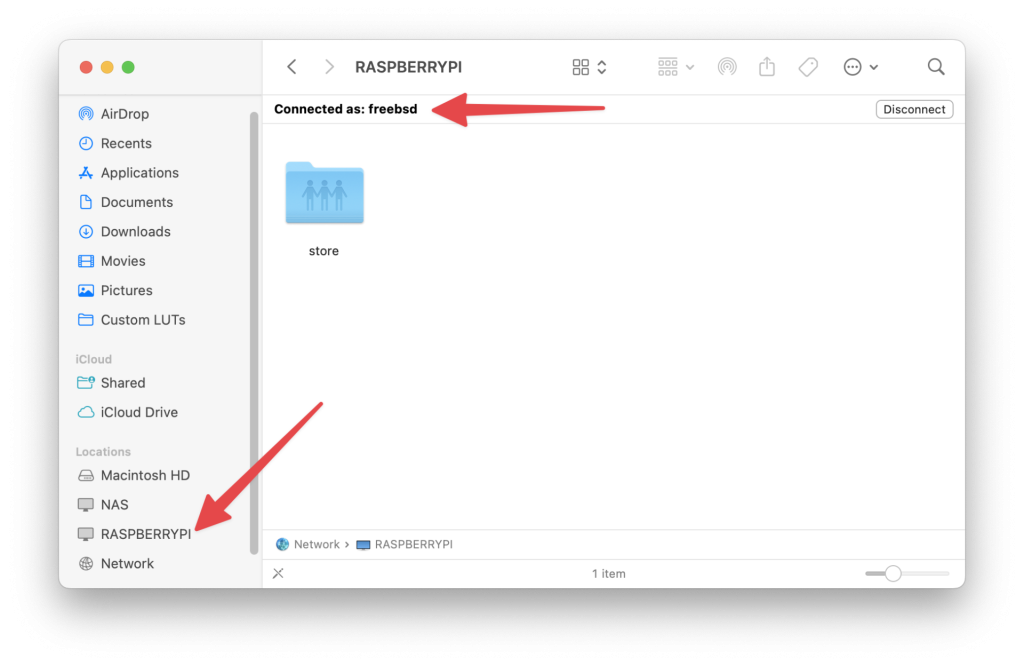
Sorted!
Closing
If we want to disconnect the pool it’s also very simple:
root@generic:~ # service samba_server stop
Stopping smbd.
Waiting for PIDS: 6629.
Stopping nmbd.
Waiting for PIDS: 6622.
root@generic:~ # zpool export store
root@generic:~ # zpool status
no pools available
The USB caddy can be pulled from the running Pi now. And added back later as required:
root@generic:~ # zpool list
no pools available
root@generic:~ # zpool import store
root@generic:~ # zpool list
NAME    SIZE  ALLOC   FREE  CKPOINT  EXPANDSZ   FRAG    CAP  DEDUP    HEALTH  ALTROOT
store  3.62T   596K  3.62T        -         -     0%     0%  1.00x    ONLINE  -
It’s back!
This was a quick look at how easy it is to use FreeBSD on a Raspberry Pi, which is a great little device for testing ideas, or learning some operating system fundamentals. It was also a demonstration of just how easy it is to use ZFS at a basic level — with volume and filesystem management built in. Hopefully it’s whetted your appetite to go experiment a little too.
We’re dropping new posts — and videos — for technical topics regularly. So make sure you’re subscribed to the YouTube channel and following this feed in your favorite RSS reader. There’s also the newsletter, if you’d like to receive updates by email.
We’d like this content series to be interactive too — so what would you like to see us cover? What FreeBSD questions can we help you tackle? Get in touch with your ideas.