









Images are critical for every website and application today. Whether it be marketing banners, product images or logos, it is impossible to imagine a website without images. Sadly though, images are large in size making them the single largest contributor to the page size.
As per the latest HTTP Archive data, the median page size on desktops is 1511 KB. Images make up for almost 650 KB of that size, roughly 45% of the total page size. Now, since we cannot do away with images, we need to make our web pages load fast with them.
In this guide, we will talk about lazy loading images, a technique that helps improve the page load time and reduces page size, while still retaining all the images on the page.
What is Image Lazy Loading?
Lazy Loading Images is a set of techniques in web and application development that defer the loading of images on a page to a later point in time - when those images are actually needed, instead of loading them up front. These techniques help in improving performance, better utilization of the device’s resources, and reducing associated costs.
Here is a quick video to help you understand better:
The word “lazy” in the English language is often attributed to the act of avoiding work as long as possible.
Similarly, lazy loading defers the loading of resources on the page till they are actually needed. Instead of loading these resources as soon as the page loads, which is what normally happens, the loading of these resources is put off till the moment the user actually needs to view them.
The technique of lazy loading can be applied to almost all the resources on a page. For example, in a single page application, if a JS file is not needed until later, it is best not to load it initially. If an image is not needed up front, load it later when it actually needs to be viewed.
Why go for lazy loading images at all?
Lazy Loading defers the loading of an image that is not needed on the page immediately. An image, not visible to the user when the page loads, is loaded later when the user scrolls and the image actually becomes visible. If the user never scrolls, an image that is not visible to the user never gets loaded.
It carries two main advantages.
1. Performance Improvement
This is the most important one for you as a website administrator - better performance and load time.
With lazy loading, you are reducing the number of images that need to be loaded on the page initially. Lesser resource requests mean lesser bytes to download and lesser competition for the limited network bandwidth available to the user. This ensures that the device is able to download and process the remaining resources much faster. Hence, the page becomes usable much sooner as compared to one without lazy loading.
2. Cost reduction
The second benefit for you is in terms of delivery costs. Image delivery, or delivery of any other asset, is usually charged on the basis of the number of bytes transferred.
As mentioned earlier, with lazy loading, if the image is not visible, it never gets loaded. Thus, you reduce the total bytes delivered on the page., especially for users that bounce off the page or interact with only the top portion of the page. This reduction in bytes transferred from your delivery network reduces delivery costs. This will become more apparent as we explore lazy loading further.
Which Images can be Lazy Loaded?
The basic idea of lazy loading is simple - defer loading anything that is not needed right now. For images it usually translates to any image that is not visible to the user up front can be lazy loaded.
As the user scrolls down the page, the image placeholders start coming into viewport (visible part of the webpage). We trigger the load for these images when they become visible.
You can find out which images are a candidate for lazy loading and how many bytes you can save on the initial page load by using Google Lighthouse audit tool. The audit performed by this tool has a section dedicated for offscreen images. You can also use ImageKit’s website analyzer to identify if your website uses lazy loading or not, in addition other critical image-related optimizations on your page.
Lazy loading is critical not only for good performance, but also to deliver a good user experience.
Lazy Loading Techniques for images
Images on a webpage can be loaded in two ways - using the <img> tag, or using the CSS background property. Let's first look at the more common of the two, the <img> tag, and then move on to CSS background images.
The general concept of lazy loading images in tag
Lazy loading images can be broken down into two steps:
Step one is to prevent the image load up front. For images loaded using the <img> tag, the browser uses the src attribute of the tag to trigger the image load. Irrespective of whether it is the 1st or the 1000th image in your HTML and well off-screen, if the browser gets the src attribute, it would trigger the image load.
Thus, to lazyload such images, put the image URL in an attribute other than src. Let’s say we specify the image URL in the data-src attribute of the image tag. Now that src is empty, the browser doesn’t trigger the image load
<img data-src="https://ik.imagekit.io/demo/default-image.jpg" />Now that we've stopped the upfront load, we need to tell the browser when to load the image.
For this, we check that as soon as the image (i.e., its placeholder) enters the viewport, we trigger the load.
To check when an image enters the viewport, there are two ways:
Trigger image load using Javascript events
In this technique, we use event listeners on the scroll, resize, and orientationChange events in the browser. The scroll event is an obvious one to check when the user scrolls the page. The resize and orientationChange events are equally important for lazy loading. The resize event occurs when the size of the browser window changes. The orientationChange event gets triggered when the device is rotated from landscape to portrait mode, or vice versa. In such cases, the number of images that become visible on the screen will change. Therefore, we'll need to trigger a load for these images.
When either of these events occur, we find all the images on the page that are to be lazy loaded and haven't been loaded yet. From these images, we check which ones are now in the viewport. This is done using the image’s top offset, the current document scroll top, and window height. If it has entered the viewport, we pick the URL from data-src attribute and put it in the src attribute. This triggers the image load. We also remove the class lazy that identifies the images to be lazily loaded for events that trigger later. Once all the images are loaded, we remove the event listeners.
When we scroll, the scroll event triggers multiple times rapidly. Thus, for performance, we add a small timeout that throttles the lazy loading function execution.
Here is a working example of this approach.
If you notice, the first 3 images in the example are loaded up front. The URL is present directly in the src attribute instead of the data-src attribute. This is essential for a good user experience. Since these images are at the top of the page, they should be made visible as soon as possible. We must not wait for an event or JS execution to load them.
Using Intersection Observer API to trigger image loads
Intersection Observer API is a relatively new API in browsers. It makes it really simple to detect when an element enters the viewport, and take an action when it does. In the previous method, we had to bind events, keep performance in mind, and implement a way to calculate if the element was in the viewport or not. The Intersection Observer API makes this really simple, helps avoid the math, and delivers great performance.
An example of using the Intersection Observer API to lazy load images:
We attach the observer on all the images to be lazy loaded. Once the API detects that the element has entered the viewport, using the isIntersecting property, we pick the URL from the data-src attribute and move it to the src attribute for the browser to trigger the image load. Once this is done, we remove the lazy class from the image, and also remove the observer from that image.
If you compare the time taken to load an image in both the methods, event listeners vs Intersection Observer, you would find that using the Intersection Observer API, the image load is triggered much quicker, and yet the site doesn’t appear sluggish on scrolling. In the method involving event listeners, we had to add a timeout to make it performant, which has a marginal impact on the user experience as the image load is triggered with a slight delay.
However, the support for Intersection Observer API is not available across all browsers. Hence, we need to fall back to the event listener method in browsers where the Intersection Observer API is not supported. We have taken this into account in the example above.
Native Lazy Loading
In their most recent update, Google has added support for native lazy loading in the Chrome browser's latest version - Chrome 76. All Chromium-based browsers, i.e., Chrome, Edge, and Safari, and Firefox. You can find more details about browser support for native lazy loading on caniuse.com.
With browser-side support coming into play, now, developers only need to add a "loading" attribute when embedding images, to implement lazy loading on their websites.
In fact, one does not need to even be a developer to get this done. Some basic knowledge of HTML is enough to implement the "loading" attribute, making this feature accessible to many more website admins.
So the code would now look like -
<img src="example.jpg" loading="lazy" alt="..." />
<iframe src="example.html" loading="lazy"></iframe>
The following values are supported by the loading attribute:
- lazy - Deferring the loading of assets till it reaches a certain distance from the viewport.
- eager - loading the assets as soon as the page loads, irrespective of where they are placed on the page, whether above or below the page fold.
- auto - This value triggers default lazy loading. Basically, it's the same as not including the loading attribute.
However, for browsers that do not support native lazy loading, the aforementioned techniques for implementing of it need to be applied.
As covered later in this blog, to prevent the surrounding content from reflowing when a lazy-loaded image is downloaded, make sure to add height and width attributes to the <img> element or specify their values directly in an inline style:
<img src="image1.jpg" loading="lazy" alt="…" width="300" height="300">
<img src="image2.jpg" loading="lazy" alt="…" style="height:300px; width:300px;">
Lazy Loading CSS Background Images
After <img /> tags, background images are the most common way to load images on a webpage. For <img /> tags, the browser has a very simple approach - if the image URL is available, let’s load the image.
With CSS background images it is not that straightforward. To load CSS background images, the browser needs to build the DOM (Document Object Model) tree, as well as the CSSOM (CSS Object Model) tree, to decide if the CSS style applies to a DOM node in the current document.
If the CSS rule specifying the background image does not apply to an element in the document, then the browser does not load the background image. If the CSS rule is applicable to an element in the current document, then the browser loads the image.
This may seem complex at first, but this same behavior forms the basis of the technique for lazy loading background images. In simple terms, we trick the browser into not applying the background image CSS property to an element till that element comes into the viewport.
Here is a working example that lazy loads a CSS background image.
One thing to note here is that the Javascript code for lazy loading is still the same. We are using the Intersection Observer API method with a fallback to the event listeners. The trick lies in the CSS.
The element with ID bg-image has a background-image specified in the CSS. However, when the class lazy is added to this element, in the CSS we override the background-image property and set it to none.
Since the rule, combining #bg-image with .lazy class has a higher preference in CSS than just #bg-image, the browser applies the property background-image: none to the element initially. When we scroll down, the Intersection Observer (or event listeners) detects that the image is in the viewport and removes the class lazy. This changes the applicable CSS and applies the actual background-image property to the element triggering the load of the background image.

Better user experience with lazy loading images
Lazy loading presents a great performance benefit. For an e-commerce company that loads hundreds of product images on a page, lazy loading can provide a significant improvement in initial page load time while decreasing the bandwidth consumption.
However, a lot of companies do not opt for lazy loading because they believe it goes against delivering a great user experience quoting reasons like "the initial placeholder is ugly", "the load times are slow", etc.
How can we solve such concerns around user experience with lazy loading of images?
1. Using the right image placeholders
A placeholder is what appears in the container until the actual image is loaded. Normally, we see developers using a solid color placeholder for images, or a single image as a placeholder for all images.
We used the same in our example code as well. A solid light grey color is used for all our image backgrounds. However, we can do better to provide a more pleasing user experience.
A look at some examples of better placeholders for our images:
a) Dominant color placeholder
Instead of using a fixed color for the image placeholder, we find the dominant color from the original image and use that as a placeholder.
This technique has been used for quite some time in Google image search results and Pinterest.
Sample image picked from Manu.ninja
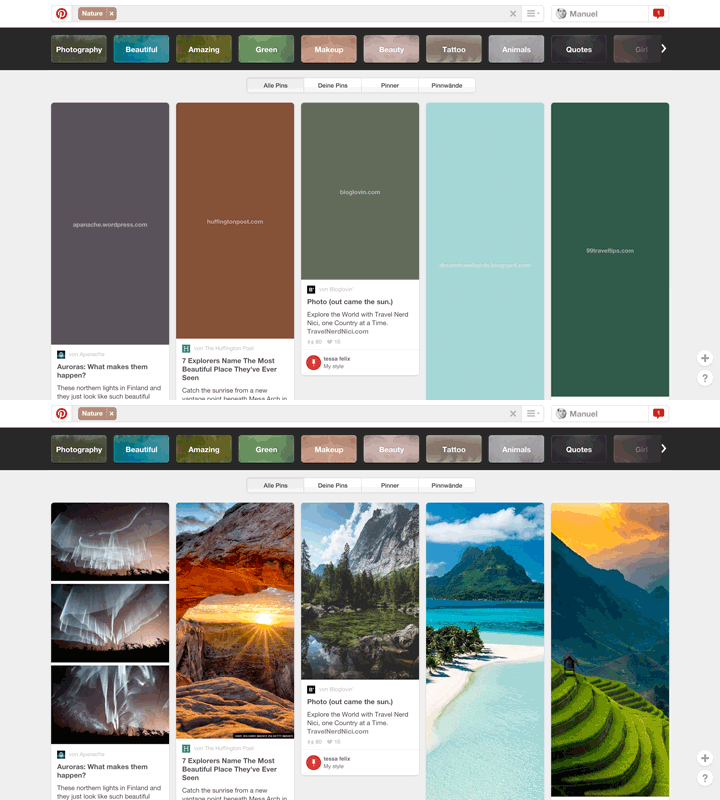
This might look complex to achieve, but a very simple way of accomplishing this is to first scale down the image to a 1x1 pixel and then scale it up to the size of the placeholder - a very rough approximation, but a simple, no-fuss way to get a single dominant color.
Using ImageKit, the dominant color placeholder can be obtained using a chained transform in ImageKit as shown here:
Dominant color placeholder image URL example using ImageKit
<!-- Original image at 400x300 -->
<img src="https://ik.imagekit.io/demo/img/image4.jpeg?tr=w-400,h-300" alt="original image" />

<!-- Dominant colour image with same dimensions -->
<img src="https://ik.imagekit.io/demo/img/image4.jpeg?tr=w-1,h-1:w-400,h-300" alt="dominant color placeholder" />
The placeholder image is just 661 bytes in size, as compared to the original image which is 12700 bytes, making it 19x smaller. And it provides a more pleasant transition experience from placeholder to the actual image.
Here's a video demonstrating how this effect works for the user:
You can view the working example and code for using dominant color placeholder here.
b) Low quality image placeholder (LQIP)
We can expand the above idea of using a dominant color placeholder further.
Instead of using a single color, we use a very low-quality, blurred version of the original image as the placeholder. Not only does it look better, it also gives the user some idea about what to expect in the actual image, while giving the perception that the image load is in progress. This is great for improving the perceived loading experience.
This technique has been utilized by the likes of Facebook and Medium.com for images on their websites and apps.
LQIP image URL example using ImageKit
<!-- Original image at 400x300 -->
<img src="https://ik.imagekit.io/demo/img/image4.jpeg?tr=w-400,h-300" alt="original image" />

<!-- Low quality image placeholder with same dimensions -->
<img src="https://ik.imagekit.io/demo/img/image4.jpeg?tr=w-400,h-300,bl-30,q-50" alt="dominant color placeholder" />
The LQIP is 1300 bytes in size, almost 10x smaller than the original image, and a significant improvement in terms of visual experience over any other placeholder technique.
Here's a video demonstrating how this effect works for the user:
You can view the working example and code for using LQIP technique here.
It is evident from the video samples of the two techniques above, that using dominant-color placeholders or using low-quality image placeholders provides a smoother transition from the placeholder to the actual image, while giving the user an idea of what's to come and improves loading perception.
2. Adding some buffer time for image load
When we discussed different methods to trigger image load above, we checked for the point of time where the image enters the viewport, i.e. when the top edge of the image placeholder coincides with the bottom edge of the viewport.
The problem
Often, users scroll swiftly through the page, and the image needs some time to load and appear on the screen. In this scenario, combined with the fact that the load image event might be triggered with a delay because of throttling, you would often face the scenario where the placeholders come into the viewport, the user waits for a few milliseconds while the image loads up. This delay makes for a poor user experience.
While using Intersection Observers to load the image or using low-quality image placeholders provides better loading performance and user experience, there is another simple trick that you can use to ensure that the images are always loaded completely when they enter the viewport - introduce a margin to the trigger point for images.
The solution
Instead of loading the image just when they exactly enter the viewport, load the images when they are, let’s say, 500px away from entering the viewport. This provides additional time, between the load trigger and the actual entry in the viewport, for the images to load.
With the Intersection Observer API, you can use the root parameter along with the rootMargin parameter (works as standard CSS margin rule), to increase the effective bounding box that is considered to find the “intersection”.
With the event listener method, instead of checking for the difference between the image edge and the viewport edge to be 0, we can use a positive number to add some threshold.
The example here uses a 500px threshold to load images.
As evident from the video below (monitor the network requests closely appearing at the bottom), while scrolling, when the third image is in view, the 5th image gets loaded. When the 4th image comes into the view, the 6th image gets loaded. This way we are giving sufficient time for the images to load completely and in most cases, the user won’t see the placeholder at all.
In case you haven't noticed yet, in all our examples, the third image (image3.jpg) is always loaded up front, even though it's outside the viewport. This was also done following the same principal - load slightly in advance instead of loading exactly at the threshold for better user experience.
If you are using the native image lazy loading method, browsers automatically calculate this distance from the viewport threshold to determine when the browser should trigger the image load. Browsers consider the image type, network speed, and data-saver setting in the browser to decide this threshold, keeping in mind developer expectations and user experience.
3. Avoiding content shifting with lazy loading
This is another trivial point which, if solved, can help maintain a good user experience.
The problem
When there is no image, the browser doesn’t know the dimensions of the content that is to be displayed in the enclosing container. And if we do not specify it using CSS, the enclosing container would have no dimensions, i.e. 0 x 0 pixels. So, when the image gets loaded, the browser would resize the enclosing container to fit the image.
This sudden change in the layout causes other elements to move around and it is called content shifting. As demonstrated in this content shifting article & video from Smashing Magazine, it's a rather unpleasant experience for a user as the content moves suddenly when the image loads.
The solution
This can be avoided by specifying a height and/or width for your enclosing container so that the browser can paint the image container with a known height and width. Later, when the image loads, since the container size is already specified and the image fits into that perfectly, the rest of the content around the container stays put.
4. Do not lazy load all the images
This is another mistake the developers often commit - lazy load all the images on the page. This might reduce the initial page load, but would also result in bad user experience as a lot of images, even the ones at the top of the webpage, won’t show up till the Javascript gets executed.
Here are some general principles to follow to identify which images should be lazy loaded.
a) Any image that is present in the viewport, or at the beginning of the webpage, should not be lazy loaded. This applies to any header image, marketing banner, logos, etc., as the user should see them as soon as the page loads.
Also, as mobile and desktop devices have different screen sizes, they will have a different number of images that will be visible on the screen initially. So you need to take into account the device type to decide which resources to load up front and which to lazy load.
b) Any image that is just slightly off the viewport should not be lazy loaded. This is based on the point discussed earlier - load slightly in advance. So, let’s say, any image that is 500px or a single scroll from the bottom of the viewport can be loaded up front as well.
c) If the page isn’t too long, may be just a single scroll or two, or if there are less than 5 images outside the viewport, then lazy loading can be avoided altogether.
It would not provide any significant benefit to the end user in terms of performance. The additional JS that you load on the page to enable lazy loading will offset any benefit reaped from lazy loading such a small number of images.
Javascript dependency of Lazy Loading
The entire idea of lazy loading is dependent on the availability of Javascript execution capabilities in the user’s browser. Though native lazy loading promises to remove this dependency, with browser support still close to 70%, if you are to provide the same experience across all browsers, you would still need to utilize JS libraries.
While most of your users would have Javascript execution enabled in their browser, as it is essential for almost all websites these days, you may want to plan for users that do not allow javascript execution or use a browser that doesn’t support javascript at all.
You could either show them a message telling them why the images won’t load and that they need to switch to a modern browser or enable Javascript. Or you can use the noscript tag to create a usable experience for these users as well. Using the <noscript> tag approach for such users has some gotchas.
This thread on Stack Overflow does a great job addressing these concerns, and is a recommended read for anyone looking to address this set of users.
Popular Javascript libraries for lazy loading on your website
Since browser environments and implementation details can vary across browsers and devices, it is best to use a tried and tested library for lazy loading.
Here is a list of popular libraries and platform specific plugins that will allow you to implement lazy loading with minimal effort
yall.js (Yet Another Lazy Loader)
- Uses Intersection Observer and falls back to event-based lazy loading.
- Supports all major HTML element types but not background-images.
- Works on IE11+ as well.
- Very popular and extensive functionality.
- Supports responsive images srcset and sizes attribute as well.
- High performance even without Intersection Observer.
- A simple, jquery based lazy loading library.
WeltPixel Lazy Loading Enhanced
- A Magento 2 extension for lazy loading images.
- A Magento 1.x extension for lazy loading images.
- A Shopify extension for lazy loading images.
- It is paid though.
- Image lazy loading plugin for Wordpress.
How to test if lazy loading is working?
Once you have implemented lazy loading, you'll want to check if the behaviour of images on your website is as intended. The simplest way is to open developer tools in Chrome browser.
Go to Network Tab > Images.
Here, when you refresh the page for the first time, only the images that are to be loaded up front should get loaded. Then, as you start scrolling down the page, other image load requests would get triggered and loaded.
You can also notice the timings for image load in the waterfall column in this view. It would help you identify image loading issues, if any, or issues in triggering the image load.
Another way would be to run the Google Chrome Lighthouse audit report on your page after you have implemented the changes, and look for suggestions under the “Offscreen images” section.
Conclusion
We have covered almost everything related to lazy loading images in this guide. Lazy loading, if implemented correctly, will significantly improve the loading performance of your web pages, reduce page size and delivery costs by cutting down on unnecessary resources loaded up front, while keeping the necessary content intact on the page. With faster loading pages comes a great user experience, something your visitors would love.
So, what are you waiting for? Get started with lazy loading images now!
Are you optimizing your website images? No? Get started with ImageKit's image CDN & optimization tool for free now!