

惯性聚合 高效追踪和阅读你感兴趣的博客、新闻、科技资讯
阅读原文 在惯性聚合中打开

推荐订阅源

P
Proofpoint News Feed
博客园_首页
爱范儿
爱范儿
博客园 - 三生石上(FineUI控件)
freeCodeCamp Programming Tutorials: Python, JavaScript, Git & More
量子位
cs.CV updates on arXiv.org
cs.AI updates on arXiv.org
IT之家
IT之家
人人都是产品经理
人人都是产品经理
T
Troy Hunt's Blog
H
Hacker News: Front Page
N
News and Events Feed by Topic
N
News | PayPal Newsroom
www.infosecurity-magazine.com
PCI Perspectives
PCI Perspectives
有赞技术团队
有赞技术团队
Google Online Security Blog
博客园 - 【当耐特】
Schneier on Security
S
SegmentFault 最新的问题
博客园 - Franky
T
The Blog of Author Tim Ferriss
罗磊的独立博客
T
The Exploit Database - CXSecurity.com
I
Intezer
Microsoft Security Blog
Cyber Security Advisories - MS-ISAC
B
Blog
L
Lohrmann on Cybersecurity
T
Threat Research - Cisco Blogs
U
Unit 42
Forbes - Security
Forbes - Security
MyScale Blog
MyScale Blog
J
Java Code Geeks
S
Secure Thoughts
G
Google Developers Blog
SecWiki News
SecWiki News
T
Tailwind CSS Blog
T
Tor Project blog
P
Proofpoint News Feed
D
Darknet – Hacking Tools, Hacker News & Cyber Security
Hacker News: Ask HN
Hacker News: Ask HN
P
Privacy International News Feed
让小产品的独立变现更简单 - ezindie.com
雷峰网
雷峰网
美团技术团队
T
Threatpost
小众软件
小众软件
W
WeLiveSecurity

Latest from IMore in Apple

One more thing… Goodbye from iMore Apple finally ditches classic stickers in the iPhone 16 box iPad users in the EU can sideload apps starting tomorrow Apple loses $14bn Irish tax case against the EU How to re-watch Apple's iPhone 16, Apple Watch Series 10, and AirPods 4 event Every Apple product discontinued after the iPhone 16 event Listen to all of the music from Apple's 'It's Glowtime' September event Apple could get a major fine the day after the iPhone 16 reveal event TIME names the 100 most influential people in AI, but Tim Cook is nowhere to be seen How to watch the iPhone 16 Glowtime reveal event - tune in for iPhone 16, iPhone 16 Pro, iPhone 16 Plus and iPhone 16… 120 Spain retail employees leave Apple following "substantial change in working conditions" Apple AirTag 4-pack is down to $75 in this Labor Day discount – that's $18.75 for each tracker Apple wants to scrape content for Apple Intelligence training — but few publishers have agreed terms to let it… Apple's services division has lost 100 people in a rare round of job cuts for the company A lot of Apple services are experiencing outages today A key executive is stepping down at Apple How to watch Apple's 'It's Glowtime' iPhone 16 event on September 9th Woman catches thieves by mailing herself a package containing an AirTag as bait Introverts rejoice! At the EU's insistence, you'll soon be able to delete the Messages app from your iPhone in… This Apple-1 from Steve Jobs' desk could fetch $1 million at auction Apple comes out of UK CMA probe over WebKit safe, but it looks like things might not be over Apple is making a major change to its App Store behind the scenes New report crowns unsung hero as Apple's most popular service Apple Pay donation campaign launched to support America's national parks Kim Kardashian Beats Studio Pro already on sale with an unmissable discount Kim Kardashian Beats are back with a limited-edition version of Beats Studio Pro People still seem to love the Apple Card, but the shine has worn off for me Google event live demo gaffe reveals why Apple’s “wait until it’s ready” approach works Google takes sly dig at Apple Intelligence as it pushes Gemini AI at Pixel event Google unveils iPhone 16, Apple Watch X, and Apple Intelligence rivals AirPods Pro 3: Everything you need to know OpenAI CEO hints at huge ChatGPT upgrade that brings Artificial General Intelligence on iPhone a step closer ​​Oura smart ring makers poach former Apple design guru — amidst rumors of an Apple Ring launch to come There are fears Apple could discontinue one of its most iconic products Google is in huge trouble over its billion-dollar iPhone deal Even if Apple Vision Pro fails, its gesture-based legacy could live on in future Macs and iPhones, and here Apple's Safari in iOS 18, iPadOS 18, and macOS Sequoia will hide some big distractions while browsing the web Inside Apple’s plan to grow iPhone, iPad, and Mac gaming with a unified gaming platform iPhone 16 and iPhone 16 Pro release date could be sooner than expected Best health and fitness accessories on the Apple Store: Kit to help kick off your health journey Five reasons to skip iPhone 16 and wait for iPhone 17 Delta Airlines CEO slams Microsoft and CrowdStrike over global meltdown — “When was the last time you heard… Apple just canceled another controversial advert — here's why Apple goes after Chinese giants over App Store fee loopholes Apple earns $1 billion profit every four days — company announces $85.8 billion revenue in third-quarter results SiriusXM to launch premium subscription via Apple Podcasts Would you want to unlock your iPhone with your heartbeat? Apple once thought about making it possible Vision Pro 2 might get iPad Pro's tandem OLED lenses but how does that line up with a cheaper 2nd generation model? This Apple auction includes a $300k Apple-1 Computer, sealed devices, and exclusive items
Control Center has been supercharged in iOS 18 — here’s how to get the most from it
Alex Blake · 2024-08-20 · via Latest from IMore in Apple
Control Center iOS 18
(Image credit: Apple)

The iOS 18 update has brought a lot of changes to all the best iPhones, and one of the most interesting – and wide-ranging – is what’s happened to Control Center. Apple’s quick-access dashboard has had a total revamp, with more controls and greater ways to customize it.

Now, you can make icons larger or smaller, arrange them across multiple screens, power off your iPhone with a quick tap, and there are also new controls, from opening any app to launching Tap to Cash. As well as that, third-party apps can add their own Control Center icons. There are even a few Control Center-related changes in places you wouldn’t expect, like the Lock Screen and the Action button.

We’ve put together this guide to show you all the ways you can use Control Center's new features in iOS 18. Read on to get stuck in.

Adding and removing controls

The Control Centre in iOS 18.

(Image credit: Future)

A key component of the new Control Center is the ability to add and remove functions and controls, allowing you to customize your phone with more options than before. Got a page that’s already full of icons? Just add one and it will automatically be added to a new page for you.

  1. First, swipe down from the top-right corner of either your Lock Screen or your Home Screen.
  2. Now tap and hold any empty space on the screen, or tap the + button in the top-left corner.
  3. Your Control Center icons will now be outlined with a pulsating line, and you’ll see a minus (-) symbol in their top-left corner. This shows that you’re in editing mode.
  4. Tap the - button to remove a control, or tap Add a Control to add a new one.
  5. When you add a new icon, you’ll be presented with a list of popular controls. Scroll down to see icons arranged by categories, or try searching for an icon using the box at the top of the screen.
  6. When you’ve picked a control you want to add, just tap it and it will join the other icons in the Control Center.

The Control Centre in iOS 18.

(Image credit: Future)

Moving icons to new positions is a good way to make the Control Center work better for you. And for the first time, you no longer need to keep these icons at the sizes Apple has picked – you can enlarge or shrink them as well.

  1. To move an icon to a new position, enter Control Center’s editing mode, then tap and hold on an icon. You can now move it to a new location.
  2. If you want to move an icon onto a new Control Center page, you’ll first need to drag it to the top or bottom of your Control Center screen. Wait a second or two and the page will scroll for you, letting you drop the icon into place in its new home.
  3. You’ll notice that, in editing mode, each Control Center icon has a thicker line in its bottom-right corner. You can drag this edge to resize the icon.
  4. When you drag the corner, the icon will change size. As it gets larger or smaller, its appearance may change (for instance, text might be added alongside the icon). Note that some icons have restrictions, such as not being able to go more than three tiles wide. When you’re done, let go and tap an empty space on the screen to save your alterations.

Managing multiple Control Center screens

The Control Centre in iOS 18.

(Image credit: Future)

In iOS 18, you can swipe up or down between multiple Control Center screens. This is a good way to thematically arrange your controls (by default, there are pages for the Music and Home apps, for example) and keep things organized.

  1. When you first start, you’ll notice there are pages for favorites, music, home, and connectivity (each with an icon on the right-hand side of the Control Center). You can remove these pages if you like, or add new ones instead.
  2. Enter the Control Center editing mode by swiping down from the top-right corner of your screen and either pressing the + button or long-pressing a blank area of the screen.
  3. Swipe down through all of your existing pages until you come to a blank one. You can start adding icons to this page by pressing the Add a Control button.
  4. Each time you add a control to a blank page, you will be able to add an additional page below it.
  5. To remove a page, you’ll need to delete all of its controls one by one, after which the page will be automatically removed. There’s currently no way to remove an entire page that is populated with controls without first getting rid of its existing icons.

Control Center on your Lock Screen

The Control Centre in iOS 18.

(Image credit: Future)

There’s another place you can find the Control Center: on your Lock Screen. It’s not the full setup, but you might recognize the flashlight and camera icons, which have been present on the iOS Lock Screen for a few years. In iOS 18, you can swap them out for different Control Center functions.

iMore offers spot-on advice and guidance from our team of experts, with decades of Apple device experience to lean on. Learn more with iMore!

  1. On your Lock Screen, tap and hold an empty space, then go to Customise > Lock Screen.
  2. In the bottom-left and bottom-right corners are two quick-access icons (the torch and camera by default). Tap the - button to remove one, then tap the + button that appears in its place.
  3. You’ll now see a list of functions that you can add to your Lock Screen. It’s a very similar list to the one you get when editing your Control Center screens.
  4. Once you’ve picked a replacement control and added it to your Lock Screen, tap Done, then tap your Home Screen again or swipe up from the bottom to confirm your changes.

Control Center via the Action button
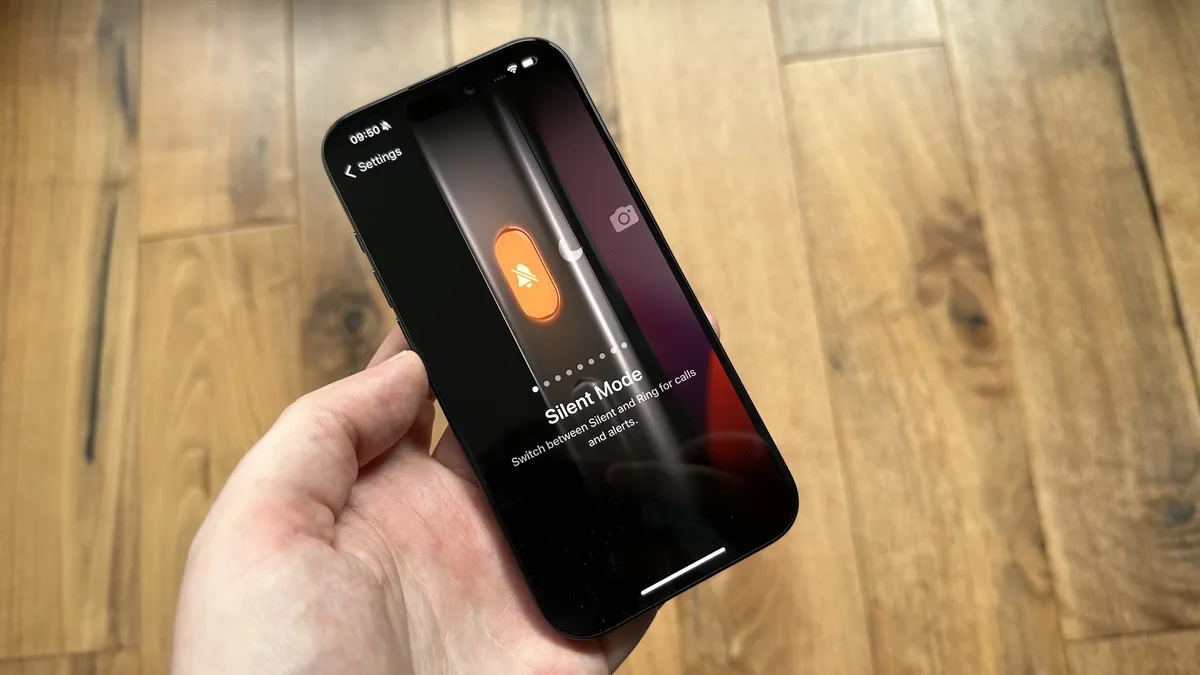
The iPhone 15 Pro Action Button settings screen

(Image credit: Gerald Lynch / Future)

If your iPhone has an Action button, you can assign Control Center features to it, letting you quickly launch your favourite features with just a press.

  1. Open the Settings app and go to Action Button > Controls.
  2. Tap Choose a Control, then pick an option from the list (or search for one using the box at the top). This will assign your chosen control to the Action button.
  3. Note that not every Control Center feature can be activated using the Action button, so make sure to check the whole list to ensure the feature you’re looking for is present.

Alex Blake has been messing around with Apple tech ever since he caved to the pressure and bought an iPhone 3G “just to see what all the fuss was about.” He’s spent the subsequent 15 years prattling on about Apple and has somehow managed to do so professionally. Don’t ask him how.