









TrueConf offers native applications for multiple Linux distributions. Check out TrueConf advantages:
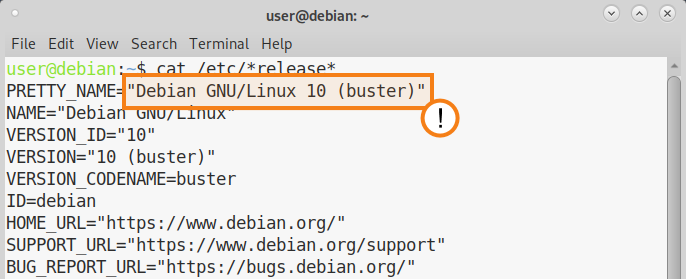
You can check your operating system version by running the following command in the terminal (it can be applied for all Linux operating systems):
The basic information about your operating system, including its name and version, will be displayed in the console. For example, on the screenshot below you can see that you are using Debian 10:
Should you encounter any problems with application installation, please contact our technical support team.
For installing TrueConf, we recommend using the graphical installer. The graphical installer can be invoked by (double) clicking the downloaded package. Depending on your distribution you will get different possibilities to install the package, e.g. Open with Ubuntu Software Center.
To install the application from the terminal, run the commands with sudo, or first switch to administrator mode by executing the su - command in the terminal and entering the root password. Please note that sudo may not be available in the OS by default. You can check its availability with the sudo -V command. The examples shown below include sudo.
You will need to run a command using the administrator account to launch the downloaded package:
sudo apt install ./trueconf_client_name.deb |
trueconf_client_name.deb — the downloaded package name
TrueConf repository address is assigned automatically after the application installation.
Run the following commands in the terminal (console) under the administrator account:
Execute the following command to create the file /etc/apt/sources.list.d/trueconf.list which already contains all required content:
echo "deb [arch=$(dpkg --print-architecture)] https://mirror.trueconf.com/debian $(lsb_release -cs) non-free" | sudo tee /etc/apt/sources.list.d/trueconf.list > /dev/null |
Run the following commands consecutively under the administrator account:
wget -O- https://mirror.trueconf.com/deb.trueconf.asc | sudo gpg --no-default-keyring --keyring gnupg-ring:/etc/apt/trusted.gpg.d/trueconf.gpg --import sudo chmod 644 /etc/apt/trusted.gpg.d/trueconf.gpg sudo apt -y update sudo apt -y install trueconf |
Execute the following command to create the file /etc/apt/sources.list.d/trueconf.sources which already contains all required content:
echo "Types: deb URIs: https://mirror.trueconf.com/debian Suites: $(lsb_release -cs) Components: non-free Signed-By: /usr/share/keyrings/trueconf.gpg " | sudo tee /etc/apt/sources.list.d/trueconf.sources > /dev/null |
Run these commands consecutively under the administrator account to install the key:
wget -O- https://mirror.trueconf.com/deb.trueconf.asc | sudo gpg --no-default-keyring --keyring gnupg-ring:/usr/share/keyrings/trueconf.gpg --import sudo chmod 644 /usr/share/keyrings/trueconf.gpg |
Attention! If you previously installed TrueConf application from the repository by using the .pub key (or an error occurs during public key verification), you first have to delete the old key by running this command:
sudo rm /etc/apt/trusted.gpg.d/trueconf.gpg |
And repeat key installation.
Now refresh information about packages and install the application:
sudo apt update sudo apt install trueconf |
Execute the following command to create the file /etc/apt/sources.list.d/trueconf.sources which already contains all required content:
echo "Types: deb URIs: https://mirror.trueconf.com/ubuntu Suites: $(lsb_release -cs) Components: non-free Signed-By: /usr/share/keyrings/trueconf.gpg " | sudo tee /etc/apt/sources.list.d/trueconf.sources > /dev/null |
Run these commands consecutively under the administrator account to install the key:
wget -O- https://mirror.trueconf.com/deb.trueconf.asc | sudo gpg --no-default-keyring --keyring gnupg-ring:/usr/share/keyrings/trueconf.gpg --import sudo chmod 644 /usr/share/keyrings/trueconf.gpg |
Attention! If you previously installed TrueConf application from the repository by using the .pub key (or an error occurs during public key verification), you first have to delete the old key by running this command:
sudo rm /etc/apt/trusted.gpg.d/trueconf.gpg |
And repeat key installation.
Now refresh information about packages and install the application:
sudo apt update sudo apt install trueconf |
Execute the following commands:
echo "deb [arch=$(dpkg --print-architecture)] https://mirror.trueconf.com/ubuntu $(lsb_release -cs) non-free" | sudo tee /etc/apt/sources.list.d/trueconf.list > /dev/null wget -O- https://mirror.trueconf.com/deb.trueconf.asc | sudo gpg --no-default-keyring --keyring gnupg-ring:/etc/apt/trusted.gpg.d/trueconf.gpg --import sudo chmod 644 /etc/apt/trusted.gpg.d/trueconf.gpg sudo apt -y update sudo apt -y install trueconf |
Attention! If you previously installed TrueConf application from the repository by using the .pub key (or an error occurs during public key verification), you first have to delete the old key by running this command:
sudo rm /etc/apt/trusted.gpg.d/trueconf.gpg |
Next, repeat key installation and update the application:
wget -O- https://mirror.trueconf.com/deb.trueconf.asc | sudo gpg --no-default-keyring --keyring gnupg-ring:/etc/apt/trusted.gpg.d/trueconf.gpg --import sudo chmod 644 /etc/apt/trusted.gpg.d/trueconf.gpg sudo apt -y update sudo apt -y install trueconf |
After initial installation of the application in one of the suggested methods you will be notified about updates automatically.
Before installing TrueConf on CentOS and Red Hat, connect the EPEL repository by running the following command as the administrator:
You will need to run a command to launch the downloaded package:
CentOS (you need to install and enable EPEL repository beforehand):
sudo dnf install trueconf_client_name.rpm |
Red Hat Enterprise Linux (you need to install and enable EPEL repository beforehand):
sudo dnf install trueconf_client_name.rpm |
Fedora:
sudo dnf install trueconf_client_name.rpm |
openSUSE:
sudo zypper install trueconf-client-name.rpm |
Where trueconf_client_name.rpm is the downloaded package name.
TrueConf repository address is assigned automatically after the application installation.
Create a file /etc/yum.repos.d/trueconf.repo with the following command (the file with required contents will be created immediately):
For CentOS (you need to install and enable EPEL repository beforehand):
{ echo "[trueconf]" echo "name=TrueConf Repository" echo "baseurl=https://mirror.trueconf.com/centos/$releasever/$basearch/release" echo "enabled=1" echo "gpgcheck=1" echo "gpgkey=file:///etc/pki/rpm-gpg/RPM-GPG-KEY-trueconf" } | sudo tee -a /etc/yum.repos.d/trueconf.repo > /dev/null |
For CentOS Stream (you need to install and enable EPEL repository beforehand):
{ echo "[trueconf]" echo "name=TrueConf Repository" echo "baseurl=https://mirror.trueconf.com/centos-stream/$releasever/$basearch/release" echo "enabled=1" echo "gpgcheck=1" echo "gpgkey=file:///etc/pki/rpm-gpg/RPM-GPG-KEY-trueconf" } | sudo tee -a /etc/yum.repos.d/trueconf.repo > /dev/null |
For Red Hat Enterprise Linux (you need to install and enable EPEL repository beforehand):
{ echo "[trueconf]" echo "name=TrueConf Repository" echo "baseurl=https://mirror.trueconf.com/rhel/$releasever/$basearch/release" echo "enabled=1" echo "gpgcheck=1" echo "gpgkey=file:///etc/pki/rpm-gpg/RPM-GPG-KEY-trueconf" } | sudo tee -a /etc/yum.repos.d/trueconf.repo > /dev/null |
For Fedora:
{ echo "[trueconf]" echo "name=TrueConf Repository" echo "baseurl=https://mirror.trueconf.com/fedora/$releasever/$basearch/release" echo "enabled=1" echo "gpgcheck=1" echo "gpgkey=file:///etc/pki/rpm-gpg/RPM-GPG-KEY-trueconf" } | sudo tee -a /etc/yum.repos.d/trueconf.repo > /dev/null |
Run commands:
For CentOS Stream 9, Fedora 38:
sudo rpm --import https://mirror.trueconf.com/rpm-v3.trueconf.pub sudo dnf install trueconf |
For CentOS older than Stream 9, Fedora older than version 38 and Red Hat Enterprise Linux:
sudo rpm --import https://mirror.trueconf.com/rpm.trueconf.pub sudo dnf install trueconf |
Create a file /etc/zypp/repos.d/trueconf.repo with the following command (the file with required contents will be created immediately):
{ echo "[trueconf]" echo "name=TrueConf Repository" echo "enabled=1" echo "autorefresh=1" echo "baseurl=https://mirror.trueconf.com/opensuse/$releasever/$basearch/release" echo "gpgcheck=1" echo "type=rpm-md" echo "keeppackages=0" } | sudo tee -a /etc/zypp/repos.d/trueconf.repo > /dev/null |
Run commands:
sudo wget https://mirror.trueconf.com/rpm.trueconf.pub sudo rpm --import rpm.trueconf.pub sudo zypper refresh sudo zypper install trueconf |
After initial installation of the application you will be notified about updates automatically.
Available only for 64-bit systems:
sudo pacman -U trueconf_client_name.pkg.tar.xz |
trueconf_client_name.pkg.tar.xz — the downloaded package name.
The distribution is installed on top of the current version.
We are constantly improving and developing our products, so when new versions of the client application are released, the user will receive an automatic notification from the system right away!
此内容由惯性聚合(RSS阅读器)自动聚合整理,仅供阅读参考。 原文来自 — 版权归原作者所有。