




说明:之前发了个Google Drive网盘挂载教程,参考:在Debian/Ubuntu上使用rclone挂载Google Drive网盘,然后博主想用同样的方法试试挂载OneDrive网盘,可是卡在了授权那里,然后只有请求Vicer大佬帮忙解决了,这里分享下挂载教程。
提示:本教程挂载OneDrive for Business和个人版的方法都一样,这里以个人版为参考。
本教程只适用Debian/Ubuntu系统,如果你是CentOS或者其它Linux系统,请使用以下命令安装rclone:
curl https://rclone.org/install.sh | sudo bash客户端授权、初始化配置和挂载方法和下面一样,开机自启可参考该教程→传送门。
在本地Windows电脑上下载rclone,下载地址:https://rclone.org/downloads/。然后解压出来,比如我解压到D盘,文件夹命名rclone,此时点击Win+R,然后输入cmd,确定。再输入以下命令:
cd /d d:\rclone
rclone authorize "onedrive"
会出现以下信息:
C:\Users\Administrator>cd /d d:\rclone

d:\rclone>rclone authorize "onedrive"
2018/01/23 20:28:56 NOTICE: Config file "C:\\Users\\Administrator\\.config\\rclo
ne\\rclone.conf" not found - using defaults
Choose OneDrive account type?
 * Say b for a OneDrive business account
 * Say p for a personal OneDrive account
b) Business
p) Personal
b/p> p  #这里选择个人版,你想挂载Business就选择b
If your browser doesn't open automatically go to the following link: http://127.
0.0.1:53682/auth  #接下来会弹出浏览器,要求你登录账号进行授权
Log in and authorize rclone for access
Waiting for code...
Got code
Paste the following into your remote machine --->
{"access_token":"xxxx"}  #请复制{xx}整个内容,后面需要用到
<---End paste
本教程只适用Debian/Ubuntu系统,如果你是CentOS,请参考:https://rclone.org/install/,安装rclone。挂载方法和下面差不多。
1、安装rclone
wget https://www.moerats.com/usr/shell/rclone_debian.sh && bash rclone_debian.sh
2、初始化配置
rclone config会出现以下信息:
n) New remote
s) Set configuration password
q) Quit config
n/s/q> n
name> Rats  #随便填,后面要用到
Type of storage to configure.
Choose a number from below, or type in your own value
 1 / Amazon Drive
   \ "amazon cloud drive"
 2 / Amazon S3 (also Dreamhost, Ceph, Minio)
   \ "s3"
 3 / Backblaze B2
   \ "b2"
 4 / Box
   \ "box"
 5 / Cache a remote
   \ "cache"
 6 / Dropbox
   \ "dropbox"
 7 / Encrypt/Decrypt a remote
   \ "crypt"
 8 / FTP Connection
   \ "ftp"
 9 / Google Cloud Storage (this is not Google Drive)
   \ "google cloud storage"
10 / Google Drive
   \ "drive"
11 / Hubic
   \ "hubic"
12 / Local Disk
   \ "local"
13 / Microsoft Azure Blob Storage
   \ "azureblob"
14 / Microsoft OneDrive
   \ "onedrive"
15 / Openstack Swift (Rackspace Cloud Files, Memset Memstore, OVH)
   \ "swift"
16 / Pcloud
   \ "pcloud"
17 / QingCloud Object Storage
   \ "qingstor"
18 / SSH/SFTP Connection
   \ "sftp"
19 / Webdav
   \ "webdav"
20 / Yandex Disk
   \ "yandex"
21 / http Connection
   \ "http"
Storage> 14  #选择14,Microsoft OneDrive,,注意该序列号会随时变化,看清楚再填
Microsoft App Client Id - leave blank normally.
client_id>  #留空
Microsoft App Client Secret - leave blank normally.
client_secret>  #留空
Remote config
Choose OneDrive account type?
 * Say b for a OneDrive business account
 * Say p for a personal OneDrive account
b) Business
p) Personal
b/p> p  #这里选择个人版,你想挂载Business就选择b
Use auto config?
 * Say Y if not sure
 * Say N if you are working on a remote or headless machine
y) Yes
n) No
y/n> n  #选择n
For this to work, you will need rclone available on a machine that has a web browser available.
Execute the following on your machine:
    rclone authorize "onedrive"
Then paste the result below:
result> {"access_token":""}  #输入之前在客户端授权的内容
--------------------
[Rats]
client_id =
client_secret =
token = {"access_token":""}
--------------------
y) Yes this is OK
e) Edit this remote
d) Delete this remote
y/e/d> y  选择y
Current remotes:

Name                 Type
====                 ====
Rats                 onedrive

e) Edit existing remote
n) New remote
d) Delete remote
r) Rename remote
c) Copy remote
s) Set configuration password
q) Quit config
e/n/d/r/c/s/q> q  #选择q退出
1、挂载为磁盘
#新建本地文件夹,路径自己定,即下面的LocalFolder
mkdir /root/OneDrive
#挂载为磁盘,下面的DriveName、Folder、LocalFolder参数根据说明自行替换
rclone mount DriveName:Folder LocalFolder --copy-links --no-gzip-encoding --no-check-certificate --allow-other --allow-non-empty --umask 000DriveName为初始化配置填的name,Folder为OneDrive里的文件夹,LocalFolder为VPS上的本地文件夹。
如果挂载过程中出现NOTICE: One drive root 'test': poll-interval is not supported by this remote错误,可以无视该错误。
挂载成功后,输入df -h命令查看即可!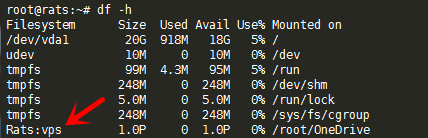
2、卸载磁盘
fusermount -qzu LocalFolder
先新建systemd配置文件,适用CentOS 7、Debian 8+、Ubuntu 16+。
再使用命令:
#将后面修改成你上面手动运行命令中,除了rclone的全部参数
command="mount DriveName:Folder LocalFolder --copy-links --no-gzip-encoding --no-check-certificate --allow-other --allow-non-empty --umask 000"
#以下是一整条命令,一起复制到SSH客户端运行
cat > /etc/systemd/system/rclone.service <<EOF
[Unit]
Description=Rclone
After=network-online.target

[Service]
Type=simple
ExecStart=$(command -v rclone) ${command}
Restart=on-abort
User=root

[Install]
WantedBy=default.target
EOF
开始启动:
systemctl start rclone
设置开机自启:
systemctl enable rclone
其他命令:
重启:systemctl restart rclone
停止:systemctl stop rclone
状态:systemctl status rclone如果你想挂载多个网盘,那么将systemd配置文件的rclone.service改成rclone1.service即可,重启动什么的同样换成rclone1。
版权声明:本文为原创文章,版权归 Rat's Blog 所有,转载请注明出处!
本文链接:https://www.moerats.com/archives/491/
如教程需要更新,或者相关链接出现404,可以在文章下面评论留言。
此内容由惯性聚合(RSS阅读器)自动聚合整理,仅供阅读参考。 原文来自 — 版权归原作者所有。