



惯性聚合 高效追踪和阅读你感兴趣的博客、新闻、科技资讯
阅读原文 在惯性聚合中打开

推荐订阅源

cs.CL updates on arXiv.org
cs.AI updates on arXiv.org
Hacker News - Newest:
Hacker News - Newest: "LLM"
S
Security Affairs
PCI Perspectives
PCI Perspectives
Google Online Security Blog
W
WeLiveSecurity
www.infosecurity-magazine.com
Recent Commits to openclaw:main
P
Privacy & Cybersecurity Law Blog
Threat Intelligence Blog | Flashpoint
S
Security @ Cisco Blogs
Security Archives - TechRepublic
Cyberwarzone
Cyberwarzone
L
Lohrmann on Cybersecurity
TaoSecurity Blog
TaoSecurity Blog
V
Visual Studio Blog
博客园 - 聂微东
Scott Helme
Scott Helme
博客园 - 【当耐特】
K
Kaspersky official blog
Security Latest
Security Latest
K
KPMG report finds enterprise disconnect between AI and its ROI | CIO
MyScale Blog
MyScale Blog
Schneier on Security
WordPress大学
WordPress大学
博客园 - 叶小钗
C
Check Point Blog
V2EX - 技术
V2EX - 技术
钛媒体:引领未来商业与生活新知
钛媒体:引领未来商业与生活新知
博客园 - Franky
T
Tor Project blog
Apple Machine Learning Research
让小产品的独立变现更简单 - ezindie.com
腾讯CDC
雷峰网
雷峰网
博客园_首页
美团技术团队
Y
Y Combinator Blog
C
CERT Recently Published Vulnerability Notes
AWS News Blog
AWS News Blog
月光博客
月光博客
N
Netflix TechBlog - Medium
Last Week in AI
Last Week in AI
Recent Announcements
Google DeepMind News
Help Net Security
Help Net Security
P
Proofpoint News Feed
MongoDB | Blog
MongoDB | Blog
C
Cybersecurity and Infrastructure Security Agency CISA

Inside Nutrient

A guide to the invisible work behind documents Introducing Nutrient Documents for Salesforce: Native document generation and signing Document AI vs. traditional OCR: Choosing between OCR, AI, and hybrid pipelines PDF SDK compliance and security evaluation checklist for enterprise teams (2026) Invariant Corp replaces paper processes with Nutrient Workflow and scales without limits What is process mapping? A complete guide Nutrient vs. Conga Composer for Salesforce document generation (2026) Document routing: How to automate document distribution The CTO’s AI playbook: Why accountability architecture beats orchestration Compliance workflow automation: Why built-in compliance is table stakes Workflow diagrams: Examples, symbols, and how to build one that actually runs Digital forms: Replace paper forms with automated workflows Approval workflow software: How to automate approvals Why document-centric automation is different The CEO’s AI playbook: Why decision architecture beats model selection Nutrient SDK product updates for Q1 2026 PDF redaction verification: How to prove sensitive data is permanently removed What is a VPAT? The complete guide to accessibility conformance reports What is PDF/UA? The accessible PDF standard explained Salesforce eSignatures: Generate, sign, and track documents in one flow Online document viewer: Options, tradeoffs, and how to embed one Document viewer for web apps: React, Vue, Angular (2026) Best document viewers in 2026: A buyer’s guide How to edit a PDF in Python: Add text, images, and annotations Nutrient advances Workflow platform with agentic AI for enterprise-grade speed and consistency in document-heavy operations How to create a Salesforce quote template from opportunity data The business case for accessibility: Five ways it drives enterprise value Python PDF library comparison (2026): 7 libraries for developers Why your AI agent hallucinates PDF table data PDF.js limitations: When to upgrade to a commercial PDF SDK How Subject scaled 5× with Nutrient’s PDF SDK without rebuilding its document layer I replaced our sales training with an AI coach that runs in Slack — here’s what broke Redirecting to: https://securitybuzz.com/cybersecurity-news/why-enterprise-permissions-are-ais-most-dangerous-inheritance/ Nutrient .NET SDK vs. iText Core: Complete comparison for .NET developers DocuVieware: Support’s most frequently asked setup questions Introducing Nutrient Workflow How to convert PDF to Word in C# (.NET) When email and spreadsheets stop working: Work order approval workflows for field teams on the move Compliance with confidence: Why document-centric automation is the foundation of your mission Nutrient expands AI Assistant, automating multistep document workflows inside any application What is document generation? A developer’s guide to PDF generation Document Converter data flow and how real-time watermarks skip the queue PDF/UA compliance guide: Requirements, standards, and best practices Computers still can’t understand you How Athena Intelligence built AI agents for regulated enterprises with Nutrient’s document infrastructure How to convert HTML to PDF (2026): 4 methods from browser print to SDK How to build a document extraction pipeline with Nutrient Vision API OCR vs. intelligent document processing: Choosing the right document extraction engine Beyond OCR: How document intelligence eliminates manual processing in regulated industries Nutrient vs. IronPDF: Complete comparison for .NET developers Nutrient vs. Aspose.PDF: Complete comparison for .NET developers Redirecting to: https://fortune.com/2026/02/19/openclaw-who-is-peter-steinberger-openai-sam-altman-anthropic-moltbook/ Lufthansa Systems uses Nutrient to deliver reliable, scalable PDF rendering for pilots worldwide Nutrient vs. Syncfusion: Complete comparison for .NET developers React’s useTransition: The hook you’re probably using wrong First City Monument Bank streamlines banking processes with Nutrient Workflow Redirecting to: https://www.sdcexec.com/warehousing/automation/article/22957364/nutrient-workflow-automation-the-missing-link-in-supply-chain-efficiency The complete guide to digital signatures: PAdES, CAdES, and XAdES explained Nutrient Python SDK: Production-grade document processing for Python Introducing agentic document editing for web applications with AI Assistant Nutrient vs. QuestPDF: Complete comparison for .NET developers How we fixed the GdPicture license expiration (and what to do if you’re affected) Red team security testing with agentic AI The future of healthcare document automation Best healthcare workflow software compared Nutrient SDK product updates for Q4 2025 How Harvey scaled legal document workflows 50 percent MoM without rebuilding infrastructure HIPAA-compliant document management in hospitals How we optimized rendering performance while handling thousands of annotations in React — Part 2 Automated PII removal with Nutrient API Redirecting to: https://www.devopsdigest.com/2026-low-code-no-code-predictions Redirecting to: https://www.kmworld.com/Articles/Editorial/ViewPoints/Leaders-predict-AI-to-continue-permeating-all-aspects-of-KM-in-2026-172594.aspx What are deep agents and how do they solve complex problems? Whipping up document magic: Your easy-bake recipe for Vue and Nutrient Web SDK 🧁 What I’ve learned about product iteration planning while building SDKs Passwordless document signing: Three-layer security guide New zip folder functionality streamlines file management in Document Automation Server The keyboard shortcuts playbook: Taking control of keyboard events in Nutrient Web SDK From experienced engineer to AI beginner: My unexpected journey AI-assisted manual testing: Handling Safari’s PDF rendering and UI quirks How to keep a 20-year-old SDK up to date How we optimized rendering performance while handling thousands of annotations in React — Part 1 Nutrient announces new executive hires to accelerate next phase of growth High performance UI using web workers Automate document conversion at scale with Python and Nutrient DCS From curiosity to PLG (and AI): My journey to understanding product-led growth Prost to progress: One year as Nutrient Pigeon usage at Nutrient: Bridging native SDKs to Flutter Modernizing CI build servers: How to migrate from Chef to Ansible Unix man pages: AI-friendly documentation since 1971 Consistent hashing for even load distribution Best AI redaction APIs: Complete comparison guide for 2025 Why AI document redaction matters for modern security From coding to coordinating: How AI transformed my workflow What is intelligent document processing (IDP)? A complete guide Enterprise PDF SDKs: Best PSPDFKit (now Nutrient) alternatives Nutrient SDK product updates for Q3 2025 GdPicture support best practices Redacting sensitive data with Nutrient AI redaction API How AI is transforming the customer experience at Nutrient: From instant answers to intelligent support
PDF.js coordinates: Convert PDF space to screen space
Austin Nguyen · 2026-06-17 · via Inside Nutrient

Table of contents

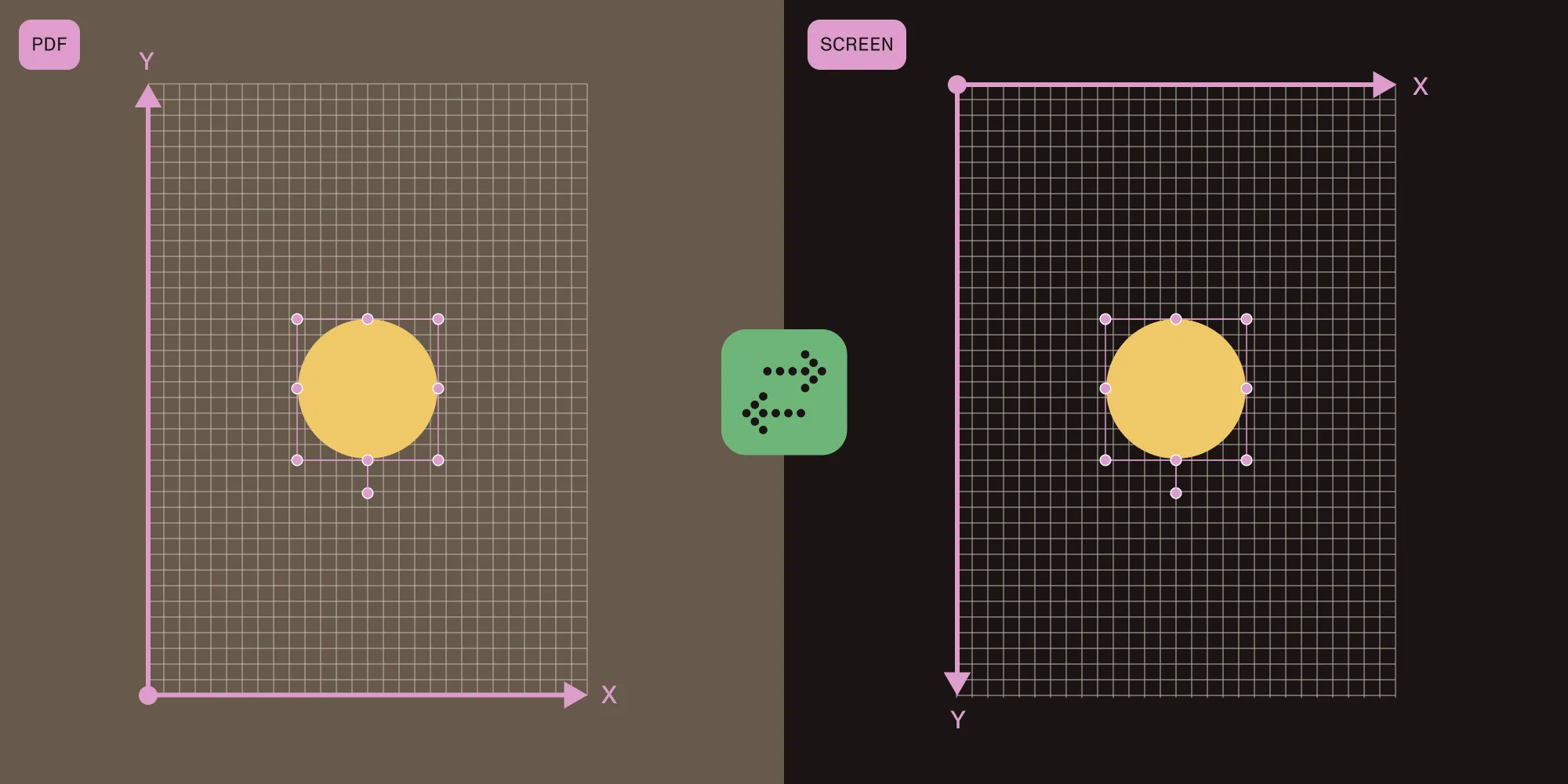
    One of the trickiest parts of building PDF annotations is coordinate conversion. This guide explains how PDF coordinates and screen (CSS) coordinates differ and how to convert between them using PDF.js’s PageViewport.
    PDF.js coordinates: Convert PDF space to screen space

    TL;DR

    • PDF coordinates have a bottom-left origin in PDF points; screen coordinates have a top-left origin in CSS pixels. Store the PDF form, and render with the screen form.
    • PageViewport.convertToPdfPoint/convertToViewportPoint/convertToViewportRectangle are the conversion APIs.
    • Rederive the viewport on scalechanging/rotationchanging events and normalize rotated rectangles with Math.min/Math.max.

    Prerequisites

    This guide assumes you have a working PDF.js viewer (PDFViewer + EventBus + a loaded page). If you don’t, start with the walkthrough on how to set up a custom PDF.js viewer in React.

    You’ll also need:

    • pdfjs-dist 4.x or later
    • A way to access individual page views: viewer.getPageView(pageIndex) returns a PageView with a .viewport and .canvas

    The two coordinate systems

    When you work with PDF.js, you’re constantly translating between two coordinate systems.

    PDF coordinates

    • Origin at bottom-left of the page
    • Y-axis goes up
    • Units are in PDF points (1 point = 1/72 inch)
    • Independent of zoom, rotation, or screen size
    • This is what you store in your database

    Screen coordinates (CSS/Canvas)

    • Origin at top-left of the rendered page
    • Y-axis goes down
    • Units are in CSS pixels
    • Changes with zoom, rotation, and dots per inch (DPI)
    • This is what you use for positioning HTML overlays

    PageViewport: The coordinate bridge

    Every rendered page in PDF.js has a PageViewport object that handles conversion between these systems. Access it via the following:

    const pageView = viewer.getPageView(pageNumber - 1); // 0-indexed.

    const viewport = pageView.viewport;

    Converting screen to PDF (for saving)

    When a user draws a rectangle onscreen, you need to convert those CSS coordinates to PDF coordinates for storage:

    function screenToPdf(position, viewport) {

    const [x1, y1] = viewport.convertToPdfPoint(

    position.left,

    position.top,

    );

    const [x2, y2] = viewport.convertToPdfPoint(

    position.left + position.width,

    position.top + position.height,

    );

    const minX = Math.min(x1, x2);

    const minY = Math.min(y1, y2);

    const maxX = Math.max(x1, x2);

    const maxY = Math.max(y1, y2);

    return {

    x1: minX,

    y1: minY,

    x2: maxX,

    y2: maxY,

    width: maxX - minX,

    height: maxY - minY,

    pageNumber: position.pageNumber,

    };

    }

    Why Math.min/Math.max? When the page is rotated, convertToPdfPoint may return coordinates where x1 > x2 or y1 > y2. Normalizing ensures a consistent rectangle.

    Converting PDF to screen (for rendering)

    When loading annotations from storage, convert PDF coordinates back to screen position:

    function pdfToScreen(scaled, viewport) {

    const [x1, y1, x2, y2] = viewport.convertToViewportRectangle([

    scaled.x1,

    scaled.y1,

    scaled.x2,

    scaled.y2,

    ]);

    const minX = Math.min(x1, x2);

    const minY = Math.min(y1, y2);

    const maxX = Math.max(x1, x2);

    const maxY = Math.max(y1, y2);

    return {

    left: minX,

    top: minY,

    width: maxX - minX,

    height: maxY - minY,

    pageNumber: scaled.pageNumber,

    };

    }

    Converting a single point

    For sticky notes or click positions, convert individual points:

    // Screen > PDF.

    const [pdfX, pdfY] = viewport.convertToPdfPoint(canvasLeft, canvasTop);

    // PDF > screen.

    const [screenX, screenY] = viewport.convertToViewportPoint(pdfX, pdfY);

    Storing coordinates in PDF space

    For persistence, store in PDF coordinate space since it’s independent of zoom/rotation:

    // What you store in the database.

    type NodeLocation = {

    page: number; // 1-indexed page number.

    rect: number[]; // [x1, y1, x2, y2] in PDF coordinates.

    };

    // What you use for CSS rendering.

    type LTWHP = {

    left: number;

    top: number;

    width: number;

    height: number;

    pageNumber: number;

    };

    Handling scale and rotation changes

    When the user zooms or rotates, you need to reconvert all coordinates. Listen for these EventBus events:

    React.useEffect(() => {

    const updateViewport = () => {

    const pageView = viewer.getPageView(page - 1);

    if (pageView?.viewport) {

    setViewport(pageView.viewport);

    }

    };

    eventBus.on("scalechanging", updateViewport);

    eventBus.on("rotationchanging", updateViewport);

    return () => {

    eventBus.off("scalechanging", updateViewport);

    eventBus.off("rotationchanging", updateViewport);

    };

    }, [eventBus, page]);

    When viewport state changes, all annotations using pdfToScreen(stored, viewport) automatically reposition.

    Handling rotated pages

    PDF coordinates with a rotation of 180 degrees or more can flip the scroll position logic. When navigating to a location:

    function navigateToLocation(location, viewer, linkService) {

    const pdfCoords = nodeLocationToScaled(location);

    const viewport = viewer.getPageView(pdfCoords.pageNumber - 1)?.viewport;

    let scrollLeft, scrollTop;

    if (viewport && viewport.rotation >= 180) {

    scrollLeft = pdfCoords.x2;

    scrollTop = pdfCoords.y1;

    } else {

    scrollLeft = pdfCoords.x1;

    scrollTop = pdfCoords.y2;

    }

    // `PDFLinkService.goToDestination` accepts an integer page index here,

    // but the canonical PDF explicit-destination form expects a page reference

    // object `{ num, gen }` from `pdfDocument.getDestination(name)`. Use the

    // integer form for navigation, and the ref form when you’re round-tripping

    // a real PDF destination.

    linkService.goToDestination([

    pdfCoords.pageNumber - 1,

    { name: "XYZ" },

    scrollLeft,

    scrollTop,

    null,

    ]);

    }

    Device pixel ratio

    When capturing canvas regions (e.g. for area annotation screenshots), account for the canvas’s actual output scale. PDF.js caps render scale and accepts overrides, so reading window.devicePixelRatio directly can be wrong — derive the scale from the rendered canvas instead:

    const dpr = canvas.width / canvas.clientWidth;

    context.drawImage(

    canvas,

    left * dpr, // Source coordinates are scaled by the real DPR.

    top * dpr,

    width * dpr,

    height * dpr,

    0, 0, // Destination at origin

    width, height, // Destination at CSS size

    );

    Quick reference: Coordinate conversion methods

    DirectionMethodUse case
    Screen > PDFviewport.convertToPdfPoint(x, y)Saving user-drawn annotations
    PDF > screenviewport.convertToViewportPoint(x, y)Rendering a single point (notes)
    PDF rect > screen rectviewport.convertToViewportRectangle([x1,y1,x2,y2])Rendering annotation rectangles
    Screen rect > PDF rectTwo convertToPdfPoint callsSaving area selections

    Always normalize with Math.min/Math.max after conversion to handle rotation edge cases.

    How Nutrient Web SDK handles this

    Nutrient Web SDK ships with a simpler coordinate model than raw PDF: a top-left origin (Y-down), measured in PDF points. The viewer manages viewport transforms, zoom, rotation, and DPI internally, so you set boundingBox once and the SDK keeps it positioned through every change:

    const annotation = new NutrientViewer.Annotations.RectangleAnnotation({

    pageIndex: 0,

    boundingBox: new NutrientViewer.Geometry.Rect({

    left: 50,

    top: 100,

    width: 200,

    height: 50,

    }),

    });

    await instance.create(annotation);

    Note that Nutrient’s top is measured from the top of the page, not the bottom — if you’re porting stored PDF-space coordinates from raw convertToPdfPoint output, you’ll need to flip the Y values (pageHeight - y) when handing them to Geometry.Rect.

    Learn more about Nutrient Web SDK | Migration guide | Contact Sales

    FAQ

    Screen coordinates change with zoom, rotation, and device pixel ratio. If you store { left: 240, top: 380 } from a user’s 125 percent zoomed view, the annotation lands somewhere else on someone else’s 75 percent view. PDF coordinates are tied to the document’s intrinsic dimensions (points from the bottom-left origin) and stay stable regardless of how the page is rendered.

    convertToPdfPoint runs the screen-space rect through the viewport’s inverse transform. For rotated pages (90, 180, 270 degrees), that transform flips axes — so the converted “top-left” can end up with a larger x than the converted “bottom-right.” Normalizing the four numbers gives you a canonical rectangle regardless of rotation.

    On the scalechanging event (zoom in/out) and the rotationchanging event. Both invalidate the cached transform on PageView.viewport. The useEffect pattern in the handling-changes section subscribes to both and rereads the viewport from the page view.

    convertToViewportPoint(x, y) converts a single PDF point to screen coordinates — use it for sticky notes, click positions, or any single-point annotation. convertToViewportRectangle([x1, y1, x2, y2]) converts all four corners in one call and returns a flat array — use it for highlights, area annotations, or anything with a bounding box.

    Not reliably. PDF.js caps the rendered canvas resolution on huge pages and accepts user-supplied overrides, so the canvas’s actual scale can be lower than devicePixelRatio. Derive it from the canvas instead: canvas.width / canvas.clientWidth returns the real ratio every time.

    PDF.js’s “PDF coordinates” are PDF user space points (1 point = 1/72 inch), origin at bottom-left, Y-axis up — exactly what the PDF specification defines. A coordinate stored as [100, 200, 300, 400] lands at the same location whether opened in PDF.js, Acrobat, or any other compliant viewer.

    Explore related topics

    Try for free Ready to get started?

    Related SDK articles

    Explore more