







Not all events are created equal. A multi-track tech conference needs a minute-by-minute agenda, while a local yoga studio just needs a clean monthly grid. If you force your schedule into the wrong layout, your visitors will just get confused. In this guide, we’ll dive deep into the MotoPress Events Calendar toolkit to choose the most suitable WordPress event calendar widget!
This plugin provides several event widgets (available as Gutenberg blocks and shortcodes) to display schedules, event listings, and individual events. Let’s explore them so you can find the perfect match for your goals!
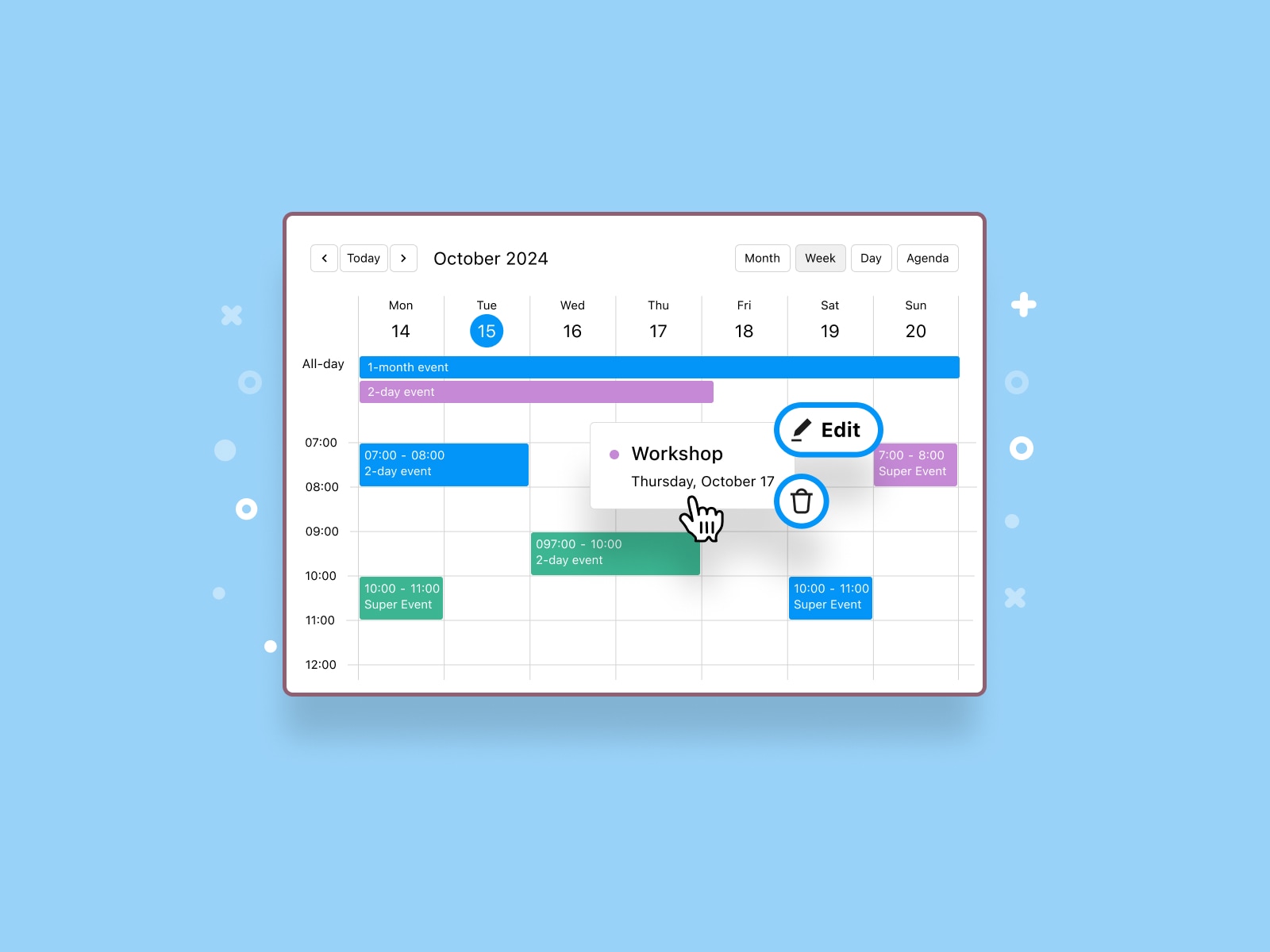
The WordPress Event Calendar plugin by MotoPress includes blocks for different event display scenarios.
| Widget | Best For |
|---|---|
| Events Calendar | Interactive schedules |
| Events List | Featured and upcoming events |
| Events Schedule | Agendas and timetables |
| Events Search | Event discovery |
| Events Filters | Large schedules |
| Single Event Pages: Single Event Schedule, Event Date, Event Location, Event Organizers, Event Categories, and Event Tags. | Event landing pages |
Each events widget can be added directly through the WordPress block editor or inserted with a shortcode. Let’s take a closer look at the available options!
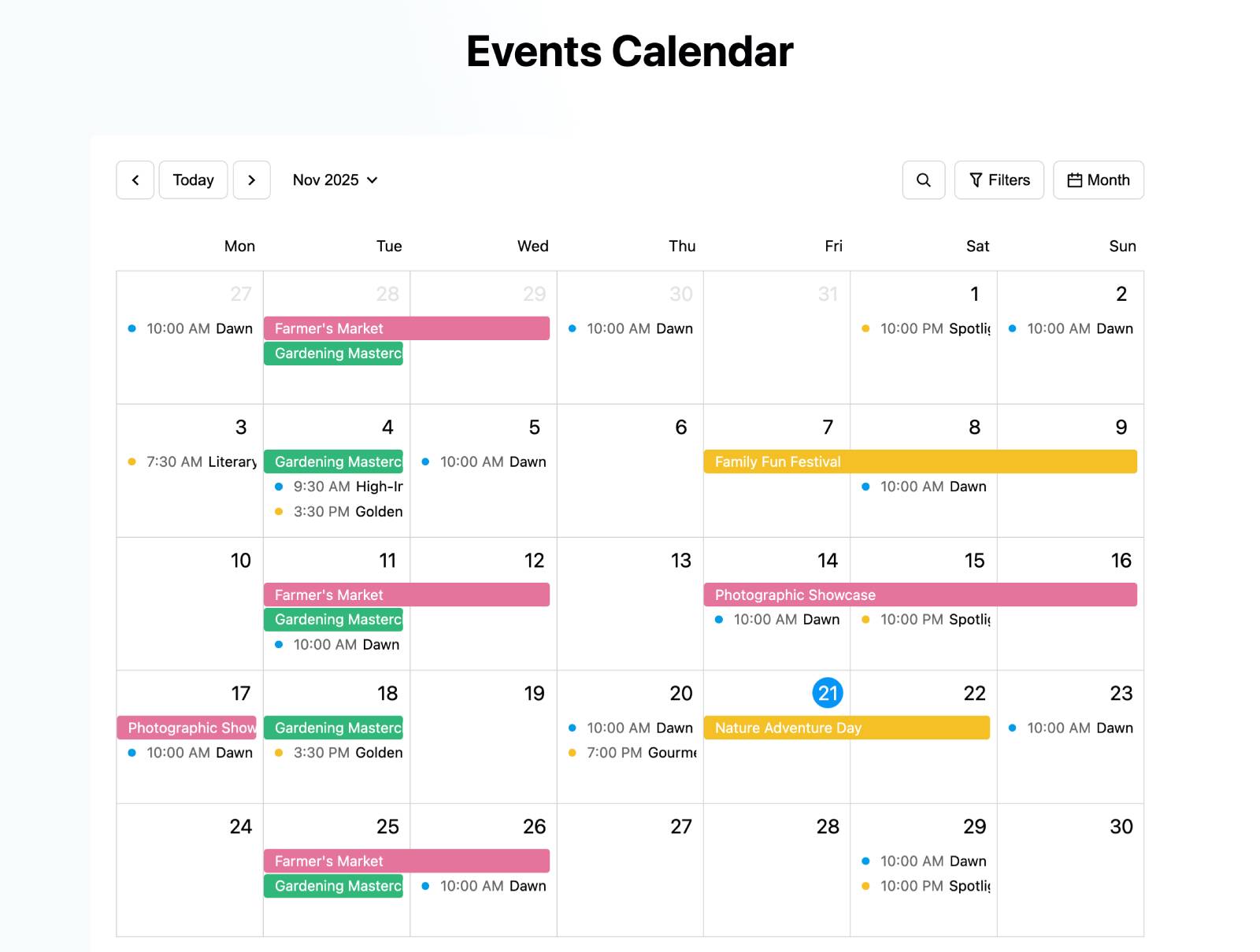
The Events Calendar block provides a fully interactive schedule that allows visitors to browse events using different calendar views.
The Events Calendar block supports four layouts:
1. Month View
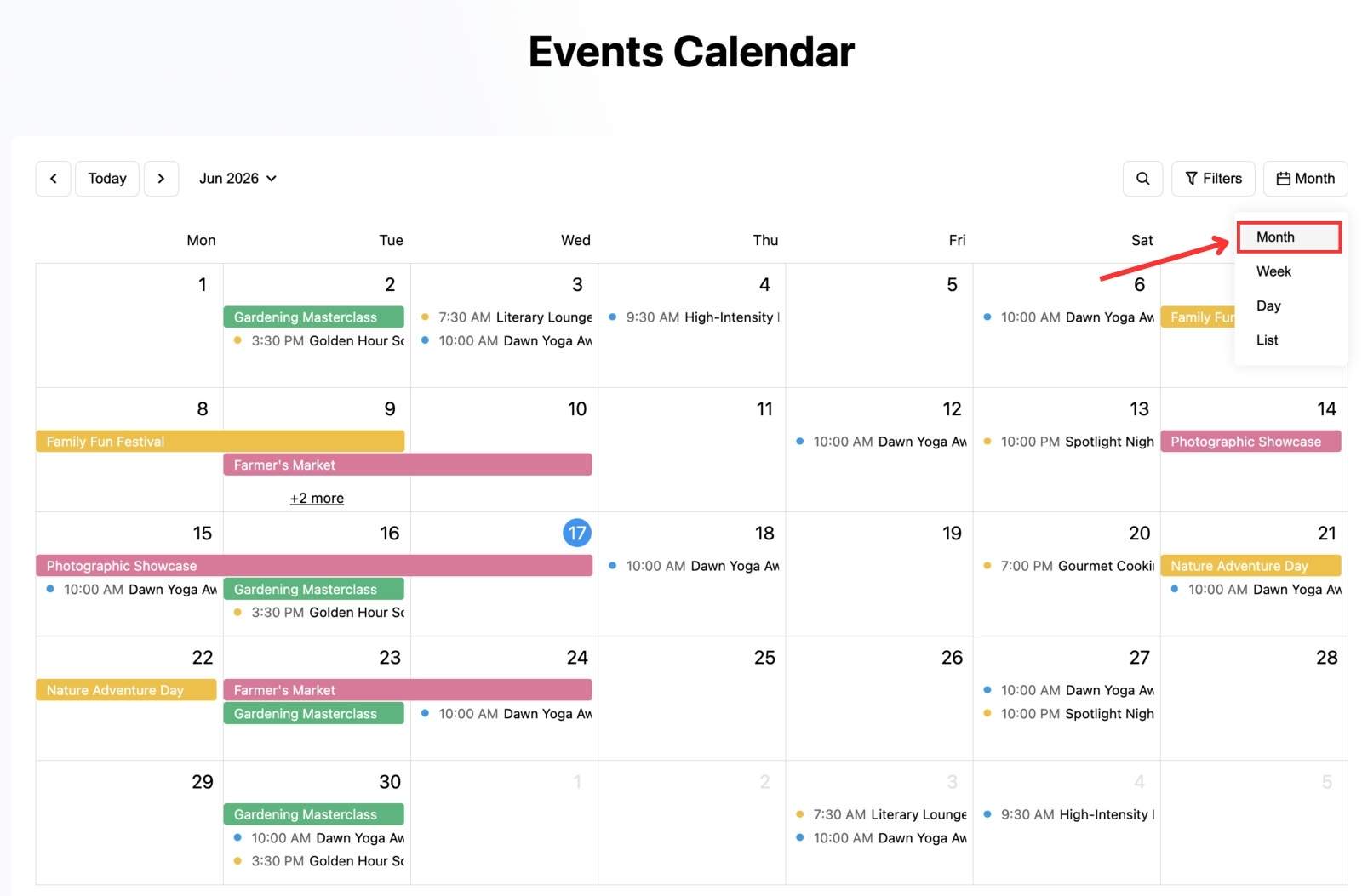
The monthly calendar is the most familiar format for most visitors. It provides an overview of everything happening throughout the month. It’s a great option for organizations that publish recurring events, workshops, classes, or seasonal activities. Visitors can quickly compare dates and identify busy periods.
2. Week View
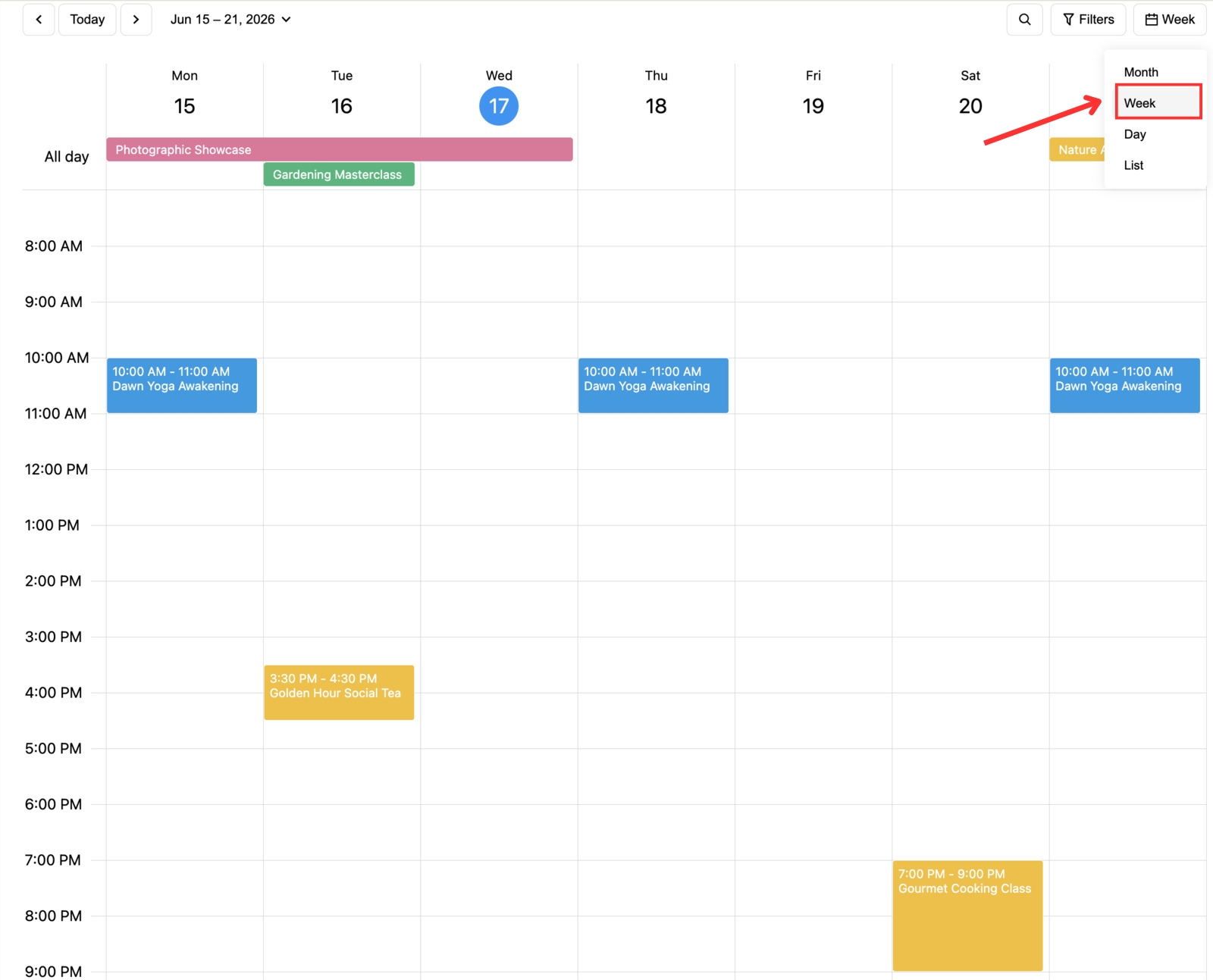
The weekly format of the event calendar widget is often used for:
Since visitors can see an entire week at once, it’s easier to discover recurring activities and available time slots.
3. Day View
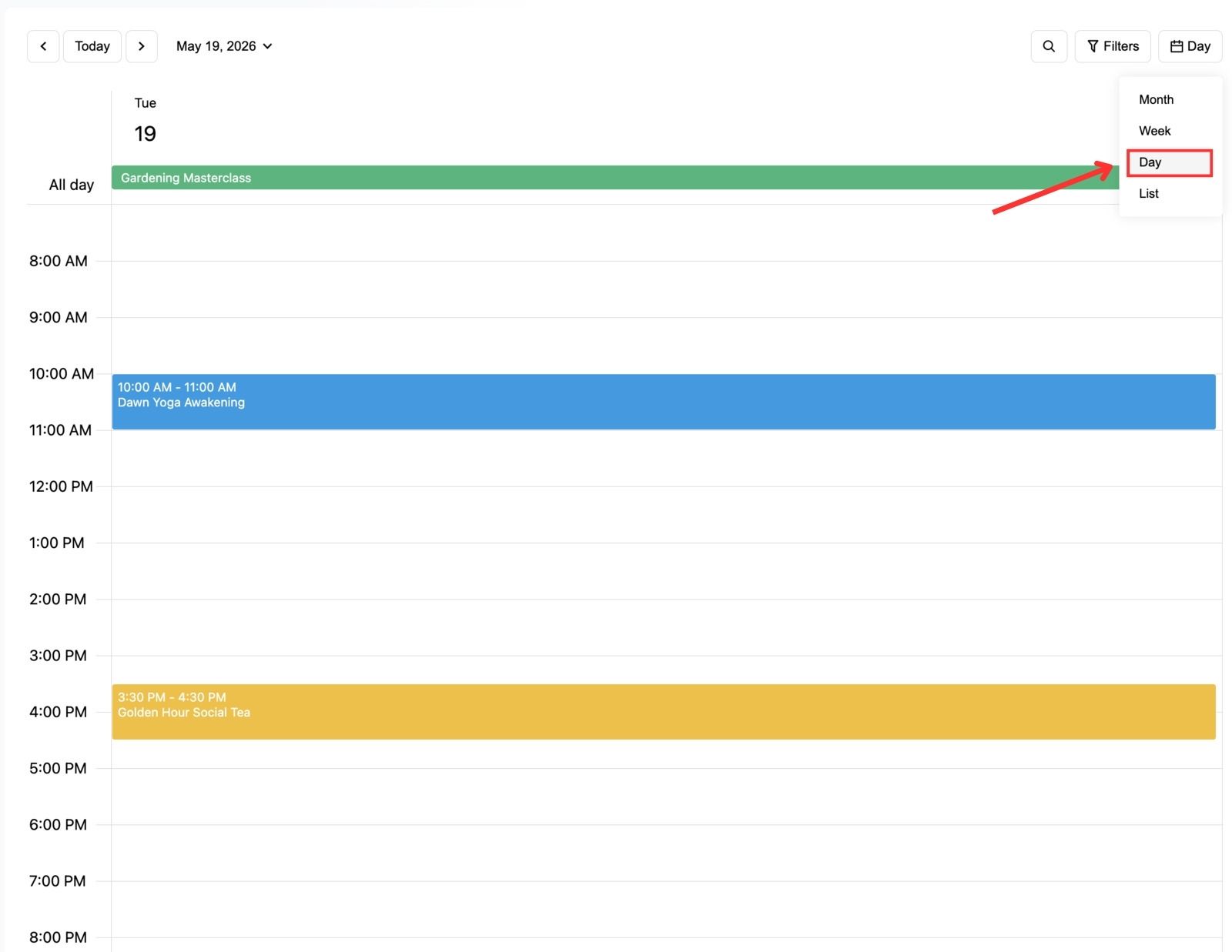
In the day view of the WordPress event calendar widget, you can focus on a single date and display events within a timetable-style layout.
4. List View
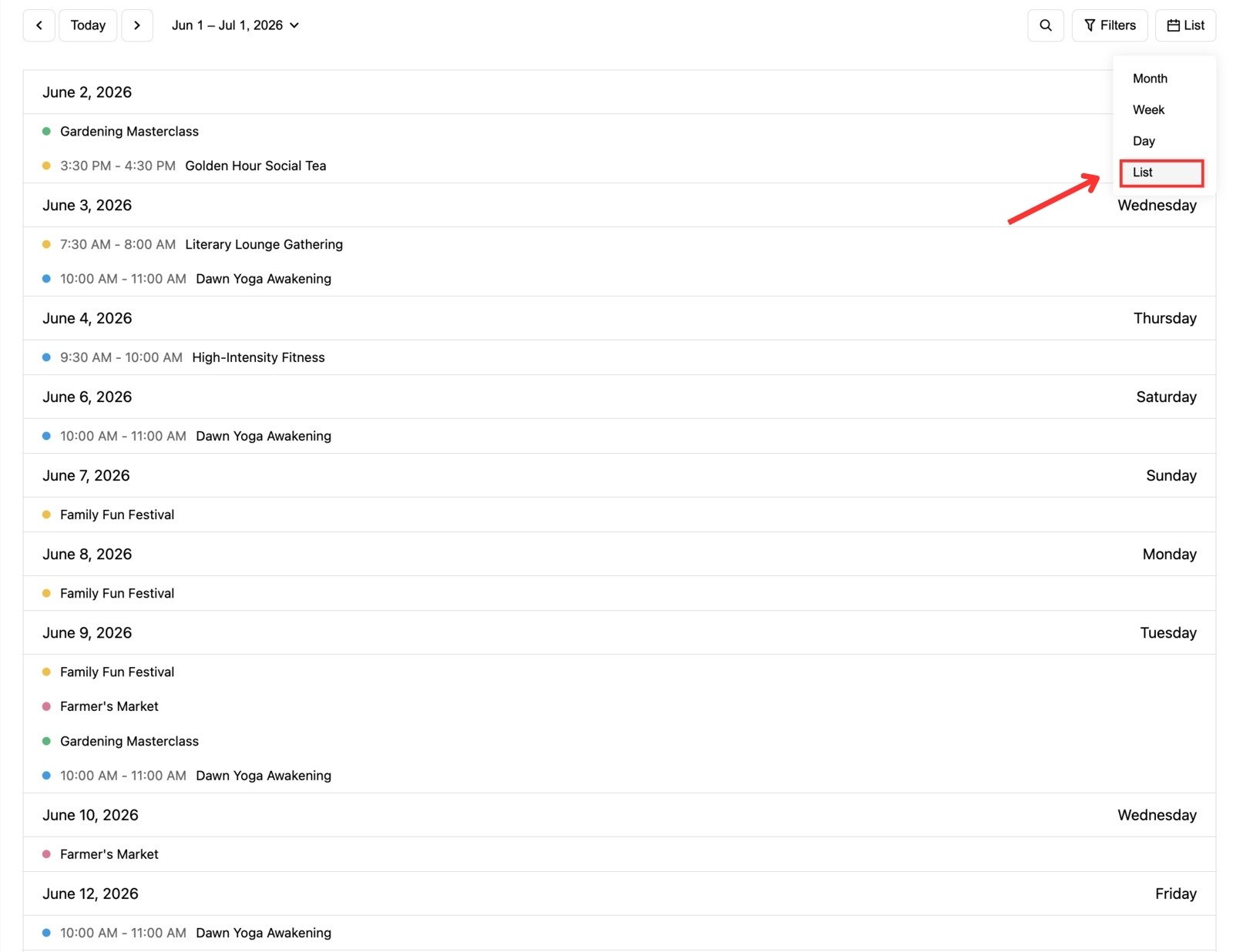
If visitors don’t like navigating traditional calendars, the list view displays upcoming events chronologically. They see a straightforward timeline of upcoming activities.
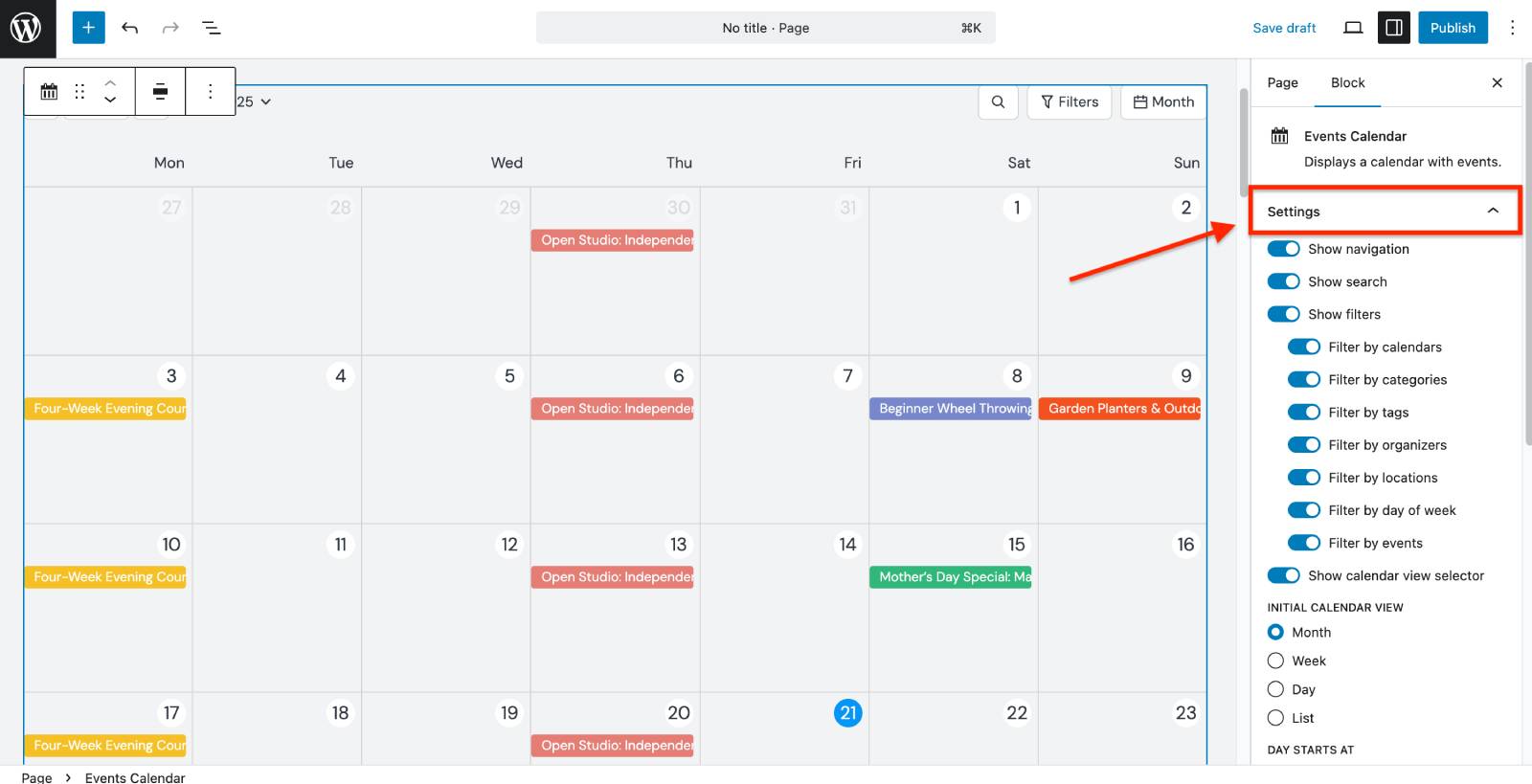
The Events Calendar block offers extensive customization options. In the block settings, you can:
Calendar layouts remain one of the most intuitive ways to explore event schedules. They come in handy if:
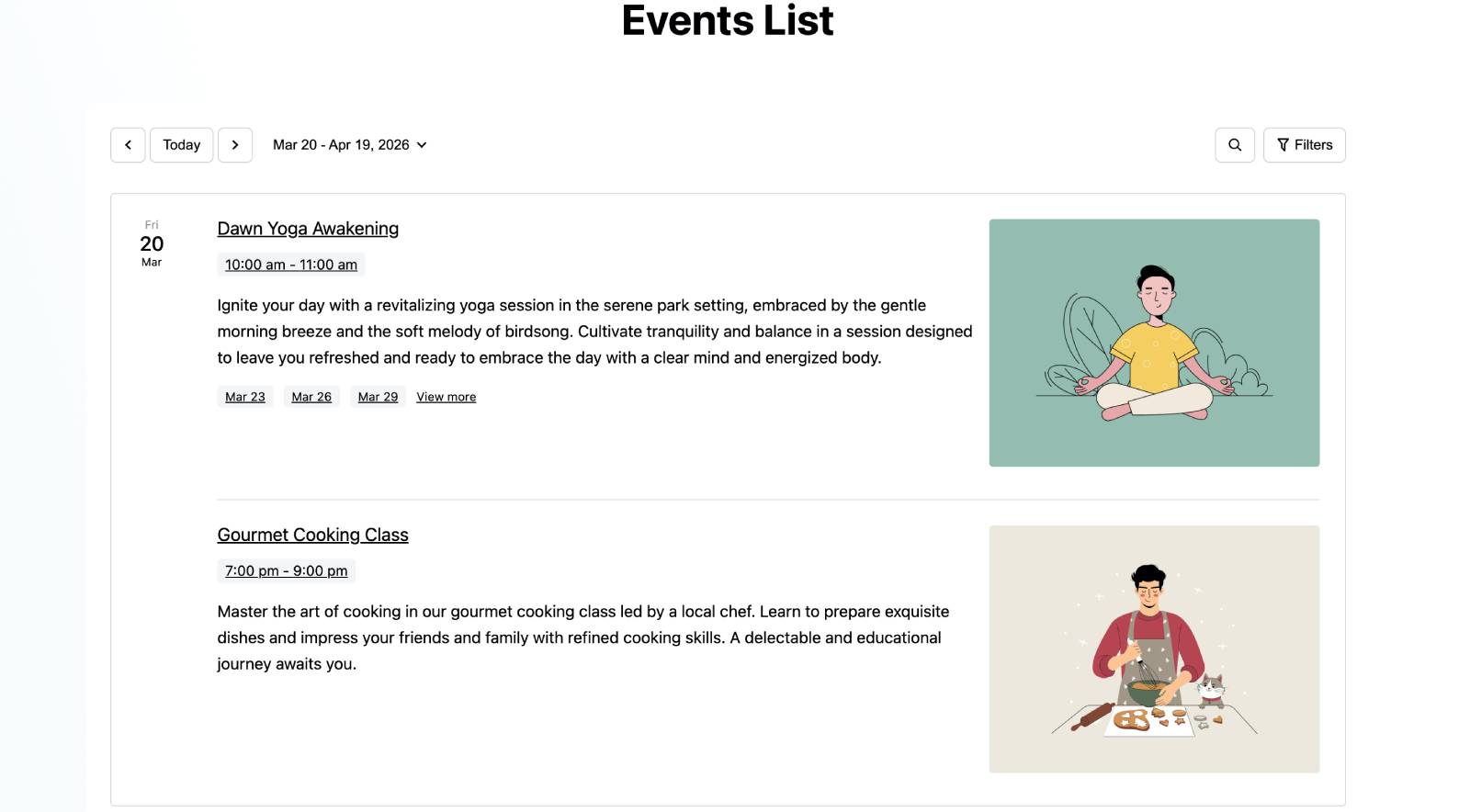
The next event widget in the MotoPress WordPress events plugin is Events List. Instead of displaying events within a calendar grid, it presents them as informative cards containing:
This format is suitable for homepage sections, landing pages, featured events, and promotional campaigns.
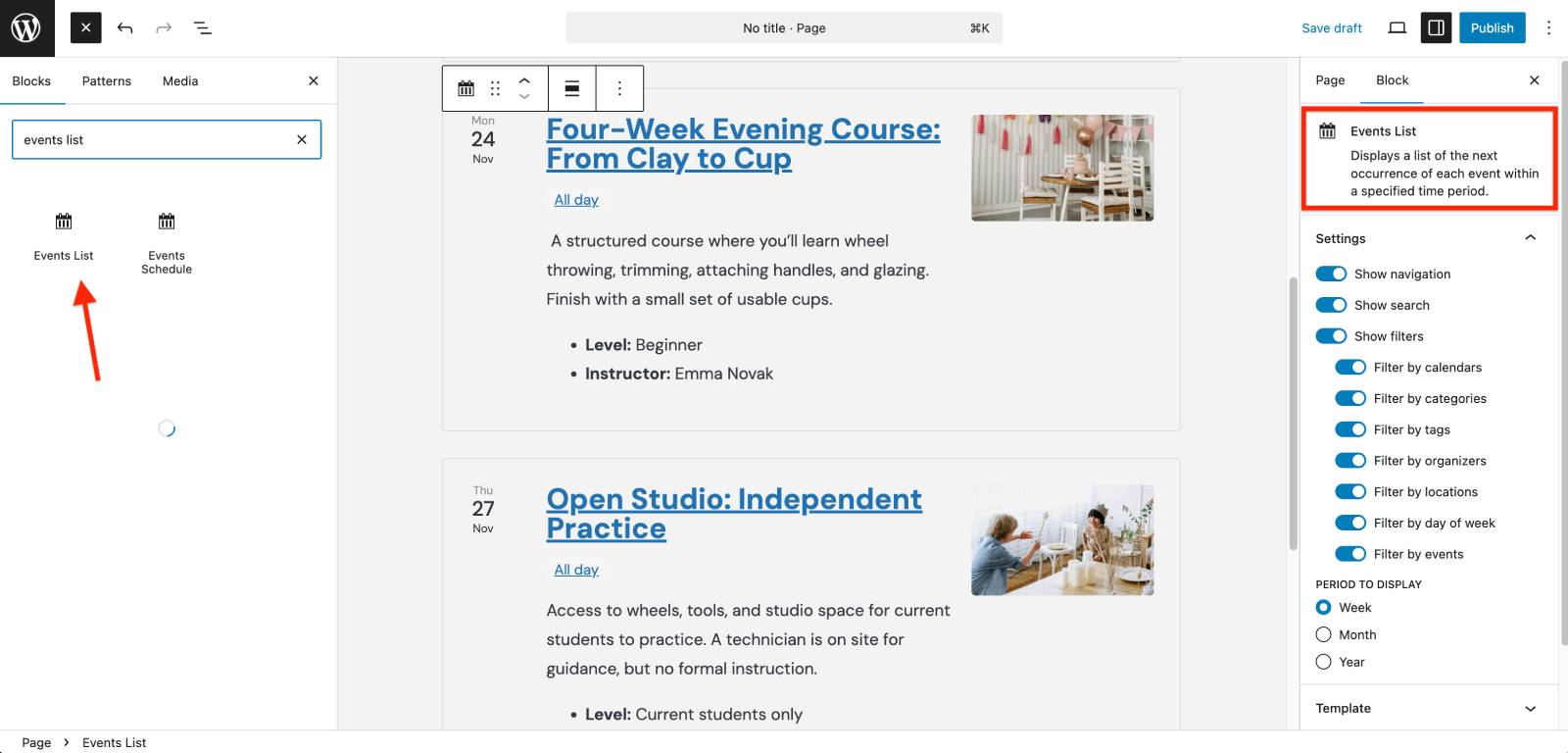
The Events List block includes several layout controls. It allows you to:
Some of the use cases for the Events List block include:
Many websites use both the Events List and Events Calendar widget WordPress layouts to combine schedule navigation with event promotion.
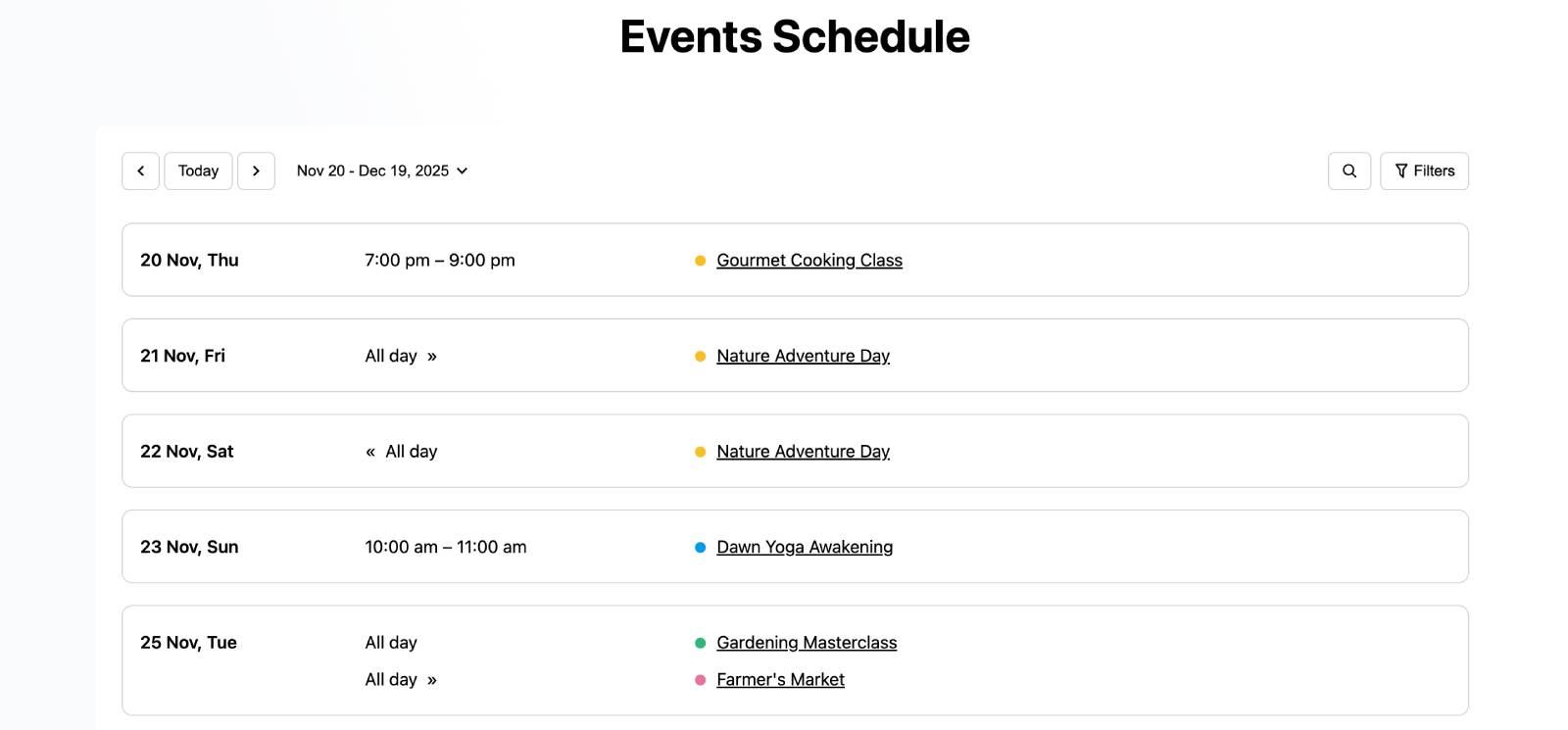
Sometimes visitors simply want to know what is happening and when. The Events Schedule block creates a simple chronological agenda for a clean and compact schedule.
Although both blocks display events outside of a traditional calendar view, they serve different goals in the event page design.
| Feature | Events List Block | Events Schedule Block |
|---|---|---|
| Primary Focus | Visual promotion & event details | Quick, time-focused chronological scanning |
| Key Elements | Featured images, long descriptions, cards | Event names, times, compact lines |
| Best Used For | Homepages, landing pages, featured events | Conference agendas, timetables, and school schedules |
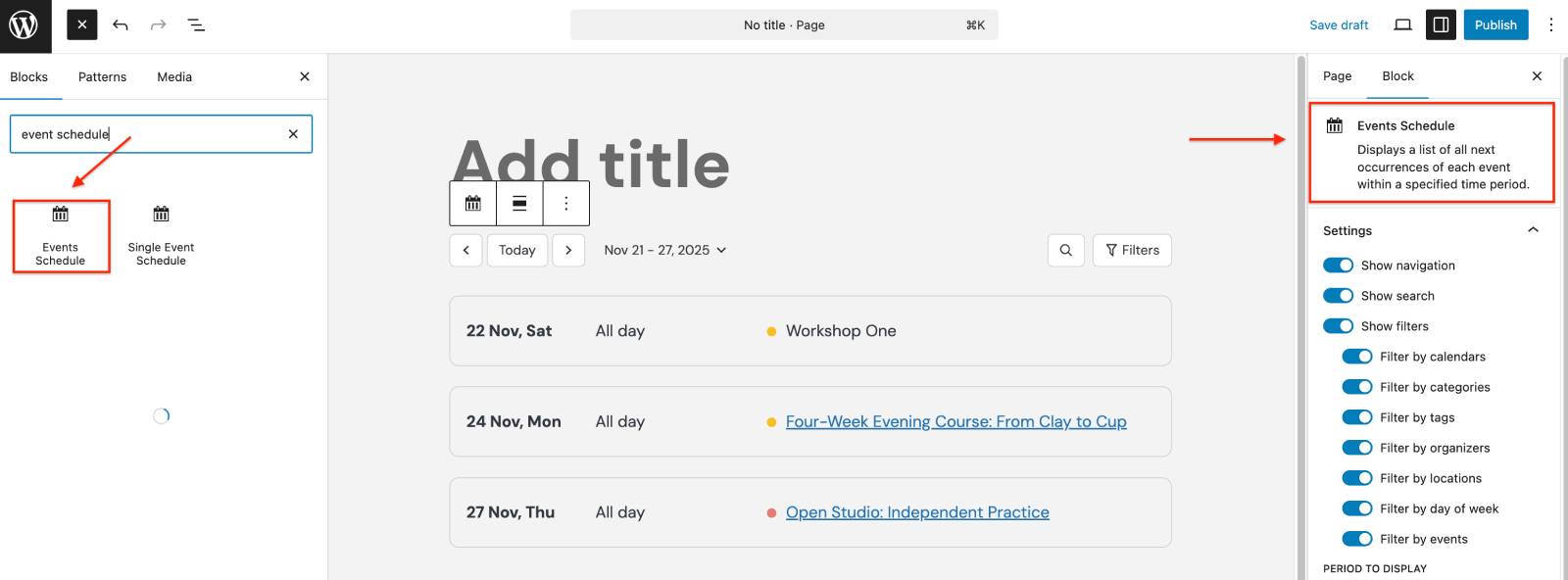
After adding the block to a page, open its settings panel in the WordPress editor to access the available customization options. You’ll be able to:
Visitors can quickly scan the schedule without navigating between calendar dates or opening event cards. This option is useful for:
As your event catalog grows, finding the right event can become like looking for a needle in a haystack. That’s where the Events Search and Events Filters blocks come into play.
The Events Search block allows visitors to search events by name or location.
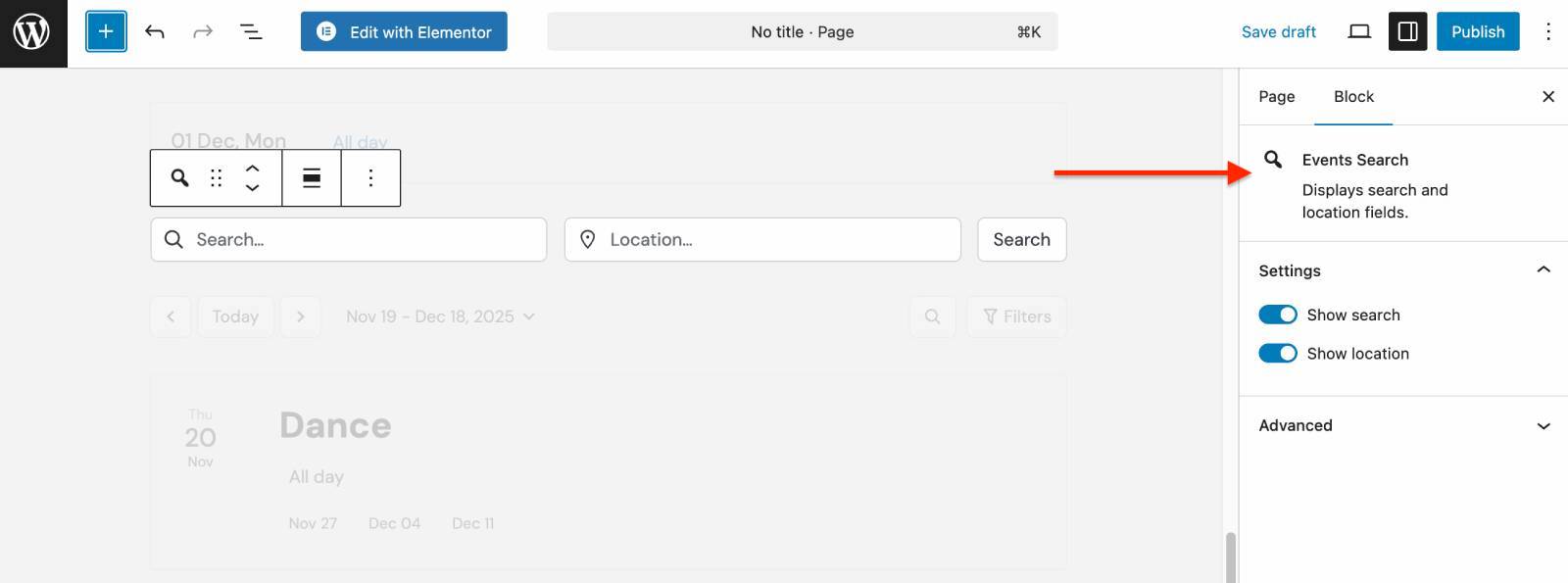
Instead of manually browsing through large schedules, visitors can filter events that match their interests. The Events Filters block allows visitors to narrow event results based on:
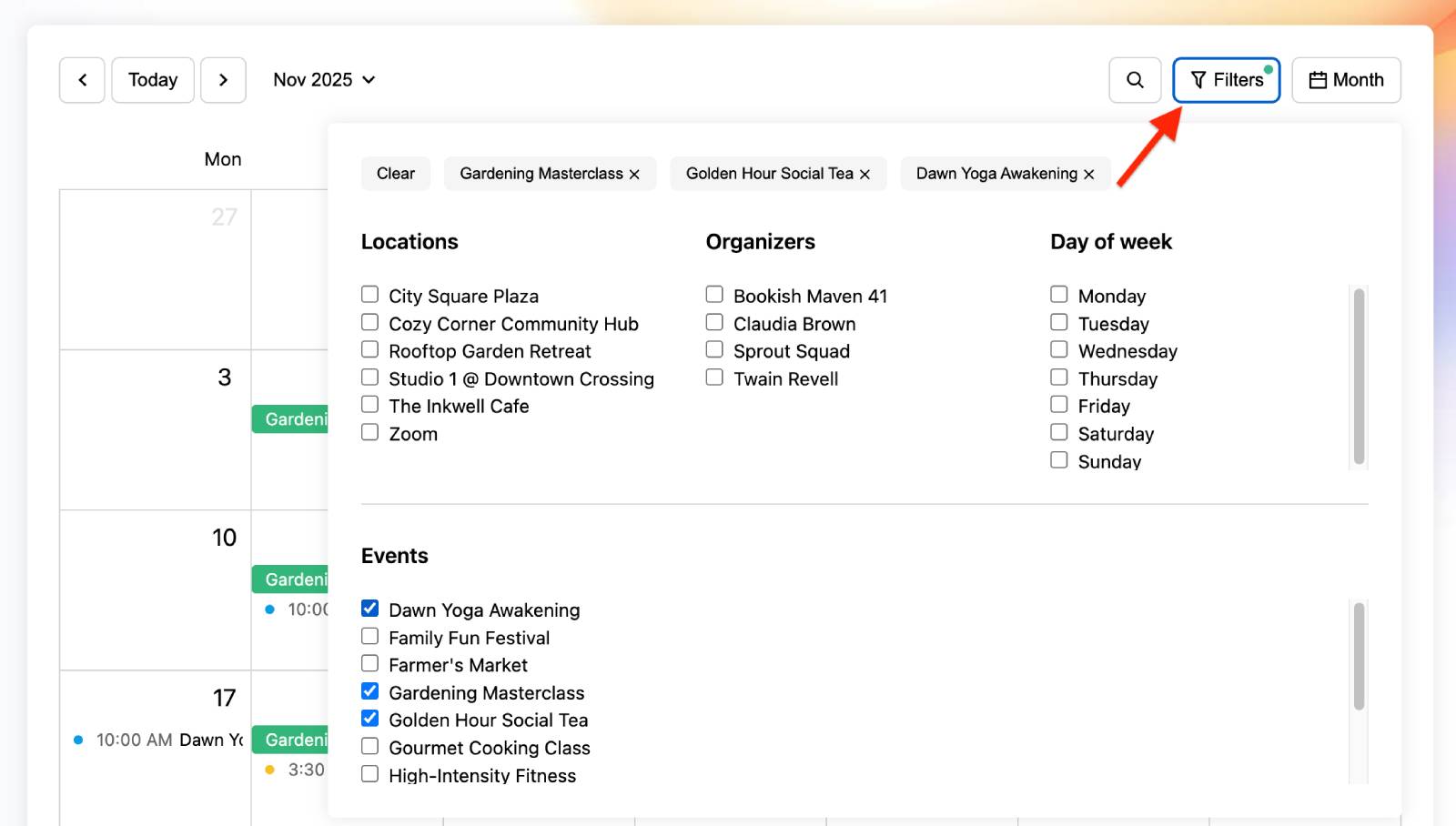
One of the most powerful aspects of the MotoPress Events Calendar plugin is that its event widgets can be connected.
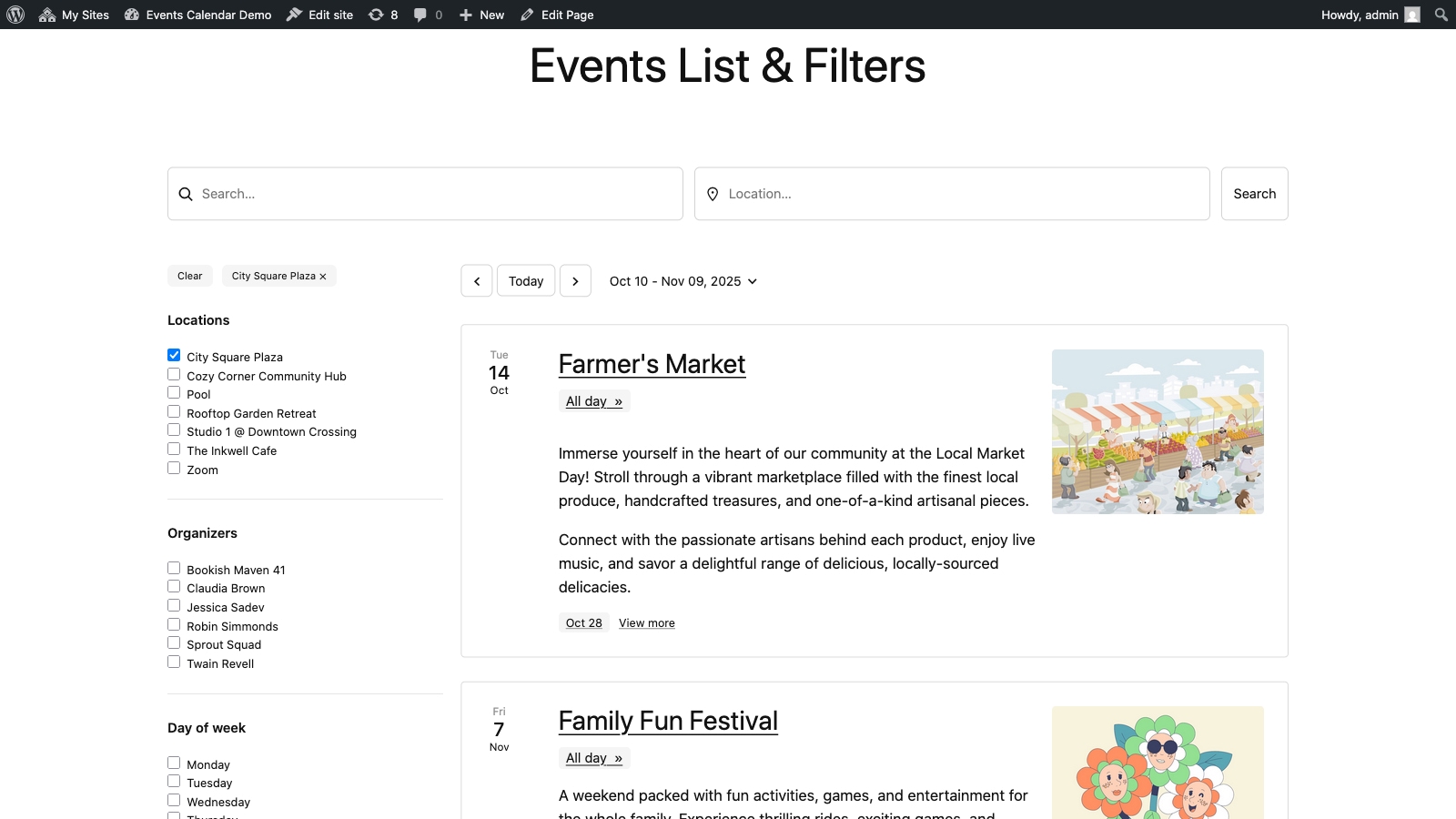
For example, you can break your layout apart and place the Events Search block in the header, the Events Filters in a sidebar, and the Events Calendar in the main body. The moment a visitor types a keyword or checks a filter box, the calendar updates instantly.
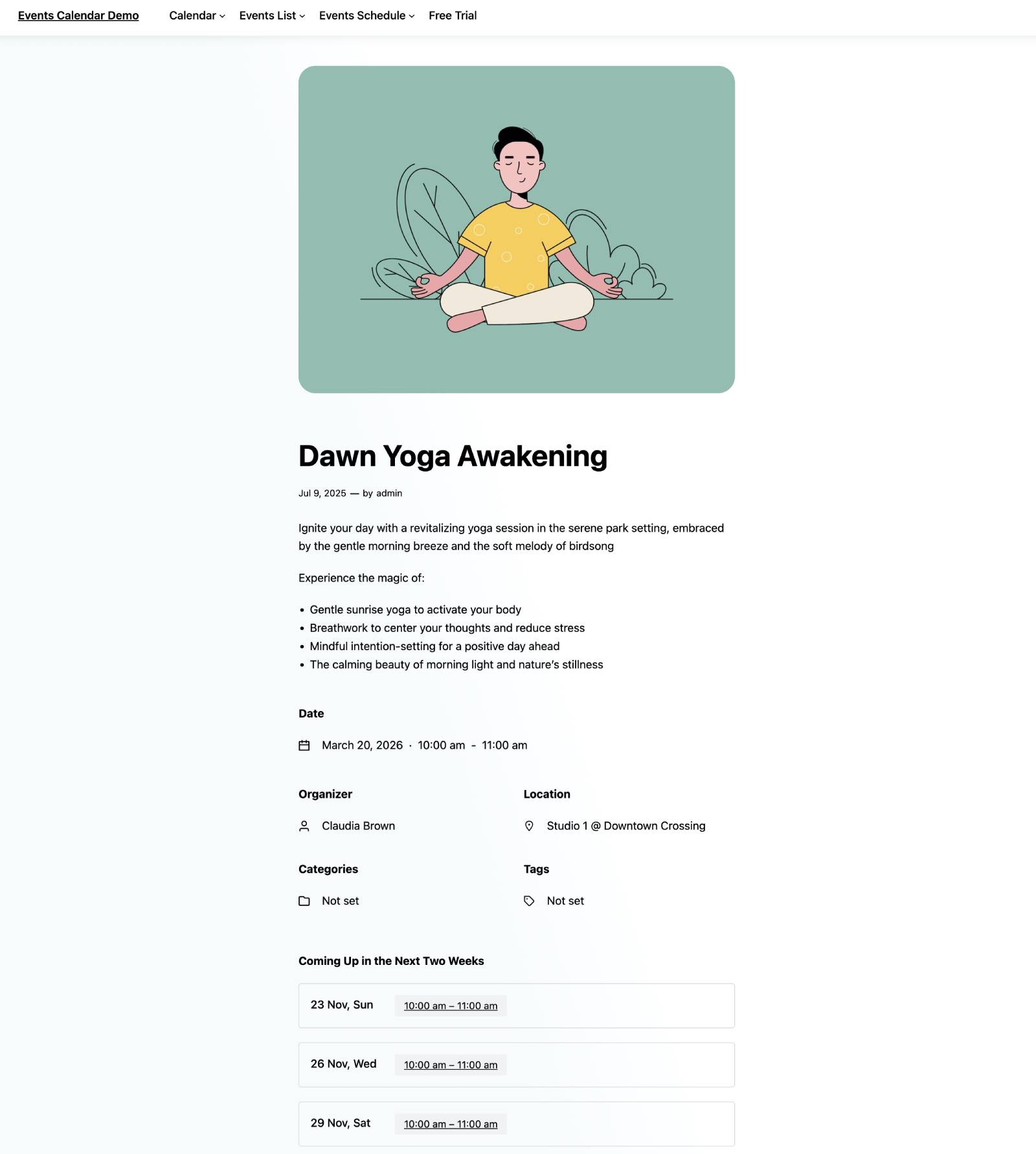
To create an event landing page design with the MotoPress Events Calendar plugin, you can build dedicated single-event pages. They support several event-specific blocks, including:
Event pages don’t have to follow a rigid template. Since they’re built with the WordPress block editor, you can customize both the content and layout.
It’s possible to combine event-specific blocks with Gutenberg patterns, columns, images, buttons, testimonials, or registration sections to create an engaging website event page design.
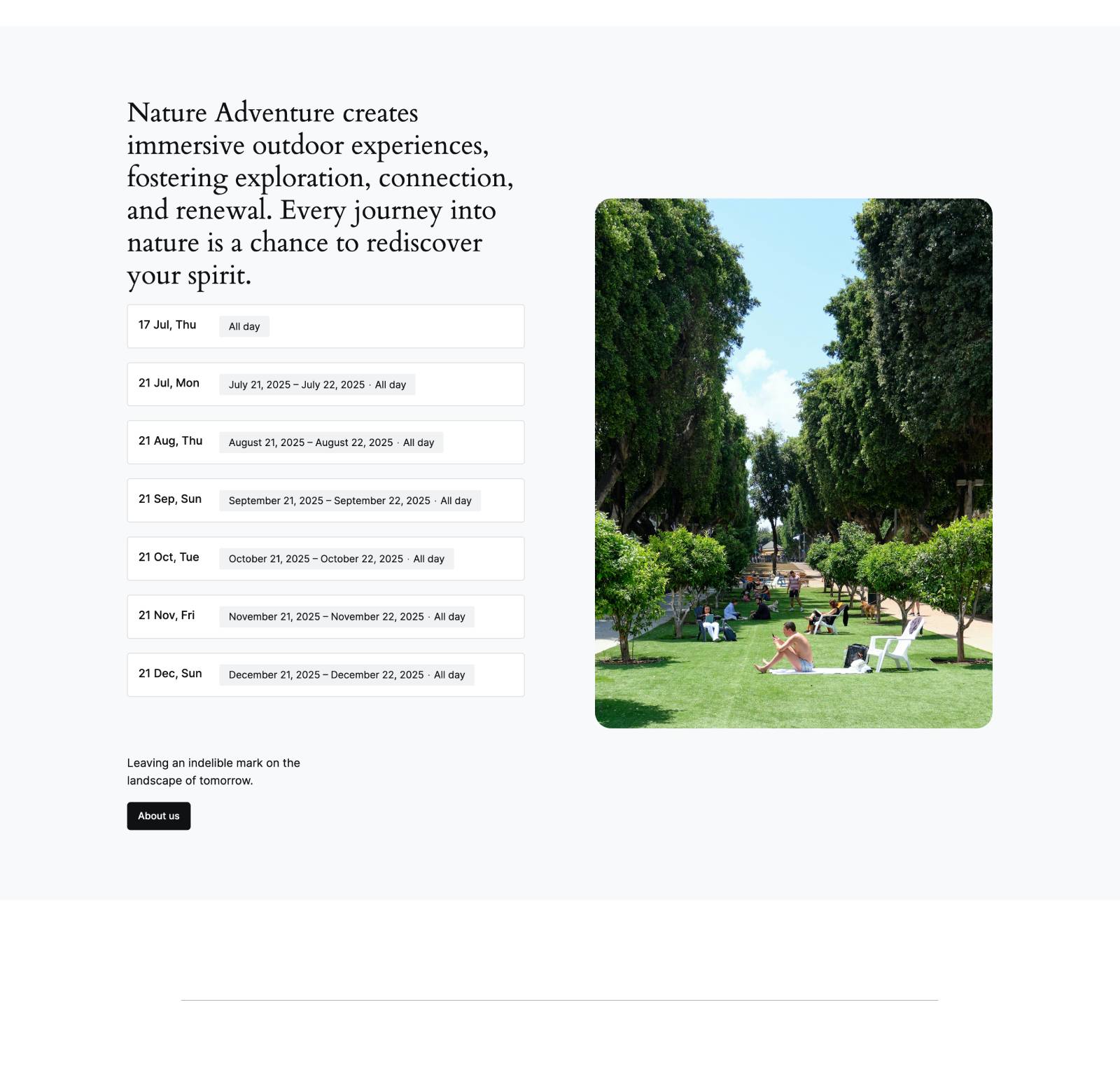
MotoPress Events Calendar gives you three ways to display event details:
You can configure these options individually for each event.
In your WordPress dashboard, go to Events and click on the event you want to edit. You can either create a new event or modify an existing one.
If you’d like visitors to access a dedicated page for the event, enable the Create a Public Page for This Event option when editing the event.
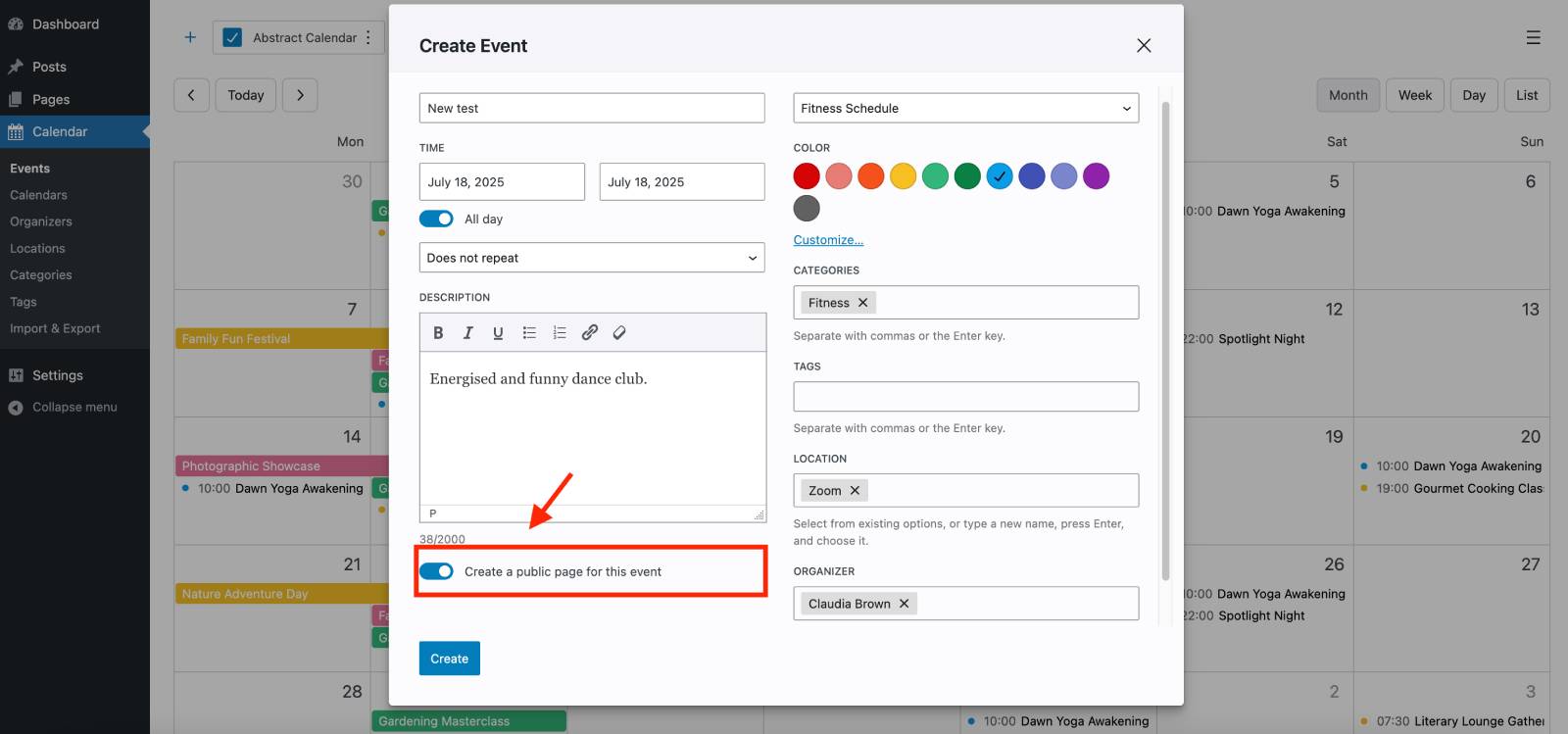
Once enabled, the plugin automatically generates a WordPress page for that event.
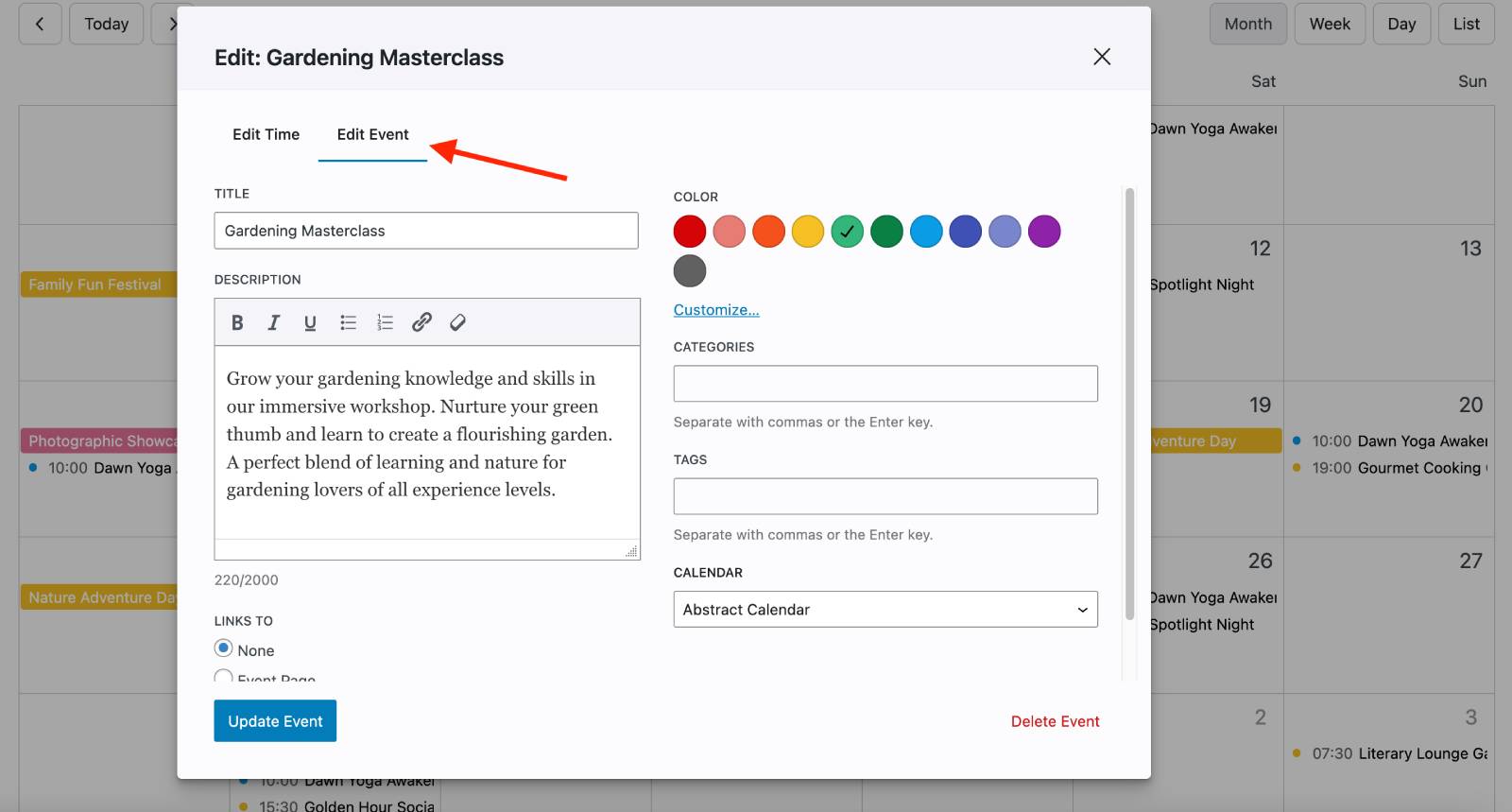
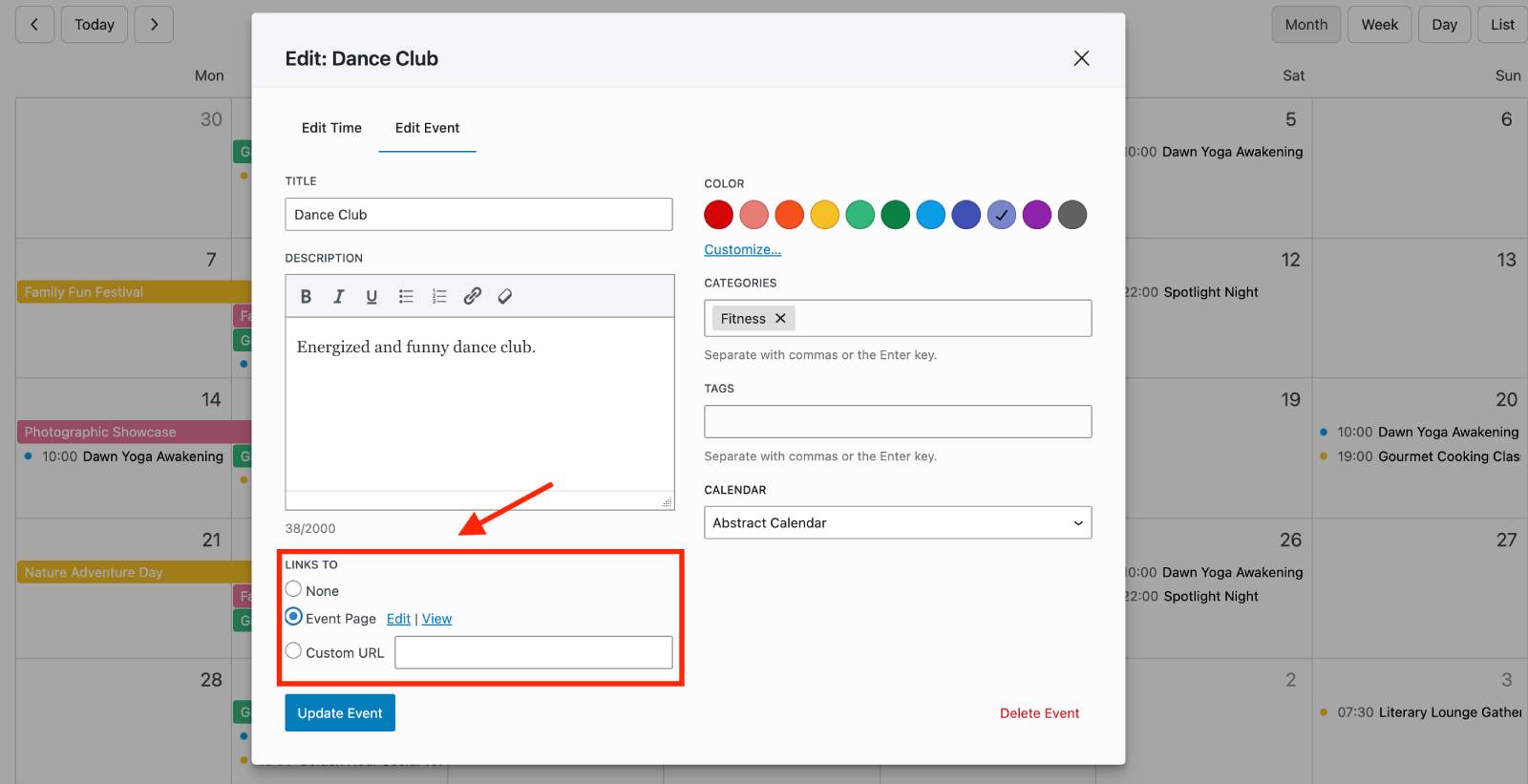
After opening the event editor, scroll down to the ‘Links to’ section.
Here you’ll find two available options:
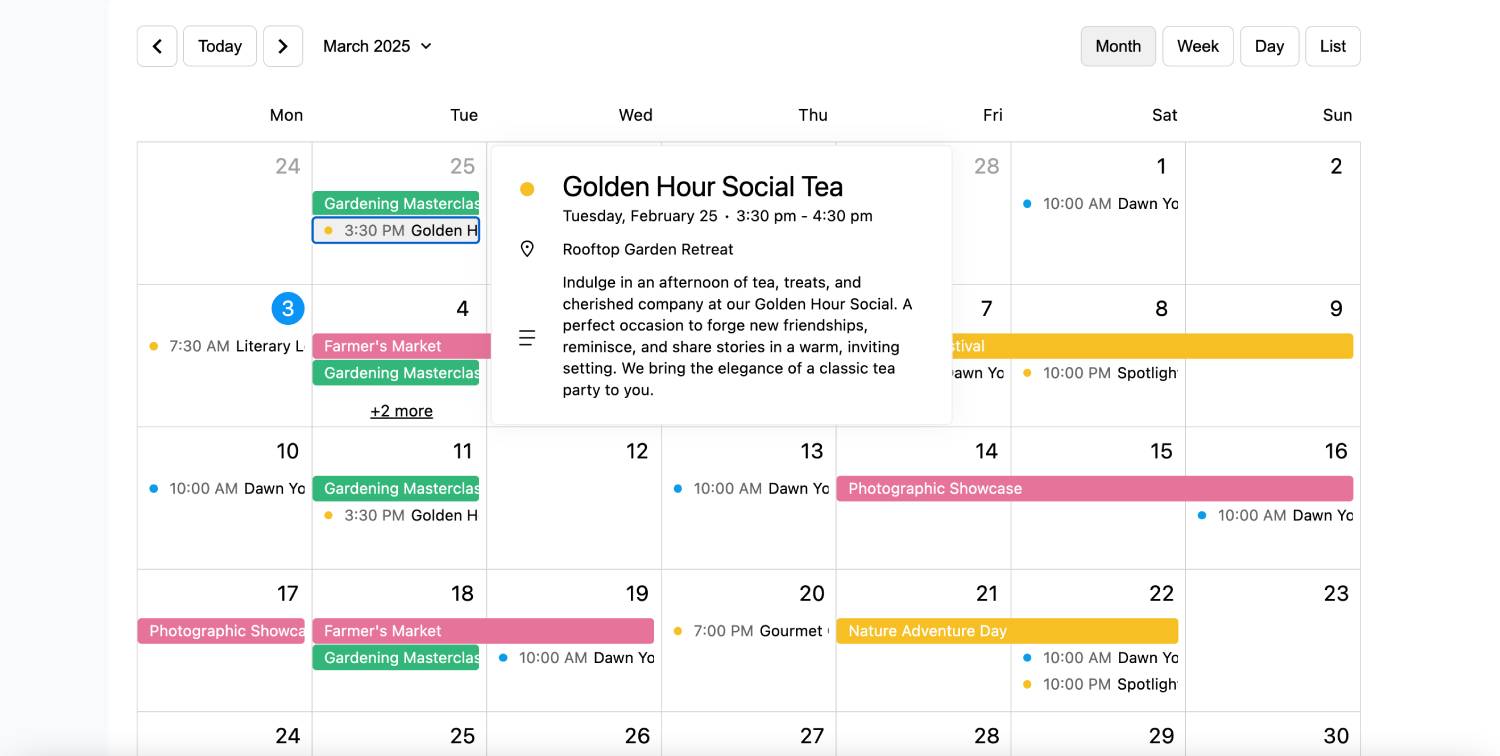
So, when visitors click on an event, they’ll see its information pop up.
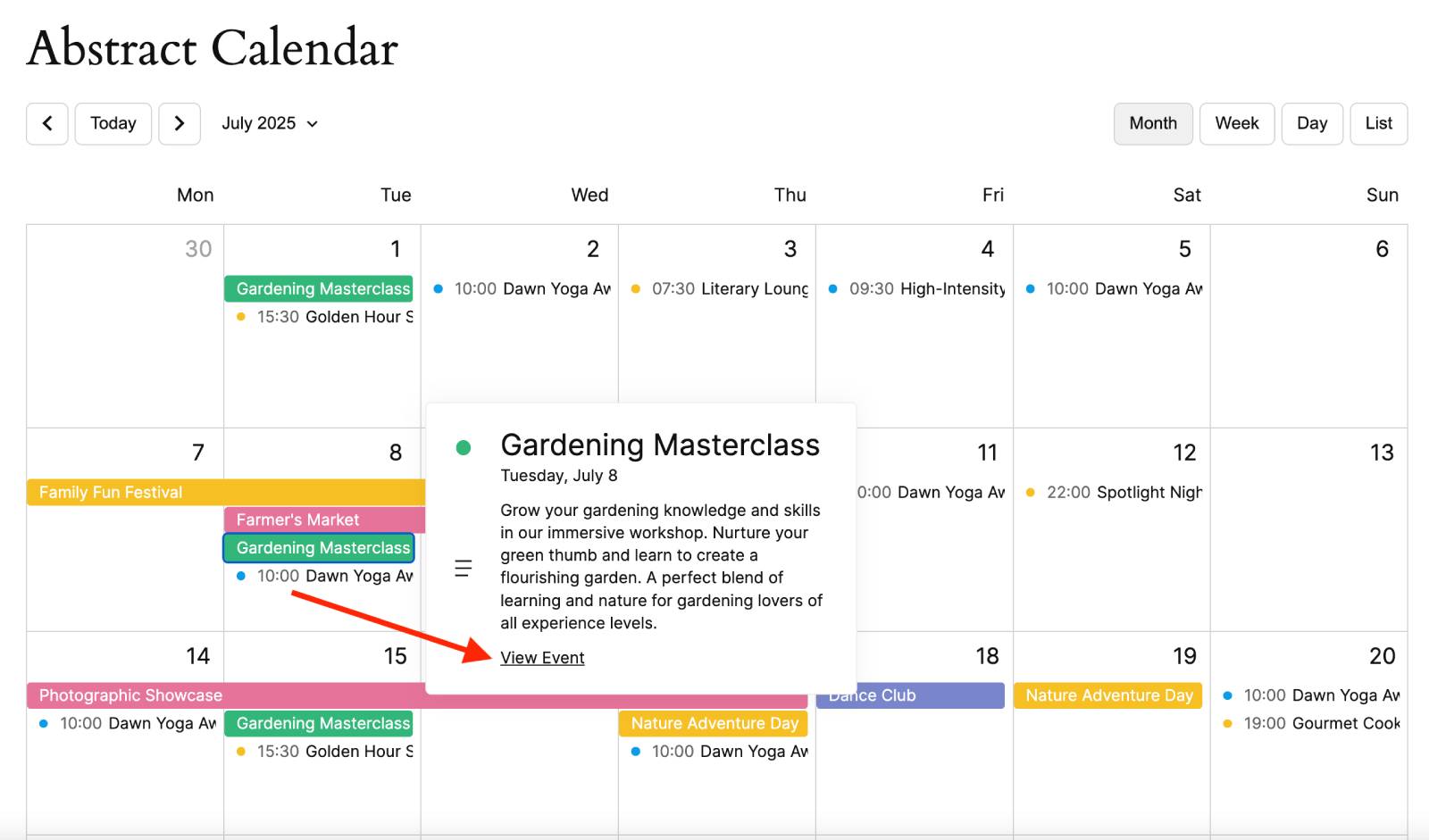
If the event has a page or custom URL assigned, a View Event button will also appear inside the pop-up.
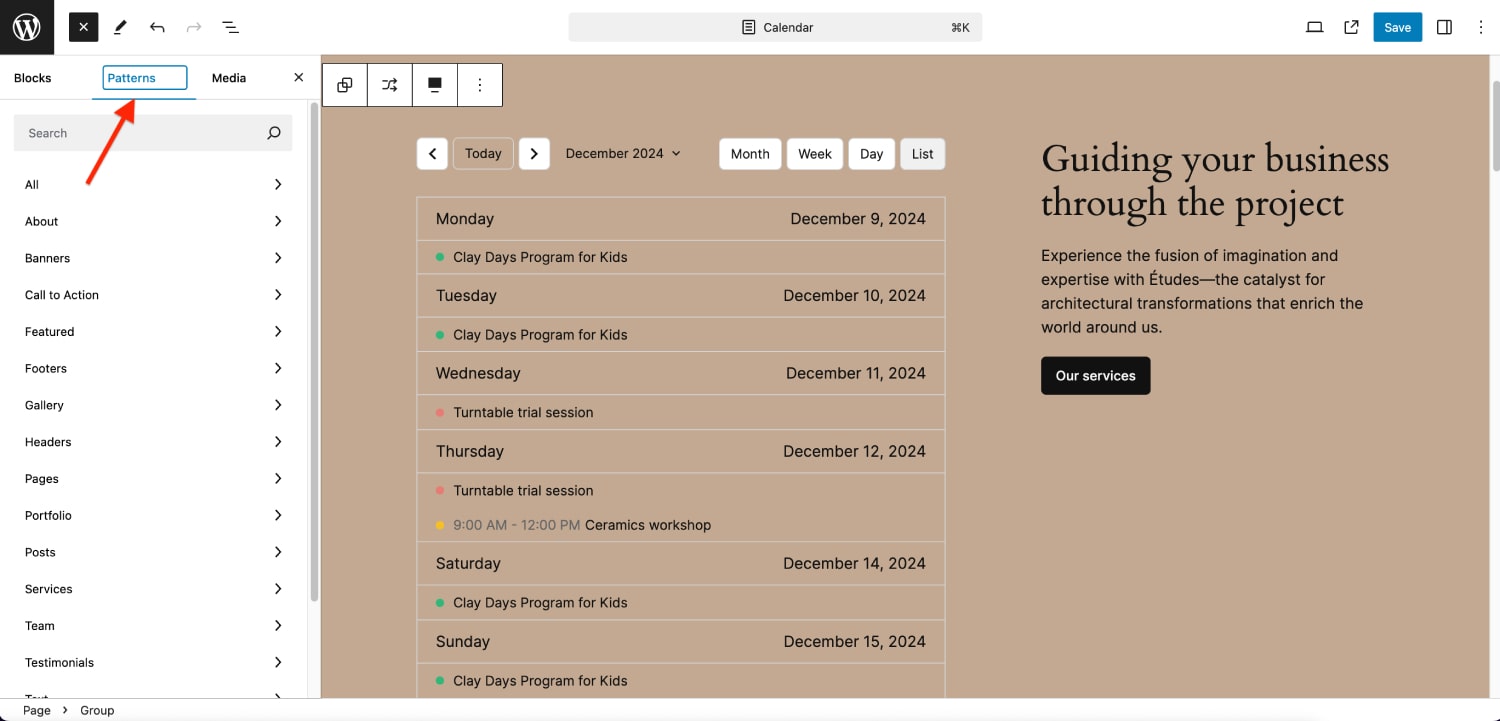
With MotoPress Events Calendar, adding event widgets is straightforward.
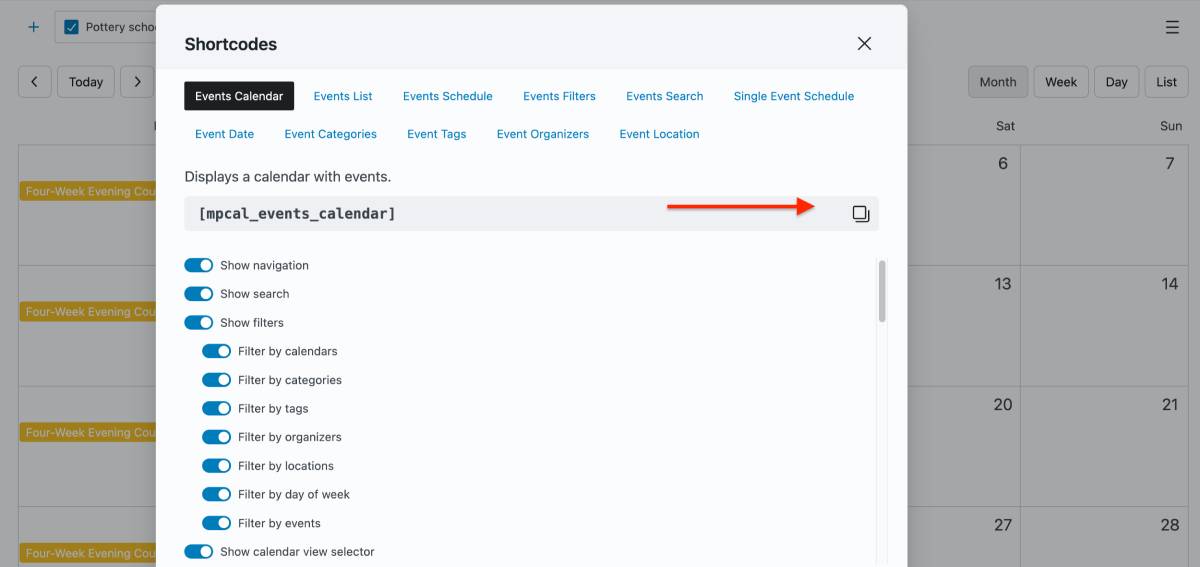
Read a detailed guide in the plugin’s documentation – Docs

How do you organize and present your event information? Since it impacts visitor engagement, we’ve included some tips to create more effective event experiences.
The best event websites do more than display dates on a calendar. They help visitors find events, explore schedules, and take action.
With the MotoPress Events Calendar plugin, you can choose from multiple event widgets designed for different purposes. The toolkit includes interactive calendars, visual event listings, compact agendas, and dedicated event pages.
Whether you’re managing a conference, church, school, community center, nonprofit organization, training business, or festival website, these widgets provide the flexibility needed to create a user-friendly event experience.
Try different layouts, combine multiple widgets, and build an event hub on your WordPress website!
What is the difference between an event calendar and an event list?
An event calendar focuses on dates and schedule navigation to help visitors browse events by month, week, or day. An event list focuses on the events themselves, typically displaying images, descriptions, and key details in a card-based format.
Which event widget is best for recurring events?
Calendar and schedule layouts are usually the best choice for recurring events because they make it easier to view multiple occurrences across different dates. If you want to highlight recurring events individually, an event list can also fit.
Should every event have its own page?
Not necessarily. Small meetings, recurring classes, or informal events can often be displayed using pop-ups or short descriptions. However, conferences, workshops, fundraisers, webinars, and other important events usually benefit from dedicated pages where you can include agendas, speakers, registration details, FAQs, and additional information.
How do I make a WordPress event calendar easier to navigate?
The most effective methods include adding search functionality, event filters, clear categories, and multiple viewing options.
Can I use multiple event widgets on the same page?
Yes. Many event websites combine different layouts to serve different visitor needs. For example, you might use a calendar for browsing, a featured event list for promotion, and search or filtering tools to help visitors discover relevant events more quickly.
What information should event display?
At a minimum, visitors should immediately see the event title, date, time, and location. Depending on the event type, it may also be helpful to include a description, featured image, organizer information, registration link, pricing details, or contact information.
Are event landing pages good for SEO?
Yes. Dedicated event pages can provide more content and context than a simple calendar entry, making them more likely to rank in search results. Detailed event pages also allow you to target specific keywords, include structured information, and create unique landing pages for important events.
此内容由惯性聚合(RSS阅读器)自动聚合整理,仅供阅读参考。 原文来自 — 版权归原作者所有。