惯性聚合 高效追踪和阅读你感兴趣的博客、新闻、科技资讯
阅读原文 在惯性聚合中打开

推荐订阅源

S
Secure Thoughts
Security Latest
Security Latest
Simon Willison's Weblog
O
OpenAI News
GbyAI
GbyAI
L
LINUX DO - 最新话题
A
Arctic Wolf
T
Tor Project blog
G
GRAHAM CLULEY
I
InfoQ
博客园_首页
IT之家
IT之家
The Register - Security
Exploit-DB.com RSS Feed
P
Proofpoint News Feed
The GitHub Blog
The GitHub Blog
Blog — PlanetScale
Blog — PlanetScale
N
Netflix TechBlog - Medium
K
Kaspersky official blog
博客园 - 三生石上(FineUI控件)
S
SegmentFault 最新的问题
U
Unit 42
PCI Perspectives
PCI Perspectives
量子位
P
Palo Alto Networks Blog
S
Securelist
T
Troy Hunt's Blog
博客园 - 【当耐特】
Recorded Future
Recorded Future
K
KPMG report finds enterprise disconnect between AI and its ROI | CIO
S
Security Affairs
Engineering at Meta
Engineering at Meta
T
The Blog of Author Tim Ferriss
博客园 - 聂微东
罗磊的独立博客
N
News and Events Feed by Topic
人人都是产品经理
人人都是产品经理
B
Blog RSS Feed
NISL@THU
NISL@THU
C
Cisco Blogs
T
Threatpost
有赞技术团队
有赞技术团队
Forbes - Security
Forbes - Security
Hugging Face - Blog
Hugging Face - Blog
Last Week in AI
Last Week in AI
T
The Exploit Database - CXSecurity.com
Cloudbric
Cloudbric
Cyberwarzone
Cyberwarzone
Google DeepMind News
C
Cyber Attacks, Cyber Crime and Cyber Security

我心向阳 - ubuntu

Linux Mint 快速上手 阿里云ECS部署免费SSL证书 阿里云 ubuntu 用 docker compose 部署 halo 阿里云 ubuntu 用 docker 快速部署 halo
ubuntu2604 尝鲜
ymz316 · 2026-04-26 · via 我心向阳 - ubuntu

ubuntu 26.04 LTS 版本出来了,至于新特性我就不班门弄斧的列举了,纯碎想体验一把新内核、新 Gnome50 桌面,于是我第一时间到各大镜像站找 ISO 资源,清华大学、中科大等镜像站目前都只同步了 arm 架构的安装包,不过还是幸运地在兰州大学镜像站 get到了我要的 ubuntu-26.04-desktop-amd64.iso

ubuntu 纯官方版的系统,我很少使用,曾使用衍生版 kubuntu 和 优麒麟 很长一段时间,所以这次还是奔着 Gnome50 而来的,因为我目前正在用 Debian 13 带 Gnome 48 。

安装 ubuntu 的过程很简单,就是界面仍然保留着浓厚的 ubuntu 气息。
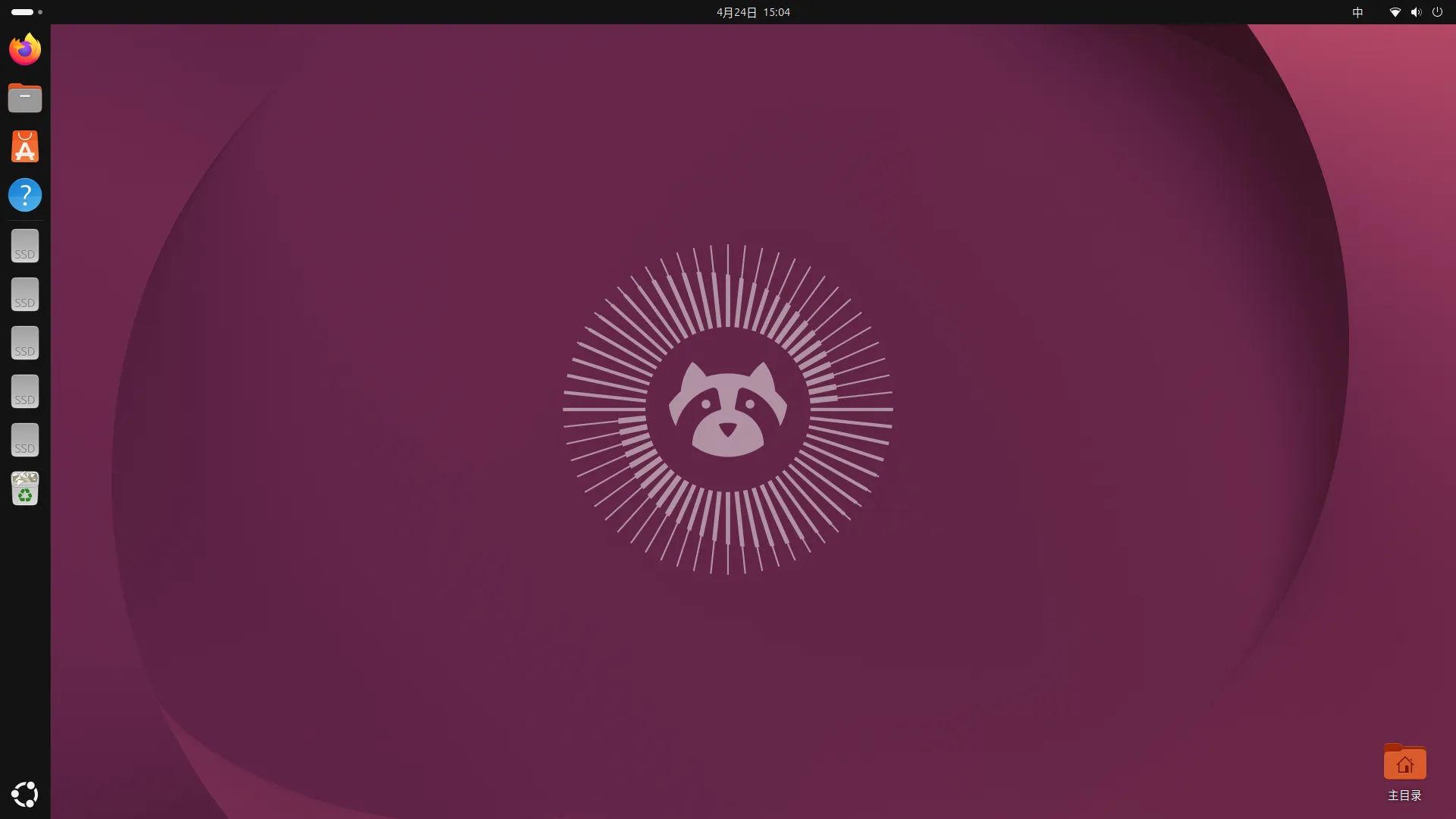
ubuntu2604-default.webp

得益于 debian 的使用心得,我初始配置没有遇到大的难题,不过也记录一下,方便下次安装配置能更加快速。

一、换源

1. 添加国内镜像源

个人比较喜欢直接修改源文件,这里更换稳定的中科大镜像源

$ sudo nano /etc/apt/sources.list.d/ubuntu.sources
------------------------------------------
Types: deb
URIs: https://mirrors.ustc.edu.cn/ubuntu
Suites: resolute resolute-updates resolute-backports
Components: main restricted universe multiverse
Signed-By: /usr/share/keyrings/ubuntu-archive-keyring.gpg

Types: deb
URIs: https://mirrors.ustc.edu.cn/ubuntu
Suites: resolute-security
Components: main restricted universe multiverse
Signed-By: /usr/share/keyrings/ubuntu-archive-keyring.gpg

2. 更新系统

$ sudo apt update
$ sudo apt upgrade

二、必备软件

1. 安装 apt 镜像软件

# 必装软件,debian 13 默认已安装 git
$ sudo apt install vim gitg neowofetch obs-studio viewnior eom filezilla

# 安装 fcitx5 输入法,否则没有中文输入法
$ sudo apt install fcitx5 fcitx5-chinese-addons kde-config-fcitx5 fcitx5-frontend-*
fcitx5 输入法默认不会开机运行,可通过运行 fcitx5-configtool 开手动运行,或者通过优化工具( gnome-tweaks 命令调出,后面有写怎么安装)- 开机启动程序,添加 fcitx5 程序

2. 安装第三方软件(通常是下载deb包安装)

安装的正确格式是 sudo apt install /path/to/softname.deb

额!百度网盘仍然不能播放视频...(百度 linux 端开发的程序员是 ** 的)看来还得通过浏览器来看百度视频了。

三、配置 GNOME

ubuntu 默认的这个主题我实在是不太习惯,必须配置一番。

1.扩展配置

1) 安装 GNOME 扩展工具

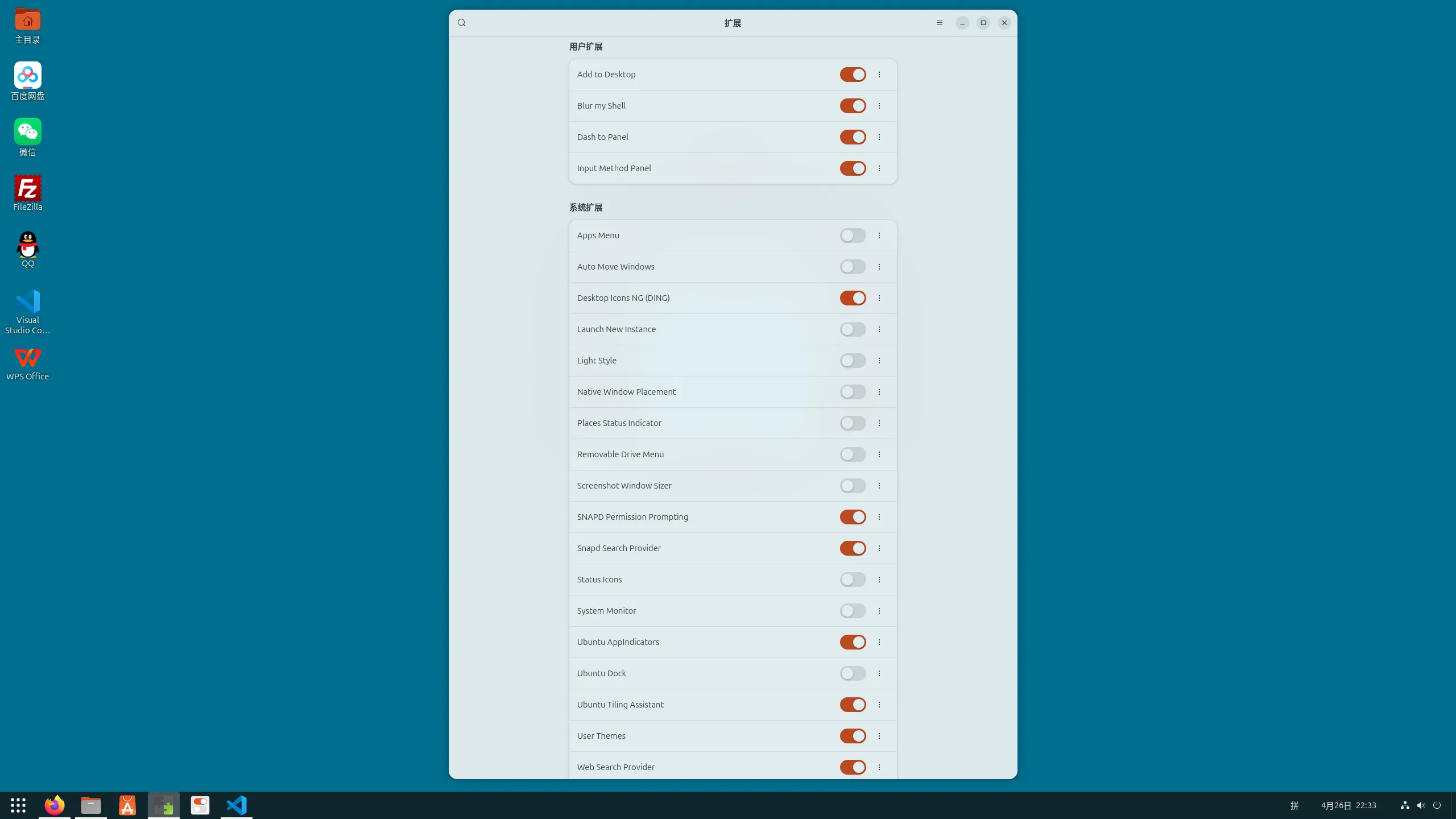
自定义 GNOME 桌面的核心就是玩扩展。可以通过扩展工具 gnome-shell-extensions 来管理和设置扩展(扩展分系统扩展和用户扩展)。

$ sudo apt install gnome-shell-extensions
  • 系统扩展:通过 apt 来安装,对所有用户生效。包名通常命名为 gnome-shell-extension-* ,安装位置:/usr/share/gnome-shell/extensions/,大部分常用的扩展都可以在系统扩展中找到。
  • 用户扩展:以插件形式进行安装,通常可以直接在浏览器中进行安装、卸载、开启和关闭,如 火狐 gnome shell 扩展页,只对当前用户生效。安装位置: ~/.local/share/gnome-shell/extensions/

2) 推荐安装的用户扩展:

  • dash-to-pannel,将 dash 和 GNOME 主面板组合成一个面板,类 windows 面板。安装该扩展后,用户扩展 Ubuntu dock 自动禁止。
  • add-to-desktop,可以通过右键将程序图标添加到桌面
  • blur-my-shell ,为 GNOME Shell的不同部分(包括顶部面板、破折号和概述)添加模糊外观的扩展。

gnome-shell-extensions.webp

2. 优化工具

主要用于自定义主题(字体、外观、声音、键盘、鼠标、窗口)、设置开机启动应用等

sudo apt install gnome-tweaks   ## 安装
gnome-tweaks                    ## 调出工具界面

配置完后,使用起来还比较顺手,下一步就轮到建站平台、wine、docker 的配置及建设了。
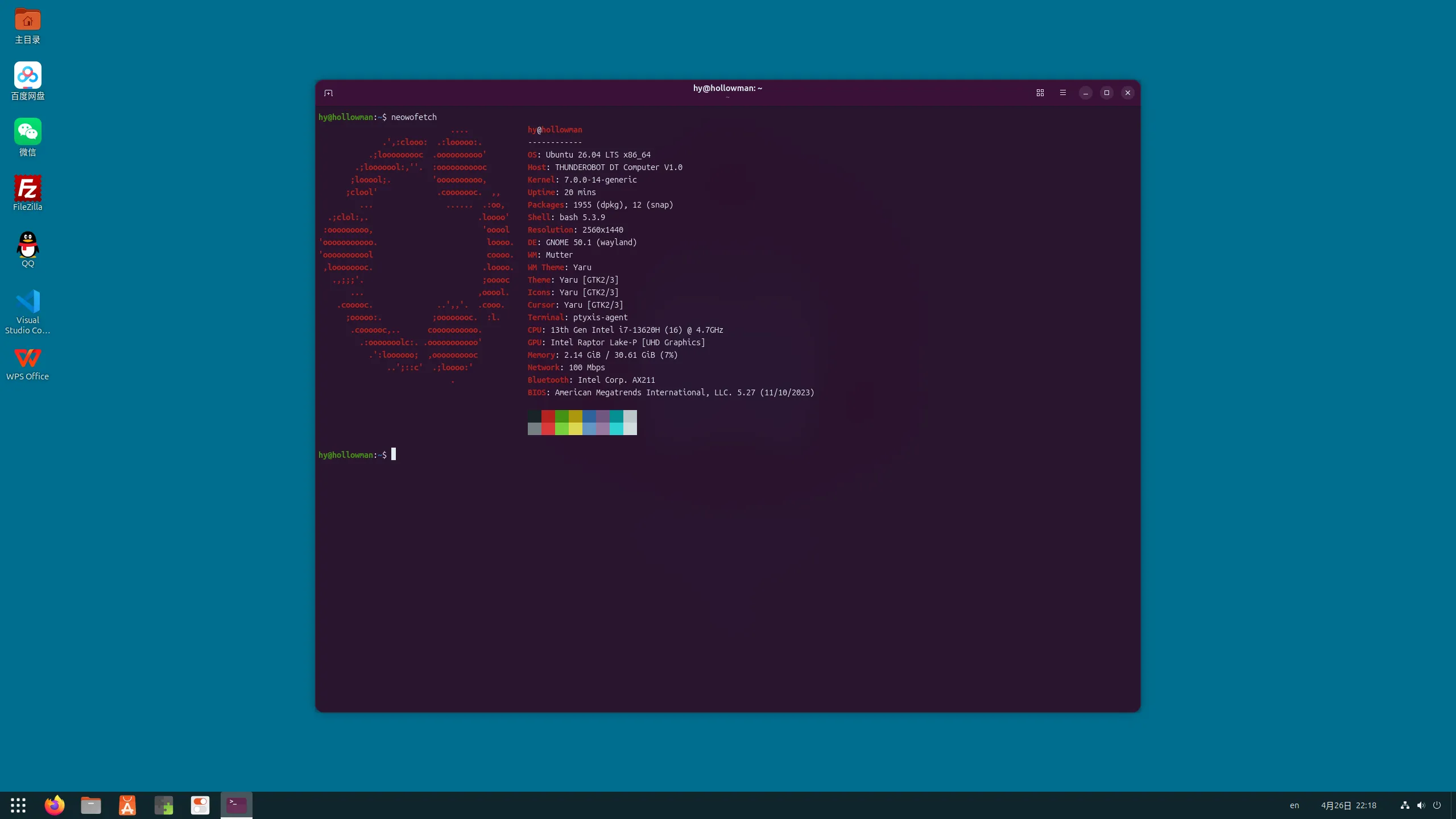
ubuntu2604-new.webp

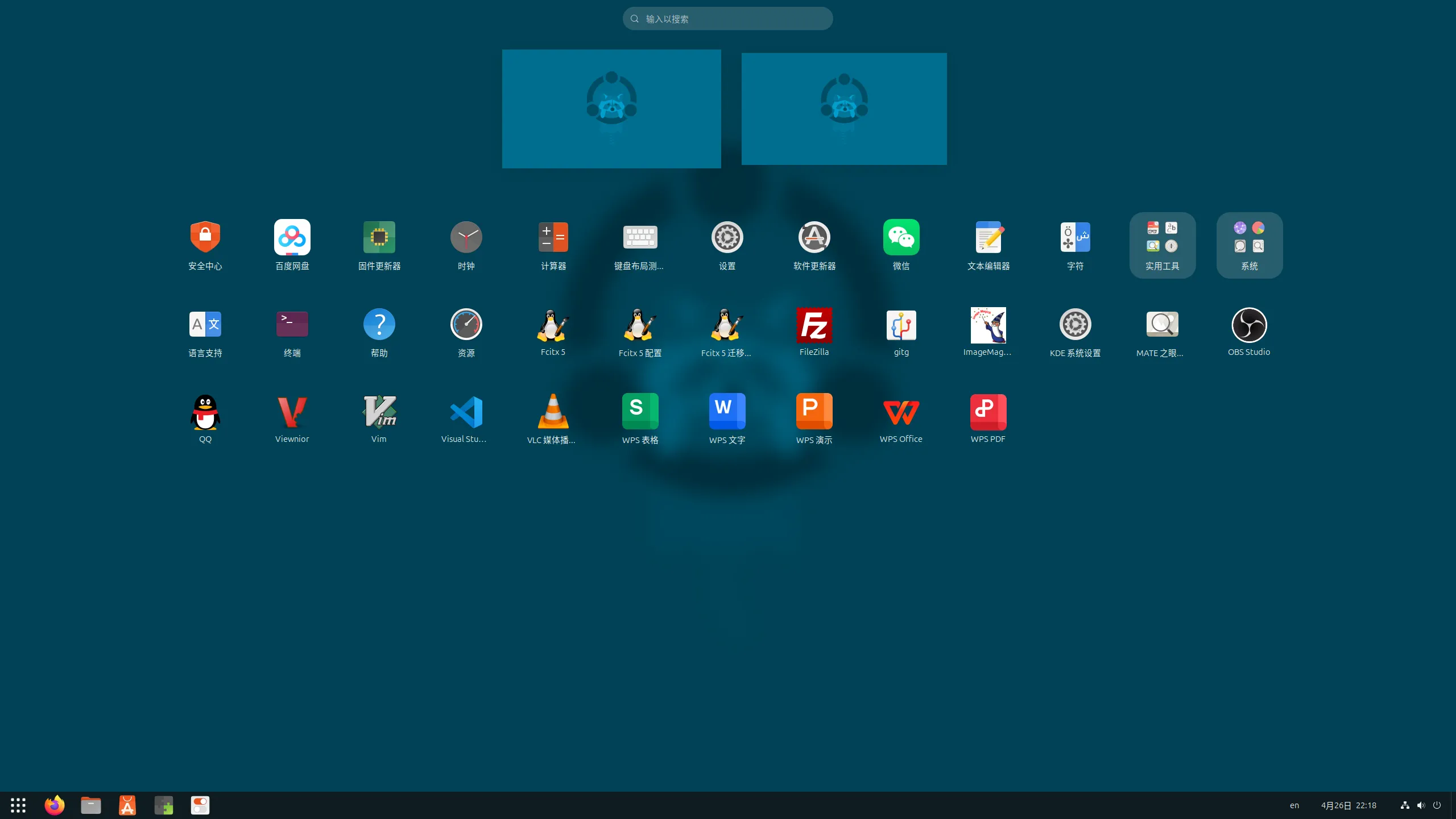
ubuntu2604-apps.webp