

惯性聚合 高效追踪和阅读你感兴趣的博客、新闻、科技资讯
阅读原文 在惯性聚合中打开

推荐订阅源

宝玉的分享
宝玉的分享
小众软件
小众软件
J
Java Code Geeks
I
InfoQ
奇客Solidot–传递最新科技情报
奇客Solidot–传递最新科技情报
腾讯CDC
L
LangChain Blog
博客园 - 司徒正美
量子位
Y
Y Combinator Blog
C
Check Point Blog
T
Tailwind CSS Blog
D
DataBreaches.Net
Blog — PlanetScale
Blog — PlanetScale
N
Netflix TechBlog - Medium
钛媒体:引领未来商业与生活新知
钛媒体:引领未来商业与生活新知
F
Fortinet All Blogs
云风的 BLOG
云风的 BLOG
A
About on SuperTechFans
B
Blog RSS Feed
酷 壳 – CoolShell
酷 壳 – CoolShell
大猫的无限游戏
大猫的无限游戏
V
V2EX
阮一峰的网络日志
阮一峰的网络日志

News on Xubuntu

Xubuntu – Xubuntu 26.04 Community Wallpaper Contest Winners Xubuntu – Xubuntu 26.04 Wallpaper Voting Open Xubuntu – Xubuntu Anniversary Wallpaper Contests Xubuntu – Public postmortem of the Xubuntu.org download compromise Xubuntu – Xubuntu 25.10 released! Xubuntu – Xubuntu 25.04 released! Xubuntu – Xubuntu 24.10 released! Xubuntu – Xubuntu 24.04 released! Xubuntu – Xubuntu 23.10 released! Xubuntu – Xubuntu 23.04 released! Xubuntu – Xubuntu 22.10 released! Xubuntu – Xubuntu 22.04 released! Xubuntu – Xubuntu 22.04 Community Wallpaper Contest Winners Xubuntu – Xubuntu 22.04 Community Wallpaper Contest Xubuntu – Xubuntu 21.04 released! Xubuntu – Xubuntu 21.04 Testing Week Xubuntu – Xubuntu 20.10 released! Xubuntu – Xubuntu is now on GitHub! Xubuntu – Xubuntu 20.04 released! Xubuntu – Xubuntu 20.04 Community Wallpaper Contest Winners Xubuntu – Xubuntu 20.04 Testing Week Xubuntu – Xubuntu 20.04 community wallpaper contest Xubuntu – Xubuntu 19.10 released! Xubuntu – Xubuntu 19.04 released! Xubuntu – Xubuntu 18.10 released! Xubuntu – Xubuntu 18.04.1 released! Xubuntu – Xubuntu 17.10 EOL Xubuntu – New Wiki pages for Testers Xubuntu – Xubuntu 18.04 released! Xubuntu – Xubuntu 18.04 Community Wallpaper Contest Winners!
Xubuntu – Booting the Xubuntu USB image from a CD
2013-05-03 · via News on Xubuntu

Due to the size of the Xubuntu ISOs starting from Raring (13.04), they no longer fit on a standard CD. This guide will help you if your BIOS doesn’t support booting off of USB drives by showing you how to use Plop boot manager.

Getting Plop

You can download the most recent version here (plpbt-*).

Executing Plop

The burning process is similar as documented on the Ubuntu wiki.

Main contents of the downloaded archive should be:

1README.TXT  Instructional Readme.
plpbt.bin    Boot manager binary
plpbt.img    Boot manager floppy disk image
plpbt.iso    Boot manager CD ISO
plpbtrom.bin Boot manager ROM file for the BIOS

doc/          Documentation
experimental/ Experimental versions
pcmcia/       PCMCIA version of the boot manager
Linux/        Linux related programs
Windows/      Windows related programs

You will then have to create your bootable USB device (flash drive) as documented in the installation section of the Ubuntu wiki.

After you create both the bootable USB device and Plop CD, place the CD in the CD drive, and power off the computer. After you power off, place the USB device in the computer and turn the computer on, you may need to go into the BIOS settings and configure it to boot from CD first.
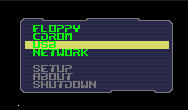
After you boot into Plop from the CD, you should see a “USB” item on the menu that will appear (as pictured to the right), select it with the Down arrow key, then hit Enter to boot.

If everything has gone as expected, Xubuntu live desktop should boot from USB. Enjoy!