https://stackblitz.com/edit/base-dialog
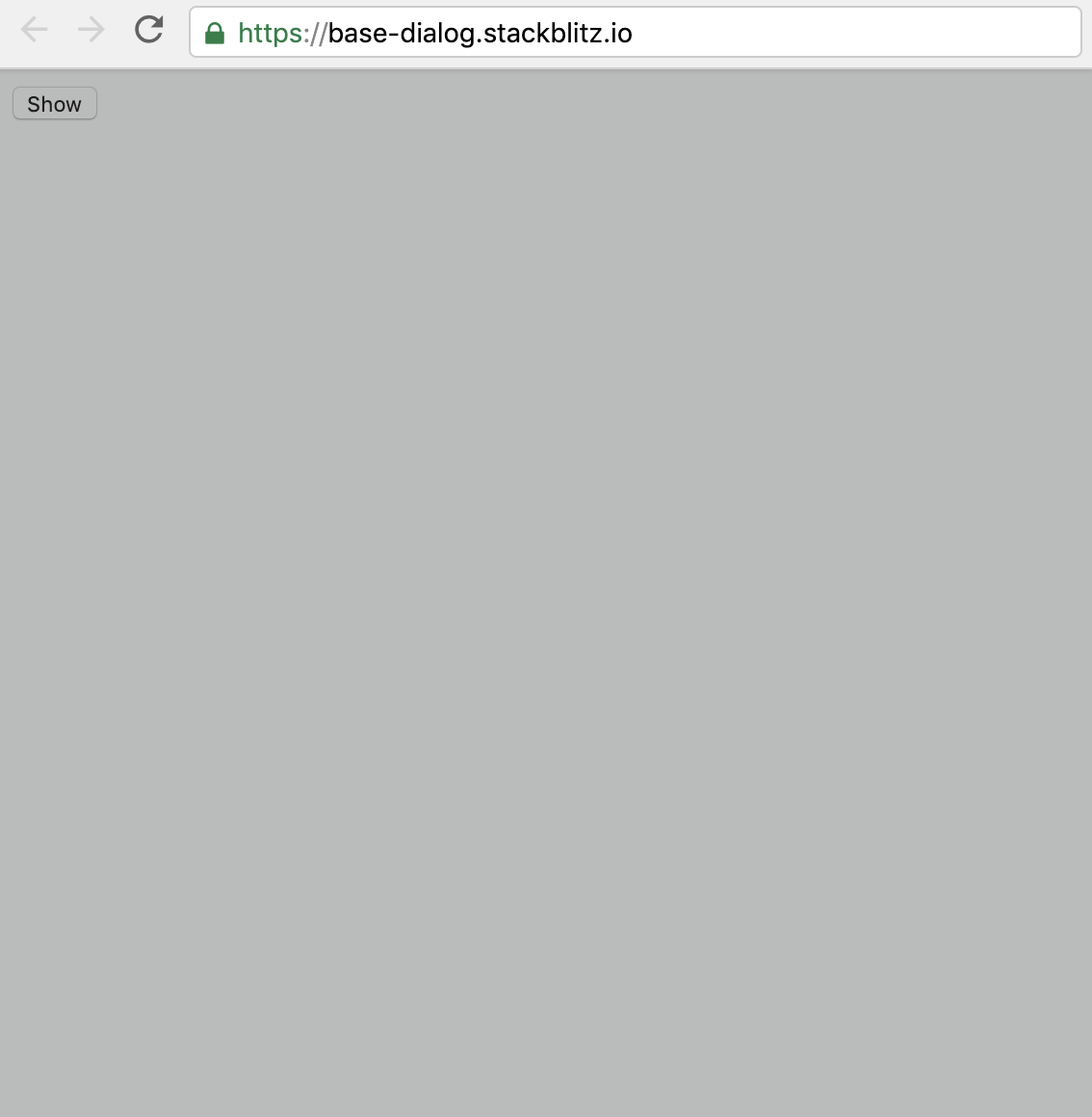
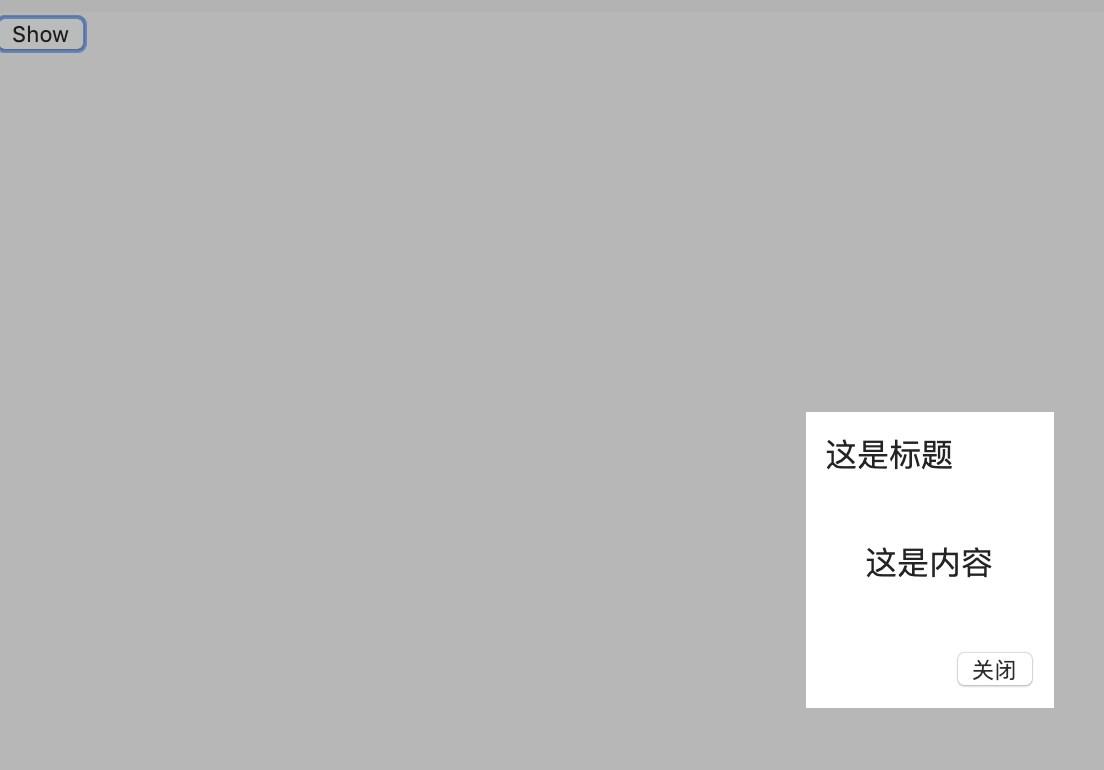
点击按钮,出现弹窗,背后还有遮盖层,弹窗的内容可以自定义
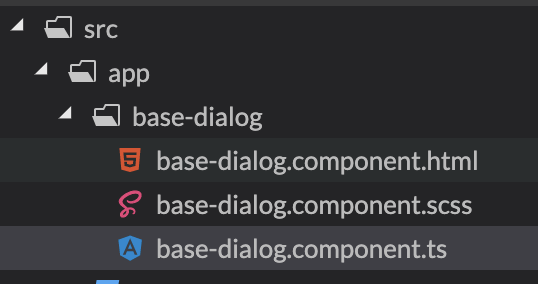
ng g c --name base-dialog 得到三个初始化的文件base-dialog.component.html<div class="modal-overlay" *ngIf="visible"></div>对应的样式 base-dialog.component.scss
.overlay {
  position: fixed;
  top: 0;
  right: 0;
  bottom: 0;
  left: 0;
  width: 100%;
  height: 100%;
  z-index: 1200;
  background-color: rgba(0, 0, 0, 0.3);
  touch-action: none;  /* 不触发任何事件 */
  -ms-touch-action: none;
}
效果:遮盖整个屏幕
默认情况下,遮盖层是不显示的
typescript
  @Input() dialogTitle = '';
  /*
  * 显示/隐藏
  * */
  _visible = false;
  constructor() { }

  ngOnInit() {
  }

  show() {
    this._visible = true;
  }

  close() {
    this._visible = false;
}html
<div class="overlay"></div>
<div class="dialog-container">
  <div class="dialog-content">
    <div class="dialog-header">{{dialogTitle}}</div>
    <div class="dialog-body">
      <ng-content select=".dialog-body"></ng-content>
    </div>
    <div class="dialog-footer">
      <ng-content select=".dialog-footer"></ng-content>
    </div>
  </div>
</div>
补充样式
scss
.overlay {
  ....
}
.dialog-container {
  position: fixed;
  z-index: 1300;
  left: 50%;
  top: 50%;
  background-color: #fff;
  .dialog-content {
    border-radius: 8px;
    padding: 10px;
  }
  .dialog-body {
  }
  .dialog-footer {
    text-align: right;
  }
}这里有一个细节是base-dialog的z-index一定要大于overlay的,已保证dialog能显示在遮盖层上方。
app.component.html, 加入下面的代码html
<button (click)="dialogRef.show()">Show</button>

<app-my-dialog class="dialog-container"  dialogTitle="这是标题" #dialogRef>
  <ng-container class="dialog-body">
    <div>
      <p>这是内容</p>
    </div>
  </ng-container>
  <ng-container class="dialog-footer">
    <button (click)="dialogRef.close()">关闭</button>
  </ng-container>
</app-my-dialog><ng-container class="dialog-body"> 类似Vue中的插槽,之内的html会替换组件内部的<ng-content select=".dialog-body"></ng-content> 效果如下,点击show按钮,显示弹窗,点击弹窗中的关闭按钮,恢复原样。此内容由惯性聚合(RSS阅读器)自动聚合整理,仅供阅读参考。 原文来自 — 版权归原作者所有。