








Last Updated:
You can connect to the GTmetrix MCP by using OAuth or customizing your AI Tool’s JSON/TOML config files.
Overview
The GTmetrix MCP lets you connect your preferred AI tool directly to GTmetrix.
In this post, we give you a brief outline of how to set up the GTmetrix MCP connection.
If you’re looking for specific instructions for your preferred AI tool, refer to our dedicated guides for the most popular AI tools:
- How to Connect the GTmetrix MCP With Claude
- How to Connect the GTmetrix MCP With ChatGPT Classic
- How to Connect the GTmetrix MCP With ChatGPT (Formerly known as Codex)
- How to Connect the GTmetrix MCP With Cursor
- How to Connect the GTmetrix MCP With GitHub Copilot CLI
You can also connect via Smithery with our server link here: https://smithery.ai/servers/gtmetrix/gtmetrixmcp
Connecting Using OAuth
The quickest, simplest, and recommended method to connect to the GTmetrix MCP is by using OAuth.
On your Account page, you’ll see an “MCP Setup” section in the Account Module.
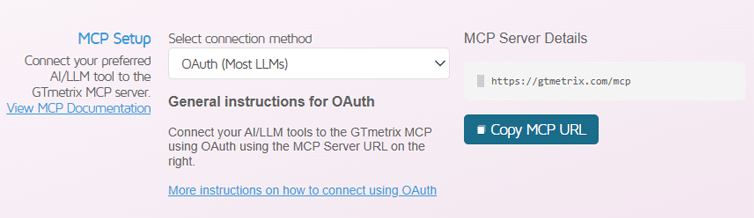
Copy the MCP URL and paste it in your preferred AI tool’s developer/connector settings to set up the GTmetrix MCP connection.
For tool-specific guidance, we’ve written separate guides showing you how to connect via Oauth for the most popular AI tools:
- Connect Claude Using OAuth
- Connect ChatGPT Classic Using OAuth
- Connect ChatGPT (Previously Codex) Using OAuth
- Connect Cursor Using OAuth
- Connect GitHub Copilot CLI Using OAuth
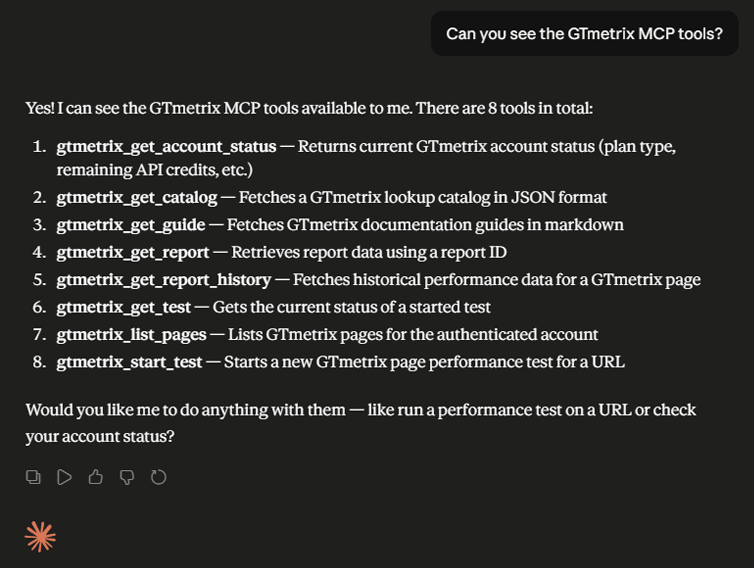
Once you’ve connected successfully, you should be able to see all the available GTmetrix tools.
Guest MCP Usage (Without Login)
You can connect the GTmetrix MCP to your AI tool without having to login to your GTmetrix account.
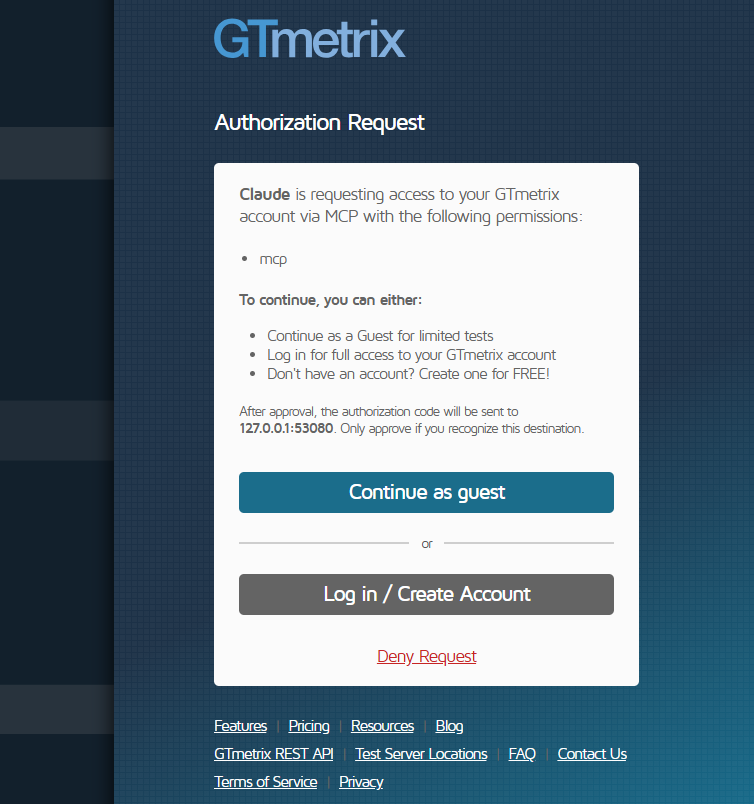
However, Guest testing is highly limited and you’ll need to reauthenticate by connecting your AI tool to your GTmetrix account to continue testing.
Connecting Using JSON/TOML/Config Files
If you prefer to manually configure the GTmetrix MCP server in your configuration files, you can do so with the instructions below.
Note that you’ll need to generate an API key first to manually connect the GTmetrix MCP to your AI tool.
If you haven’t done so already, generate an API key from your Account page.
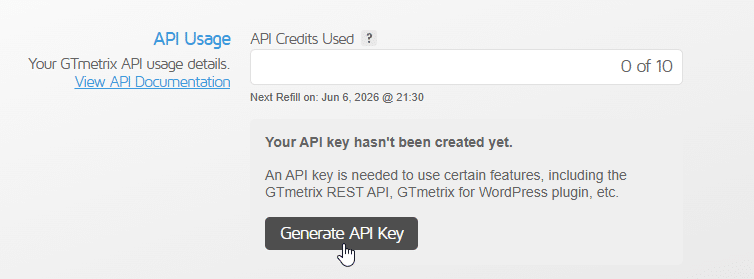
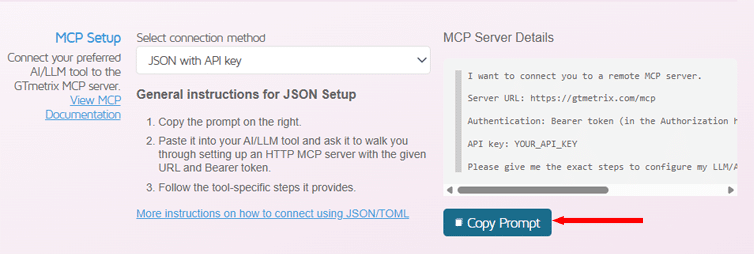
Once you’ve done that, select JSON with API key from the “Select connection method” dropdown and copy the prompt.
You can then paste it in your preferred AI tool to get instructions on how to manually edit your configuration files.
To tool-specific guidance, we’ve written individual guides showing you how to setup connection via JSON/TOML configuration for these popular AI tools:
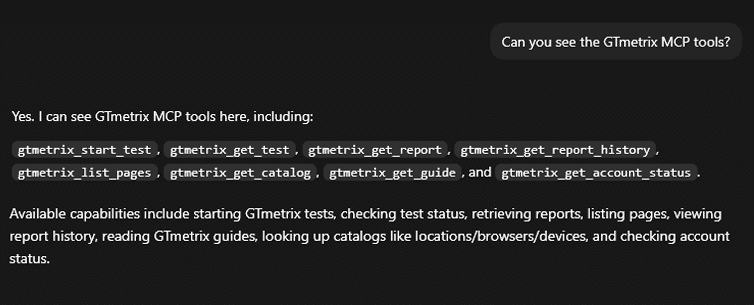
Once you’ve connected successfully, you should be able to see all the available GTmetrix tools.
Summary
The GTmetrix MCP (Model Context Protocol) enables seamless integration between GTmetrix and popular AI tools like ChatGPT, Claude, etc.
Using the GTmetrix MCP, users can run performance tests, analyze reports, compare results across devices and locations, and automate optimization workflows directly within your AI environment.
With the GTmetrix MCP, AI tools can not only surface insights but also suggest fixes and in some cases, apply them; making it easier to streamline website performance optimization and integrate it into modern development and automation workflows.
Connect the GTmetrix MCP to your preferred AI tool and start using it to automate your GTmetrix workflow.
Let us know if you’re using the GTmetrix MCP connection in an interesting way or if you run into any bugs or issues.
Frequently Asked Questions (FAQ)
Here are some common questions related to setting up the GTmetrix MCP.
What is the GTmetrix MCP?
The GTmetrix MCP is a connector that allows AI tools to interact directly with GTmetrix, enabling automated testing, analysis, and reporting workflows.
Which AI tools support GTmetrix MCP?
The GTmetrix MCP can connect with popular AI tools like ChatGPT Classic, Claude, ChatGPT (Formerly known as Codex), Cursor, GitHub Copilot CLI, or any other MCP-compatible LLM.
What is the easiest way to connect GTmetrix MCP?
The easiest and recommended method is OAuth. Simply copy the MCP URL from your account and paste it into your AI tool’s connector settings.
Do I need a GTmetrix account to use the MCP?
No, it is possible to connect the GTmetrix MCP to your AI tool without creating a GTmetrix account.
However, Guest usage is highly limited and you’ll need to reauthenticate by connecting your AI tool to your GTmetrix account in order to access more API credits and continue testing.
Can I manually configure the MCP connection?
Yes, you can set up the MCP using JSON, TOML, or config files with an API key for more advanced or customized workflows.
Do I need an API key to use GTmetrix MCP?
You only need an API key if you are manually configuring the connection. OAuth connections do not require it.
Can GTmetrix MCP help with performance optimization?
Yes, it can identify bottlenecks, explain issues, recommend fixes, and in some cases automate improvements depending on the AI tool.
Can I analyze historical performance data using GTmetrix MCP?
Yes, you can prompt your AI tool to retrieve and analyze historical reports to identify trends and diagnose issues over time.
Unlock More API Credits for AI Powered Performance Testing
Run more tests with additional API credits. Use GTmetrix MCP inside your AI environment to automate testing, compare results, access history, and surface actionable insights.
Available with select PRO plans (excluding Lite plan).
Other features include: Priority access for tests, More Monitored Slots, Access to more locations, Remote Location Monitoring, Complete Mobile testing suite, and more!