


We show you how to set up Multi-Factor Authentication in GTmetrix.
Overview
GTmetrix now provides Multi-Factor Authentication (MFA) for enhanced security in account logins.
Setting up MFA for logins is a cybersecurity best practice as MFA can help prevent upto 99.9% of cybersecurity attacks.
MFA is also important for organizations who require additional security needs and compliance across their utilized services.
In this guide, we show you how to set up MFA on your GTmetrix account.
Enabling MFA
Follow the steps below to enable MFA on your Account.
1) Visit your Account page
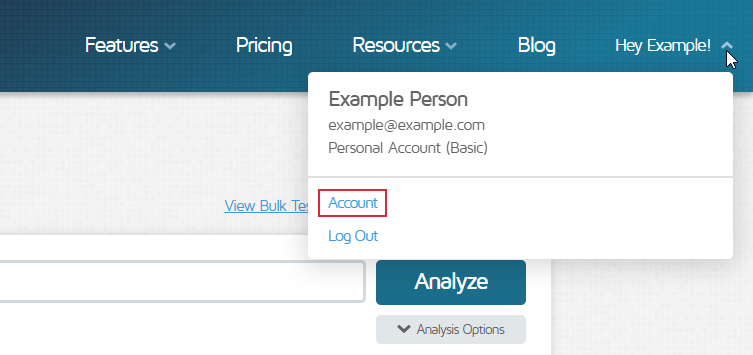
To visit your Account page, click on the arrow in the top right-hand corner and click on “Account”.
You can do this by clicking on the arrow in the top right-hand corner and clicking on “Account“.
2) Enable Multi-Factor Authentication
Toggle the Enable Multi-Factor Authentication option ON in the “MFA Configuration” section of your User Settings.
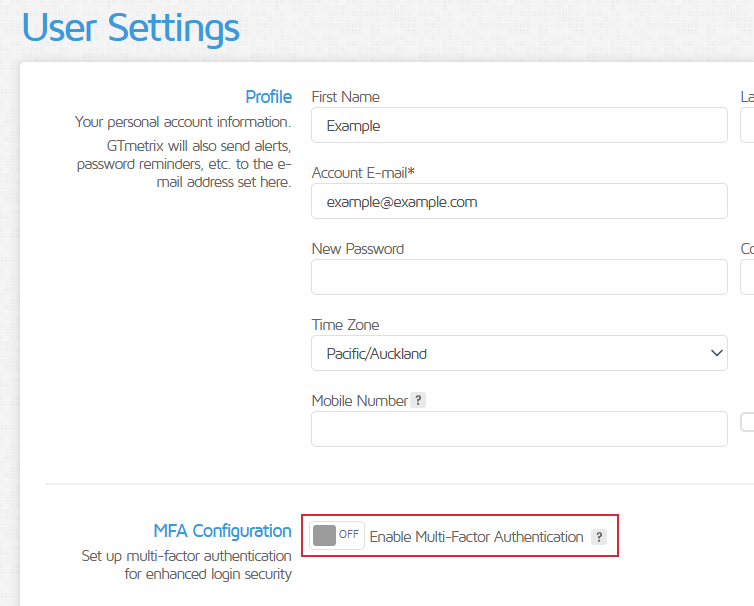
Toggle the “Enable Multi-Factor Authentication” option in your User Settings.
You should now see a dropdown asking you to select an MFA method. You can either choose Authenticator App or SMS.
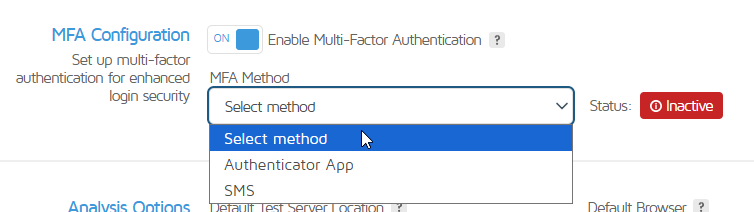
Select your preferred MFA Method from the dropdown.
You can use any authenticator app of your choice (e.g., Google Authenticator, Microsoft Authenticator, Authy, etc.) or receive an SMS code on your mobile number (You need to add your mobile number to your profile first).
SMS option disabled if no Mobile Number is available
If you do not have a Mobile Number saved, you’ll see the SMS option disabled in the MFA Method dropdown.
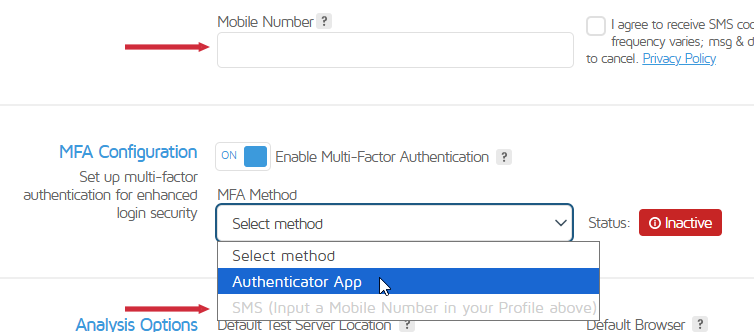
The SMS option is disabled in the MFA Method dropdown until you save a Mobile Number to your profile.
You’ll need to have a Mobile Number saved on your Account to proceed with SMS.
Authenticator App
To enable MFA on your account using an authenticator app of your choice, follow the steps below:
1) Select “Authenticator App” in the MFA Method dropdown
You’ll need to add your GTmetrix account to your Authenticator app.
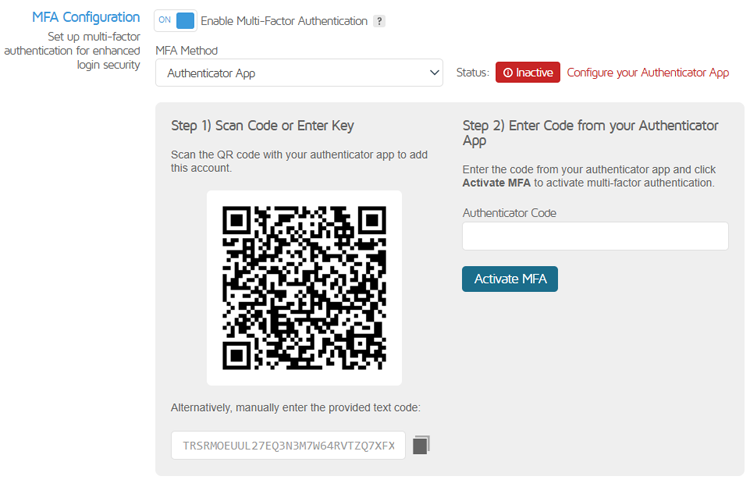
Scan the QR code or input the key manually using your preferred authenticator app.
You can do this by either scanning the displayed QR Code (easiest option) or using the text code provided (“enter code/key manually” option in your authenticator app).
2) Open your authenticator app and Add Account
Depending on your chosen app, you’ll either see + or “Add Account“.
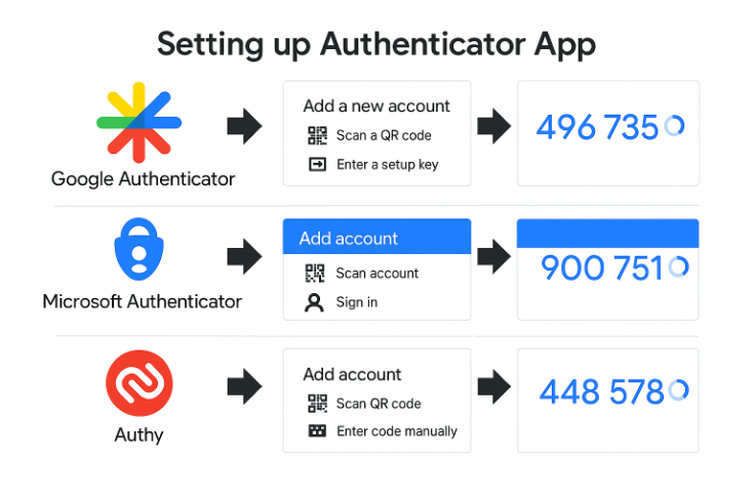
Add your GTmetrix account to your preferred authenticator app.
Complete the authenticator app setup and you should see a time-based code being displayed for your GTmetrix account.
3) Enter the Authenticator code in the provided field and click on “Activate MFA”
You should see the Status change to “Active“.
You’ll also see a Backup Code, which can be used to recover your account if you ever need to disable or re-enable MFA on your account and you don’t have access to your Authenticator App.
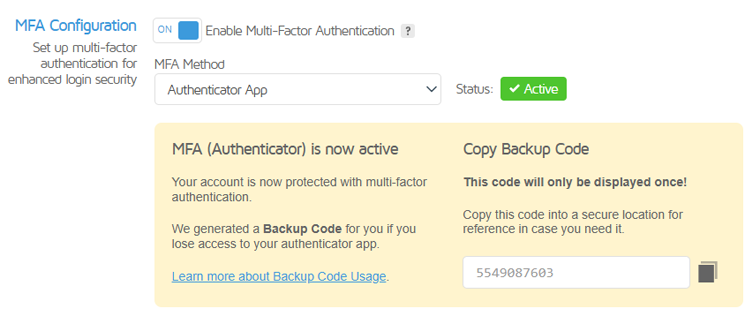
Finish setting up MFA through your Authentication Code and you should see a Backup Code for your account.
Save your Backup Code in a secure location!
Please copy the Backup Code and save it in a secure location if you ever need to use it to recover your account.
And that’s it! MFA via Authenticator App is now setup on your GTmetrix account.
Every future login will require two steps. First, provide your email and password. GTmetrix will then request an Authentication Code. Enter the code from your Authenticator App to verify your identity and access your account.
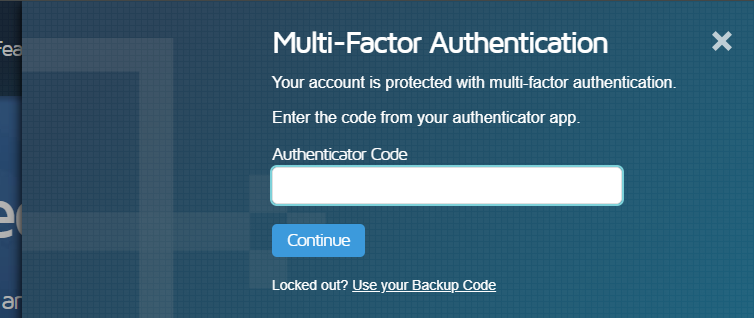
With MFA enabled, you’ll need to enter the Authenticator Code to login to your GTmetrix account.
SMS
Follow the steps below to enable MFA on your account via SMS:
1) Add a Mobile Number to your Account
In your User Settings, input your Mobile Number in the field provided, select the adjacent checkbox, and click on Save Settings.
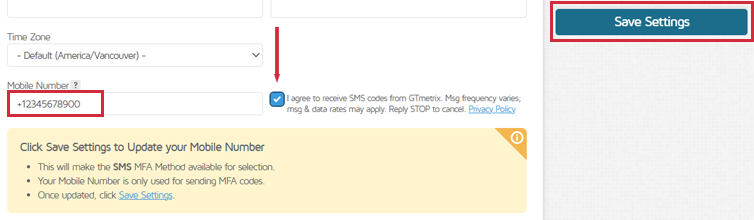
Input a Mobile Number in the provided field, select the checkbox, and click on “Save Settings” to add it to your profile.
You should now be able to select the SMS option in the MFA Method dropdown.
2) Select SMS in the MFA Method dropdown
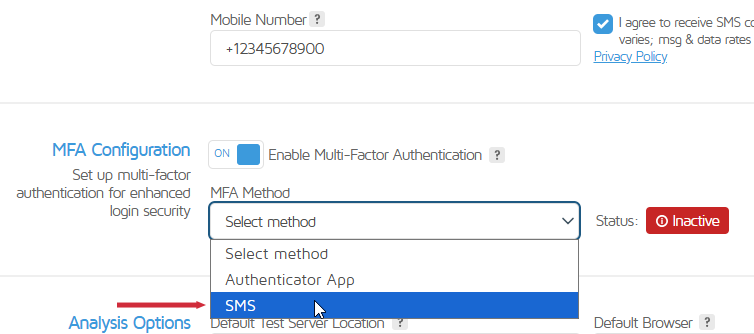
Select SMS from the MFA Method dropdown.
A validation code will be sent to your Mobile Number.
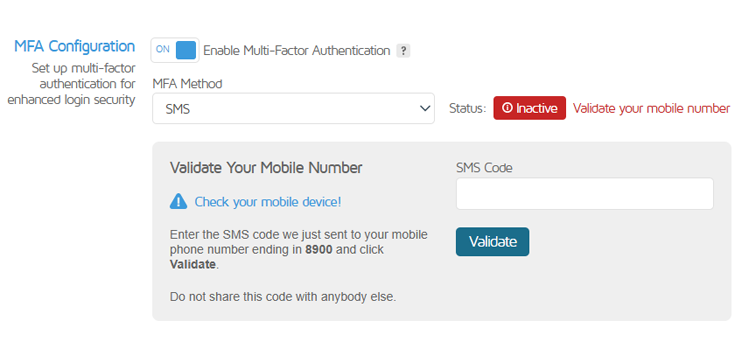
Enter the SMS code sent to your phone and click on “Validate”.
3) Enter your SMS code in the provided field and click on Validate
You should see the Status change to “Active“.
You’ll also see a Backup Code, which can be used to recover your account if you ever need to disable or re-enable MFA on your account and you don’t have access to your Authenticator app.
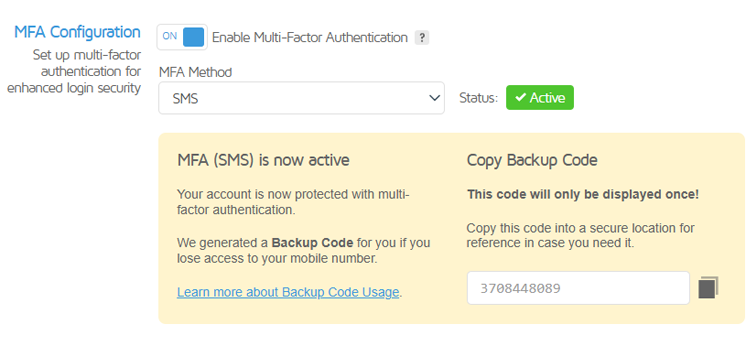
Once MFA via SMS is setup, you should see a Backup Code for your account. Copy this for safekeeping.
Save your Backup Code in a secure location!
Please copy the Backup Code and save it in a secure location if you ever need to use it to recover your account.
And that’s it! MFA via SMS is now setup on your GTmetrix account.
Every future login will require two steps. First, provide your email and password. GTmetrix will then send an SMS code to your Mobile Number. Use this code to validate your login and access your account.
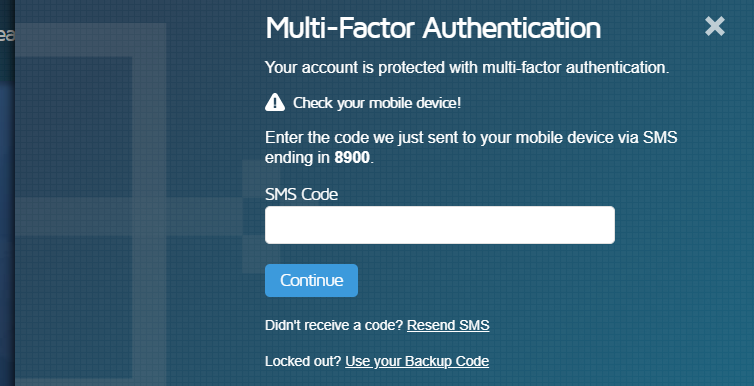
If MFA via SMS is enabled, you’ll need to enter the SMS code sent to your phone to login to your account.
Changing MFA Method
You can switch your MFA Method from Authenticator App to SMS (or vice versa).
We show you how to do that below.
Incomplete MFA setup turns off security for your account
Switching your MFA Method involves disabling your current MFA Method before enabling your new MFA Method.
If you do not finish setting up the new MFA Method, MFA will be disabled entirely on your account.
From Authenticator App to SMS
Follow the steps below to switch your MFA Method from Authenticator App to SMS:
1) Navigate to User Settings on your Account page
Make sure you have inputted your Mobile Number and saved it on your Profile.
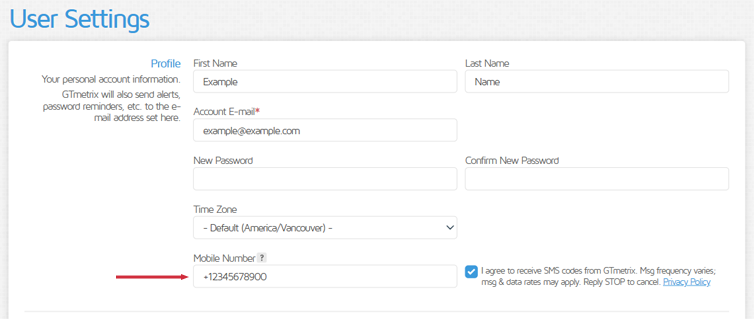
Ensure you have your Mobile Number saved in your Profile to receive SMS codes.
You cannot switch your MFA Method to SMS without first saving your Mobile Number.
2) Select SMS on the MFA Method dropdown
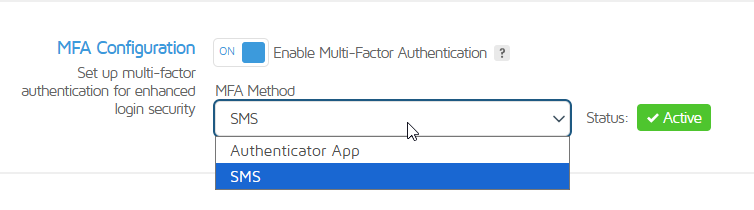
Select “SMS” from the MFA Method dropdown.
You’ll now be presented with the “Change MFA Method” modal.
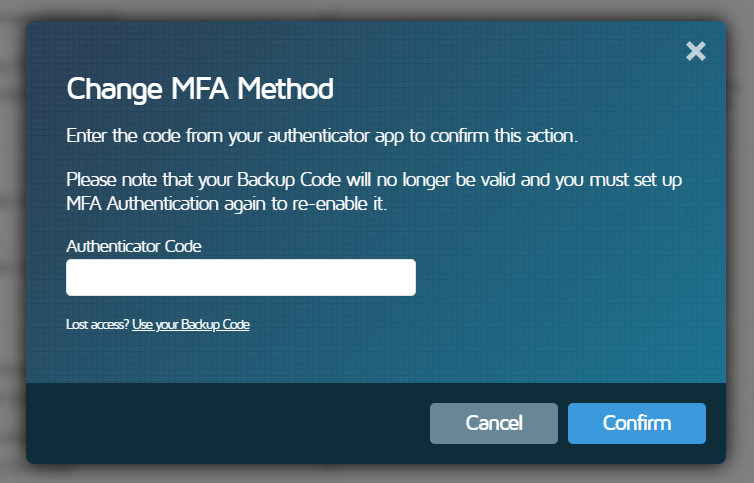
Enter your Authenticator code to proceed with changing your MFA Method.
Enter the code from your authenticator app and click on Confirm.
Use Backup Code if you don’t have access to your authenticator app
If you do not have access to your authenticator app, you can use your Backup Code to disable MFA, and then enable it using the SMS option.
3) Enter your SMS Code
Enter the SMS code sent to your phone and click on “Validate”.
Enter the code sent to your mobile phone and click on Validate.
Once MFA Method has been changed to SMS, you should see a new Backup Code for your account. Copy this for safekeeping.
You’ll also see a new Backup Code for account recovery.
Save your New Backup Code in a secure location!
Please copy the new Backup Code and save it in a secure location if you ever need to use it to recover your account. This new Backup Code will overwrite your previous Backup Code.
Your MFA code will now be sent via SMS when logging in.
From SMS to Authenticator App
Follow the steps below to switch your MFA Method from SMS to Authenticator App:
1) Navigate to User Settings on your Account page
2) Select Authenticator App on the MFA Method dropdown
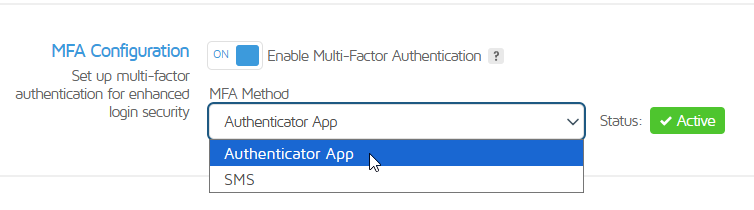
Select “Authenticator App” from the MFA Method dropdown.
You’ll now be presented with the “Change MFA Method” modal.
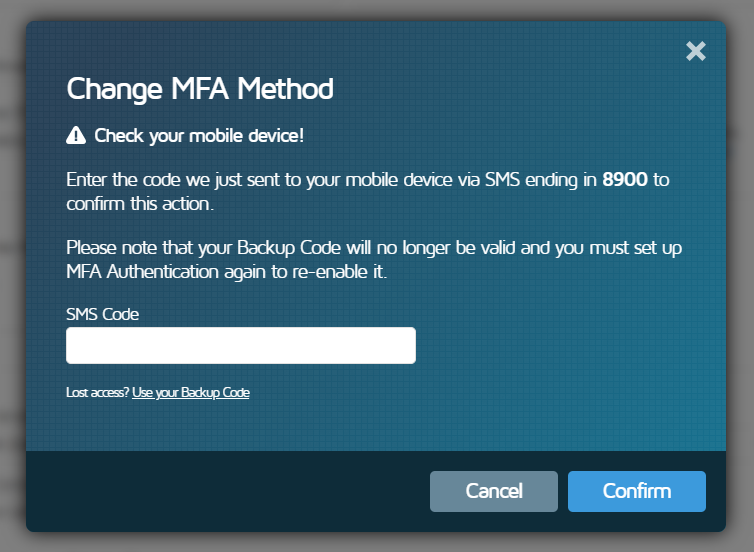
Enter your SMS code to proceed with changing your MFA Method.
Enter the code you received via SMS and click on Confirm.
3) Set up your authenticator app
You’ll need to add your GTmetrix account to your Authenticator app.
You can do this by either scanning the displayed QR Code (easiest option) or use the text code provided (“enter code/key manually” option in your authenticator app).
Scan the QR code or input the key manually using your preferred Authenticator app.
Complete the authenticator app setup and you should see a time-based code being displayed for your GTmetrix account email.
Enter this code in the provided field and click on Activate MFA.
Finish setting up MFA through your authenticator code and you should see a Backup Code for your account.
You’ll see a new Backup Code for account recovery.
Save your New Backup Code in a secure location!
Please copy the new Backup Code and save it in a secure location if you ever need to use it to recover your account. This new Backup Code will overwrite your previous Backup Code.
You can now use the MFA code from your authenticator app to login to your GTmetrix account.
Disabling MFA
To disable MFA, navigate to the User Settings on your Account page, and toggle the Enable Multi-Factor Authentication button OFF.
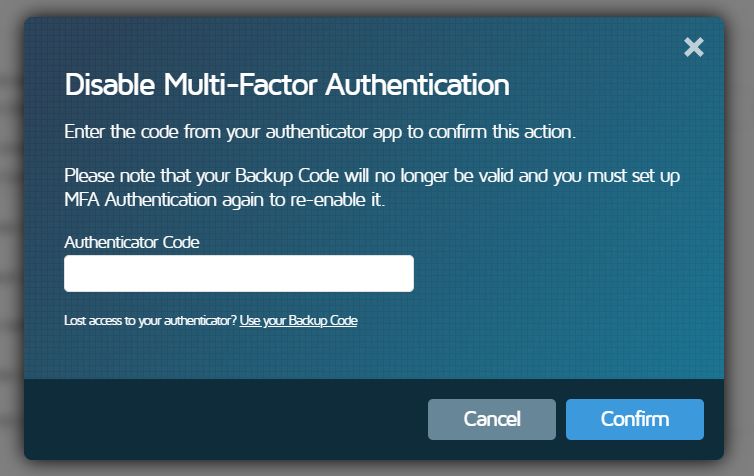
Enter your Authentication Code to disable MFA on your account.
You can also use a Backup Code to do this if you cannot access your authenticator app or your phone for any reason.
Backup Code
A Backup Code is generated for your account when you enable MFA from the Account page.
If you ever lose access to your authenticator app or your phone, you can use the Backup Code for recovery.
Save your Backup Code in a secure location!
Please copy your Backup Code and save it in a secure location if you ever need to use it for recovery.
If you have lost access to your authenticator app (or SMS) and you do not have a Backup Code, contact us for help with account recovery.
Here are a few situations where you may need to use a Backup Code:
- Account Login: If you’re locked out of your account and don’t have access to your authenticator app (or SMS), you can use your Backup Code to recover.
- Disabling MFA: If you need to disable MFA and don’t have access to your authenticator app (or SMS), you can use your Backup Code to delete MFA credentials.
- Changing MFA Method: If you need to change your MFA Method and don’t have access to your authenticator app (or SMS), you can use your Backup Code to delete MFA credentials.
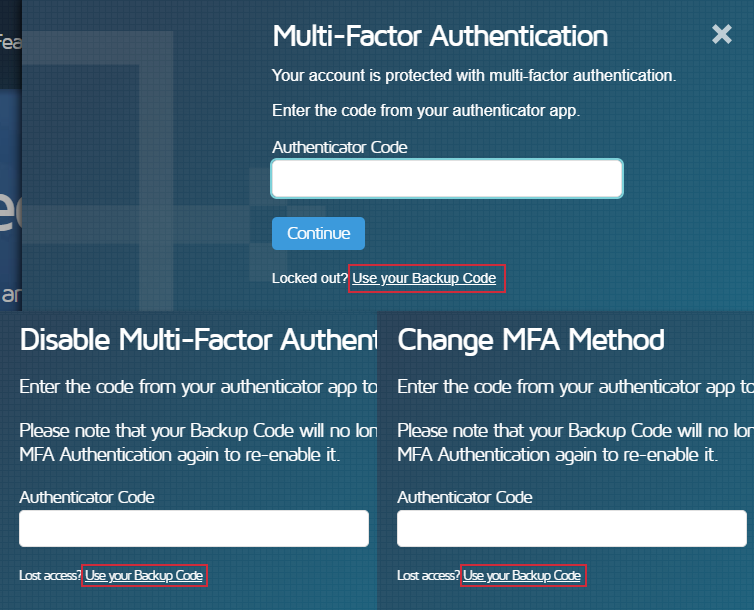
If you’ve lost access to your authenticator app (or SMS), click on “Use your Backup Code” to recover.
Click on Use your Backup Code, then enter your 10 digit Backup Code and click on Restore.
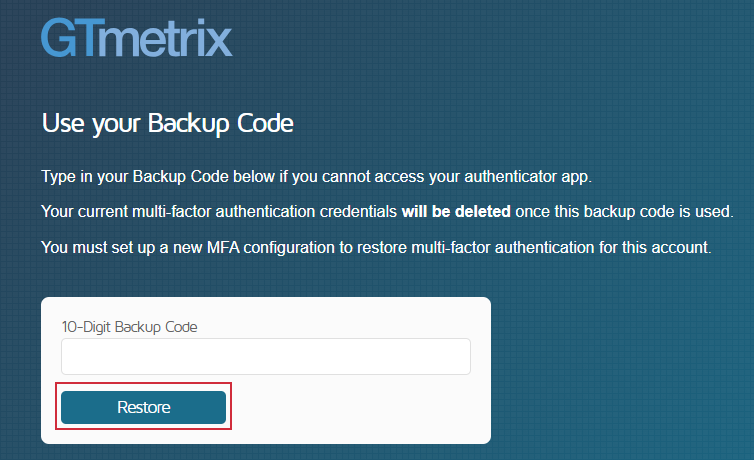
Enter your 10 digit Backup Code to access your account.
Your previous MFA credentials will be deleted, and you’ll need to set up a new MFA configuration.
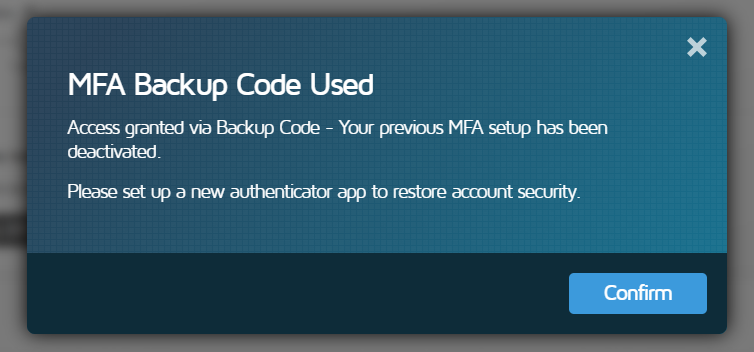
If you’ve used a Backup Code to access your account, you’ll need to set up MFA again.
Summary
GTmetrix now supports Multi-Factor Authentication (MFA) to improve account security and reduce the risk of unauthorized access.
Users can enable MFA via an authenticator app (e.g., Google Authenticator, Microsoft Authenticator, Authy, etc.) or SMS.
Setup involves:
- Adding your account on the authenticator app (or saving your mobile number to your GTmetrix profile)
- Verifying a code (Authenticator or SMS)
- Saving a Backup Code for recovery
You can switch MFA methods (or disable MFA) anytime from your account settings, but completing the setup is essential to keep your account protected.
If you have any questions or need assistance with your account, please feel free to contact us.
Test with different countries, speeds and options
Get access to more Tests, Locations, Analysis Options and Connection Speeds!
Sign up for a Basic GTmetrix account and see how your site performs in more scenarios – It’s FREE!
Get Mobile Testing, Premium Locations, and more
Get more On-Demand Tests, Monitored Slots and Premium Test Locations along with Hourly testing with a GTmetrix PRO plan.
Upgrade to GTmetrix PRO and see how your site performs in all scenarios.