

惯性聚合 高效追踪和阅读你感兴趣的博客、新闻、科技资讯
阅读原文 在惯性聚合中打开

推荐订阅源

B
Blog RSS Feed
有赞技术团队
有赞技术团队
OSCHINA 社区最新新闻
OSCHINA 社区最新新闻
阮一峰的网络日志
阮一峰的网络日志
V
V2EX
Y
Y Combinator Blog
Jina AI
Jina AI
G
Google Developers Blog
Last Week in AI
Last Week in AI
博客园 - 叶小钗
H
Hackread – Cybersecurity News, Data Breaches, AI and More
L
LangChain Blog
奇客Solidot–传递最新科技情报
奇客Solidot–传递最新科技情报
V
Visual Studio Blog
aimingoo的专栏
aimingoo的专栏
freeCodeCamp Programming Tutorials: Python, JavaScript, Git & More
J
Java Code Geeks
Stack Overflow Blog
Stack Overflow Blog
IT之家
IT之家
The GitHub Blog
The GitHub Blog
D
Docker
量子位
罗磊的独立博客
腾讯CDC

TrueNAS – Open Enterprise Storage

What We Heard at NAB 2026 | TrueNAS - Open Enterprise Storage TrueNAS V160 Launched: High Performance, No All-Flash Tax TrueNAS 26 Is Here: What's New in This Major Release TrueNAS Connect: Enterprise Features on Your Own Hardware TrueNAS Immutability: Multi-Layered Data Protection & Ransomware Defense TrueNAS CEO Note to Community: We Are All TrueNAS TrueNAS 25.10.2 Goldeye: 100+ Fixes & What's New TrueNAS Names Brett Davis CEO for Enterprise Growth TrueNAS Plans for 2026: TrueNAS 26 & OpenZFS 2.4 Roadmap TrueNAS Connect Plus Now Available for All Community Users TrueNAS R60: High-Speed NVMe Storage for AI Workloads Introducing TrueNAS WebShare: Secure Web-Based File Sharing TrueNAS 25.10.1: Goldeye Matures, Performs, and Connects TrueNAS & Veeam v13: Turnkey Cyber‑Resilient Backups Customer Advantages of the TrueNAS Open Core Model TrueNAS Named Data Storage Company of the Year 2025 TrueNAS 25.10: Smarter, Streamlined Updates & Tools TrueNAS F-Series Shines at IBC with Two “Best of Show” Awards TrueNAS 25.10 “Goldeye”: NVMe‑oF, Unified, Simplified Storage Introducing TrueNAS Connect: Secure Monitoring & Alerts The ESG Advantage of Open Enterprise Architecture: Why TrueNAS Is the Sustainable Choice | TrueNAS - Open TrueNAS 25.10-RC1: New Features, Fixes & OpenZFS 2.3.4 Seamless Setup: Exploring TrueNAS Web-Driven Installation | TrueNAS - Open Enterprise Storage TrueNAS 25.10 “Goldeye” BETA is Available TrueNAS 25.10 “Goldeye” Highlights TrueNAS 25.04.2: Fangtooth restores Virtualization iXsystems Rebrands as TrueNAS to Reflect Market Momentum in Enterprise Storage | TrueNAS - Open Enterprise June 1 - Apps Migration Deadline for TrueNAS 24.04 and 23.10 TrueNAS 25.04.1: Fangtooth Unification Gains Momentum TrueNAS 24.10.2.2 Prepares for IP Addressing of Apps
Sync Files to Dropbox with TrueNAS or FreeNAS
iX Team · 2019-02-22 · via TrueNAS – Open Enterprise Storage

Dropbox is one of the most common file-sharing services around, with over 500 million registered users and 400 billion pieces of content. The platform makes it easy to upload content, share links to files, and has free and business versions so organizations can tailor how they wish to implement.
Syncing FreeNAS or TrueNAS with Dropbox has many advantages:

  • Organizations may have a particular dataset on their local NAS accessible via Dropbox for external partners, remote users, or those on a business trip.
  • Individuals or organizations using Dropbox as a business solution may have local backups of Dropbox files so Dropbox space can be freed up periodically, risk-free.
  • Developers using Dropbox for online assets can easily publish and archive deliverables by copying to a NAS share and letting the NAS handle the upload to Dropbox.
  • Users might want to use a Dropbox auto-update folder without having to install Dropbox on their computer or mobile device.

Step 1: Go to your Dropbox account, click on the three dots on the lower right-hand side, and choose Developers. Click Create apps to open the DBX platform and create an app. This process is needed to create a unique access token which FreeNAS and TrueNAS use to identify the account and files. 

Step 2: After the app is created, generate the key by clicking Generate access token. 
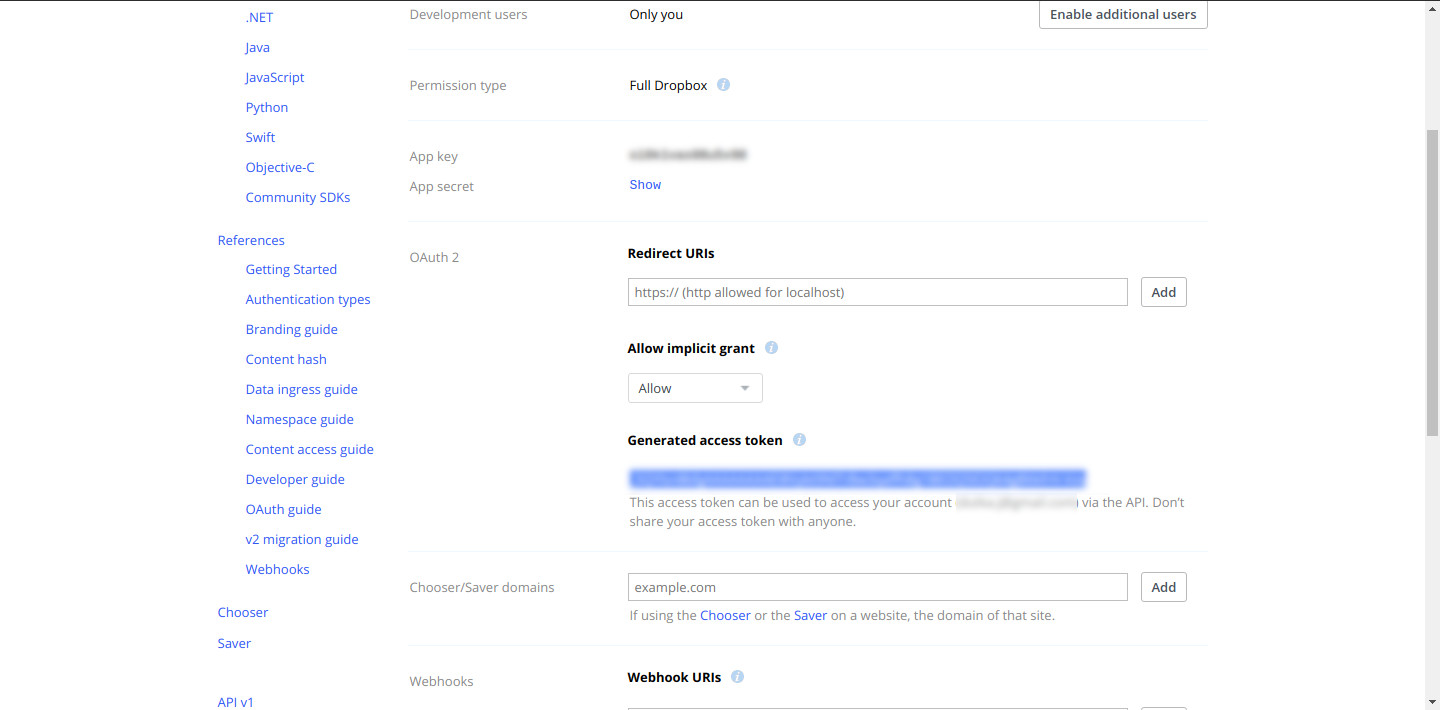
Generate access token wizard
Step 3: In the FreeNAS or TrueNAS web interface set up your Cloud Credentials under System ➡️ Cloud Credentials. Select Dropbox from the menu and copy in your access token.

Step 4: Save, then go to the Tasks section. Under Cloud Sync Tasks, select your Dropbox account and schedule a sync task. Select the folder on the FreeNAS or TrueNAS system. This can be an existing dataset to sync to Dropbox or a new dataset to back up files in your Dropbox share.
Note: Set the kind of sync needed (Push or Pull) and how to transfer the content: Sync, Copy, or Move.
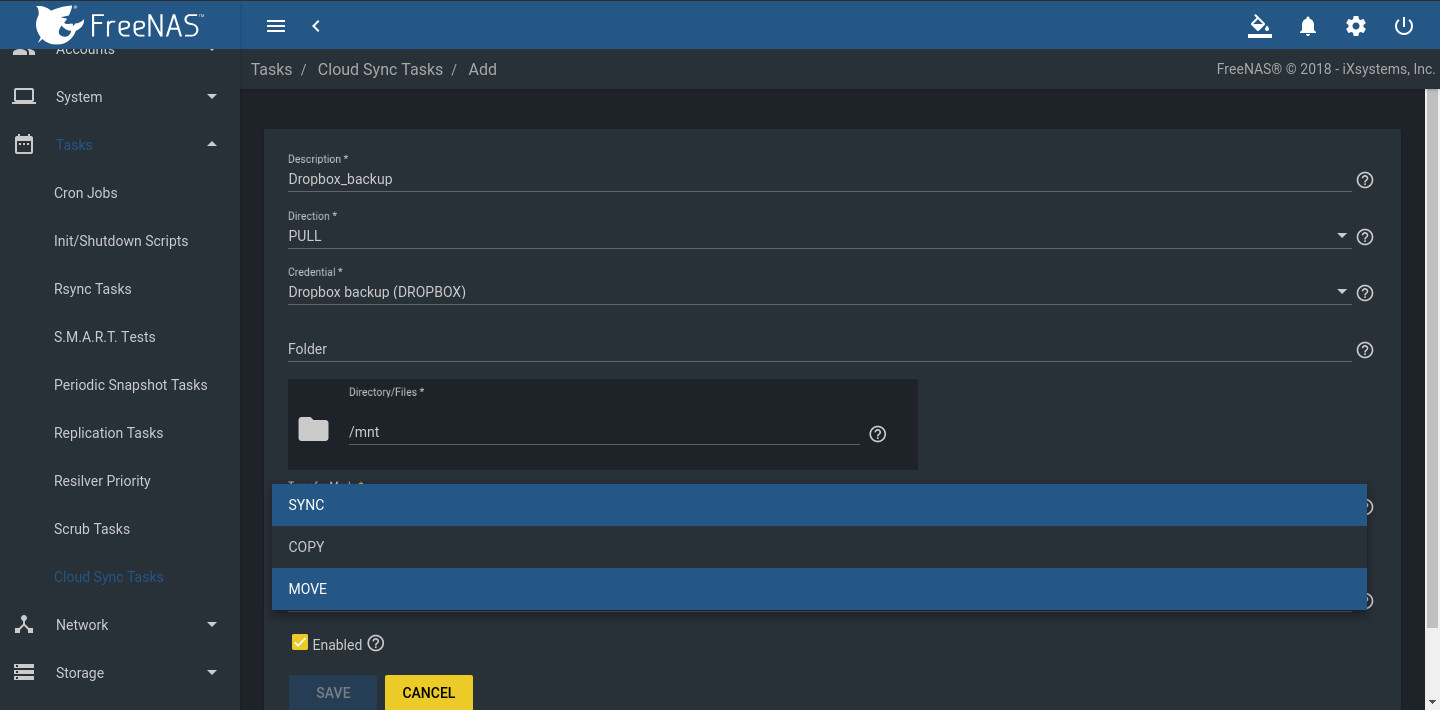
  • Sync copies any changes from the source system to the destination.
  • Copy copies new files. Files deleted on the host are not deleted on the destination.
  • Move copies files to the destination, then deletes them from the source after the transfer is complete.

Tasks section on FreeNAS Dashboard

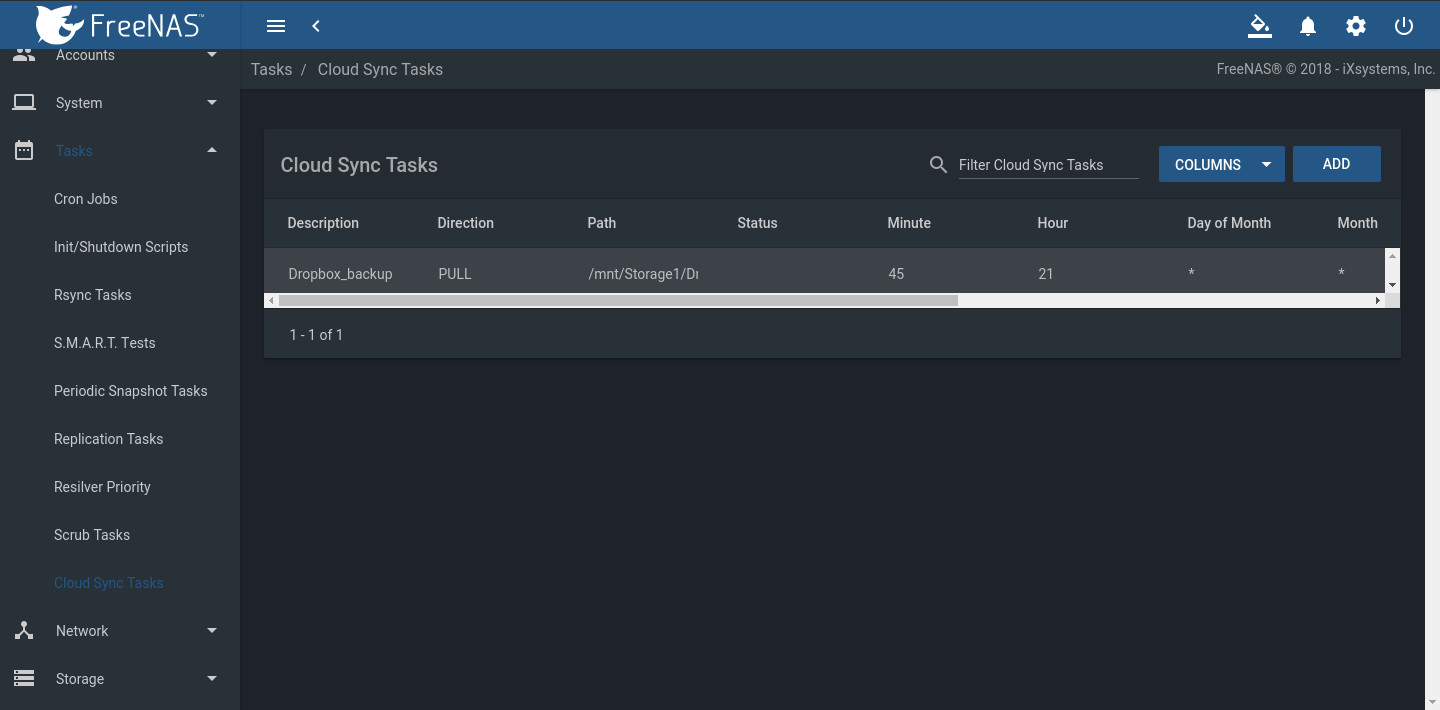
Step 5: The Cloud Sync is ready to run at the set time. In the example, FreeNAS is the backup target for a Dropbox account, providing several good features:
  • A FreeNAS or TrueNAS likely has far more capacity than the Dropbox account.
  • Files are protected in case users delete them from the account accidentally.
  • Snapshots can protect files from malware.
  • The dataset can be shared over SMB, NFS, WebDAV, or AFP to a local network for faster access.

selecting Cloud Sync Tasks
Step 6: Check the files. In this example, the Cloud Sync pulled files from Dropbox to the FreeNAS dataset. Creating an SMB, NFS, or WebDAV share of the dataset makes it possible to see if the files are available.  If the transfer is set to push data from the FreeNAS or TrueNAS to Dropbox, log in to Dropbox to verify that the files uploaded correctly. 
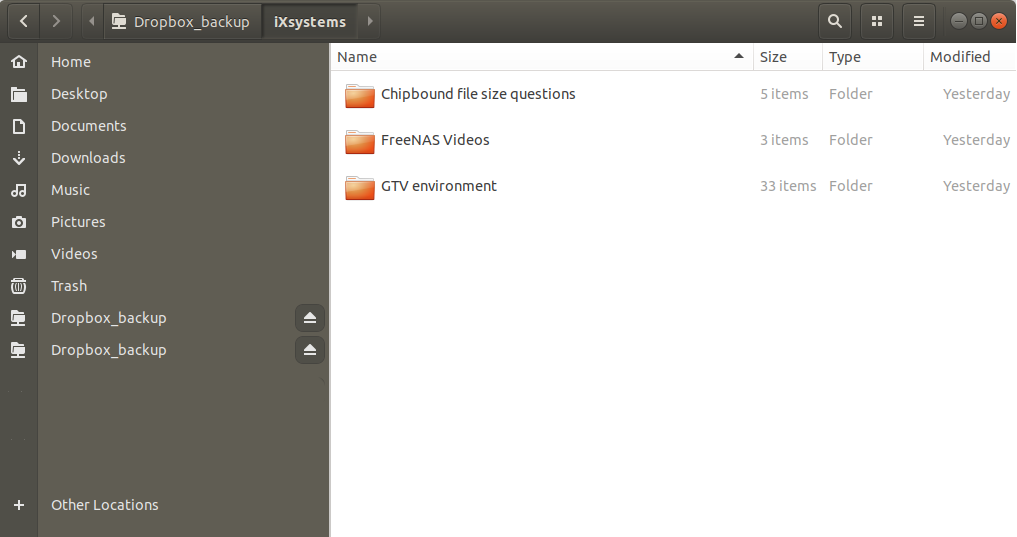
files uploaded