



惯性聚合 高效追踪和阅读你感兴趣的博客、新闻、科技资讯
阅读原文 在惯性聚合中打开

推荐订阅源

Forbes - Security
Forbes - Security
T
Tailwind CSS Blog
Hugging Face - Blog
Hugging Face - Blog
Blog — PlanetScale
Blog — PlanetScale
WordPress大学
WordPress大学
aimingoo的专栏
aimingoo的专栏
Y
Y Combinator Blog
U
Unit 42
I
InfoQ
CTFtime.org: upcoming CTF events
V
Visual Studio Blog
B
Blog RSS Feed
Vercel News
Vercel News
F
Fortinet All Blogs
Know Your Adversary
Know Your Adversary
T
Troy Hunt's Blog
博客园 - 【当耐特】
MongoDB | Blog
MongoDB | Blog
大猫的无限游戏
大猫的无限游戏
A
About on SuperTechFans
Jina AI
Jina AI
小众软件
小众软件
T
Threatpost
有赞技术团队
有赞技术团队
人人都是产品经理
人人都是产品经理
The Hacker News
The Hacker News
T
The Exploit Database - CXSecurity.com
C
CXSECURITY Database RSS Feed - CXSecurity.com
Exploit-DB.com RSS Feed
Microsoft Azure Blog
Recent Announcements
酷 壳 – CoolShell
酷 壳 – CoolShell
Scott Helme
Scott Helme
B
Blog
腾讯CDC
Last Week in AI
Last Week in AI
P
Proofpoint News Feed
S
Schneier on Security
N
News and Events Feed by Topic
Microsoft Security Blog
K
Kaspersky official blog
G
Google Developers Blog
T
Tor Project blog
PCI Perspectives
PCI Perspectives
S
Secure Thoughts
Google Online Security Blog
Latest news
Latest news
Google DeepMind News
MyScale Blog
MyScale Blog
罗磊的独立博客

博客园 - ю意思я

视频播放的进化(一) 图片同步 C#实现开关显示器功能 图片裁剪 共享文件夹 w32Time服务(NTP)的一些配置 ShutdownAPI 将文件读取到内存中 在windows server 2003服务器上提供NTP时间同步服务 如何与使用DHCP获取IP地址的设备组网 在VS内添加Web Reference 如何消除锯齿,在图片上画出高质量的文字 如何让Firefox3支持迅雷 获取和设置IP地址 判断字符串是否为IPv4地址 axWindowsMediaPlayer操作 关于相对路径匹配的问题 ToFriendlyFileSize Class的设计
WPF初体验
ю意思я · 2010-05-14 · via 博客园 - ю意思я

  新装了Win7+VS2010,终于有机会体验一下传说中的WPF了,废话不多说,Go!

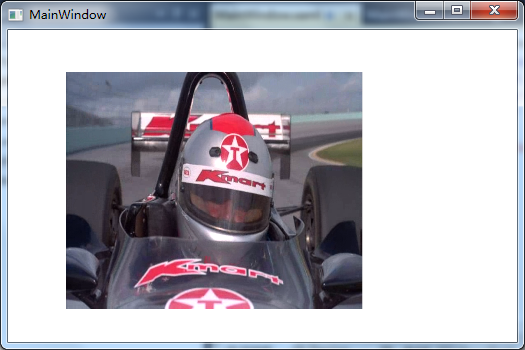
  由于经常做信息发布的缘故,起手肯定会先去看一下WPF自带怎样的控件来显示视频,找了一下,是一个叫做MediaElement的控件;先写了一句最简单的显示本地视频的代码:

<MediaElement Height="237" HorizontalAlignment="Left" Margin="58,42,0,0" Name="mediaElement1" VerticalAlignment="Top" Width="368" Source="SuperSpeedway.wmv" />

  显示效果如图:
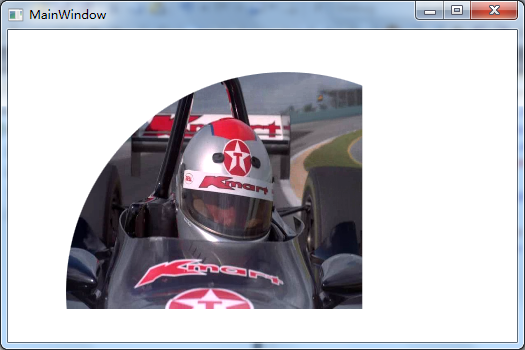
  由于MediaElement继承自UIElement,因此可以使用Clip方法来对视频进行裁剪:

  代码

        <MediaElement Height="237" HorizontalAlignment="Left" Margin="58,42,0,0" Name="mediaElement1" VerticalAlignment="Top" Width="368" Source="SuperSpeedway.wmv" >
            
<MediaElement.Clip>
                
<EllipseGeometry Center="220 220" RadiusX="220" RadiusY="220"/>
            
</MediaElement.Clip>
        
</MediaElement>

    显示效果如图:
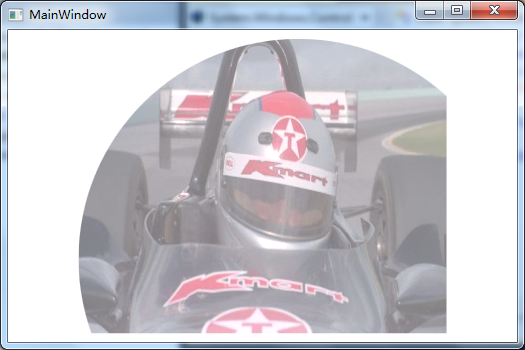
  也可以设置视频的透明度:

代码

        <MediaElement Width="368" Source="SuperSpeedway.wmv" Opacity="0.5">
            
<MediaElement.Clip>
                
<EllipseGeometry Center="220 220" RadiusX="220" RadiusY="220"/>
            
</MediaElement.Clip>
        
</MediaElement>
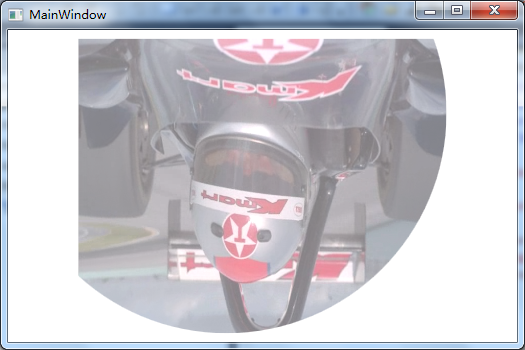
  或者旋转:

代码

        <MediaElement Width="368" Source="SuperSpeedway.wmv" Opacity="0.5">
            
<MediaElement.Clip>
                
<EllipseGeometry Center="220 220" RadiusX="220" RadiusY="220"/>
            
</MediaElement.Clip>
            
<MediaElement.LayoutTransform>
                
<RotateTransform Angle="180"/>
            
</MediaElement.LayoutTransform>
        
</MediaElement>
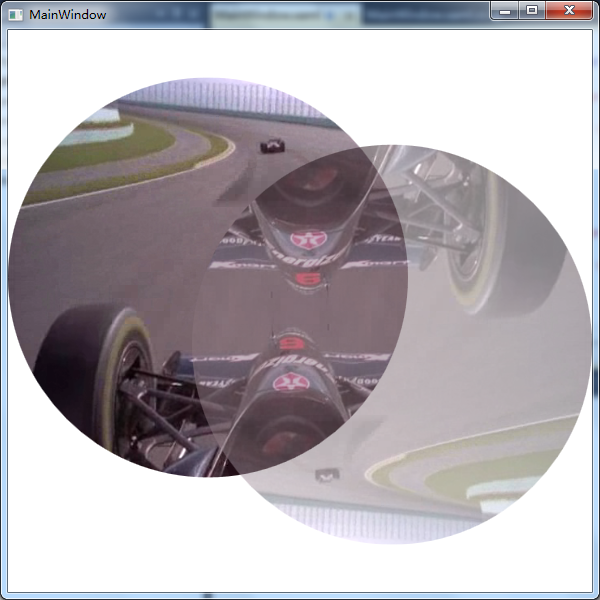
  也可以播放两个视频并且反向重叠:

代码

        <MediaElement Canvas.Left="300" Canvas.Top="300" Source="SuperSpeedway.wmv">
            
<MediaElement.Clip>
                
<EllipseGeometry Center="200 200" RadiusX="200" RadiusY="200"/>
            
</MediaElement.Clip>
            
<MediaElement.LayoutTransform>
                
<RotateTransform Angle="0"/>
            
</MediaElement.LayoutTransform>
        
</MediaElement>
        
<MediaElement Canvas.Left="400" Canvas.Top="300" Source="SuperSpeedway.wmv" Opacity="0.5">
            
<MediaElement.Clip>
                
<EllipseGeometry Center="200 200" RadiusX="200" RadiusY="200"/>
            
</MediaElement.Clip>
            
<MediaElement.LayoutTransform>
                
<RotateTransform Angle="180"/>
            
</MediaElement.LayoutTransform>
        
</MediaElement>
   最后实现一个将两个不同的视频通过曲线拼合在一起的实例:

代码

        <MediaElement Source="SuperSpeedway.wmv">
            
<MediaElement.Clip>
                
<PathGeometry Figures="M 510,0 C 150,100 300,300 110,400 H600 V0"/>
            
</MediaElement.Clip>
        
</MediaElement >
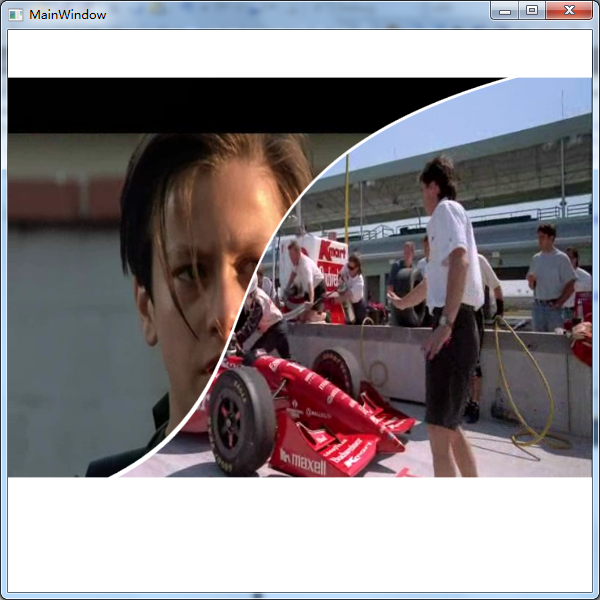
        
<MediaElement Source="T2.wmv">
            
<MediaElement.Clip>
                
<PathGeometry Figures="M 500,0 C 150,100 300,300 100,400 H0 V0"/>
            
</MediaElement.Clip>
        
</MediaElement >