





 JabRef is one of the best reference managers available and provides a realistic alternative to Endnote, as well as being open-source & free. Unfortunately most users are not aware that JabRef (or any other BibTeX based reference manager) can easily be integrated for use with Microsoft Word. In this guide I will show you step-by-step how to install Mike Brookes‘ excellent free Bibtex4Word (v1.12) Word Macro Package on your Windows XP machine.
This post is for an old version of the BibTeX4Word Macro. The newest version can be found here on Mike Brookes’ site, along with excellent documentation.
These instructions assume that you are already familiar with JabRef and have a copy installed on your computer. If you wish you can download JabRef from here. I will cover how to use JabRef in a forthcoming guide.
1. Download MiKTeX
MiKTex is a LaTeX typesetting environment , you don’t need to be too concerned about the details of this, essentially MiKTeX contains BibTeX the ‘engine’ that is used for to generate the different referencing styles that you will now be able to call on to be able to submit to various journals eg. Harvard, Vancouver, Nature etc.
The link to MikTeX is here (and will open in a new window) You need to download and install the basic version, don’t worry about installing all the packages, you don’t need them.
2. Relocate your JabRef data File
Unfortunately BibTeX does not support filenames with spaces in them, if you have spaces in your path to your JabRef file you must relocate your data file to a directory without. My Bibliography file is called “bib.bib” and was located in “My Documents” which contains a space so I relocated it to a new folder “c:\References\bib.bib” Make a note of your location.
3.Set your Path
The macro requires that it can access the BibTeX package from the default path. The simplest way to set this is to go to
Start>>Settings>>Control Panel>> System>>Advanced>>Enviromental Variables>>System Variables
here you need to edit the “Path” entry by adding the path of the BibTeX executable, failure to do so will cause an “Error 53″ The path to my BibTeX executable is
C:\Program Files\MiKTeX 2.5\miktex\bin
Yours should be similar if you followed the default installation. If you are having problems use the Windows search feature to look for “Bibtex.exe”. Remember each entry on the path should be seperated by semi-colons for example my path is:-
d:\WINDOWS\system32;D:\WINDOWS;D:\Program Files\MiKTeX 2.5\miktex\bin;
4. Make Word Startup Folder Visible
By defaut on your machine you may have to make your Word startup folder visible, you can do this by going to Windows Explorer and selecting:-
Tools>>Folder Options>>Hidden files and folders>>Show hidden files and folders & Display the contents of system folders.
If you prefer not to see your system and hidden folders you can reverse this once complete.
5.Download the Macro
This can be found on Mike Brookes’ site here. Right click this link and use the “Save target as” or “Save Link as” option. You need to save it in your MS Word Startup folder which can be found at:-
C:\Documents and Settings\James\Application Data\Microsoft\Word\STARTUP
of course you will have substitute your username for mine, and possibly change the drive letter according to the setup of your machine. If you want this macro to be available to more than one user you will have to do this for each user. There is no need to change the MS Word security settings to enable this macro to work correctly.
6. Load Microsoft Word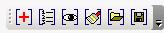
Hopefully you will see this new toolbar. First you need to let the BibTeX4Word macro know where you keep your bibliography data file. You do this by clicking on the last but one icon (the open folder) and then finding the bibliography file which you made a note of earlier.
7.Start Citing
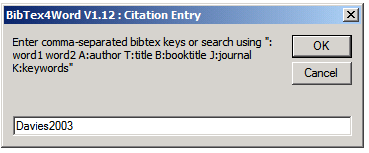 To add a citation position the cursor at the point you wish to insert the citation and click the [+] button, you can either type the BibTeX key directly eg “Davies2003″ or search for author’s papers from your bibliography by the surname by prefixing with A: eg “A:Davies”. You can cite more than one paper by just separating the keys by commas.
8.Creating your Bibliography List
When you are ready to create your bibliography, simply place your cursor where you wish it to appear and click the second icon from the left on the BibTex4Word toolbar. This will produce the bibliography and automatically change the bibliography keys to reference numbers. You can flip between the two with the [eye] key on the toolbar.
9.Changing the Citation Styles
This can be done by clicking the paintbrush logo. To find out what styles are available from your MikTeX installation you can search the BibTeX folder for style files which have the *.bst extension, or create your own as described in Mark’s recent article
Example Citation Styles

A selection of the more popular styles (Plain, Vancouver, AuthorDate and it’s variations) can be found in this pdf or this MS Word file.
Adding more Styles to BibTeX
If you installed the Basic MiKTeX package you will only have a small selection of styles. Not all BibTeX styles work well with the BibTeX4Word Macro, but most do. To add more go to
Start>>Programs>>MiKTeX 2.5>>MiKTeX Package Manger
Here you need to select all of the Category entitled “\BibTeX\BibTeX packages” then right click and select Install, and the latest versions will be downloaded and installed on your computer.
Customising Your Bibliography
You can format your bibliography directly, for example making citation numbers appear as subscript. If you wish you can change the citation brackets from square to round brackets, this is done using MS Word’s search and replace, though this is best left until you have finished your paper or thesis.
此内容由惯性聚合(RSS阅读器)自动聚合整理,仅供阅读参考。 原文来自 — 版权归原作者所有。