








To combine text with the unique ID numbers, you can extract the unique values first and then create a User Defined Function to combine the names based on the unique ID.
1. Take the following data as example, you need to extract the unique ID numbers first, please apply this array formula: =IFERROR(INDEX($A$2:$A$15, MATCH(0,COUNTIF($D$1:D1, $A$2:$A$15), 0)),""),enter this formula into a blank cell, D2 for example, then press Ctrl + Shift + Enter keys together, see screenshot:
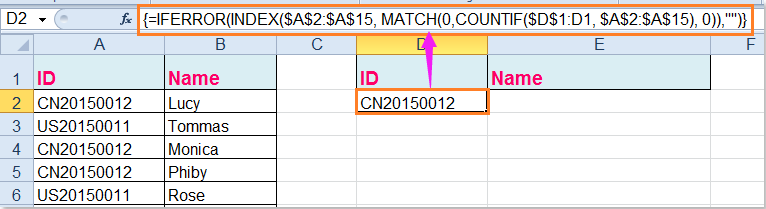
Tip: In the above formula, A2:A15 is the list data range you want to extract unique values from, D1 is the first cell of the column you want to put out the extracting result.
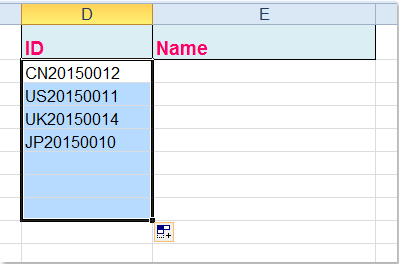
2. And then drag the fill handle down to extract all unique values until blanks displayed, see screenshot:
3. In this step, you should create a User Defined Function to combine the names based on the unique ID numbers, please hold down the ALT + F11 keys, and it opens the Microsoft Visual Basic for Applications window.
4. Click Insert > Module, and paste the following code in the Module Window.
VBA code: concatenate text based on criteria
|
1 2 3 4 5 6 7 8 9 10 11 12 13 14 15 16 17 18 19 |
|
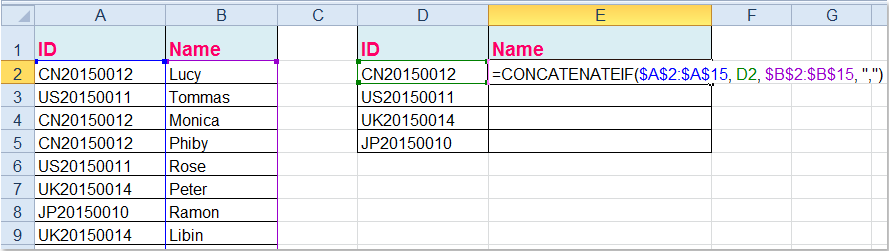
5. Then save and close this code, go back to your worksheet, and enter this formula into cell E2, =CONCATENATEIF($A$2:$A$15, D2, $B$2:$B$15, ",") , see screenshot:
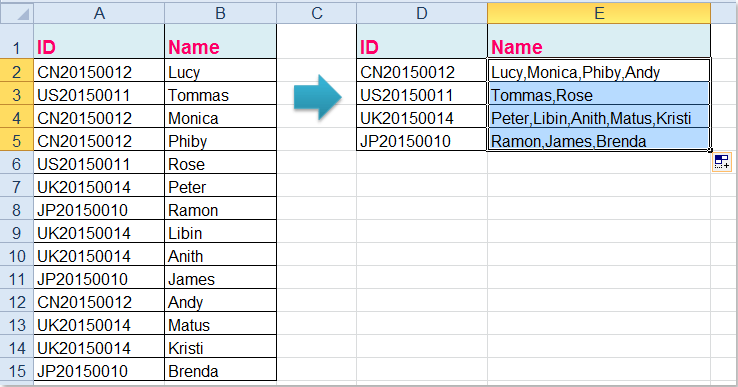
6. Then drag the fill handle down to the cells that you want to apply this formula, and all the corresponding names have been combined based on the ID numbers, see screenshot:
Tips:
1. In the above formula, A2:A15 is the original data which you want to combine based on, D2 is the unique value you have extracted, and B2:B15 is the name column that you want to combine together.
2. As you can see, I combined the values which are separated by comma, you can use any other characters by changing the comma “,” of the formula as you need.
Link: https://www.extendoffice.com/documents/excel/2723-excel-concatenate-based-on-criteria.html
此内容由惯性聚合(RSS阅读器)自动聚合整理,仅供阅读参考。 原文来自 — 版权归原作者所有。