









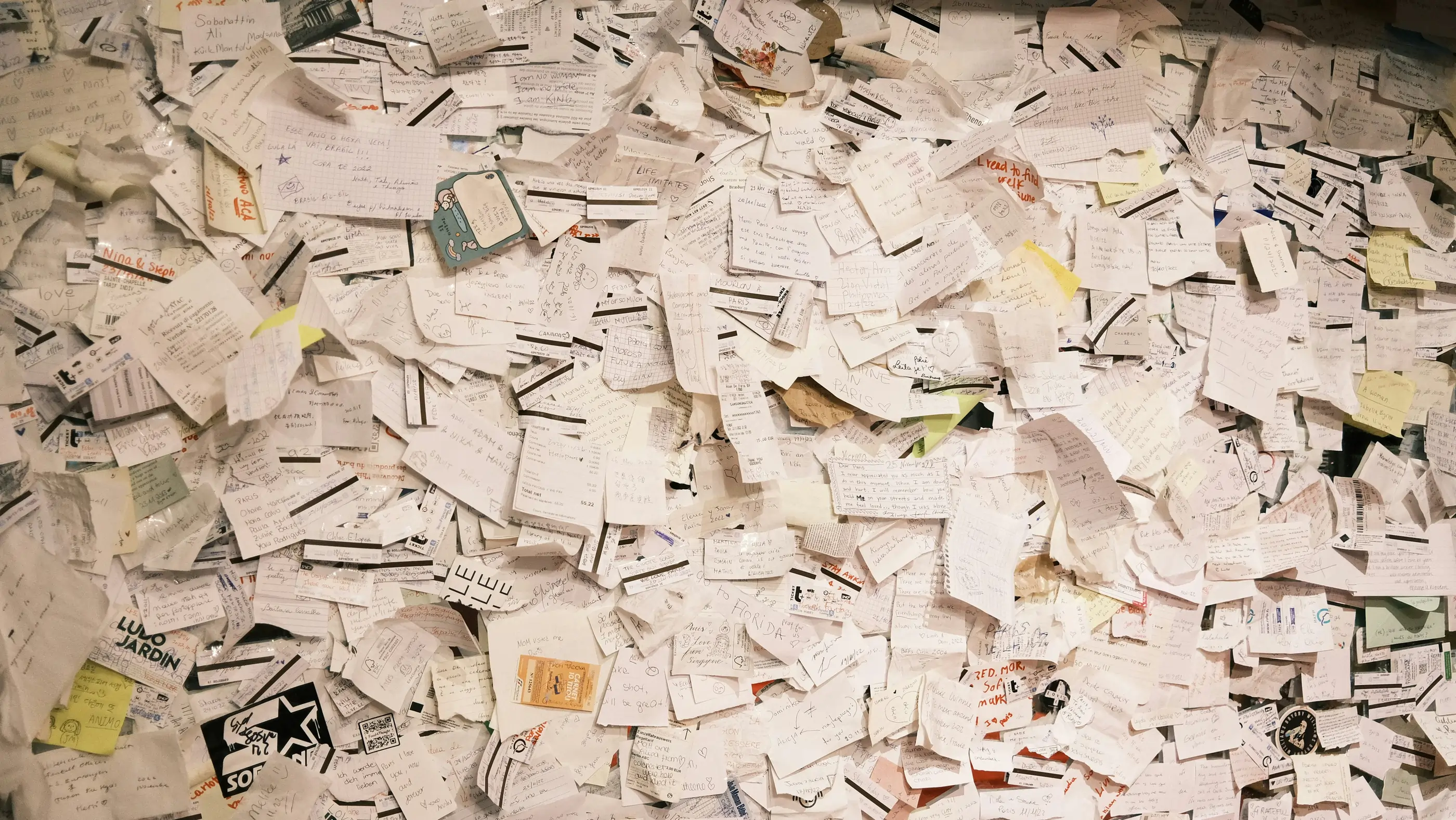
Receipts have a way of disappearing at the exact moment you need them. They fade in wallets, crumple in bags, and vanish from kitchen counters only to resurface months later when they’re no longer useful. Whether you’re tracking business expenses, preparing for tax season, or simply keeping your budget in check, building a personal expense archive is one of the simplest ways to reduce financial stress and administrative chaos.
Here’s how to create a reliable, searchable system in just a few minutes.
Why You Should Build a Personal Expense Archive
Building a personal expense archive is about protecting your time and money. Every lost receipt can mean a missed reimbursement, a lost tax deduction, or hours spent retracing your steps. For freelancers and small business owners, missing receipts directly impacts profitability. For households, they can delay warranty claims, complicate insurance reimbursements, or make tax preparation unnecessarily stressful.
What You’ll Need (Besides the Receipts!)
The good news? You don’t need a desktop scanner or complicated accounting software.
You’ll just need:
- A smartphone with Genius Scan installed
- A cloud storage destination (Google Drive, Dropbox, OneDrive, etc.)
- A few minutes to set up your workflow
That’s it!
Step-by-Step with Genius Scan
1. Gather Your Receipts in One Place
The idea is simple: before digitizing, you must centralize. So start by collecting all your loose receipts from bags, wallets, cars, and drawers.
If you regularly receive digital receipts (PDFs or photos), you can import them directly into Genius Scan from your Files app or photo library so everything lives in one place before you start organizing.
2. Scan Your Receipts
Open Genius Scan and begin scanning your receipts one by one.
Genius Scan automatically detects document edges and enhances contrast to make even faded thermal receipts readable. If you’re scanning multiple receipts from the same store or day, you can either add them as separate documents or create multipage documents.
For best results:
- Place the receipt on a flat surface.
- Use natural lighting when possible.
- Confirm the crop before saving.
3. Name and Organize Receipts as You Scan
This is where many systems fail, but Genius Scan makes it easy.
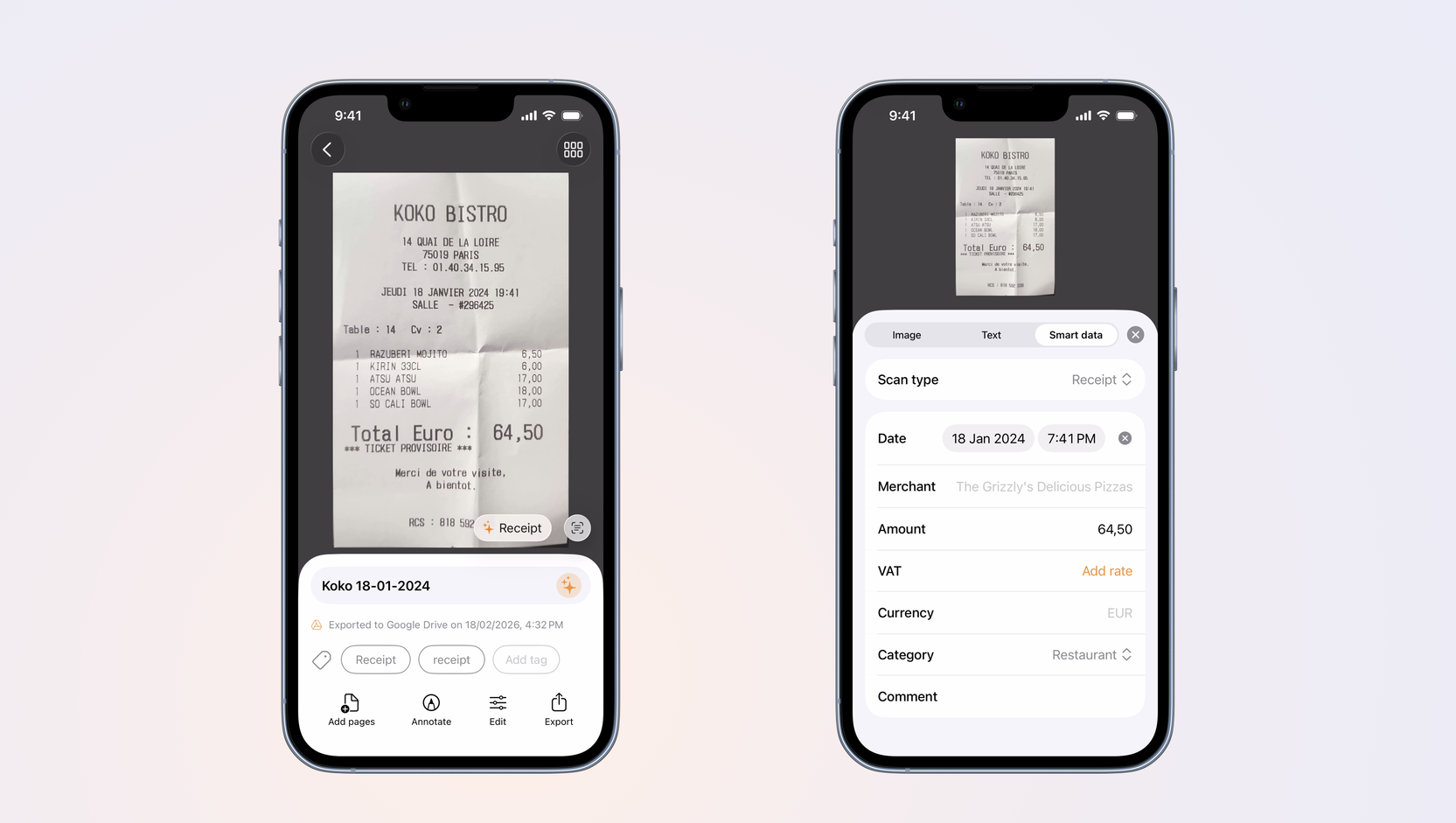
Instead of leaving documents with generic names like “Scan 245,” rename them using suggestions, templates, or AI to speed up organization.
When you edit a document’s name, Genius Scan intelligently suggests titles based on detected text and dates. For example, a receipt might automatically suggest something like:
“2025-01-05 Starbucks”
You can tap the suggestion and adjust it if needed. This saves time and ensures consistency.
You can also group receipts into folders, such as:
- 2025 Expenses
- Travel
- Office Supplies
Consistent naming, tagging and folder placement mean you’ll be able to find any receipt instantly later.
4. Set Up Your Expense Report Settings
Once your receipts are scanned and named, you can prepare them for reporting.
Genius Scan allows you to create Expense Reports directly within the app. To adapt your reports to your needs, you can configure default settings for expense reports, including:
- Currency
- Categories
- Tax rate
This ensures your reports look professional and consistent every time you generate one.
After customizing your settings, exporting is easy.
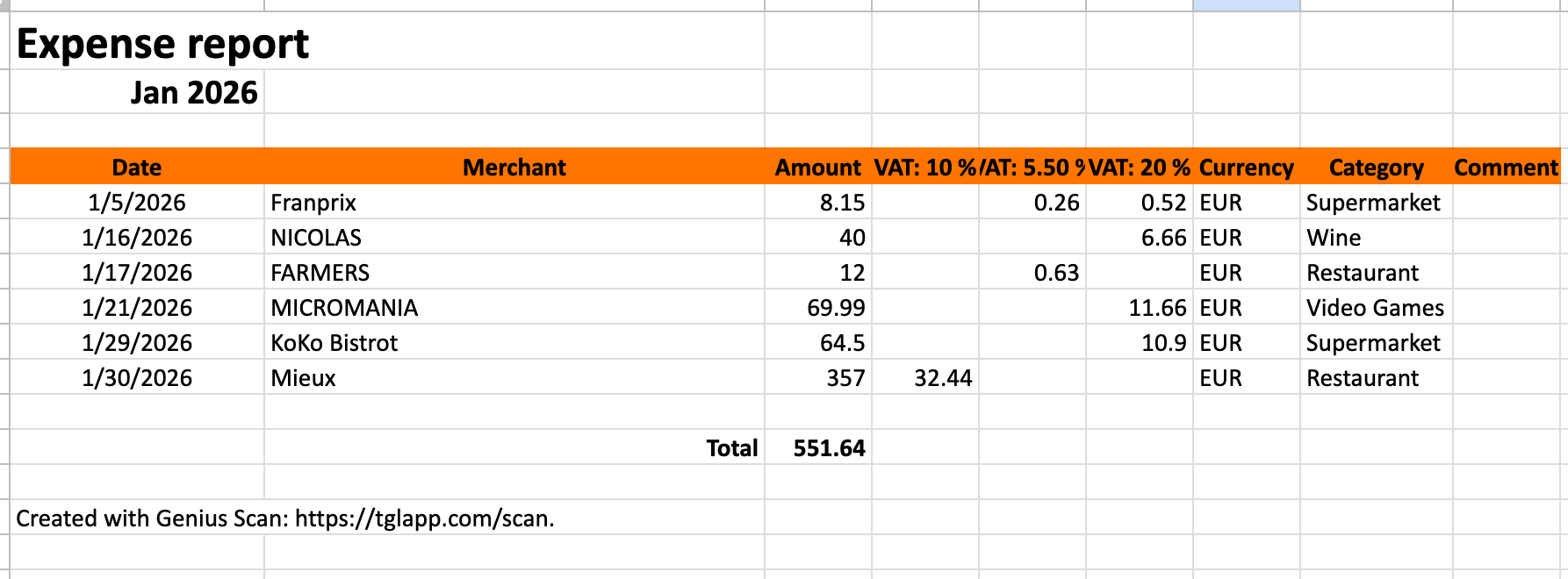
From the export menu, you can generate:
- A PDF expense report: the first page shows a summary of expenses, and the following pages contain copies of the receipts.
- An Excel + PDF expense report: an Excel file containing the summary of the expenses and a PDF containing a copy of the receipts.
If you frequently send reports to the same destination (for example, your accountant’s shared folder), you can create an export shortcut to speed up the process.
With your receipts digitized, organized, compiled into reports, and backed up in the app, you’ve created a system that works long-term, not just for one month.
Building a personal expense archive doesn’t require hours of effort or complicated tools. In just a few minutes, you can go from scattered paper receipts to a structured, searchable, and shareable expense system, and never lose your receipts again! Especially if you back them up with auto-export rules or cloud syncing, so you can recover them if you lose your phone or mistakenly delete your app.