






For all of you who follow up my blog closely, you will probably remember that I have written a little application in which you can edit your xaml snippet and have that sinppet executed in real time, and this is what exactly the XamlPad.exe which is shipped with the WINFX SDK does. But in that little application, I just used the plain text editor for editing Xaml, you know, no syntax highlighting, no line numbering, no auto indentation etc. Fortunately the TextEditorControl which is available from the SharpDevelop project meets exactly what I need. So I can reuse that control without reinventing the wheel. I have tried to use the TextEditorControl in my WPF version of XamlPad, but It fails, even fails with no clue. But I know this control can work pretty well in Winforms application, so instead of hosting this control in WPF, I just use this control in Winforms application, and use Crossbow to host the necessary WPF controls in this Winforms application.
Just as before, you have to include some important assemblies into your project, they are WindowsBase.dll, PresentationCore.dll, PresentationFramework.dll, UIAutomationProvider.dll, UIAutomationTypes.dll, and WindowsFormsIntegration.dll.
Then you can add a Winforms TabControl into containing Form through classical Drag & Drop operation, and set those properties for the TabControl instance, immediately after that you can write something like the following in code:
private void SetupExecutionPad()
{
ElementHost host = new ElementHost();
host.Dock = DockStyle.Fill;
executionPad = new ContentControl();
host.Controls.Add(executionPad);
tabExectionView.Controls.Add(host);
}
private void SetupXamlEditor()
{
xamlEditor.Document.HighlightingStrategy = HighlightingStrategyFactory.CreateHighlightingStrategy("XML");
xamlEditor.Document.FormattingStrategy = new DefaultFormattingStrategy();
DefaultTextEditorProperties properties = new DefaultTextEditorProperties();
properties.Font = new Font("Verdana", 10f);
properties.IndentStyle = IndentStyle.Smart;
properties.ShowSpaces = false;
properties.LineTerminator = "\r\n";
properties.ShowTabs = false;
properties.ShowInvalidLines = false;
properties.ShowEOLMarker = false;
properties.UseAntiAliasedFont = true;
properties.EnableFolding = true;
properties.TabIndent = 3;
properties.AllowCaretBeyondEOL = false;
properties.AutoInsertCurlyBracket = true;
properties.BracketMatchingStyle = BracketMatchingStyle.After;
properties.ConvertTabsToSpaces = false;
properties.ShowMatchingBracket = true;
xamlEditor.TextEditorProperties = properties;
}
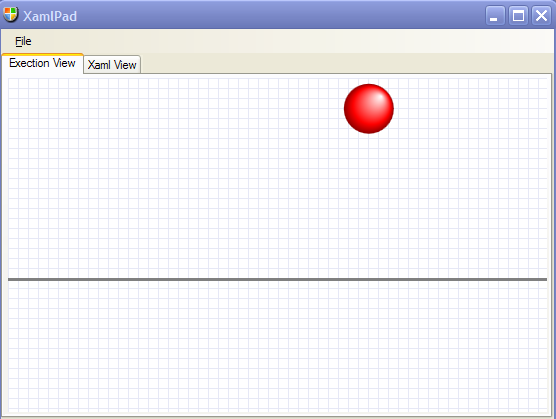
XamlPad in ExecutionView:
XamlPad in XamlView
To make this application a full-blown Xaml IDE, there are hoards of things which I have to do, but I just need a simple primitive XamlPad, and this one serves me pretty well in writing Xaml snippets.
For all of you who are interested in this little application, you can download its source code from here
此内容由惯性聚合(RSS阅读器)自动聚合整理,仅供阅读参考。 原文来自 — 版权归原作者所有。