






2017-11-27 12:44 努力学习的小熊 阅读(1067) 评论() 收藏 举报
Error meesage:
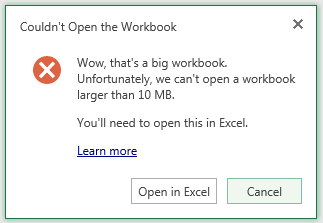
"Couldn't Open the Workbook. Wow, That's a big workbook. Unfortunately, we can't open a workbook larger than 10 MB. You'll need to open this in Excel."
Solution:
The reason for these errors is the size of the workbook that is being opened is larger that the maximum size of a workbook that can be opened in Excel Services. The maximum size can be configured in the Excel Services settings.
In order to change this value, open SharePoint Central Administration, and go to Application Management > Manage Service Applications > ExcelServiceApp > Trusted File Locations and click on the appropriate Address. Under the Workbook Properties section you will see a Maximum Workbook Size option. Set this value to the required file size in MB, and click OK to save the setting. To avoid the errors above, make sure the value is higher than the largest workbook size in SharePoint.
Reference Blog:
Excel Services – Large Workbook Error
You may receive one of the following errors when attempting to view an Excel workbook in SharePoint depending on your version of SharePoint:
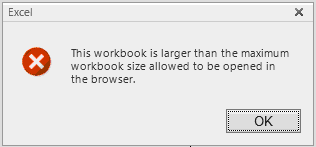
"This workbook is larger than the maximum workbook size allowed to be opened in the browser."
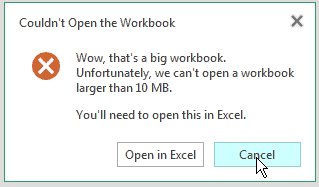
"Couldn't Open the Workbook. Wow, That's a big workbook. Unfortunately, we can't open a workbook larger than 10 MB. You'll need to open this in Excel."
The reason for these errors is the size of the workbook that is being opened is larger that the maximum size of a workbook that can be opened in Excel Services. The maximum size can be configured in the Excel Services settings.
In order to change this value, open SharePoint Central Administration, and go to Application Management > Manage Service Applications > ExcelServiceApp > Trusted File Locations and click on the appropriate Address. Under the Workbook Properties section you will see a Maximum Workbook Size option. Set this value to the required file size in MB, and click OK to save the setting. To avoid the errors above, make sure the value is higher than the largest workbook size in SharePoint.
Another error you may see in SharePoint with large workbooks is the following:
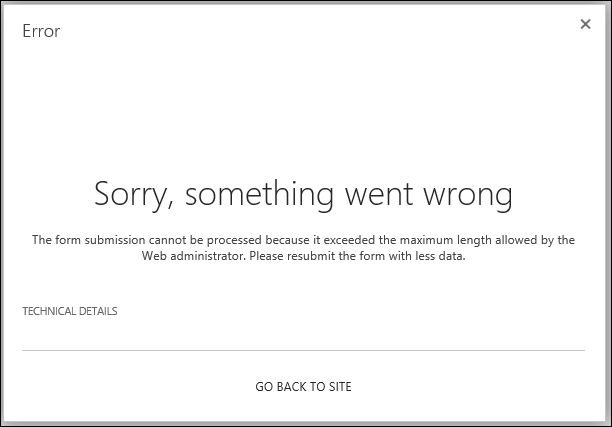
"Sorry, something went wrong. The form submission cannot be processed because it exceeded the maximum length allowed by the Web administrator. Please resubmit the form with less data."
You may encounter the error when you try to publish a large workbook to SharePoint that exceeds SharePoint’s Maximum Upload Size. You can increase this value by going to the following setting in SharePoint Central Administration:
Application Management > Web Applications > Manage web applications > (Choose Web Application) > General Settings > Maximum Upload Size
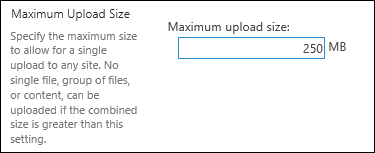
Increase the value to a value larger than the size of the workbook causing the error. After saving the value, you should be able to upload the file successfully.
Additional Articles:
Error "Request timed out" when you try to upload a large file to a document library on a Windows SharePoint Services 3.0 site
http://support.microsoft.com/kb/925083
Configure Maximum File Upload Size (PowerPivot for SharePoint)
http://technet.microsoft.com/en-us/library/ff487972.aspx
Issues Uploading Large Files To SharePoint
http://blogs.technet.com/b/praveenh/archive/2012/11/16/issues-with-uploading-large-documents-on-document-library-wss-3-0-amp-moss-2007.aspx
此内容由惯性聚合(RSS阅读器)自动聚合整理,仅供阅读参考。 原文来自 — 版权归原作者所有。