





1、最近在做一个新的桌面应用。里边的UI好多使用到了ListBox的。如下图所示
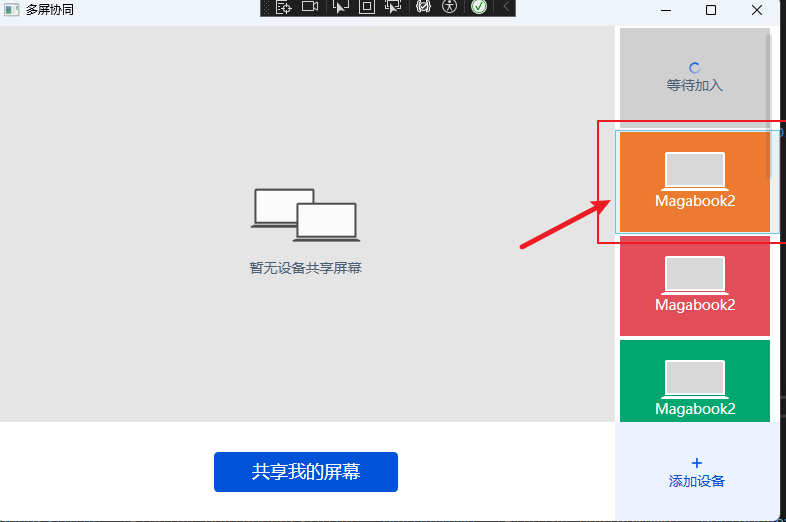
2、使用的Xmal的样式如下:
    <!--设备列表-->
    <Border Grid.Row="0" Grid.Column="1">
        <ListBox ItemsSource="{Binding DeviceUserInfos}" Style="{StaticResource Style.ListBox.Simple}" ScrollViewer.HorizontalScrollBarVisibility="Disabled" ScrollViewer.VerticalScrollBarVisibility="Visible">
            <!--重写ListBox的控件模板-->
            <ListBox.Template>
                <ControlTemplate>
                    <Grid>
                        <ScrollViewer Style="{StaticResource Style.ScrollViewer.Default}" ManipulationBoundaryFeedback="UIElement_OnManipulationBoundaryFeedback">
                            <ItemsPresenter />
                        </ScrollViewer>
                    </Grid>
                </ControlTemplate>
            </ListBox.Template>

            <ListBox.ItemTemplate>
                <DataTemplate>
                    <controls:DeviceUserItem Width="{Binding ActualWidth,RelativeSource={RelativeSource AncestorType=ListBox},Converter={StaticResource ListBoxWidthConverter}}" Height="100" DeviceUserStatus="{Binding DeviceUserStatus}" DeviceName="{Binding DeviceName}" DeviceUserColor="{Binding DeviceUserColor}"/>
                </DataTemplate>
           </ListBox.ItemTemplate>
        </ListBox>
    </Border>
在上图会发现,鼠标移动上去了之后,选中的Item项会有浅蓝色的默认背景,这个显然跟UI给出的需求明显不符合。
1、增加对ListBoxItem的ItemContainerStyles的控件模板的重写
 <Style x:Key="ItemContainerStyles" TargetType="ListBoxItem">
     <Setter Property="SnapsToDevicePixels" Value="true"/>
     <Setter Property="FocusVisualStyle" Value="{x:Null}"/>
     <Setter Property="Template">
         <Setter.Value>
             <ControlTemplate TargetType="ListBoxItem">
                 <Border Name="Border"
                         Padding="7"
                         Background="Transparent"
                         SnapsToDevicePixels="True">
                     <ContentPresenter />
                 </Border>
                 <ControlTemplate.Triggers>
                     <Trigger Property="IsEnabled" Value="false">
                         <Setter Property="Foreground" Value="LightGray"/>
                     </Trigger>
                 </ControlTemplate.Triggers>
             </ControlTemplate>
         </Setter.Value>
     </Setter>
 </Style>
2、ListBox的ItemContainerStyles 引用 ListBoxItem的样式:
ItemContainerStyle="{StaticResource ItemContainerStyles}"
  <!--设备列表-->
  <Border Grid.Row="0" Grid.Column="1">
      <ListBox ItemsSource="{Binding DeviceUserInfos}" Style="{StaticResource Style.ListBox.Simple}" ScrollViewer.HorizontalScrollBarVisibility="Disabled"
ScrollViewer.VerticalScrollBarVisibility="Visible"
ItemContainerStyle="{StaticResource ItemContainerStyles}">
          <!--重写ListBox的控件模板-->
          <ListBox.Template>
              <ControlTemplate>
                  <Grid>
                      <ScrollViewer Style="{StaticResource Style.ScrollViewer.Default}" ManipulationBoundaryFeedback="UIElement_OnManipulationBoundaryFeedback">
                          <ItemsPresenter />
                      </ScrollViewer>
                  </Grid>
              </ControlTemplate>
          </ListBox.Template>

          <ListBox.ItemTemplate>
              <DataTemplate>
                  <controls:DeviceUserItem Width="{Binding ActualWidth,RelativeSource={RelativeSource AncestorType=ListBox},Converter={StaticResource ListBoxWidthConverter}}" Height="100" DeviceUserStatus="{Binding DeviceUserStatus}" DeviceName="{Binding DeviceName}" DeviceUserColor="{Binding DeviceUserColor}"/>
              </DataTemplate>
         </ListBox.ItemTemplate>
      </ListBox>
  </Border>
3、添加完ListBoxItem 样式如下:背景颜色跟UI相符

此内容由惯性聚合(RSS阅读器)自动聚合整理,仅供阅读参考。 原文来自 — 版权归原作者所有。