







转自:Linux系统使用PHP实现PPT转图片 - 盛世芳华 - 博客园 (cnblogs.com)
目前主流的实现方式为先将PPT转为PDF,再将PDF转成图片。
yum install nodejs npm unoconv libreoffice-dev imagemagick
centos安装imagemagick提示找不到,先执行命令:

然后安装:
yum install ImageMagick.x86_64
创建字体目录
mkdir -p /usr/share/fonts/win
然后将windows下的字体文件上传到此目录,执行命令使之生效
mkfontscale
mkfontdir
sudo fc-cache -fv
mkdir /opt/ppt
cd /opt/ppt
npm init
npm install ppt2png
编写脚本:
脚本代码:

var ppt2png = require('ppt2png');
var ppt = process.argv[2];
var topath = process.argv[3];
ppt2png(ppt, topath, function( err ){
    if(err) {
        console.log(err);
    } else {
        console.log('convert successful.');
    }
});
执行脚本:
node test.js 1.pptx ./test/hi
脚本执行后,先将1.pptx转为1.pdf,然后将1.pdf自动转为图片,自动创建test目录,生成hi-0.jpg,hi-1.jpg。
创建test.php
<?php
$output = shell_exec("whoami");
echo "<pre>I am $output</pre>";
?>
浏览器访问查看apache的用户名,我的是apache,然后赋予root权限。
vim /etc/sudoers
apache  ALL=(ALL) NOPASSWD:ALL

然后在php页面中调用脚本,调用时加上sudo:
<?php
//堵塞方式
shell_exec('sudo node /opt/ppt/test.js /opt/ppt/3.ppt /opt/ppt/hello/hi');

//非堵塞方式
shell_exec("sudo node /opt/ppt/test.js /opt/ppt/3.ppt /opt/ppt/hello/hi  > /dev/null 2>&1 &");
?>
如果php页面调用脚本时出现sudo: sorry, you must have a tty to run sudo
修改一下sudo的配置就好了
注释掉 Default requiretty 一行
意思就是sudo默认需要tty终端,注释掉就可以在后台执行了。
服务器centos7.5,nginx,php-fpm。
执行unoconv出现错误:
{ Error: Command failed: unoconv -f pdf -o /opt/pptconvert/test/hello.pdf /opt/pptconvert/1.pptx
Traceback (most recent call last):
File "/usr/bin/unoconv", line 1205, in <module>
run()
File "/usr/bin/unoconv", line 1199, in run
main()
File "/usr/bin/unoconv", line 1090, in main
convertor.convert(inputfn)
File "/usr/bin/unoconv", line 937, in convert
raise UnoException("Unable to store document to %s (ErrCode %d)\n\nProperties: %s" % (outputurl, e.ErrCode, outputprops), None)
File "/usr/lib64/python2.7/site-packages/uno.py", line 507, in _uno_struct__getattr__
return getattr(self.__dict__["value"], name)
AttributeError: ErrCode
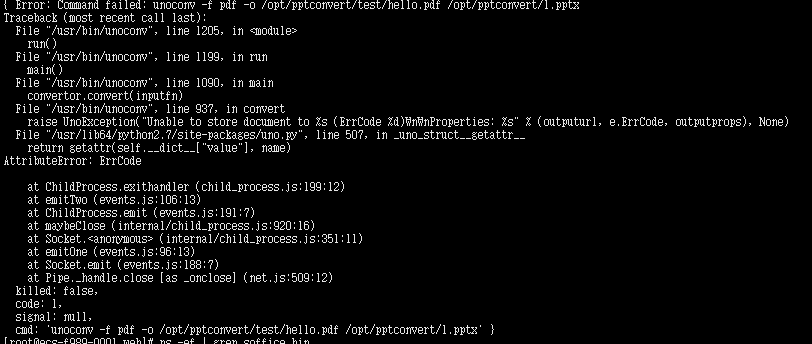
说明有挂起的soffice
ps -ef | grep soffice.bin
kill掉所有的soffice线程即可。
php页面中:
echo shell_exec('sudo node /opt/pptconvert/convert.js /opt/pptconvert/1.pptx /opt/pptconvert/test/hello');这种方式执行,页面显示空白。
echo shell_exec('node /opt/pptconvert/convert.js /opt/pptconvert/1.pptx /opt/pptconvert/test/hello');不加sudo执行,出现错误:

修改php-fpm.d/www.conf添加或者删掉前面的#,
然后重启:
and the restart php-fpm
systemctl restart php-fpm.service
但不加sudo的情况下,页面访问时一直转圈,使用nginx身份执行命令:
sudo -H -u nginx bash -c "node /opt/pptconvert/convert.js /opt/pptconvert/1.pptx /opt/pptconvert/test/hello"
发现原来是卡在了touch /opt/pptconvert/test/convert这一行,改改 /opt/pptconvert/目录解决这个问题。
所以两种思路(仅限我的项目):
1、如果要在php中加sudo执行转ppt操作,那就修改/etc/sudoers即可,如果是nginx,同时修改php-fpm.d/www.conf;
2、如果在php页面中不加sudo执行转ppt操作,那就要修改脚本安装的路径,不要放在opt目录下,不然touch的时候没有权限(默认不涉及touch命令,touch是我自己加的,为了满足我的项目)。
参考:php 怎么执行unoconv,web执行php调用exec(unoconv)命令失败解决方案
php web端不能调用shell_exec运行linux命令(unoconv为例)
csv - unoconv return error when running as www-data - Stack Overflow
/opt/ppt/node_modules/ppt2png/ppt2png.js为核心功能。
代码很简单,调用unoconv将ppt转为pdf,调用convert命令将pdf转为图片。
其默认转出的图片为png,速度慢,可以修改代码:
exec('convert -resize 1200 -density 200' + input + ' ' + output+'.png',
改为:
exec('convert -resize 800 -density 72 ' + input + ' ' + output+'.jpg',
1、执行时如提示convert命令未找到,则重新安装ImageMagick
yum install ImageMagick
# 测试是否安装完成--查看是否有结果输出
convert -v
2、Can't open display: Set DISPLAY environment variable, use -display option or check permissions of your X-Server
yum install libreoffice-headless
参考网址:
https://oomake.com/question/3133511
https://blog.csdn.net/liuxiao723846/article/details/97822207
http://blog.51yip.com/jsjquery/1924.html
https://www.liminghulian.com/article/202
https://blog.csdn.net/wuzuyu365/article/details/95988470
https://blog.csdn.net/pwtitle/article/details/51684685
https://blog.csdn.net/weixin_40816738/article/details/102847228
2024年1月19日补充
本次在ubuntu系统中部署。
1、安装软件
apt install nodejs npm unoconv libreoffice-dev imagemagick
2、安装字体
创建字体目录
mkdir -p /usr/share/fonts/win
然后将windows下的字体文件上传到此目录,执行命令使之生效
mkfontscale
mkfontdir
sudo fc-cache -fv
3、创建新目录
cd /opt/web/
mkdir ppt2img
cd ppt2img/
npm init
4、之前是通过安装ppt2png库实现PPT转图片的,在ubuntu系统中执行总是出错,所以我干脆自己重写了一下,创建app.js,代码如下:
const { exec } = require('child_process');

var ppt2png = require('ppt2png');
var ppt = process.argv[2];
var topath = process.argv[3];

const command_pdf = 'unoconv -f pdf -o '+topath+'.pdf '+ppt;
const command_png = 'convert -resize 1200 -density 200 ' + topath + '.pdf ' + topath + '.png';

exec(command_pdf, (error, stdout, stderr) => {
    if (error) {
        console.error(`转换PDF执行错误:${error}`);
        return;
    }else{
        console.error(`PDF转换完成,开始生成图片`);
        exec(command_png, (error, stdout, stderr) => {
            if (error) {
                console.error(`转换PNG执行错误:${error}`);
                return;
            }else{
                console.log('convert successful.');
            }
        });
    }
});
5、测试
|
1 |
|
如果提示:convert successful,说明执行成功,会在当前目录下生成test.pdf和test-*.png图片序列。
如果执行时出现以下错误:
convert-im6.q16: attempt to perform an operation not allowed by the security policy `PDF' @ error/constitute.c/IsCoderAuthorized/408.
convert-im6.q16: no images defined `cc.jpg' @ error/convert.c/ConvertImageCommand/3258.
那么
|
1 |
|
将以下代码注释掉即可。
|
1 2 3 4 5 |
|
参考网址:vim nano /etc/ImageMagick-6/policy.xml
6、通过php调用
在web目录下创建ppt.php
|
1 2 3 4 5 6 |
|
浏览器访问ppt.php,查看当前用户是谁,我的是www-data,使用shell_exec执行ppt转图片的程序没成功,可以看下var/log/auth.log日志,发现报错:www-data:user not in sudoers,说明是因为www-data没用权限导致的。或者看一下/tmp/log.txt日志的输出。之所以输出到/tmp中,是因为当前用户可能没用权限输出到opt目录下。
7、修改www-data权限
|
1 2 3 4 5 |
|
再次web使用访问ppt.php文件,PPT转图片成功。
注意:php中使用shell_exec调用转换程序时,一定要写sudo。
此内容由惯性聚合(RSS阅读器)自动聚合整理,仅供阅读参考。 原文来自 — 版权归原作者所有。