







有的时候,我们需要一个支持页面跳转的UI,例如文件浏览器,开始向导等。对于这样的界面,简单的可以使用ContentControl + ContentTemplateSelector的方式来实现,但是有的时候我们会需要一些更加高级的跳转功能,如前进,回退等。这个时候,用这个方式就稍微有点力不从心了,此时,我们可以使用WPF的导航框架帮助我们快速实现这一功能。

WPF 的Page框架主要包括两个部分,容器和页面,
下面就以一个简单的例子来介绍WPF的Page框架,首先我们创建第一个页面:

<Page xmlns="http://schemas.microsoft.com/winfx/2006/xaml/presentation"
      Title="Page1">
    <TextBlock>
        <Run>### This is Page 1, Let's go to</Run>
        <Hyperlink NavigateUri="Page2.xaml" >Page2</Hyperlink>
    </TextBlock>
</Page>
然后再创建第二个页面,
<Page xmlns="http://schemas.microsoft.com/winfx/2006/xaml/presentation"
      Title="Page2">
    <TextBlock>
        <Run>~~~ This is Page 2, Let's go to</Run>
        <Hyperlink Command="BrowseBack" >Page1</Hyperlink>
    </TextBlock>
</Page>
最后我们在容器中承载它们,在WPF中,Page的容器可以是 Window、NavigationWindow、Frame或浏览器等,大多数的时候用的是Frame和NavigationWindow,因为它提供了一系列导航相关的函数,其中Frame更为灵活,这里就以Frame为例来介绍它的用法:
  <Grid>
      <Frame x:Name="frame" Source="Page1.xaml"  NavigationUIVisibility="Visible" />
  </Grid>
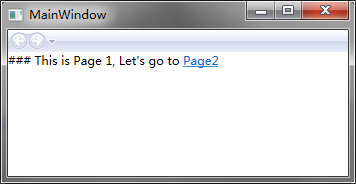
运行上述代码后,会得到在如下两个页面间跳转的导航窗口。点击Page1的链接可以跳转到Page2, 点击Page2的链接可以回退到Page1

页面地址:
在WPF的导航框架中,页面地址都是用URI来表示的,并不需要手动创建Page对象(也是可以手动创建的),例如Frame中设置的Source="Page1.xaml",它将起始页面的URI设置为Page.xaml,系统会自动创建Page1对象。
页面跳转:
页面跳转是通过NavigationService来控制的,在Frame和Page中都有该名为NavigationService的对象,可以通过它的Navigate函数来实现页面跳转。例如前面在Frame中设置Source="Page1.xaml"实际上就是通过如下函数实现的跳转:
frame.NavigationService.Navigate(new Uri("Page1.xaml", UriKind.Relative));
这个函数并不仅仅局限于URI,跳转对象也不仅仅局限于URI,如下方式也都是可以的。
frame.NavigationService.Navigate(new Page1());
frame.NavigationService.Navigate(new Button());
frame.NavigationService.Navigate("Hello world");
另外,我们也可以像Page1.xaml种那样通过Hyperlink的NavigateUri属性来在Page的Xaml中实现页面跳转,当然,其本质也是调用NavigationService.Navigate来实现的。
导航命令:
除了页面跳转外,NavigationService还提供了一些基本的导航命令,如前进,回退,刷新。可以通过
frame.NavigationService.GoForward();
frame.NavigationService.GoBack();
frame.NavigationService.Refresh();
另外,WPF本身提供了一个标准的导航命令的集合NavigationCommands(比NavigationService),Page和Frame也支持这几个命令的绑定(NavigationCommands的命令是比NavigationService能支持的要多的),因此我们可以使用命令行绑定非常方便的调用这些功能。如Page2种所使用的回退命令:
<Hyperlink Command="BrowseBack" >Page1</Hyperlink>
最后,简单的介绍一个没有什么技术含量,但很常用的功能,那就是Frame对象的导航工具条的重绘。 Frame对象本身是带着一个导航工具条的,提供了一个类似IE的前进后退功能。将NavigationUIVisibility设置为Visible或Auto的时候可见。

但这个工具条过于简陋,调试一下还可以,在最终交付的时候要么隐藏它,要么重写它,重写的方式一般就是改写其Template,如下就是一个简单的例子:
<ControlTemplate TargetType="Frame">
    <DockPanel Margin="8">
        <StackPanel Margin="4" DockPanel.Dock="Top" Orientation="Horizontal">
            <Button Content="Go back" Margin="4"  Command="{x:Static NavigationCommands.BrowseBack}" />
            <Button Content="Go Forward" Margin="4"  Command="{x:Static NavigationCommands.BrowseForward}" />
        </StackPanel>
        <Border BorderBrush="Orange"  Margin="7"  BorderThickness="4"  Padding="7"
                CornerRadius="7" Background="White">
            <ContentPresenter />
        </Border>
    </DockPanel>
</ControlTemplate>
但这个常常用到,以便后续参考。
小结:
本文主要介绍了WPF的导航框架的基本用法,更多的功能后面再写文章陆续介绍。或者参看微软官方的MSDN:导航概述
转载来源:http://www.cnblogs.com/TianFang/p/4338412.html
此内容由惯性聚合(RSS阅读器)自动聚合整理,仅供阅读参考。 原文来自 — 版权归原作者所有。