





I hope you enjoy it. Please give me a star if you like my work. Thank you!

jenv once so the script can do the restSometimes its necessary to call jenv when entering a new directory with a local jenv specified. This will set your JAVA_HOME for the current shell and ensures that tools like maven work properly
Add a new Java environment (requires absolute path)
jenv add <name> <path>
Example: jenv add jdk15 D:\Programme\Java\jdk-15.0.1
Change your java version for the current session
jenv use <name>
Example: jenv use jdk15
Environment var for scripting:
---PowerShell: $ENV:JENVUSE="jdk17"
---CMD/BATCH: set "JENVUSE=jdk17"
Clear the java version for the current session
jenv use remove
Example: jenv use remove
Environment var for scripting:
---PowerShell: $ENV:JENVUSE=$null
---CMD/BATCH: set "JENVUSE="
Change your java version globally
jenv change <name>
Example: jenv change jdk15
Always use this java version in this folder
jenv local <name>
Example: jenv local jdk15
Clear the java version for this folder
jenv local remove
Example: jenv local remove
List all your Java environments
jenv list
Example: jenv list
Remove an existing JDK from the JEnv list
jenv remove <name>
Example: jenv remove jdk15
Enable the use of javac, javaw or other executables sitting in the java directory
jenv link <Executable name>
Example: jenv link javac
Uninstall jenv and automatically restore a Java version of your choice
jenv uninstall <name>
Example: jenv uninstall jdk17
Automatically search for java versions to be added
jenv autoscan [--yes|-y] ?<path>?
Example: jenv autoscan "C:\Program Files\Java"
Example: jenv autoscan // Will search entire system
Example: jenv autoscan -y "C:\Program Files\Java" // Will accept defaults
This script creates a java.bat file that calls the java.exe with the correct version When the ps script changes env vars they get exported to tmp files and applied by the batch file An additional parameter to the PowerShell script was added. "--output" alias "-o" will create the tmp files for the batch. See images below
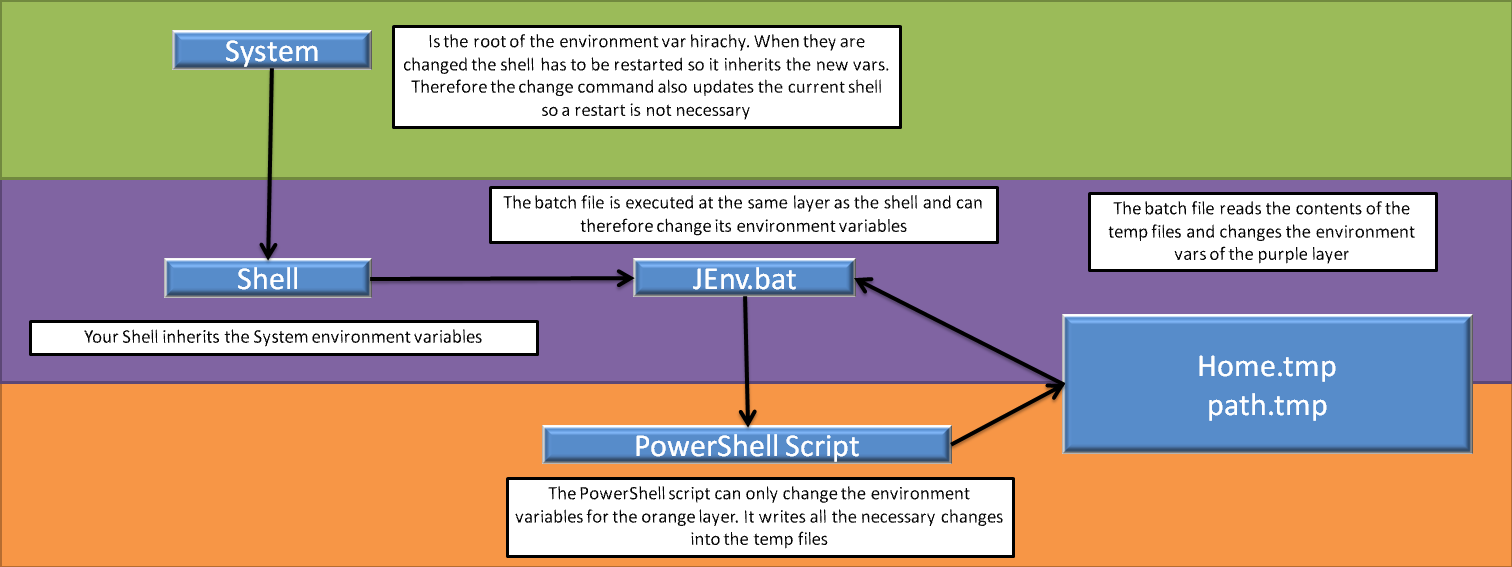
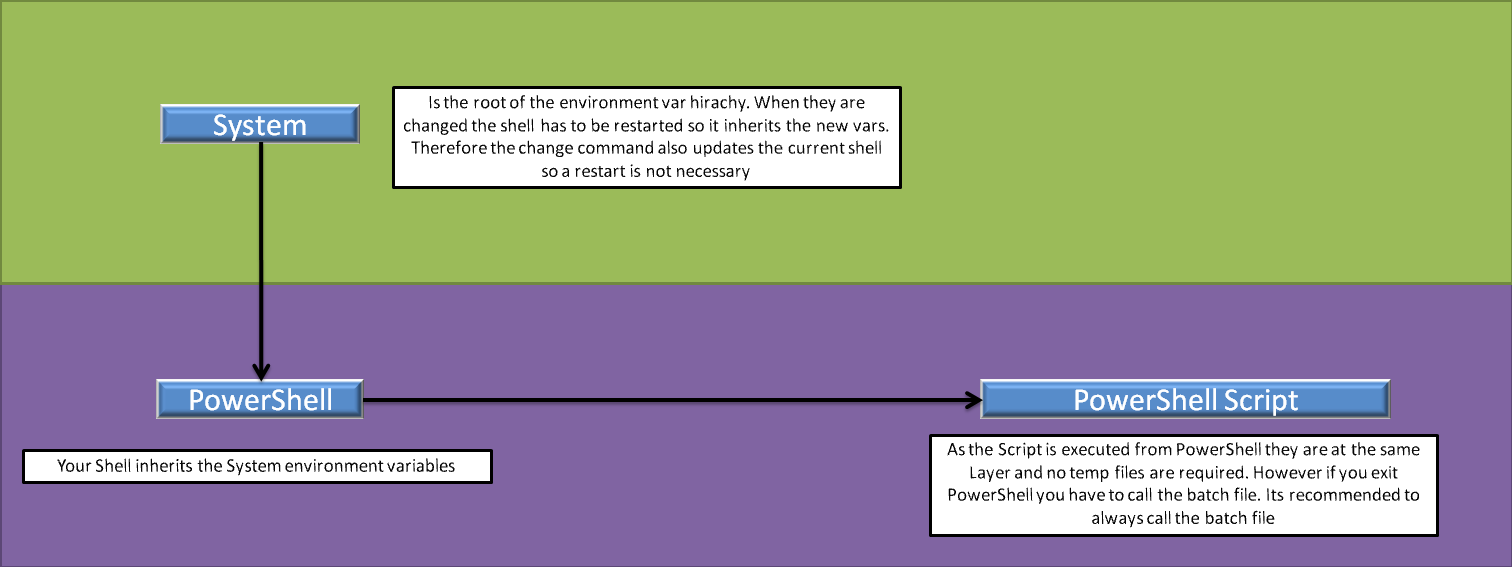
If you want to contribute feel free to do so. This is a great repository for beginners as the amount of code is not huge and you can understand how it works pretty easily.
For running tests I suggest you to use the latest version of powershell (pwsh.exe):
https://docs.microsoft.com/en-us/powershell/scripting/install/installing-powershell-on-windows?view=powershell-7.2
Be careful you have to run it as pwsh and not as powershell
Then you have to install Pester. This is only for tests: Install-Module -Name Pester -Force -SkipPublisherCheck
You could use your already installed powershell as well. However it has
an old Pester Module already installed which you can not use and I could
not figure out how it can be updated: pester/Pester#1201
Navigate into the test folder and run the test.ps1 file. It
will backup your env vars and your jenv config while testing and
automatically restore them later. But you should always let the tests
finish else your vars and config wont be restored.
问题
1.jenv add jdkxx "C:/Program/.../jdk安装目录" 时,报C:/Program/.../bin/java.exe not found. Your Path is not a valid JAVA_HOME。
删除旧的JAVA_HOME: 在进行JEnv安装之前,应先清理系统中的
添加JEnv到系统路径: 将刚克隆的项目路径添加到系统的环境变量
2.安装jenv-for-windows时,报需要验证文件时,请右键-属性 解锁文件即可。
此内容由惯性聚合(RSS阅读器)自动聚合整理,仅供阅读参考。 原文来自 — 版权归原作者所有。