








This article is also available in Chinese 简体中文.
In this tutorial we will show you how anyone can build their own open-source ChatGPT without ever writing a single line of code! We’ll use the LLaMA 2 base model, fine tune it for chat with an open-source instruction dataset and then deploy the model to a chat app you can share with your friends. All by just clicking our way to greatness. 😀
Why is this important? Well, machine learning, especially LLMs (Large Language Models), has witnessed an unprecedented surge in popularity, becoming a critical tool in our personal and business lives. Yet, for most outside the specialized niche of ML engineering, the intricacies of training and deploying these models appears beyond reach. If the anticipated future of machine learning is to be one filled with ubiquitous personalized models, then there's an impending challenge ahead: How do we empower those with non-technical backgrounds to harness this technology independently?
At Hugging Face, we’ve been quietly working to pave the way for this inclusive future. Our suite of tools, including services like Spaces, AutoTrain, and Inference Endpoints, are designed to make the world of machine learning accessible to everyone.
To showcase just how accessible this democratized future is, this tutorial will show you how to use Spaces, AutoTrain and ChatUI to build the chat app. All in just three simple steps, sans a single line of code. For context I’m also not an ML engineer, but a member of the Hugging Face GTM team. If I can do this then you can too! Let's dive in!
Spaces from Hugging Face is a service that provides easy to use GUI for building and deploying web hosted ML demos and apps. The service allows you to quickly build ML demos using Gradio or Streamlit front ends, upload your own apps in a docker container, or even select a number of pre-configured ML applications to deploy instantly.
We’ll be deploying two of the pre-configured docker application templates from Spaces, AutoTrain and ChatUI.
You can read more about Spaces here.
AutoTrain is a no-code tool that lets non-ML Engineers, (or even non-developers 😮) train state-of-the-art ML models without the need to code. It can be used for NLP, computer vision, speech, tabular data and even now for fine-tuning LLMs like we’ll be doing today.
You can read more about AutoTrain here.
ChatUI is exactly what it sounds like, it’s the open-source UI built by Hugging Face that provides an interface to interact with open-source LLMs. Notably, it's the same UI behind HuggingChat, our 100% open-source alternative to ChatGPT.
You can read more about ChatUI here.
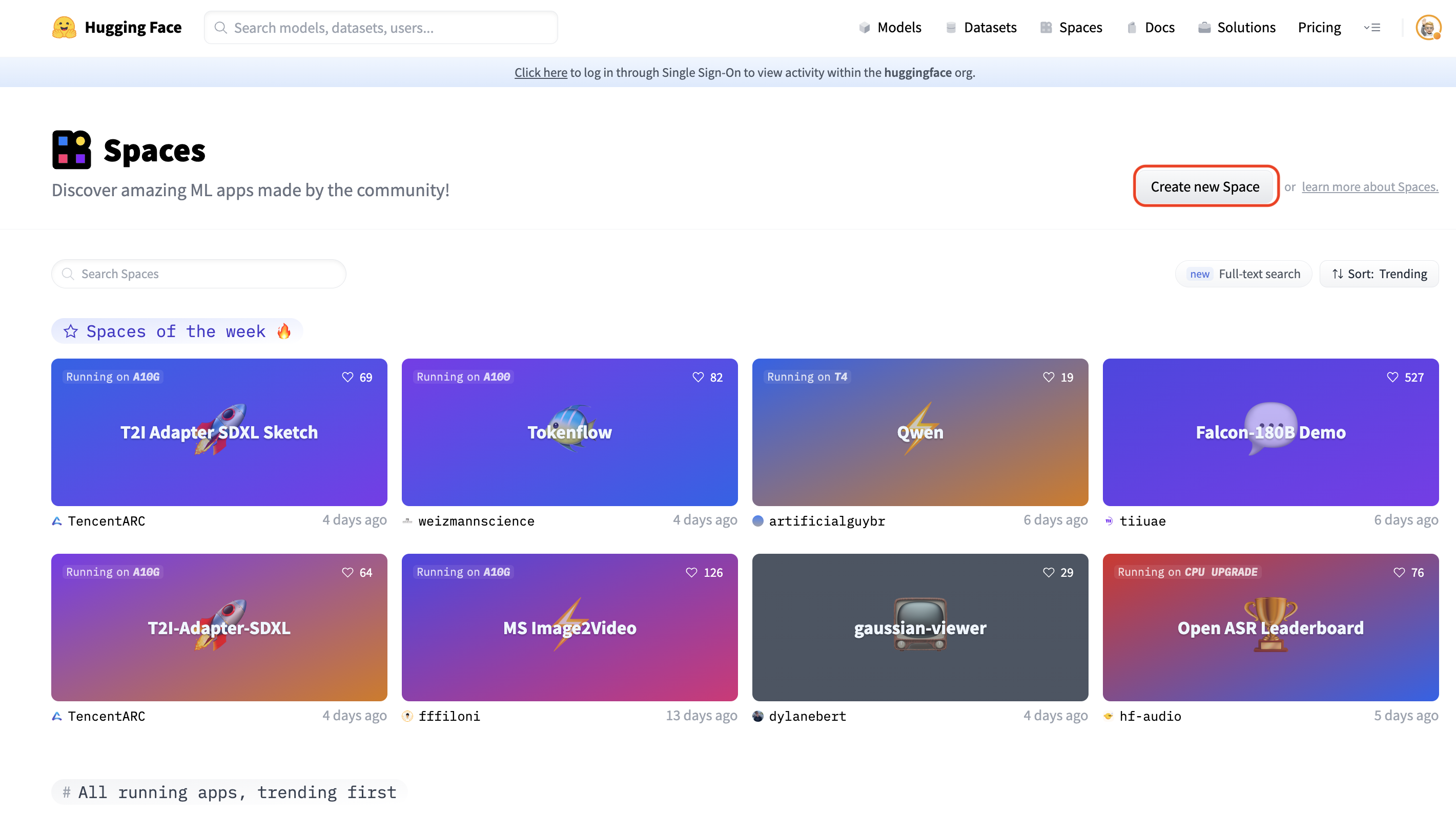
1.1 Go to huggingface.co/spaces and select “Create new Space”.
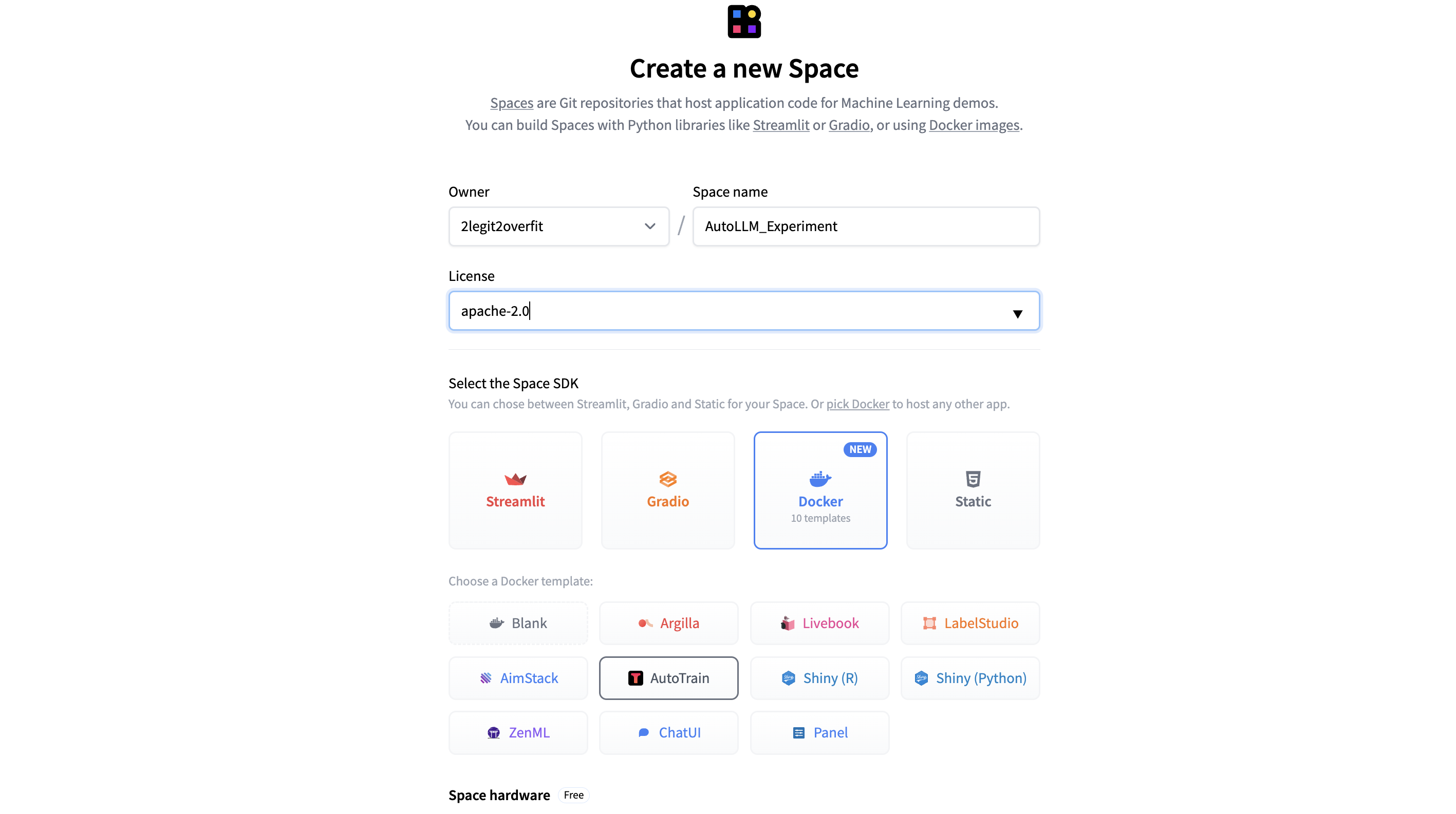
1.2 Give your Space a name and select a preferred usage license if you plan to make your model or Space public.
1.3 In order to deploy the AutoTrain app from the Docker Template in your deployed space select Docker > AutoTrain.
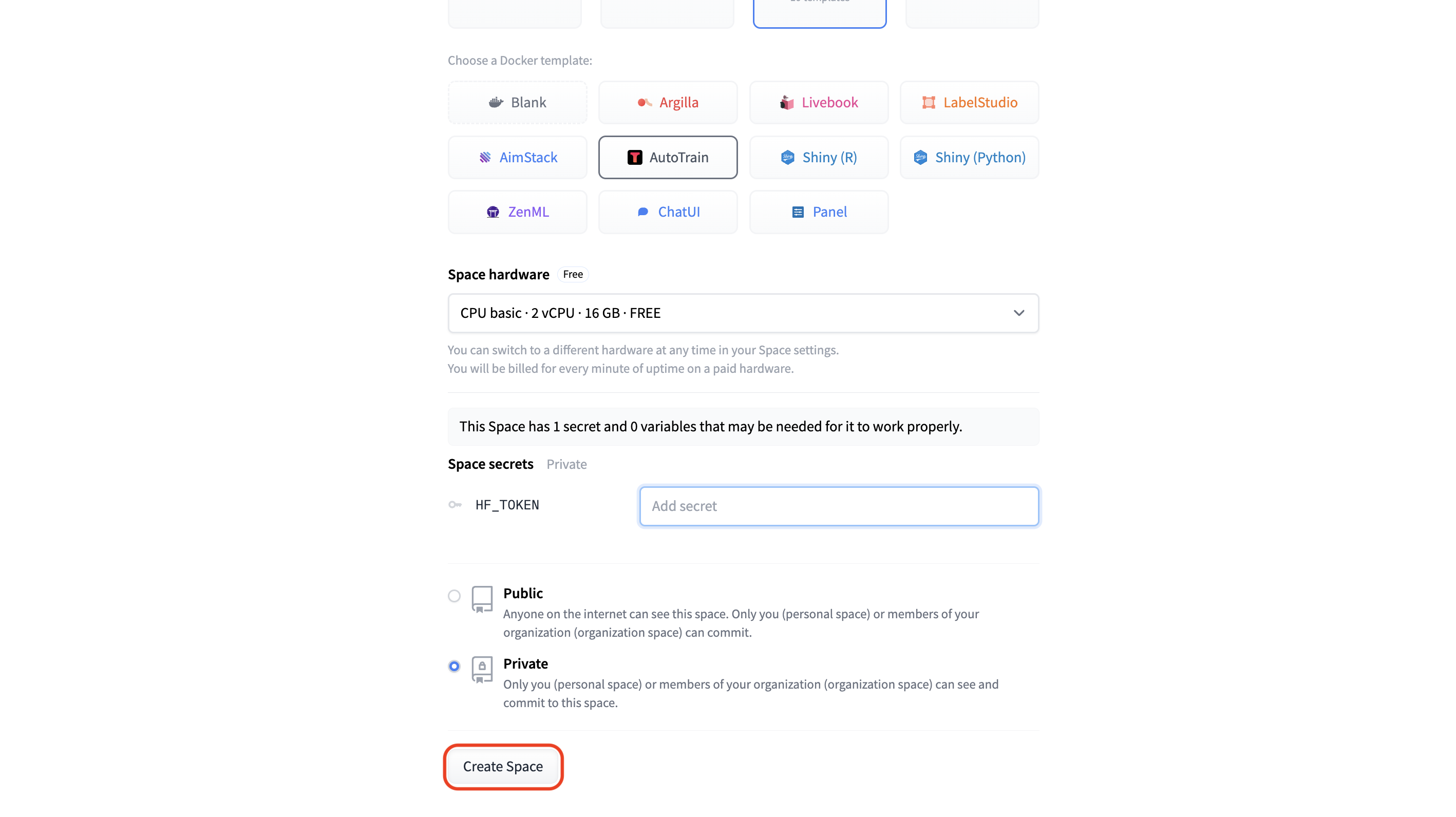
1.4 Select your “Space hardware” for running the app. (Note: For the AutoTrain app the free CPU basic option will suffice, the model training later on will be done using separate compute which we can choose later)
1.5 Add your “HF_TOKEN” under “Space secrets” in order to give this Space access to your Hub account. Without this the Space won’t be able to train or save a new model to your account. (Note: Your HF_TOKEN can be found in your Hugging Face Profile under Settings > Access Tokens, make sure the token is selected as “Write”)
1.6 Select whether you want to make the “Private” or “Public”, for the AutoTrain Space itself it’s recommended to keep this Private, but you can always publicly share your model or Chat App later on.
1.7 Hit “Create Space” et voilà! The new Space will take a couple of minutes to build after which you can open the Space and start using AutoTrain.
2.1 Once you’re AutoTrain space has launched you’ll see the GUI below. AutoTrain can be used for several different kinds of training including LLM fine-tuning, text classification, tabular data and diffusion models. As we’re focusing on LLM training today select the “LLM” tab.
2.2 Choose the LLM you want to train from the “Model Choice” field, you can select a model from the list or type the name of the model from the Hugging Face model card, in this example we’ve used Meta’s Llama 2 7b foundation model, learn more from the model card here. (Note: LLama 2 is gated model which requires you to request access from Meta before using, but there are plenty of others non-gated models you could choose like Falcon)
2.3 In “Backend” select the CPU or GPU you want to use for your training. For a 7b model an “A10G Large” will be big enough. If you choose to train a larger model you’ll need to make sure the model can fully fit in the memory of your selected GPU. (Note: If you want to train a larger model and need access to an A100 GPU please email api-enterprise@huggingface.co)
2.4 Of course to fine-tune a model you’ll need to upload “Training Data”. When you do, make sure the dataset is correctly formatted and in CSV file format. An example of the required format can be found here. If your dataset contains multiple columns, be sure to select the “Text Column” from your file that contains the training data. In this example we’ll be using the Alpaca instruction tuning dataset, more information about this dataset is available here. You can also download it directly as CSV from here.
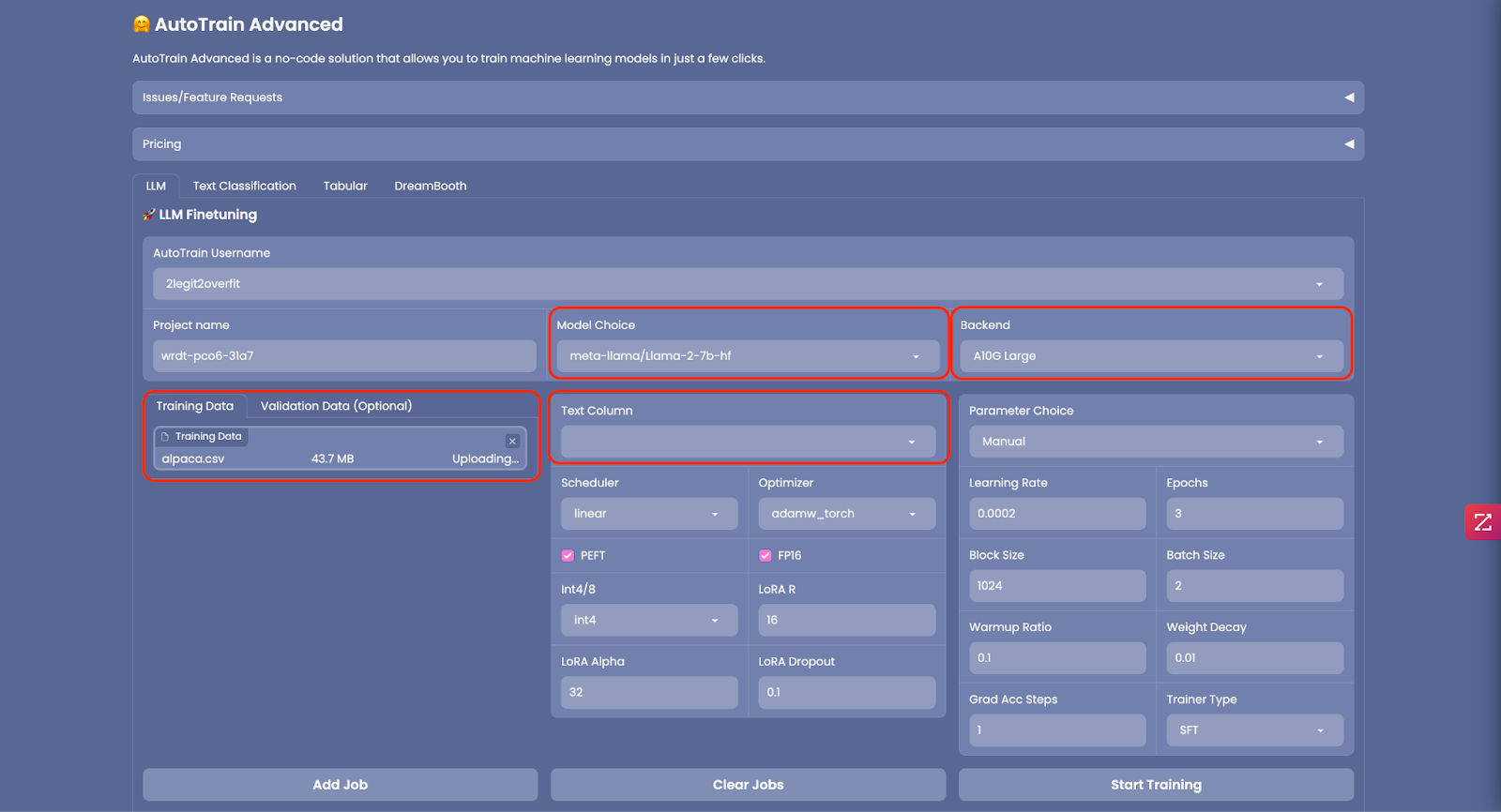
2.5 Optional: You can upload “Validation Data” to test your newly trained model against, but this isn’t required.
2.6 A number of advanced settings can be configured in AutoTrain to reduce the memory footprint of your model like changing precision (“FP16”), quantization (“Int4/8”) or whether to employ PEFT (Parameter Efficient Fine Tuning). It’s recommended to use these as is set by default as it will reduce the time and cost to train your model, and only has a small impact on model performance.
2.7 Similarly you can configure the training parameters in “Parameter Choice” but for now let’s use the default settings.
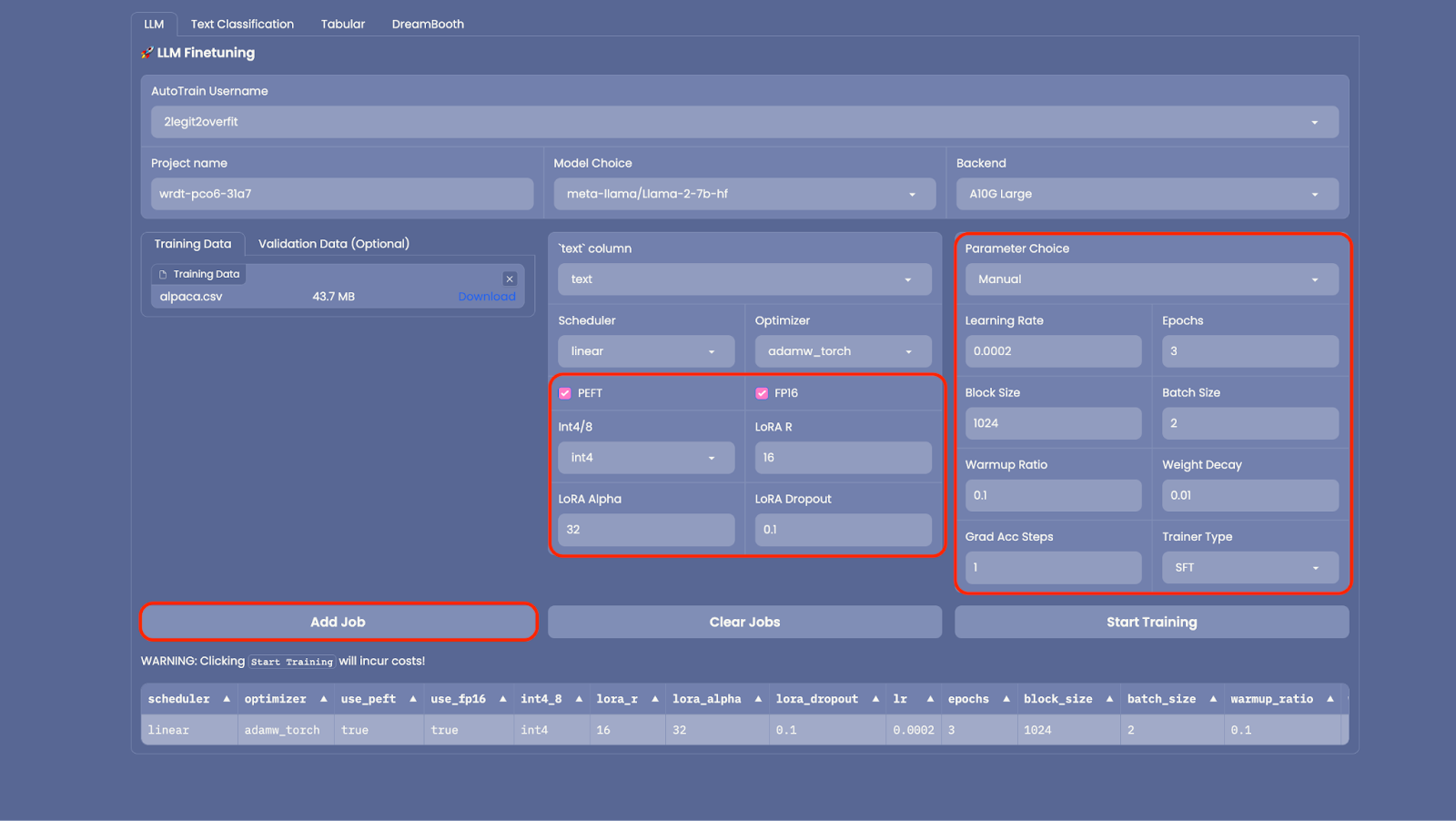
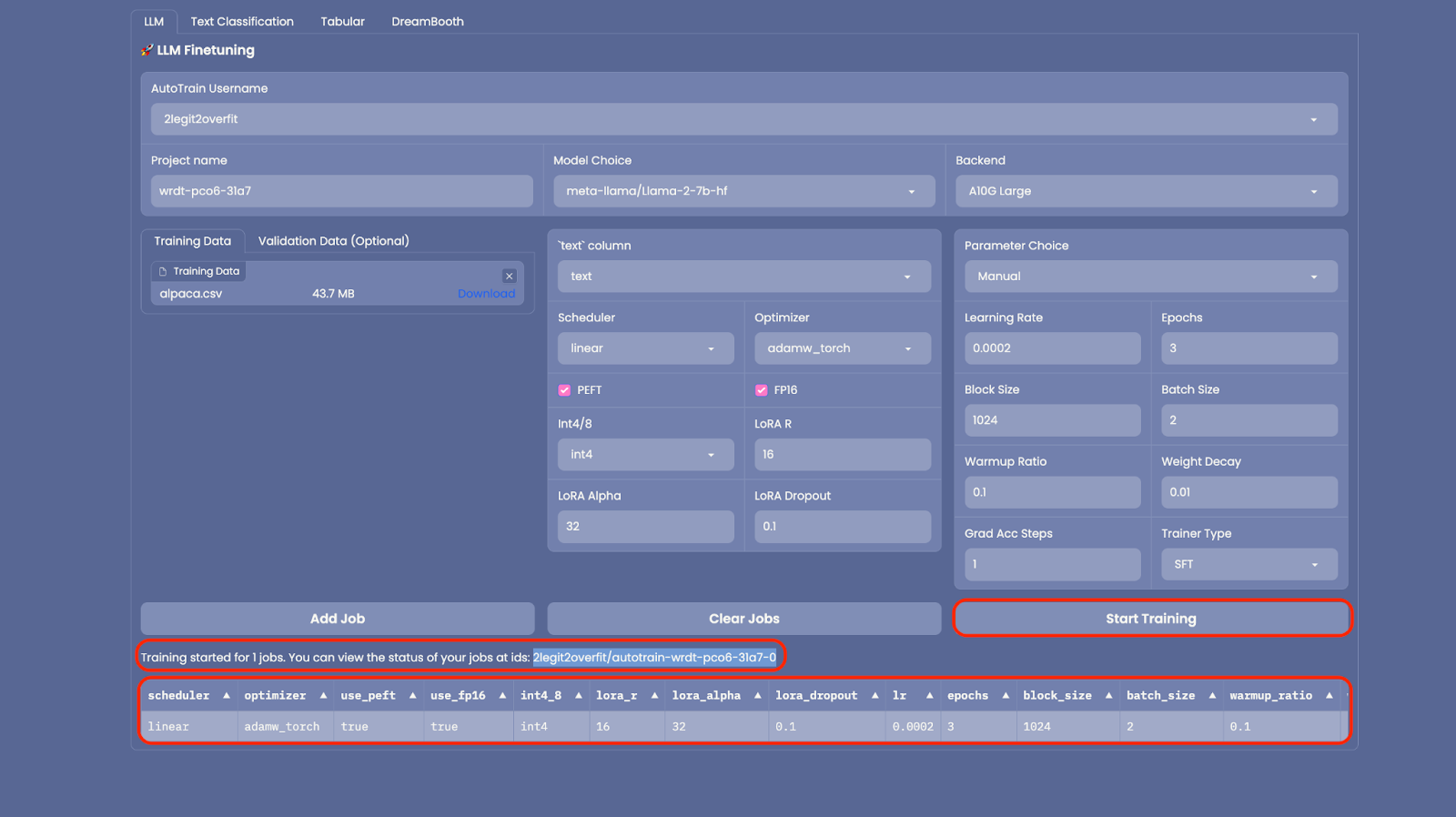
2.8 Now everything is set up, select “Add Job” to add the model to your training queue then select “Start Training” (Note: If you want to train multiple models versions with different hyper-parameters you can add multiple jobs to run simultaneously)
2.9 After training has started you’ll see that a new “Space” has been created in your Hub account. This Space is running the model training, once it’s complete the new model will also be shown in your Hub account under “Models”. (Note: To view training progress you can view live logs in the Space)
2.10 Go grab a coffee, depending on the size of your model and training data this could take a few hours or even days. Once completed a new model will appear in your Hugging Face Hub account under “Models”.
3.1 Follow the same process of setting up a new Space as in steps 1.1 > 1.3, but select the ChatUI docker template instead of AutoTrain.
3.2 Select your “Space Hardware” for our 7b model an A10G Small will be sufficient to run the model, but this will vary depending on the size of your model.
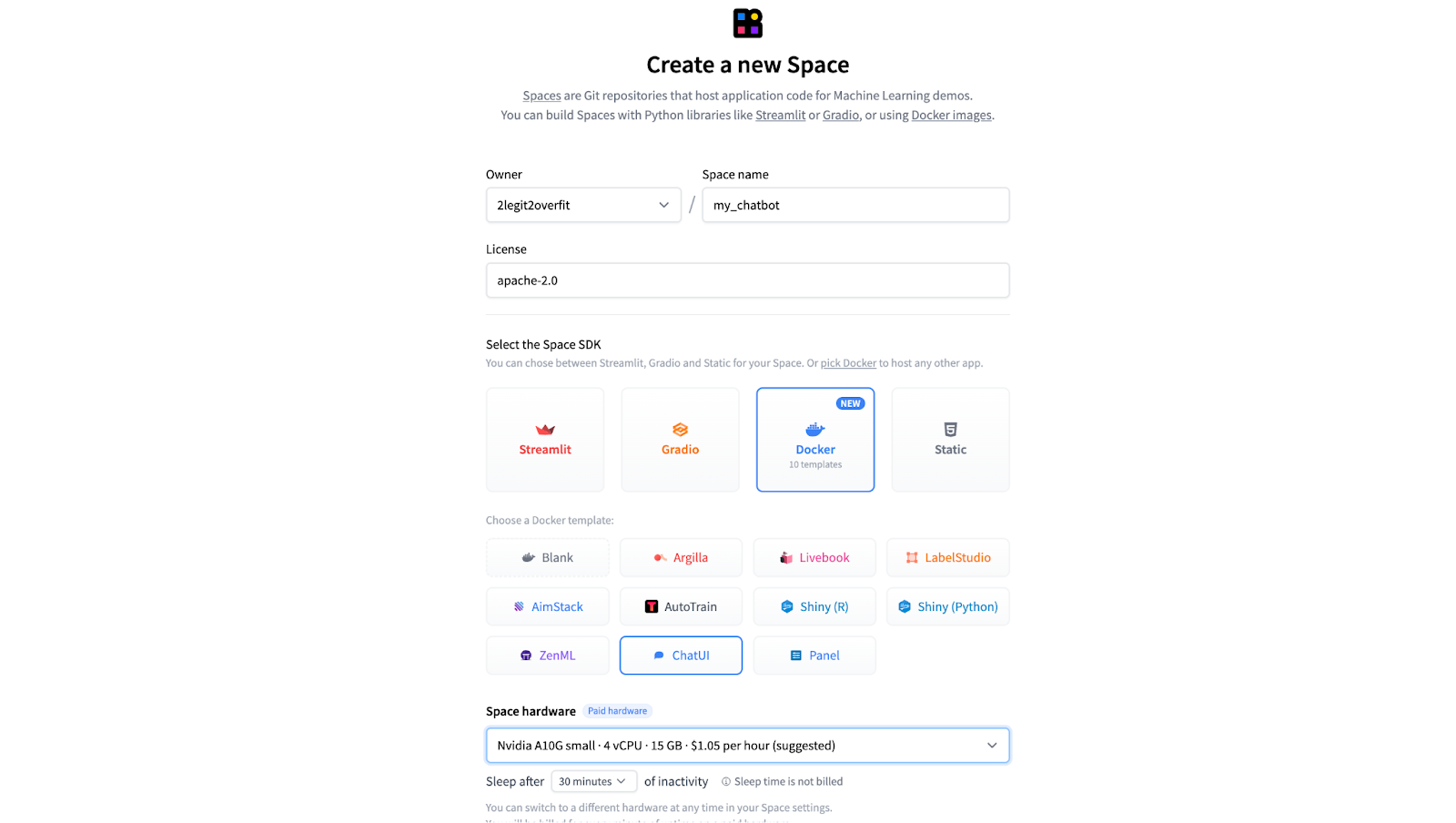
3.3 If you have your own Mongo DB you can provide those details in order to store chat logs under “MONGODB_URL”. Otherwise leave the field blank and a local DB will be created automatically.
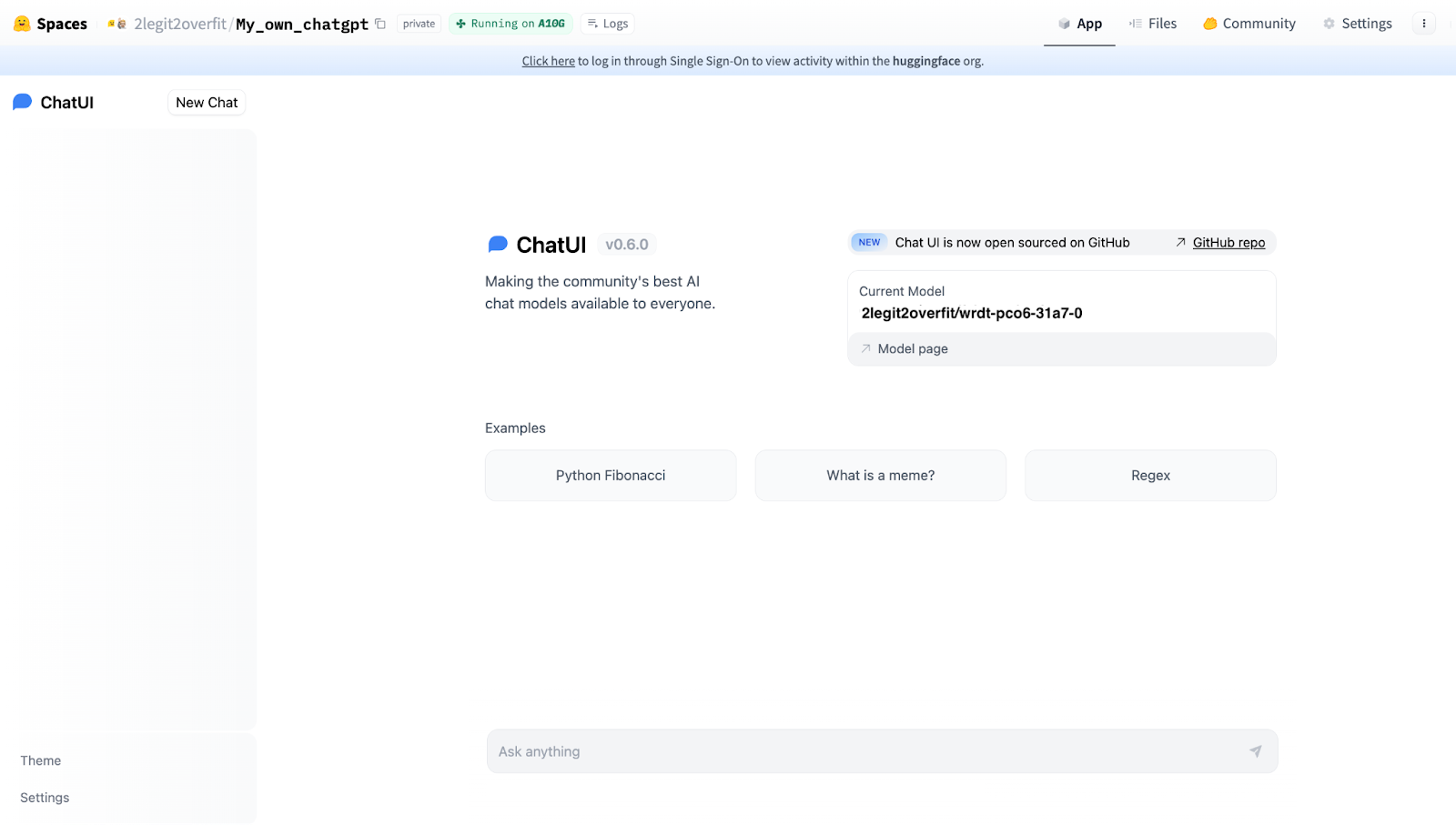
3.4 In order to run the chat app using the model you’ve trained you’ll need to provide the “MODEL_NAME” under the “Space variables” section. You can find the name of your model by looking in the “Models” section of your Hugging Face profile, it will be the same as the “Project name” you used in AutoTrain. In our example it’s “2legit2overfit/wrdt-pco6-31a7-0”.
3.4 Under “Space variables” you can also change model inference parameters including temperature, top-p, max tokens generated and others to change the nature of your generations. For now let’s stick with the default settings.
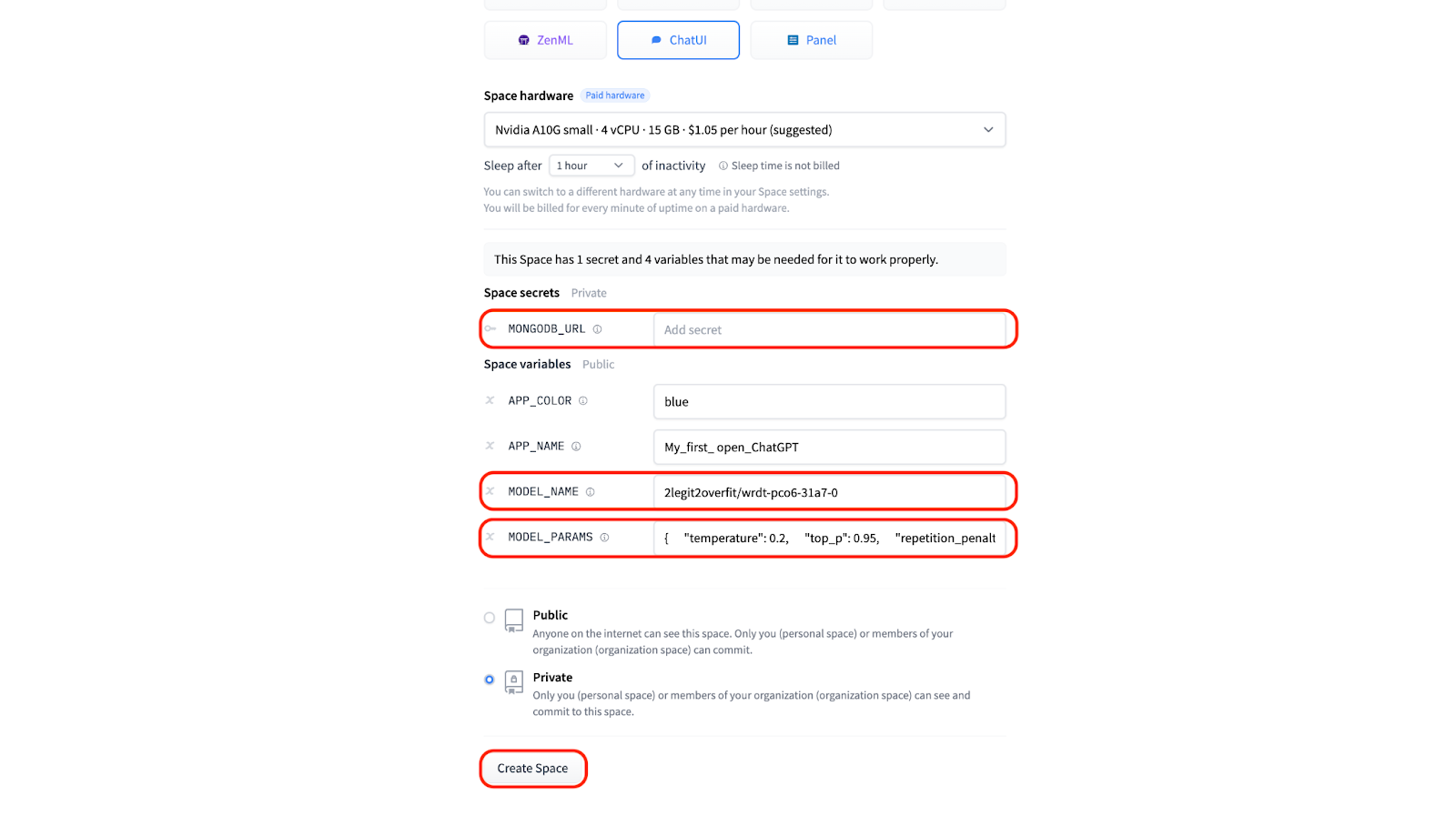
3.5 Now you are ready to hit “Create” and launch your very own open-source ChatGPT. Congratulations! If you’ve done it right it should look like this.
If you’re feeling inspired, but still need technical support to get started, feel free to reach out and apply for support here. Hugging Face offers a paid Expert Advice service that might be able to help.
此内容由惯性聚合(RSS阅读器)自动聚合整理,仅供阅读参考。 原文来自 — 版权归原作者所有。