








This article is also available in Chinese 简体中文.
Welcome to AI for Game Development! In this series, we'll be using AI tools to create a fully functional farming game in just 5 days. By the end of this series, you will have learned how you can incorporate a variety of AI tools into your game development workflow. I will show you how you can use AI tools for:
Want the quick video version? You can watch it here. Otherwise, if you want the technical details, keep reading!
Note: This tutorial is intended for readers who are familiar with Unity development and C#. If you're new to these technologies, check out the Unity for Beginners series before continuing.
The first step in our game development process is deciding on the art style. To decide on the art style for our farming game, we'll be using a tool called Stable Diffusion. Stable Diffusion is an open-source model that generates images based on text descriptions. We'll use this tool to create a visual style for our game.
There are a couple options for running Stable Diffusion: locally or online. If you're on a desktop with a decent GPU and want the fully-featured toolset, I recommend locally. Otherwise, you can run an online solution.
We'll be running Stable Diffusion locally using the Automatic1111 WebUI. This is a popular solution for running Stable Diffusion locally, but it does require some technical knowledge to set up. If you're on Windows and have an Nvidia GPU with at least 8 gigabytes in memory, continue with the instructions below. Otherwise, you can find instructions for other platforms on the GitHub repository README, or may opt instead for an online solution.
Requirements: An Nvidia GPU with at least 8 gigabytes of memory.
git clone https://github.com/AUTOMATIC1111/stable-diffusion-webui.git
models directory of the cloned repository.webui-user.bat in the cloned repository.localhost://7860 to use the WebUI. If everything is working correctly, it should look something like this: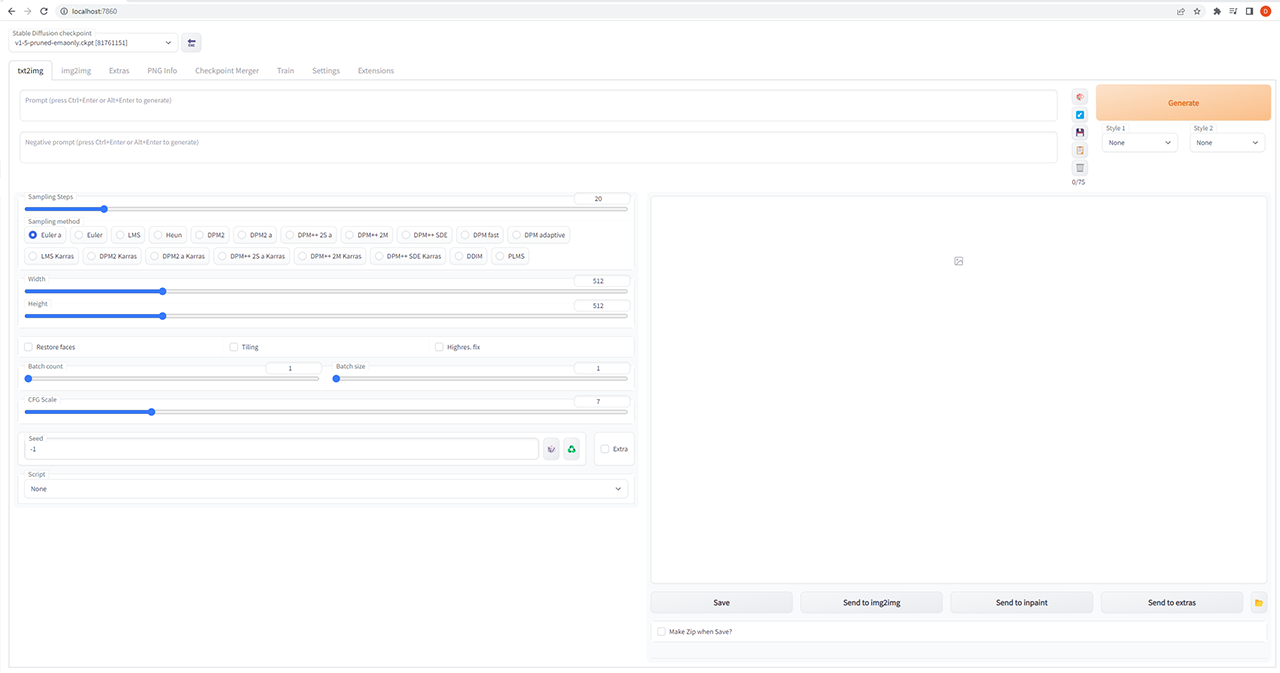
If you don't meet the requirements to run Stable Diffusion locally, or prefer a more streamlined solution, there are many ways to run Stable Diffusion online.
Free solutions include many spaces here on 🤗 Hugging Face, such as the Stable Diffusion 2.1 Demo or the camemduru webui. You can find a list of additional online services here. You can even use 🤗 Diffusers to write your own free solution! You can find a simple code example to get started here.
Note: Parts of this series will use advanced features such as image2image, which may not be available on all online services.
Let's generate some concept art. The steps are simple:
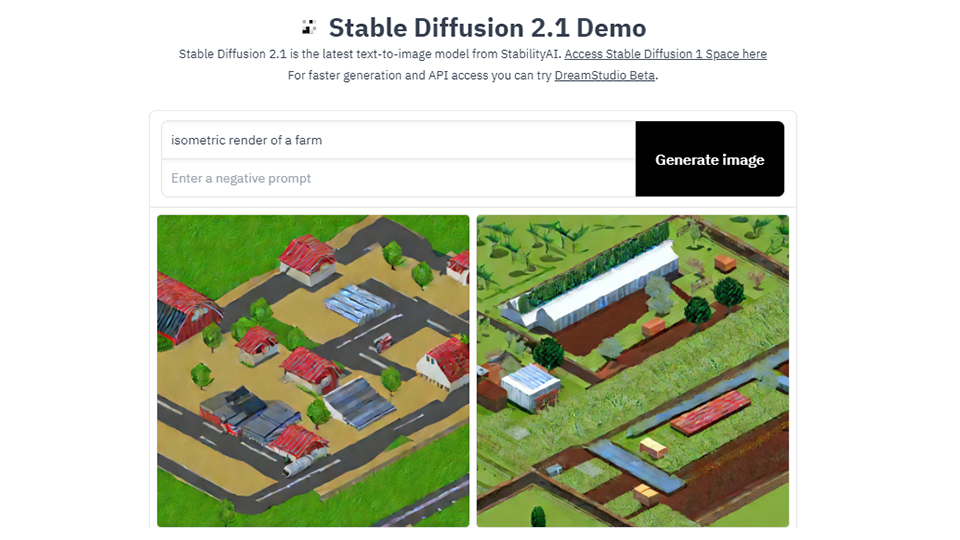
But, how do you get the results you actually want? Prompting can be an art by itself, so it's ok if the first images you generate are not great. There are many amazing resources out there to improve your prompting. I made a 20-second video on the topic. You can also find this more extensive written guide.
The shared point of emphasis of these is to use a source such as lexica.art to see what others have generated with Stable Diffusion. Look for images that are similar to the style you want, and get inspired. There is no right or wrong answer here, but here are some tips when generating concept art with Stable Diffusion 1.5:
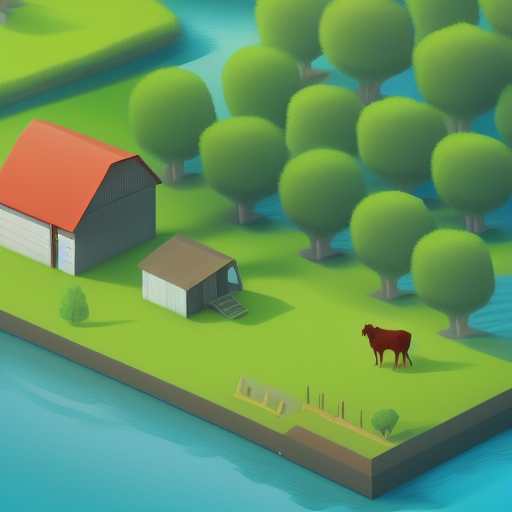
I settled on the prompt: isometric render of a farm by a river, simple, solid shapes, james gilleard, atey ghailan. Here's the result:
Now, how do we make this concept art into a game? We'll be using Unity, a popular game engine, to bring our game to life.
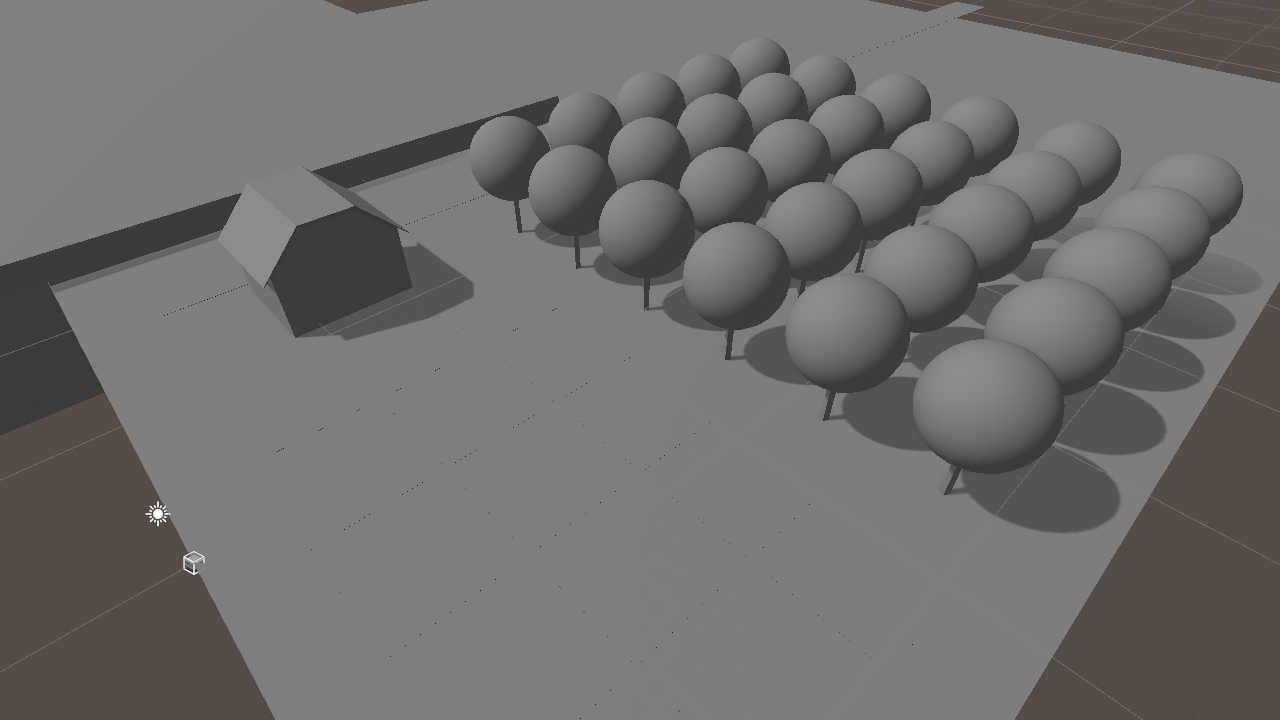
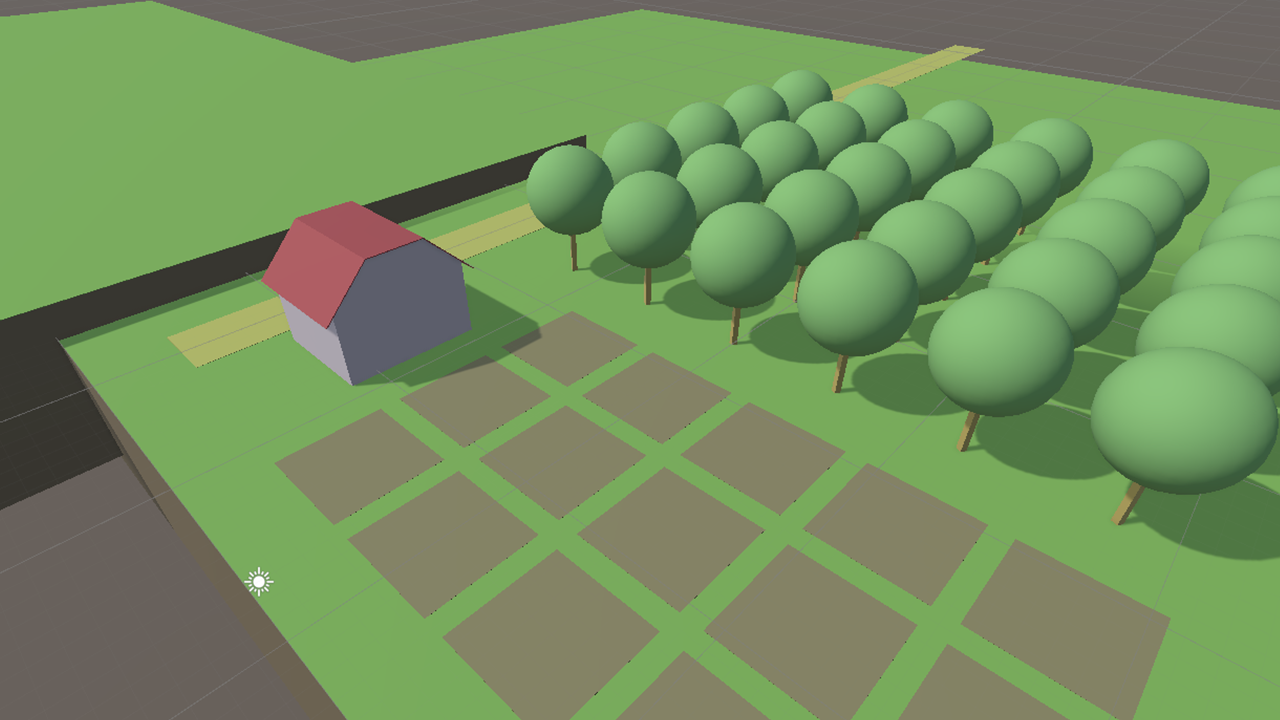
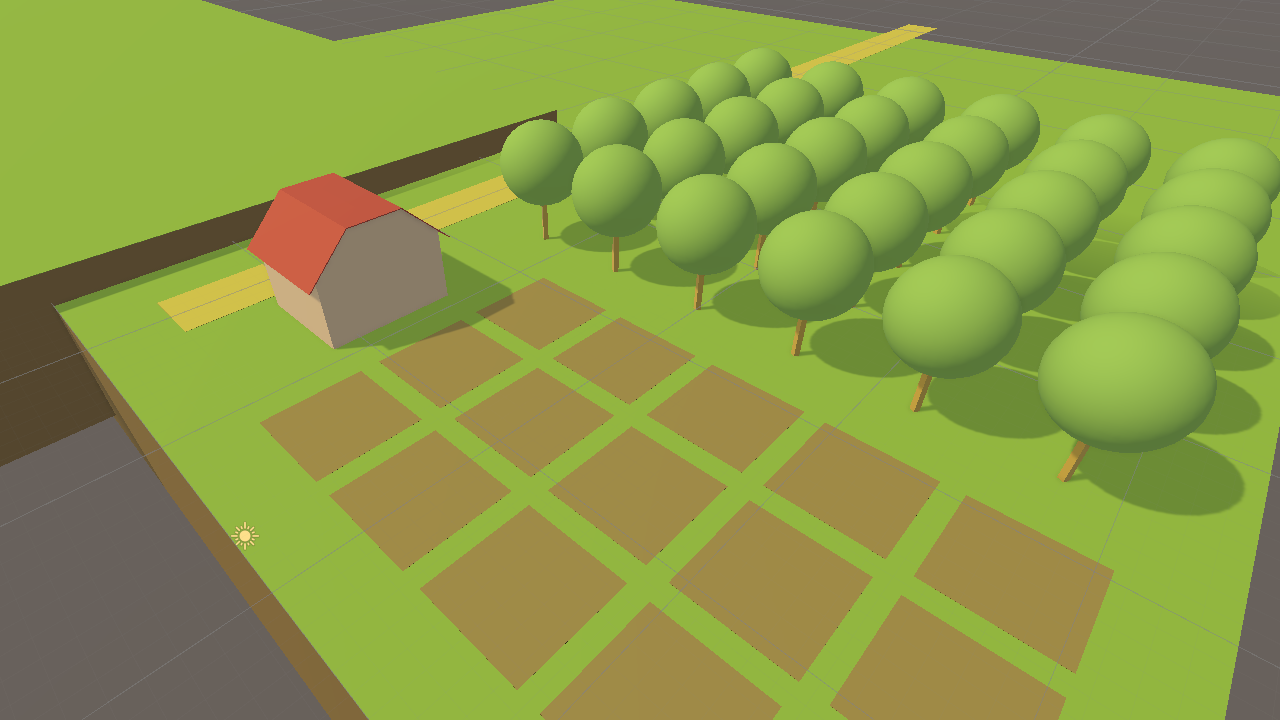

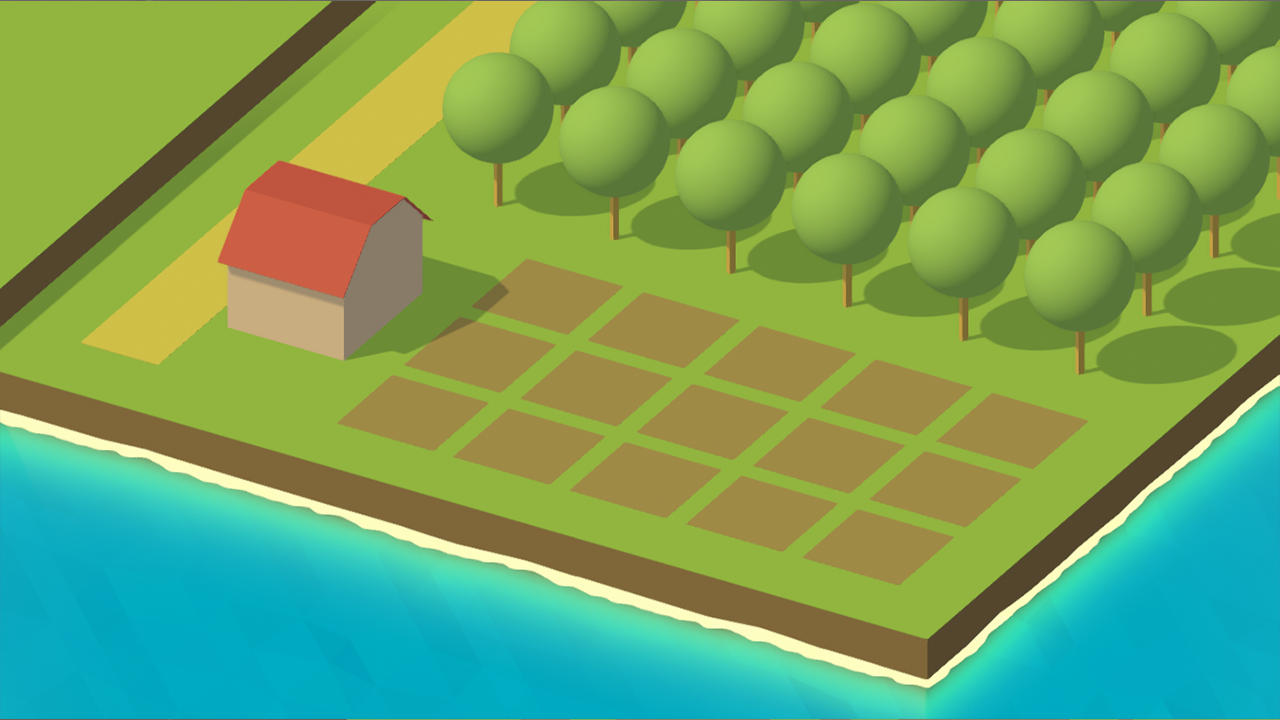
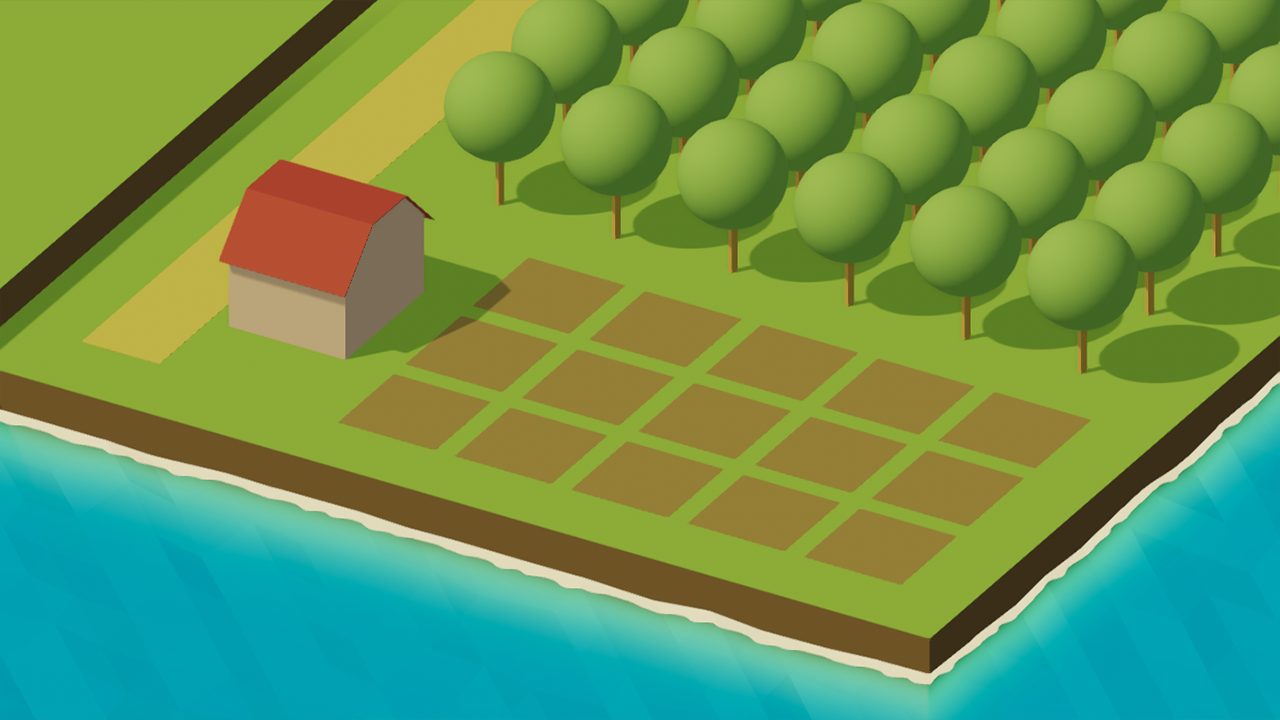
That's it! A simple but appealing scene, made in less than a day! Have questions? Want to get more involved? Join the Hugging Face Discord!
Click here to read Part 2, where we use AI for Game Design.
此内容由惯性聚合(RSS阅读器)自动聚合整理,仅供阅读参考。 原文来自 — 版权归原作者所有。