iPhone: How to lock specific apps using Shortcuts?
By TM Amrita·2023-05-11·via Infotech News, How To Guide News | The HinduBusinessLine
SENSEX 75,527.95
+ 1,695.40
NIFTY 23,622.90
+ 461.30
CRUDEOIL 8,211.00
-133.00
GOLD 149,796.00
+ 864.00
SILVER 241,796.00
+ 2,143.00
SENSEX 75,527.95
+ 1,695.40
NIFTY 23,622.90
+ 461.30
NIFTY 23,622.90
+ 461.30
CRUDEOIL 8,211.00
-133.00
CRUDEOIL 8,211.00
-133.00
GOLD 149,796.00
+ 864.00
Using the in-built Shortcuts app on iPhone, users can easily lock individual apps
Updated - May 11, 2023 at 10:00 AM.
|
Chennai
FILE PHOTO
| Photo Credit:
ADNAN ABIDI
Apple Inc’s iPhone users can create a security wall for sensitive apps through Shortcuts after the iOS 16.4 update. This could prove to be an easier alternative than setting up a Screen Limit for apps.
Using the in-built Shortcuts app on iPhone, users can easily lock individual apps.
How to use Shortcuts to lock apps
Step 1: Open the Shortcuts app on iPhone. Make sure the latest iOS updates has been installed
Step 2: Click the ‘Automation’ button on the bottom panel
Step 3: Click the ‘+’ button, then on ‘Create personal automation’
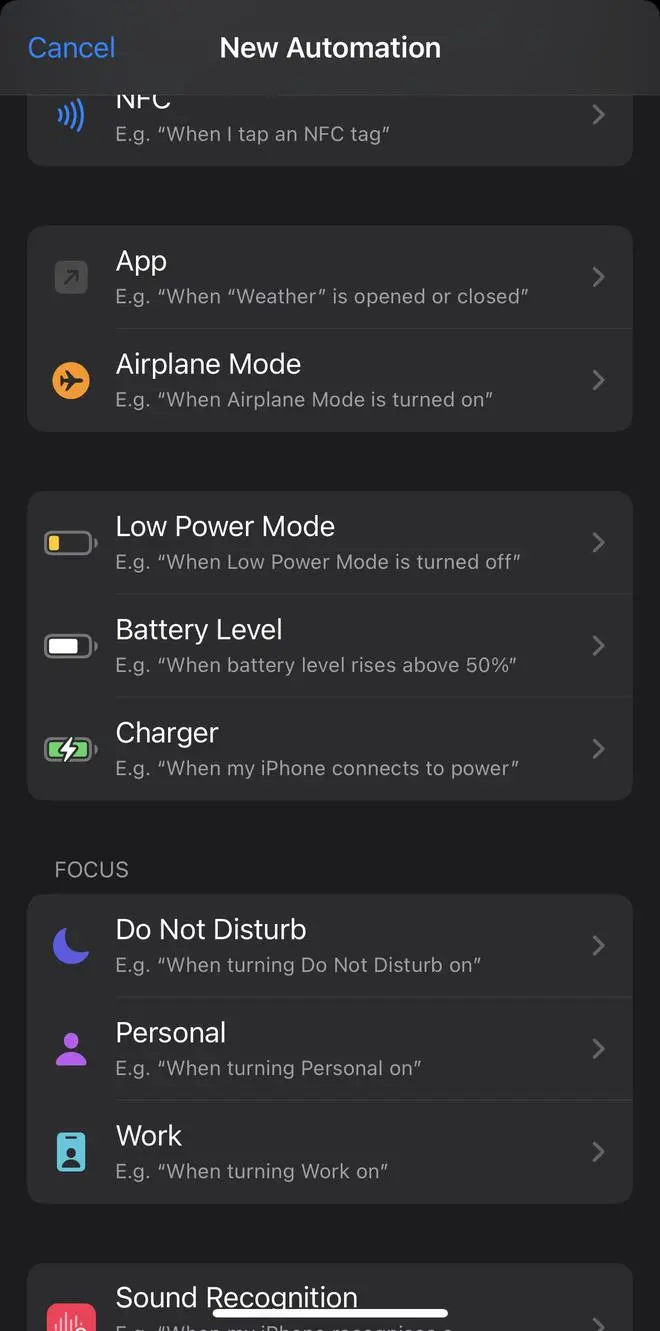
Step 4: Now, scroll down and tap on ‘App’
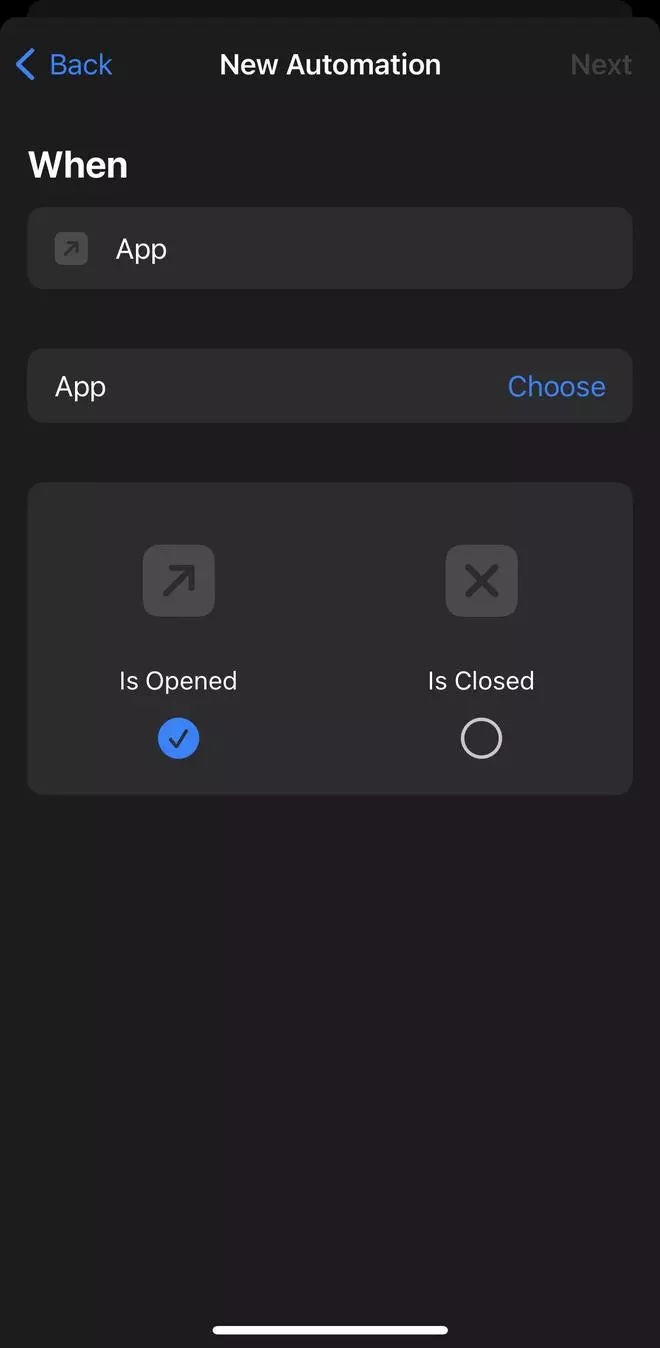
Step 5: Tick ‘Is Opened’, then select ‘Choose’
Step 6: Select the app(s) to be locked, then click ‘Done’
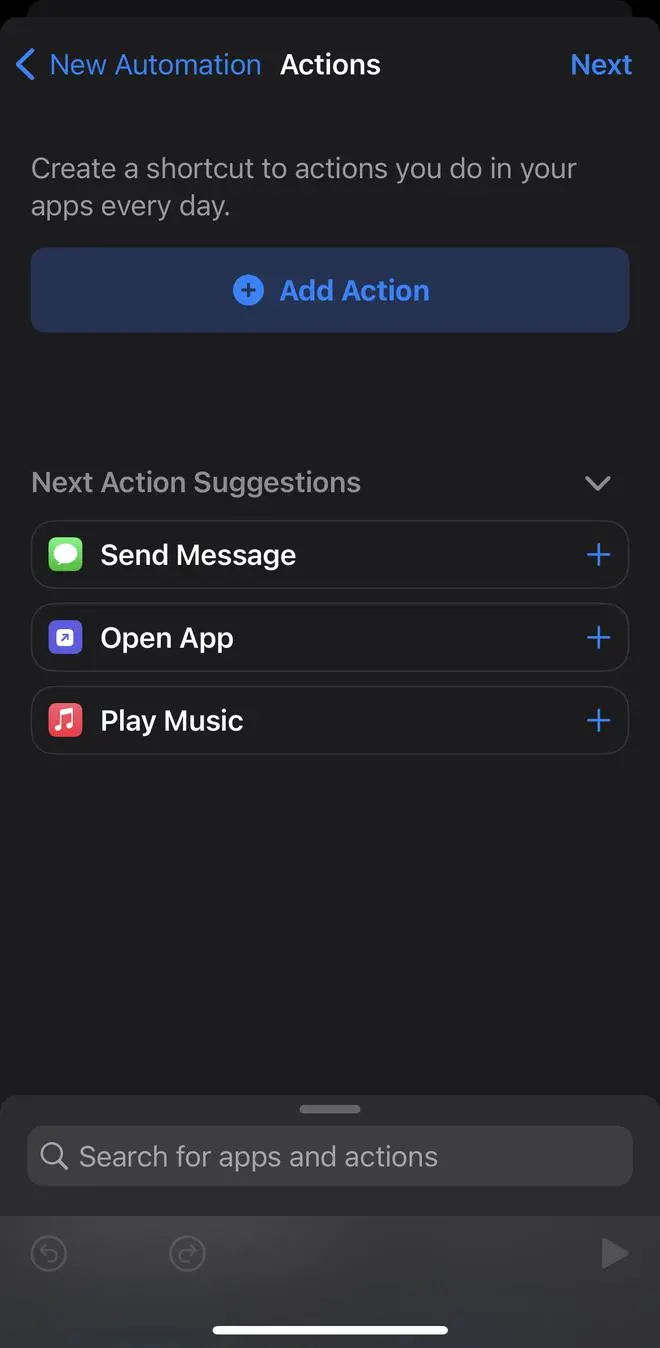
Step 7: Tap ‘Next’, then click on ‘Add Action’
Step 8: Then, type ‘Lock screen’ in the text field, toggle the button ‘Ask before running’, and press ‘Don’t ask’ to complete the action
Published on May 11, 2023
THIS AD SUPPORTS OUR JOURNALISM.
SUBSCRIBE
FOR MINIMAL ADS.
THIS AD SUPPORTS OUR JOURNALISM.
SUBSCRIBE
FOR MINIMAL ADS.