We are excited to announce that GitHub Copilot build performance for Windows now supports project-specific builds! Available in the latest Visual Studio Insiders, you can target a single MSBuild project or CMake target instead of analyzing your entire solution. For game developers and teams working with large codebases, this eliminates the need to wait for a full-solution build when you only want to optimize one project.
Since launching GitHub Copilot build performance for Windows in Public Preview, we have received a lot of feedback from game studios working on large engines and enterprise monorepos. Rebuilding an entire solution to analyze one project is too slow and too disruptive. With project-specific builds, you can now point the agent at the project you care about and get your results faster.
Inspired by Game Developer Feedback
This feature came directly from feedback during our Private and Public Previews. Game developers working with large C++ codebases told us that full-solution builds were an adoption blocker. In many cases, you told us that you were walking away mid-conversation and switching tabs because the trace took too long.
We kept hearing the same request: “Let me analyze a single project.”
With our project-specific analysis update, you will get the same analysis, optimizations, and validated results, all scoped to the project you choose. The agent’s intelligence has not changed. Project-specific builds scope the build step, not the analysis model. You will continue to see bottleneck identification for expensive headers, long function generation times, and costly template instantiations.
Getting Started with Project-Specific Builds
There are three ways to start a project-specific build performance session in Visual Studio. All entry points will feed into the same analysis pipeline.
Right-Click a Project in Solution Explorer
Right-click any project in Solution Explorer and select Run Build Insights > Improve Build Performance. This will open a Copilot Chat session pre-filled with the project you selected, so you will not need to type anything.
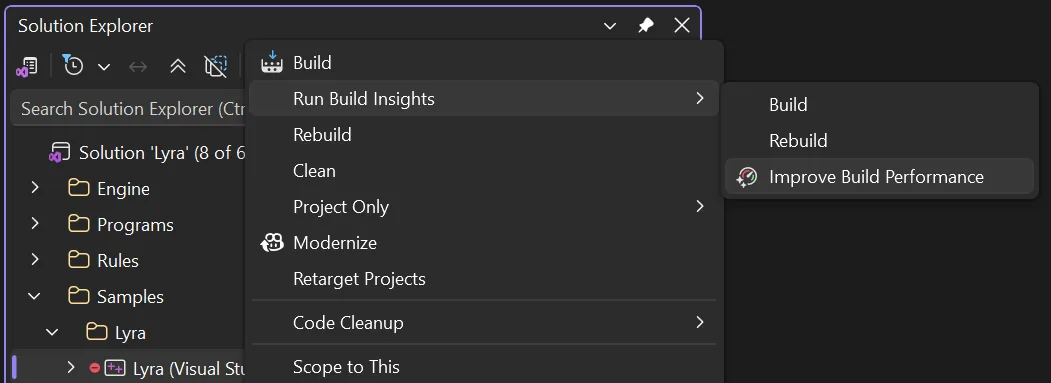
Context Menu Entry
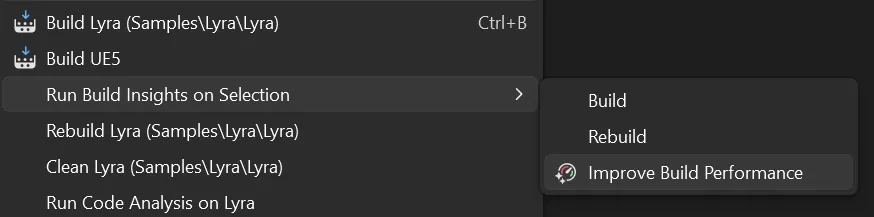
After selecting one of your projects in the Solution Explorer, the Build Menu will have a new entry. Select Build > Run Build Insights on Selection > Improve Build Performance to open the GitHub Copilot Chat window. This will start a session to optimize the build performance of your selected project.
Type Directly in Copilot Chat
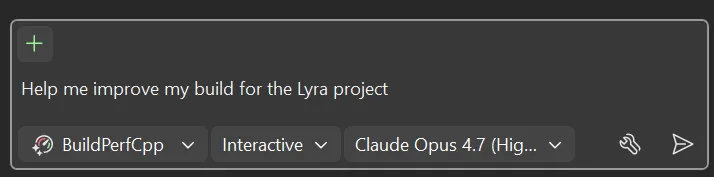
Open the GitHub Copilot Chat pane, select the @BuildPerfCpp responder from the agent combo box.
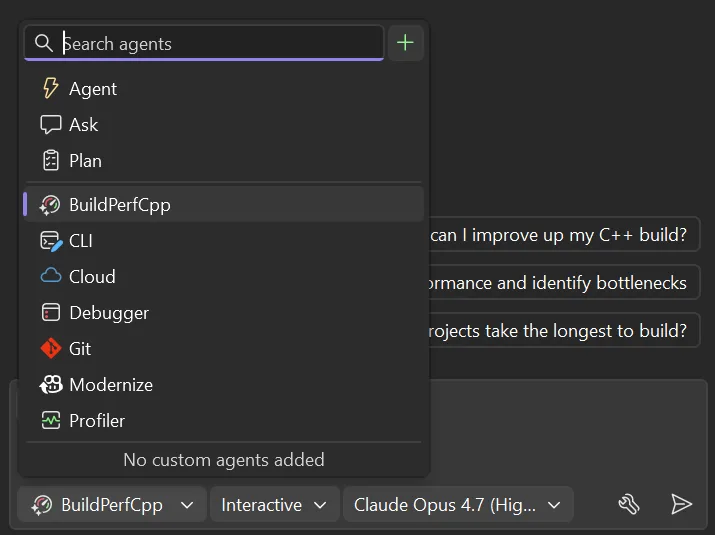 After selecting the responder, type:
Help me improve build performance for <MyProject>
Replace MyProject with the name of the MSBuild project or CMake target you want to optimize.
Other Ways to Access GitHub Copilot Build Performance for Windows
Project-specific builds are the newest way to access the agent, but you can still analyze your full solution through the existing entry points.
From The Build Menu
Select Build > Run Build Insights on Solution > Improve Build Performance to open the GitHub Copilot Chat window. This will start a session to optimize the build performance of your entire solution.
From The Solution Explorer Context Menu
Right-click the solution node in Solution Explorer and select Improve Build Performance on Solution. This will open a Copilot Chat session scoped to your full solution.
From The Build Insights View
If you already have an. etl trace file open from Build Insights, click the Improve button from the diagnostics session view. This reuses data from the existing trace results and will not start a new analysis until the current changes are processed.
These entry points work well when you want to analyze your entire build. Use project-specific builds when you want to focus on one project.
A Few Things to Keep in Mind
- The agent scopes your build but not the trace collection. vcperf and Build Insights work the same way as before.
- If your selected project has deep dependency chains, the build may still take time. The feature reduces scope, not dependency depth.
- For CMake, all selected targets must share a common root project. This is a limitation of the underlying CMake APIs.
- Per-file builds are not currently supported.
Feedback Wanted!
This feature exists because of your feedback, and we want to keep improving. Whether you work on a large game engine, an enterprise monorepo, or a smaller project, we would love to hear how project-specific builds work for you. Is there a scenario we have not covered? A workflow that could be smoother? We encourage you to share your thoughts with us by filling out this survey, commenting below, through Help > Send Feedback in Visual Studio, or on X (@VisualC). Thank you for your continued support!
Learn more: Documentation for GitHub Copilot build performance for Windows | Microsoft Learn