





Home Assistant is one of those tools where once you set it up, you wonder how you lived without it. All your smart home devices under one dashboard, automations that work across ecosystems, and everything stays local. No cloud dependency, no subscriptions, no third party knowing when you turn your lights on.
The one pain point has always been accessing it remotely. The usual options are port forwarding (exposes your home network), Cloudflare Tunnels (routes everything through Cloudflare), or a VPN (needs a client on every device). There's also Home Assistant Cloud (Nabu Casa) at $6.50/month, which handles remote access, voice assistants, and cloud backups. Your subscription funds Home Assistant development too, which is great. But if you prefer to self-host and keep full control, paying monthly for something you can do yourself feels unnecessary.
With NetBird's built-in reverse proxy , you can expose Home Assistant to the internet without opening a single port. Traffic goes through encrypted WireGuard tunnels, TLS is handled for you, and you can add SSO, password, or PIN authentication at the proxy layer. The person accessing it doesn't need a VPN client, they just open a browser.
In this guide, we'll install Home Assistant, connect it to a NetBird network, and expose it through the reverse proxy.
Home Assistant is a free, open source home automation platform that runs locally on your network. It supports thousands of devices from different manufacturers: Philips Hue, Ecobee, Ring, Zigbee sensors, Z-Wave locks, and a lot more.
The real value is in the automations. Instead of juggling five apps from five vendors, you control everything from one dashboard and build automations across ecosystems. Turn off all lights when everyone leaves. Lock the door when the alarm is armed. Get a notification when the garage has been open for 10 minutes. It all runs locally, so it's fast, private, and doesn't break when someone else's servers go down.
It also supports voice assistants, energy monitoring, and a huge ecosystem of community add-ons. It's easily the most capable smart home platform out there.
There are a few ways to install Home Assistant, but the recommended approach is Home Assistant Operating System (HAOS). It's a minimal Linux-based OS built specifically to run Home Assistant with full add-on support. Available for:
There's also Home Assistant Container, which runs Home Assistant Core in Docker. More control over the underlying system, but no native add-on support. Since we need add-ons for the NetBird integration, we'll be using HAOS.
Note: Home Assistant Core and Supervised installation methods were deprecated in 2025 and are no longer supported as of the 2025.12 release. Stick with HAOS or Container for new installations.
We're installing HAOS as a VM on Proxmox using the community helper scripts. This is popular in the homelab community since it lets you run Home Assistant alongside other VMs and containers on the same hardware. If you need to get Proxmox set up first, check out our Proxmox Getting Started Guide .
Running Home Assistant on a Raspberry Pi, dedicated hardware, or something else? No problem. The NetBird steps are the same regardless of how you installed it. Skip ahead to Initial Setup .
The Proxmox VE Helper Scripts (originally created by tteck, now maintained by the community) make this a one-command process. In your Proxmox shell, run:
The script walks you through the setup. Defaults are fine for most people. It downloads the latest HAOS image, creates the VM, and configures the hardware. If you want to tweak disk cache, CPU type, or storage location, select "Advanced" when prompted.
Once the script completes, start the VM. You can check the console in Proxmox to find the IP address Home Assistant was assigned.
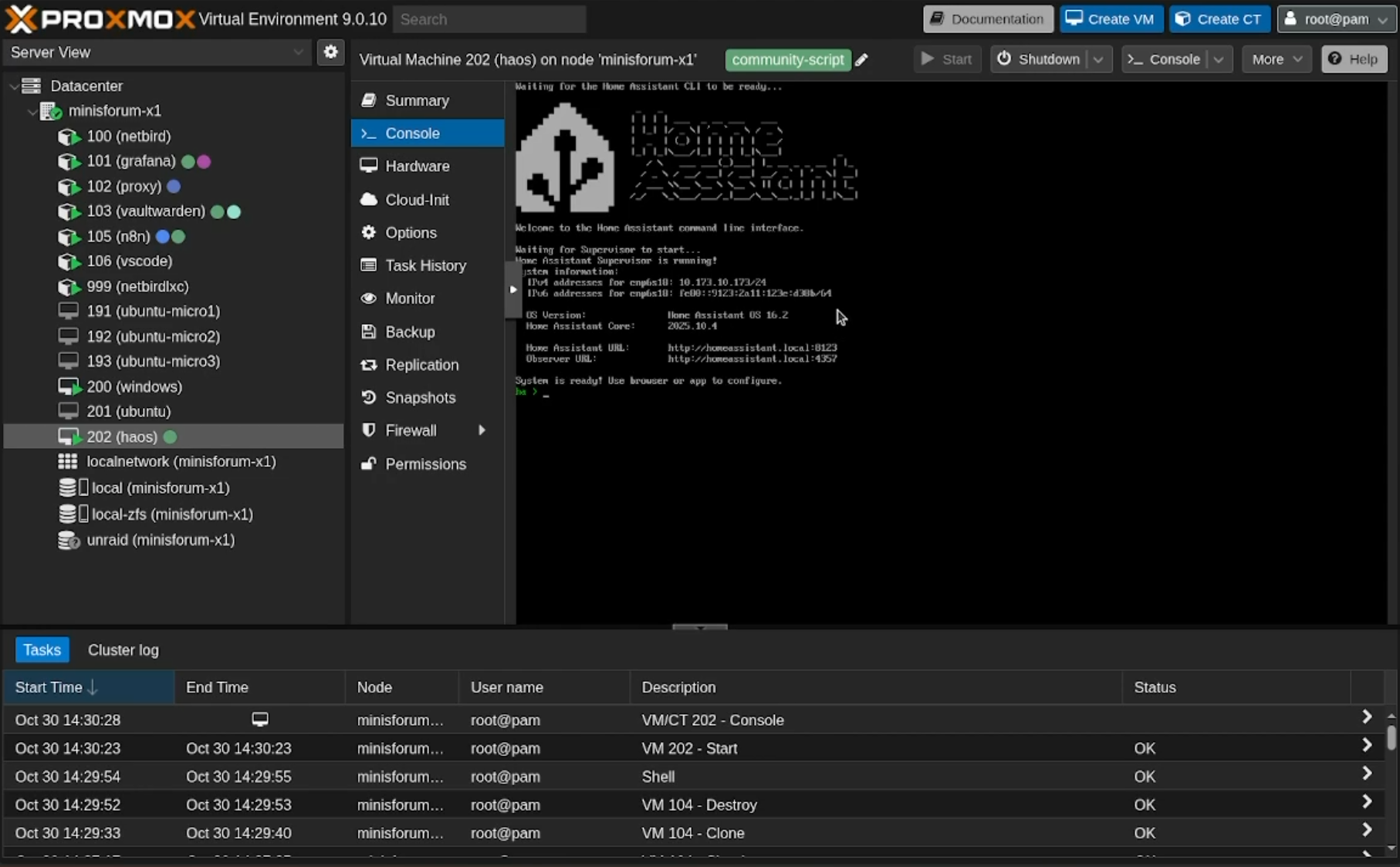
Open a browser and navigate to . The first boot can take a few minutes as Home Assistant downloads and installs the latest components, so be patient.
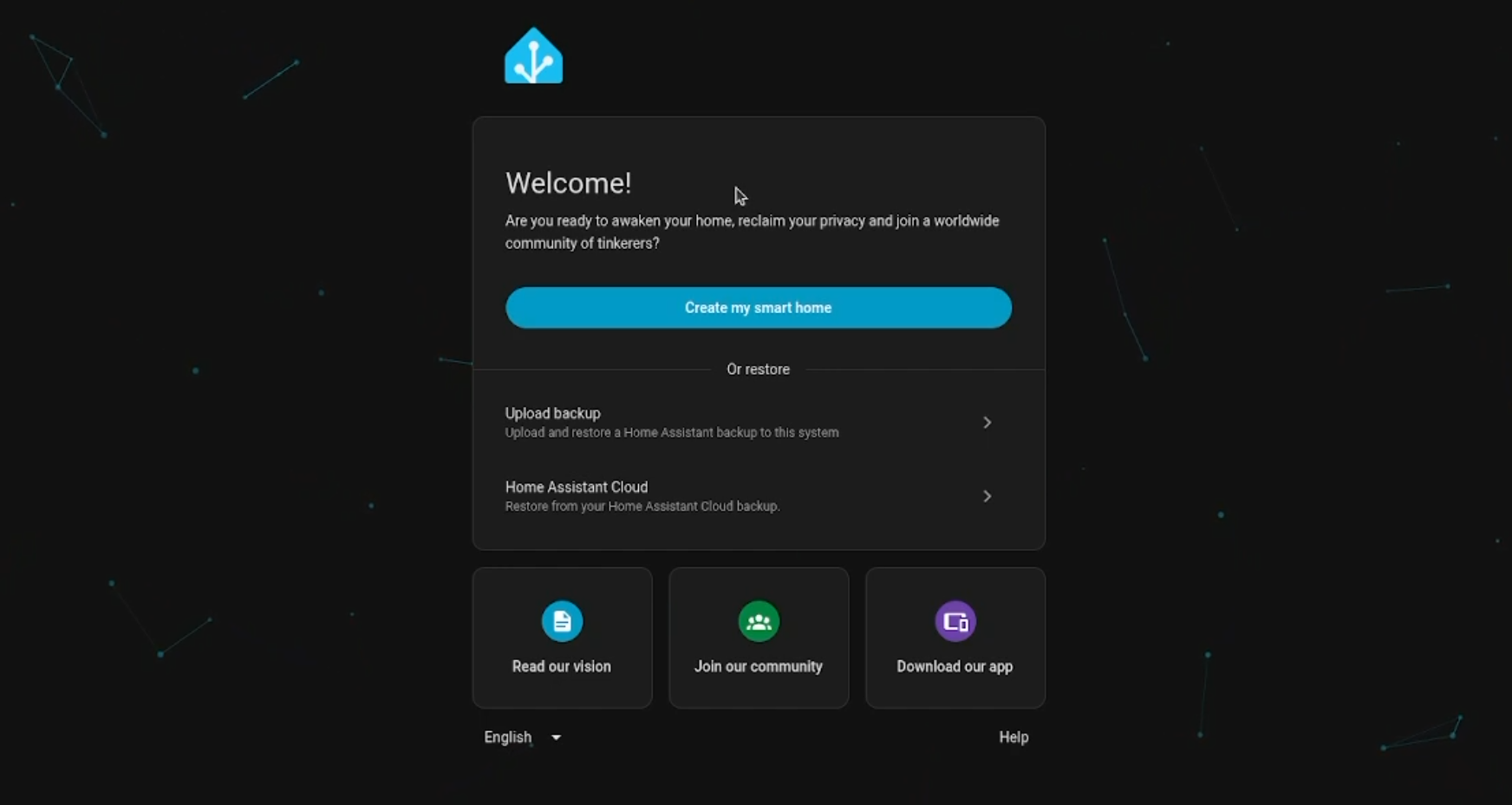
You'll be greeted with the onboarding wizard:
Once you're through the wizard, you'll land on the dashboard. Home Assistant is up and running.
Before going further, give your Home Assistant instance a static IP so the address doesn't change. You can do this through your router's DHCP reservation, but Home Assistant also lets you set it directly in the UI.
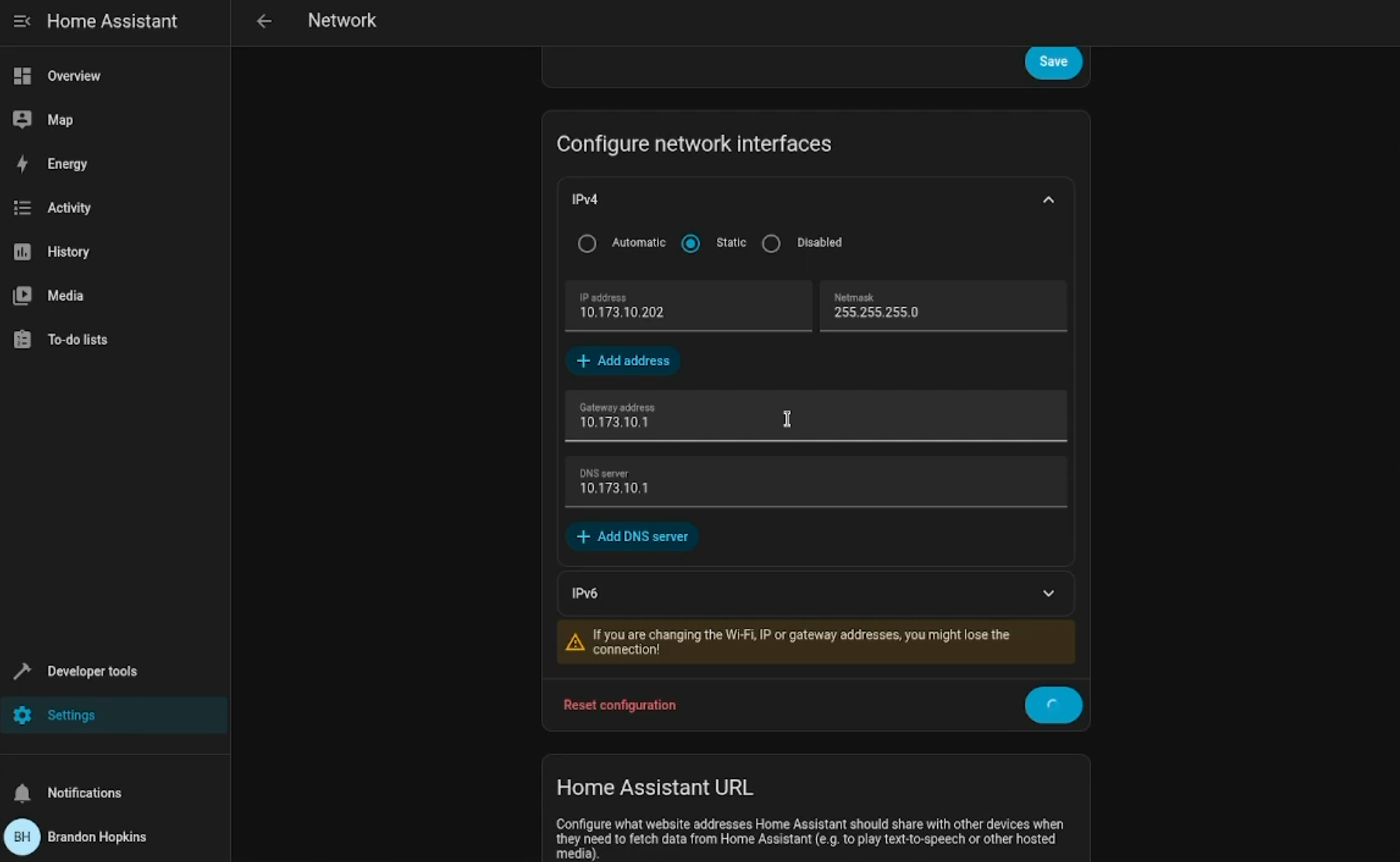
Tip: Choose an IP address outside your router's DHCP range to avoid conflicts. If your router assigns addresses from to , pick something like .
After saving, Home Assistant will switch to the new IP. If the address changed, you'll need to navigate to to continue.
Next, we need to connect Home Assistant to your NetBird network so it shows up as a peer. This is what lets the reverse proxy route traffic to it.
The NetBird add-on should now appear in the add-on store. If you don't see it, refresh the page.
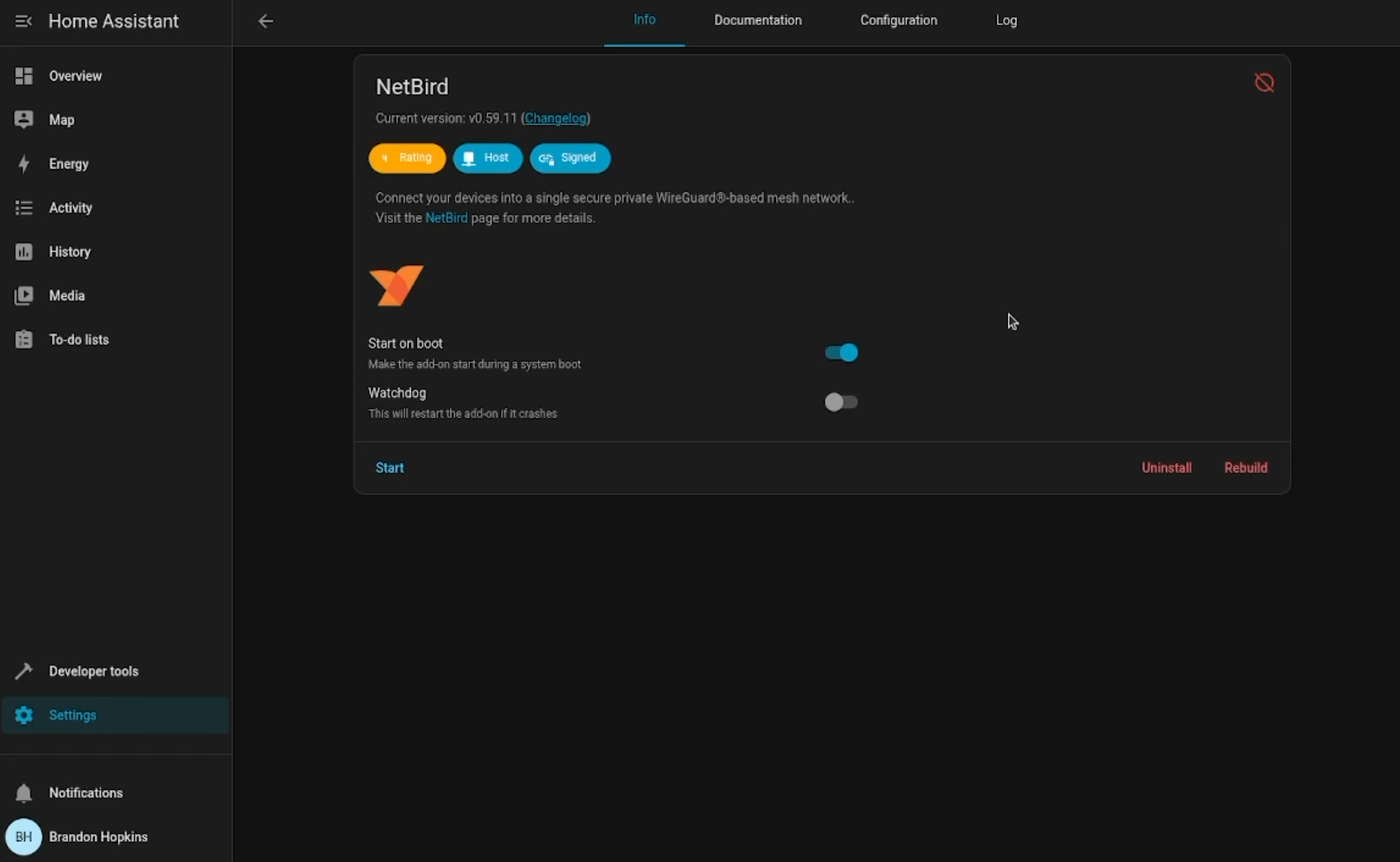 2. After installation, go to the Configuration tab
3. Set the following options:
2. After installation, go to the Configuration tab
3. Set the following options:
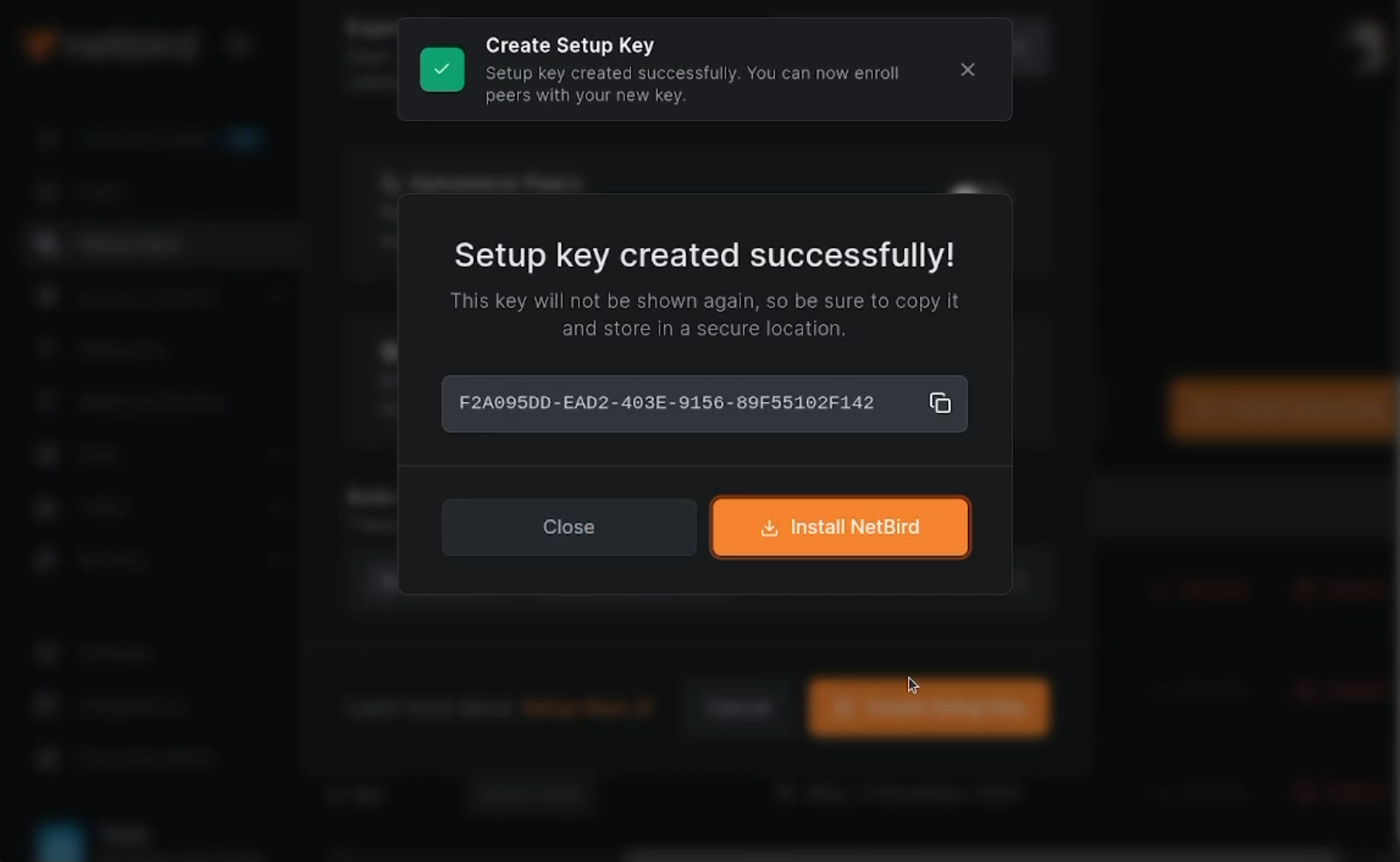
If you're using NetBird Cloud:
If you're using a self-hosted NetBird instance:
Check the add-on logs to confirm it connected successfully. You should also see the peer appear in your NetBird dashboard under Peers.
By default, Home Assistant doesn't accept reverse proxy connections. It needs to know which IPs are allowed to forward requests on behalf of users. Without this, you'll get 400 errors when trying to access it through the NetBird reverse proxy.
Edit Home Assistant's file. You can do this through the File Editor or Studio Code Server add-on, or via the command line if you have terminal access.
Add the following to your :
covers NetBird's WireGuard tunnel addresses and covers common Docker network ranges. This tells Home Assistant to trust the header from these ranges, which is how the proxy identifies the actual client.
Important: Be intentional about what you add to . Only include the IP ranges that your proxy traffic actually comes from. The ranges above are broad enough to cover typical NetBird setups, but you can narrow them down if you know your specific NetBird peer IP.
After saving, restart Home Assistant for the changes to take effect. Go to Settings > System > Restart.
Now for the fun part. We're going to make Home Assistant accessible from anywhere using NetBird's reverse proxy .
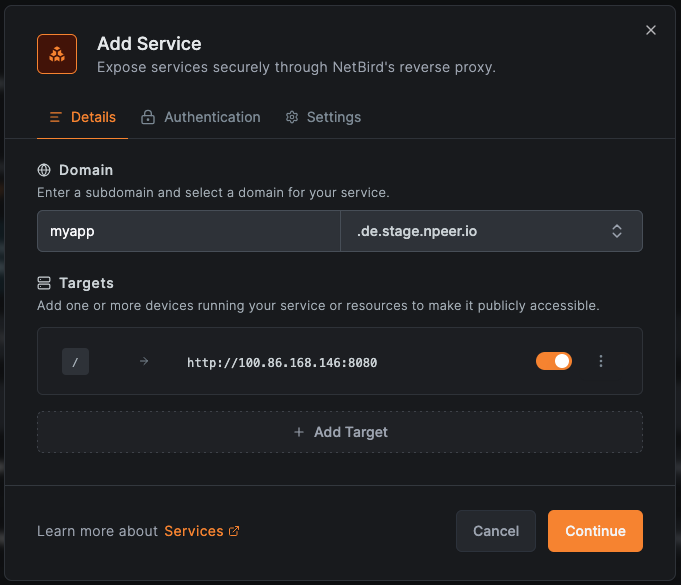
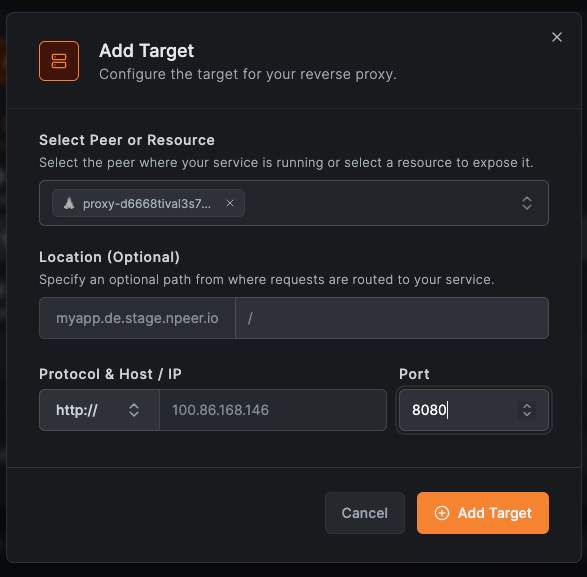
Wait for the status to show "active" and go to your new URL (e.g., ). You should see the Home Assistant login page. That's it. Home Assistant is on the internet with no ports open on your home network.
NetBird's reverse proxy lets you add authentication in front of any service: SSO through your identity provider, a shared password, a PIN code, or a combination. For most services, we recommend it.
For Home Assistant, there's a catch. Adding NetBird auth means every request goes through an authentication check first. Great for browser access since nobody even sees the HA login page without authenticating. Useful if you're worried about brute force attempts.
But enabling NetBird authentication will break the companion apps. The Home Assistant mobile apps (iOS and Android) and third-party integrations expect to hit the API directly and handle auth through HA's own token system. They can't deal with an extra authentication prompt.
So practically:
Either way, you're not sacrificing security. The connection is encrypted end-to-end through WireGuard, Home Assistant has its own login, and no ports are open. NetBird auth is an extra layer on top, not the only one.
Here's what we set up:
No port forwarding, no Cloudflare, no VPN client needed. Just a URL in a browser.
此内容由惯性聚合(RSS阅读器)自动聚合整理,仅供阅读参考。 原文来自 — 版权归原作者所有。