








This article covers web analytics plugins supported by Icarus 5.
This article is also available in 简体中文.
The following web analytics plugins are provided by ppoffice/hexo-component-inferno. Please refer to it for a complete list of supported plugins and their configuration details.
All plugins mentioned below may be blocked by AD blockers. Use them with caution.
Baidu Statistics
Installation Guide
Log into Baidu Statistics. Click the “Add new website” button on the “Admin > Site list” page and fill in the site information such as name and homepage URL. Click “OK” to complete site creation.
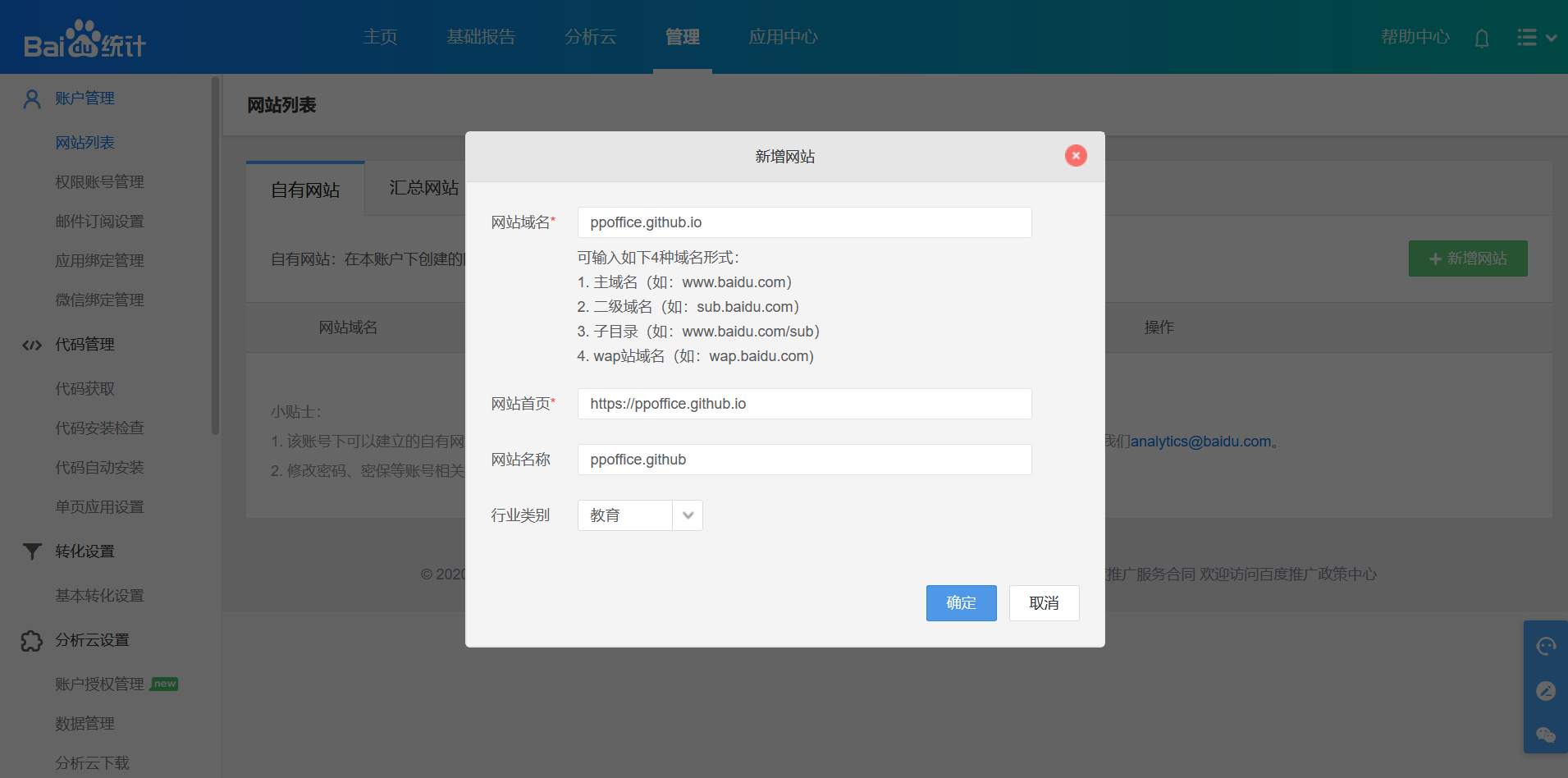
On the next page, find the ID behind
hm.baidu.com/hm.js?and set it as the value ofplugins>baidu_analytics>tracking_idin the theme configurations.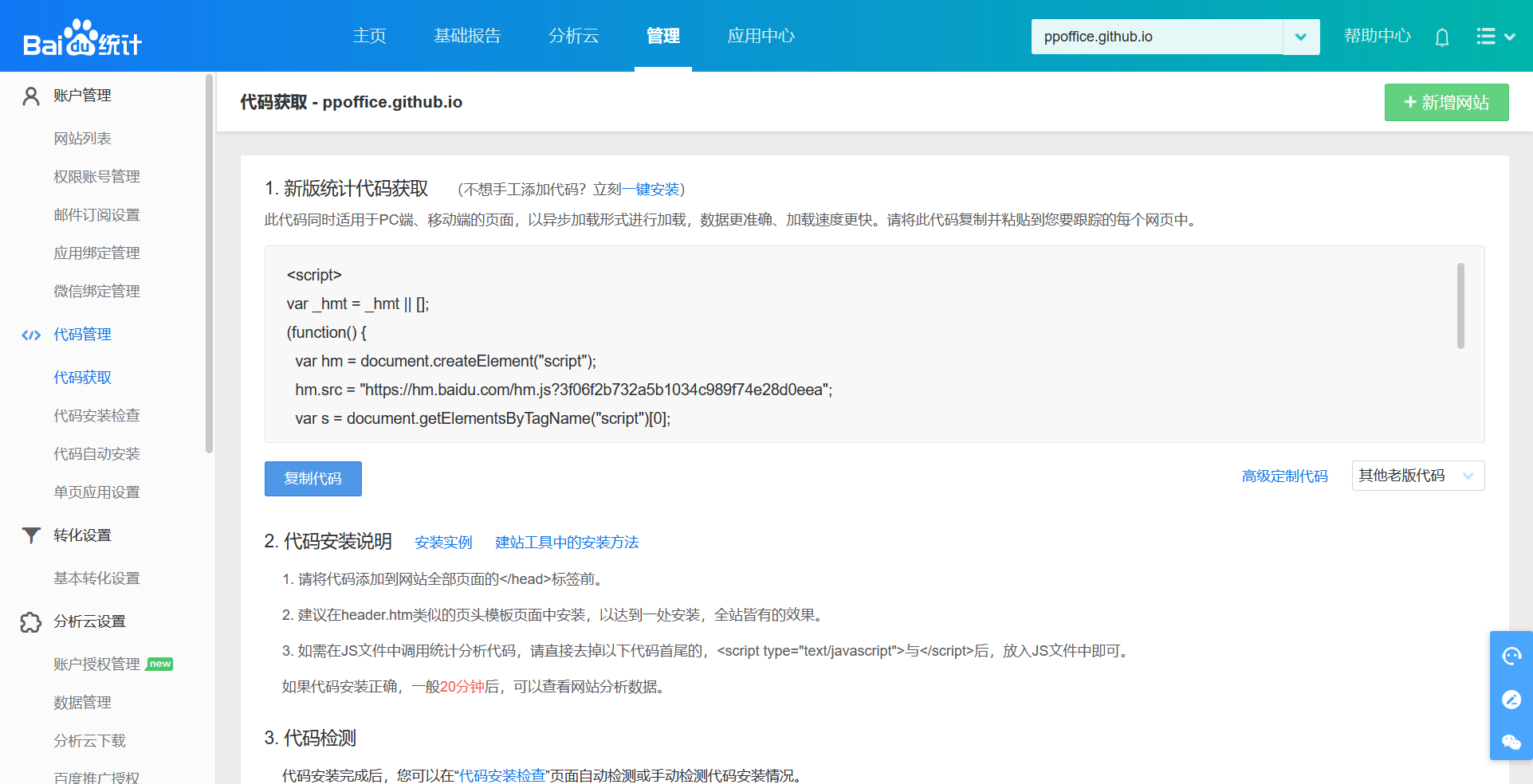
For example, the following Baidu Statistics code:
Baidu Statistics code 1
2
3
4
5
6
7
8
9<script>
var _hmt = _hmt || [];
(function() {
var hm = document.createElement("script");
hm.src = "https://hm.baidu.com/hm.js?3f06f2b732a5b1034c989f74e28d0eea";
var s = document.getElementsByTagName("script")[0];
s.parentNode.insertBefore(hm, s);
})();
</script>maps to the following theme configuration:
_config.icarus.yml 1
2
3plugins:
baidu_analytics:
tracking_id: 3f06f2b732a5b1034c989f74e28d0eea
Installation Guide
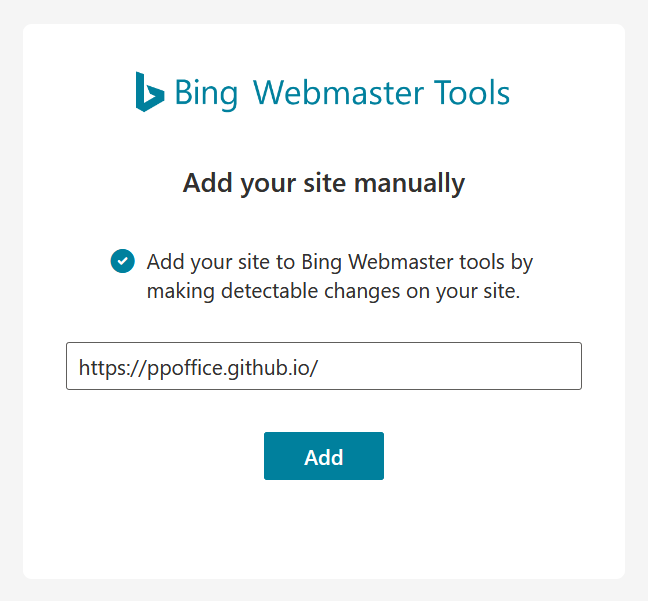
Log into Bing - Webmaster Tools. Then, choose “Add your site manually” and enter the URL to your site. Click “Add” button to continue.
In the “Add & verify site” panel, select “HTML Meta Tag” method. Copy value of the
contentattribute in the HTML meta tag to theplugins>bing_webmaster>tracking_idin the theme configurations.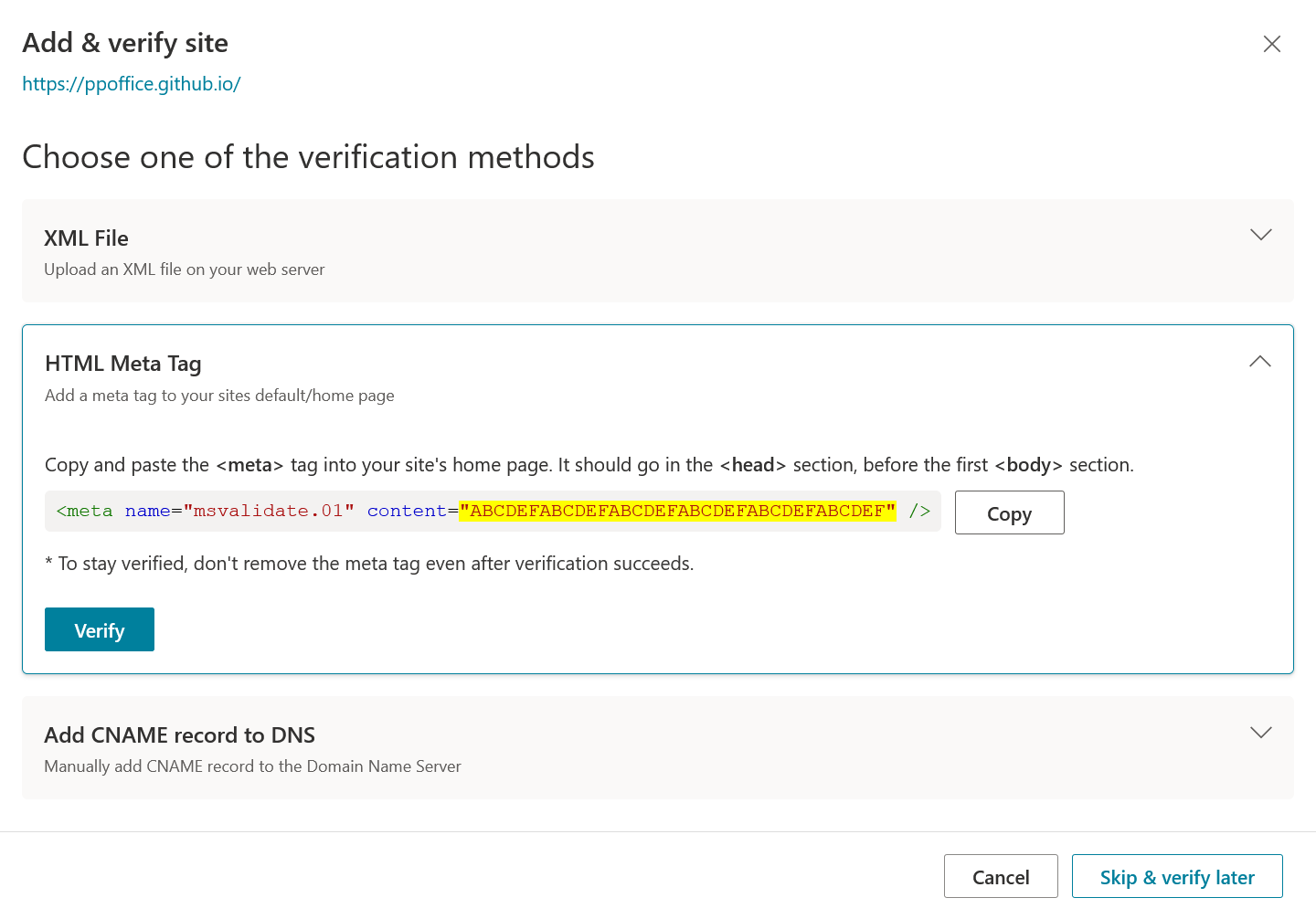
_config.icarus.yml 1
2
3plugins:
bing_webmaster:
tracking_id: ABCDEFABCDEFABCDEFABCDEFABCDEFABCDEF
BuSuanZi Web Counter
Installation Guide
Set the
plugins>busuanzitotrueto enable BuSuanZi web counter and display the number of visitors on the header of each blog post and the bottom of the page._config.icarus.yml 1
2plugins:
busuanzi: true
CNZZ Statistics
Installation Guide
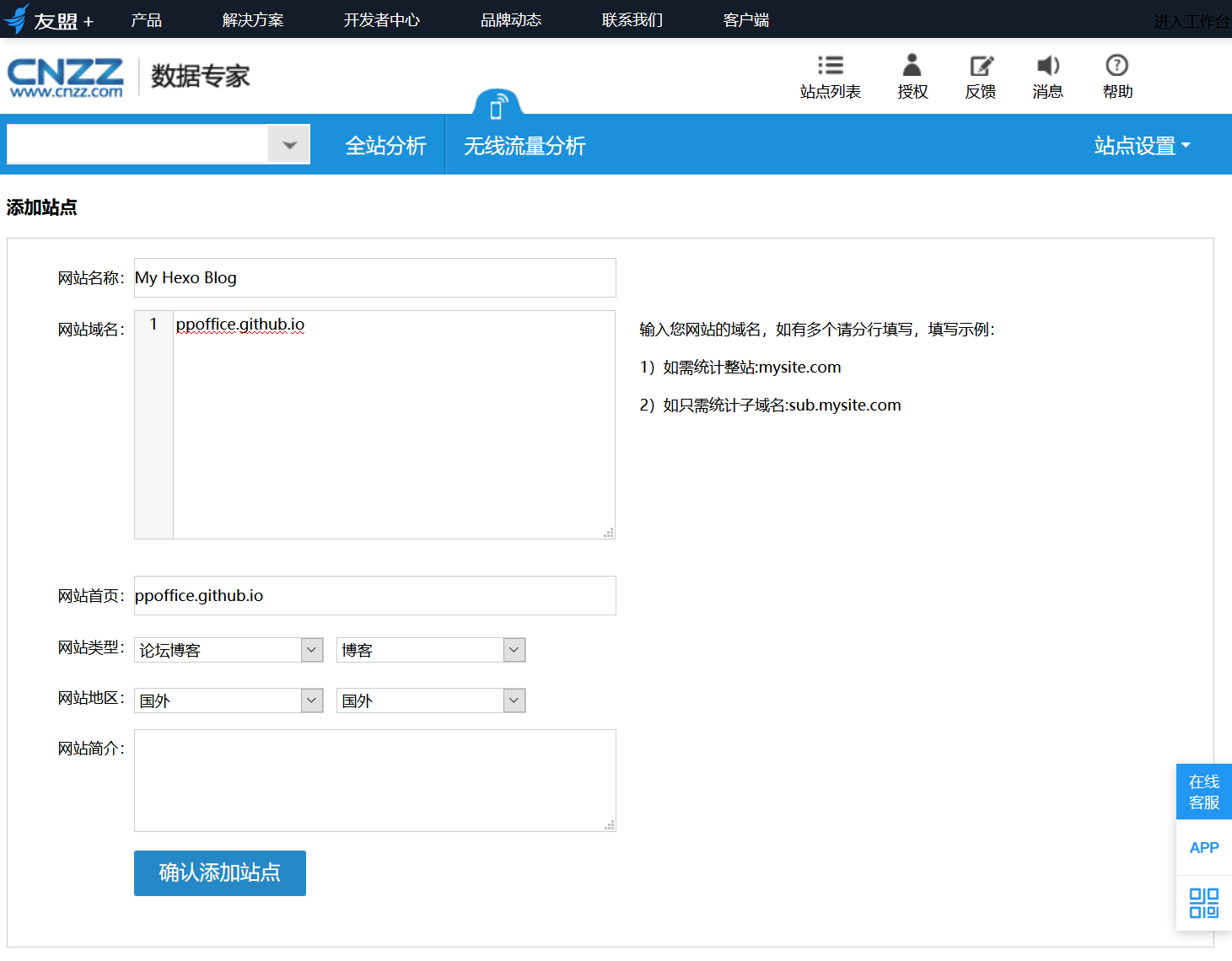
Log into Umeng+. On the dashboard of Umeng+, click “Create new application” > “Web application”. Then, fill in your site information such as “website name”, “site domain name”, and “site homepage URL”. Click “Confirm adding the site” after finished.
Find the HTML code in the “text style” row on the get installation code page. Copy the values of
idandweb_idto theplugins>cnzz>idandweb_idin the theme configurations, respectively.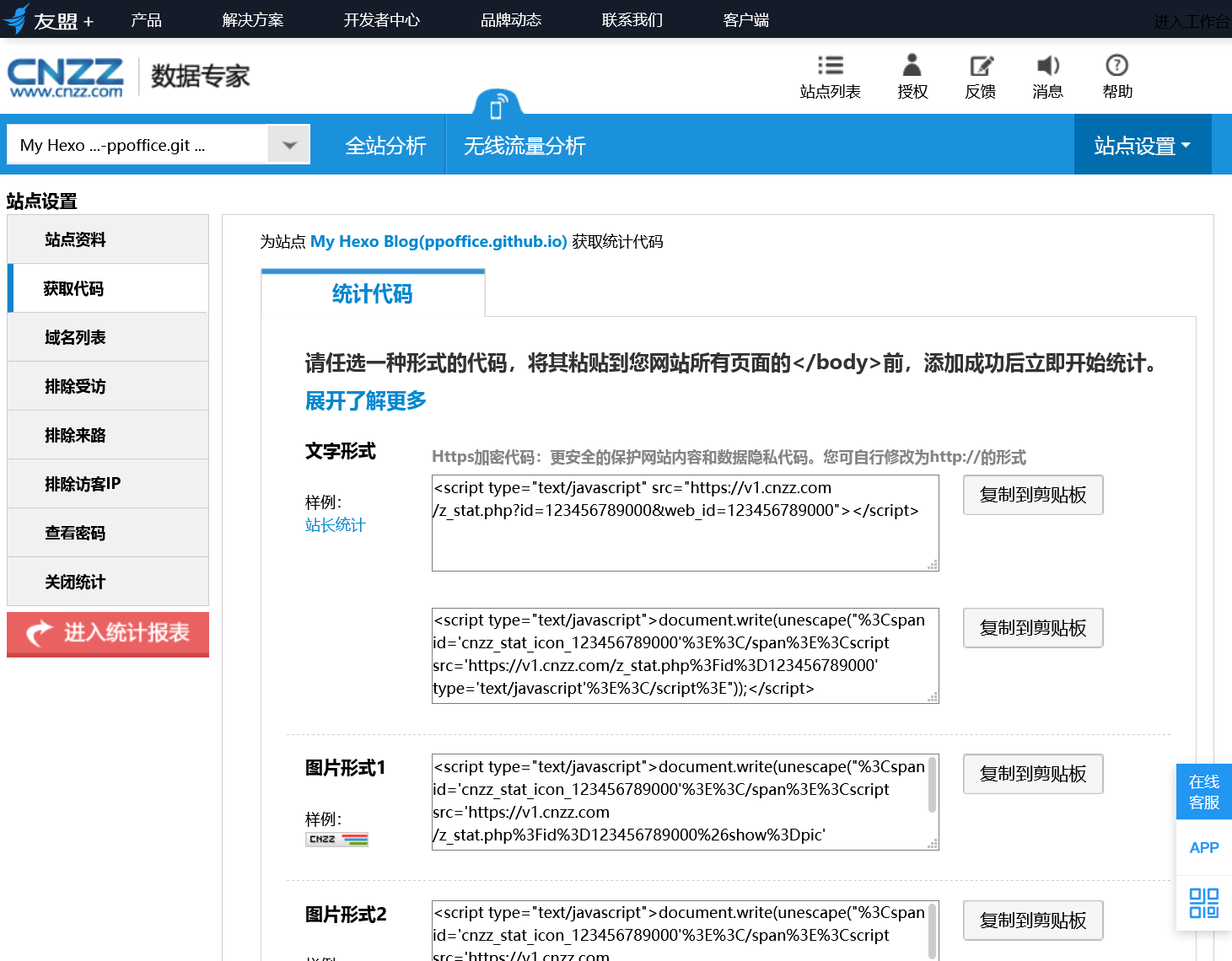
For example, the following CNZZ installation code:
CNZZ installation code 1
<script type="text/javascript" src="https://s9.cnzz.com/z_stat.php?id=123456789000&web_id=123456789000"></script>
maps to the following theme configuration:
_config.icarus.yml 1
2
3
4plugins:
cnzz:
id: 123456789000
web_id: 123456789000
Google Analytics
Installation Guide
Log into Google Analytics and click the “Admin” on the left side of the user dashboard.
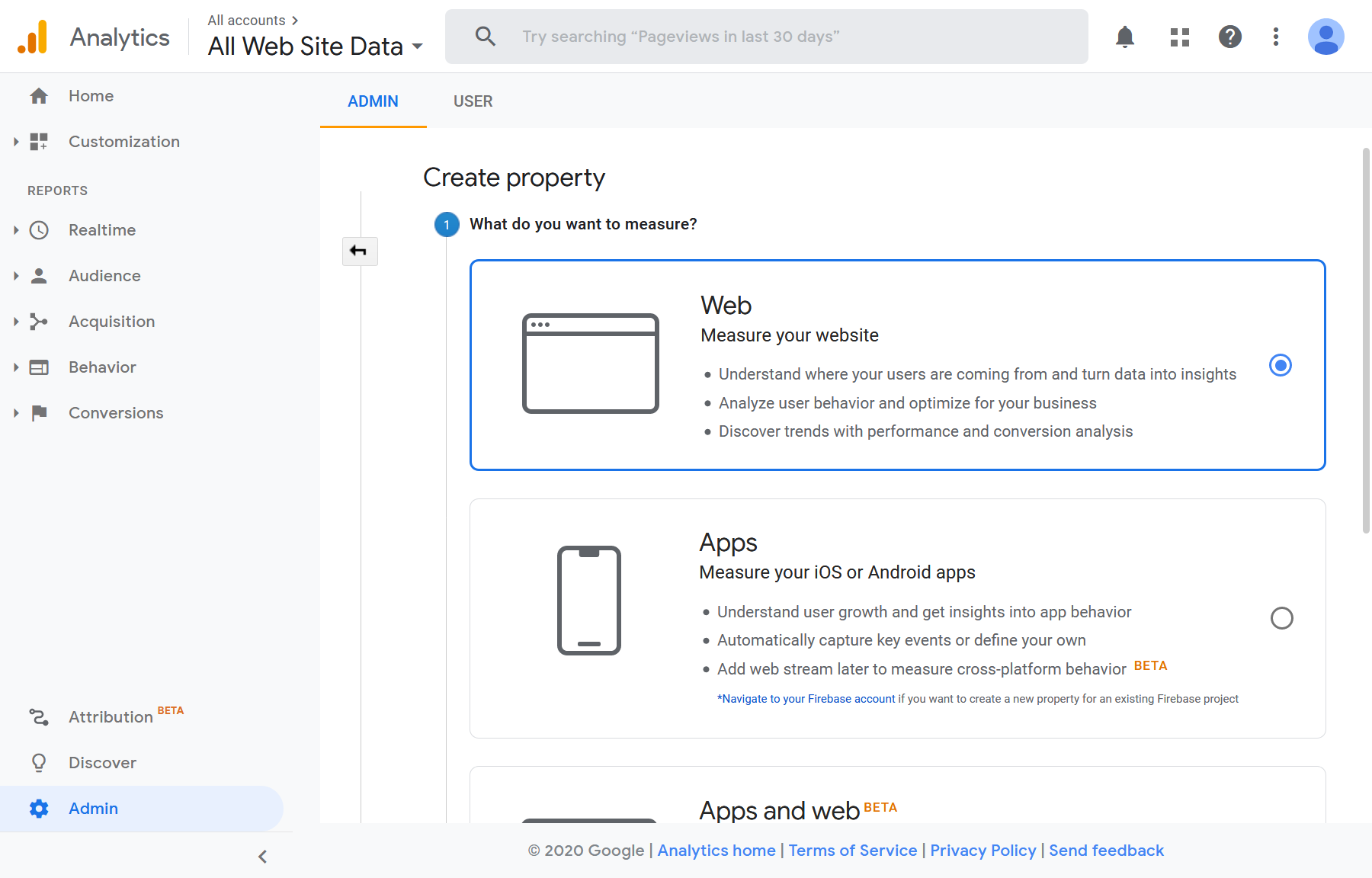
On the admin page, click the “Create Property” button and set “What do you want to measure?” to “Web”. Click the “Continue” button after that.
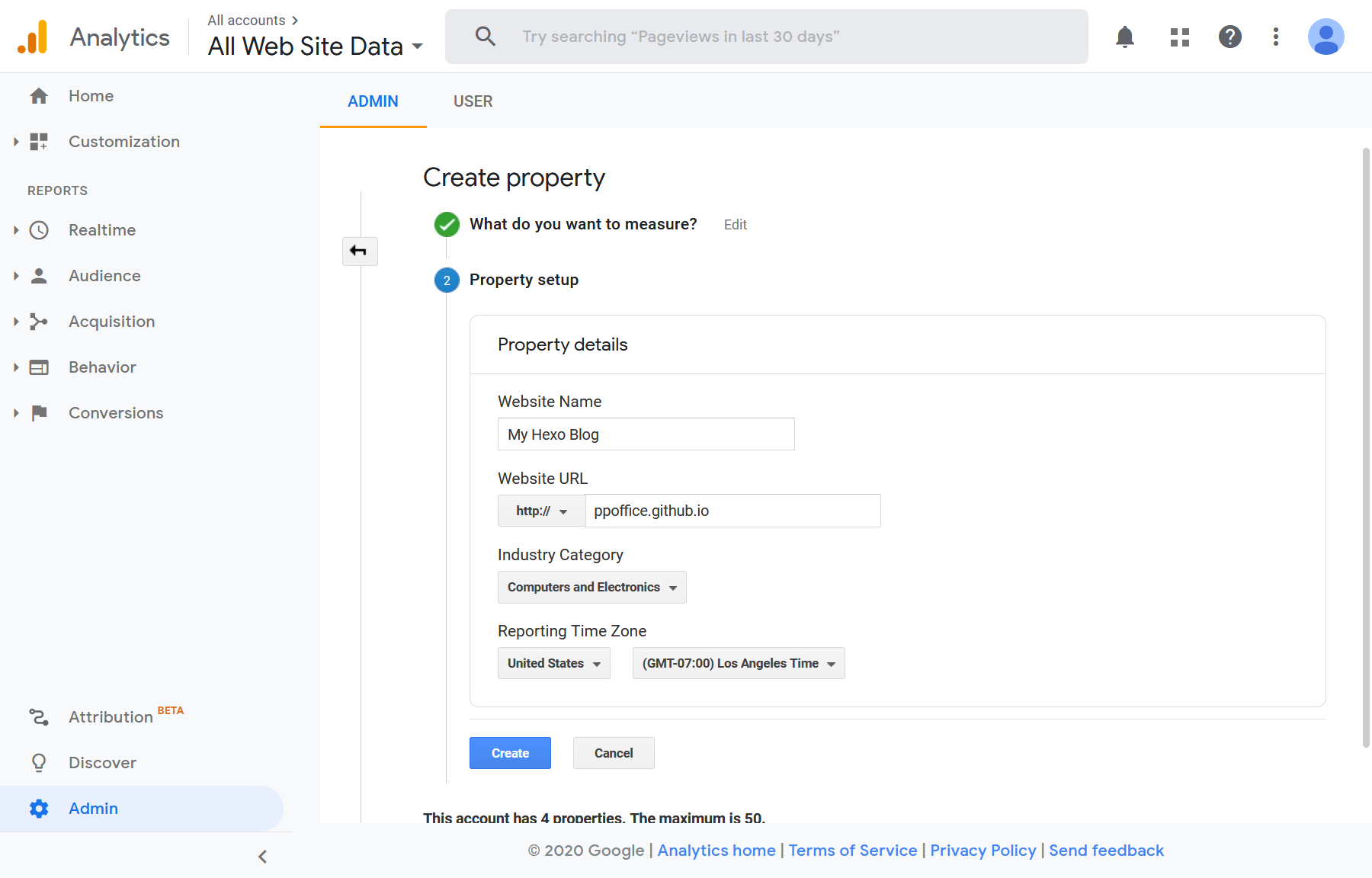
Then, fill in the Website Name, Website URL, Industry Category, and Reporting Time Zone. Click the “Create” button to finish the property creation.
Find the value of “Tracking ID”, e.g., “UA-12345678-0”, on the “Tracking Code” page. Set it to the
plugins>google_analytics>tracking_idin the theme configurations to enable the Google Analytics plugin.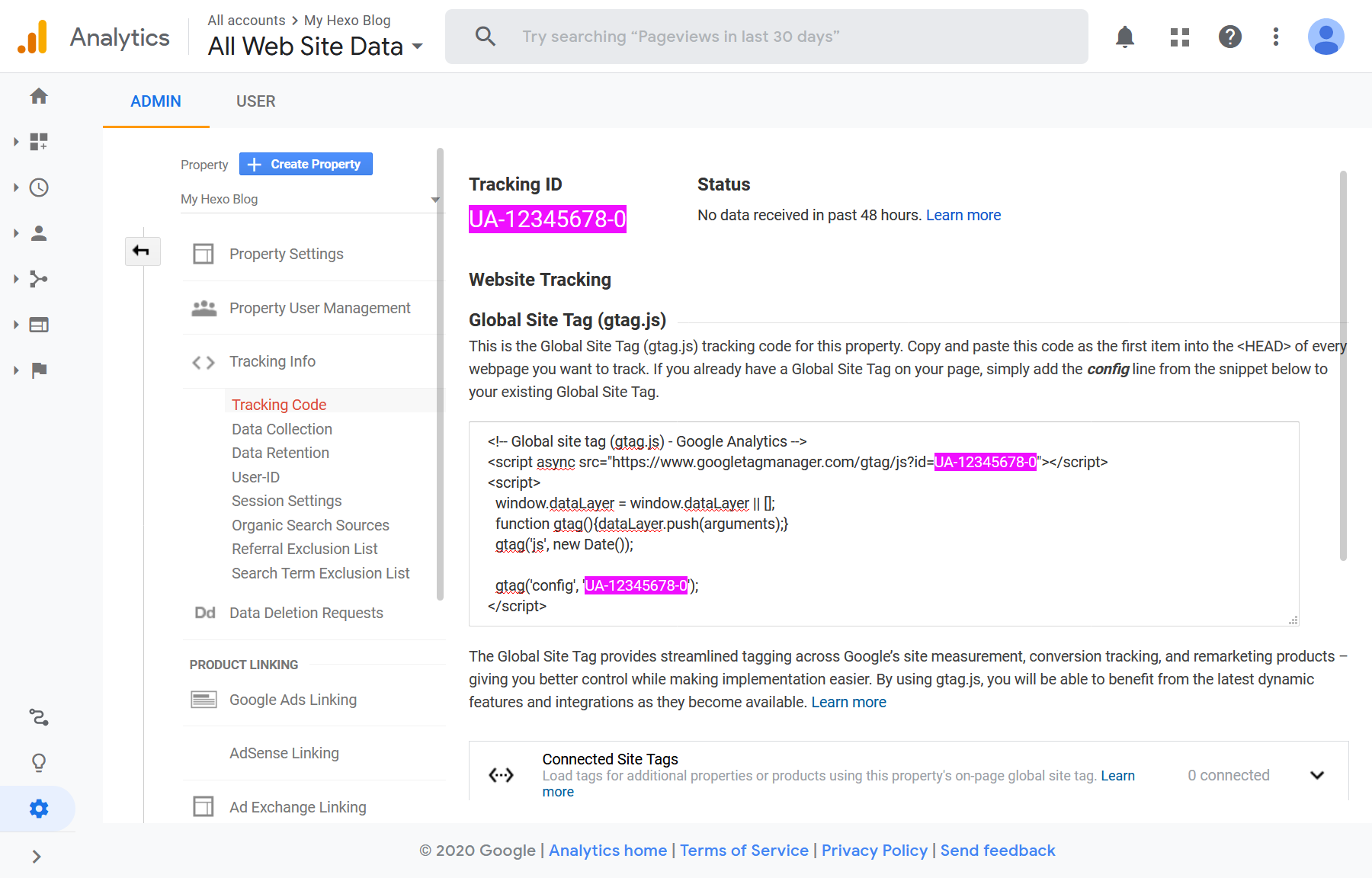
_config.icarus.yml 1
2
3plugins:
google_analytics:
tracking_id: UA-12345678-0
Hotjar
Installation Guide
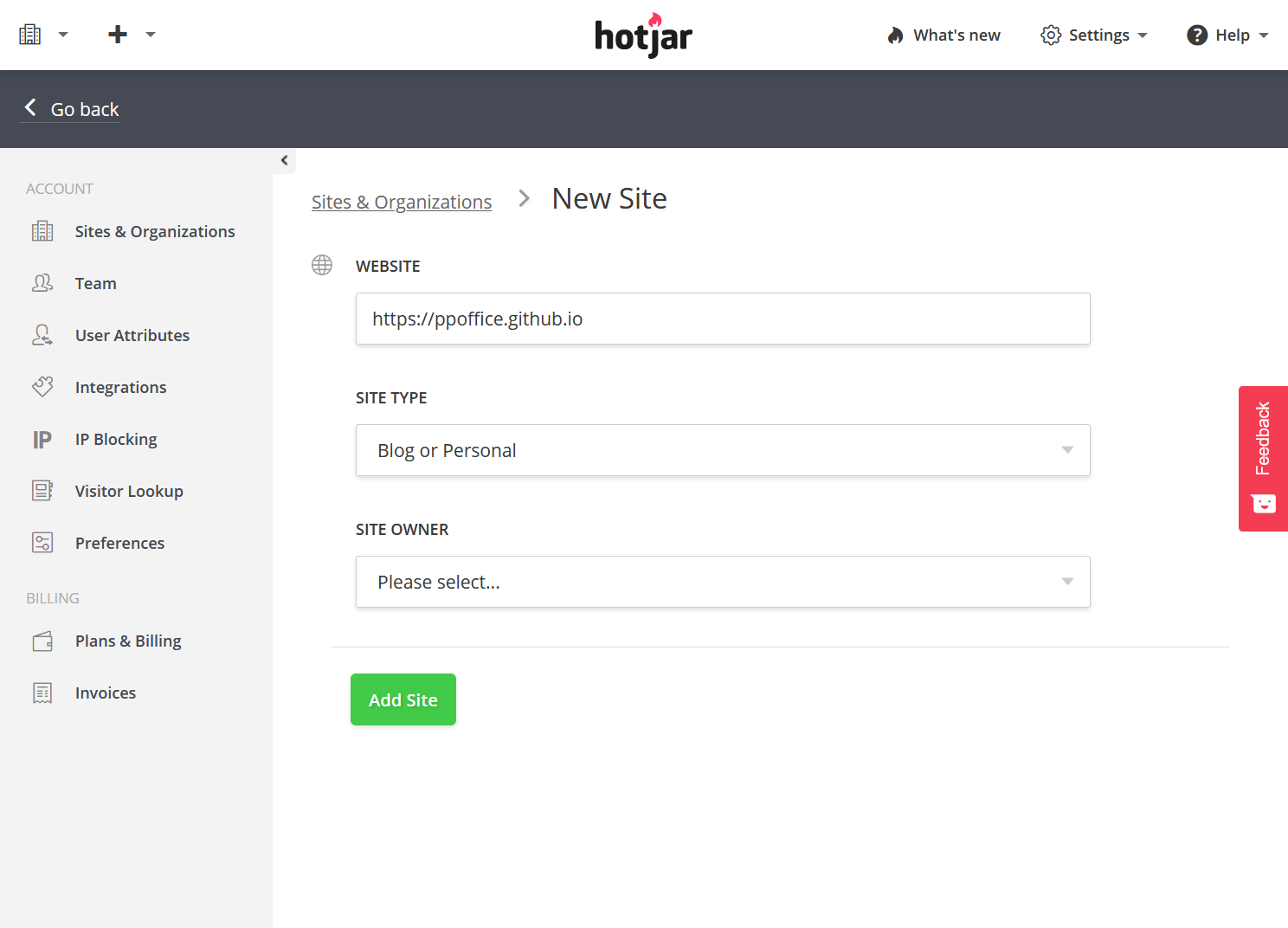
Log into Hotjar and click the ➕ (plus sign) > “Add new site” link on the top left of the page.
Fill in the “WEBSITE”, “SITE TYPE”, and “SITE OWNER”, then click the “Add Site” button.
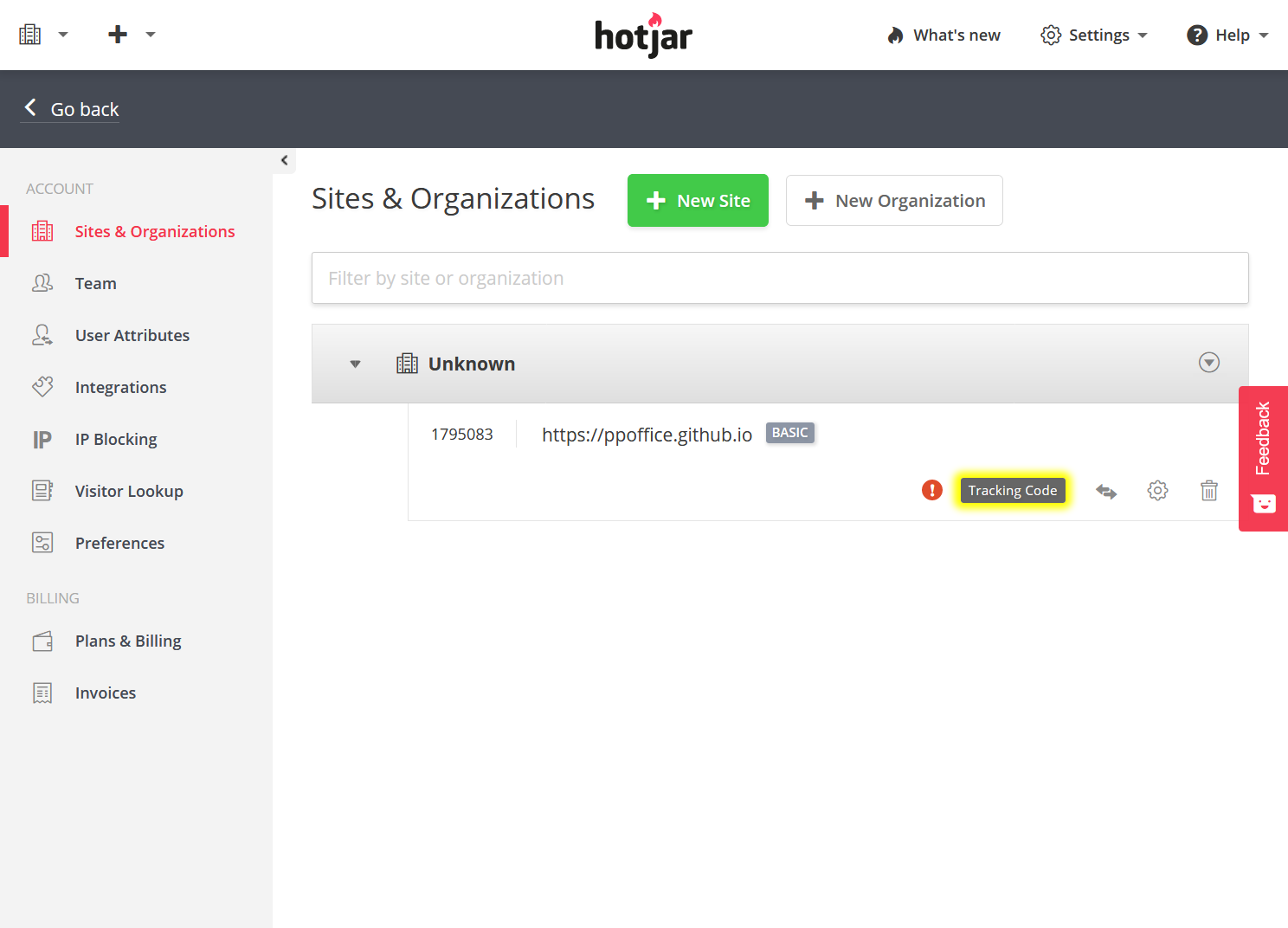
Find the newly created site on the “Sites & Organizations” page you have been redirected to. Click the “Tracking Code” button on the right.
Copy the value of “Site ID” (e.g., 1234567) from the popup dialog to
plugins>hotjar>site_idin the theme configurations to enable the Hotjar plugin.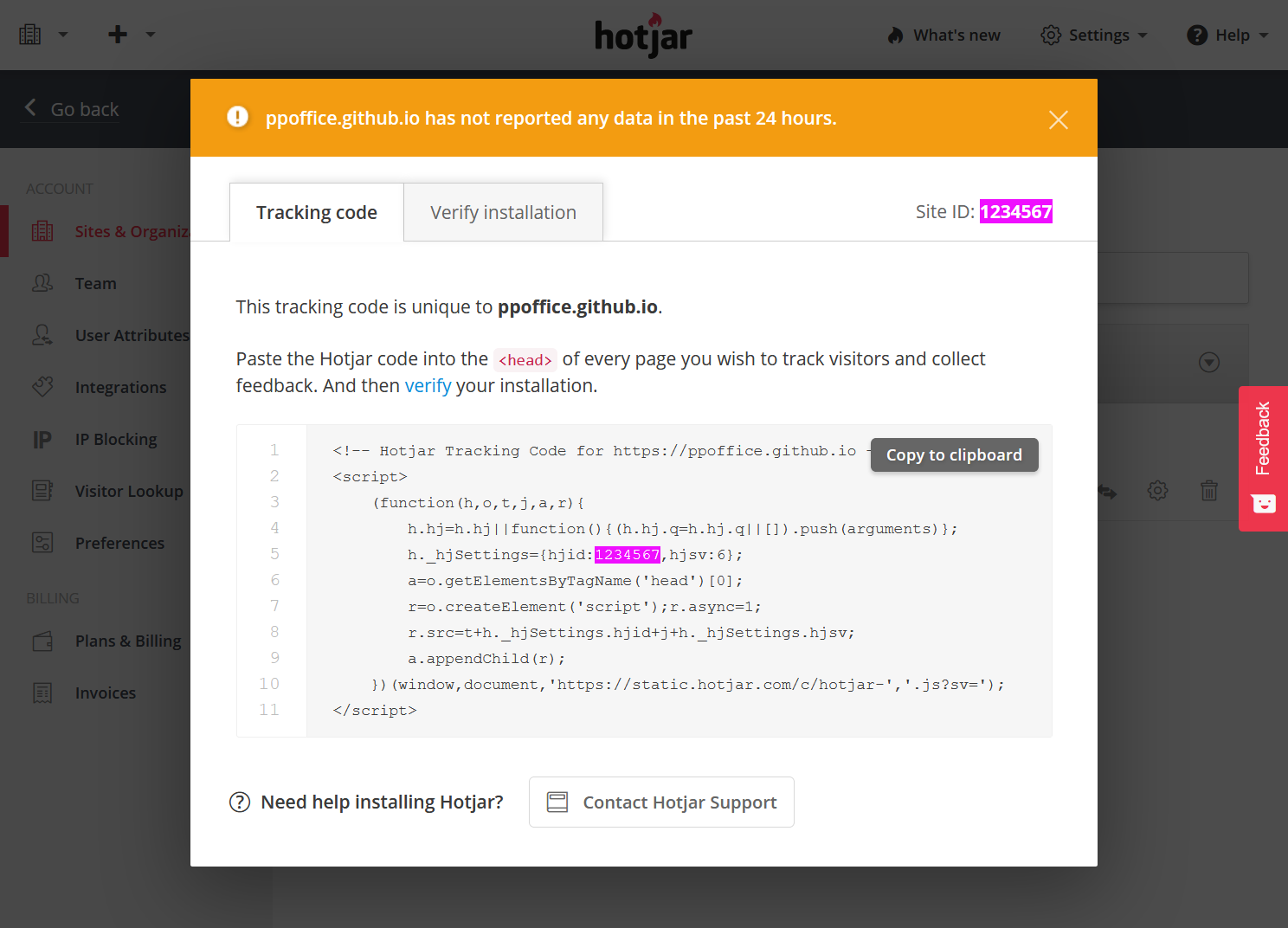
_config.icarus.yml 1
2
3plugins:
hotjar:
site_id: 1234567
Statcounter
Installation Guide
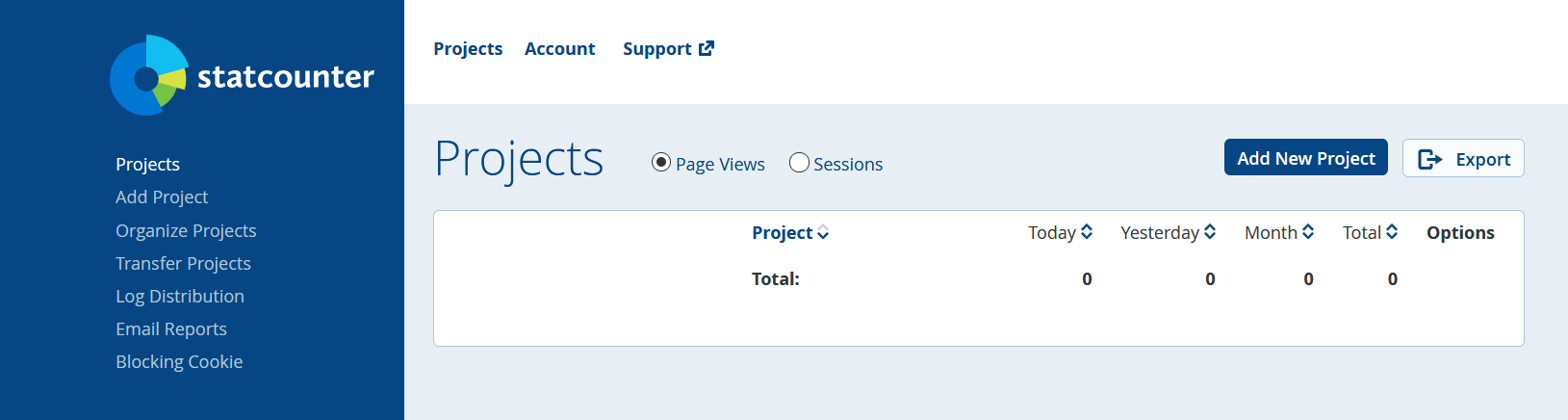
Log into Statcounter. Click “Add New Project” button in the “Projects” page.
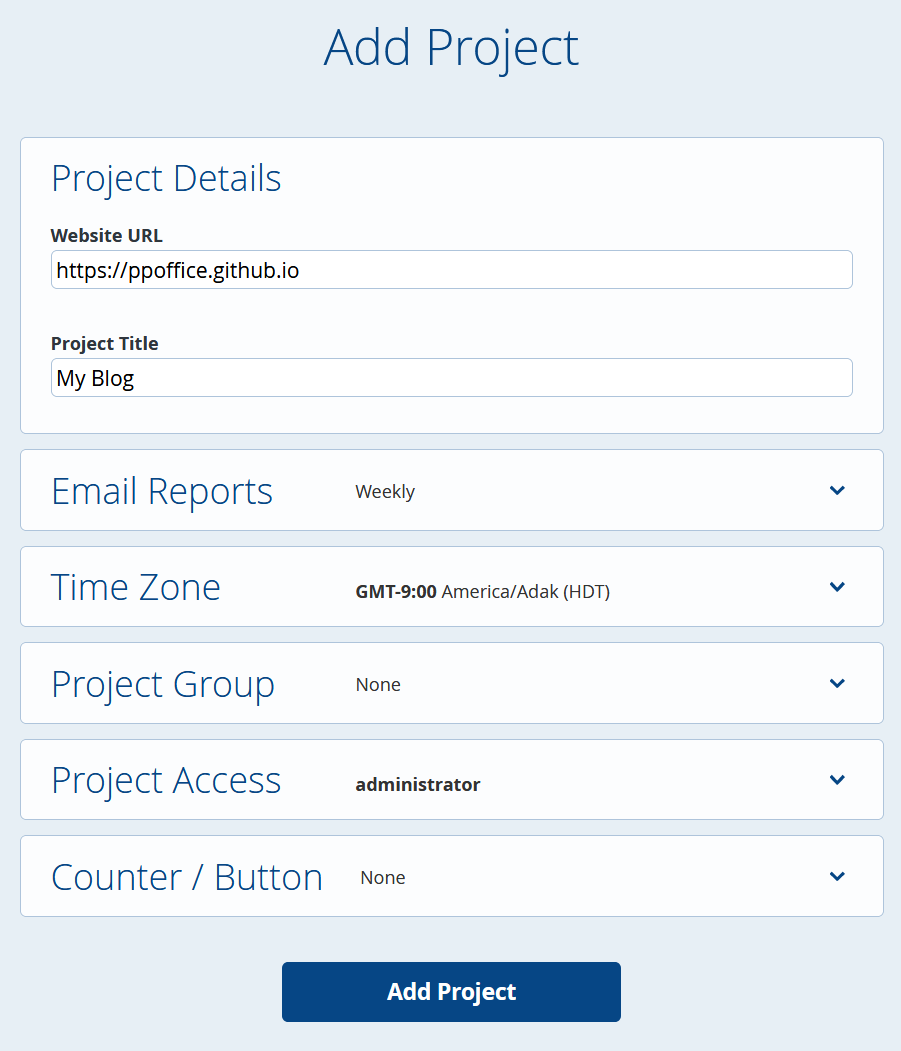
Fill in the website URL and project title in the “Add Project” page. Tweak rest of the project settings if you need to. Then, click the “Add Project” button.
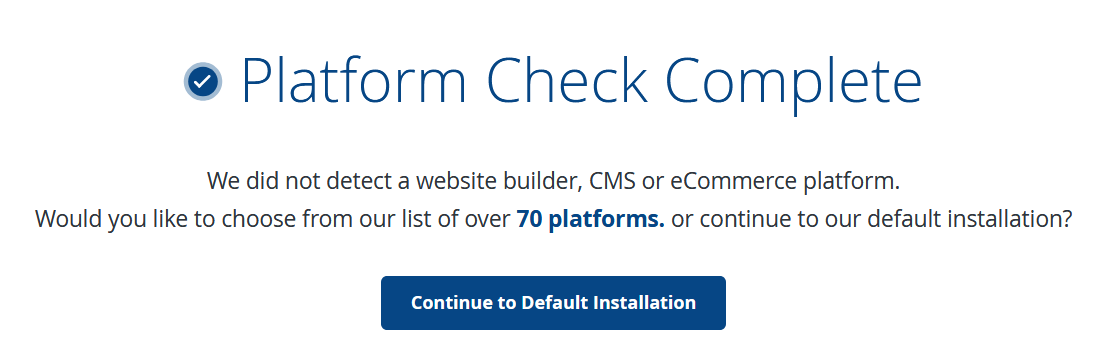
Click “Continue to Default Installation” in the “Platform Check Complete” page.
Finally, in the “Insert the Code on Your Website” page, copy the value of
sc_projectandsc_securityvariable in the HTML snippet toplugins>statcounter>projectandplugins>statcounter>securityin the theme configurations, respectively.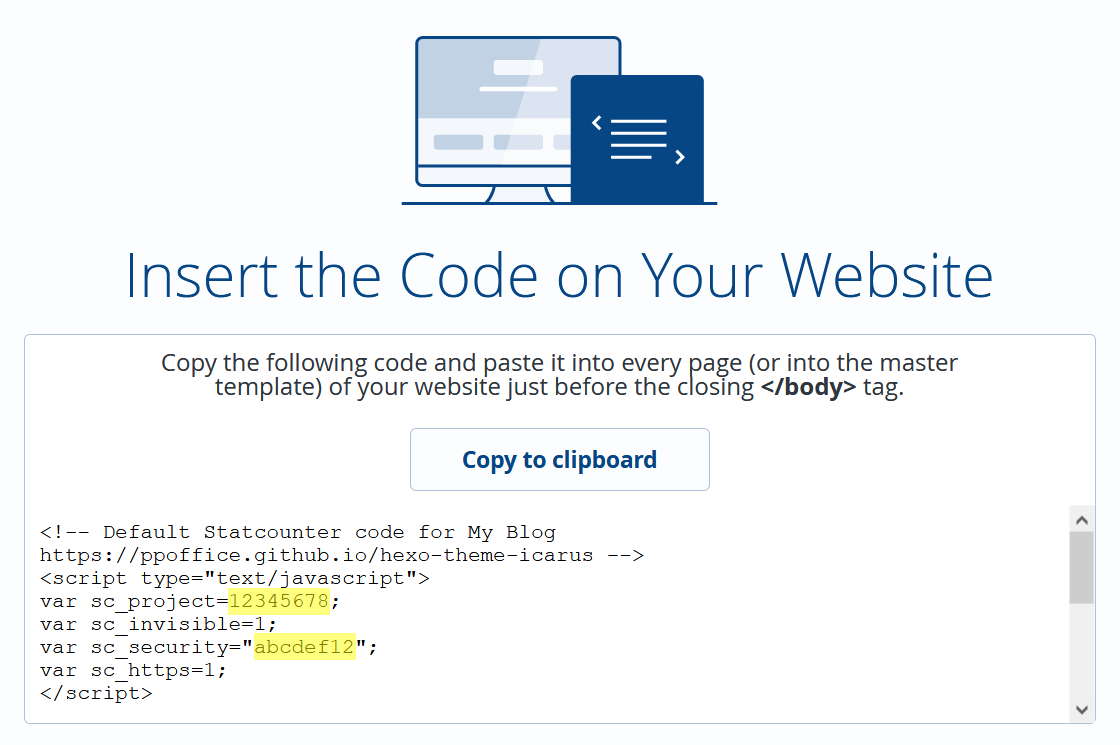
For example, the following Statcounter code:
Statcounter code 1
2
3
4
5
6
7
8
9
10<script type="text/javascript">
var sc_project=12345678;
var sc_invisible=1;
var sc_security="abcdef12";
var sc_https=1;
</script>
<script type="text/javascript"
src="https://www.statcounter.com/counter/counter.js"
async></script>
...maps to the following theme configuration:
_config.icarus.yml 1
2
3
4plugins:
statcounter:
project: 12345678
security: abcdef12
Twitter Conversion Tracking
Installation Guide
Follow How to set up conversion tracking to enable universal website tag of Twitter conversion tracking.
Find the
init(Pixel ID) in your conversion tracking code. Copy its value toplugins>twitter_conversion_tracking>pixel_idin the theme configurations.For example, the following Twitter conversion tracking code:
Twitter conversion tracking code 1
2
3
4
5
6
7
8
9
10
11
<script>
!function(e,n,u,a){e.twq||(a=e.twq=function(){a.exe?a.exe.apply(a,arguments):
a.queue.push(arguments);},a.version='1',a.queue=[],t=n.createElement(u),
t.async=!0,t.src='//static.ads-twitter.com/uwt.js',s=n.getElementsByTagName(u)[0],
s.parentNode.insertBefore(t,s))}(window,document,'script');

twq('init','abcdef');
twq('track','PageView');
</script>
maps to the following theme configuration:
_config.icarus.yml 1
2
3plugins:
twitter_conversion_tracking:
pixel_id: abcdef
Something wrong with this article? Click here to submit your revision.