
惯性聚合 高效追踪和阅读你感兴趣的博客、新闻、科技资讯
阅读原文 在惯性聚合中打开

推荐订阅源

博客园_首页
Hacker News: Ask HN
Hacker News: Ask HN
V
Visual Studio Blog
Hugging Face - Blog
Hugging Face - Blog
博客园 - 【当耐特】
I
InfoQ
A
About on SuperTechFans
宝玉的分享
宝玉的分享
Project Zero
Project Zero
C
CXSECURITY Database RSS Feed - CXSecurity.com
量子位
The Register - Security
大猫的无限游戏
大猫的无限游戏
Blog — PlanetScale
Blog — PlanetScale
Simon Willison's Weblog
C
Cyber Attacks, Cyber Crime and Cyber Security
T
The Exploit Database - CXSecurity.com
Cyberwarzone
Cyberwarzone
L
LINUX DO - 热门话题
博客园 - 聂微东
CTFtime.org: upcoming CTF events
P
Privacy International News Feed
T
Tenable Blog
博客园 - 叶小钗
P
Palo Alto Networks Blog
S
Securelist
F
Full Disclosure
Help Net Security
Help Net Security
爱范儿
爱范儿
Cisco Talos Blog
Cisco Talos Blog
F
Fortinet All Blogs
Google DeepMind News
IT之家
IT之家
S
Secure Thoughts
Martin Fowler
Martin Fowler
The Cloudflare Blog
阮一峰的网络日志
阮一峰的网络日志
小众软件
小众软件
G
GRAHAM CLULEY
J
Java Code Geeks
Forbes - Security
Forbes - Security
Application and Cybersecurity Blog
A
Arctic Wolf
L
LangChain Blog
Webroot Blog
Webroot Blog
TaoSecurity Blog
TaoSecurity Blog
月光博客
月光博客
T
The Blog of Author Tim Ferriss
Engineering at Meta
Engineering at Meta
钛媒体:引领未来商业与生活新知
钛媒体:引领未来商业与生活新知

The Eclectic Light Company

Apple has released an update to XProtect for all macOS Hero or hooligan: Theseus’ later years BSD flags are incompatible with iCloud Drive Apple has released macOS Tahoe 26.5.1 In memoriam Mary Cassatt: 1, 1868-1880 Solutions to Saturday Mac riddles 362 What Location Services do in macOS Eclectic paintings of Joseph Stella: 2 European myths Last Week on My Mac: Razzle and dazzle Eclectic paintings of Joseph Stella: 1 American landscapes Saturday Mac riddles 362 Protect files with the Locked or Immutable flag Reading Visual Art: 252 Dragonfly What happens in the log when an app crashes as it starts up? Portraits of trees: Introduction On Reflection: Conclusions and contents Which tasks require mains power? Medium and message: Vast canvases Online reference to external displays for Apple silicon Macs What’s in that phishing email? Hero or hooligan: Theseus and Ariadne Solutions to Saturday Mac riddles 361 How to search document versions Rubens’ Consequences of War Rubens’ Peace and War Saturday Mac riddles 361 How to search Time Machine backups? Naturalists: Contents and artists On Reflection: Extending the image Tackle QuickLook problems Medium and message: Pottery Hero or hooligan: Theseus and the sandals How QuickLook provides thumbnails and previews Last Week on My Mac: Syncing metadata in iCloud Drive Paintings of visits to India 1778-1877 Saturday Mac riddles 360 Naturalists: Sorolla and Zorn On Reflection: Pierre Bonnard 1909-1946 SpotTest 1.2 can display Spotlight metadata directly On Reflection: Pierre Bonnard 1899-1908 How to preserve versions, and how to create versioned PDFs Medium and message: Sculpture What gets synced in iCloud Drive? Hero or hooligan: Perseus 2 Solutions to Saturday Mac riddles 359 Last Week on My Mac: snapshots, the elephant in APFS Paintings of Beatrice Portinari: to 1862 Saturday Mac riddles 359 Naturalists: Into the 20th century How to check whether Spotlight is getting the right metadata On Reflection: Mirror play Hero or hooligan: Perseus 1 The bicentenary of Frederic Edwin Church: 1857-77 Solutions to Saturday Mac riddles 358 macOS virtual machines and audio-video syncing A walk in the parks of Rome, Vienna, Manhattan and Brooklyn Saturday Mac riddles 358 Naturalists: Photography Use Finder tags for categories Medium and message: Tapestry Virtualisation on Apple silicon Macs is different Jerusalem Delivered: Overview and contents The bicentenary of Frederic Edwin Church: 1849-57 Solutions to Saturday Mac riddles 357 Painting Pandora and her box: 1883-1919 Painting Pandora and her box: 1550-1882 Saturday Mac riddles 357 Reading Visual Art: 250 Winged sandals The secret life of the xattr The macOS Natural Language framework and Nalaprop Medium and Message: Stained glass The MACL extended attribute Jerusalem Delivered: 13 Leading characters Solutions to Saturday Mac riddles 356 Privacy: How locations are protected Painting Spring blossom 2 Last Week on My Mac: Don’t be a victim of fraud Painting Spring blossom 1 Saturday Mac riddles 356 Explainer: Recovery Reading Visual Art: 249 Mask Naturalists: Urban poverty On Reflection: Cézanne Privacy: Which folders are protected in Tahoe? Medium and Message: Mosaic Jerusalem Delivered: 12 Delivery Solutions to Saturday Mac riddles 355 Centaurs 2: Revenge Centaurs 1: Fights Saturday Mac riddles 355 Explainer: sandboxes Naturalists: The modern meal Why you can’t trust Privacy & Security Apple has just released an update to macOS Tahoe, to version 26.4.1 On Reflection: Divisionism Please help update CPU frequencies for Apple silicon Macs Commemorating the centenary of the death of John Ferguson Weir Privacy: Files & Folders or Full Disk Access? Jerusalem Delivered: 11 Into Jerusalem Privacy: protected folders
Control what gets written to the log
hoakley · 2026-04-30 · via The Eclectic Light Company

One of the first things that strikes you when you look at a log extract from a Mac, is the number of entries that have some or all of their contents censored with <private>. Another is the sheer number of entries; even when your Mac is doing little, there’s a constant stream of them. This article explains how you can get control of both.

Logging preferences

The keys to controlling what gets written to the log in macOS are property lists stored inside /Library/Preferences/Logging. By default you’re likely to see few files there, which may include a high-level policy in com.apple.system.logging.plist. If present, that’s likely to set just two keys, Enable-Logging to true, and Locked to true as well. But that property list doesn’t tell the whole story.

To discover full top-level policy, you need to enter the command
sudo log config --status
which is likely to return
System mode = INFO

Step one down from there with
sudo log config --status --subsystem com.apple.system.logging
and that might report
INFO PERSIST_DEFAULT
or could extend to include
SIGNPOST_PERSISTED_OFF SIGNPOST_ENABLED_ON SIGNPOST_BACKTRACE_ENABLED_OFF OVERSIZE_ENABLED_OFF
as well.

Now try a more specific subsystem with
sudo log config --status --subsystem com.apple.network
and you’re likely to see something similar, unless there’s a property listed named com.apple.network.plist in the Subsystems folder there, in which case it should reflect the settings in that.

Those settings largely concern two features:

  • Levels of log entry recorded, set as default, info or debug. The first of those includes all entries of default or higher level, the second of info, default or higher, and the third of debug, info, default or higher. Default global level is normally info, so that debug entries don’t appear in the log.
  • Whether the entries are saved to persistent storage (disk), using the same hierarchy of levels.

Thus INFO PERSIST_DEFAULT means that all log entries of info level and above, but not debug, will be collected, and the default setting is used to determine which get written to disk.

Apple explains those basic settings in man log, and its documentation for developers.

Signpost and Oversize settings aren’t explained there, but are in man 5 os_log. Signpost log entries are intended for use by developers to assess performance, and are rarely of any use to others. Oversize log entries can be many pages long, and are stored separately when enabled.

Controlling logging preferences

There are three ways to control logging preferences, which all converge on those same property lists:

  • The log config command, as used above. This is quick and simple, but limited, and perhaps best used to check effective settings for individual subsystems and processes.
  • Write your own property lists and install them in the appropriate folder in /Library/Preferences/Logging. Although this is powerful, as there’s limited guidance on what can be included, you’ll probably want to start from existing property lists. There’s further information in Peter Steinberger’s post and man 5 os_log.
  • Install a custom log profile, which you can also use as a model to develop your own property lists and profiles.

Custom logging preferences take effect almost immediately, and don’t require restarting, but they only apply to log entries written once they have been applied, never retrospectively.

Limiting log entries by level

As the Unified log discards old log entries to constrain the space occupied by the logs, the only way to extend the period covered by stored log entries is to limit the rate at which fresh entries are added to the log. You can do this by careful assessment of which subsystems are writing most entries, and changing their logging preferences.

However, that only applies when there’s an excess of log entries at debug or info levels. When there is, adding or modifying the preferences for that subsystem to store entries at a level of default or info should extend the period they cover. Be cautious, though: that excess of entries could reflect a problem, and by excluding them you may well conceal its cause and extent.

Custom log profiles

The simplest alternative is to install a Configuration Profile containing the saved settings to be applied to the property lists in /Library/Preferences/Logging. I provide a signed profile to remove all that <private> censorship in enablelogprivatedata.

To install the profile unzip the archive into a convenient folder and double-click it. You’ll be prompted to review the profile to install it.
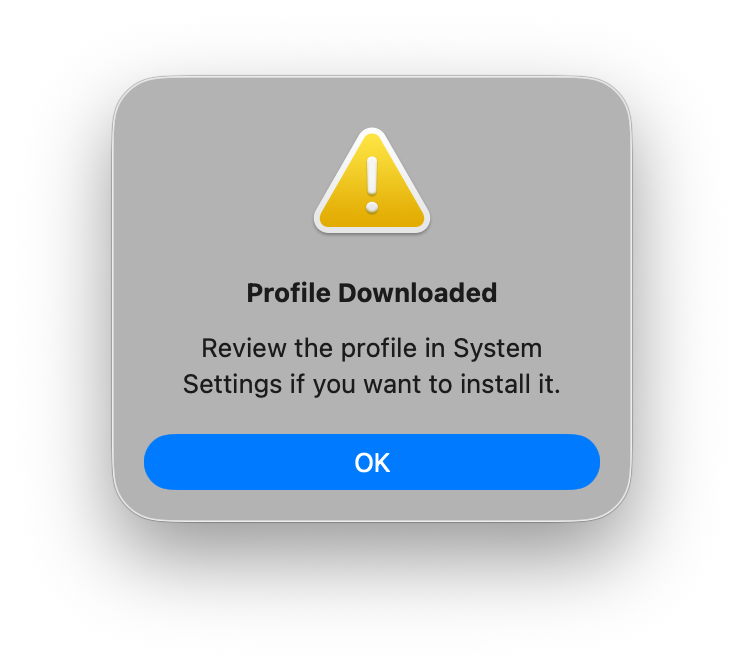
Open System Settings > General & Device Management, and inspect it by double-clicking the profile there.
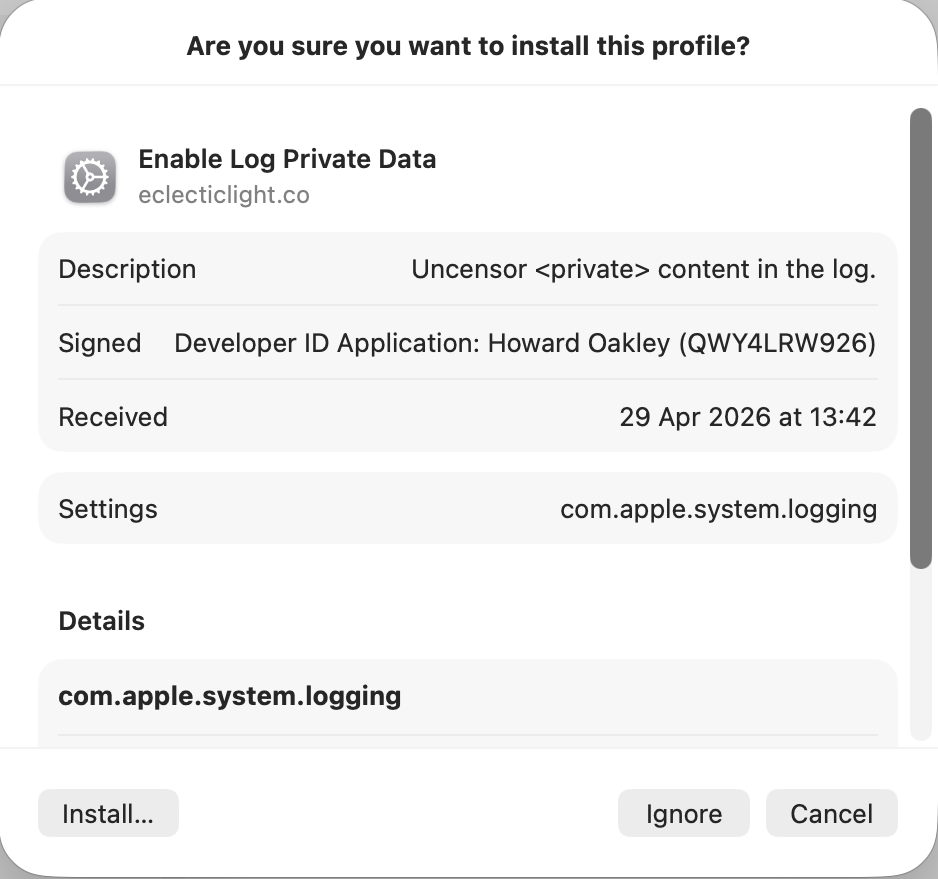
Click on the Install button to accept and install the profile.

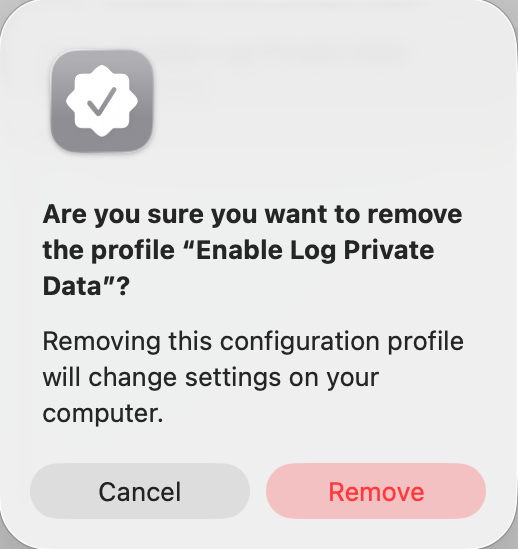
To remove it, select the profile and click the – tool below.
If you watch the contents of com.apple.system.logging.plist in /Library/Preferences/Logging you’ll see that change, with the setting of the key Enable-Private-Data to true. If you then run
sudo log config --status
with that profile installed, it should report something like
System mode = INFO PRIVATE_DATA
to confirm that private data is being shown in log entries, and that’s the best way to gain access to their full contents. Remember to remove the profile as soon as you’re done, or your log will continue to leak sensitive data.

There’s a collection of custom log profiles to gather log extracts about specific features in macOS (and Apple’s other OSes). Although they’re listed here, you can only download them if you have a developer (or equivalent) account with Apple. What’s more, Apple describes these as confidential, and explicitly forbids their use or disclosure without its permission. So much as I’d love to explain the undocumented features they use, I regret that I can’t.