


惯性聚合 高效追踪和阅读你感兴趣的博客、新闻、科技资讯
阅读原文 在惯性聚合中打开

推荐订阅源

V
V2EX
爱范儿
爱范儿
Martin Fowler
Martin Fowler
T
The Blog of Author Tim Ferriss
B
Blog RSS Feed
博客园 - 聂微东
G
GRAHAM CLULEY
Engineering at Meta
Engineering at Meta
Threat Intelligence Blog | Flashpoint
WordPress大学
WordPress大学
Scott Helme
Scott Helme
AI
AI
S
Security Affairs
T
Threat Research - Cisco Blogs
M
MIT News - Artificial intelligence
T
Troy Hunt's Blog
H
Hackread – Cybersecurity News, Data Breaches, AI and More
人人都是产品经理
人人都是产品经理
AWS News Blog
AWS News Blog
T
Threatpost
Cyberwarzone
Cyberwarzone
www.infosecurity-magazine.com
U
Unit 42
V
Vulnerabilities – Threatpost
J
Java Code Geeks
博客园 - Franky
月光博客
月光博客
Blog — PlanetScale
Blog — PlanetScale
NISL@THU
NISL@THU
D
Docker
小众软件
小众软件
N
News and Events Feed by Topic
Microsoft Security Blog
Y
Y Combinator Blog
A
Arctic Wolf
D
DataBreaches.Net
云风的 BLOG
云风的 BLOG
Forbes - Security
Forbes - Security
量子位
PCI Perspectives
PCI Perspectives
美团技术团队
K
KPMG report finds enterprise disconnect between AI and its ROI | CIO
I
InfoQ
Security Archives - TechRepublic
有赞技术团队
有赞技术团队
腾讯CDC
P
Proofpoint News Feed
S
Security @ Cisco Blogs
G
Google Developers Blog
C
Cisco Blogs

The Eclectic Light Company

Hero or hooligan: Theseus’ later years BSD flags are incompatible with iCloud Drive Apple has released macOS Tahoe 26.5.1 In memoriam Mary Cassatt: 1, 1868-1880 Solutions to Saturday Mac riddles 362 What Location Services do in macOS Eclectic paintings of Joseph Stella: 2 European myths Last Week on My Mac: Razzle and dazzle Eclectic paintings of Joseph Stella: 1 American landscapes Saturday Mac riddles 362 Protect files with the Locked or Immutable flag Reading Visual Art: 252 Dragonfly What happens in the log when an app crashes as it starts up? Portraits of trees: Introduction On Reflection: Conclusions and contents Which tasks require mains power? Medium and message: Vast canvases Online reference to external displays for Apple silicon Macs What’s in that phishing email? Hero or hooligan: Theseus and Ariadne Solutions to Saturday Mac riddles 361 How to search document versions Rubens’ Consequences of War Rubens’ Peace and War Saturday Mac riddles 361 How to search Time Machine backups? Naturalists: Contents and artists On Reflection: Extending the image Tackle QuickLook problems Medium and message: Pottery Hero or hooligan: Theseus and the sandals How QuickLook provides thumbnails and previews Last Week on My Mac: Syncing metadata in iCloud Drive Paintings of visits to India 1778-1877 Saturday Mac riddles 360 Naturalists: Sorolla and Zorn On Reflection: Pierre Bonnard 1909-1946 SpotTest 1.2 can display Spotlight metadata directly On Reflection: Pierre Bonnard 1899-1908 How to preserve versions, and how to create versioned PDFs Medium and message: Sculpture What gets synced in iCloud Drive? Hero or hooligan: Perseus 2 Solutions to Saturday Mac riddles 359 Last Week on My Mac: snapshots, the elephant in APFS Paintings of Beatrice Portinari: to 1862 Saturday Mac riddles 359 Naturalists: Into the 20th century How to check whether Spotlight is getting the right metadata On Reflection: Mirror play Hero or hooligan: Perseus 1 The bicentenary of Frederic Edwin Church: 1857-77 Solutions to Saturday Mac riddles 358 macOS virtual machines and audio-video syncing A walk in the parks of Rome, Vienna, Manhattan and Brooklyn Saturday Mac riddles 358 Naturalists: Photography Use Finder tags for categories Control what gets written to the log Medium and message: Tapestry Virtualisation on Apple silicon Macs is different Jerusalem Delivered: Overview and contents The bicentenary of Frederic Edwin Church: 1849-57 Solutions to Saturday Mac riddles 357 Painting Pandora and her box: 1883-1919 Painting Pandora and her box: 1550-1882 Saturday Mac riddles 357 Reading Visual Art: 250 Winged sandals The secret life of the xattr The macOS Natural Language framework and Nalaprop Medium and Message: Stained glass The MACL extended attribute Jerusalem Delivered: 13 Leading characters Solutions to Saturday Mac riddles 356 Privacy: How locations are protected Painting Spring blossom 2 Last Week on My Mac: Don’t be a victim of fraud Painting Spring blossom 1 Saturday Mac riddles 356 Explainer: Recovery Reading Visual Art: 249 Mask Naturalists: Urban poverty On Reflection: Cézanne Privacy: Which folders are protected in Tahoe? Medium and Message: Mosaic Jerusalem Delivered: 12 Delivery Solutions to Saturday Mac riddles 355 Centaurs 2: Revenge Centaurs 1: Fights Saturday Mac riddles 355 Explainer: sandboxes Naturalists: The modern meal Why you can’t trust Privacy & Security Apple has just released an update to macOS Tahoe, to version 26.4.1 On Reflection: Divisionism Please help update CPU frequencies for Apple silicon Macs Commemorating the centenary of the death of John Ferguson Weir Privacy: Files & Folders or Full Disk Access? Jerusalem Delivered: 11 Into Jerusalem Privacy: protected folders
Get more from Get Info and the Finder’s contextual menu
hoakley · 2026-06-05 · via The Eclectic Light Company

We really should set aside an hour each month to explore lesser-known features in macOS. In today’s exploration I bring you Get Info’s sibling Inspector, exact duplication, a free slideshow, and an Easter Egg.

The Finder’s contextual menus

Select one or more items in the Finder and Control-click (or equivalent) to open the contextual menu (which Apple now seemingly likes to refer to as the context menu, which it isn’t). You can also combine, or add when the menu is open, a modifier key. Among the commands on offer are:

  • Open With to open a file using the app of your choice. With the Option key this becomes Always Open With, which combines that with changing that file’s default app as well.
  • Get Info to display that dialog, discussed below. With the Option key this becomes Show Inspector, to open that window instead.
  • Duplicate to make an APFS clone file of the original with the current user’s permissions. With the Option and Shift keys held this becomes Duplicate Exactly, which requires authentication and preserves the permissions of the original file. Otherwise the results are identical.
  • Quick Look to display a QuickLook preview of the item(s). With the Option key this becomes Slideshow as described below.
  • Copy to copy the item. With the Option key this becomes Copy As Pathname, which copies the pathname of the item instead.

The others should be self-evident, and the power of the last, Services available for that item, should never be underestimated.

Slideshow

The slideshow offered is both useful and impressive if you haven’t seen it. Select a bunch of your photos and try this command out. The selected items are displayed in full screen mode, with Dark appearance, a set of floating controls, and will cycle automatically through them in sequence.
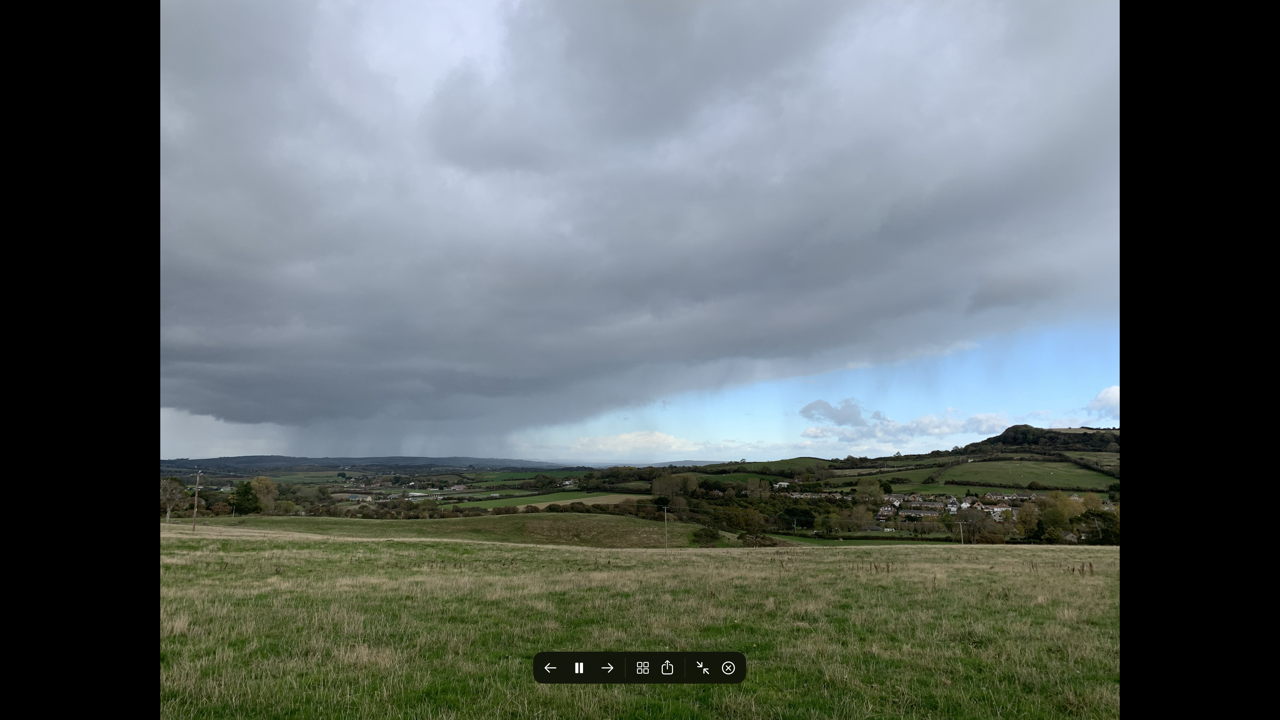
To quit the slideshow just click on the X button at the right of the controls.

Get Info and the Inspector

I’m sure you’re thoroughly familiar with the Get Info dialog, stretching from its summary information at the top, passing through More info, Open with and Preview to end in Sharing & Permissions. That’s intended to remain static, displaying the information for just the file selected when you opened its window.

Hold the Option key with the contextual menu open and that command changes to show the Inspector instead. Its window and contents are almost identical, but with the Inspector open you can select a different item and the Inspector’s contents change to show the information for the newly selected item. If you need to check through information on a series of files, this is just the job.

When used with multiple selected items, Get Info opens a new dialog for each of them, whereas the Inspector opens a single window containing a summary of them all.

There is actually another small difference between the Get Info dialog and the Inspector: the latter has a slightly shallower title bar.

The Get Info Easter Egg

As a reward for your time spent exploring these features, they also come with an Easter Egg. To see this in action, open the contextual menu on a file, then hold the Shift key and keep it held when you select the Get Info command. With that key held down, the Get Info dialog opens in slow motion. Keeping the key held, click on the window’s red Close button, and the window shrinks back down to the selected item in slow motion. Without having to change any hidden settings to enable it.