

惯性聚合 高效追踪和阅读你感兴趣的博客、新闻、科技资讯
阅读原文 在惯性聚合中打开

推荐订阅源

S
SegmentFault 最新的问题
B
Blog
P
Proofpoint News Feed
美团技术团队
The GitHub Blog
The GitHub Blog
Y
Y Combinator Blog
A
About on SuperTechFans
让小产品的独立变现更简单 - ezindie.com
Cyber Security Advisories - MS-ISAC
Vercel News
Vercel News
有赞技术团队
有赞技术团队
小众软件
小众软件
H
Hackread – Cybersecurity News, Data Breaches, AI and More
Google DeepMind News
Martin Fowler
Martin Fowler
OSCHINA 社区最新新闻
OSCHINA 社区最新新闻
aimingoo的专栏
aimingoo的专栏
H
Help Net Security
罗磊的独立博客
L
LangChain Blog
GbyAI
GbyAI
腾讯CDC
T
The Blog of Author Tim Ferriss
Microsoft Security Blog

Inside Nutrient

A guide to the invisible work behind documents Introducing Nutrient Documents for Salesforce: Native document generation and signing Document AI vs. traditional OCR: Choosing between OCR, AI, and hybrid pipelines PDF SDK compliance and security evaluation checklist for enterprise teams (2026) Invariant Corp replaces paper processes with Nutrient Workflow and scales without limits What is process mapping? A complete guide Nutrient vs. Conga Composer for Salesforce document generation (2026) Document routing: How to automate document distribution The CTO’s AI playbook: Why accountability architecture beats orchestration Compliance workflow automation: Why built-in compliance is table stakes Workflow diagrams: Examples, symbols, and how to build one that actually runs Digital forms: Replace paper forms with automated workflows Approval workflow software: How to automate approvals Why document-centric automation is different The CEO’s AI playbook: Why decision architecture beats model selection Nutrient SDK product updates for Q1 2026 PDF redaction verification: How to prove sensitive data is permanently removed What is a VPAT? The complete guide to accessibility conformance reports What is PDF/UA? The accessible PDF standard explained Salesforce eSignatures: Generate, sign, and track documents in one flow Online document viewer: Options, tradeoffs, and how to embed one Document viewer for web apps: React, Vue, Angular (2026) Best document viewers in 2026: A buyer’s guide How to edit a PDF in Python: Add text, images, and annotations Nutrient advances Workflow platform with agentic AI for enterprise-grade speed and consistency in document-heavy operations How to create a Salesforce quote template from opportunity data The business case for accessibility: Five ways it drives enterprise value Python PDF library comparison (2026): 7 libraries for developers Why your AI agent hallucinates PDF table data PDF.js limitations: When to upgrade to a commercial PDF SDK
Convert HTML to DOCX/XLSX/PPTX with Nutrient Document Web...
Hulya Masharipov · 2025-03-05 · via Inside Nutrient

Table of contents

    This tutorial shows you how to automatically convert HTML files into editable Office formats like DOCX, XLSX, or PPTX using the Nutrient Document Web Services API in Zapier. This is great for transforming structured HTML data into styled reports, spreadsheets, or presentations.
    Convert HTML to DOCX/XLSX/PPTX with Nutrient Document Web Services API on Zapier

    What is Zapier?

    Zapier(opens in a new tab) is an automation platform that connects your favorite apps and services with no code required. You can build “Zaps” to automate repetitive tasks by setting up triggers and actions between apps like Google Drive, Slack, Gmail, and more.

    In this tutorial, you’ll learn how to use Zapier to automatically convert HTML files into editable Office formats like DOCX, XLSX, or PPTX using Nutrient DWS Processor API.

    What is Nutrient DWS Processor API?

    Nutrient Document Web Services API is a powerful platform for document automation. With your free account(opens in a new tab), you get 50 credits, which you can use to perform various document operations. Each tool (e.g. conversion, signing, flattening) consumes a different amount of credits depending on complexity.

    Nutrient offers more than 30 tools with the ability to:

    • Convert images and documents to PDF
    • Merge, split, or reorder pages
    • Add digital signatures, watermarks, or annotations
    • Run OCR, redact, flatten, and more

    All you need is an API key from a free account to get started(opens in a new tab). You can chain these tools together in Zapier to build powerful, automated PDF workflows.

    What you’ll need

    Step 1 — Trigger a new file in a Google Drive folder

    1. Select Google Drive as the trigger app.
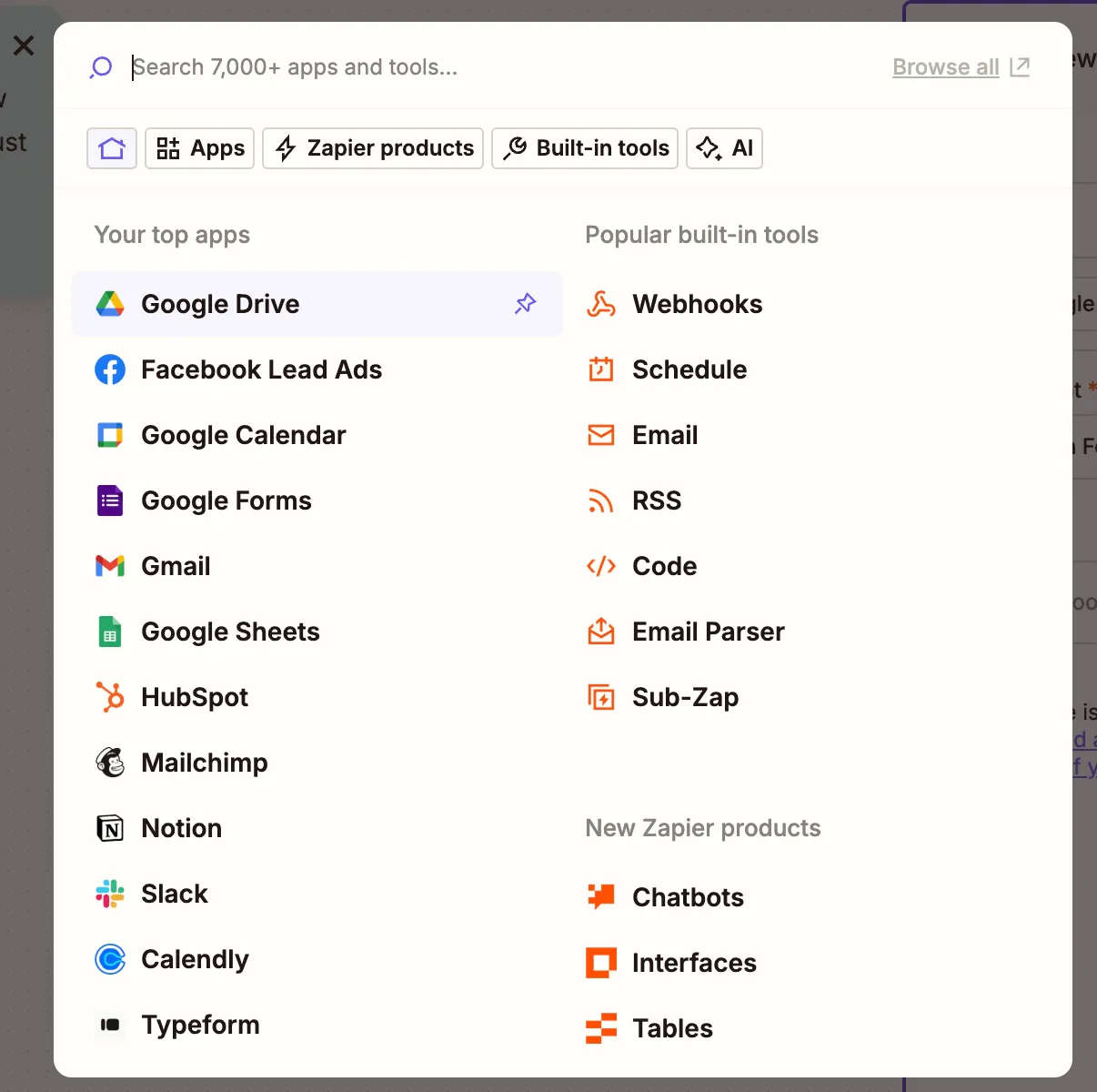
    Google Drive app selected in Zapier

    1. Choose the New File in Folder trigger event.
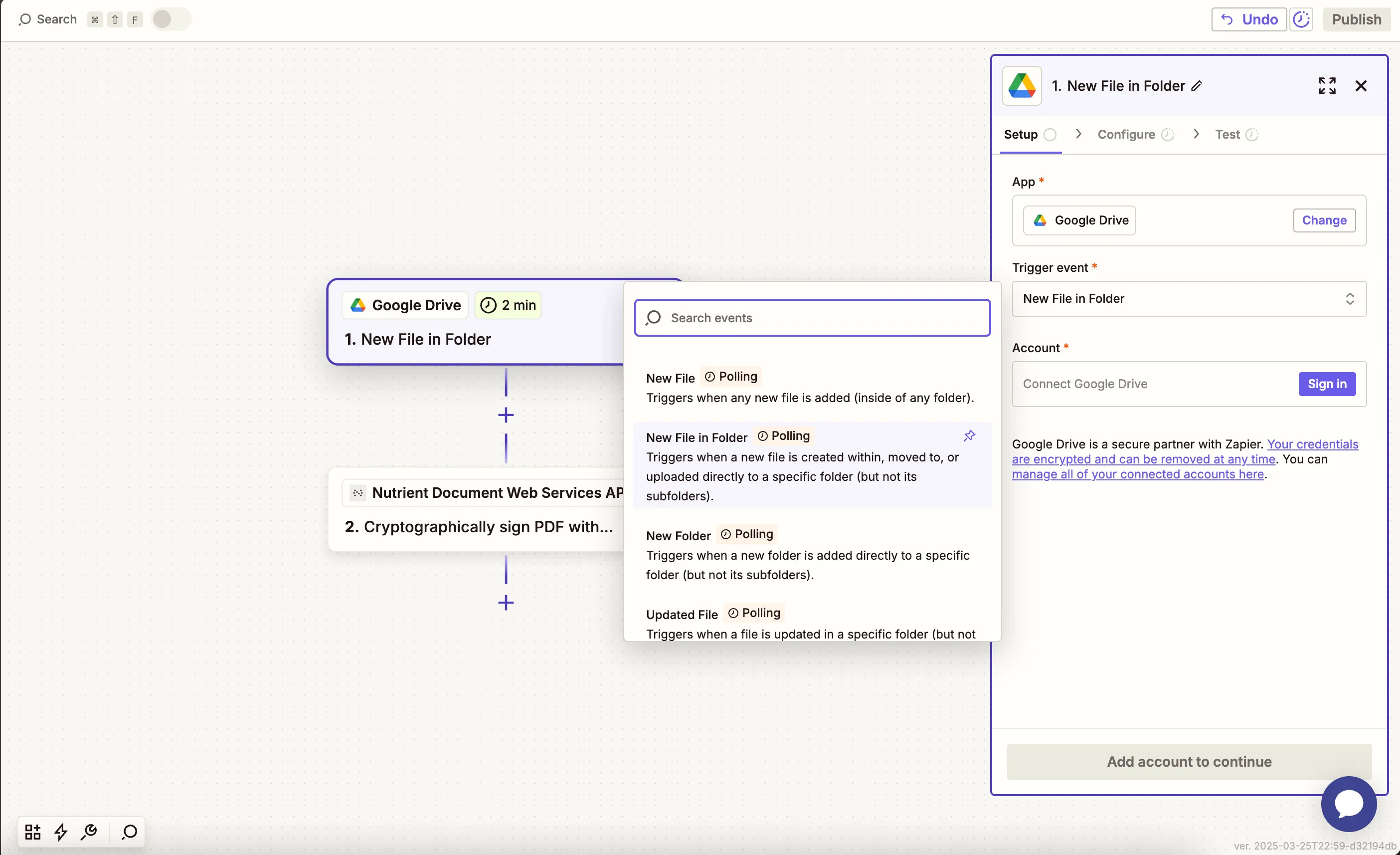
    New File in Folder selected as trigger event

    1. Connect your Google Drive account.
    2. Choose your drive and a folder where HTML files will be uploaded.
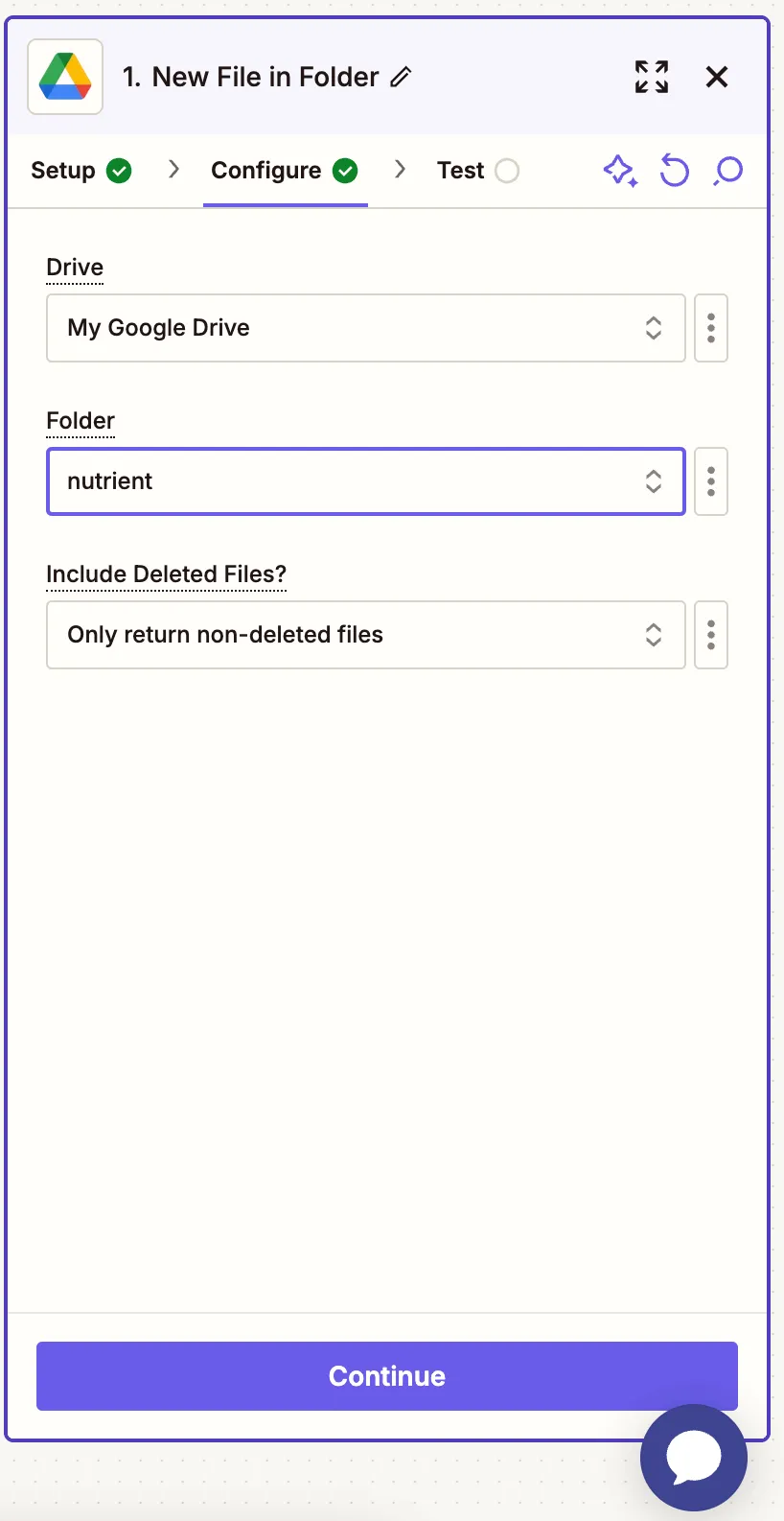
    Configure folder for HTML uploads from Google Drive

    1. Test the trigger by uploading a sample HTML file. You can use our sample file(opens in a new tab) for testing this step.
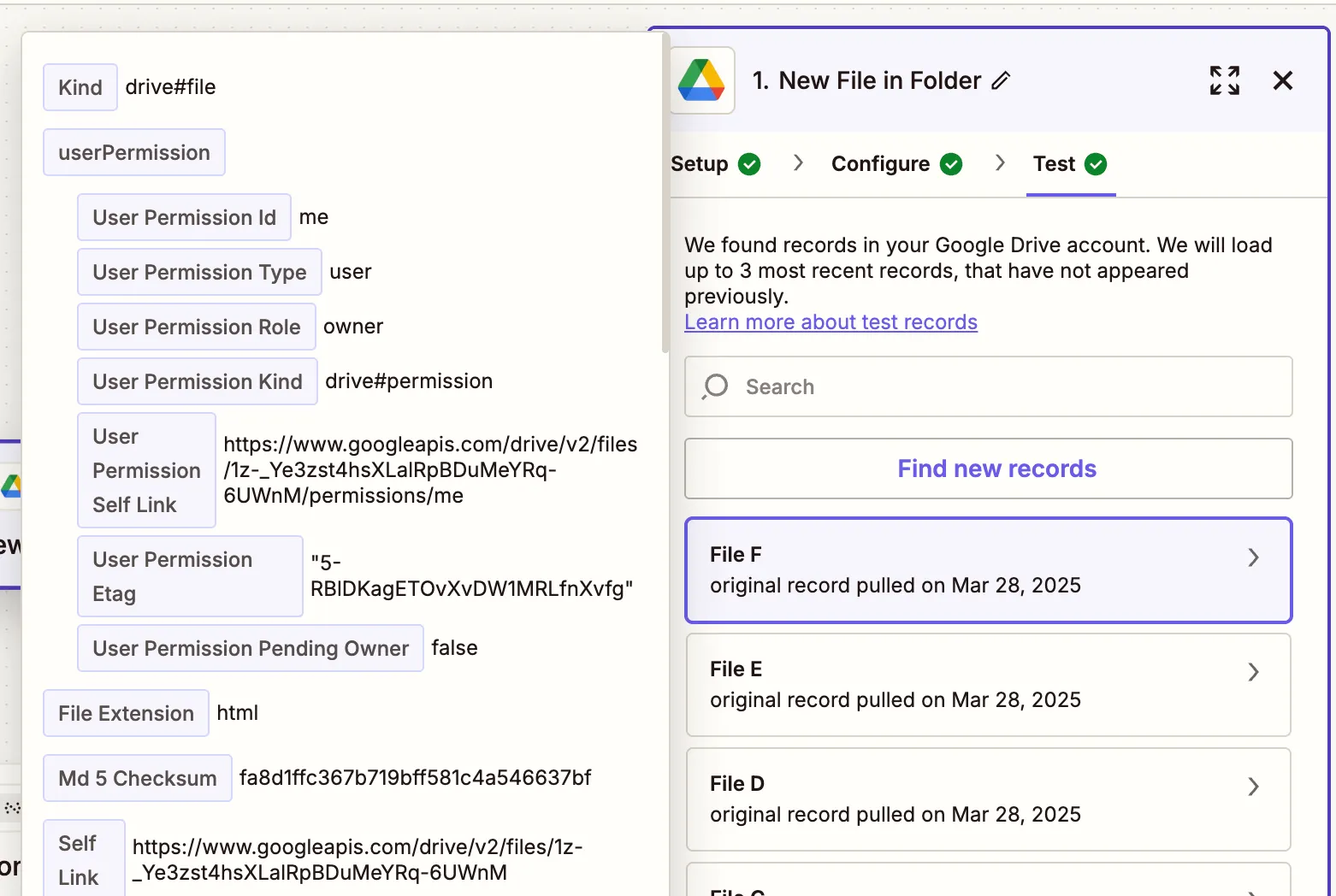
    Successful trigger test with HTML file

    Step 2 — Convert HTML to DOCX/XLSX/PPTX action (Nutrient DWS Processor API)

    1. Select Nutrient Document Web Services API as the action app.
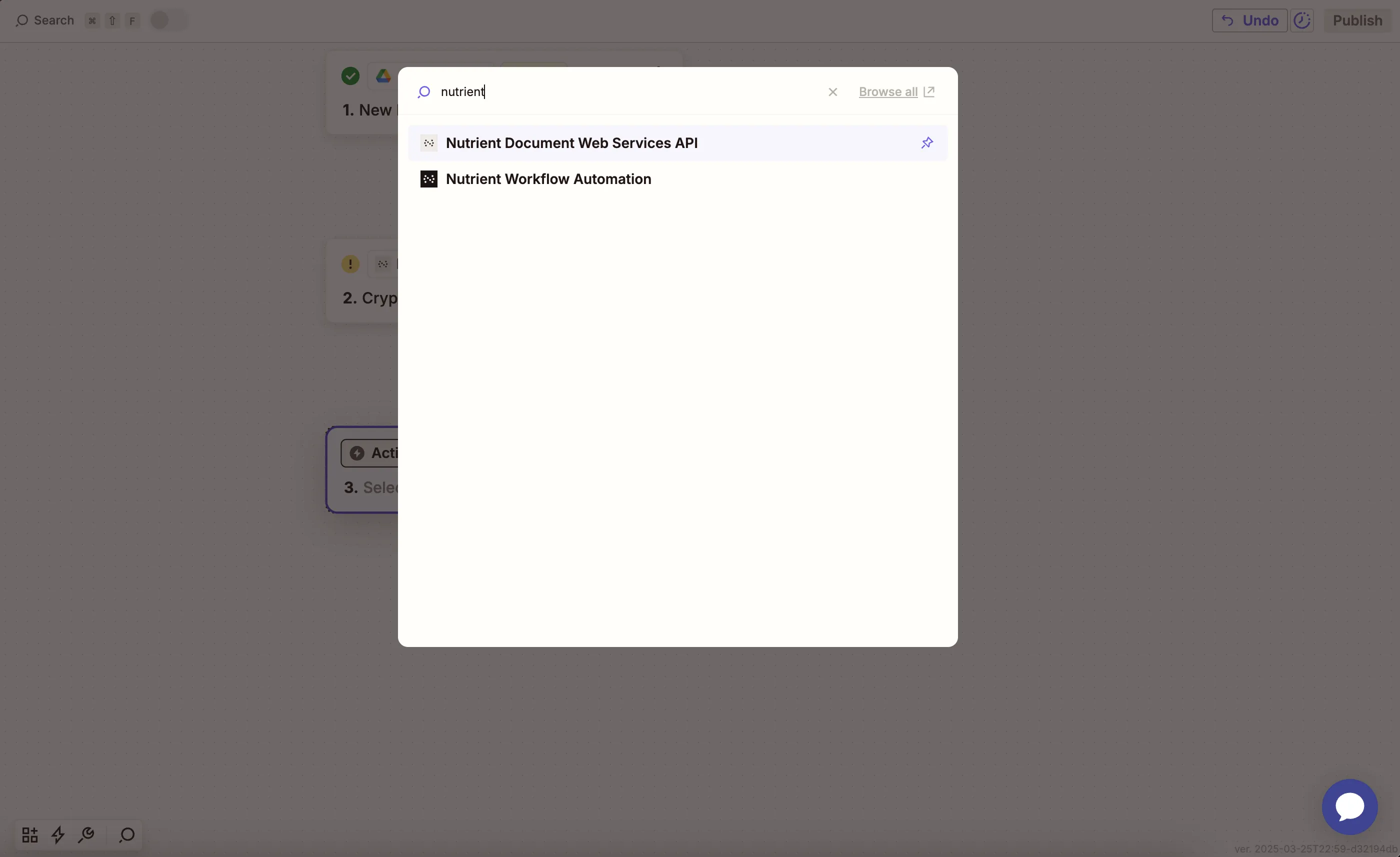
    Nutrient DWS Processor API selected in action step

    1. Choose the Convert HTML to Office action.
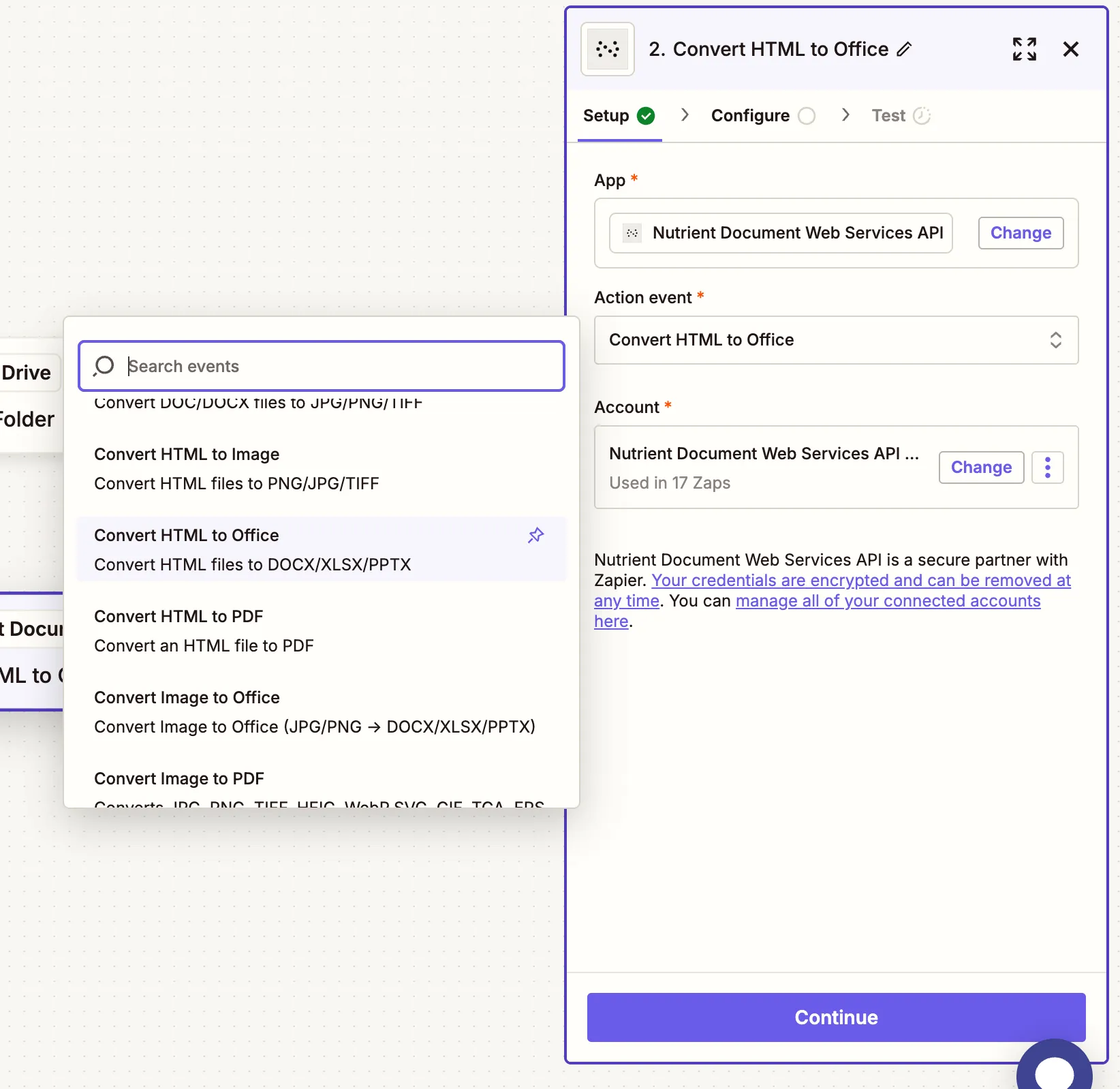
    Select Convert HTML to Office from action menu

    1. Connect your Nutrient DWS Processor API account by entering your API key. You can find your API key in the Nutrient dashboard(opens in a new tab).
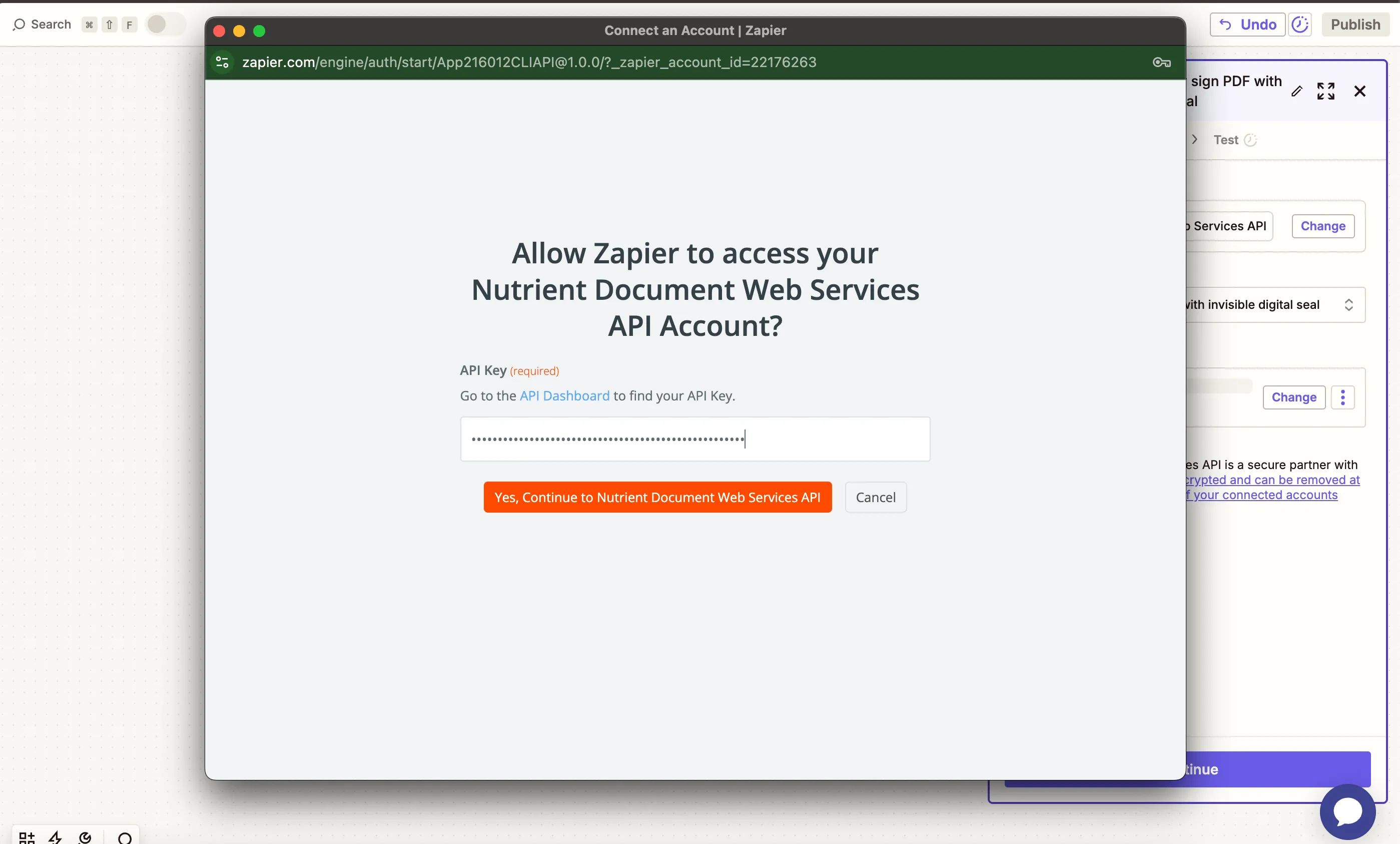
    API key pasted to connect Nutrient account

    1. Configure the fields:
    • HTML file — Use the file output from the Google Drive trigger.
    • Output Format — Choose .docx, .xlsx, or .pptx.
    • Output File Name — Optional — e.g. converted-report.docx.
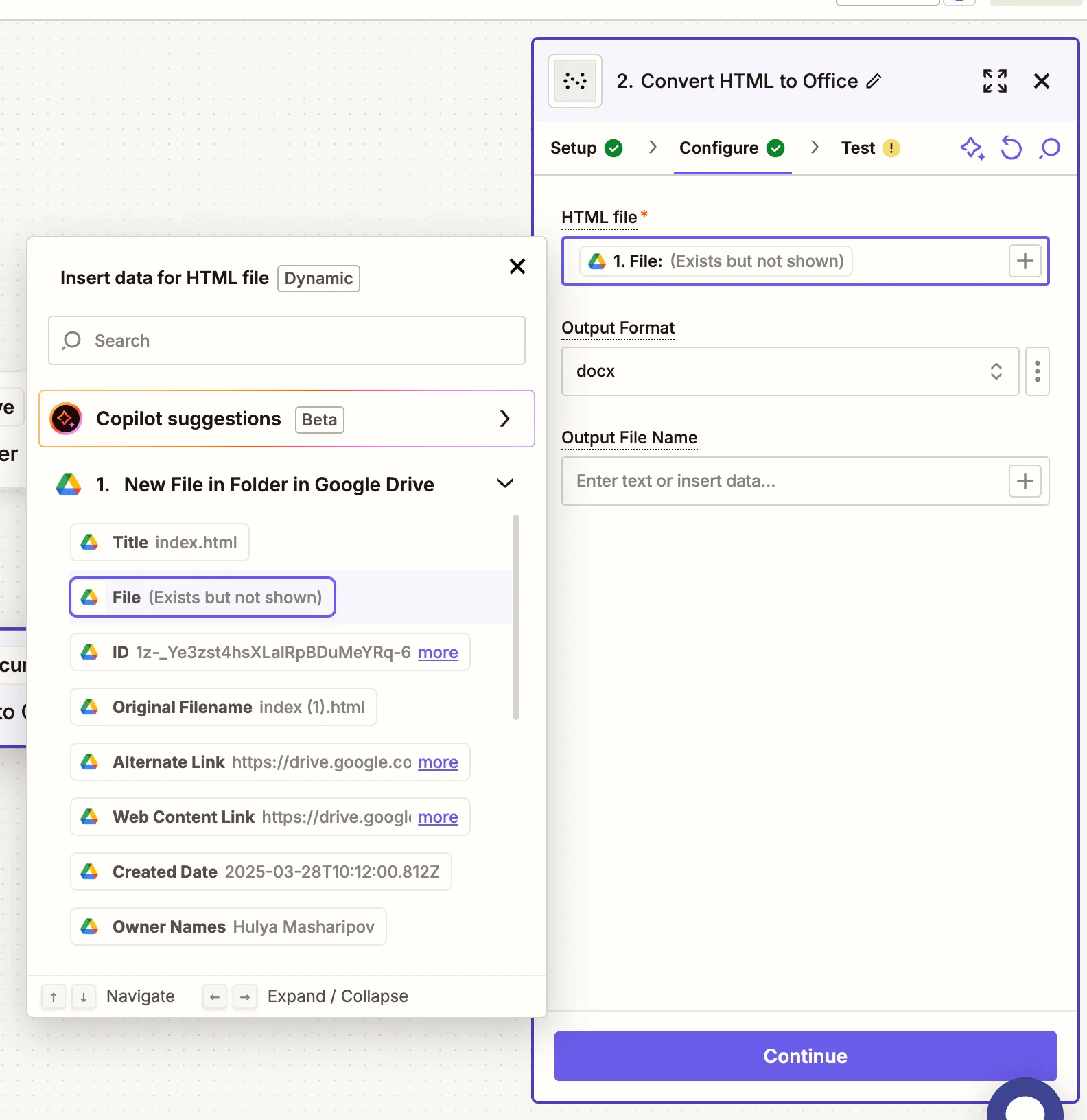
    Configure HTML file input and output format

    1. Test the step to confirm the Office file is generated.
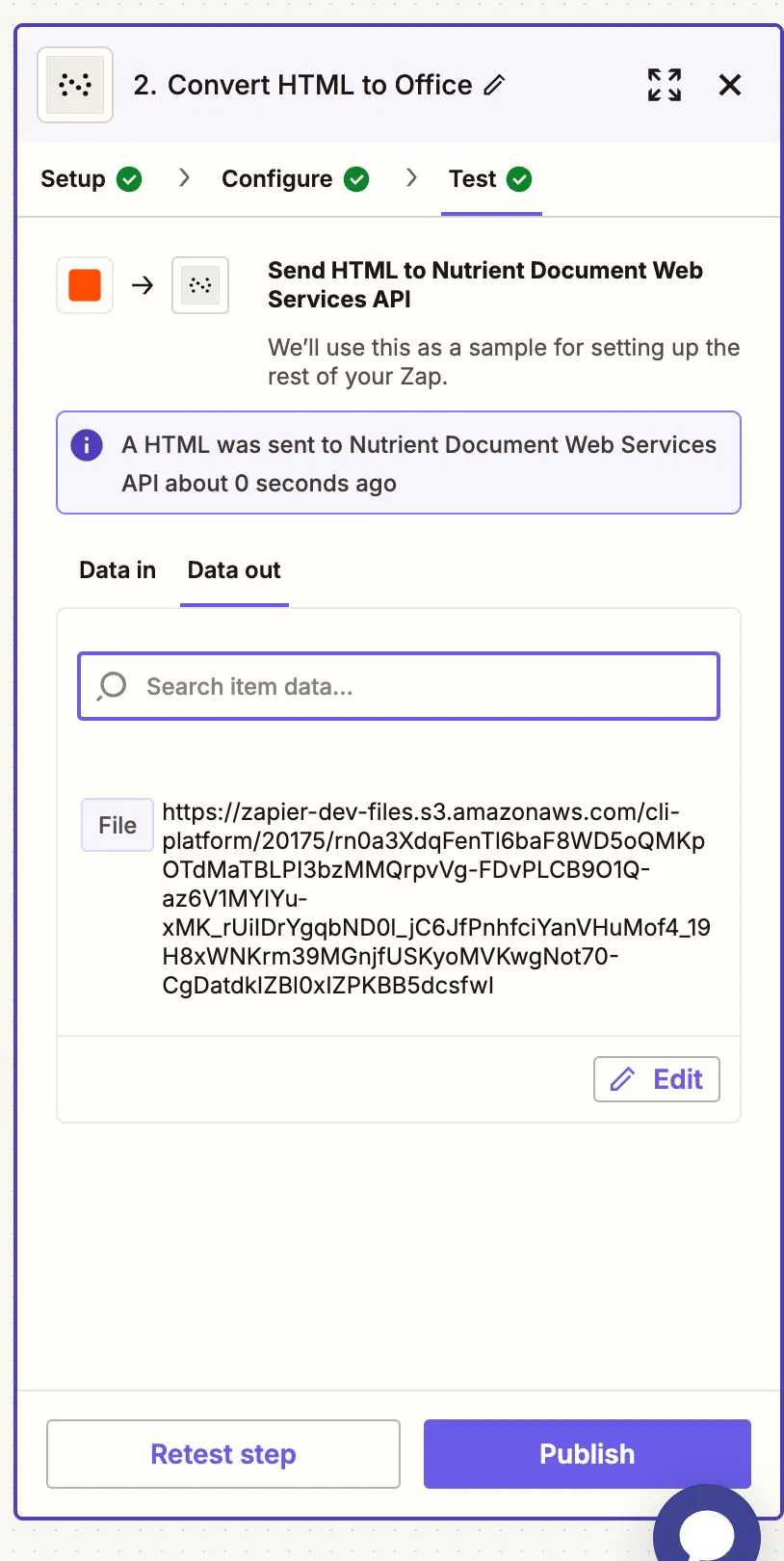
      Test output from Nutrient conversion step

    Step 3 — Upload the Office file to Google Drive

    1. Now, add another step by selecting Google Drive as the app and Upload File as the action event. Connect your Google Drive account if needed.
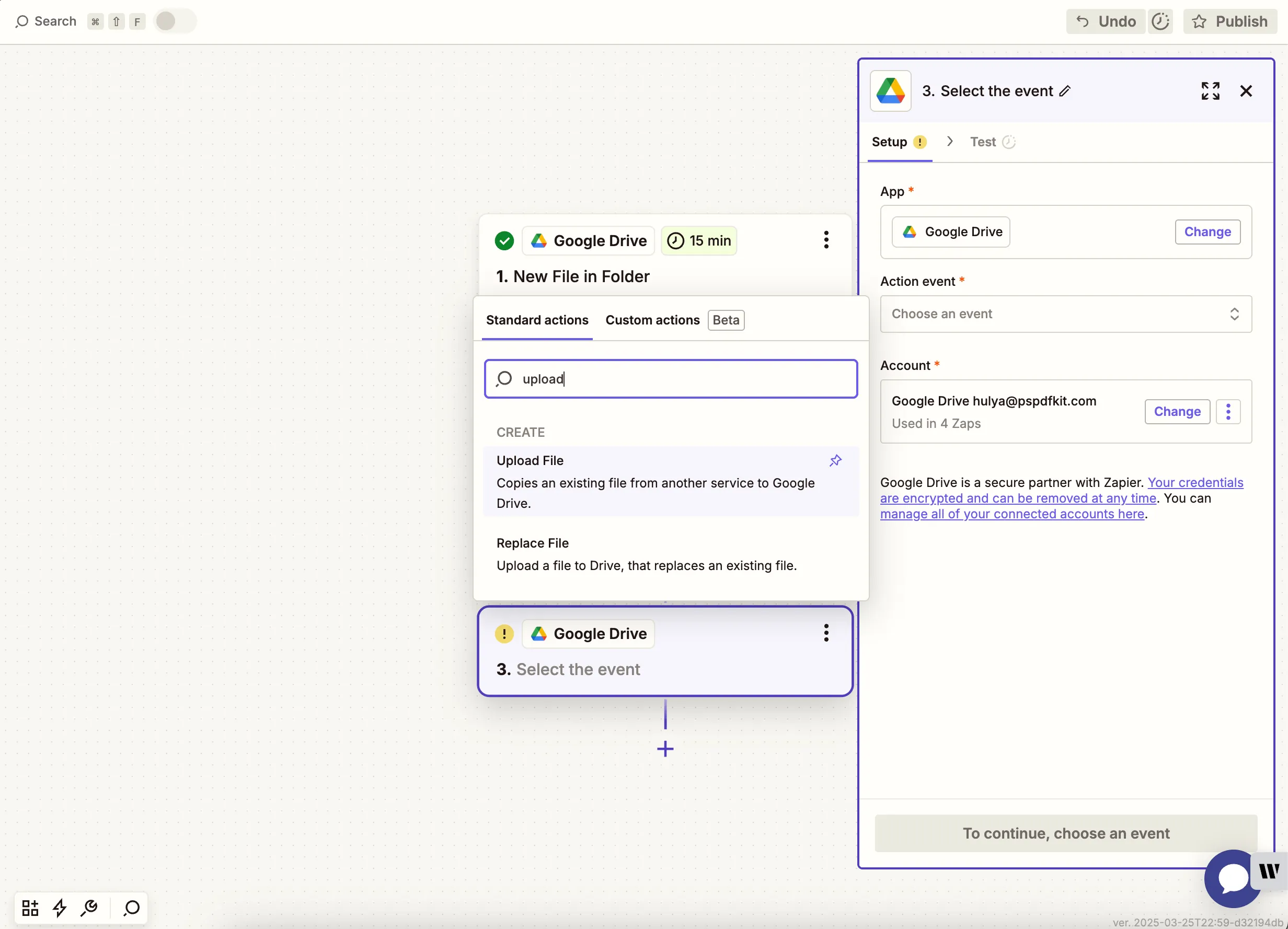
    Google Drive Upload File selected as final step

    1. Map the converted output from the Nutrient step and select your output folder.
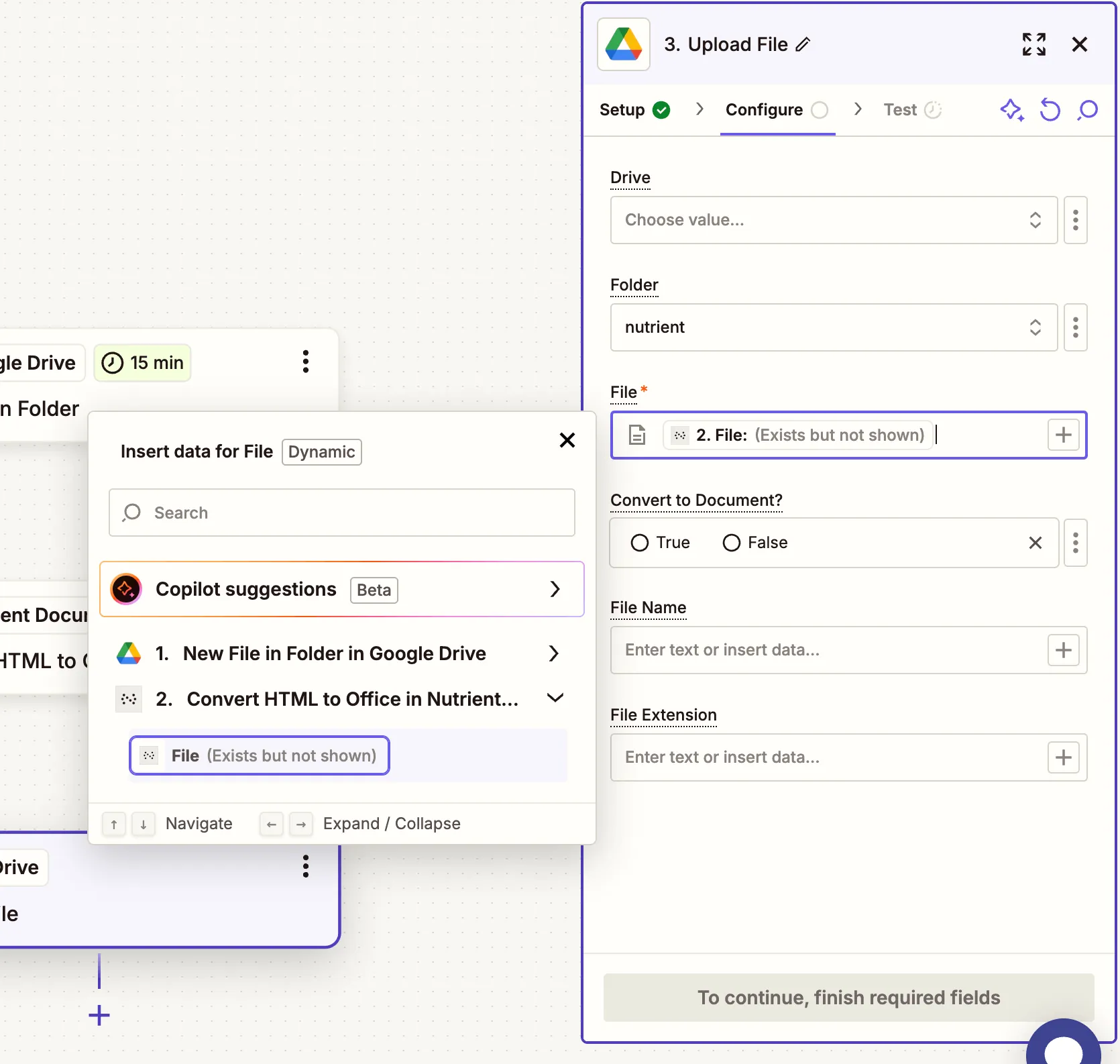
    Mapped Office file from Nutrient output

    1. Test the upload step to confirm the Office file is saved.
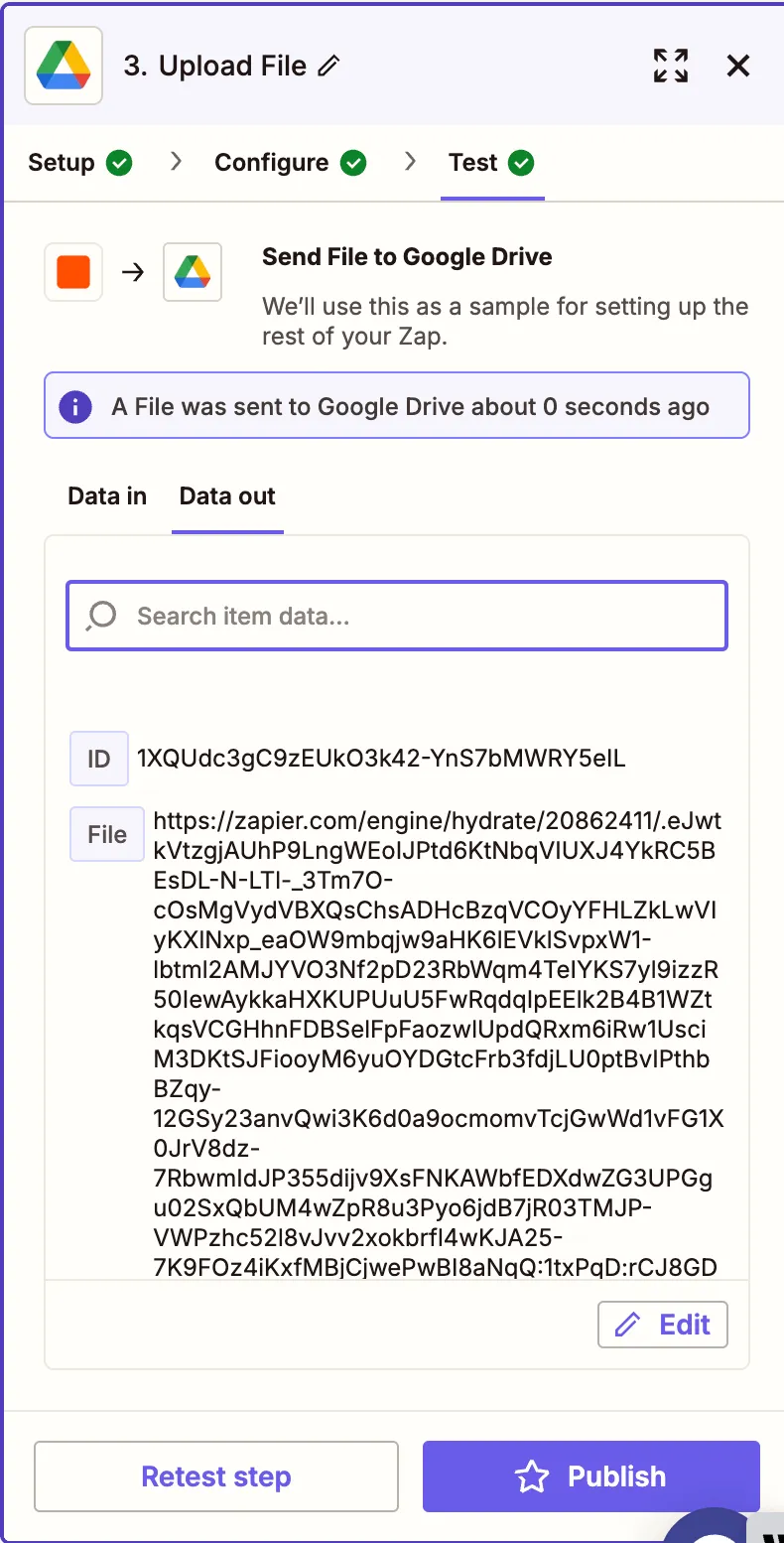
    Test confirms Office file uploaded successfully

    Conclusion

    You’ve successfully created a Zap that converts HTML files into DOCX, XLSX, or PPTX documents using Nutrient DWS Processor API and Zapier(opens in a new tab). This setup is ideal for creating structured, styled Office files from automated HTML exports. Combine this with other document operations like HTML-to-PDF conversion, Office to PDF conversion, or PDF form filling for complete document automation.

    Explore related topics

    Try for free Ready to get started?

    Related SDK articles

    Explore more