








TL;DR: Course Welcome Emails in Thrive Apprentice
In case you missed it: Thrive Apprentice recently got an update that fixes one of the most common gaps in the course creator experience: students who buy a course and then have no idea what to do next.
1 thing worth knowing:
- There's now an automatic welcome email that fires the moment someone gains access to a course — whether they bought it, were manually enrolled, or unlocked it through a bundle. It includes the course name, a direct link, a login link, and their username. New courses have it on by default. Existing courses don't, so updating won't trigger anything unexpected. Turn it on per course, edit the email once, and it handles itself from there.
If you manage courses with more than a handful of students, the full breakdown below is worth skimming — especially the section on per-course controls and the new shortcode.
When a student buys access to your course, what happens next?
If you're like most course creators, the answer is: they get a payment confirmation, maybe a login link if you've set that up manually, and then... nothing. They're supposed to figure out where to go, how to access the course, and whether they're looking in the right place.
That's a terrible first impression.
I've watched course creators lose momentum with students in those first 24 hours. The excitement of buying fades. Confusion sets in. Support tickets pile up asking "where's my course?" or "how do I log in?" Meanwhile, your new student is sitting there wondering if they made a mistake.
Good news: Thrive Apprentice now sends an automatic welcome email the moment someone gains access to a course.
This feature is the difference between a student who starts your course within hours and one who forgets they even bought it.
What Actually Changed in Thrive Apprentice (And Why It Matters)
Before this update, Thrive Apprentice could send an email when someone created a new user account on your site.
That's it.
Someone already had an account and you enrolled them in a new course? No email. They bought a course bundle and unlocked three courses at once? Radio silence. You manually granted access to a beta student? They'd have no idea unless they happened to log in and check.
The gap was obvious: Most students don't create new accounts every time they buy from you. They're existing users who keep buying more courses, upgrading to bundles, or getting enrolled through memberships. And every single time, they were left guessing.
Now there's a brand-new email template in Thrive Apprentice called "New Course Welcome." It triggers automatically when any student gains access to any course, regardless of how that access was granted.
Students know immediately that they're enrolled, exactly where to go, and how to get started. You stop fielding basic support questions. Your courses get better engagement right out of the gate.
How the New Course Welcome Email Works
The welcome email triggers in three situations:
-
When someone purchases a course — Through WooCommerce, Easy Digital Downloads, or any other method that grants course access upon payment
-
When you manually enroll a student — Maybe you're giving someone complimentary access, or they're joining through a scholarship program
-
When access comes through a product or bundle — If your membership includes multiple courses or someone buys a bundle that unlocks three courses at once, they get a welcome email for each course
The email goes out automatically. You don't have to remember to send it. You don't have to manually notify anyone. The system handles it the moment access is granted.
The default email includes everything a student needs to get moving:
- The course name (so they know exactly what they just gained access to)
- A login link (in case they're not already logged in)
- A direct URL to the course itself (no hunting through your site navigation)
- Their username (helpful if they've forgotten it or it was auto-generated)
That's the baseline. You can edit every word if you want, but the template works perfectly well as-is.
What You Can Customize (And What's Already Done For You)
Every email template in Thrive Apprentice is editable, and the welcome email is no exception.
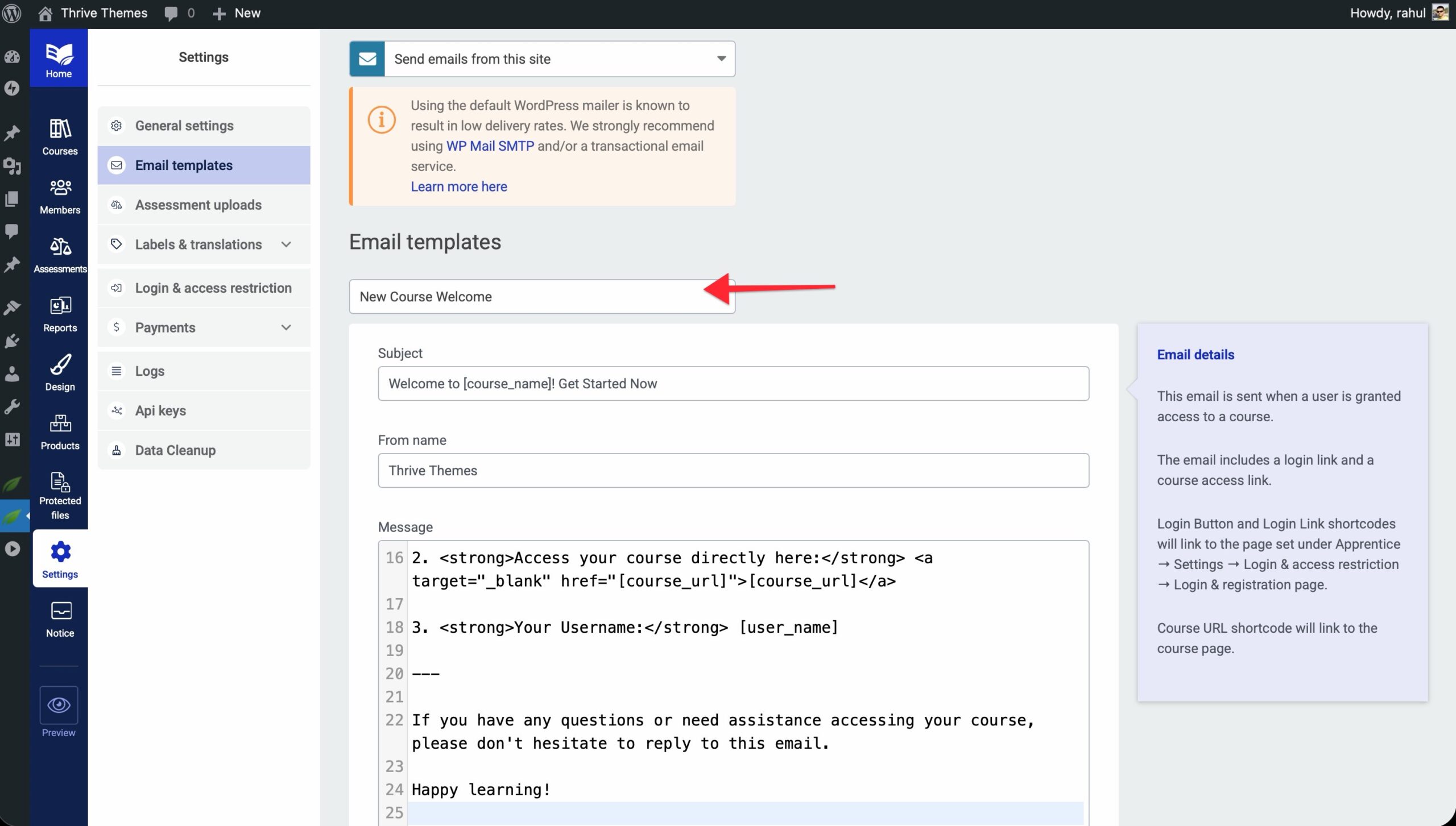
Here's what you control:
- Subject line — The default is straightforward: "Welcome to [Course Name]." You might want something more specific to your brand voice. Change it to whatever feels right.
- Body text — The default template is professional and functional, but you might want to add a personal note, set expectations about how long the course takes, or include a link to your community group. Edit it once, and every new student gets your version.
- Sender name and email — This pulls from your WordPress settings by default, but you can override it if you want course emails to come from a specific person on your team or a dedicated support address.
The email editor is the same one you're already using for other Apprentice emails. If you've customized those, this will feel familiar.
Per-course control:
Not every course needs a welcome email.
Maybe you've got a flagship course that costs $500 and takes students through a 12-week transformation. You absolutely want that welcome email turned on.
But you've also got a free bonus course with three quick videos. You might not need (or want) a formal welcome email for that. Students can discover it on their own when they log in.
Each course has its own toggle. Turn welcome emails on for the courses where they matter. Leave them off for the ones where they don't. You're not locked into an all-or-nothing setup.
The New Shortcode You'll Want to Use
Alongside the welcome email, we added a new shortcode that's available in every Thrive Apprentice email template:
This shortcode inserts a direct link to the specific course the email is about.
Before this, you could include a general login link, but students still had to navigate to their dashboard and find the course. Now you can drop them directly on the course landing page with one click.
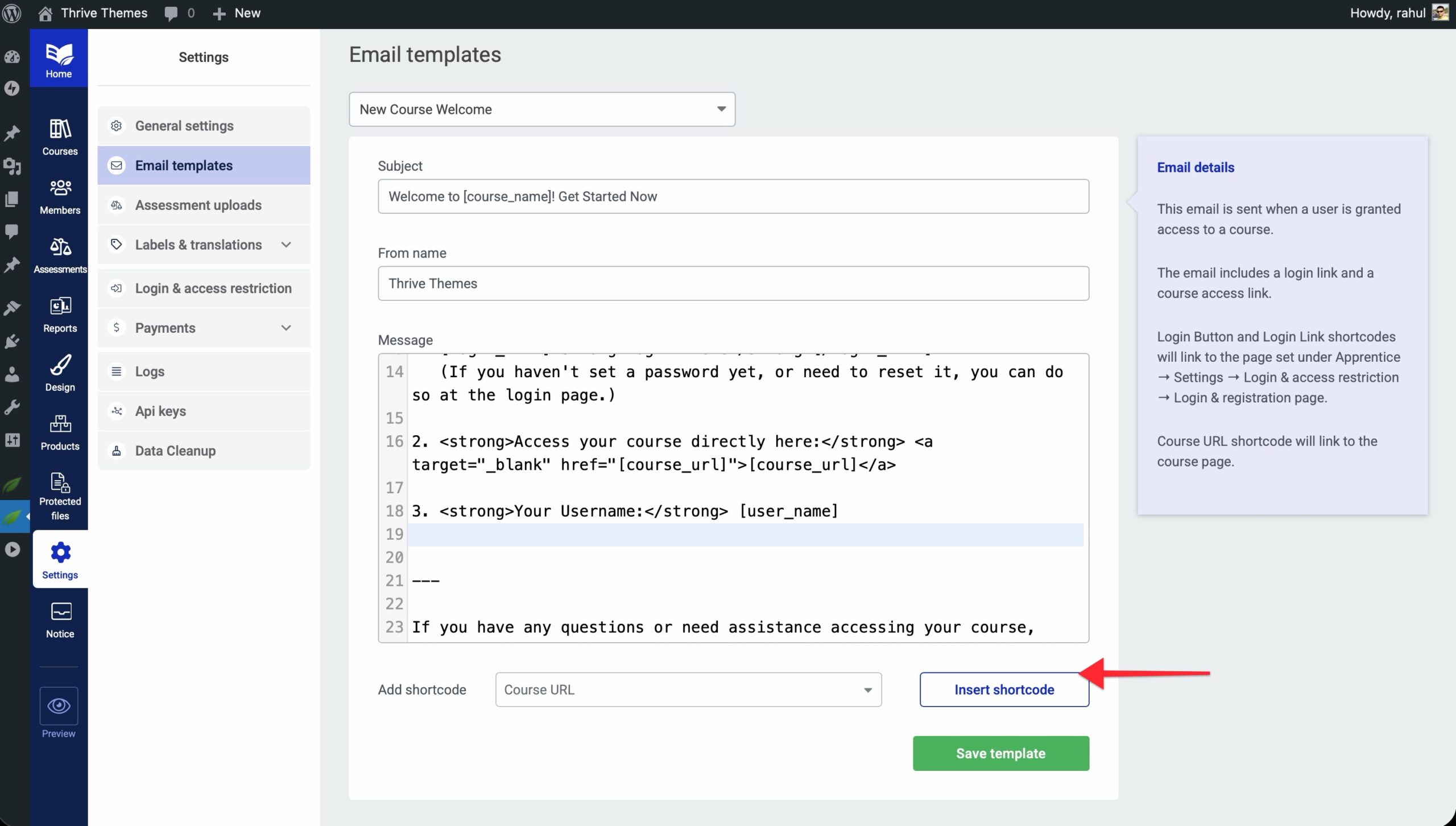
Where this helps:
- Welcome emails — Obviously. "Click here to start the course" is a much better call to action than "log in and look around."
- Course completion emails — "Ready for the next course? Start here: "
- Drip content notifications — "Module 3 just unlocked. Access it here: "
The shortcode works anywhere you're sending an Apprentice email. Use it liberally.
Smart Defaults That Won't Surprise You
And of course, here are a couple of need-to-knows:
- New courses created after this update will have the welcome email turned on by default. That's the behavior most people want. When you create a new course, you probably want students to get welcomed when they enroll.
- Existing courses created before this update have the welcome email turned off by default. We're not going to retroactively turn on a feature on courses you've already been running for months or years. You turn it on when (and if) you're ready.
This means you can update to the latest version of Thrive Apprentice right now without worrying about surprise emails going out to students who enrolled weeks ago. Nothing changes for your existing setup until you explicitly turn it on.
Duplicate email prevention:
Let's say a student's access gets toggled by mistake, or they're enrolled through two different methods at the same time (maybe they bought the course and you also manually added them as a backup). They won't get two welcome emails.
The system checks whether the student has already been welcomed to that specific course. One email per course, per student. Ever.
Who This Feature Was Built For
If you're using Thrive Apprentice to sell or manage online courses and you care about first impressions, this feature is for you.
More specifically, this helps:
- Course creators who sell on autopilot — If you're using WooCommerce or another payment gateway to sell courses automatically, the welcome email becomes part of your conversion funnel. The moment someone buys, they get welcomed. You don't lift a finger.
- Membership site owners — If your membership includes courses that unlock over time or based on membership level, students now get notified the moment new content becomes available. They don't have to guess when to check back.
- Coaches and educators with manual enrollment workflows — If you're granting access to students through scholarships, client work, or beta testing, the welcome email makes sure they know they've been added. No awkward "did you get my email?" follow-ups.
- Anyone tired of answering "where's my course?" support tickets — The welcome email includes everything a student needs to get started. Most basic support questions disappear before they're even asked.
This feature brings Thrive Apprentice in line with every major online course platform. Automated welcome emails are standard in this industry, and now Apprentice users have them too — with more flexibility than most platforms offer.
💡And if you want more info on how to get started with this feature, check out this step-by-step tutorial in our Knowledge Base.
Common Questions About Course Welcome Emails
Will students who enrolled before this update receive welcome emails?
What happens if a student buys a bundle that includes multiple courses?
Can I preview the email before students start receiving it?
What if I'm already sending welcome emails manually or through another tool?
Update Your Thrive Apprentice Plugin Today
The course welcome email feature is live right now in the latest version of Thrive Apprentice.
If you're a Thrive Suite member, you already have access. Head to your WordPress dashboard, check for plugin updates, and install the latest version.
Once it's updated, go into any course, scroll to the email settings, and you'll see the new "New Course Welcome" toggle. Turn it on, customize the email if you want, and you're done.
Your next student will get welcomed properly. And the one after that. And every single one going forward.
That's the kind of automation that quietly makes your business better without requiring ongoing maintenance. Set it once, and it works forever.
If you've been manually sending "welcome to the course" emails, or worse, just hoping students figure things out on their own, this update is going to feel like a relief.
Your students will thank you. Your support inbox will thank you. And your course completion rates will probably go up because students actually know where to start.
We're always working to make Thrive Suite a better platform for your business, and updates like these are exactly how we do it — one well-built improvement at a time.
— Angie & The Thrive Themes Team
- 0
About the author

Angie Meeker is the General Manager here at Thrive Themes. Remember, start with the end user's goals in mind and you'll never go wrong.
Disclosure: Our content is reader-supported. This means if you click on some of our links, then we may earn a commission. We only recommend products that we believe will add value to our readers.