惯性聚合 高效追踪和阅读你感兴趣的博客、新闻、科技资讯
阅读原文 在惯性聚合中打开

推荐订阅源

N
News and Events Feed by Topic
WordPress大学
WordPress大学
Vercel News
Vercel News
CTFtime.org: upcoming CTF events
小众软件
小众软件
L
LangChain Blog
雷峰网
雷峰网
D
DataBreaches.Net
博客园 - 三生石上(FineUI控件)
Threat Intelligence Blog | Flashpoint
T
Tor Project blog
NISL@THU
NISL@THU
Scott Helme
Scott Helme
量子位
S
Security Affairs
T
Threat Research - Cisco Blogs
博客园_首页
云风的 BLOG
云风的 BLOG
D
Docker
AWS News Blog
AWS News Blog
腾讯CDC
博客园 - 聂微东
The GitHub Blog
The GitHub Blog
U
Unit 42
Recent Announcements
Apple Machine Learning Research
G
Google Developers Blog
T
The Exploit Database - CXSecurity.com
MongoDB | Blog
MongoDB | Blog
Stack Overflow Blog
Stack Overflow Blog
cs.AI updates on arXiv.org
L
LINUX DO - 热门话题
Cyber Security Advisories - MS-ISAC
The Last Watchdog
The Last Watchdog
C
Cybersecurity and Infrastructure Security Agency CISA
IT之家
IT之家
W
WeLiveSecurity
P
Privacy & Cybersecurity Law Blog
F
Full Disclosure
L
Lohrmann on Cybersecurity
The Hacker News
The Hacker News
Exploit-DB.com RSS Feed
Y
Y Combinator Blog
S
Security @ Cisco Blogs
C
Cyber Attacks, Cyber Crime and Cyber Security
C
Check Point Blog
C
CXSECURITY Database RSS Feed - CXSecurity.com
N
News and Events Feed by Topic
PCI Perspectives
PCI Perspectives
I
InfoQ

MotoPress

Announcing a Trusted WordPress Service Provider Directory: Apply Now! - MotoPress 10 Best & Reliable WordPress Coaching Plugin Picks - MotoPress Top 10 City Guide WordPress Themes for Travel Sites - MotoPress Top 8 WordPress Time Slot Booking Plugin Options - MotoPress WordPress Wellness Appointment Scheduling: How to Do It Right WordCamp 2026 in Kraków: Top Things We Loved (and a Few Regrets) Best Booking Software for Photographers to Automate Client Sessions Bookly Alternatives: Top 11 Affordable & Powerful Scheduling Plugins Best WordPress Gallery Plugins for Image & Video (Free & Premium) Stripe’s Authorize and Capture: Using Manual Funds Capture in MotoPress Hotel Booking Divi vs Elementor: Which WordPress Page Builder Wins in 2026? MotoPress Hotel Booking + Stripe: Unlock More Payment Methods Calendar Turns into Property Management Dashboard: Reviewing New Hotel Booking Plugin Menu Hotel Booking 6.0 Overview: Revamped Calendar, Place a Hold on Stripe Payment & More Use MotoPress Hotel Booking with Divi 5 (Divi Integration Add-on 2.0.0) SEO Guide for Event Marketing: How to Rank Higher for Calendar & Event Pages Astra Theme Alternatives: Top WordPress Themes for the New Generation Decide Which Events Show First on Your Calendar (MotoPress Events Calendar 2.3.0) Top 10 Holiday Home Online Booking Systems Creating a Hotel Cancellation Policy: What Guests Want to Know Modern WooCommerce Themes: Minimalist, Sleek, and Lightweight WP Simple Booking Calendar vs MotoPress Booking Calendar: In-Depth Comparison Which WordPress Calendar Schedule Plugin to Choose? 10 Robust Options Creating WordPress Hotel Booking Calendar: Hands-On Tutorial How to Find Out What WordPress Theme is That? 6 Best Sites WP Hotel Booking Plugin (by ThimPress) vs MotoPress Hotel Booking: Full Comparison 16 Best Driving School WordPress Themes: Accelerate Your Online Presence How to Create Elementor Blog Posts Grid & Carousel? Reschedule Events with Drag-and-Drop: New in the Events Calendar 2.2.0 TOP 11 WordPress Plugins for Event Management (And Why We Think They’re the Best) Submit Your Property to Google Hotels & Vacation Rentals through Hotel Booking 5.5.1 How to Handle WordPress Inventory Management for Rental Business What MotoPress Hotel Booking Plugin Can Do for Multi-Property Management
WordPress Event Calendar Widget: Build Schedules & Timetables - MotoPress
https://www.facebook.com/profile.php?id=100010866337396 · 2026-07-01 · via MotoPress

Not all events are created equal. A multi-track tech conference needs a minute-by-minute agenda, while a local yoga studio just needs a clean monthly grid. If you force your schedule into the wrong layout, your visitors will just get confused. In this guide, we’ll dive deep into the MotoPress Events Calendar toolkit to choose the most suitable WordPress event calendar widget!

This plugin provides several event widgets (available as Gutenberg blocks and shortcodes) to display schedules, event listings, and individual events. Let’s explore them so you can find the perfect match for your goals!
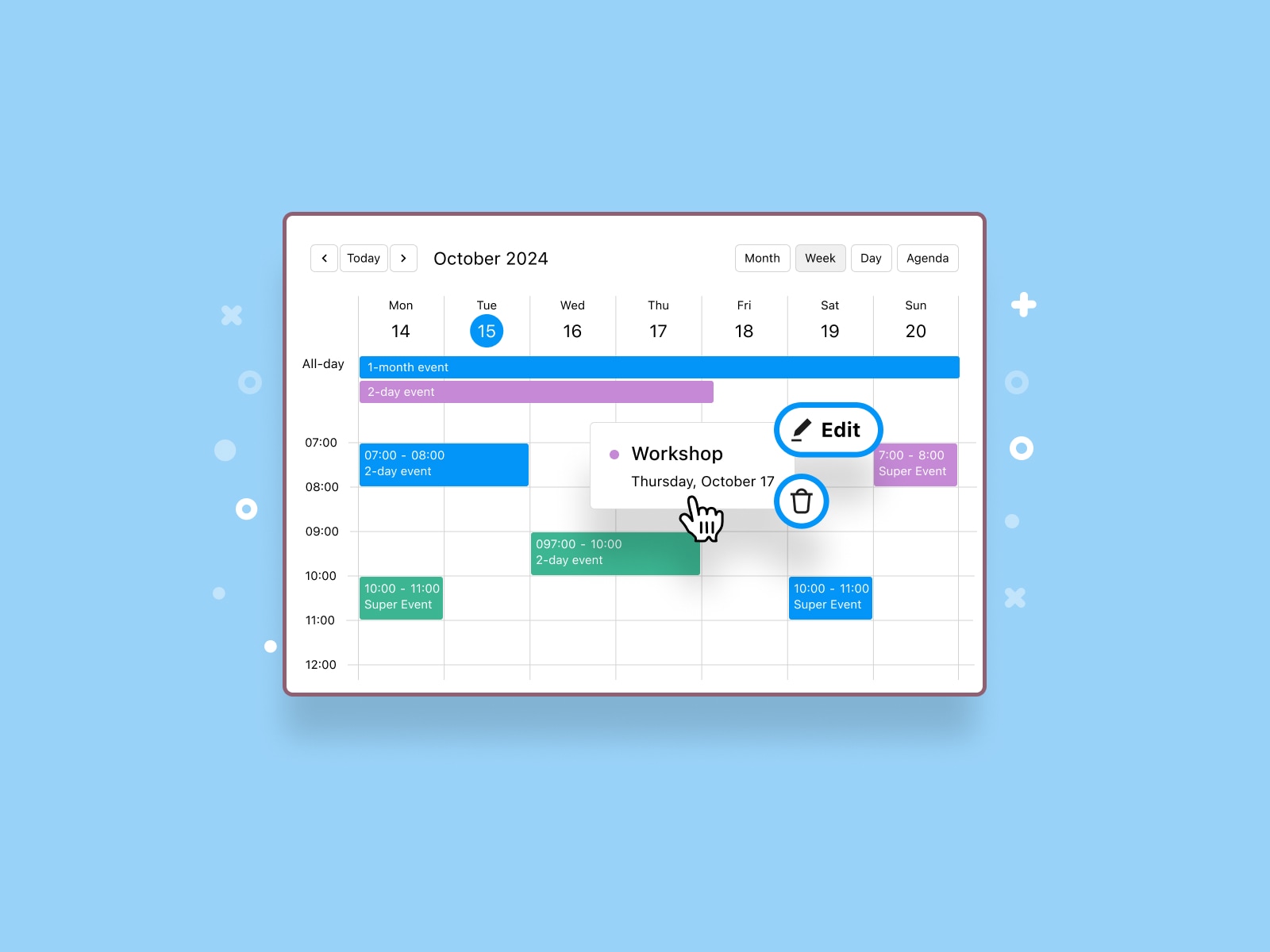
Which Event Widgets Are Available in MotoPress Events Calendar?

The WordPress Event Calendar plugin by MotoPress includes blocks for different event display scenarios.

WidgetBest For
Events CalendarInteractive schedules
Events ListFeatured and upcoming events
Events ScheduleAgendas and timetables
Events SearchEvent discovery
Events FiltersLarge schedules
Single Event Pages: Single Event Schedule, Event Date, Event Location,
Event Organizers, Event Categories, and Event Tags.
Event landing pages

Each events widget can be added directly through the WordPress block editor or inserted with a shortcode. Let’s take a closer look at the available options!
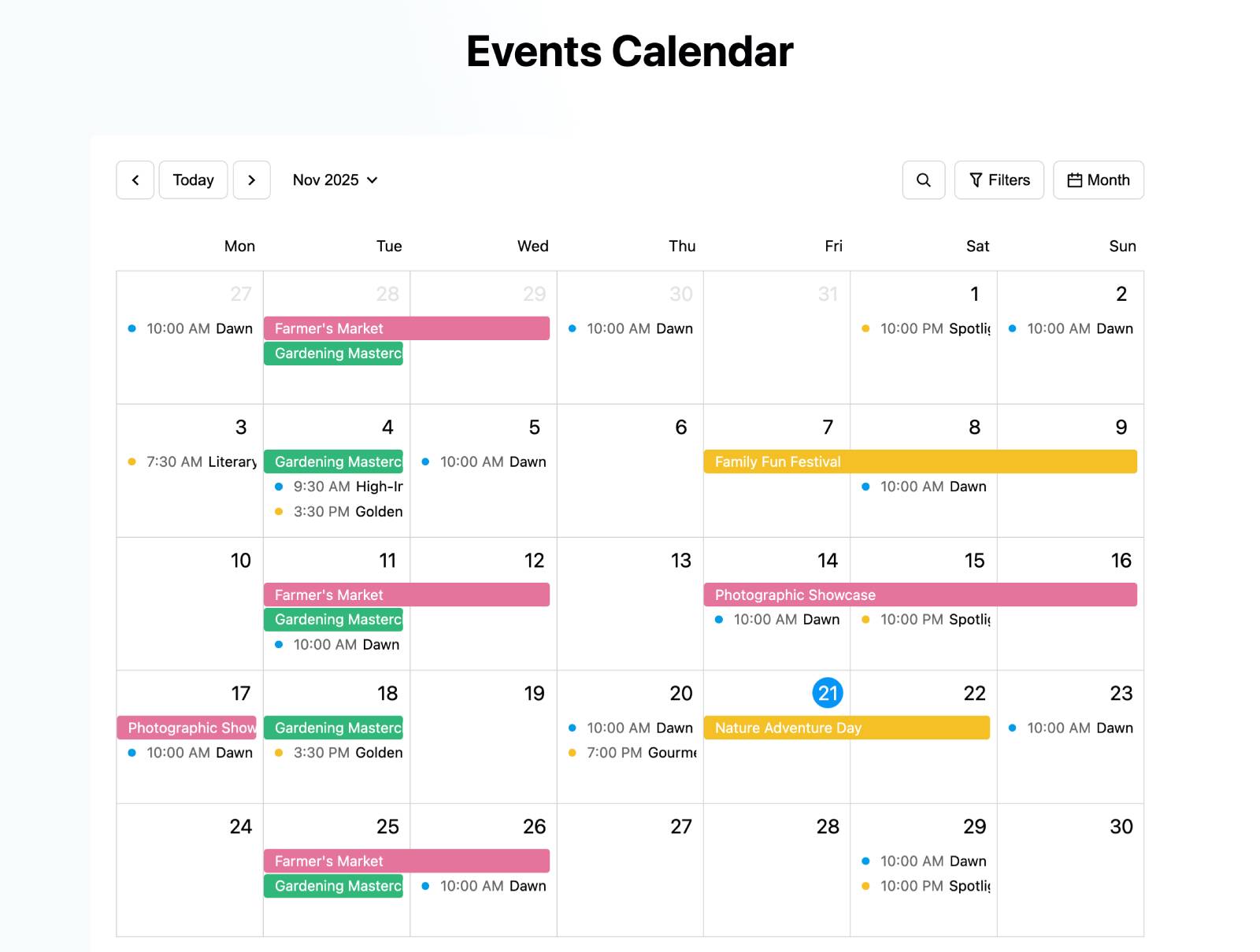
Events Calendar Block: Interactive Schedule Browsing

Events calendar main plugin.

The Events Calendar block provides a fully interactive schedule that allows visitors to browse events using different calendar views.

Different Calendar Views

The Events Calendar block supports four layouts:

1. Month View
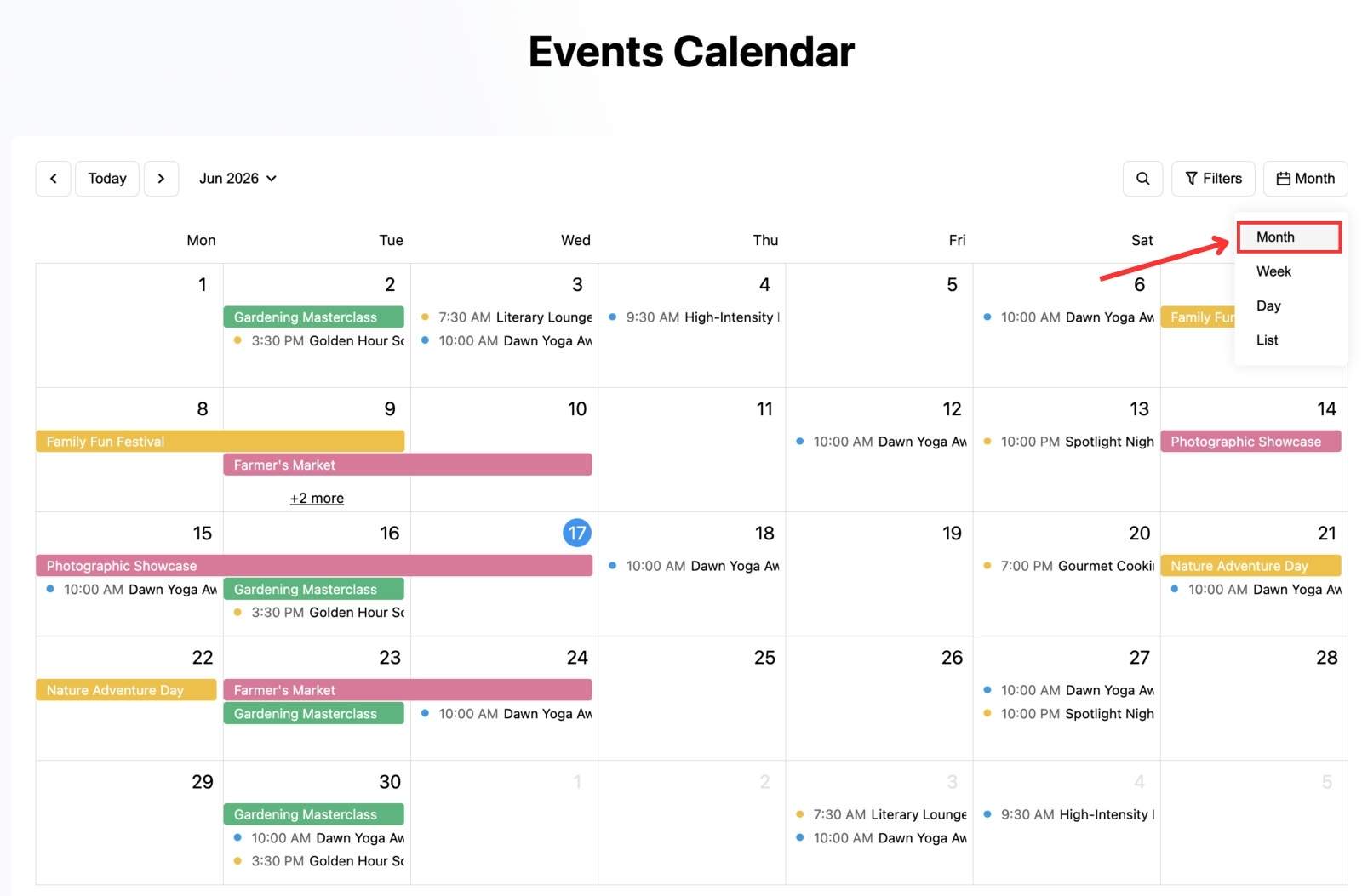
Screenshot of the WordPress events calendar widget month view.

The monthly calendar is the most familiar format for most visitors. It provides an overview of everything happening throughout the month. It’s a great option for organizations that publish recurring events, workshops, classes, or seasonal activities. Visitors can quickly compare dates and identify busy periods.

2. Week View
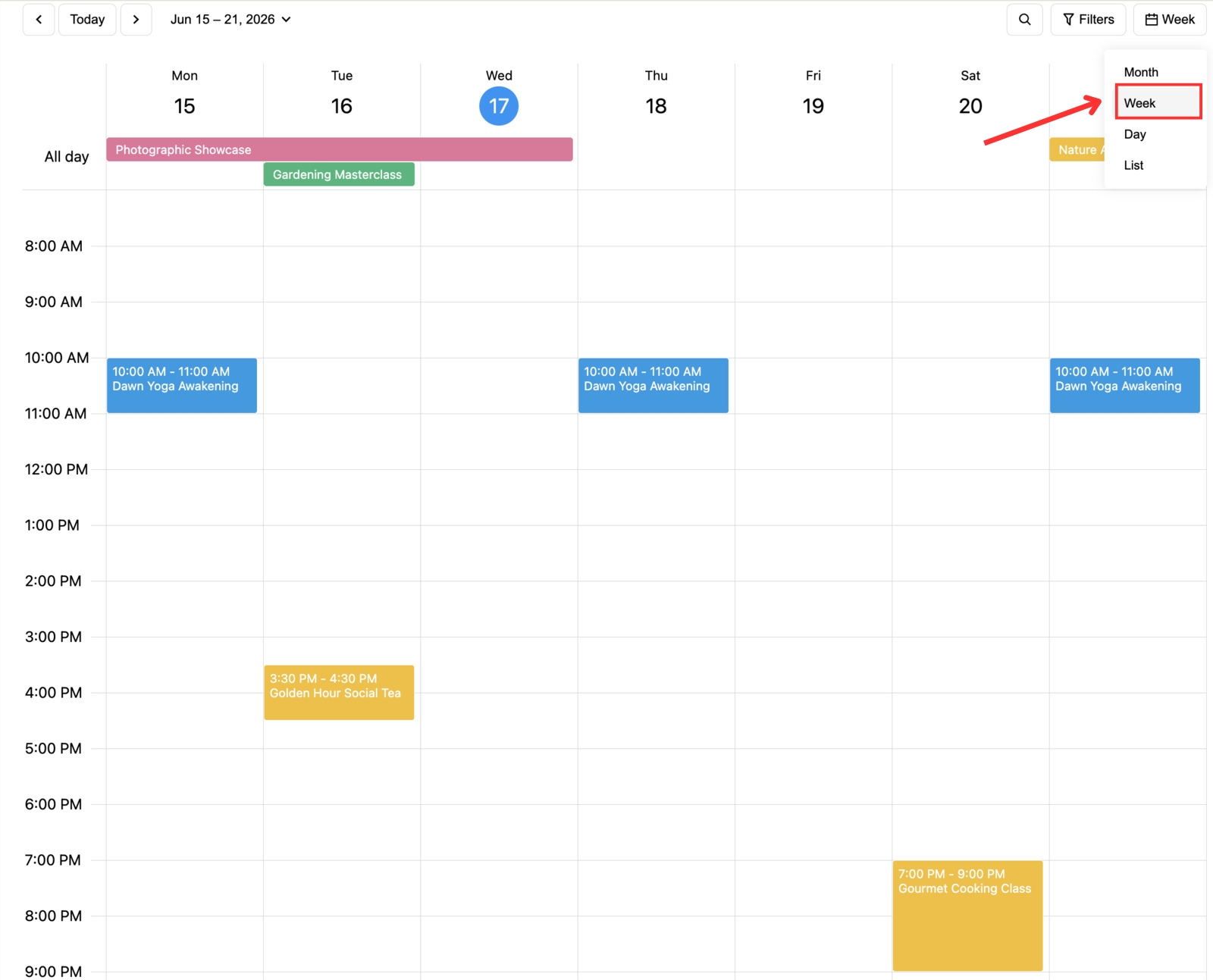
Screenshot of the WordPress events calendar widget week view.

The weekly format of the event calendar widget is often used for:

  • Educational schedules;
  • Training programs;
  • Sports clubs;
  • Church ministries;
  • Recurring workshops.

Since visitors can see an entire week at once, it’s easier to discover recurring activities and available time slots.

3. Day View
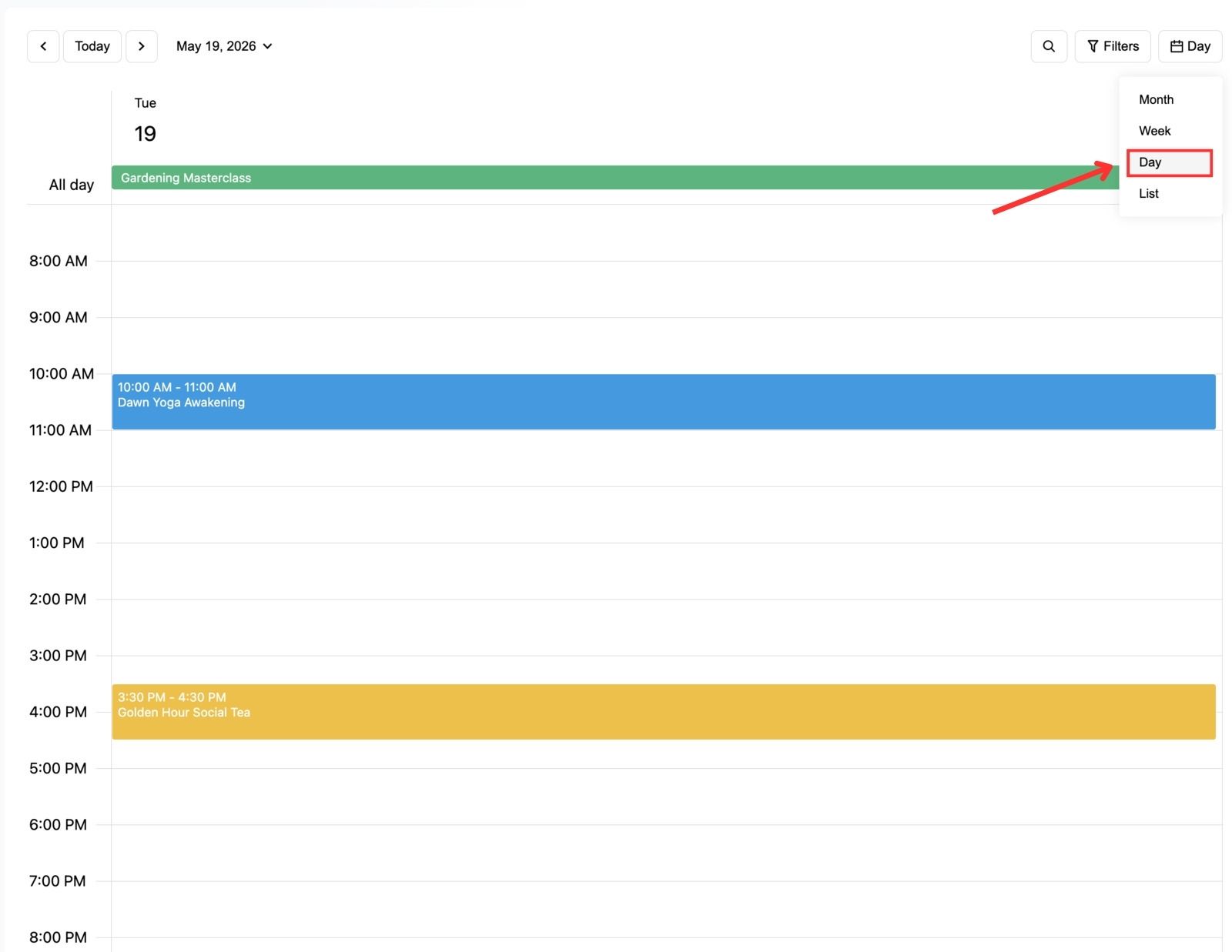
Screenshot of the WordPress events calendar widget day view.

In the day view of the WordPress event calendar widget, you can focus on a single date and display events within a timetable-style layout.

4. List View
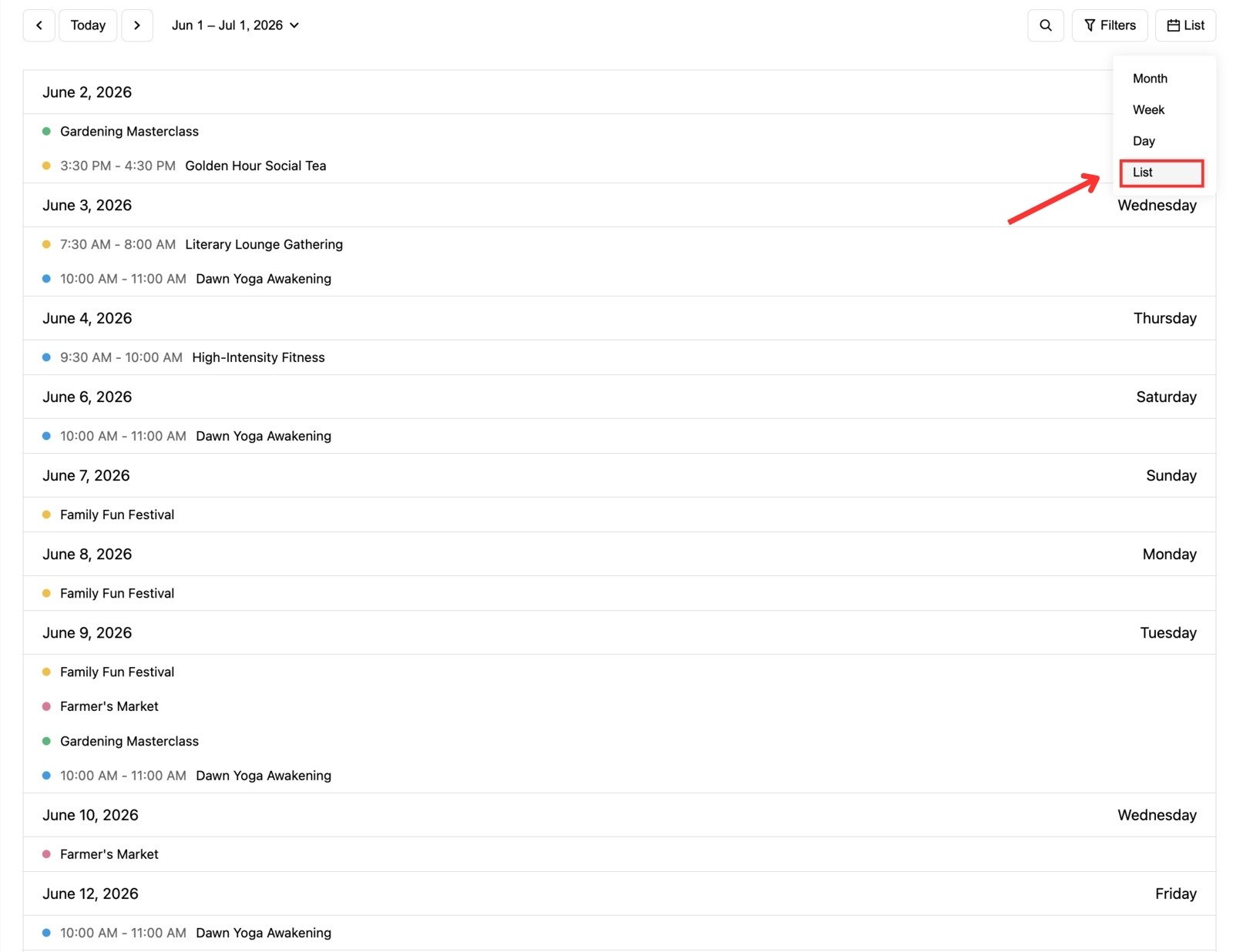
Screenshot of the WordPress events calendar widget list view.

If visitors don’t like navigating traditional calendars, the list view displays upcoming events chronologically. They see a straightforward timeline of upcoming activities.
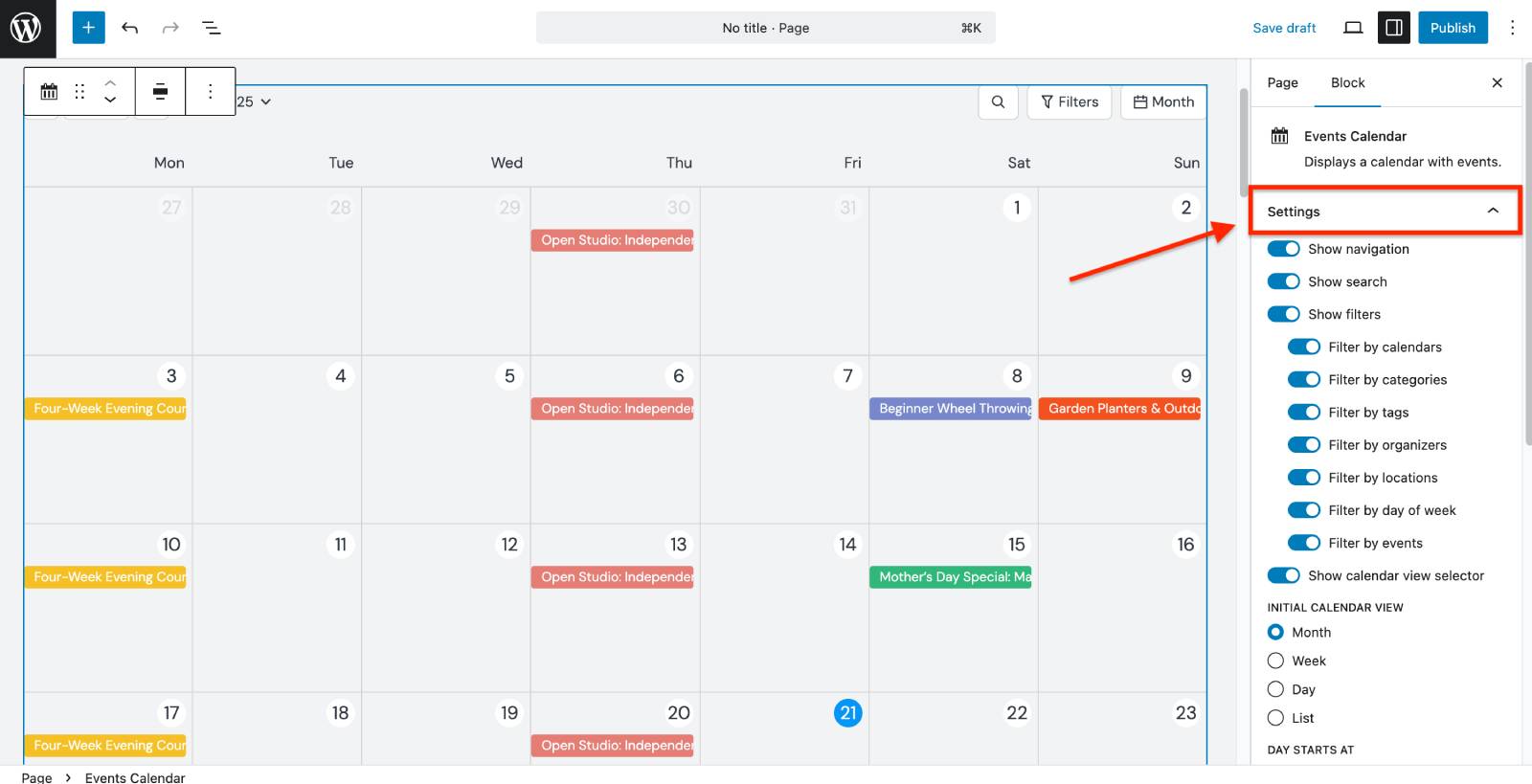
How to Customize the Events Calendar Widget?

Settings events calendar block.

The Events Calendar block offers extensive customization options. In the block settings, you can:

  1. Decide whether visitors see navigation, search, filter, and calendar view selector options.
  2. Set initial WordPress event calendar widget view.
  3. Choose the start/end days and hidden weekdays.
  4. Define the Time Interval for monthly and daily views.
  5. Limit which events to show in the calendar via the Filters menu (by calendar, category, tag, organizer, location, day of week, or specific events).

When Do I Use a Website Calendar Widget?

Calendar layouts remain one of the most intuitive ways to explore event schedules. They come in handy if:
  • You publish many events.
  • Events repeat regularly.
  • Visitors plan weeks or months ahead.
  • Multiple events happen simultaneously.

Events List Block: Showcase Events as Visual Cards

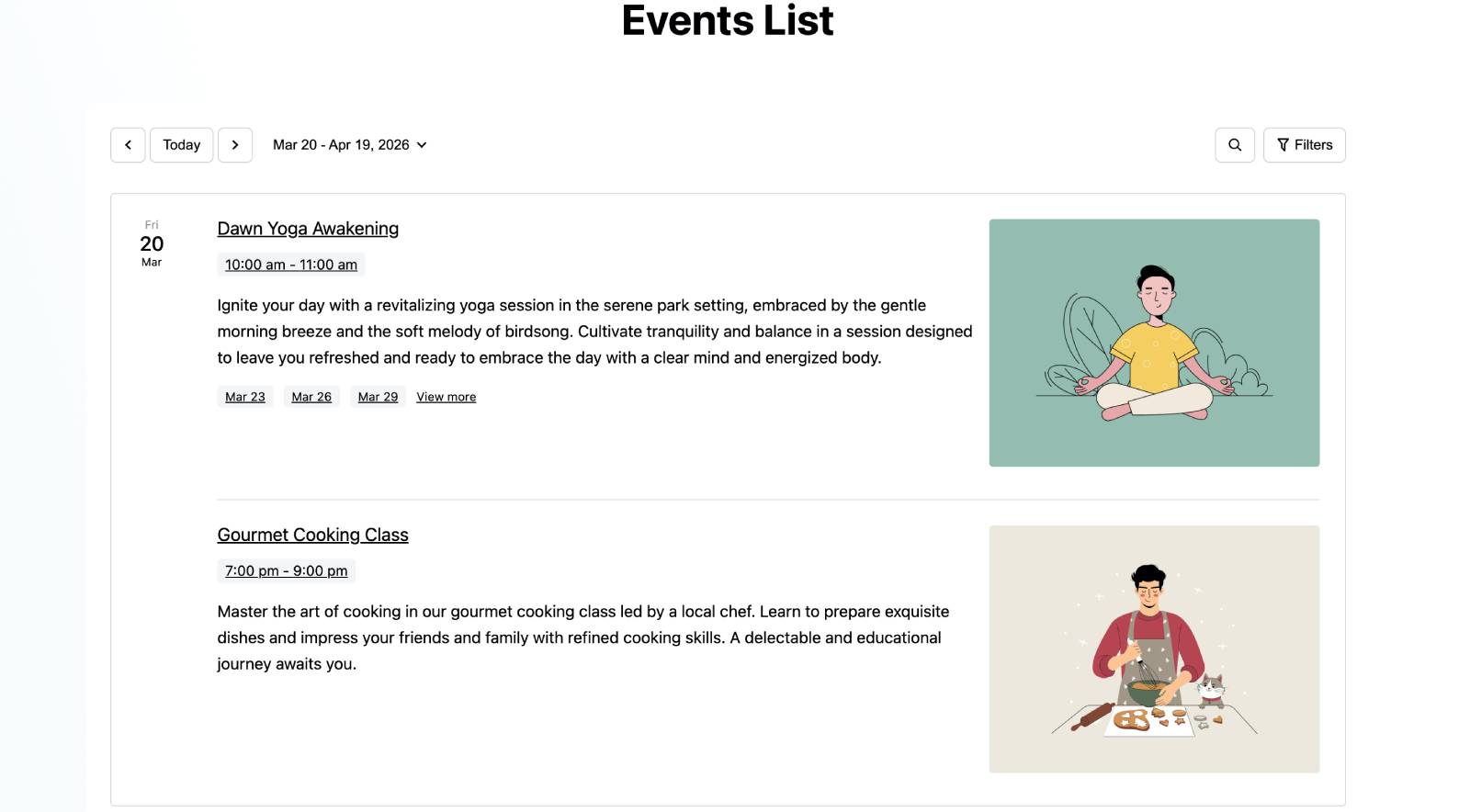
Events listing example in Events Calendar plugin.

The next event widget in the MotoPress WordPress events plugin is Events List. Instead of displaying events within a calendar grid, it presents them as informative cards containing:

  • Featured image;
  • Event title;
  • Description;
  • Date and time;
  • Upcoming occurrences for recurring events.

This format is suitable for homepage sections, landing pages, featured events, and promotional campaigns.
How to Customize the Event Listing Layout?

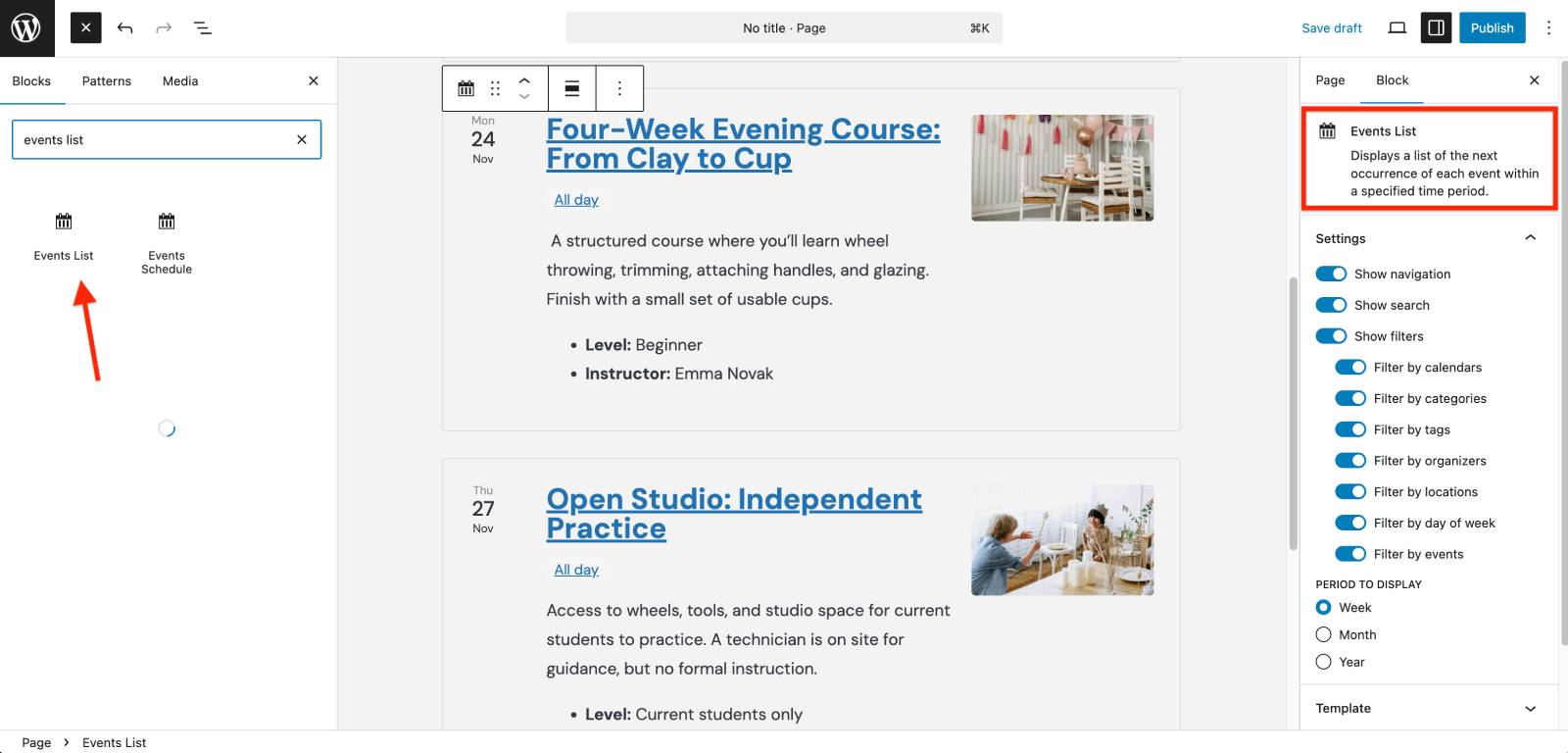
Event list block in Events Calendar.

The Events List block includes several layout controls. It allows you to:

  1. Enable or disable navigation, search bar, and filters selector.
  2. Define the display period.
  3. Set the start date.
  4. Show or hide event title/description/image/time in the Template section.
  5. Control description length.
  6. Display upcoming recurring dates.
  7. Filter events by categories, tags, locations, organizers, and more.
  8. Enable the “Show upcoming dates” for recurring events.

When Do I Use an Events List?

Some of the use cases for the Events List block include:

  • Event promotion.
  • You want to highlight featured events.
  • You need homepage event sections.
  • Visitors should read event details before clicking.

Many websites use both the Events List and Events Calendar widget WordPress layouts to combine schedule navigation with event promotion.
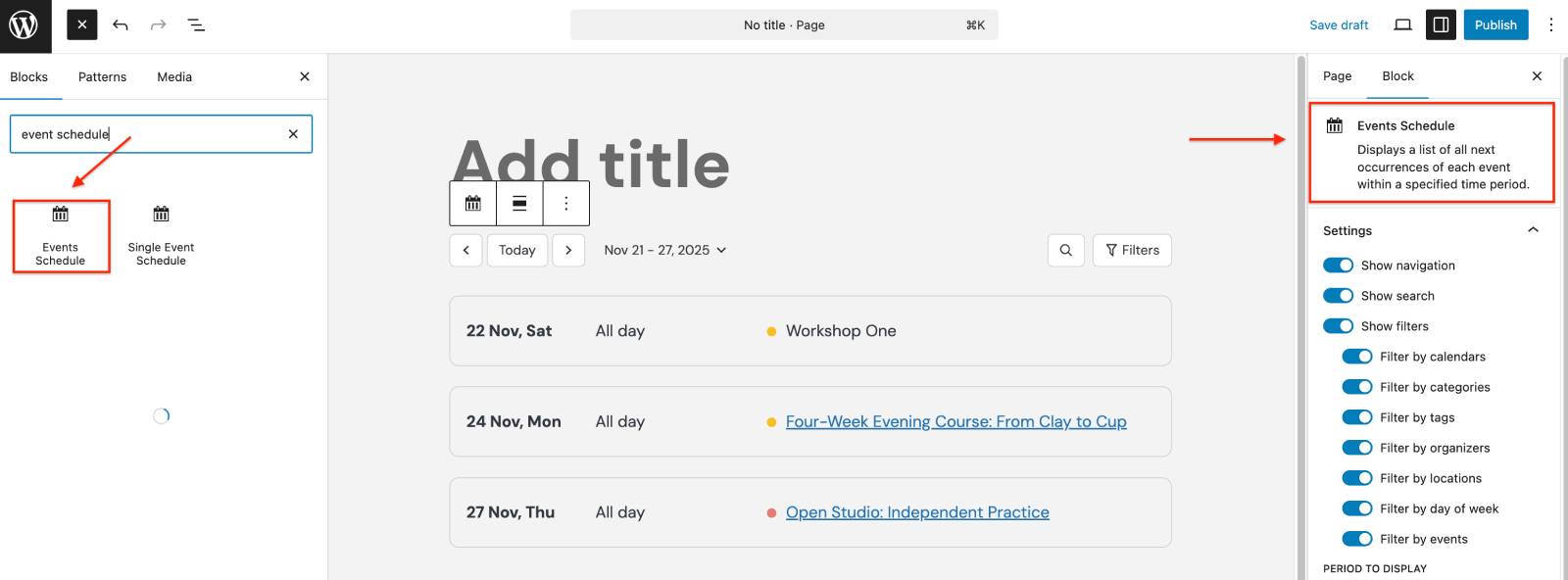
Events Schedule Block: A Compact Agenda View

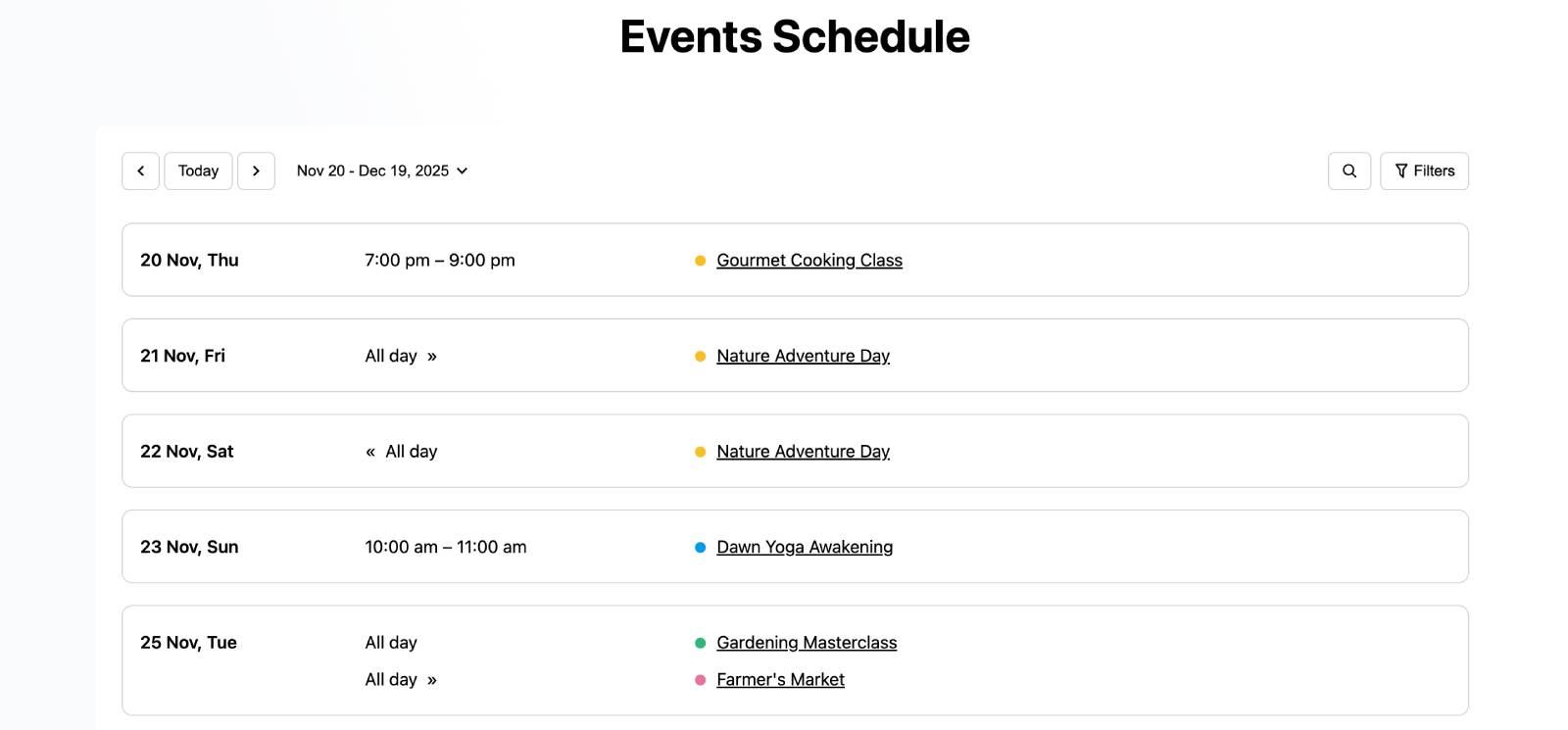
A simple list of events for WordPress.

Sometimes visitors simply want to know what is happening and when. The Events Schedule block creates a simple chronological agenda for a clean and compact schedule.

How Does This Event Widget Differ from the Events List?

Although both blocks display events outside of a traditional calendar view, they serve different goals in the event page design.

FeatureEvents List BlockEvents Schedule Block
Primary FocusVisual promotion & event detailsQuick, time-focused chronological scanning
Key ElementsFeatured images, long descriptions, cardsEvent names, times, compact lines
Best Used ForHomepages, landing pages, featured eventsConference agendas, timetables, and school schedules

How to Customize the Events Schedule in WordPress?

Events schedule block.

After adding the block to a page, open its settings panel in the WordPress editor to access the available customization options. You’ll be able to:

  1. Enable or disable interface elements: navigation controls, search bar, and filter selector.
  2. Set a custom start date.
  3. Choose the display period.
  4. Control how far ahead events are displayed.
  5. Show events scheduled for the next week/month/year.
  6. Limit which events appear in the schedule, using the Filters section in the block settings.

When Do I Use an Events Schedule Block?

Visitors can quickly scan the schedule without navigating between calendar dates or opening event cards. This option is useful for:

  • Conference agendas;
  • School timetables;
  • Church schedules;
  • Educational programs;
  • Training centers;
  • Recurring classes.

Search and Filter Widgets for Better Event Discovery

As your event catalog grows, finding the right event can become like looking for a needle in a haystack. That’s where the Events Search and Events Filters blocks come into play.

The Events Search block allows visitors to search events by name or location.
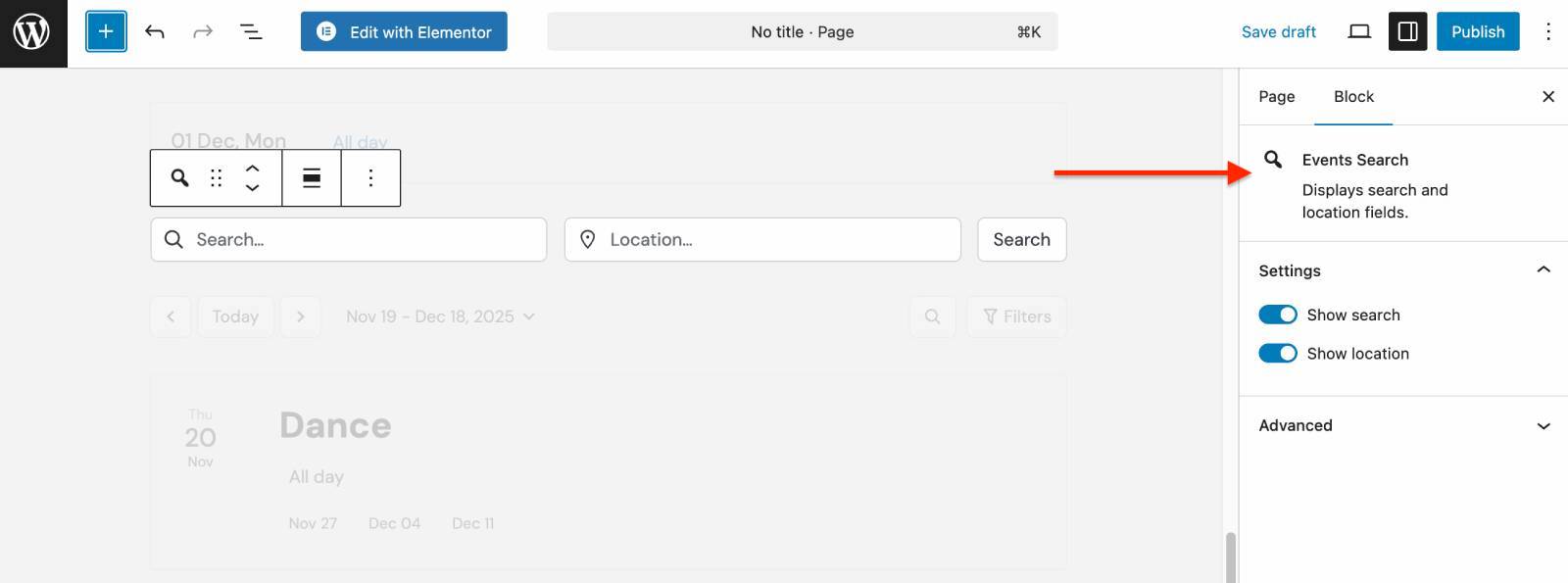
Event search by name and location.

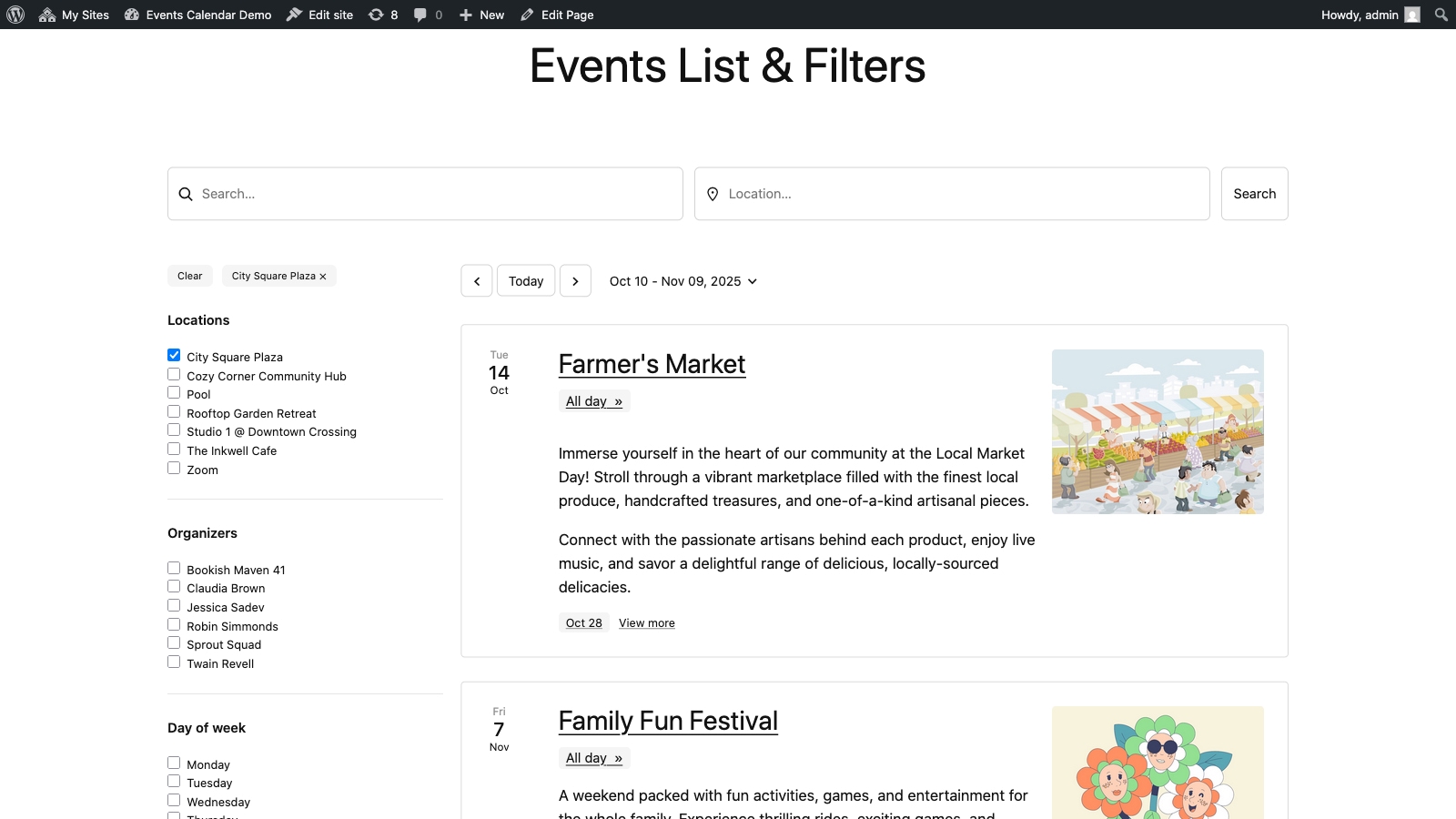
Instead of manually browsing through large schedules, visitors can filter events that match their interests. The Events Filters block allows visitors to narrow event results based on:
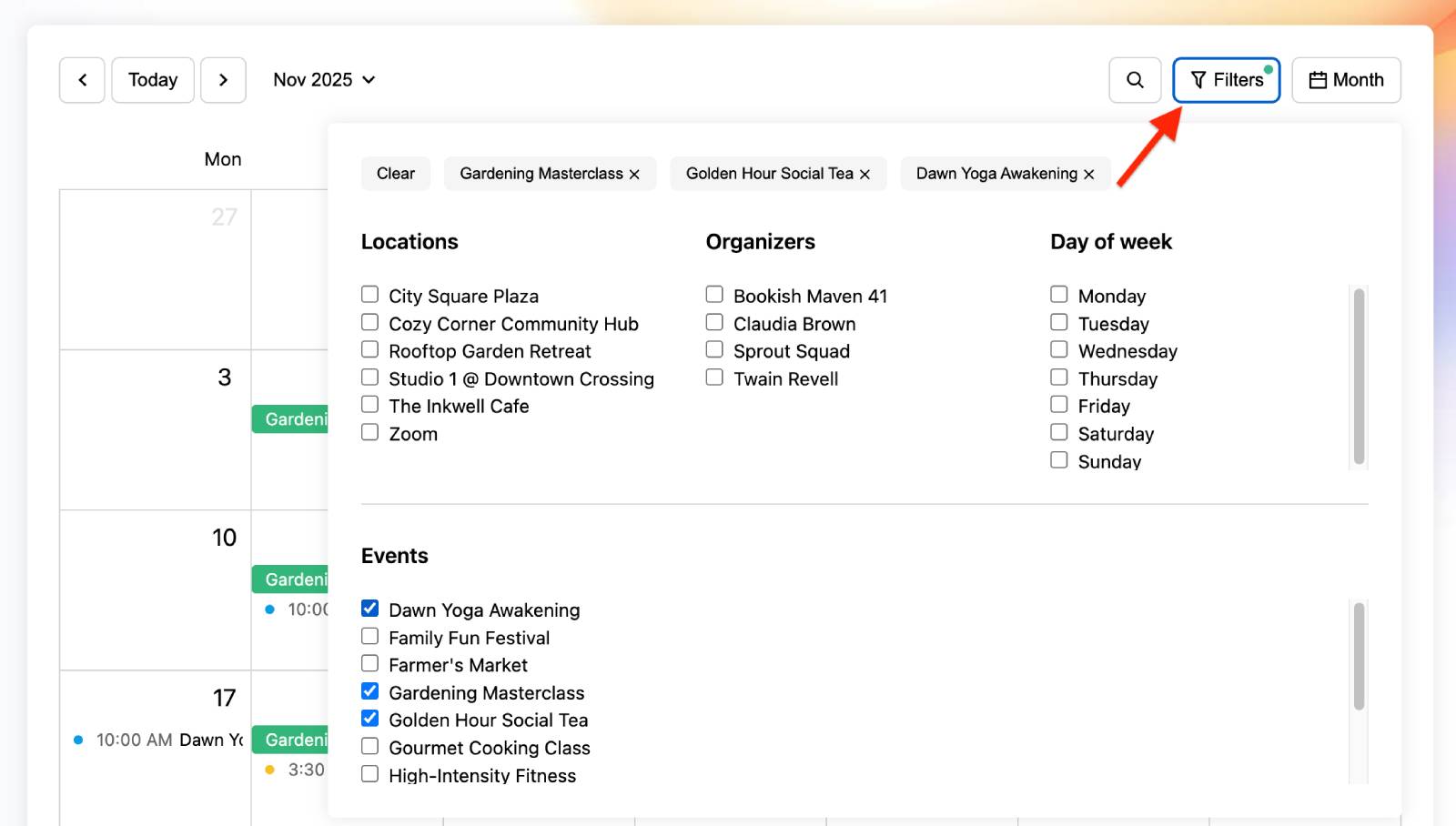
  • Calendars;
  • Events;
  • Locations;
  • Organizers;
  • Day of week;
  • Categories;
  • Tags.

Filters applied in Events calendar plugin.

Do These Event Widgets Work Together?

One of the most powerful aspects of the MotoPress Events Calendar plugin is that its event widgets can be connected.

For example, you can break your layout apart and place the Events Search block in the header, the Events Filters in a sidebar, and the Events Calendar in the main body. The moment a visitor types a keyword or checks a filter box, the calendar updates instantly.
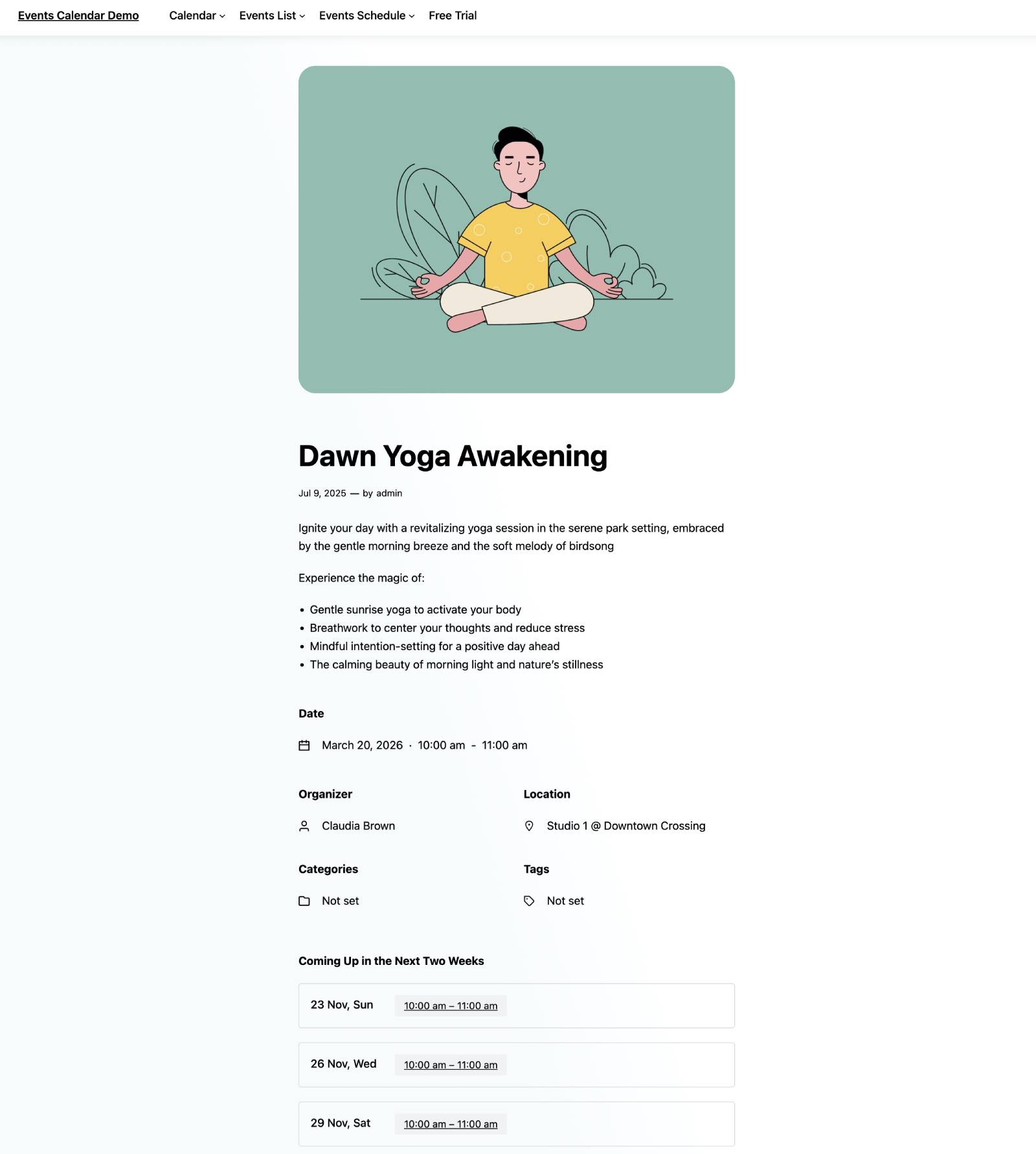
Can I Build Event Landing Pages?

Single event page.

To create an event landing page design with the MotoPress Events Calendar plugin, you can build dedicated single-event pages. They support several event-specific blocks, including:

  • Single Event Schedule (shows upcoming events);
  • Event Date;
  • Event Location;
  • Event Organizers;
  • Event Categories;
  • Event Tags.

Event pages don’t have to follow a rigid template. Since they’re built with the WordPress block editor, you can customize both the content and layout.

It’s possible to combine event-specific blocks with Gutenberg patterns, columns, images, buttons, testimonials, or registration sections to create an engaging website event page design.
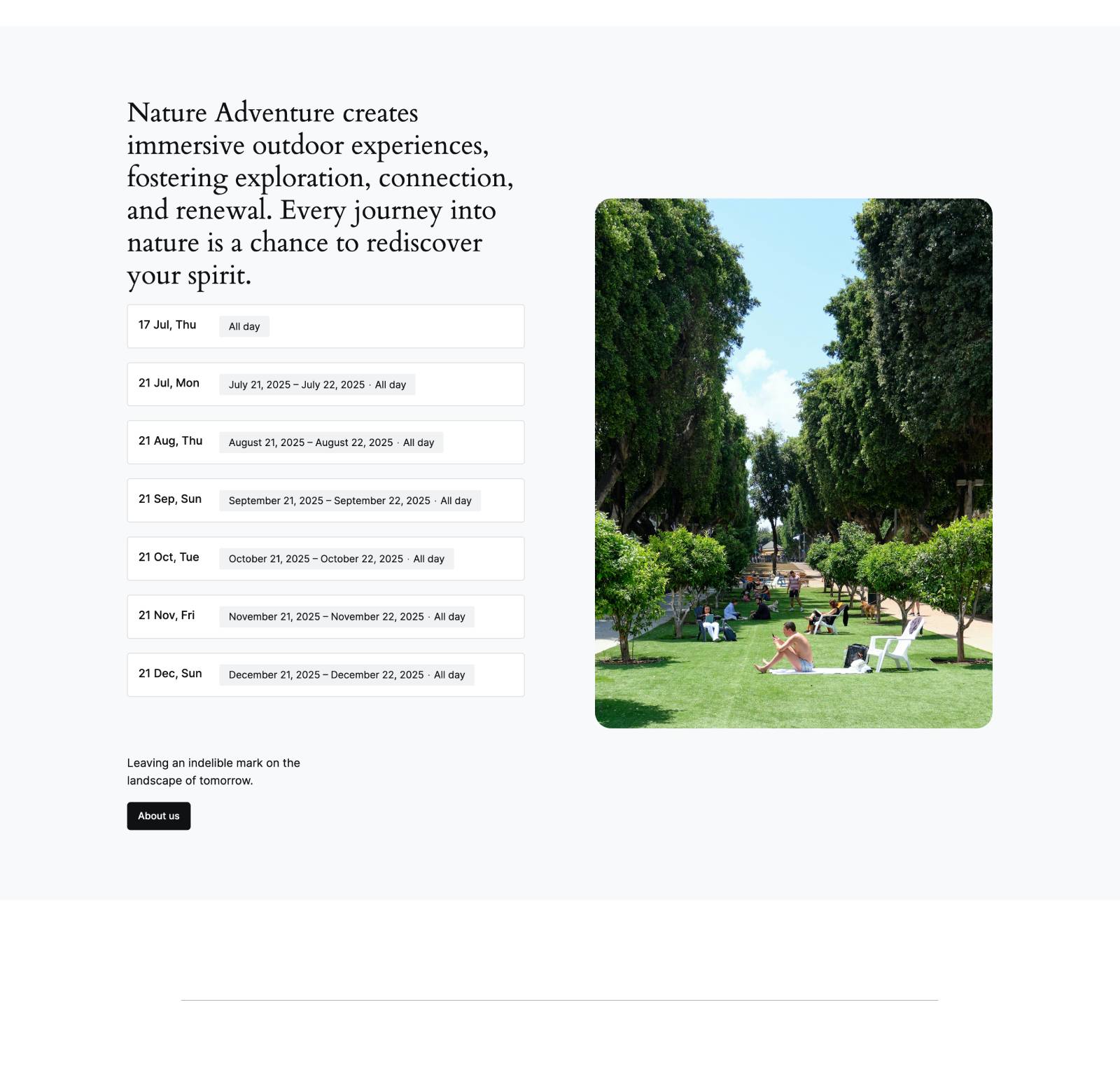
Customize event pages for Events Calendar.
An upcoming events list added with the Event Schedule block.

How to Display Event Details with MotoPress Events Calendar?

MotoPress Events Calendar gives you three ways to display event details:

  • Event information pop-up;
  • Dedicated event page;
  • Custom event URL.

You can configure these options individually for each event.

Step 1: Open an Event

In your WordPress dashboard, go to Events and click on the event you want to edit. You can either create a new event or modify an existing one.

Step 2: Enable a Public Event Page (Optional)

If you’d like visitors to access a dedicated page for the event, enable the Create a Public Page for This Event option when editing the event.
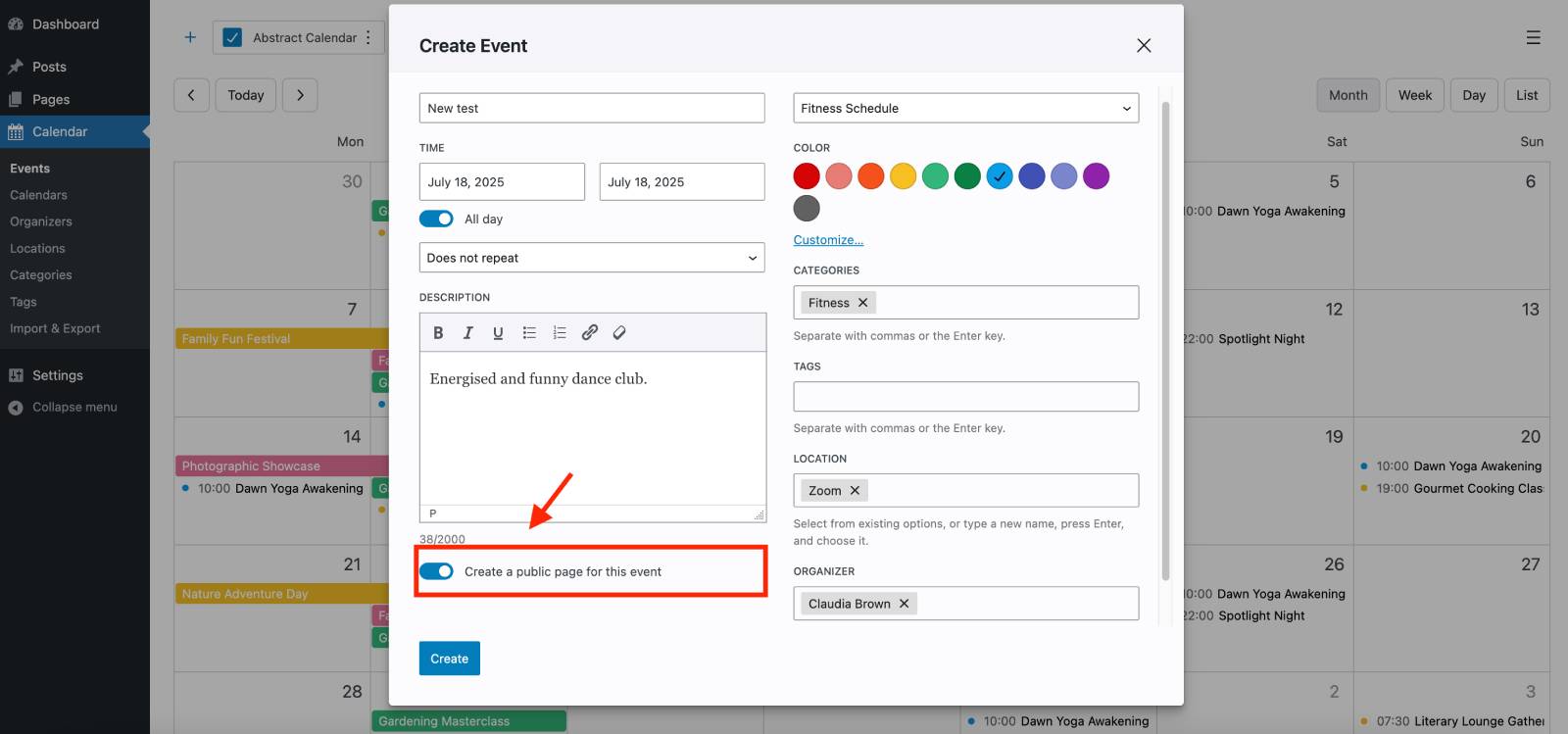
A screenshot of the Events Calendar plugin and its new feature of creating a public event.

Once enabled, the plugin automatically generates a WordPress page for that event.
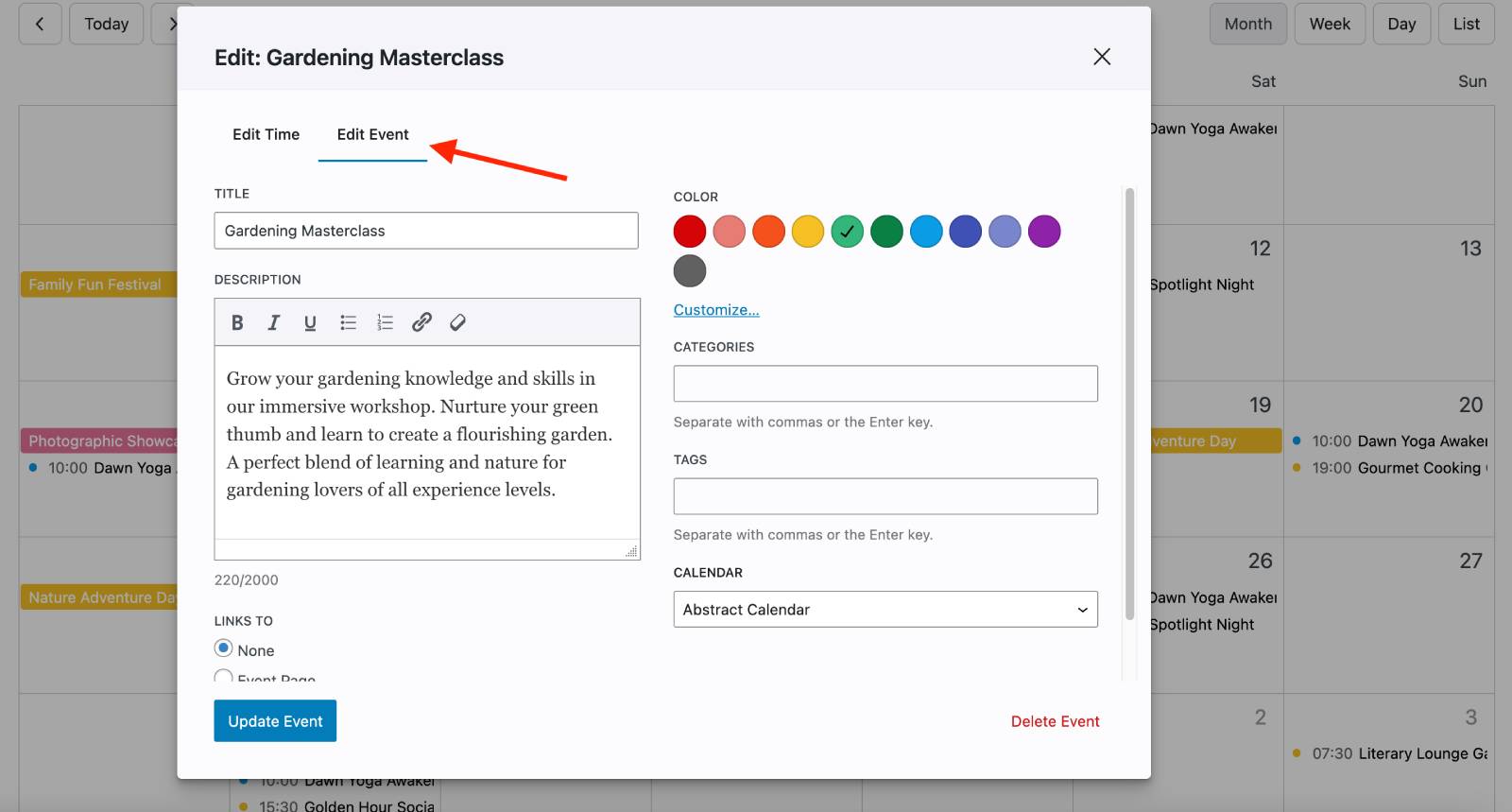
Step 3: Configure the Event Link Destination

edit event screen plugin.

After opening the event editor, scroll down to the ‘Links to’ section.

Here you’ll find two available options:
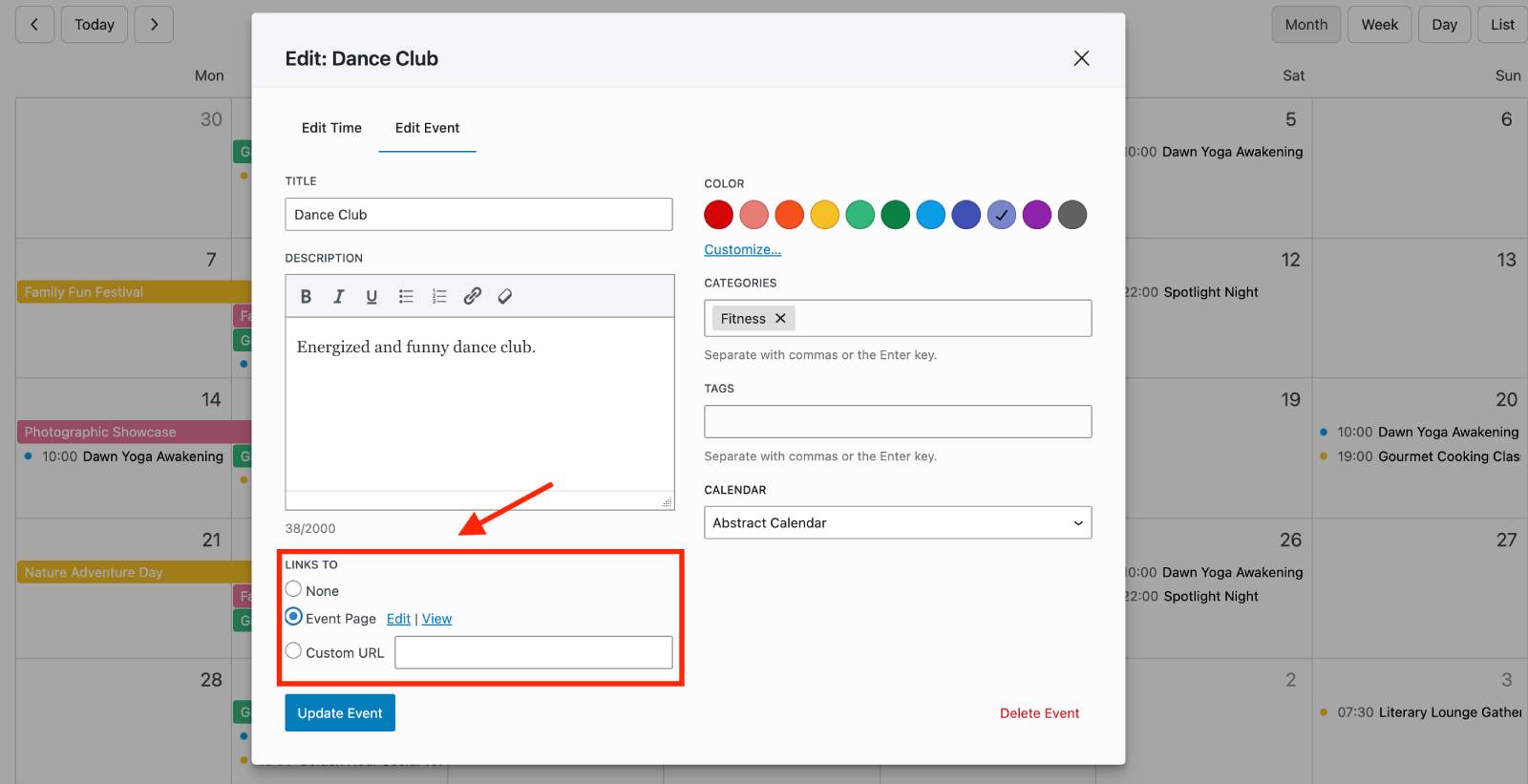
  • Event Page – opens a dedicated page on your website. You can click ‘View’ to preview it instantly on your site or click ‘Edit’ to jump to the event page in Gutenberg.
  • Custom URL – clicking View Event under the event details in the calendar will redirect visitors to any external or internal URL you specify.

A screenshot showing how to to settings in the plugin.

So, when visitors click on an event, they’ll see its information pop up.
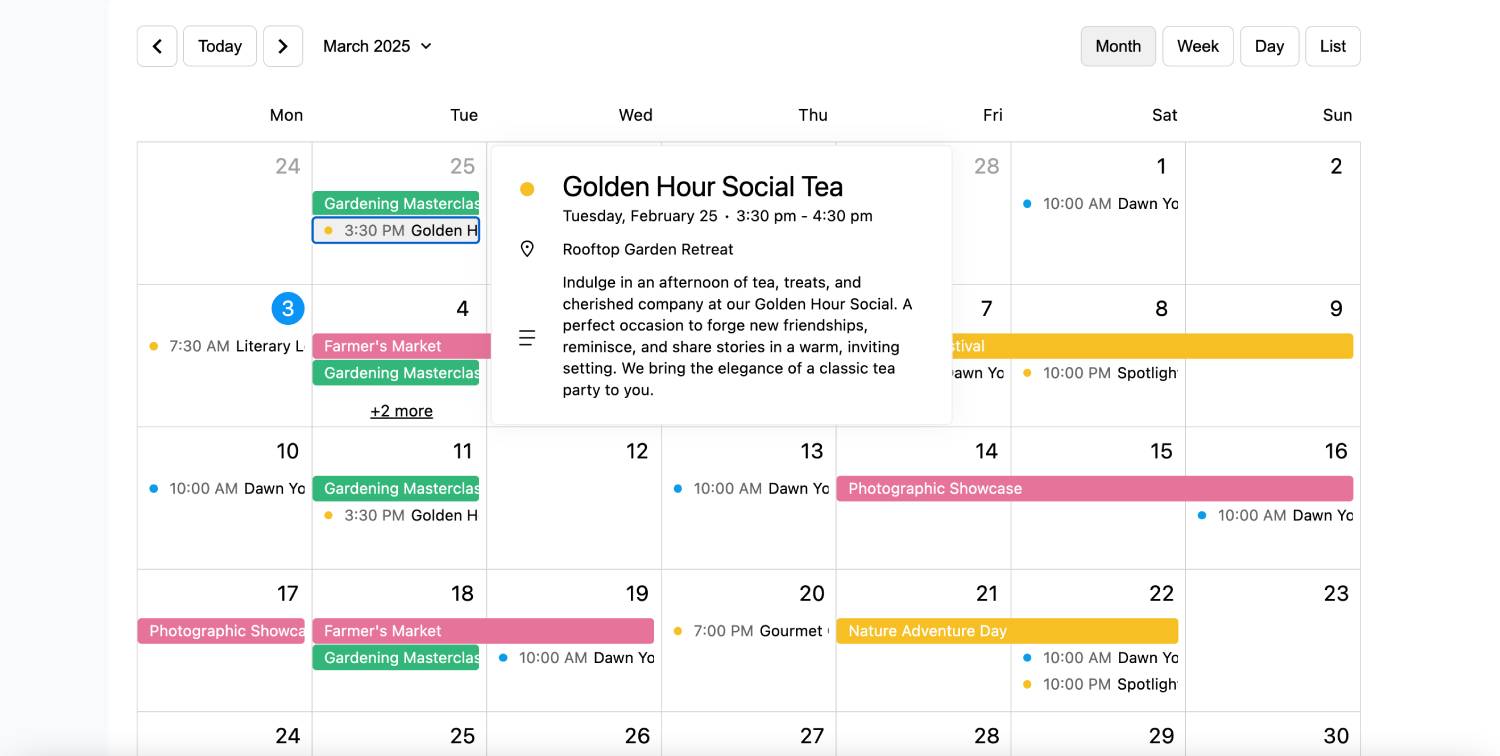
MotoPress events calendar demo.

If the event has a page or custom URL assigned, a View Event button will also appear inside the pop-up.
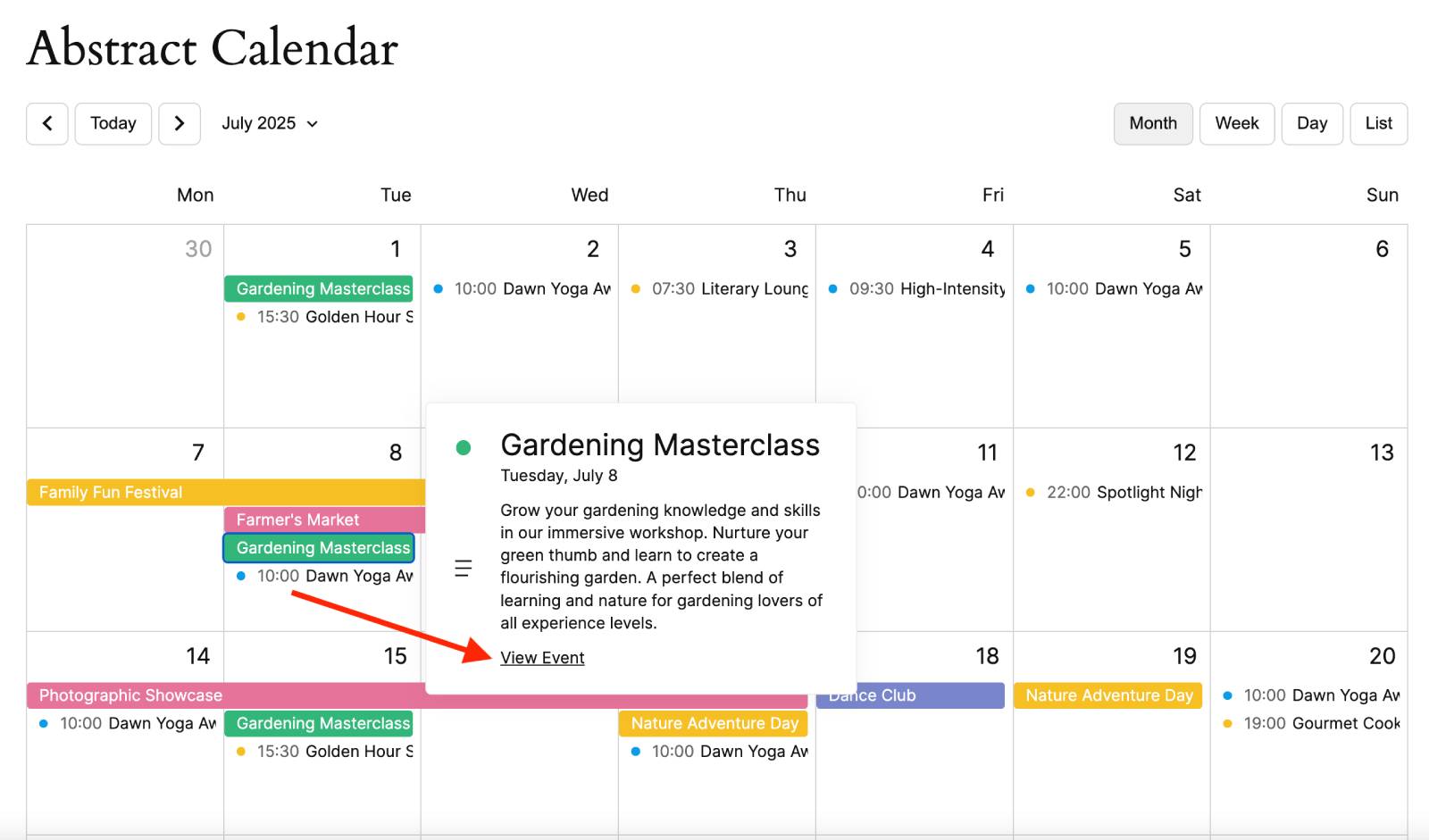
View event link in events calendar.

Which Display Option Should I Choose?

  • Pop-up only – best for simple events that need minimal information.
  • Dedicated Event Page – ideal for conferences, workshops, webinars, fundraisers, and other events that require more details.
  • Custom URL – perfect when registration, ticket sales, or event information is managed on a third-party platform.

How to Add Any Event Widget to a WordPress Page?

With MotoPress Events Calendar, adding event widgets is straightforward.
  1. You should open the page or post where you want to display events, click the block inserter, and add the desired MotoPress Events Calendar block.
  2. Each event calendar widget for website includes its own settings panel where you can customize appearance, filtering, layouts, and displayed content.
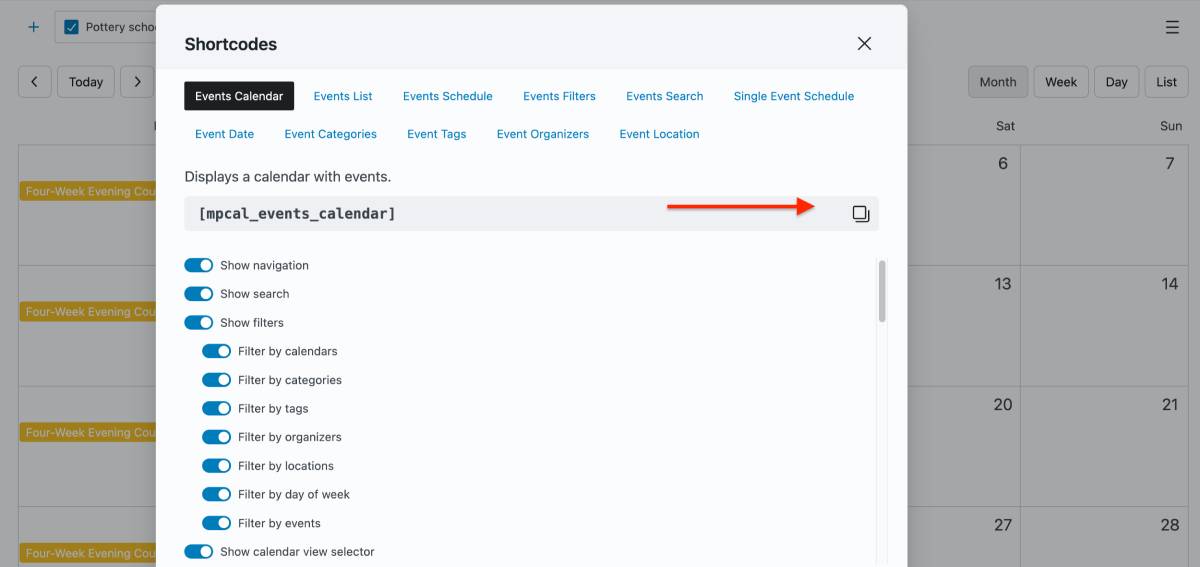
  3. If you’re using another page builder or prefer shortcodes, the plugin’s shortcode builder allows you to generate shortcodes.

events calendar shortcode builder plugin.

Read a detailed guide in the plugin’s documentation – Docs

8 Best Practices for Building Effective Event Pages

Image of managing an online calendar using a laptop.

How do you organize and present your event information? Since it impacts visitor engagement, we’ve included some tips to create more effective event experiences.
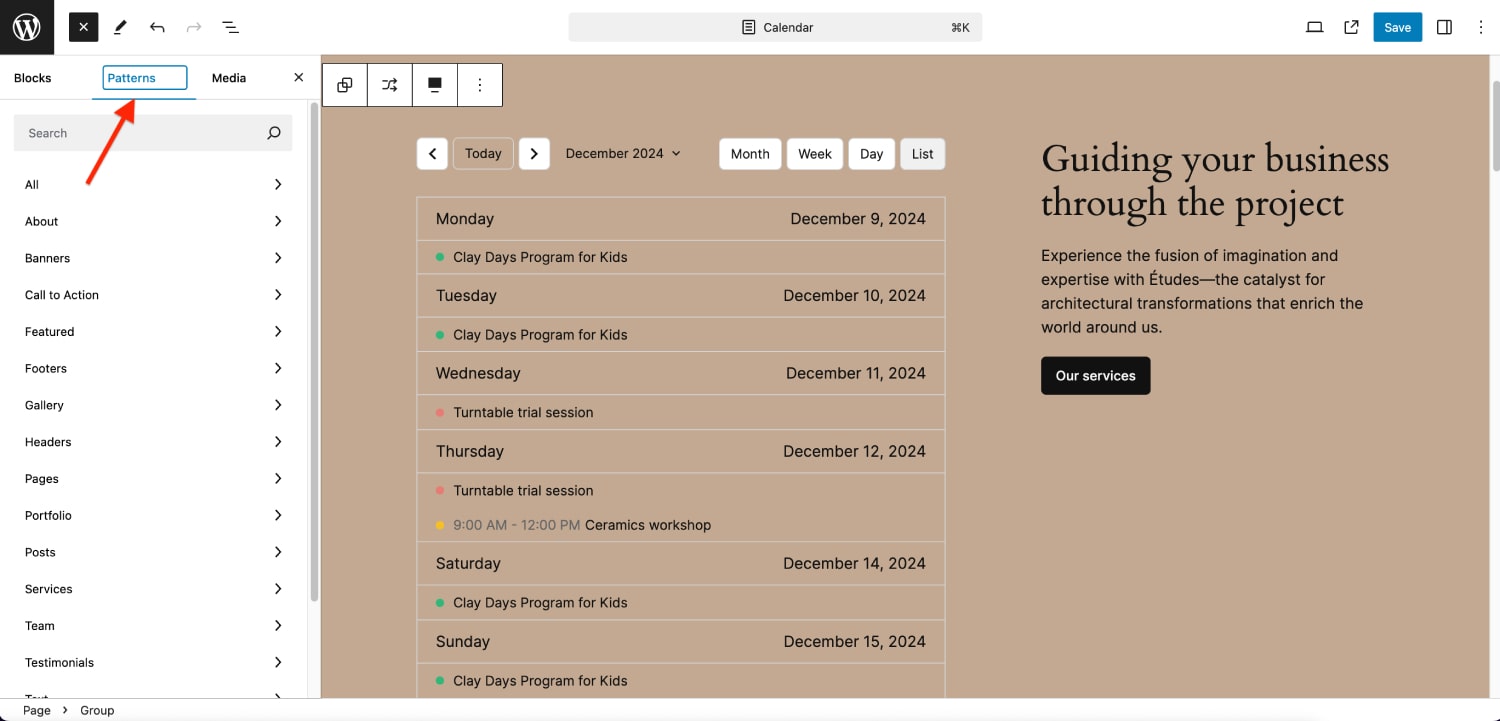
  1. Combine any WordPress event calendar widget with Gutenberg Patterns: Use Gutenberg patterns, columns, groups, cover sections, and other layout tools. For example, you can place featured events in a grid layout or combine a calendar with testimonials and call-to-action sections.
  2. Using default WordPress patterns with the Events Calendar plugin.

  3. Use High-Quality Event Images: A picture is worth a thousand words. Strong visuals can immediately capture attention and help visitors identify events that interest them.
  4. Combine Calendars with Search and Filters: Search and filtering tools help visitors narrow down results and find the events most relevant to them.
  5. Organize Events with Categories and Tags: They let you group similar events and make filtering far more effective. For example, you might categorize events by type, audience, department, or location.
  6. Offer Multiple Ways to Browse Events: Some people like monthly calendars, while others prefer event cards or agenda-style schedules. Your event page design should provide multiple paths to the same information to accommodate different browsing habits.
  7. Create Dedicated Pages for Major Events: Event landing pages provide space for:
    • Detailed descriptions;
    • Speaker information;
    • Event schedules;
    • Venue details;
    • FAQs;
    • Registration forms;
    • Media galleries.
  8. Keep Event Information Up to Date: Outdated schedules, broken registration links, incorrect locations, or outdated speaker information can erode trust and confuse. Regularly review event pages and calendars, especially for recurring events and long-running programs.
  9. Think Mobile First: Many users will discover your events on their phones. Before publishing your event pages, test how calendars, a selected WordPress event calendar widget, event lists, images, and registration buttons appear on smaller screens. Ensure that text remains readable, buttons are easy to tap, and layouts don’t become cluttered.

Final Thoughts

The best event websites do more than display dates on a calendar. They help visitors find events, explore schedules, and take action.

With the MotoPress Events Calendar plugin, you can choose from multiple event widgets designed for different purposes. The toolkit includes interactive calendars, visual event listings, compact agendas, and dedicated event pages.

Whether you’re managing a conference, church, school, community center, nonprofit organization, training business, or festival website, these widgets provide the flexibility needed to create a user-friendly event experience.

Try different layouts, combine multiple widgets, and build an event hub on your WordPress website!

Start Free Trial

FAQ

What is the difference between an event calendar and an event list?

An event calendar focuses on dates and schedule navigation to help visitors browse events by month, week, or day. An event list focuses on the events themselves, typically displaying images, descriptions, and key details in a card-based format.

Which event widget is best for recurring events?

Calendar and schedule layouts are usually the best choice for recurring events because they make it easier to view multiple occurrences across different dates. If you want to highlight recurring events individually, an event list can also fit.

Should every event have its own page?

Not necessarily. Small meetings, recurring classes, or informal events can often be displayed using pop-ups or short descriptions. However, conferences, workshops, fundraisers, webinars, and other important events usually benefit from dedicated pages where you can include agendas, speakers, registration details, FAQs, and additional information.

How do I make a WordPress event calendar easier to navigate?

The most effective methods include adding search functionality, event filters, clear categories, and multiple viewing options.

Can I use multiple event widgets on the same page?

Yes. Many event websites combine different layouts to serve different visitor needs. For example, you might use a calendar for browsing, a featured event list for promotion, and search or filtering tools to help visitors discover relevant events more quickly.

What information should event display?

At a minimum, visitors should immediately see the event title, date, time, and location. Depending on the event type, it may also be helpful to include a description, featured image, organizer information, registration link, pricing details, or contact information.

Are event landing pages good for SEO?

Yes. Dedicated event pages can provide more content and context than a simple calendar entry, making them more likely to rank in search results. Detailed event pages also allow you to target specific keywords, include structured information, and create unique landing pages for important events.