











In the version 6.0.0 of the MotoPress Hotel Booking plugin, we completely revamped the Calendar menu experience in the backoffice. What used to be a simple booking overview calendar is now a much more powerful workspace for managing your accommodation rates and availability from one place.
The goals of this new dashboard are to:
With that in mind, the word “calendar” no longer fully describes everything this powerful property management dashboard can do! But for now, we’re keeping the name to keep things simple and familiar for you.
The old Calendar menu isn’t going anywhere, though, you can use it as before. But as you know, its options are limited:
For many of you this might be enough. However, with the new Calendar (beta), you can still do all of that – but now you can also manage pricing, availability, seasons, rates, booking rules, and daily custom prices directly from the same interface!
In this brand-new Calendar menu overview, we’re explaining the key features of your new property management dashboard in MotoPress Hotel Booking.
You can open the new calendar interface here > Bookings → Calendar (beta)
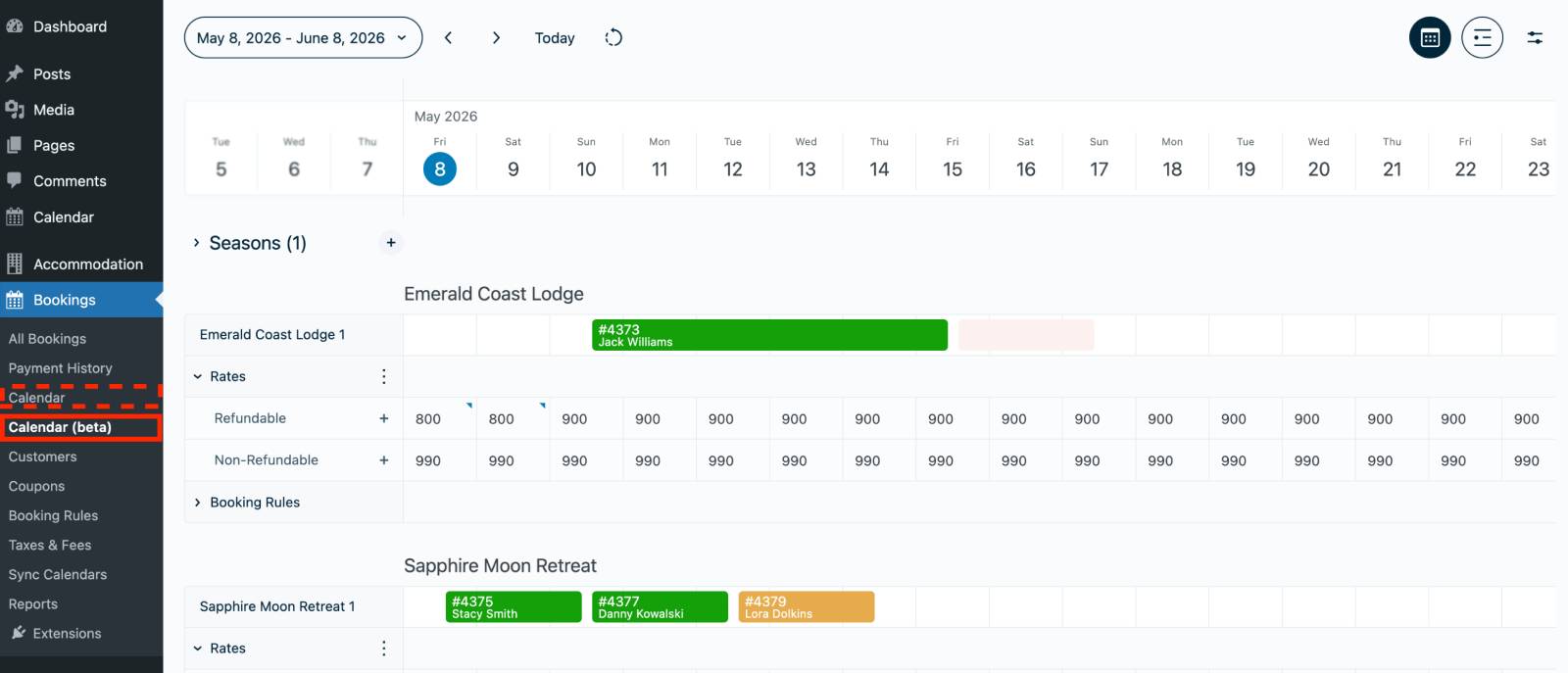
When you open it, you’ll immediately notice the redesigned timeline-based layout that gives you a clearer overview of your bookings, properties, rates, and availability settings.
The new calendar interface is designed around a flexible timeline view above – you can adjust the dates you see on the screen using the date picker from the top left.
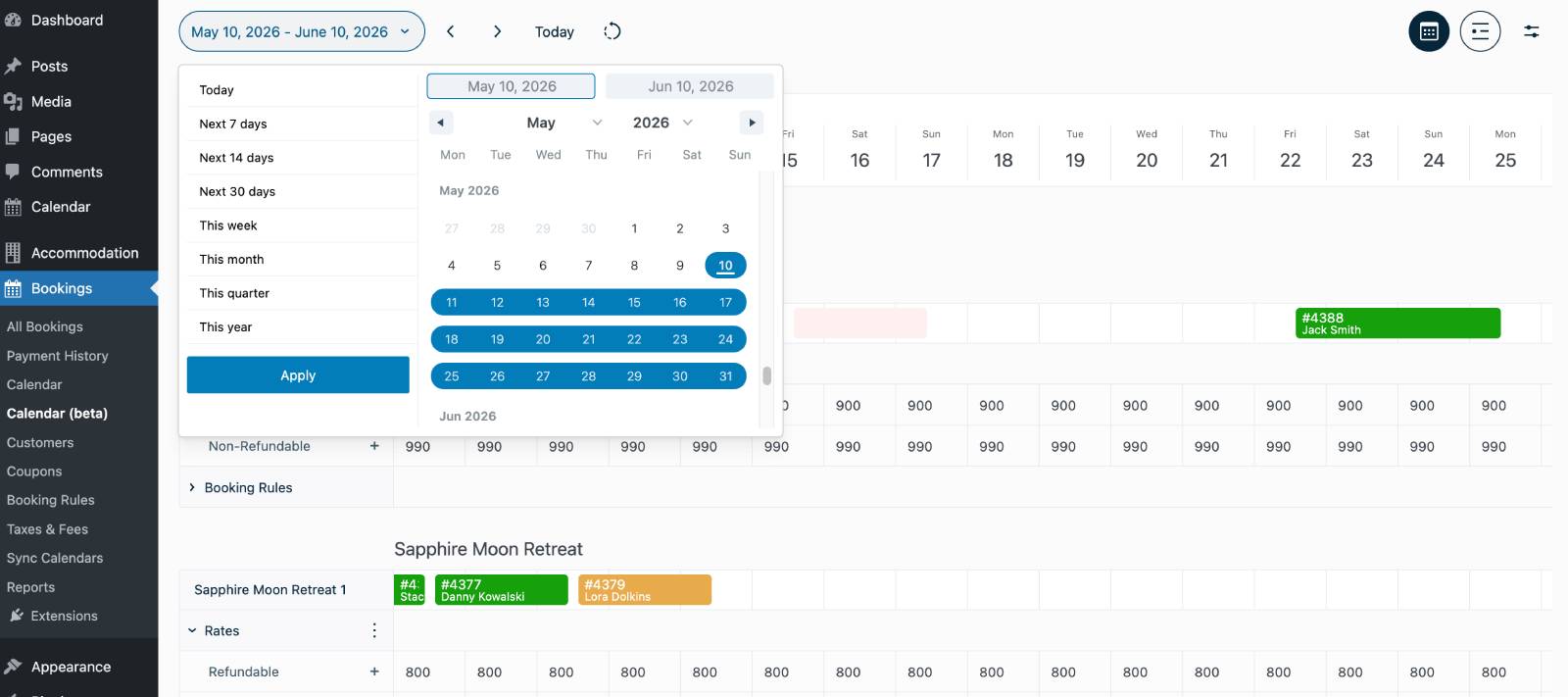
It’s a pretty dynamic calendar, which allows you to manage multiple operational tasks directly inside the timeline. For example, in the new interface, you can:
Whether you manage a single property or multiple accommodations, the new structure of the dashboard gives you an atomic micro management per property as well as allows you to see the whole picture.
In the upper navigation of the new calendar, you can:
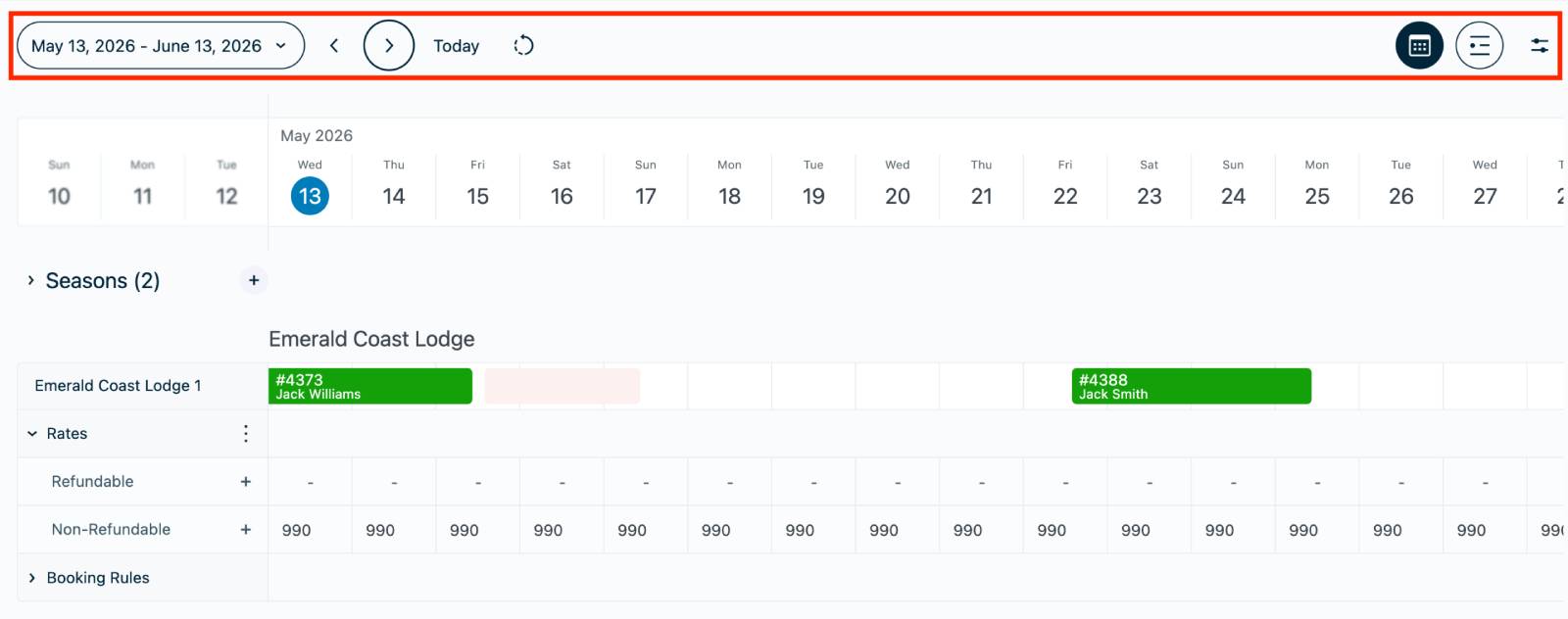
– Choose the period you are viewing
– Switch between a calendar and list views
– Sort bookings by accommodation types.
Another major addition to the calendar is the ability to create and manage Seasons directly from the interface (you normally do that using Accommodation > Seasons path).
As you know, Seasons help you define periods when pricing changes throughout the year, for example:
In essence, those are any custom periods of any duration, when you choose the start and end date of the season.
To create a new season, simply click the plus (+) button next to the Seasons section.
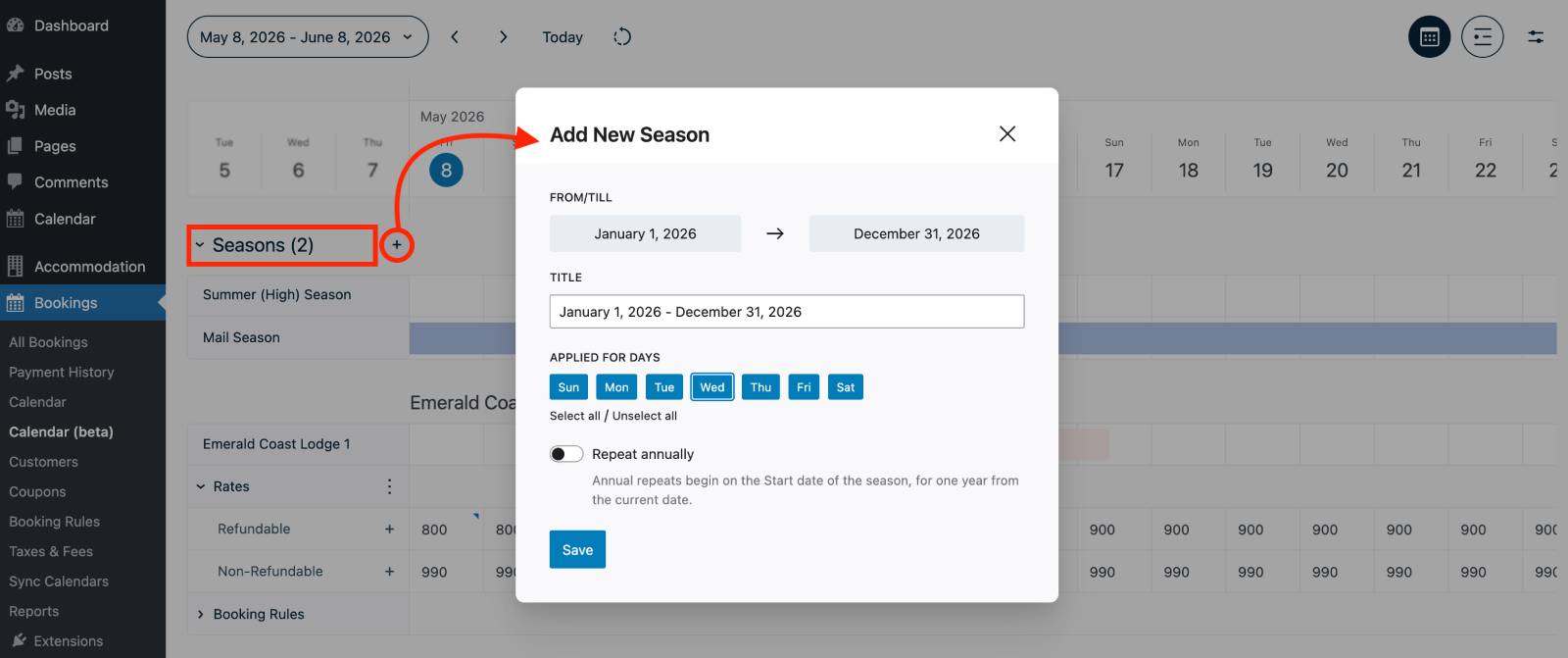
A popup window will appear, allowing you to create a new season without leaving the calendar. This makes it much faster to adjust pricing structures.
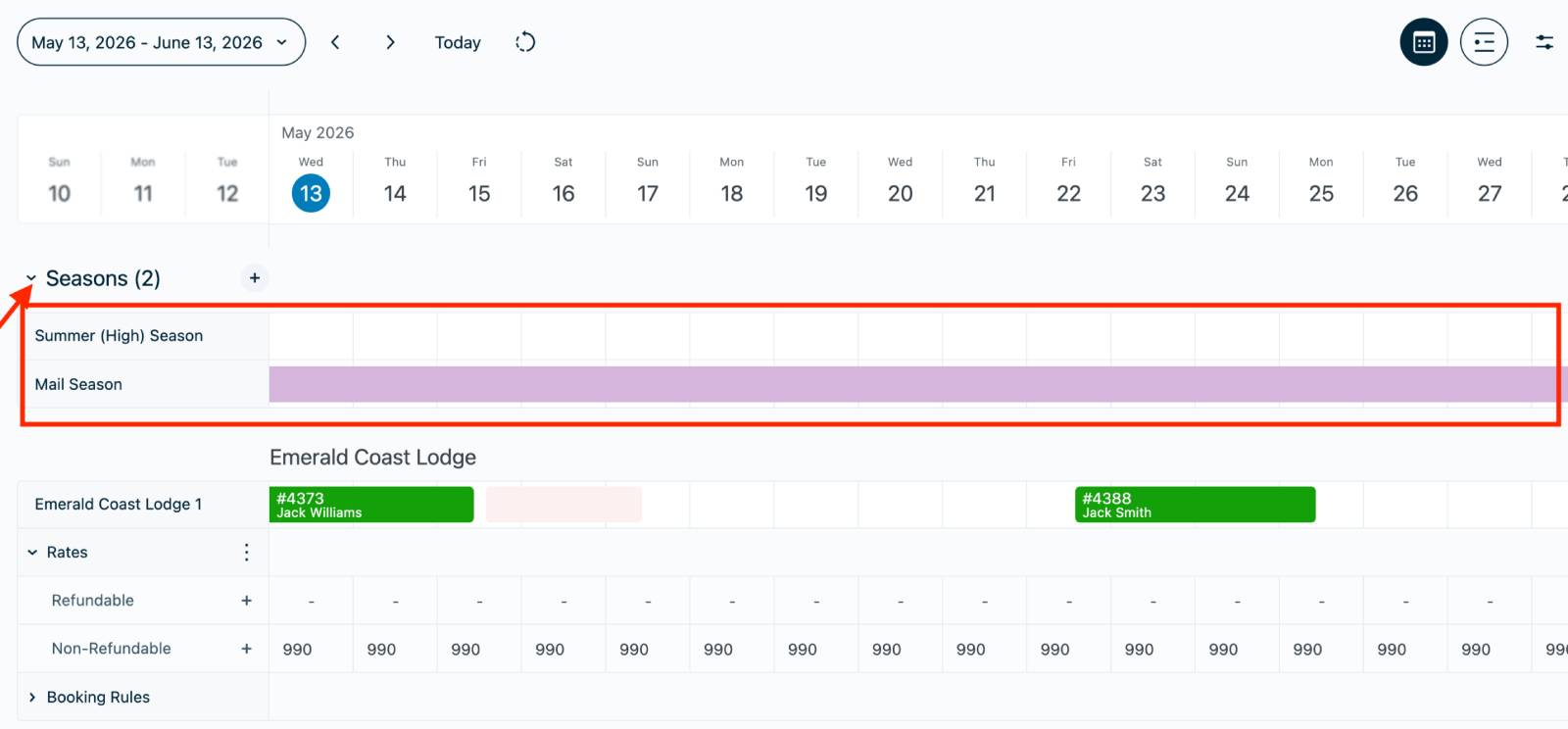
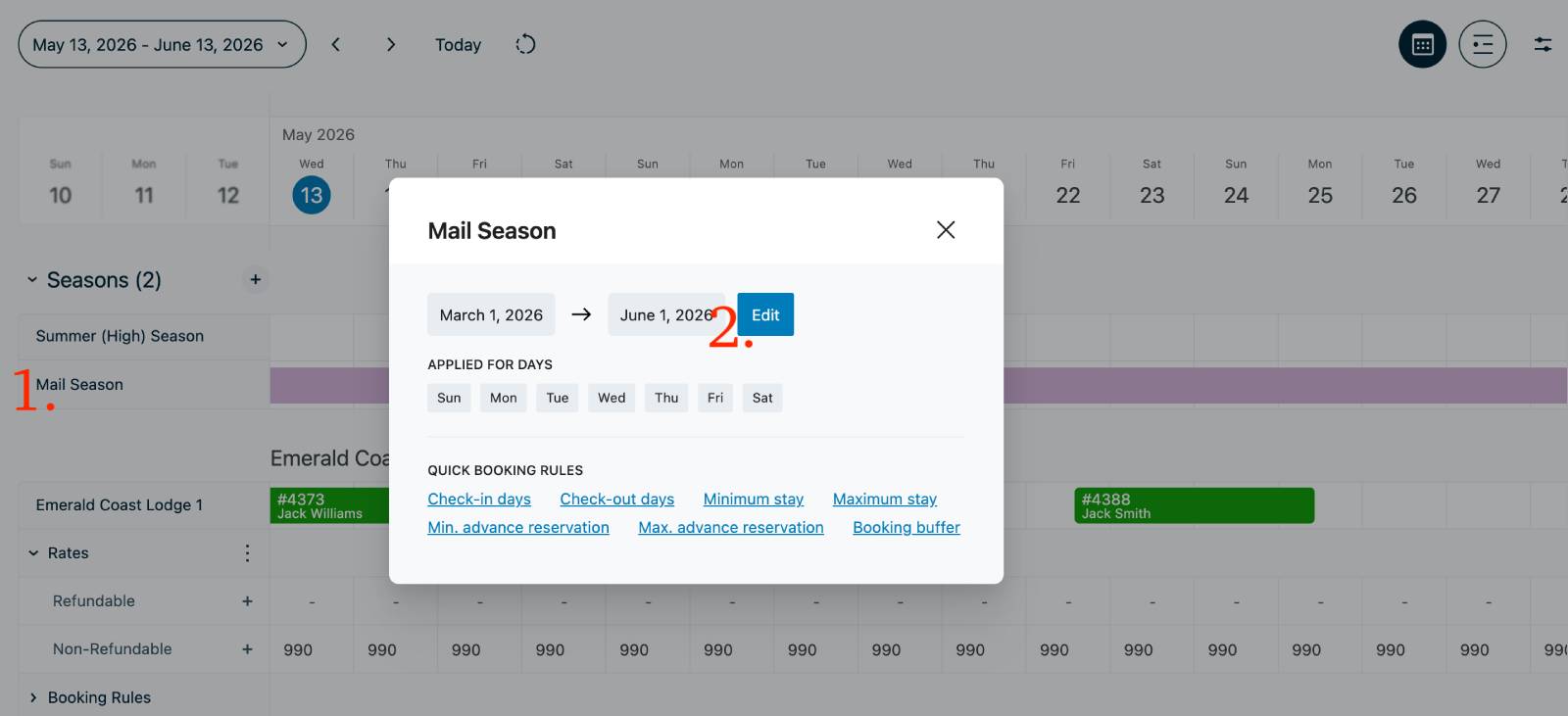
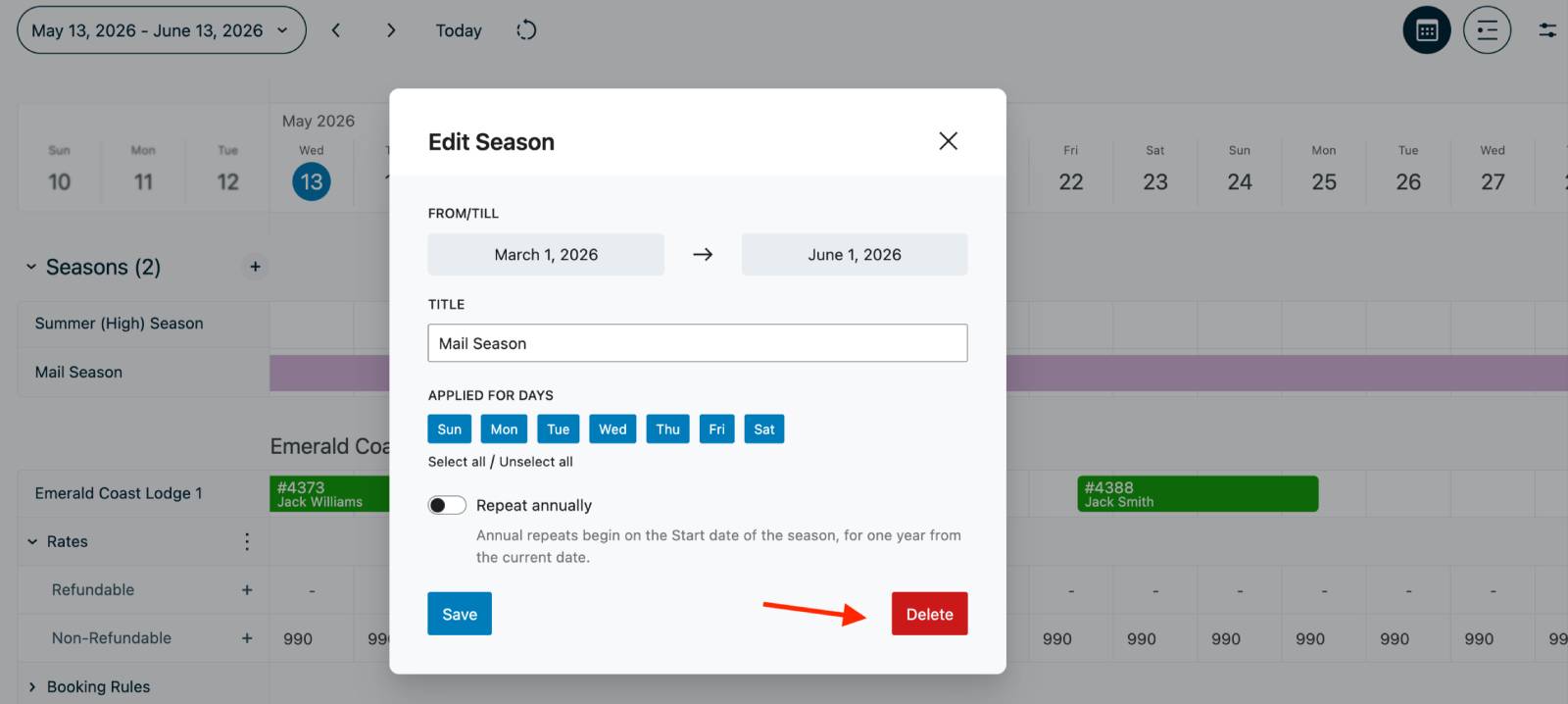
Color-coding in seasons
When you expand the list of seasons, color-coded seasons indicate the ones that are active within the currently visible timeline dates.
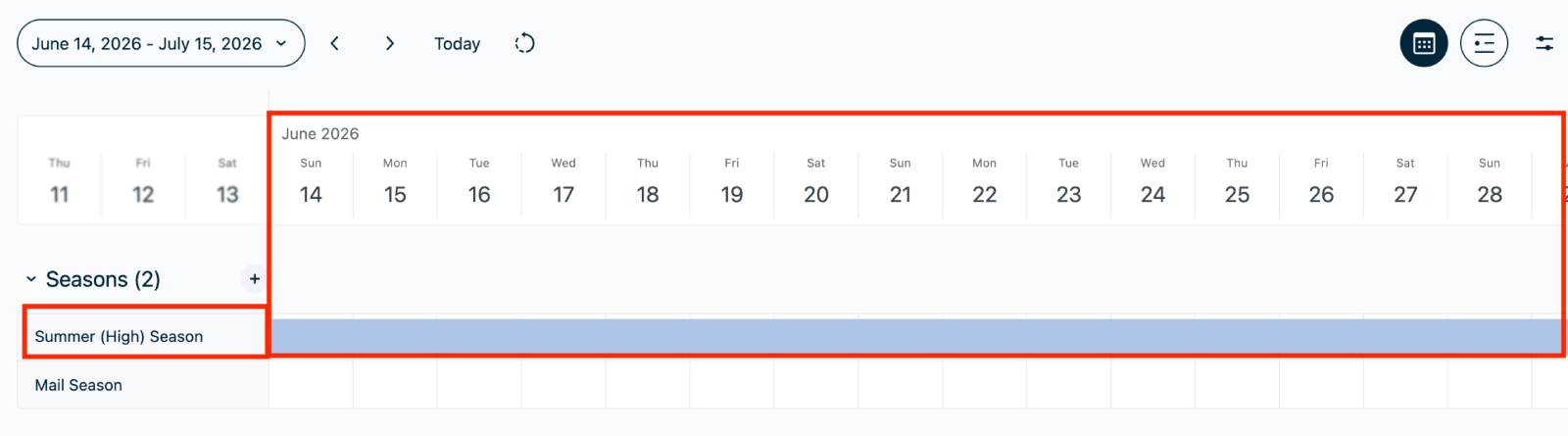
For example, if the timeline is showing dates in July, a Summer season running from June to August will appear color-coded because it is currently active.
The settings for creating the season are the same – choose the duration and optionally days of the week when the season is not eligible. Additionally, there are quick booking rules you can add directly from the Season menu (booking window, min stay, etc.).
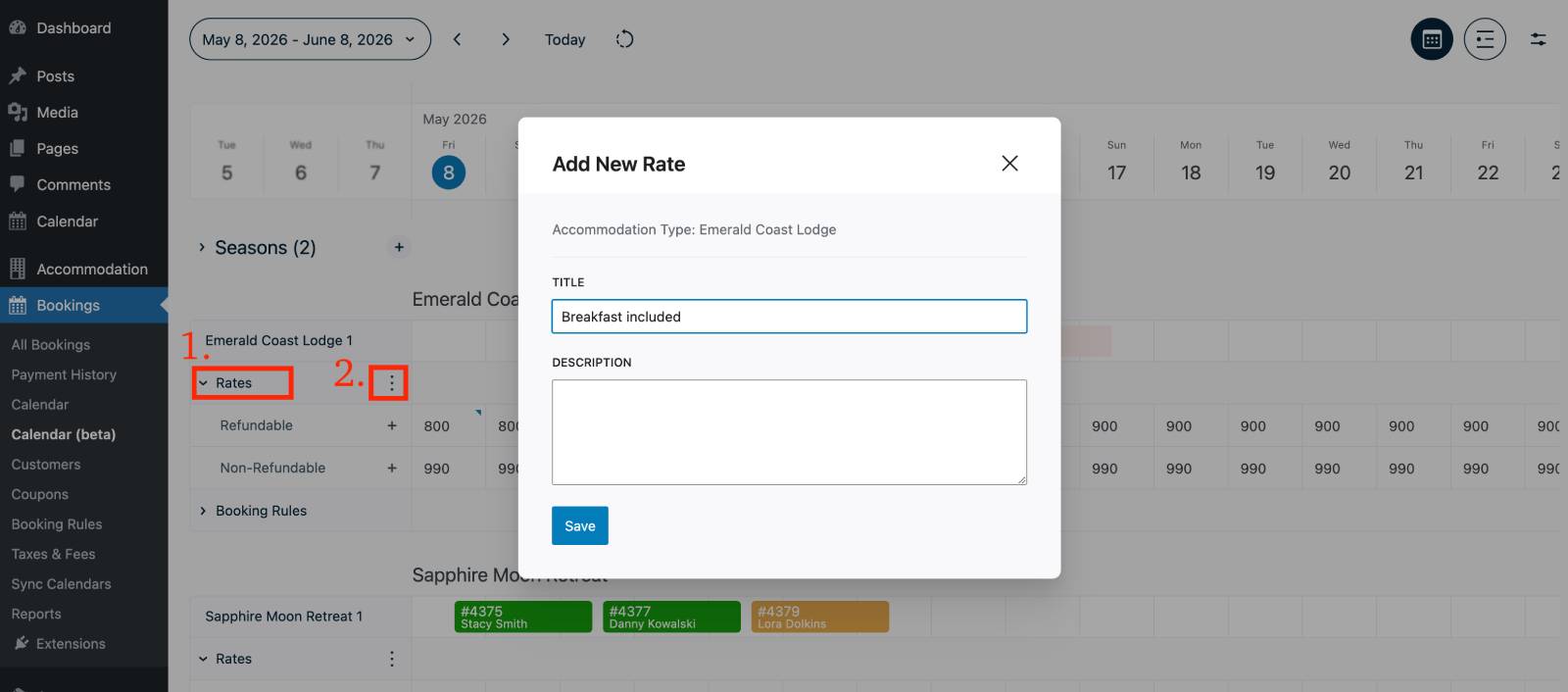
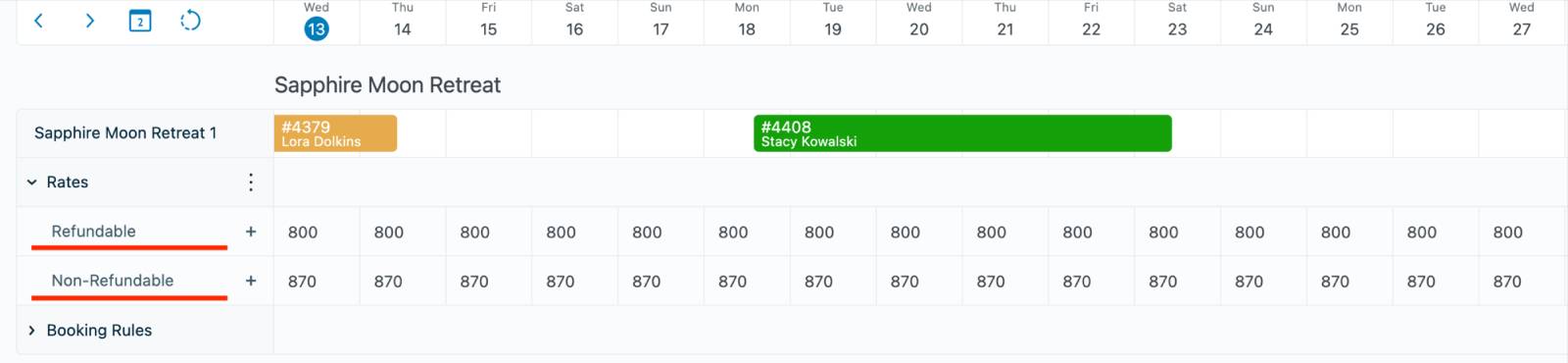
Under every property listed in the calendar, you’ll now find a dedicated Rates section. They all are folded by default for a clean interface and focused view.
This gives you the ability to create and manage rates separately for each property.
As you know, seasons can be shared across properties, but rates may differ depending on the accommodation type.
For example:
The new calendar dashboard allows you to manage all of this visually inside the timeline!
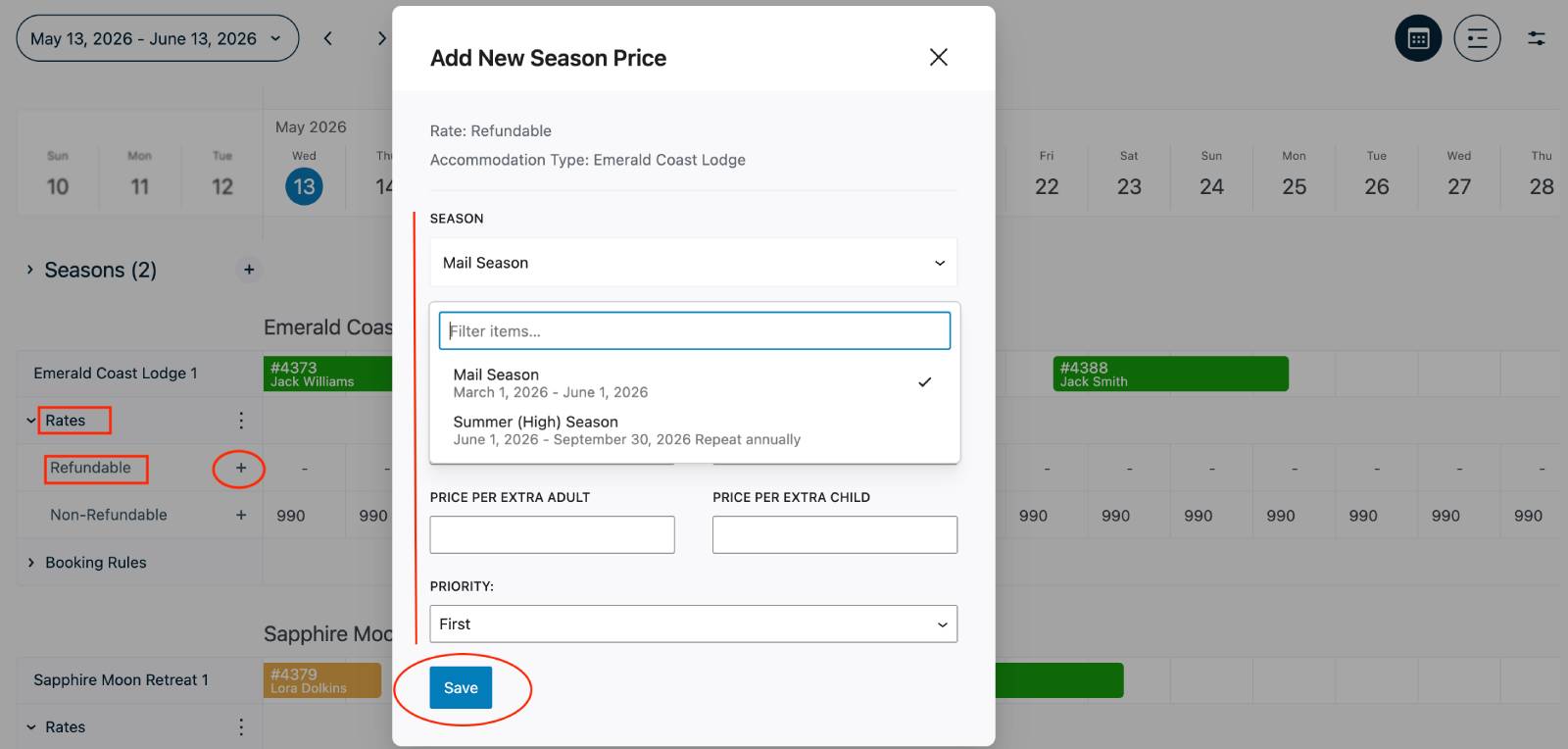
The rate setup works similarly to the existing Rates menu available under Bookings, but now you can access and edit everything directly from the calendar view.
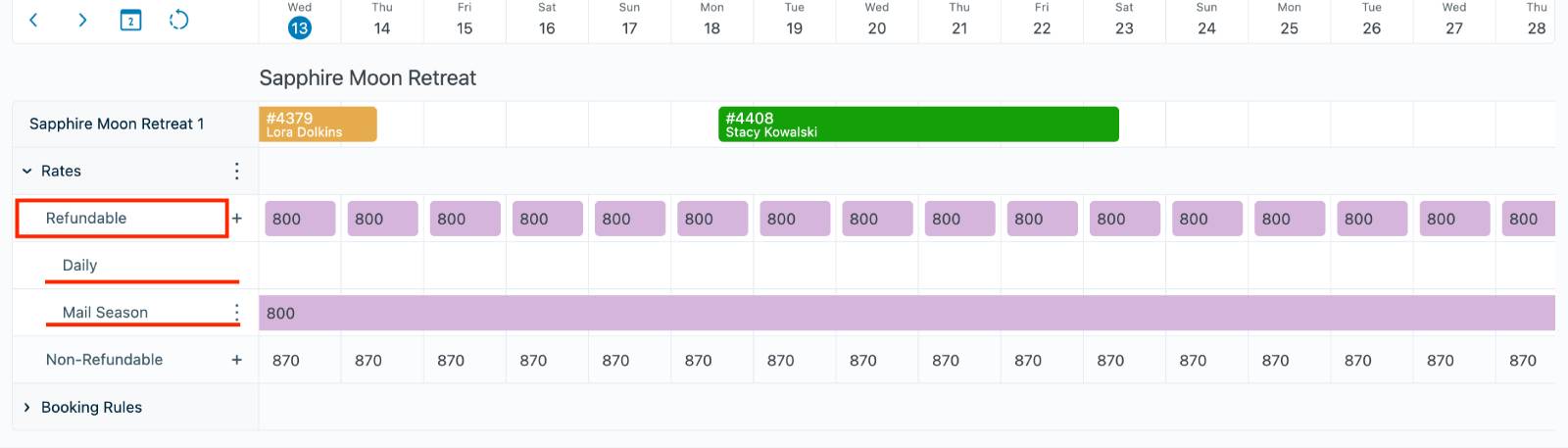
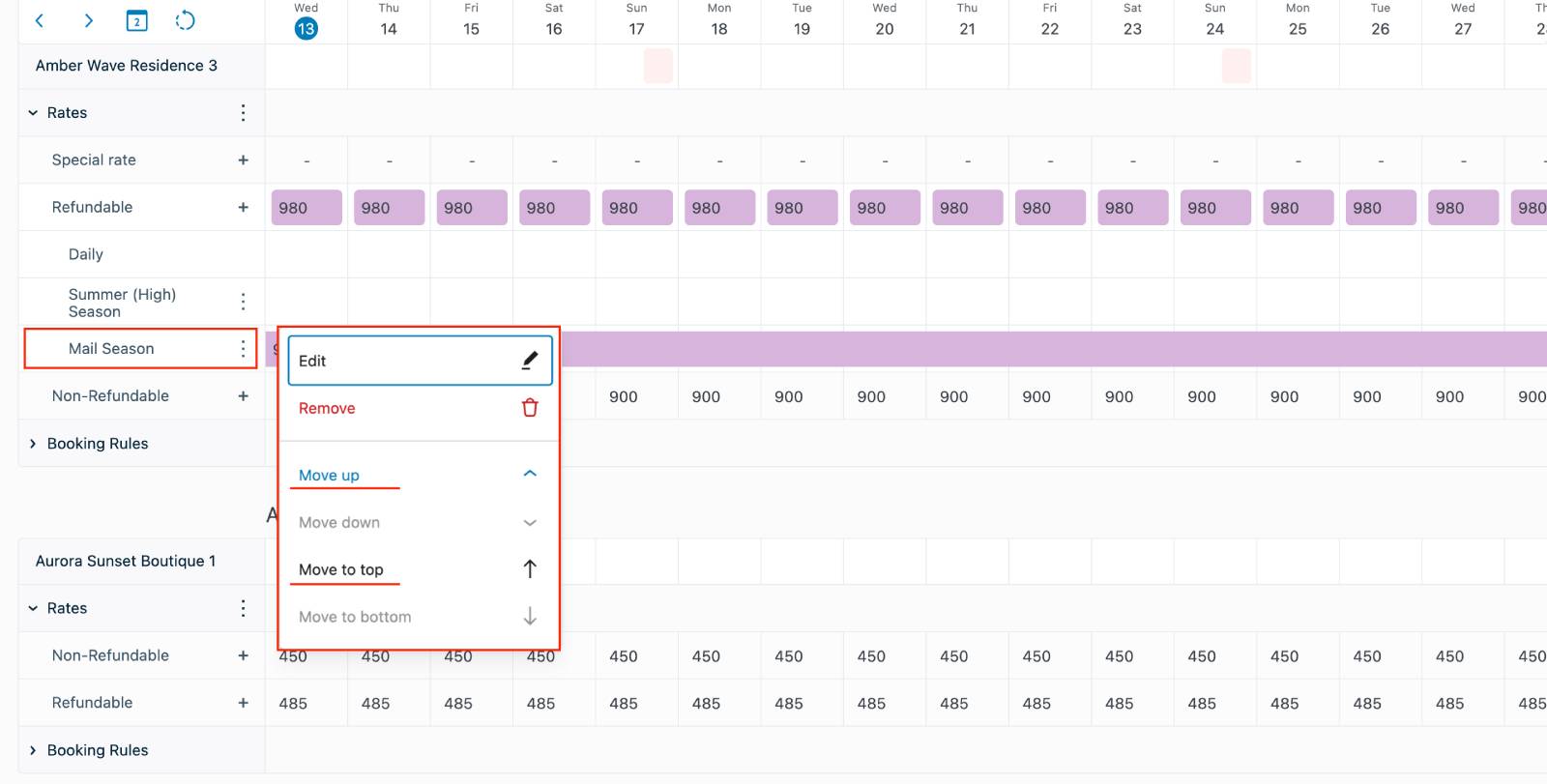
Note: Daily rate always has the highest priority.
Note that rates are color-coded in accordance with seasons they are active for.
One of the biggest additions in version 6.0.0 is the new Daily Pricing functionality you’ll find under each rate (when you click on the selected rate).
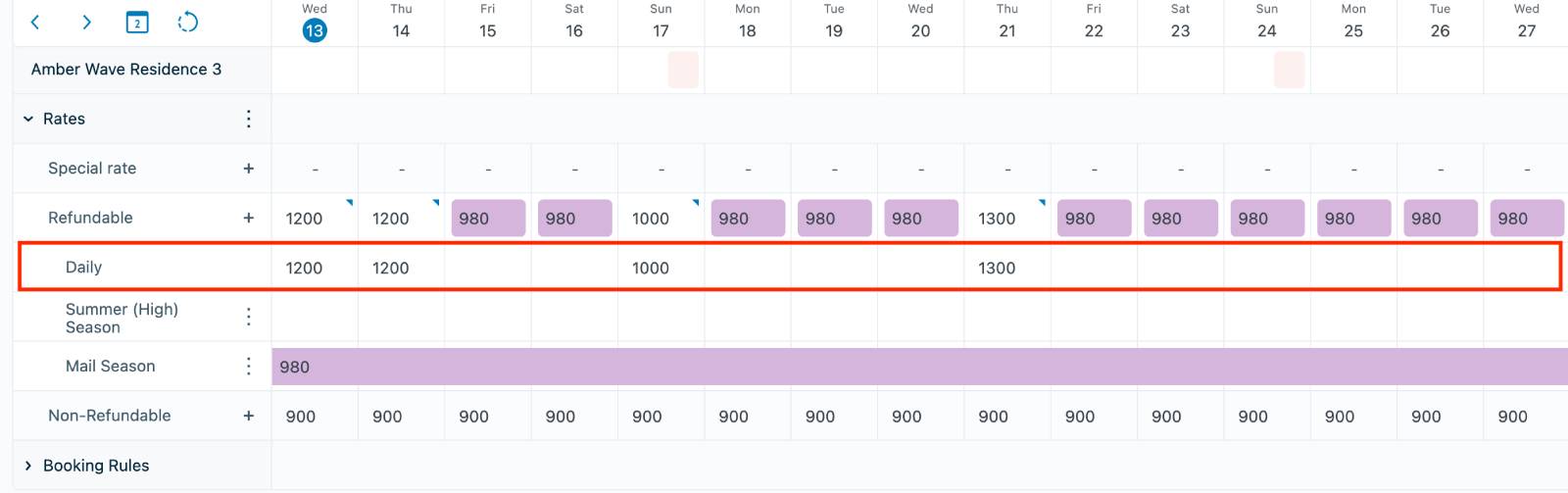
Daily pricing allows you to override your standard rates and seasons with custom pricing for specific dates – without being assigned to any specific season.
So, if you often need to add short-term pricing changes for things like below, a daily rate is a great and easy way to apply changes:
The Daily pricing section is automatically created for every property and every rate. To access it:
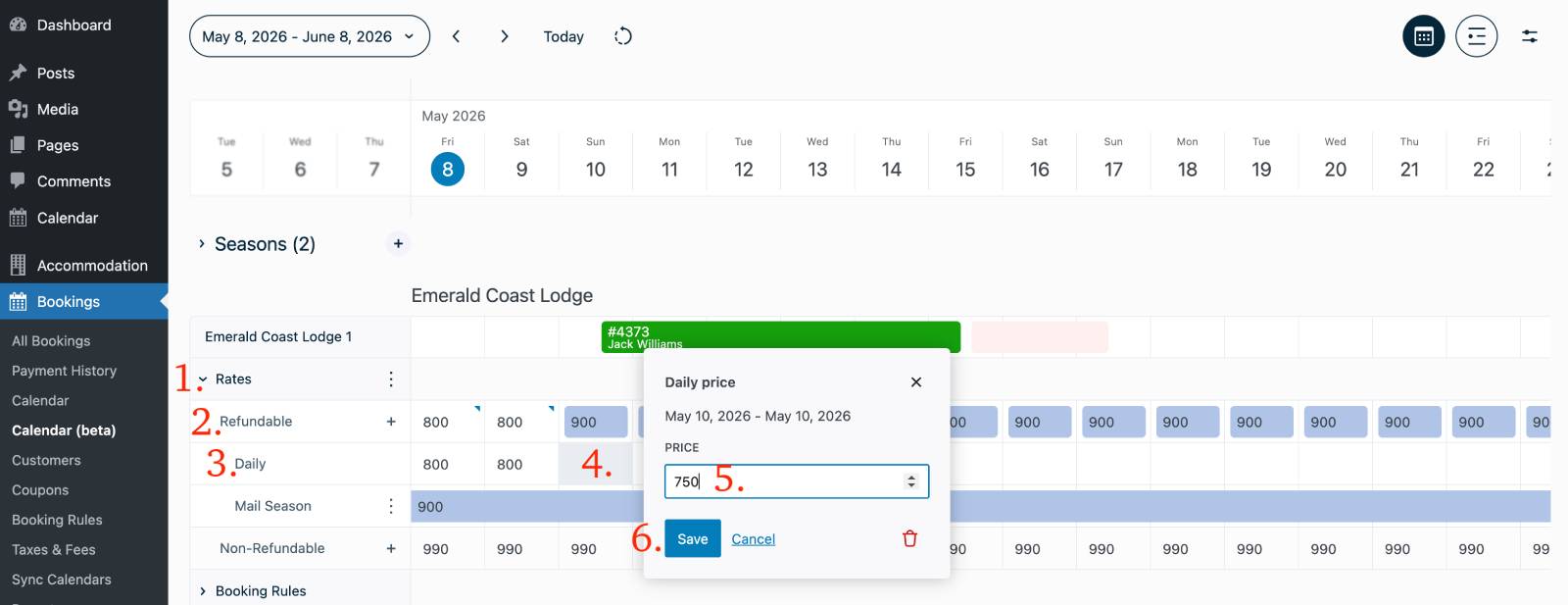
This allows you to create flexible date-specific pricing directly inside the calendar timeline, which differs from the normal seasonal pricing. Even more so, daily prices work even if you have no seasonal prices set at all.
Daily pricing works only in the new dashboard interface – you can’t create it through any other plugin menu.
If you use PriceLabs, daily prices will be replaced with those from PriceLabs.
You no longer need to rely only on seasons and rate structures only when adjusting prices.
Version 6.0.0 also brings Booking Rules directly into the calendar interface (you can still manage booking rules separately through the Bookings menu, too).
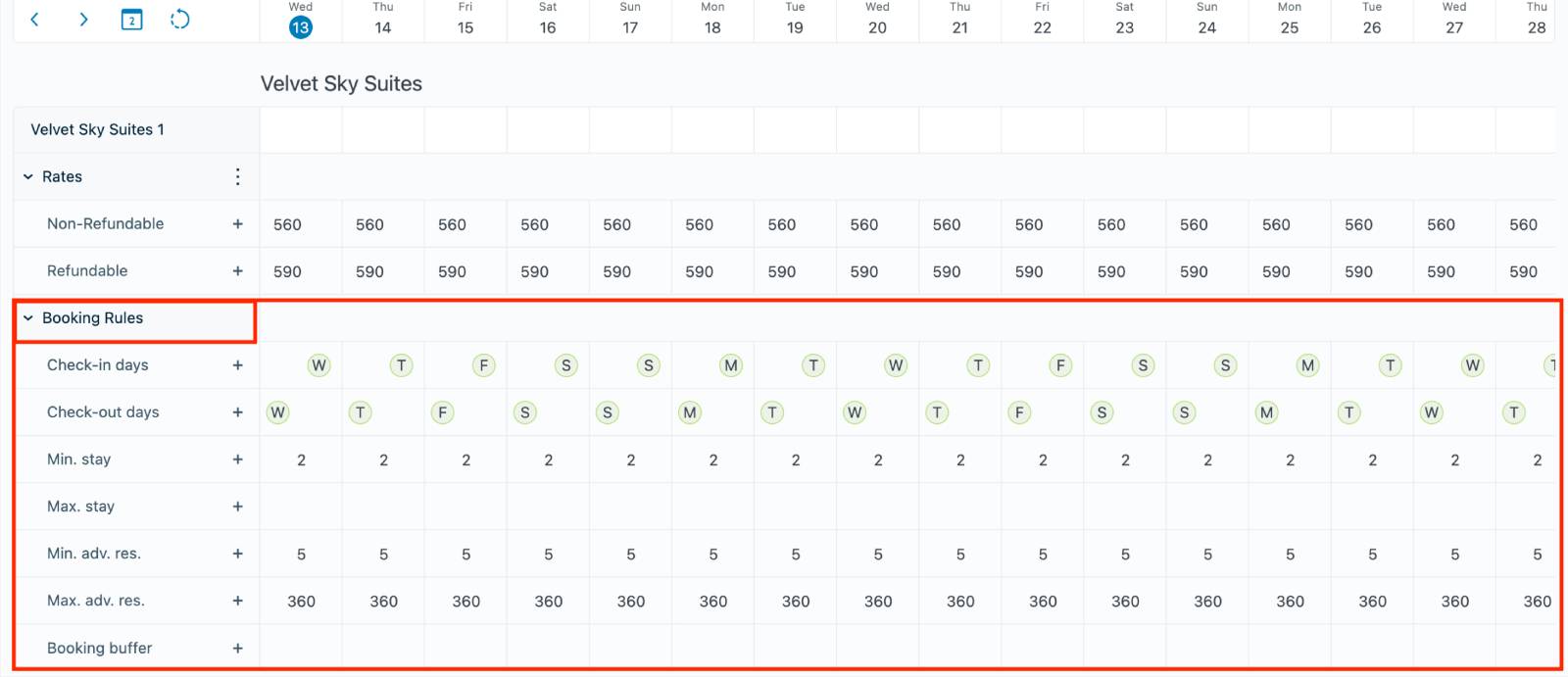
But it’s much quicker when you can access them directly under each property inside the calendar.
This allows you to configure availability restrictions faster and with much better visual context.
Right from the new dashboard, you can now manage:
All these booking rules are accessible by expanding the Booking Rules section under the selected property.
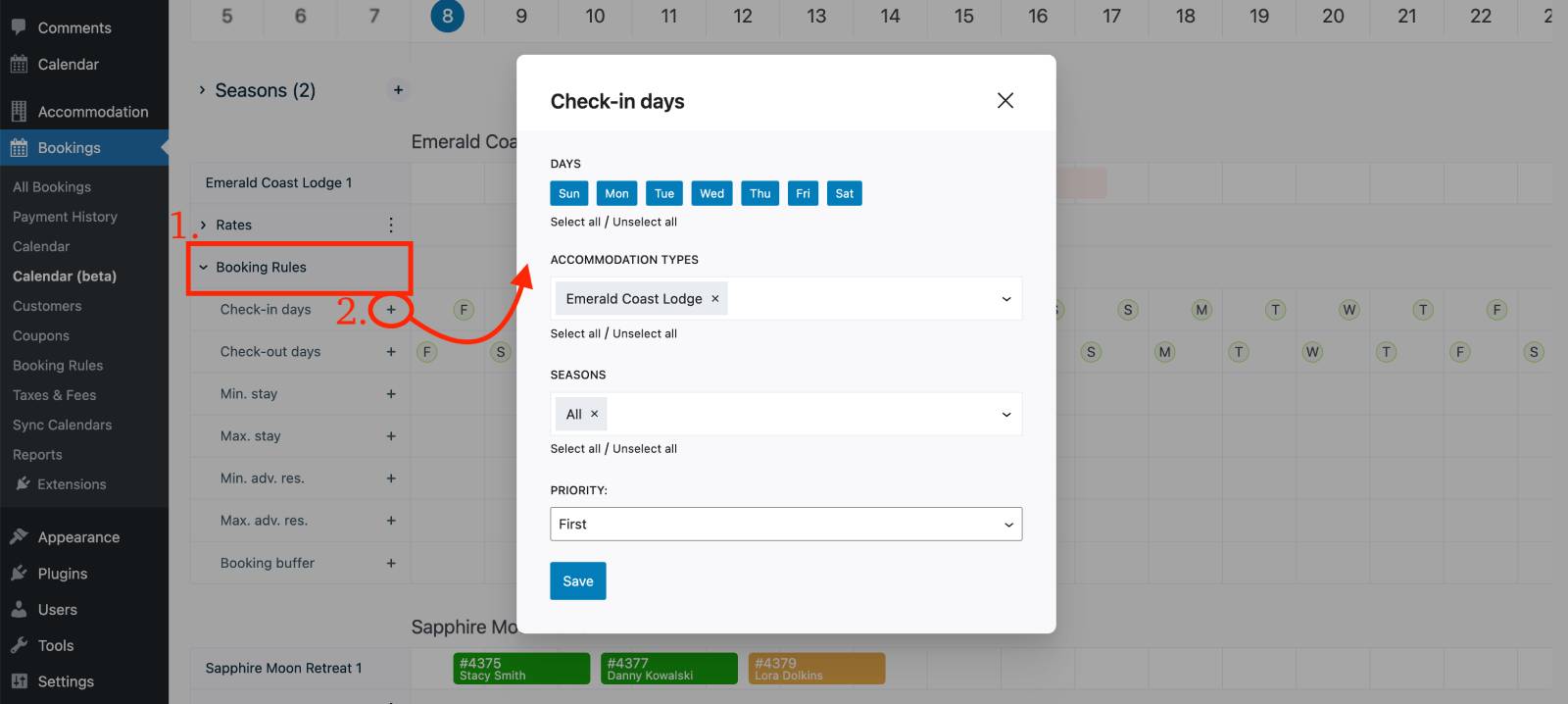
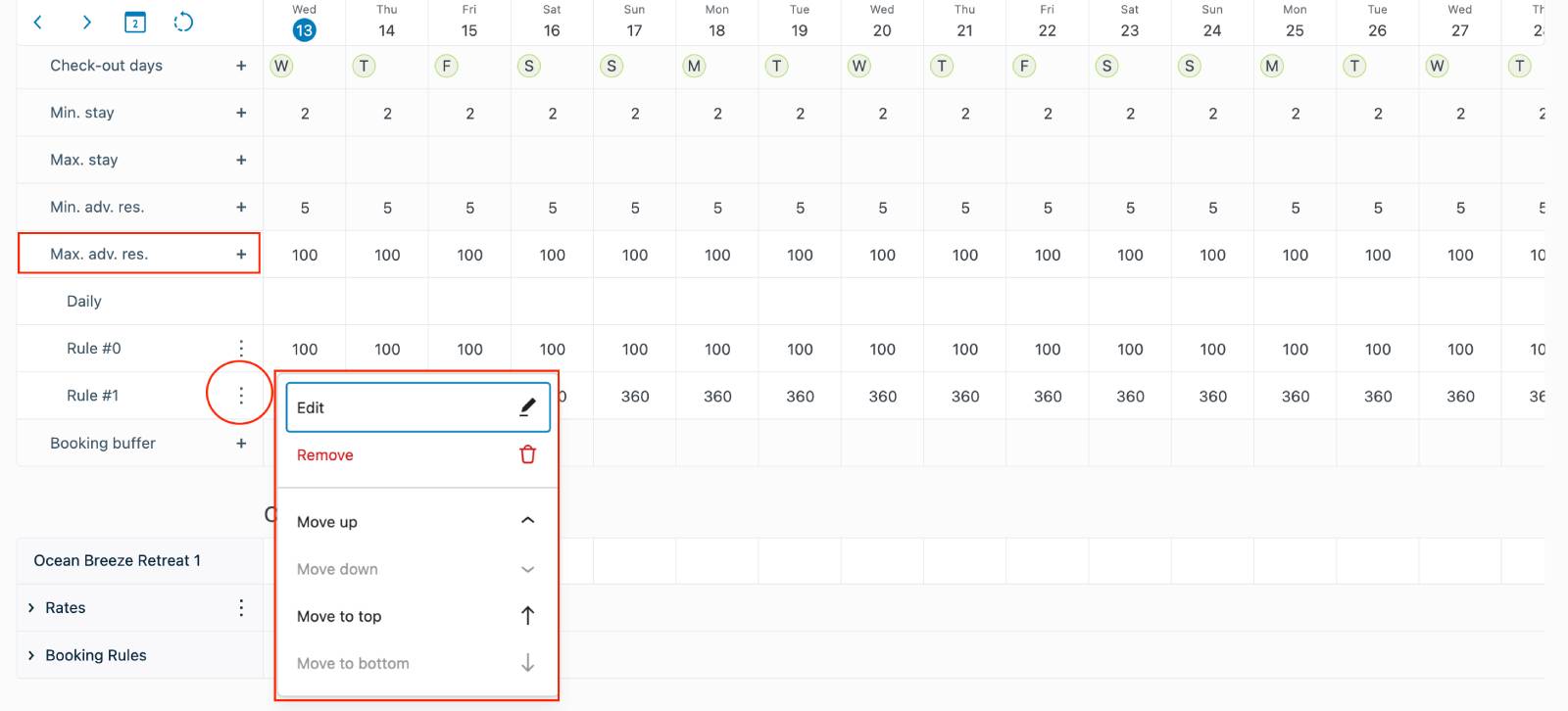
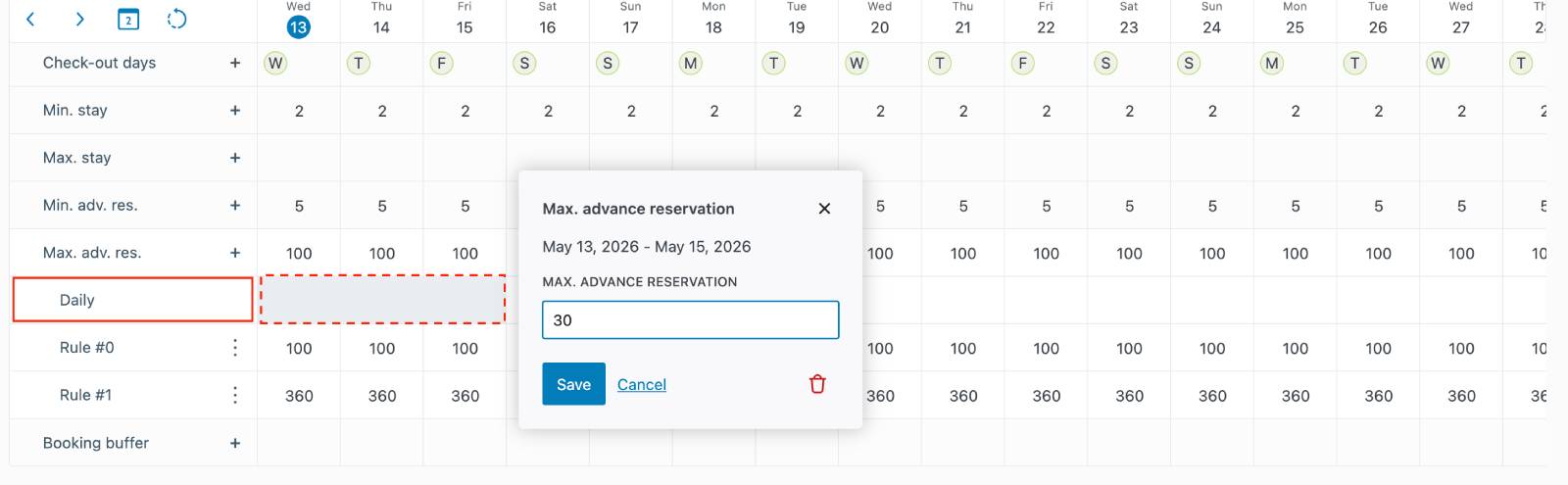
You can add as many rules as you want per season per accommodation type, also applying their priority.
All the rules you’ve added are visible on the timeline when the Booking rules section is expanded. Allowed check-in days are color-coded green and not-allowed red.
This creates a much more connected workflow because you can adjust availability rules while actively reviewing bookings and occupancy.
The calendar is now much more interactive.
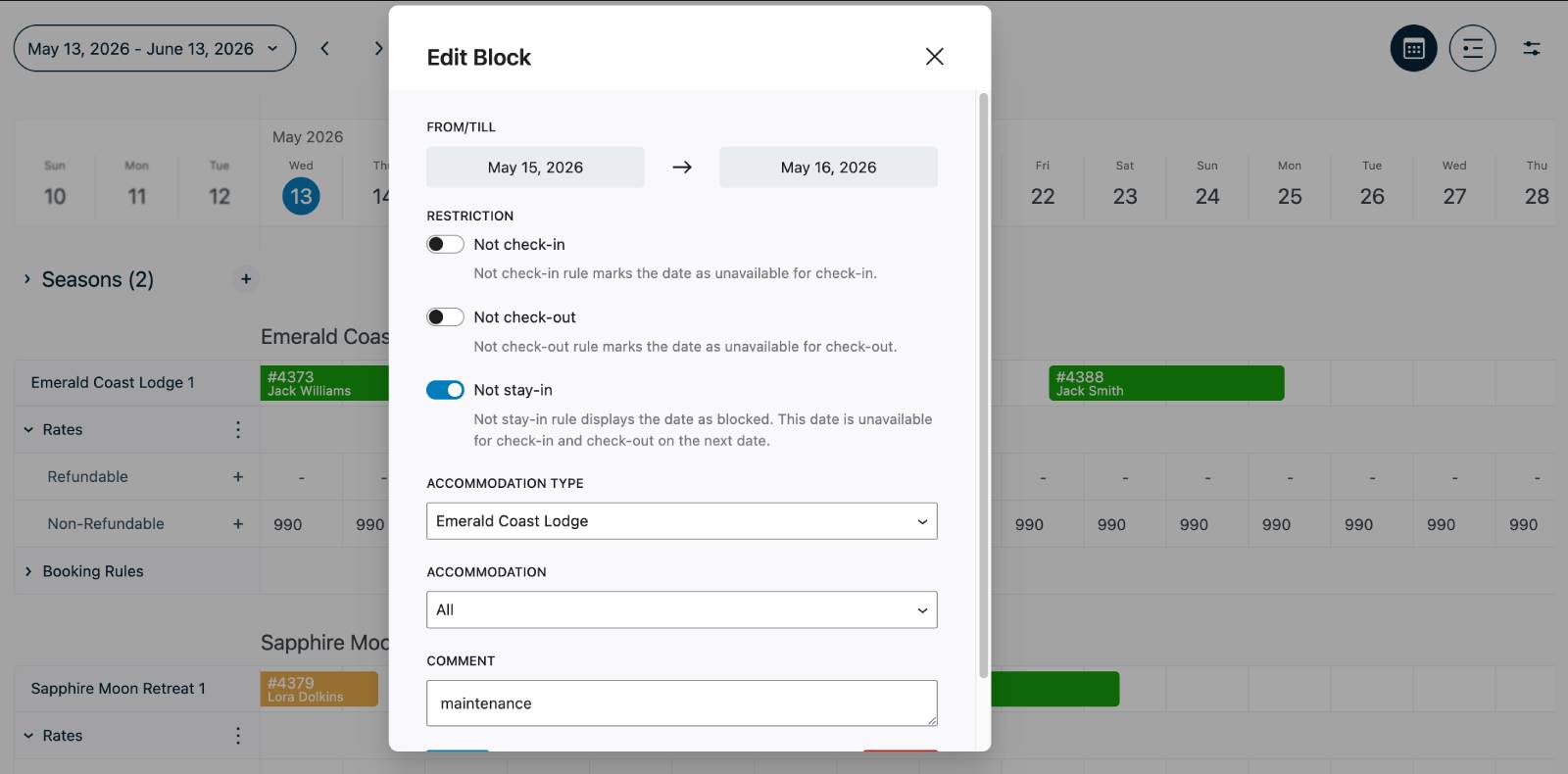
Instead of switching between multiple menus, you can directly click on a date for a specific property or multiple properties to:
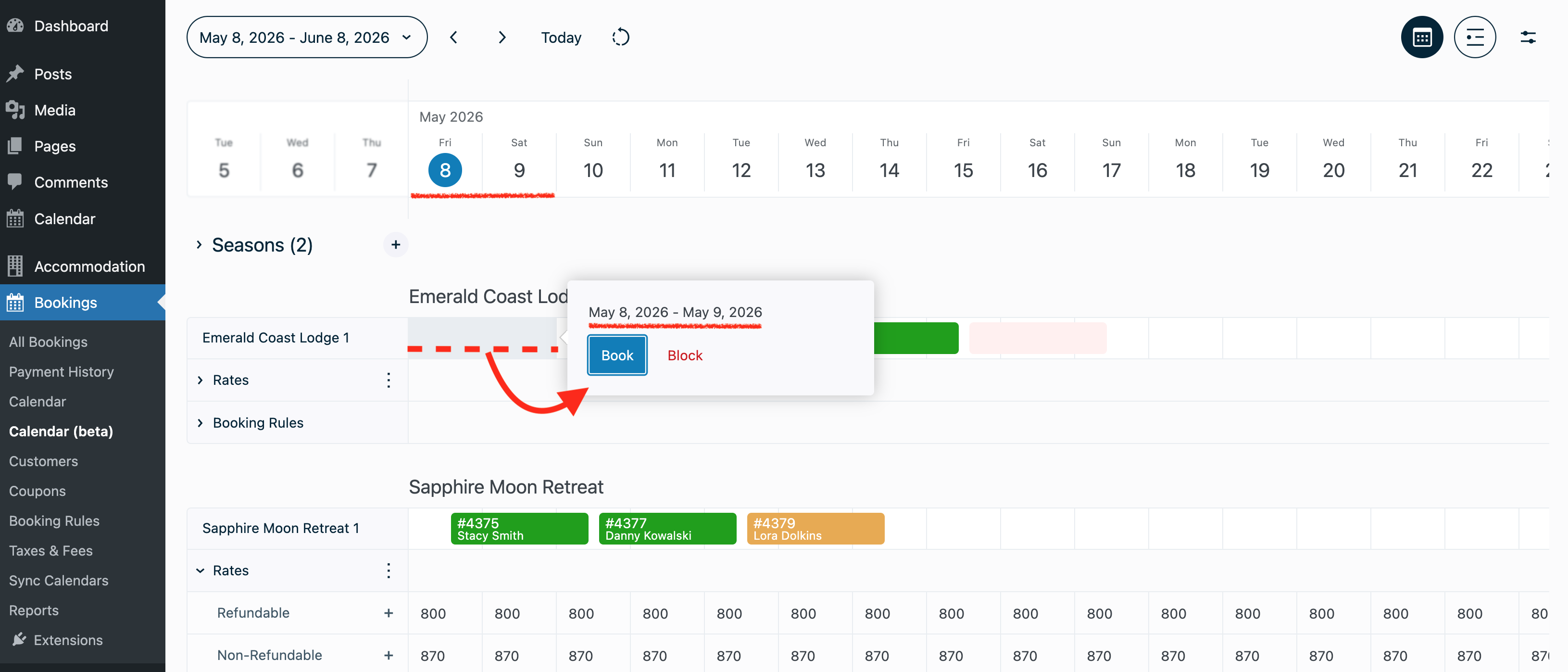
If you have multiple physical accommodations under the same accommodation type, you can select them all at once by dragging your mouse both horizontally and vertically on the timeline to book or block multiple accommodations for the same dates.
Color coding
There is a legend that pretty much resembles the old calendar:
Actions with booking and blocks
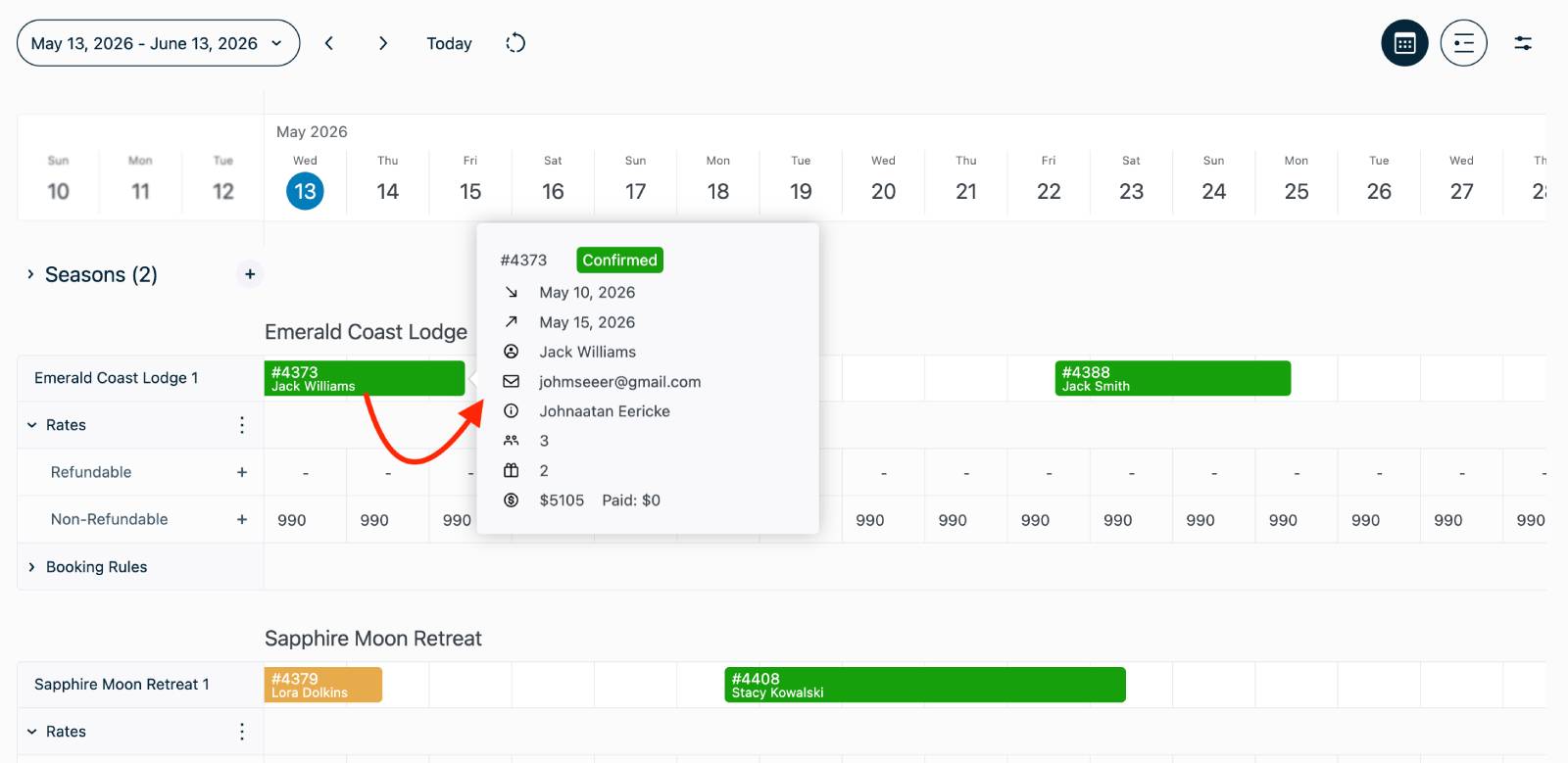
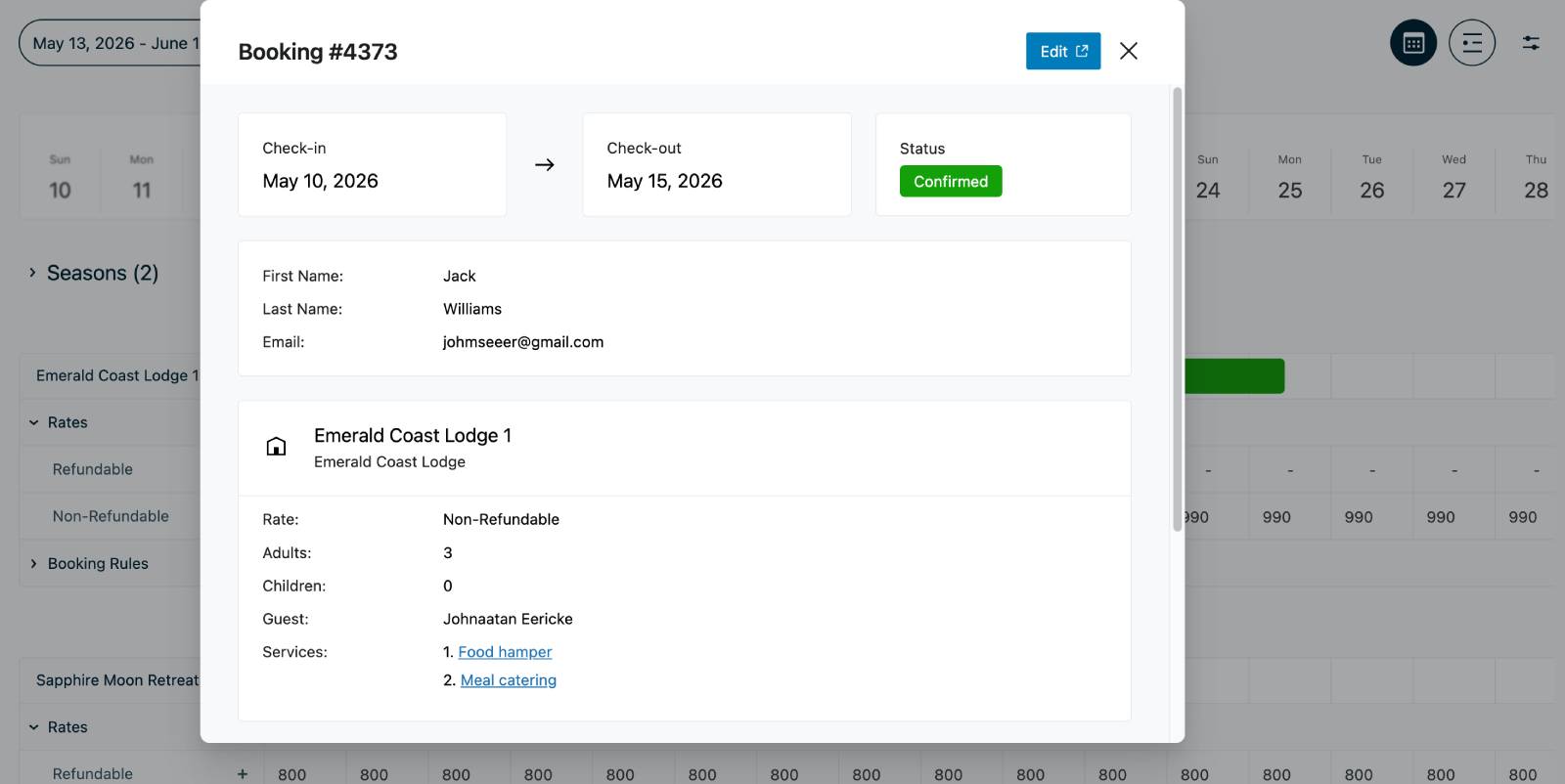
If you remember, one booking can contain multiple accommodations booked. So, you might see the same dates booked for a few accommodations, but when you click on either, it will open the same booking simply because they were booked in one transaction by one client.
If you want to add different accommodation types into one booking:
– For existing bookings, click on a booking > Edit > Edit accommodations.
– For new bookings, use the old Calendar menu > click New booking.
The new dashboard also introduces a completely new interface mode for a distraction-free list preview of your today’s or new-future guests.
In addition to the timeline calendar view, you can now switch to a compact List View using the icon in the upper-right corner.
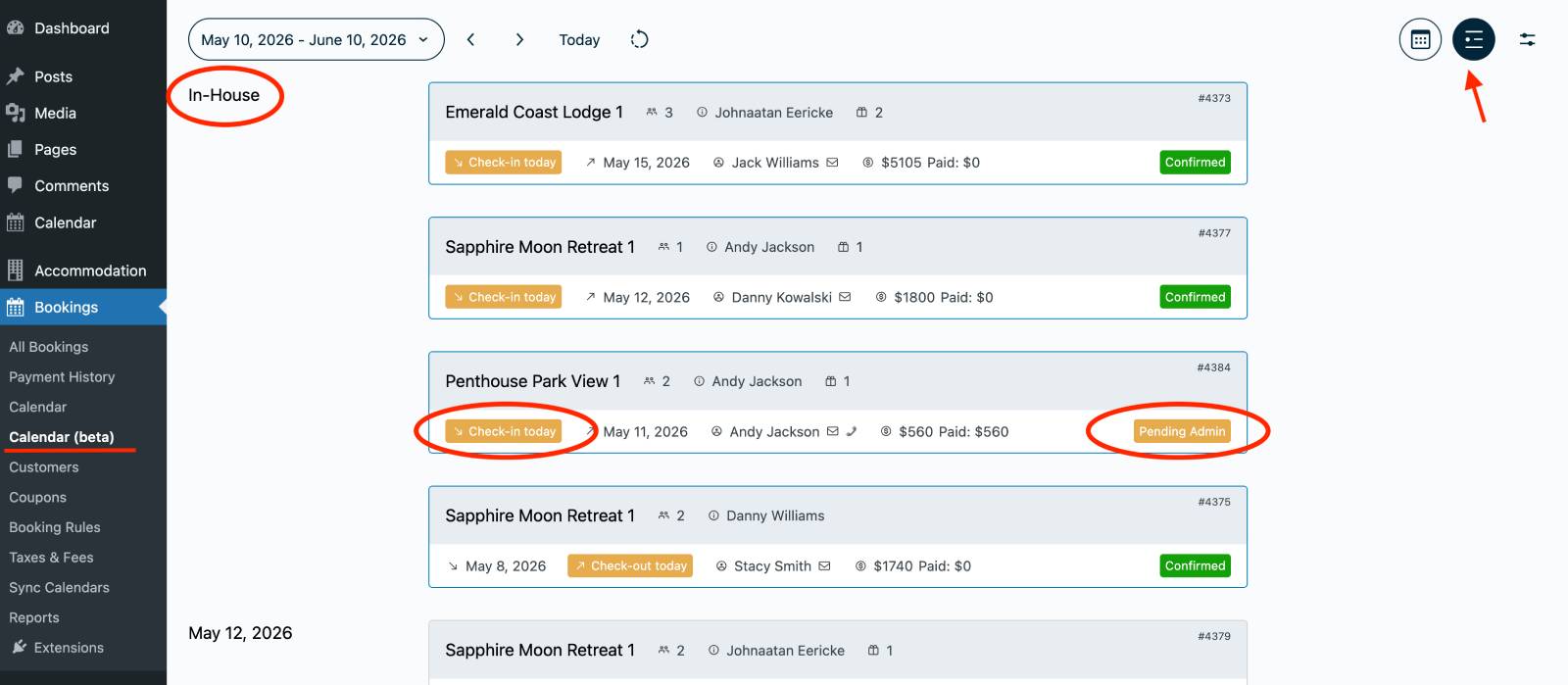
The List View is designed for quickly reviewing:
Everything is displayed in a clean chronological structure, making it easier to quickly understand who is staying at your property and which guests are arriving soon.
This view is especially helpful for front-desk workflows and daily booking management.
The same per-booking actions as in the calendar are available – you can view booking details, add a payment, or edit a booking. Simply click on the needed booking to view your options on the property management dashboard.
The new Calendar menu in version 6.0.0 of our WordPress hotel booking plugin is designed to make property management faster: the timeline makes it more visual, and combining multiple pricing and availability settings in one place makes it more centralized. Overall, it is aiming to make your day-to-day property management significantly faster, especially for hotels or vacation rentals that frequently update availability or prices/rules manually.
Through a single property management dashboard menu, you can now manage:
We highly recommend exploring the new property management dashboard and calendar layout, testing the new pricing tools, and experimenting with managing bookings directly from the timeline!
The new workflow is built to save time while giving you much more control over your accommodation management process.
Stay tuned for the next parts of our version 6.0.0 update overview, where we’ll cover even more new features and improvements!
此内容由惯性聚合(RSS阅读器)自动聚合整理,仅供阅读参考。 原文来自 — 版权归原作者所有。