惯性聚合 高效追踪和阅读你感兴趣的博客、新闻、科技资讯
阅读原文 在惯性聚合中打开

推荐订阅源

S
Schneier on Security
博客园 - 【当耐特】
人人都是产品经理
人人都是产品经理
大猫的无限游戏
大猫的无限游戏
Last Week in AI
Last Week in AI
IT之家
IT之家
V
V2EX
CTFtime.org: upcoming CTF events
博客园 - 叶小钗
Martin Fowler
Martin Fowler
让小产品的独立变现更简单 - ezindie.com
M
MIT News - Artificial intelligence
博客园 - 聂微东
MyScale Blog
MyScale Blog
云风的 BLOG
云风的 BLOG
The Cloudflare Blog
WordPress大学
WordPress大学
Microsoft Azure Blog
阮一峰的网络日志
阮一峰的网络日志
酷 壳 – CoolShell
酷 壳 – CoolShell
博客园 - 三生石上(FineUI控件)
Cyberwarzone
Cyberwarzone
Scott Helme
Scott Helme
H
Help Net Security
奇客Solidot–传递最新科技情报
奇客Solidot–传递最新科技情报
The GitHub Blog
The GitHub Blog
Cisco Talos Blog
Cisco Talos Blog
D
DataBreaches.Net
P
Palo Alto Networks Blog
T
Threatpost
P
Privacy & Cybersecurity Law Blog
L
LINUX DO - 最新话题
Know Your Adversary
Know Your Adversary
C
CXSECURITY Database RSS Feed - CXSecurity.com
B
Blog
OSCHINA 社区最新新闻
OSCHINA 社区最新新闻
P
Proofpoint News Feed
cs.AI updates on arXiv.org
Cloudbric
Cloudbric
cs.CV updates on arXiv.org
N
News and Events Feed by Topic
T
The Blog of Author Tim Ferriss
L
Lohrmann on Cybersecurity
量子位
Security Latest
Security Latest
Google DeepMind News
Y
Y Combinator Blog
aimingoo的专栏
aimingoo的专栏
Forbes - Security
Forbes - Security
T
Tailwind CSS Blog

MotoPress

Announcing a Trusted WordPress Service Provider Directory: Apply Now! - MotoPress WordPress Event Calendar Widget: Build Schedules & Timetables - MotoPress 10 Best & Reliable WordPress Coaching Plugin Picks - MotoPress Top 10 City Guide WordPress Themes for Travel Sites - MotoPress Top 8 WordPress Time Slot Booking Plugin Options - MotoPress WordPress Wellness Appointment Scheduling: How to Do It Right WordCamp 2026 in Kraków: Top Things We Loved (and a Few Regrets) Best Booking Software for Photographers to Automate Client Sessions Bookly Alternatives: Top 11 Affordable & Powerful Scheduling Plugins Best WordPress Gallery Plugins for Image & Video (Free & Premium) Stripe’s Authorize and Capture: Using Manual Funds Capture in MotoPress Hotel Booking Divi vs Elementor: Which WordPress Page Builder Wins in 2026? MotoPress Hotel Booking + Stripe: Unlock More Payment Methods Calendar Turns into Property Management Dashboard: Reviewing New Hotel Booking Plugin Menu Hotel Booking 6.0 Overview: Revamped Calendar, Place a Hold on Stripe Payment & More Use MotoPress Hotel Booking with Divi 5 (Divi Integration Add-on 2.0.0) SEO Guide for Event Marketing: How to Rank Higher for Calendar & Event Pages Astra Theme Alternatives: Top WordPress Themes for the New Generation Top 10 Holiday Home Online Booking Systems Creating a Hotel Cancellation Policy: What Guests Want to Know Modern WooCommerce Themes: Minimalist, Sleek, and Lightweight WP Simple Booking Calendar vs MotoPress Booking Calendar: In-Depth Comparison Which WordPress Calendar Schedule Plugin to Choose? 10 Robust Options Creating WordPress Hotel Booking Calendar: Hands-On Tutorial How to Find Out What WordPress Theme is That? 6 Best Sites WP Hotel Booking Plugin (by ThimPress) vs MotoPress Hotel Booking: Full Comparison 16 Best Driving School WordPress Themes: Accelerate Your Online Presence How to Create Elementor Blog Posts Grid & Carousel? Reschedule Events with Drag-and-Drop: New in the Events Calendar 2.2.0 TOP 11 WordPress Plugins for Event Management (And Why We Think They’re the Best) Submit Your Property to Google Hotels & Vacation Rentals through Hotel Booking 5.5.1 How to Handle WordPress Inventory Management for Rental Business What MotoPress Hotel Booking Plugin Can Do for Multi-Property Management
Decide Which Events Show First on Your Calendar (MotoPress Events Calendar 2.3.0)
Author: Ann Taylor · 2026-04-30 · via MotoPress

In the latest version 2.3.0 of the MotoPress Events Calendar plugin, we’ve rolled out a few small but helpful UX updates: you can now use a custom default date instead of “today” for your calendar! This way, the site visitors see the events you want them to see first.

On top of that, you can remove any calendar view modes (month, week, day, or list) that don’t contribute to showcasing your events in the best possible way.

Now, let’s see how you can do that!

New feature #1: Default the calendar to the custom date

This makes sense when your business operates around specific, non-continuous, or future-focused schedules. This will also serve event calendars with seasonal openings, when you’re closed or inactive for part of the year. For example:

  • Conferences, summits, expos
  • Festivals or seasonal events
  • Theater productions with a defined run
  • Ski resorts
  • Beach clubs
  • Summer camps
  • Holiday attractions.

So, if your festival starts on June 10 and the visitors land on your events page in April, showing April dates just creates empty states. Defaulting to June 10 immediately shows relevant content.

For example, I created a sample calendar that automatically shows ski resort events starting in December when visitors open the page. Even if they visit it in April – they see relative winter events right away!
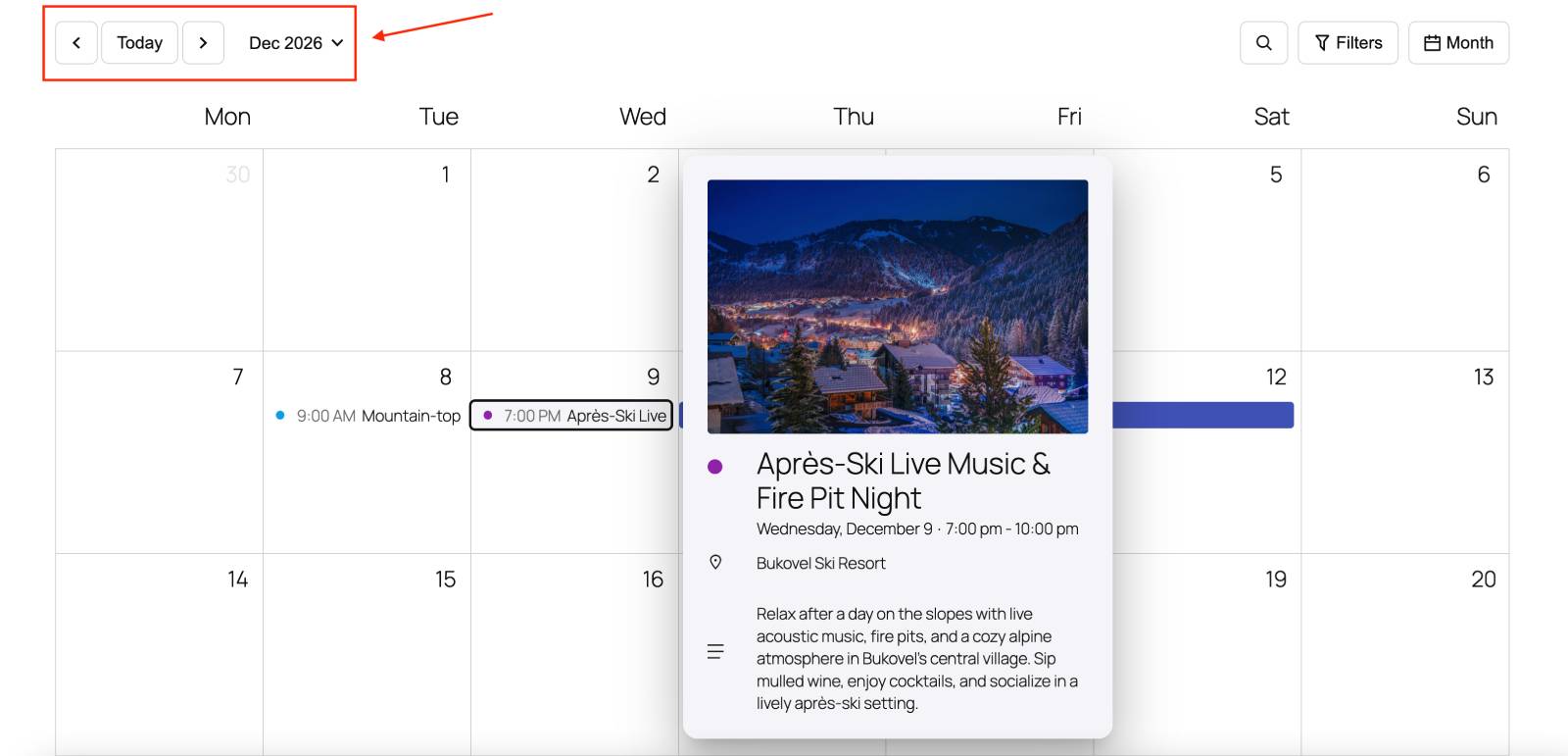
The events calendar example with a set custom date.

By the way, I really like how nicely the Twenty Twenty-Five theme (which I used for the screenshots in this article) works with the MotoPress Events Calendar plugin!

How to default the events calendar to the needed date & which blocks support this

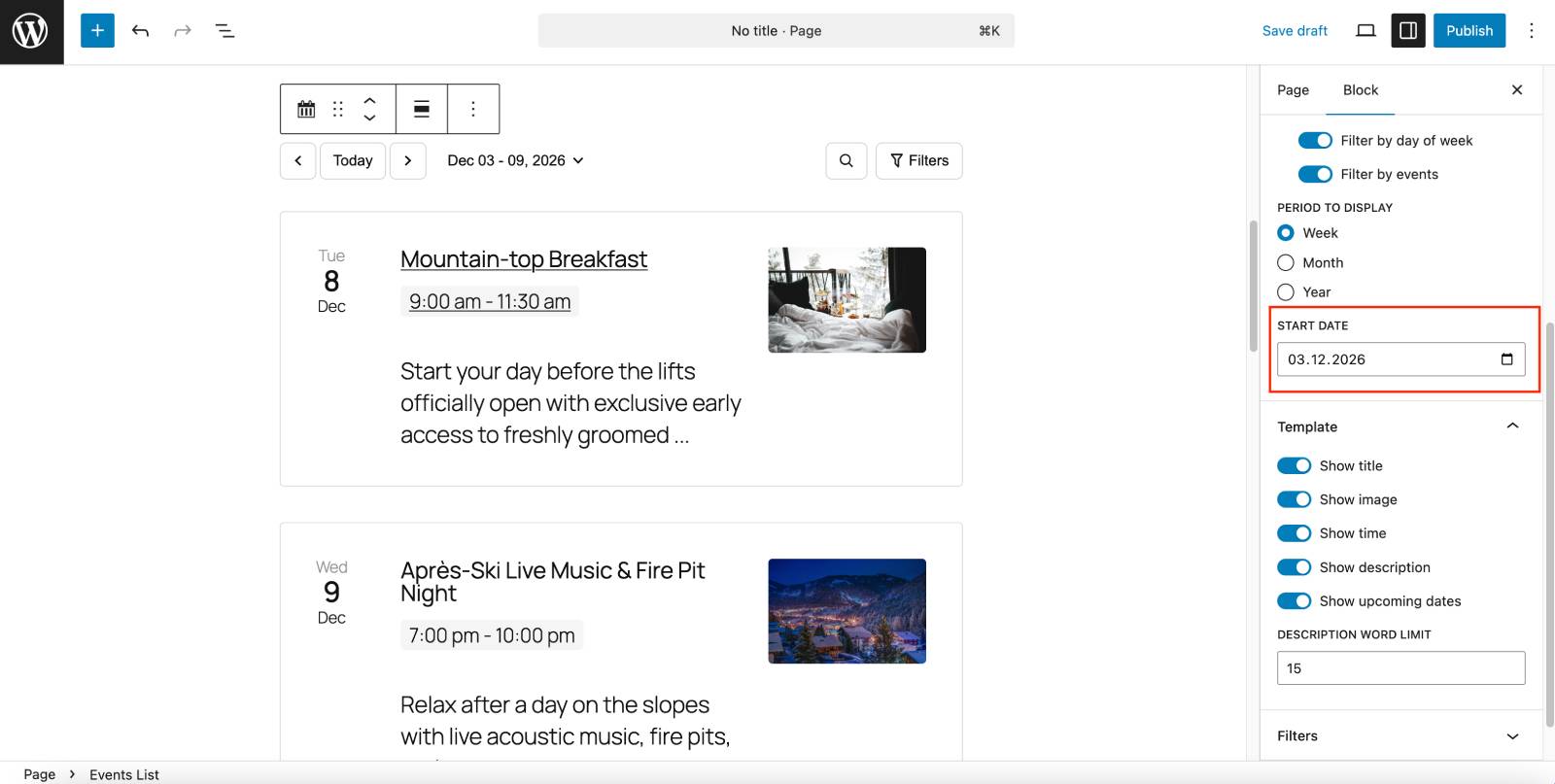
It’s really simple – you can apply the needed display date as usual in the block settings in the WordPress editor.

So, go to the page where you have a calendar > then click on the block > find its Settings in the right panel > find the Start Date field > set up the custom date > update the page. The calendar will show events starting this date on the site!
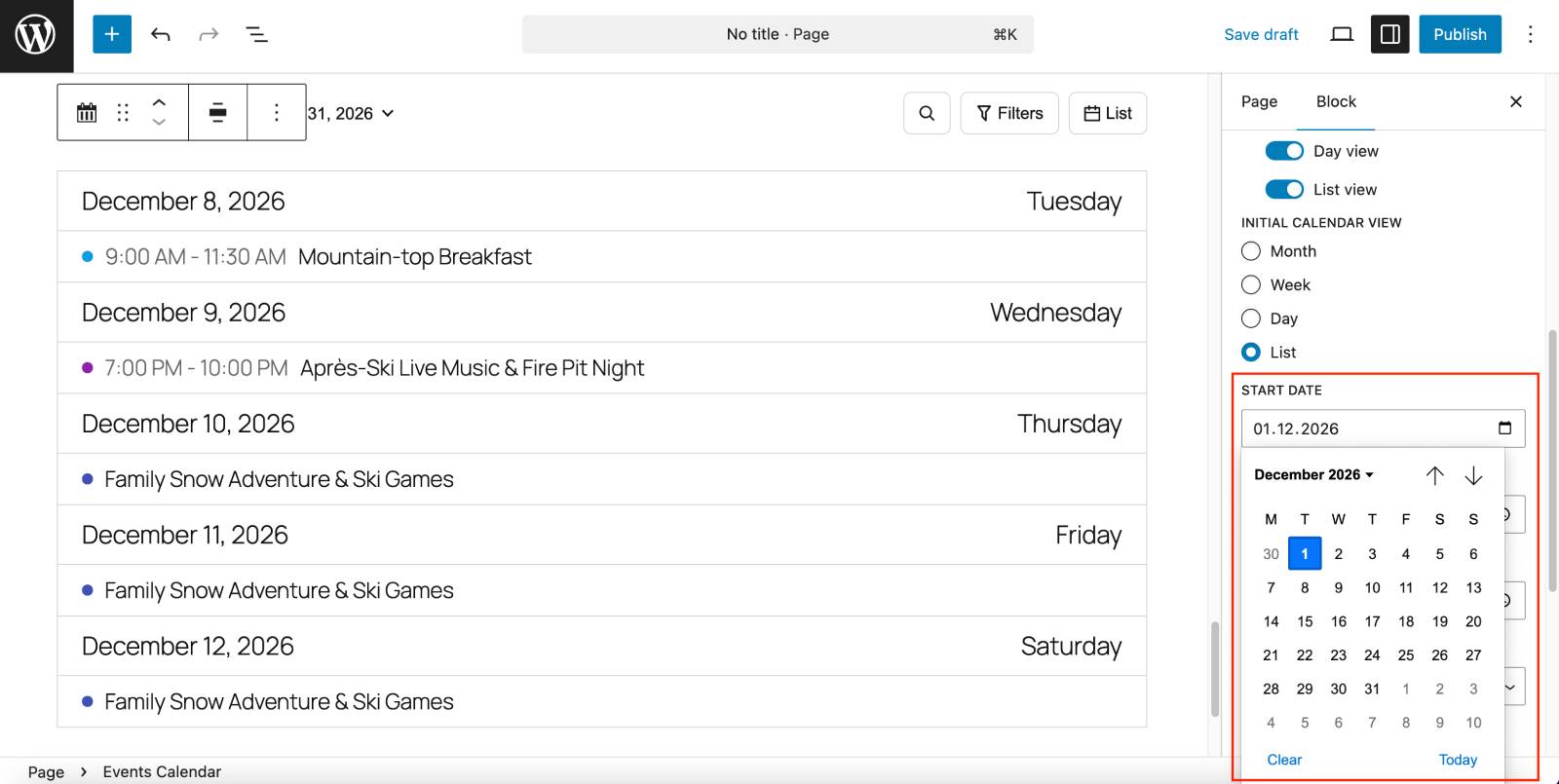
The events calendar block and its start date.

Which events calendar widgets / blocks can you also default to the custom date? Here is a full list:
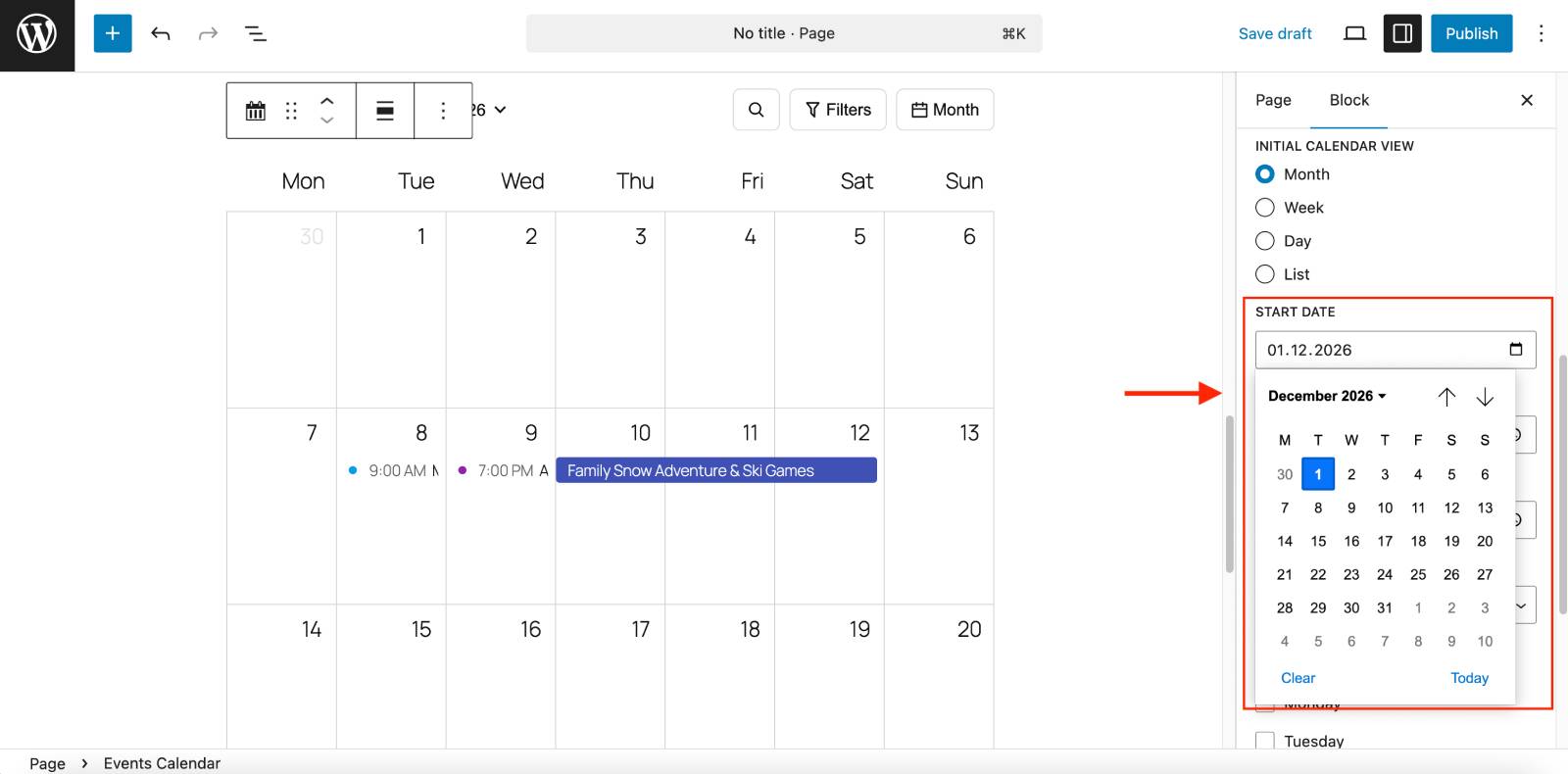
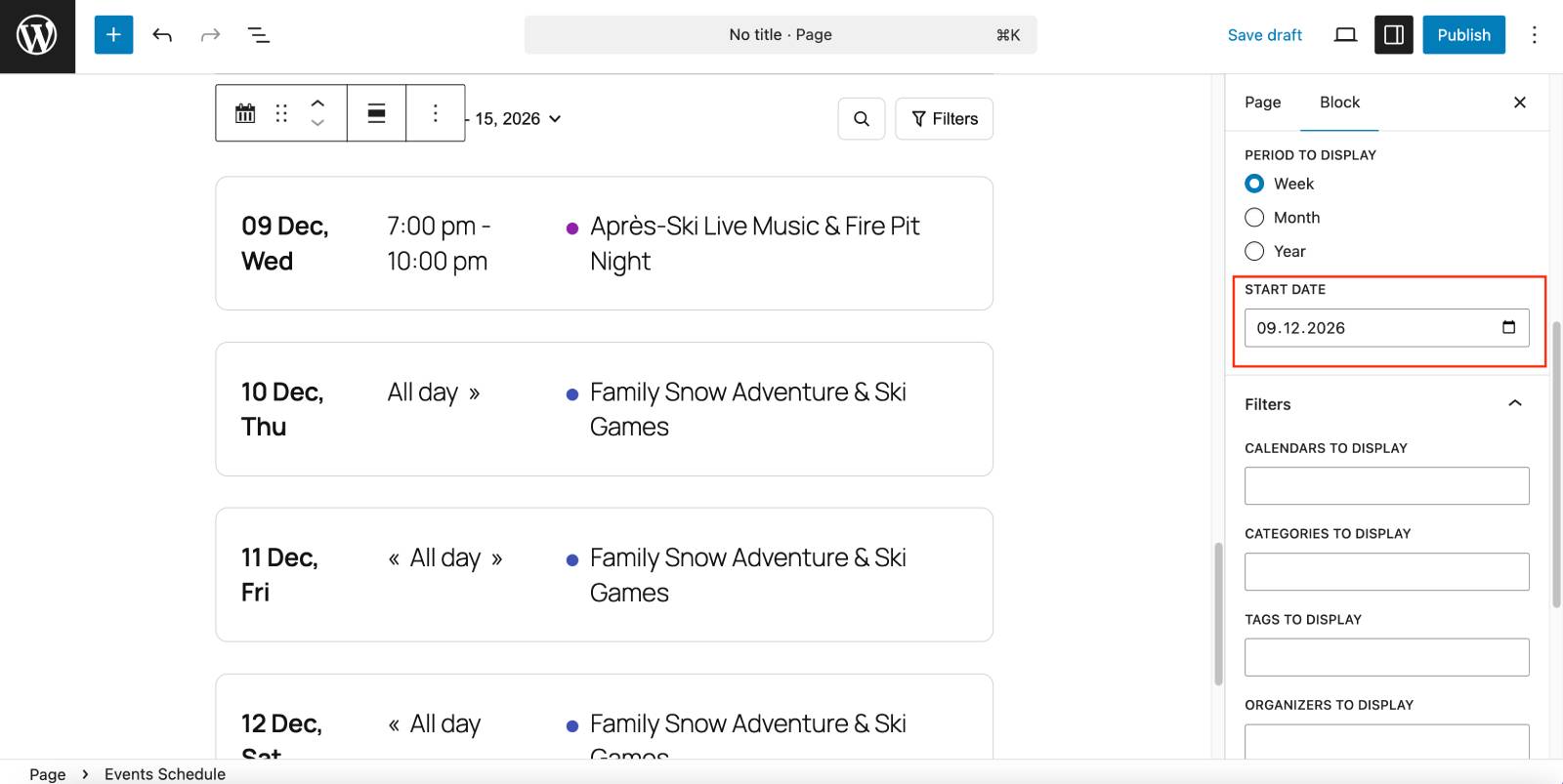
  1. Events Calendar block (your events in a calendar or list view).
  2. Setting up a start date to display events in settings for MotoPress events calendar.

  3. Events Schedule block (shows a simple list of upcoming events).
  4. Setting up start date in the Events list block.

  5. Events List block (a list of events with descriptions and images).
  6. Editing MotoPress events list blocks.

Basically, just place the needed block to the page, then find the Start Date field and pick the date in the calendar.

If you implement a custom default date, you want to try to make it more explicit. For example, on the page where you have a calendar, show a label like: “Showing events from June 10 (Festival Opening Day)”.
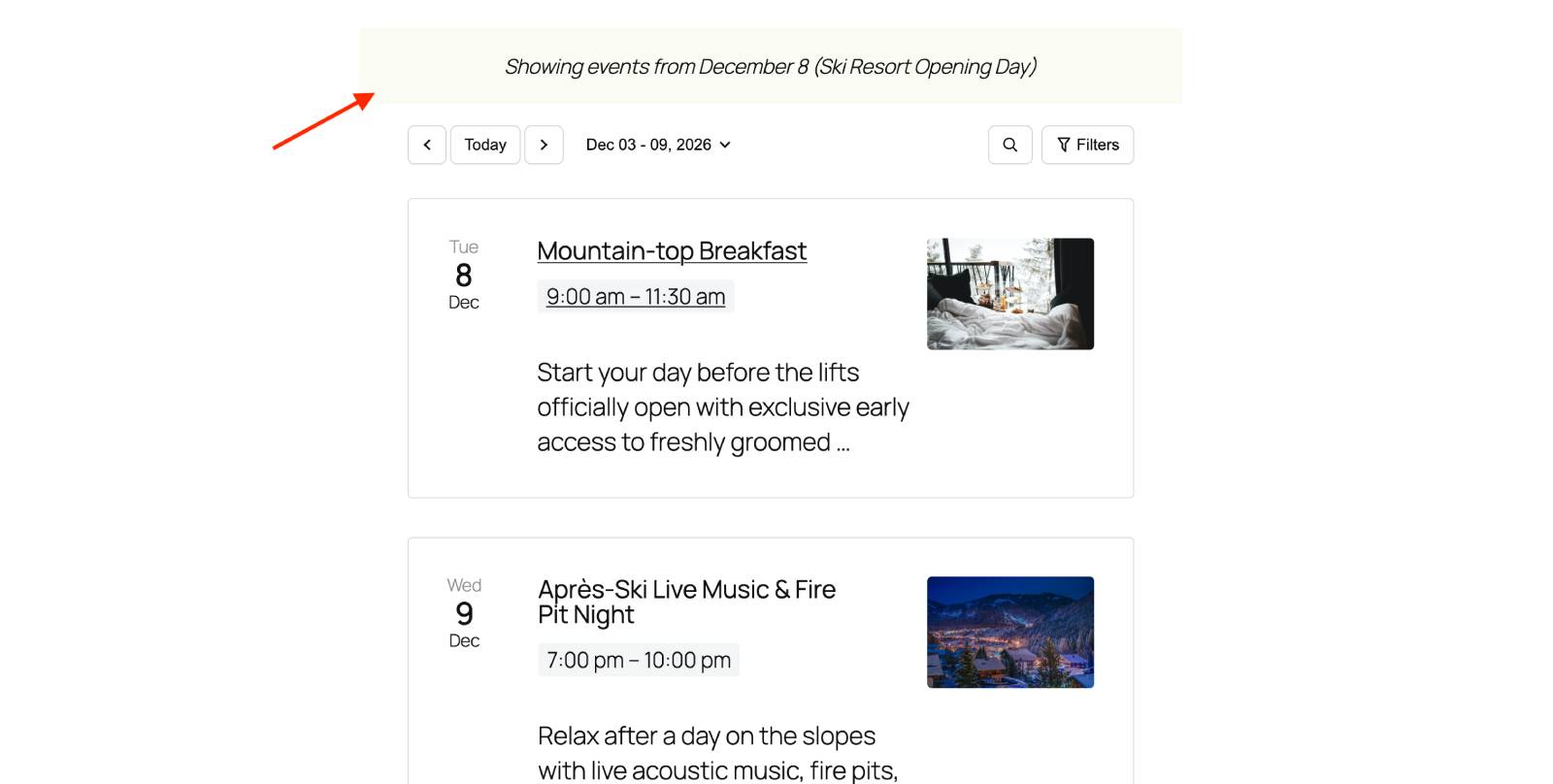
WordPress Events Calendar plugin examples.

Also, there is always a clear “Today” button, which allows for quick navigation back to the current date, so no worries about the user’s experiences on your site.

New feature #2: Hide chosen calendar view modes

Some of you don’t need a view mode selector, e.g. if you operate a yoga studio and want to show a weekly schedule only, you may hide the rest of the modes that customers can normally choose – month, day, and list.

In this case, you basically choose the ‘initial calendar view’ in the block settings and then simply toggle off the ‘Show calendar view selector’. Optionally, of course, you may leave only the view modes you find suitable.

To set up your preferences, go to the calendar page where you’ve placed the Events Calendar block > go to Settings in the right panel > apply your options in the “Show calendar view selector”.
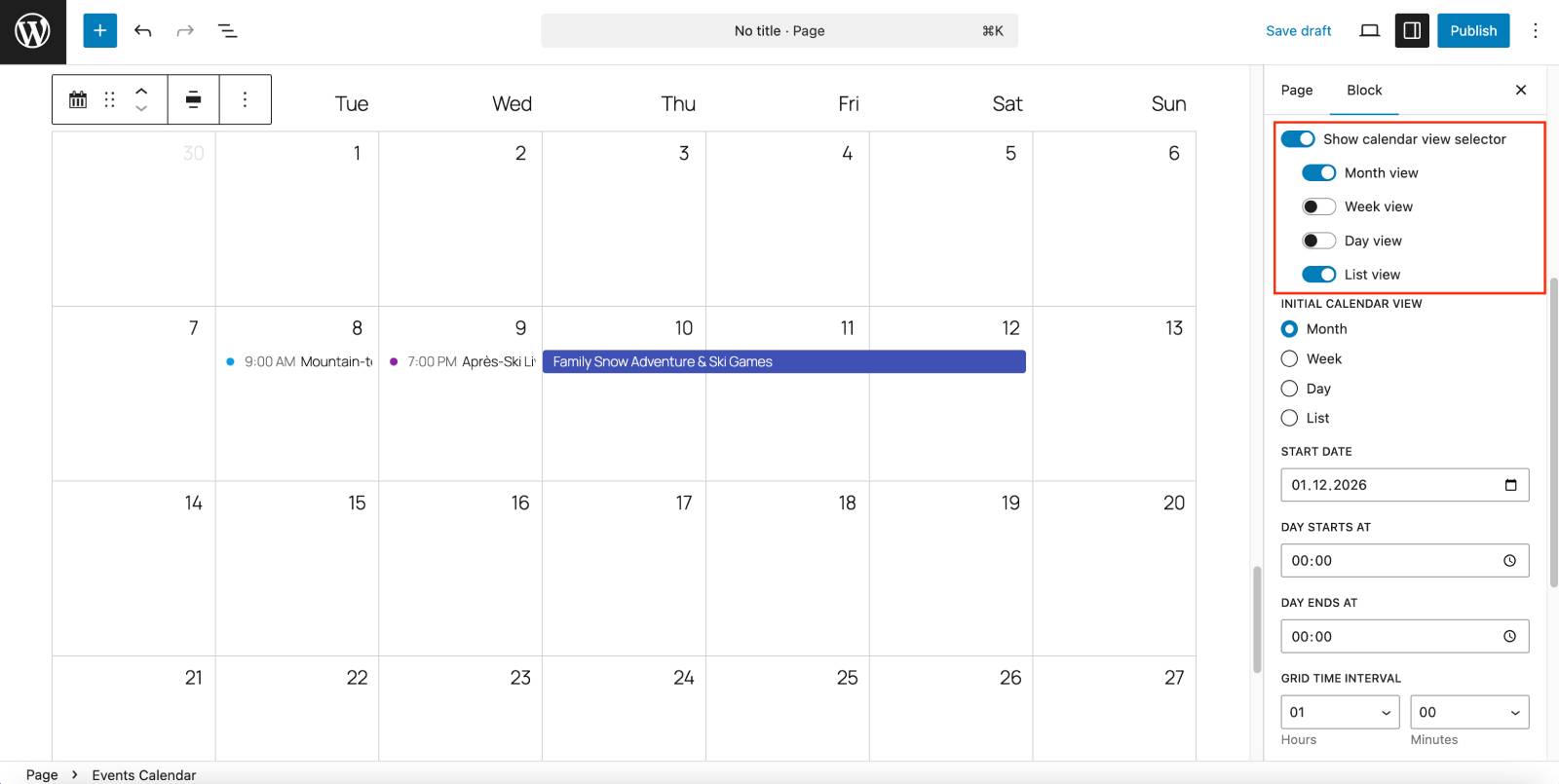
Show calendar view selector in the events calendar plugin.

For example, I may leave only a few view modes:
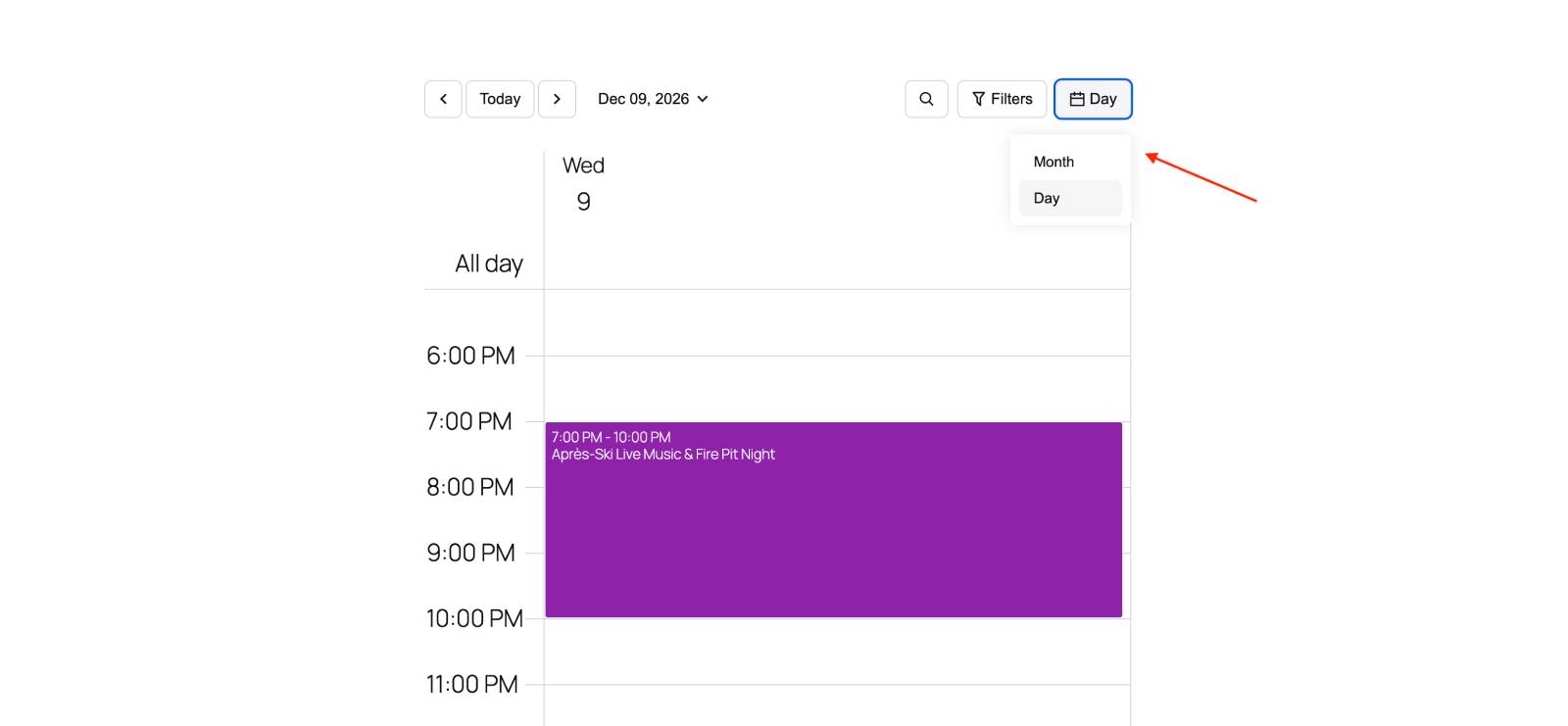
The calendar view selector applied on the frontend.

Toggle off the selector to completely hide a choice and only leave one more you need! This options is supported only in the Events Calendar block.

Concluding

So, what does all this mean in practice?

With version 2.3.0 of the MotoPress Events Calendar plugin, you get a bit more control over how your events are presented right from the first second someone lands on your site. You’re no longer stuck with showing “today” if it doesn’t make sense for your business and your key events are coming up far in the future. You can guide visitors straight to the dates you need.

Moreover, simplifying the calendar view helps you optimize your actual schedule, finding the best angle for displaying events. If you don’t need all those view options, you can just remove them and show your events in the format that works best for your audience.

All the preferences can be applied in a few clicks in the block settings of the needed event blocks!

Overall, these updates are small, but they make a real difference in how clear, relevant, and user-friendly your events calendar feels.