






With Hotel Booking 6.0, you can now use Stripe’s authorize and capture payment workflow – a flexible way to reserve funds on a guest’s card first and charge them later manually.
This payment flow is widely used in hotels and vacation rentals because it gives you more control over bookings before finalizing a charge!
Normally, when a guest pays online, the money is charged immediately. With Stripe’s authorize-and-capture workflow, the process happens in two steps:
Think of it as temporarily reserving the payment amount rather than taking it instantly. The guest still sees the amount blocked on their card (just as you see it in the plugin or Stripe account), but the money is not fully transferred to you until you capture it.
This gives you extra time to review the booking before completing the payment.
This feature is common in hospitality businesses because bookings often need manual review or availability verification (e.g. sync delays with OTAs).
Here are some common scenarios where authorize and capture can help:
– Prevent double bookings
If you list your property on multiple booking platforms, calendar synchronization may not always happen instantly. By authorizing the payment first, you can quickly verify that the accommodation is truly available before charging the guest.
– Improve fraud protection
Authorized payments confirm that the guest has a valid payment method with available funds. This helps reduce fraudulent or suspicious bookings before you finalize the payment.
– Offer hotel-style deposit workflows
Many hotels reserve funds first and complete the charge later:
– Reduce refund handling
If you decide not to proceed with the booking, you can simply cancel the authorization instead of processing a refund for a completed charge. This is usually faster and simpler for both you and the guest.
– Gain more payment flexibility
You stay in control of when the payment is actually captured. You will need it if you manually approve bookings, work with high-value reservations, long stays, or bookings that require additional communication with the guest.
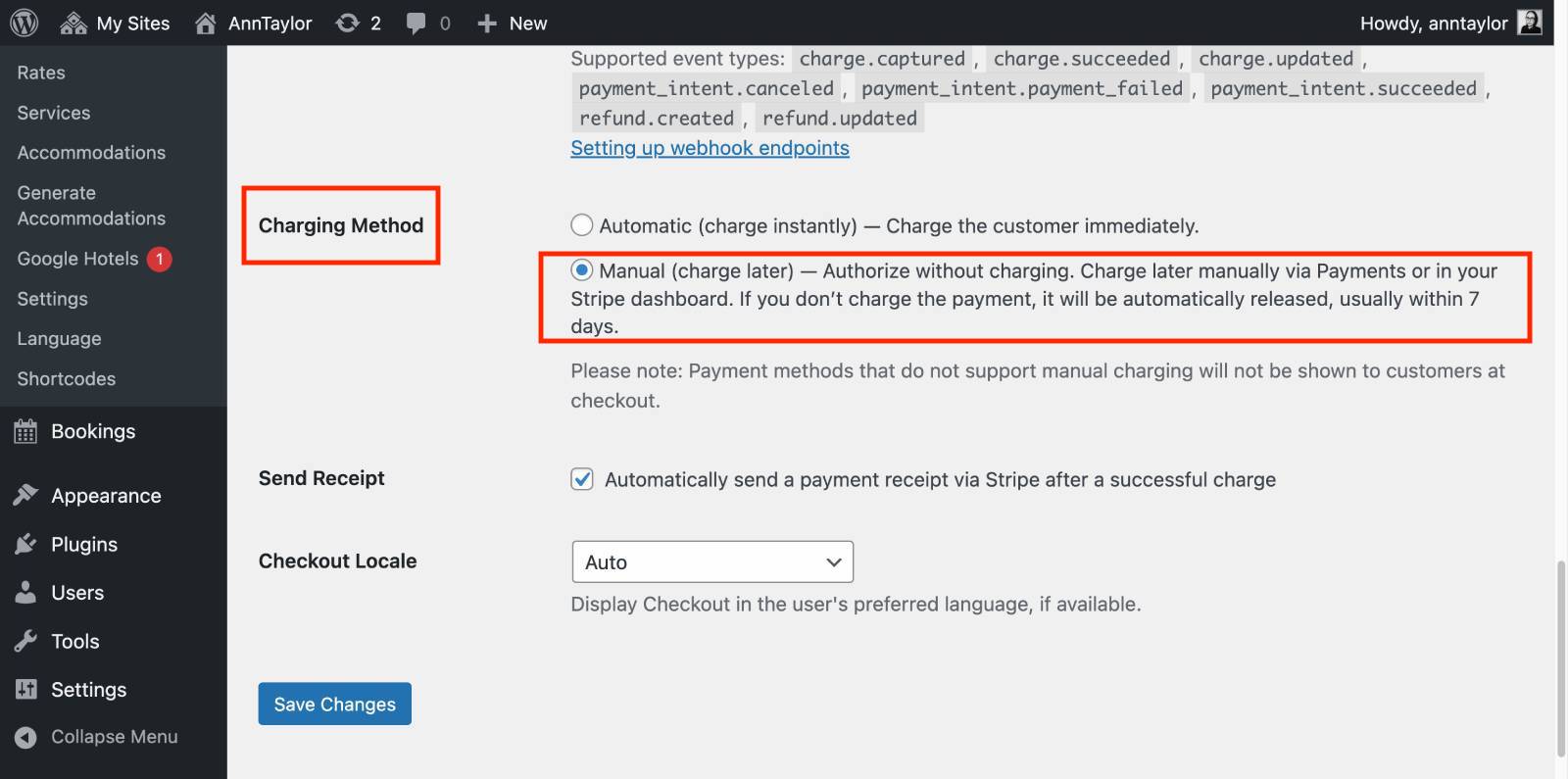
To use the manual charge workflow in MotoPress Hotel Booking:
Once enabled, Stripe will authorize payments first instead of capturing them immediately. If you have not used online payments before, make sure that
1) your booking confirmation mode is configured properly: Settings → General → Confirmation Mode → Confirmation upon payment.
2) you’ve added your Stripe configuration ID and credentials.
For bookings made while this feature is enabled, you can:
Open the payment via Payment History in your WordPress dashboard (or click on the payment ID inside the booking) and find the Reserved Funds section. Here, you have two options:
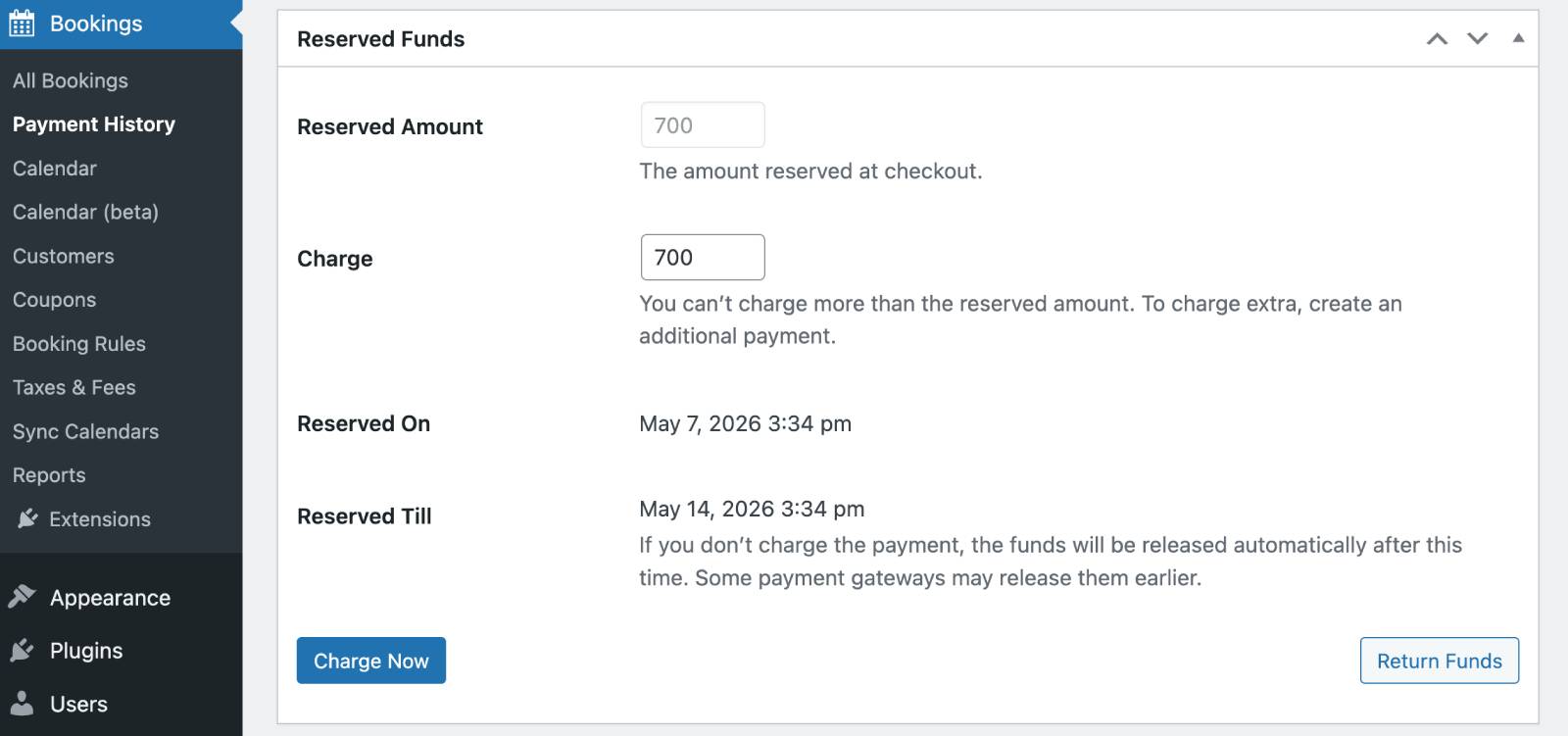
– capture the payment (‘Charge now’).
– cancel the authorization (‘Return funds’).
This allows you to manage payments directly from your booking system without visiting Stripe (if you are used to managing booking via the plugin).
In this section, you will also see the exact dates till which the funds are captured (‘Reserved till’).
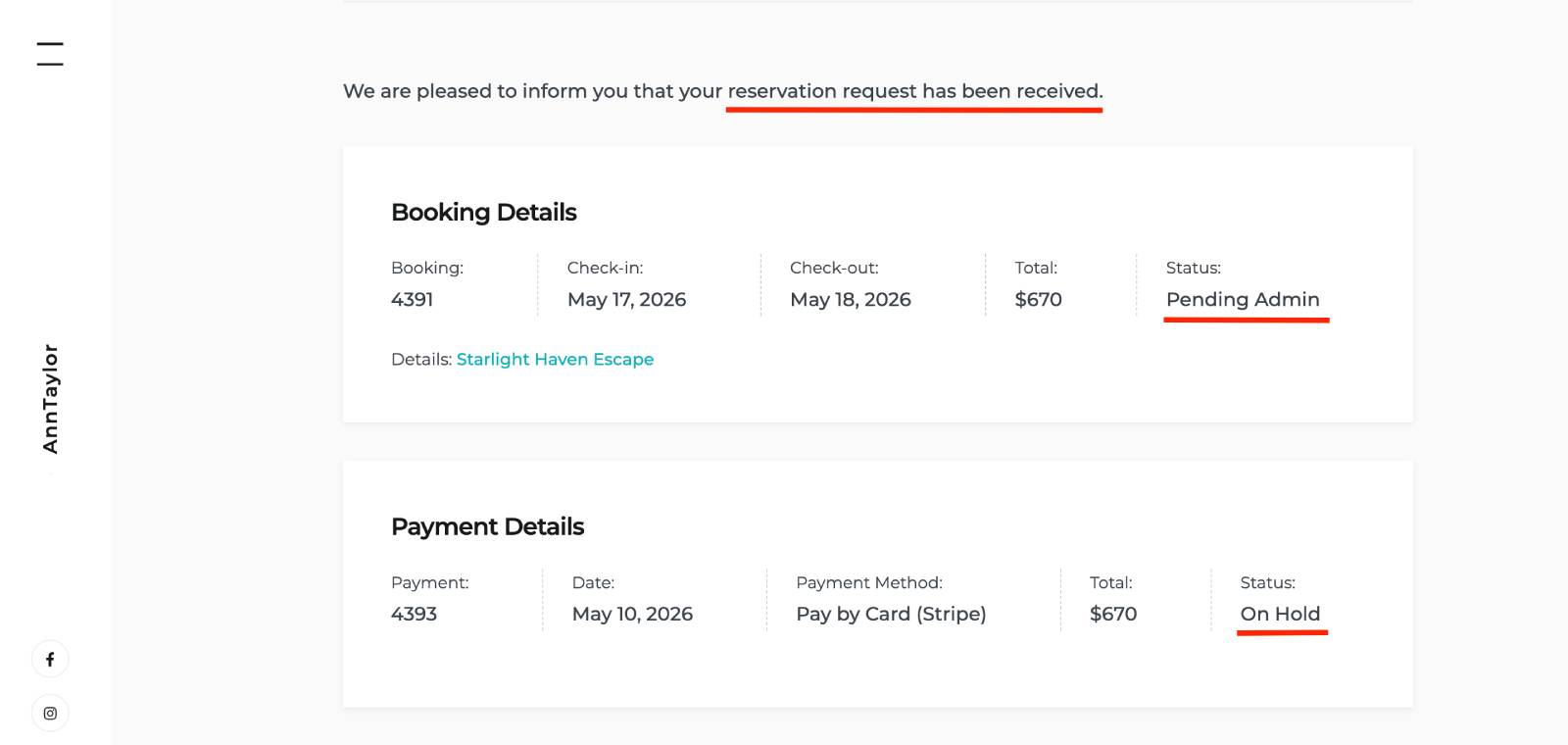
Guests get the respective ‘pending payment’ email and see that their payment is ‘on hold’ right on the booking confirmation page:
How can you spot such payments on the dashboard? They marked as ‘Awaiting charge’ in the Payment History menu:
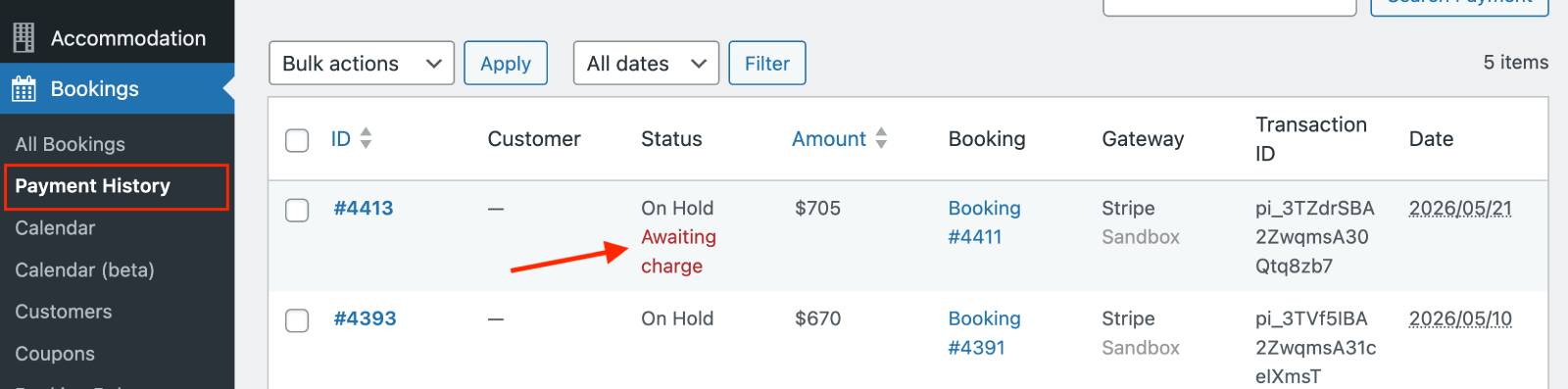
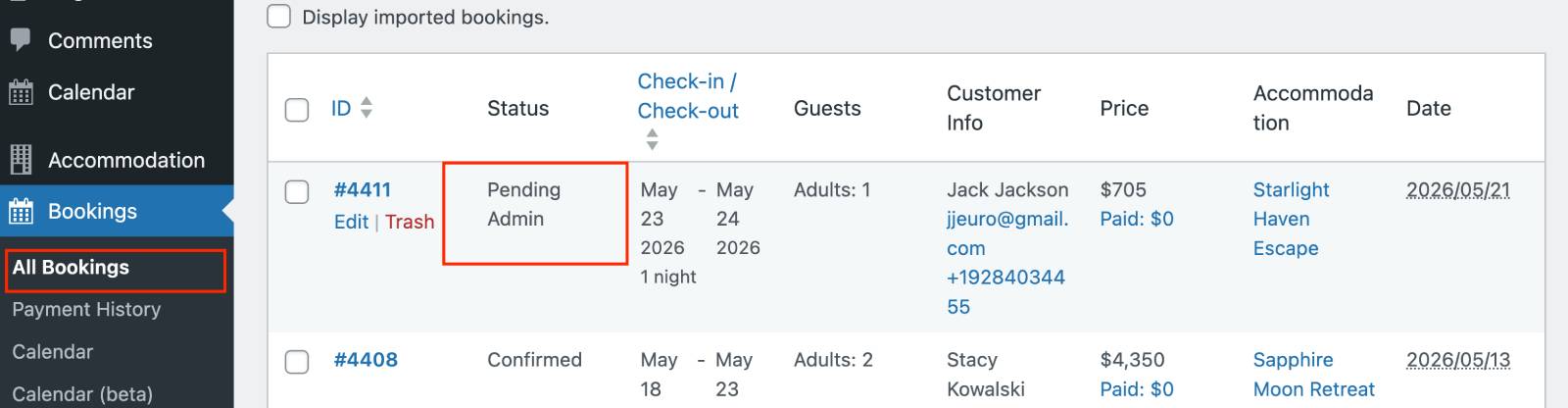
Such a booking also has the ‘Pending admin’ status:
You can also manage the payment directly in your Stripe account. On the Stripe payments page, authorized payments appear as Uncaptured.
From the payment details page, you can:
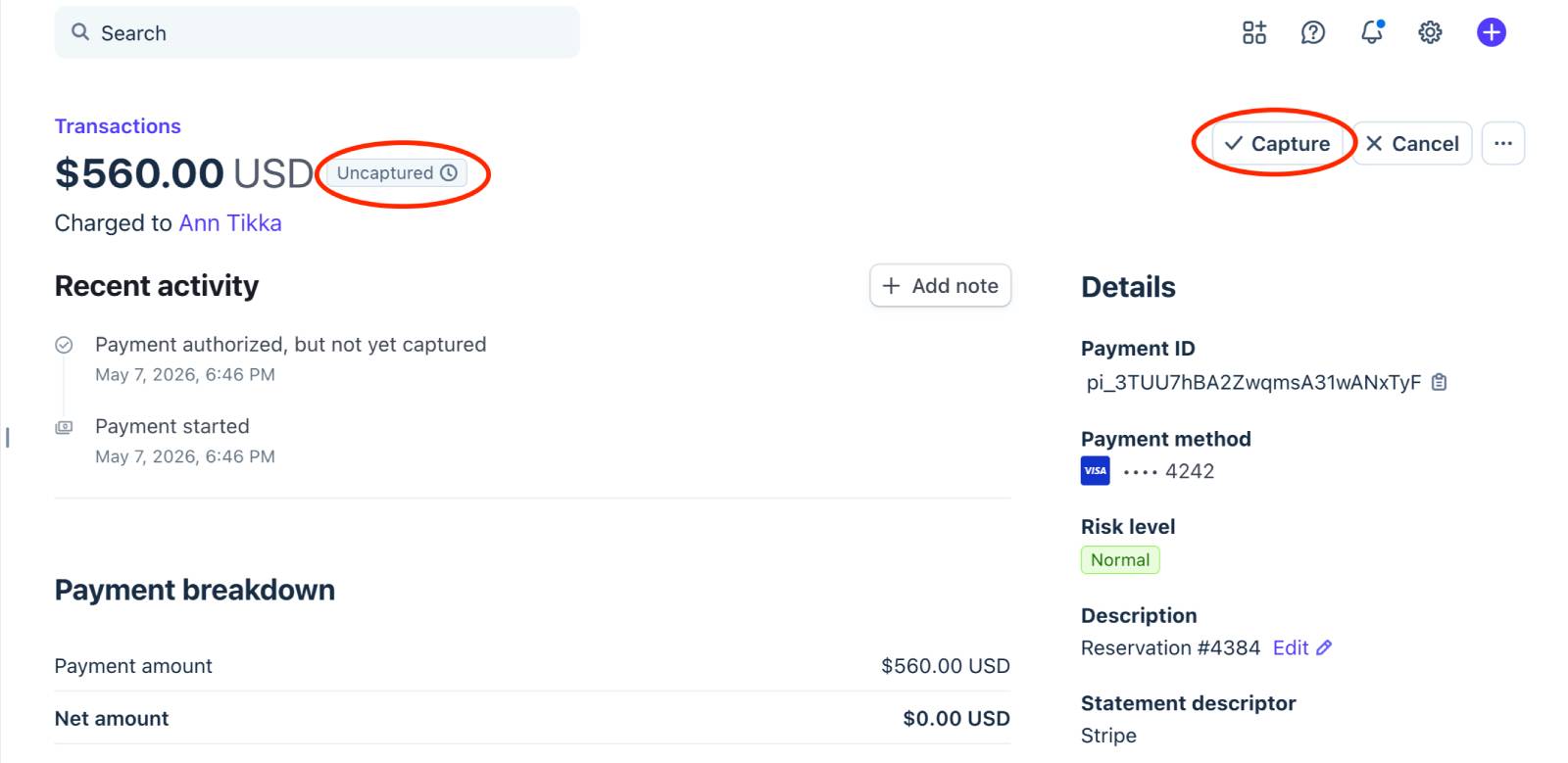
– click Capture to finalize the payment,
– or click Cancel to release the held funds.
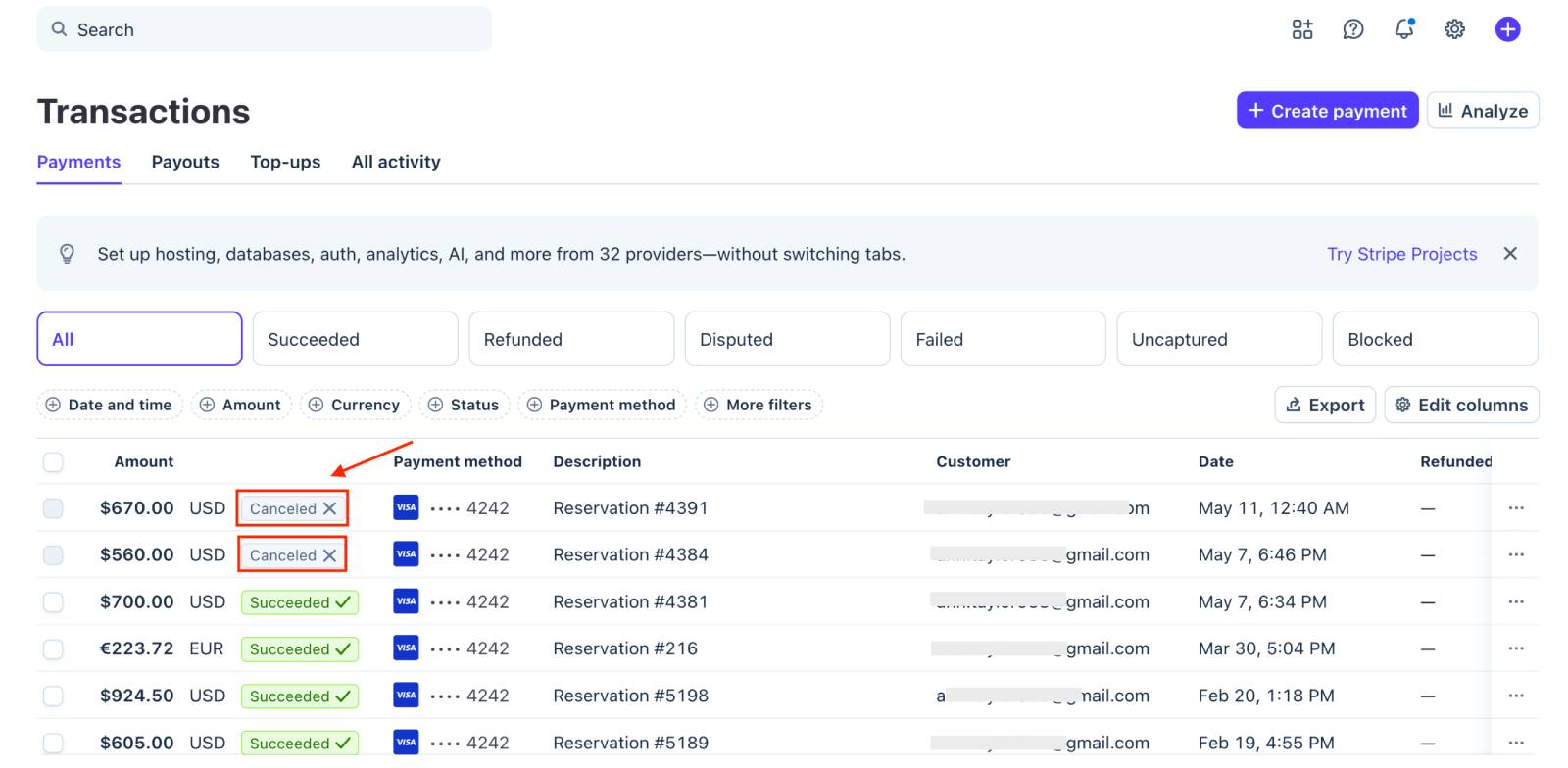
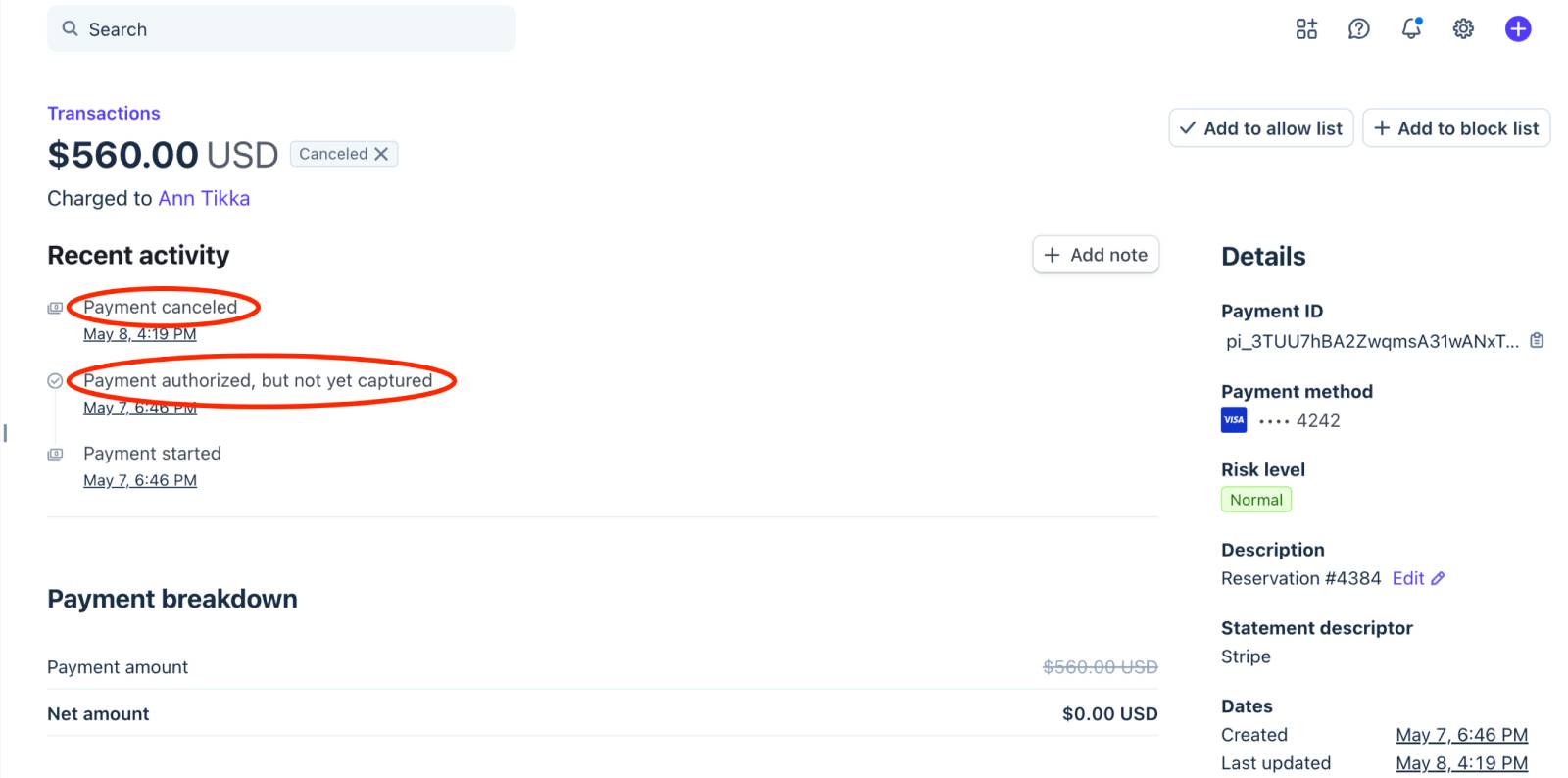
Since the payment was never fully charged, canceling the authorization is not considered a refund.
When you open an individual payment, you can see the full history.
If you capture the payment in any preferable way, via the plugin or Stripe, then the booking status changes to Confirmed, and the guest receives the booking confirmation email automatically.
If you cancel the authorization, the held funds are released back to the customer. However, the booking itself is not canceled automatically. You’ll need to manually update the booking status in Hotel Booking.
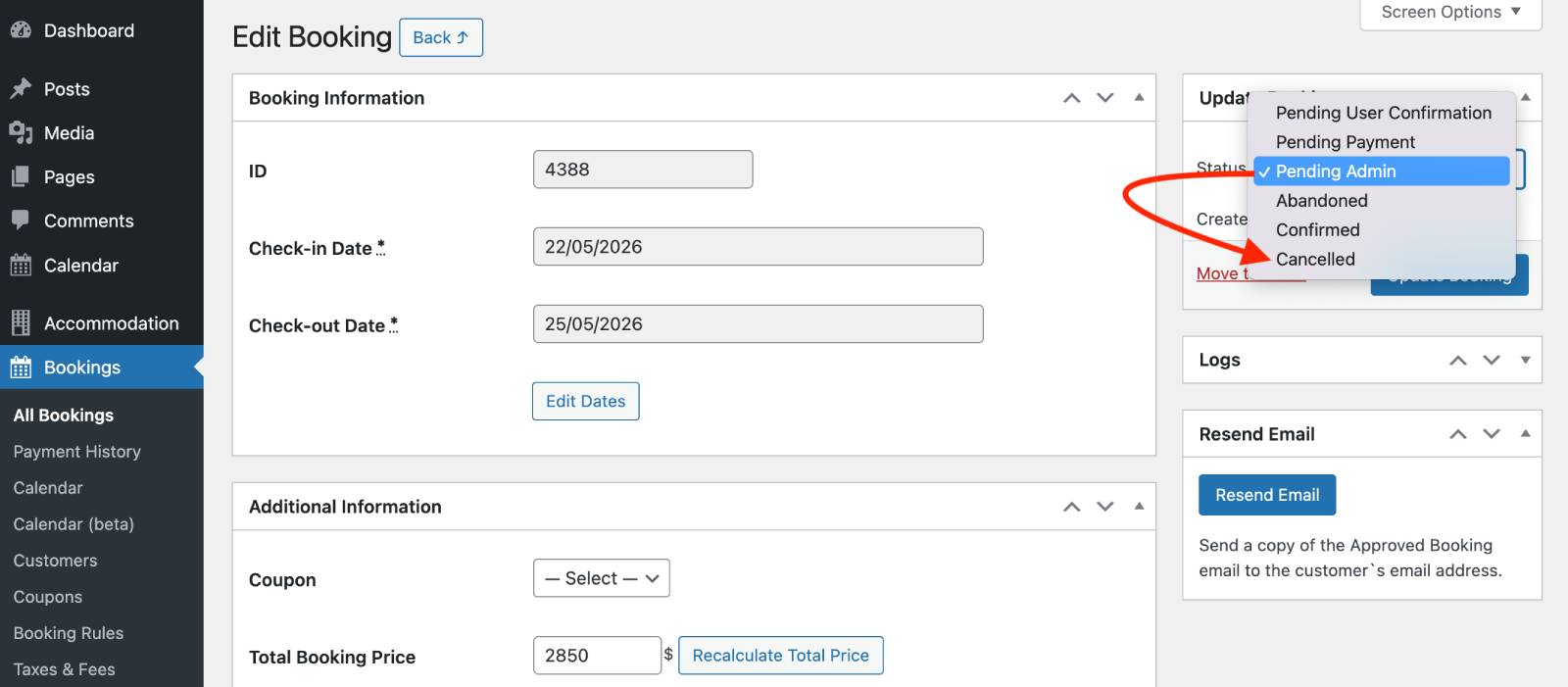
This behavior gives you more flexibility because you may still want to:
A Stripe authorization hold doesn’t last forever. Each payment method has its own authorization window – the amount of time you have to capture the payment before the hold expires automatically. Check with your provider the exact time, however, typically, you can expect:
If the authorization expires before you capture it, the held funds are automatically released to the guest.
Also, not all payment methods support this feature. Separate authorization and capture only work with supported payment methods like cards, PayPal, Klarna, Afterpay, Cash App Pay, and Affirm.
Some payment methods do not support separate authorization and capture at all, including ACH and iDEAL.
Because of this, it’s generally not practical to enable unsupported payment methods at checkout when using the Manual charge mode in Hotel Booking.
Moreover, even if a payment method supports Stripe auth and capture, it may still not appear at checkout for some guests because Stripe automatically shows only the payment methods available in the customer’s country, browser, and device environment. So it’s completely normal if different guests see different payment options.
With Stripe’s authorize-and-capture workflow, you can temporarily hold funds on a guest’s payment method and charge them later manually – via the Hotel Booking plugin or Stripe itself.
Hotels commonly use this to verify and reserve the payment before arrival, then finalize the charge after check-in or check-out. The authorized amount is guaranteed only for a limited time, so you need to capture the payment before the authorization expires. Otherwise, the held funds are automatically released and the payment is canceled.
Stripe’s authorize-and-capture workflow is ideal if you:
For many hospitality businesses, this Stripe feature is an extra layer of control while still providing guests with a smooth online payment experience.
此内容由惯性聚合(RSS阅读器)自动聚合整理,仅供阅读参考。 原文来自 — 版权归原作者所有。