



What’s the best way to add the Elementor blog posts grid to your website? One of the best options is to use ready-made widgets that can make the #1 WordPress builder more varied in terms of functionality. That’s why in today’s post, we’ll take a look at Elementor posts widget offered by Stratum – a free yet reliable solution by MotoPress designed to make your website more customizable with this and other widgets.
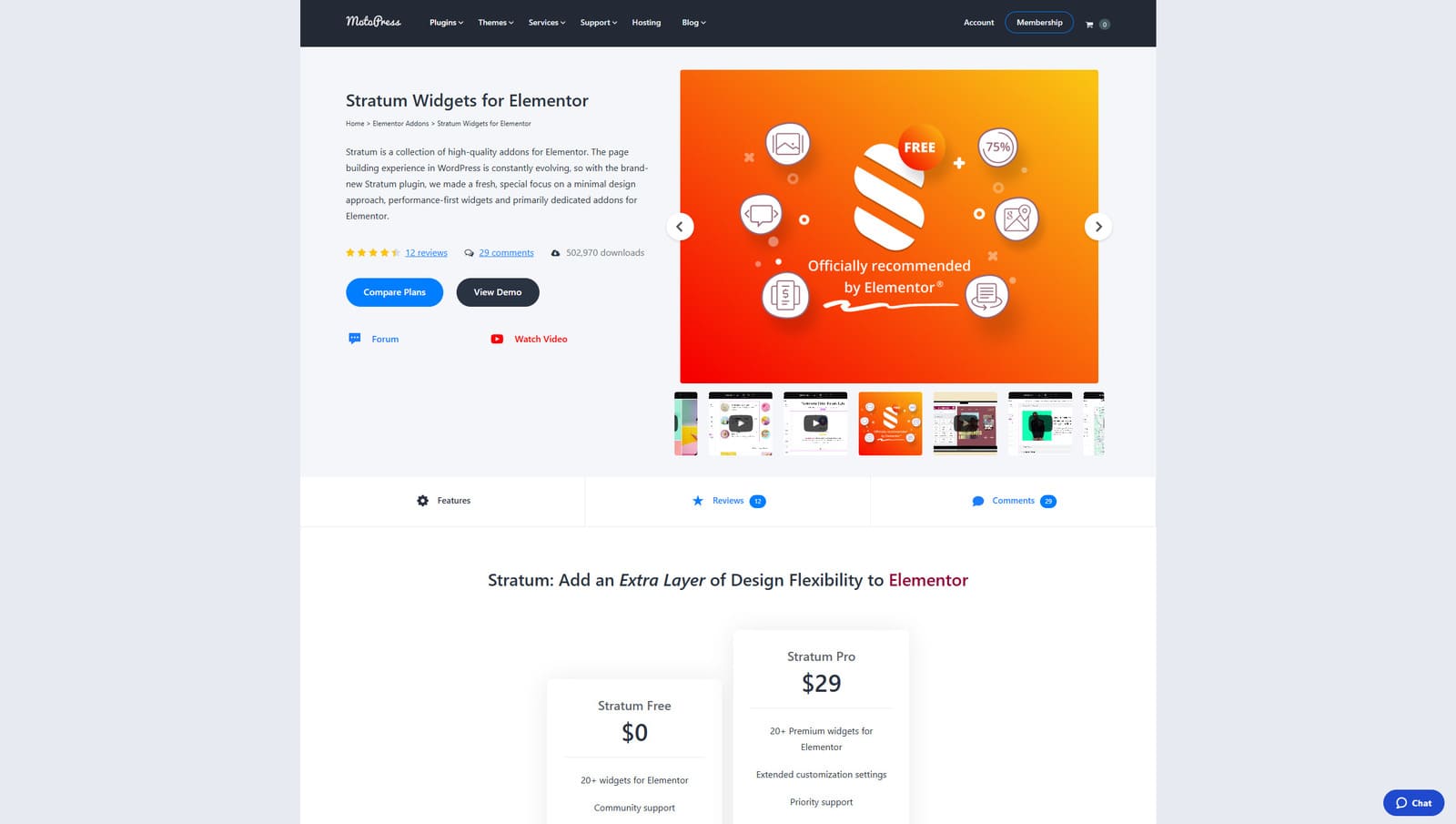 Stratum is a free collection of top-notch addons for Elementor, one of the most popular website building solutions for WordPress. Providing over 20 customizable widgets, this add-on gives you tools to create a unique online presence for your blog or website that stands out and commands attention. As a result, you get multiple tools that can not just add new sections and elements to your site but also make it more varied and visually appealing.
From a wide selection of provided widgets, Stratum also provides diverse solutions for blogs. For example, it includes 4 Elementor blog posts grid widgets designed to display your posts using diverse design options, such as a list, grid, masonry layout, or using pagination. In addition to these widgets, you can add other UI elements, such as counters, tables, sliders, and other tools to any page of your website using Elementor to provide useful content, while keeping your site responsive.
Key features:
| Name | Developer | Price | Downloads |
|---|---|---|---|
| Stratum | MotoPress | Free or from $29/year | 499k+ |
Elementor and its widgets provide a variety of customization options, even if you build a website from scratch. But in order to show what you can do with a ready-made website and WordPress’s most popular builder, we’ll use a well-designed and customizable theme – Edme.
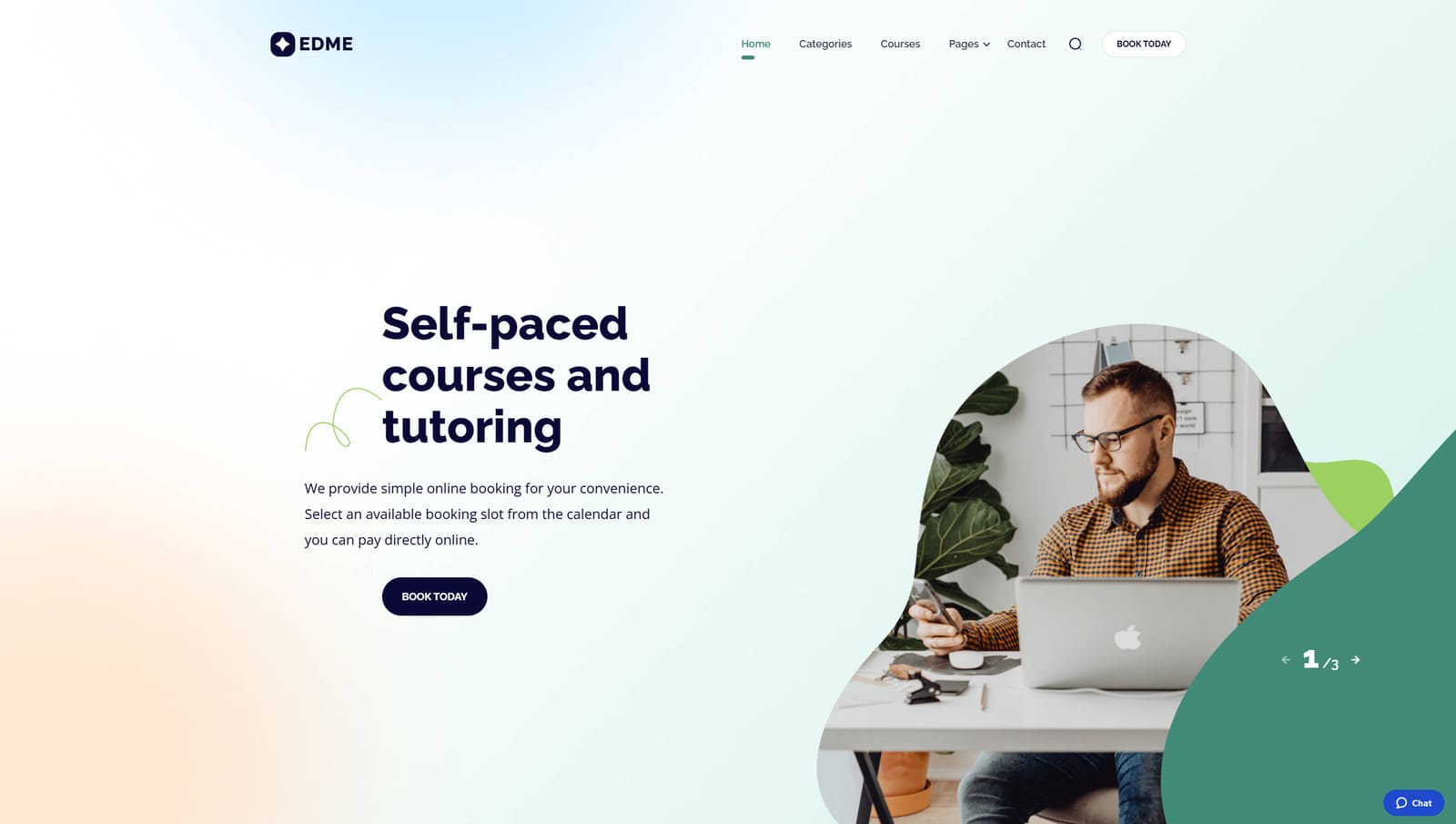 Edme is one of the well-designed themes designed for education. It is built with Elementor builder in mind, offering wide customization possibilities. It is equipped with the Stratum addon from the start, offering diverse Elementor blog posts grid widgets. Moreover, the theme uses the Appointment Booking plugin to help students schedule classes and teachers plan their work. It also includes a pre-designed grid blog page that you can edit using any of the widget functionality, including Elementor filter posts.
Aside from this, the theme offers multiple pre-designed pages, a responsive homepage, multiple course categories, and easy navigation. Using Edme, you can develop an educational site in a few steps or completely overhaul it with Elementor to match your idea of an online presence. Stratum and its recent posts widget Elementor solution will easily help you with it.
Key features:
| Name | Developer | Price | Rating |
|---|---|---|---|
| Edme | MotoPress | From $49/year | 4.5 |
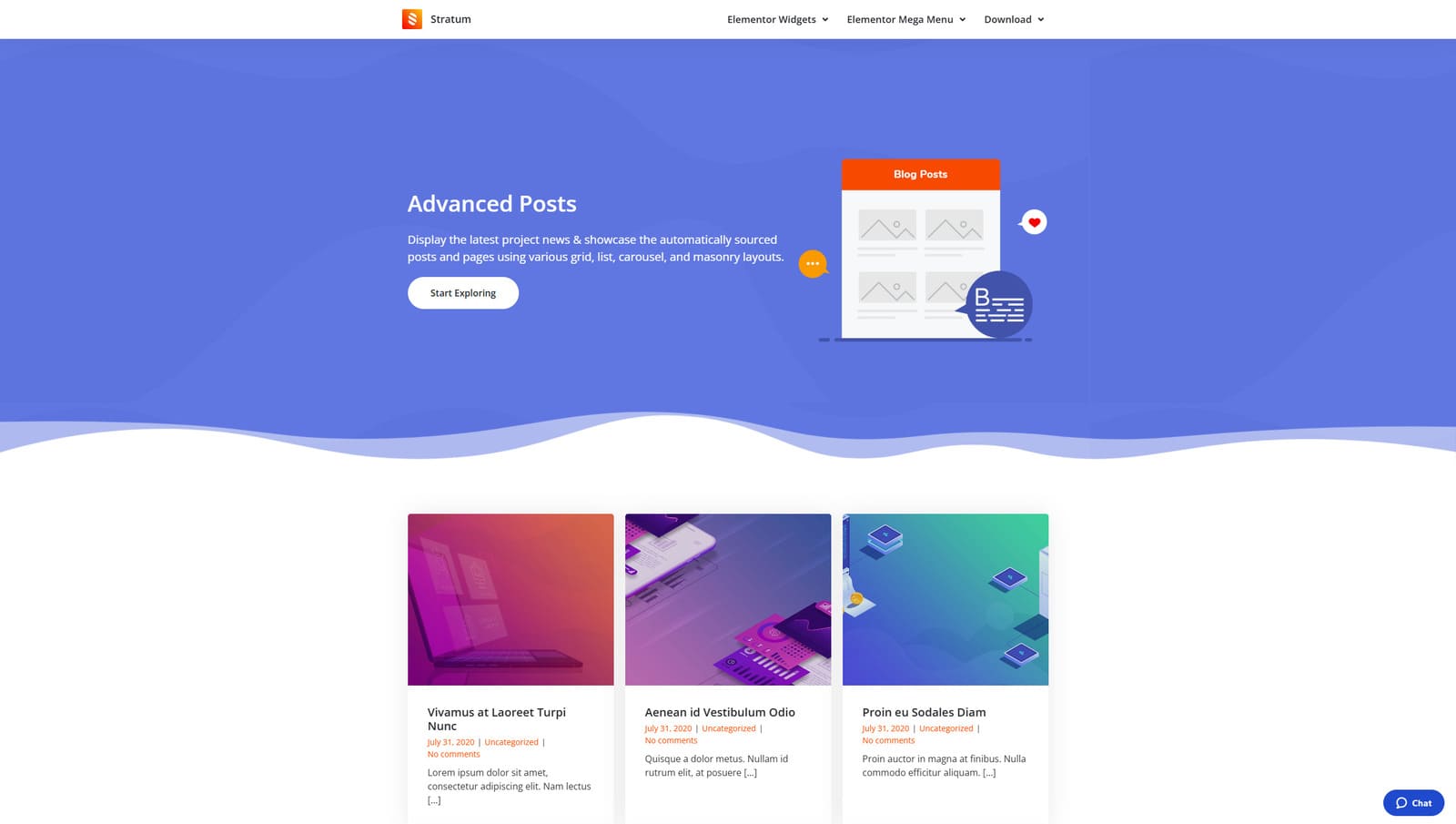 Let’s begin our overview of Stratum’s tools for blogs with one of the most widely used elements on any WordPress website – an Advanced Posts widget. By offering one solution for all that your blog may need to present posts properly, this Elementor blog posts grid widget attracts your readers’ attention easily without you having to build anything from scratch. Below, we’ll explore how to add such a widget to your Elementor website and how it can transform the blog page of Edme, giving you full control over content.
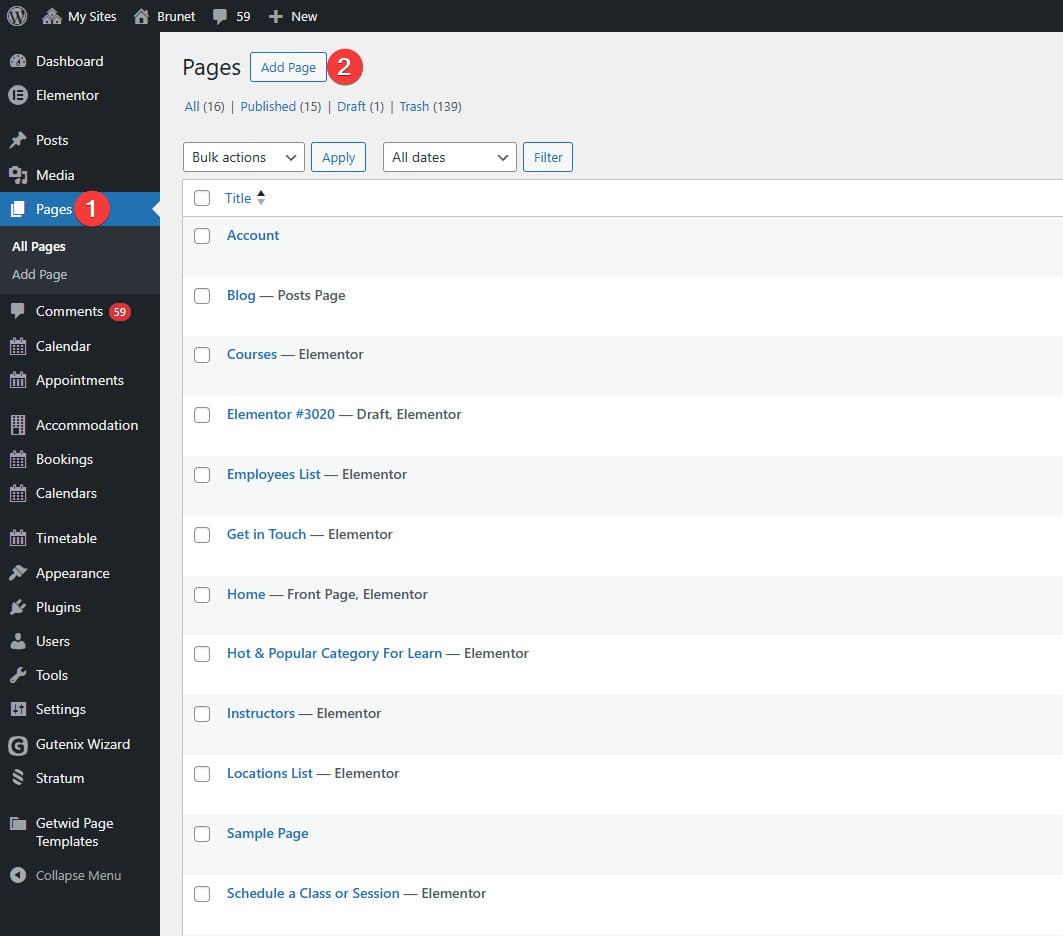 Navigate to the Pages tab in your WordPress dashboard
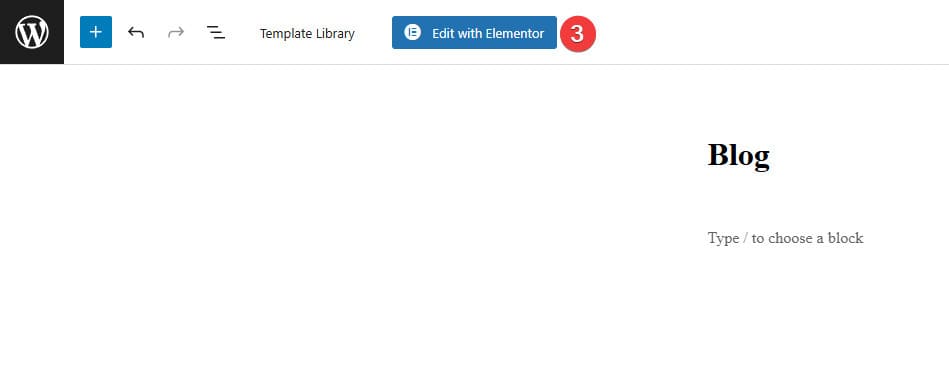 In a newly opened editor layout, press “Edit with Elementor”.
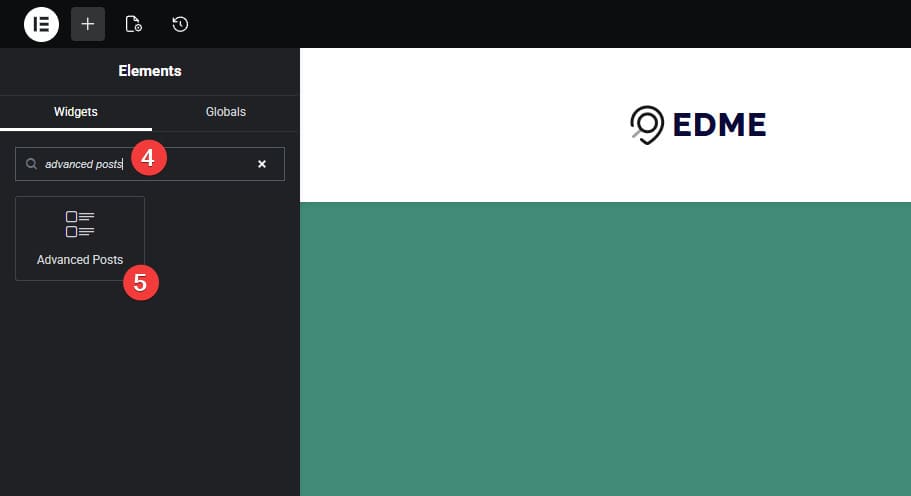 After the Elementor builder is loaded, type “Advanced Posts” in the widget search bar in the top left.
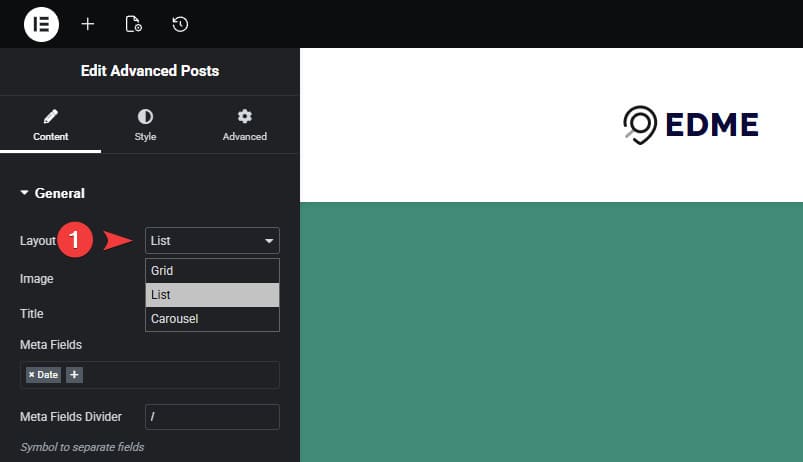 You’ll see the latest blog posts displayed using the widget in accordance with its settings. You can easily edit them to make the blog page look different. By default, blog posts will be displayed as a list. However, this Stratum widget has three modes you can use:
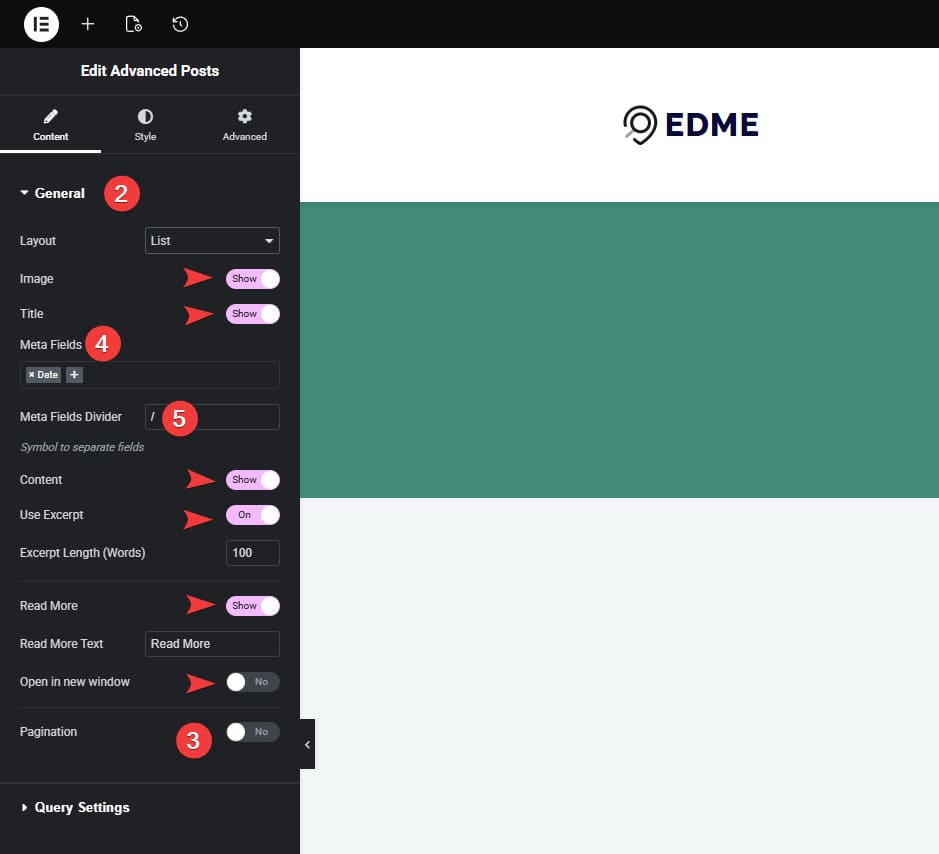 Additionally, Stratum offers other customization options for this blog widget, such as:
As we mentioned above, the Advanced Posts widget offers 3 types of blog page designs. Let’s look at them more closely.
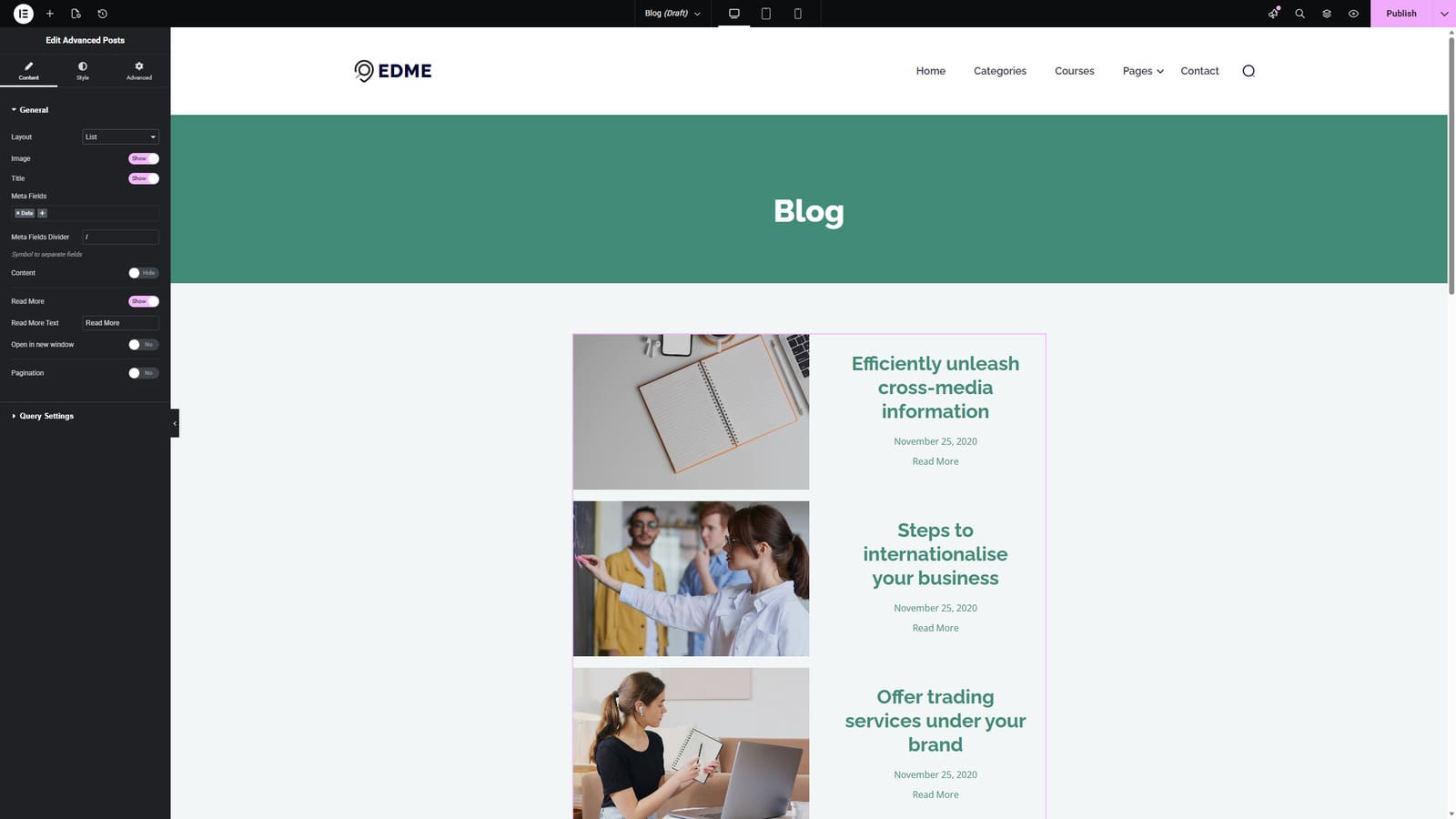 The default option available right after you add the Advanced Posts widget to your page is List. This layout displays posts one after another in a vertical sequence. With Stratum, you can display each blog entry on the same page with several others as well as their featured images, titles, excerpts, and metadata. This works well for readability and is suitable for longer posts that have extensive previews.
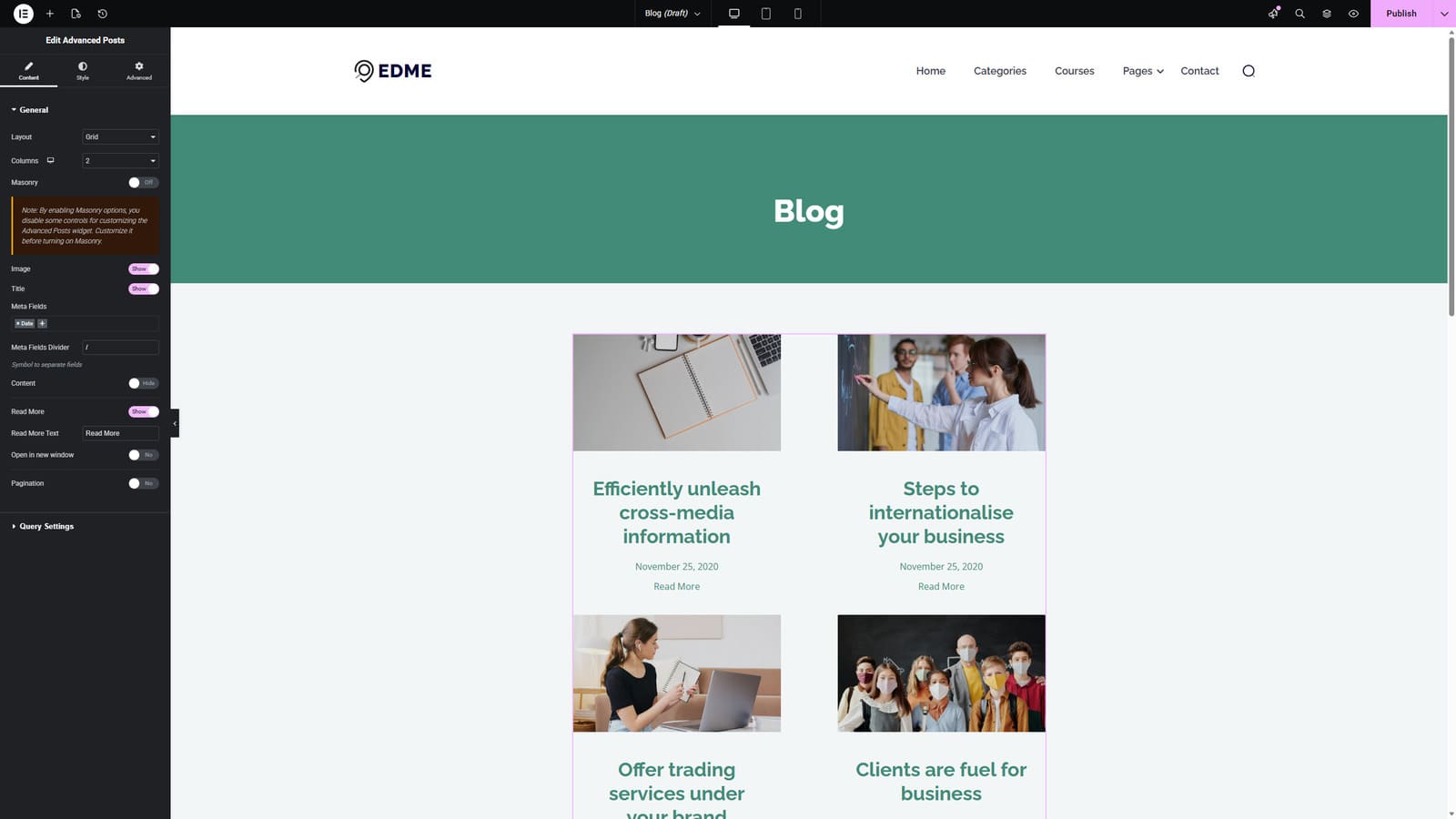 If you are looking for a blog design that saves page space, we recommend using Elementor blog posts Grid layout. This widget setting organizes posts into multiple customizable columns, making a structured and SEO-ready visual grid out of your publications. While the aforementioned Edme theme offers its own take on the grid blog widget, you can easily change it by inserting Stratum’s Elementor posts widget to create a unique blog experience for your site visitors. With it, your posts will be presented as cards that typically contain an image, title, and short excerpt. Such a design is perfect for visually rich blogs (such as fashion or lifestyle publications), especially if you want to show multiple posts at once.
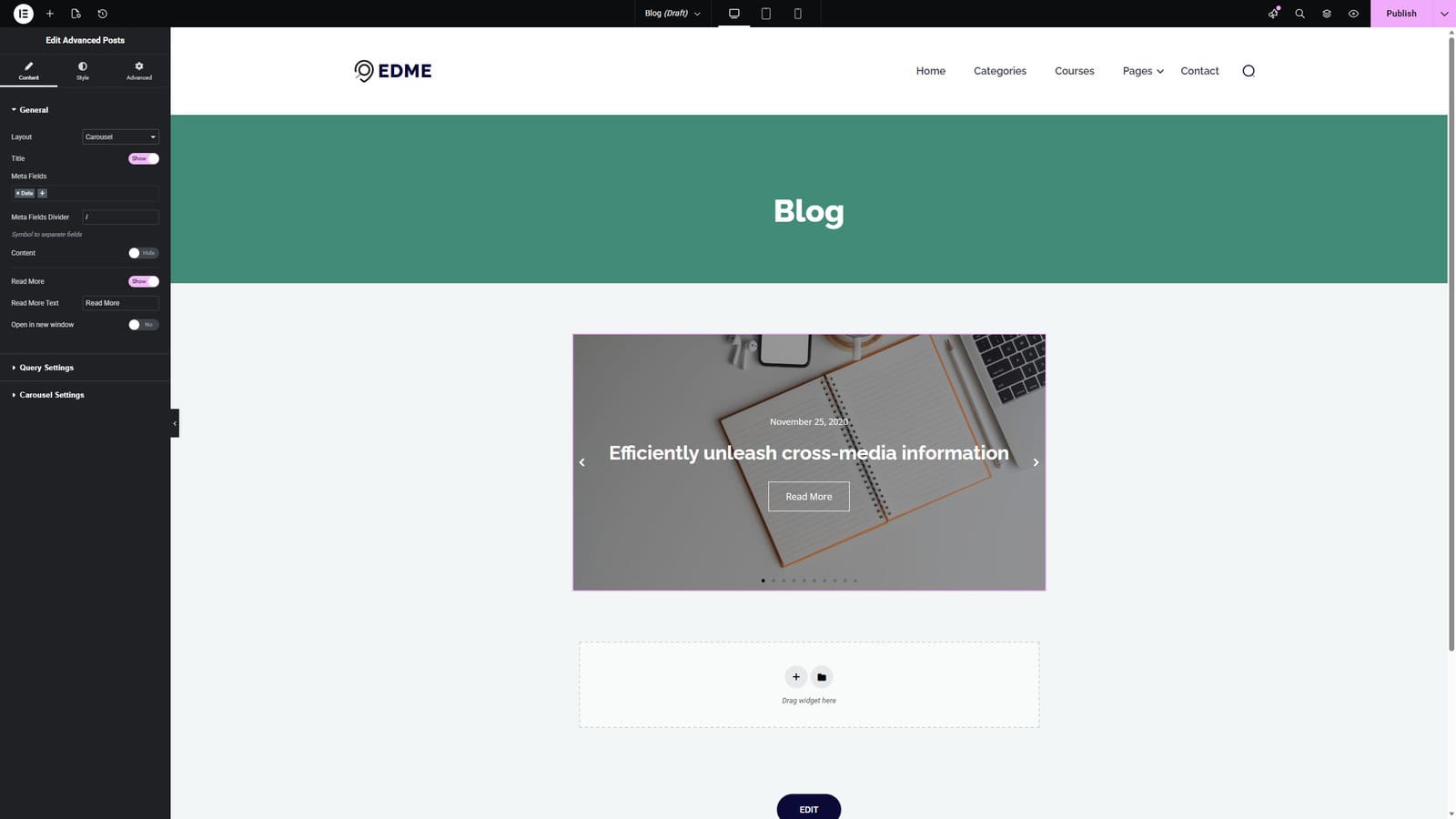 Elementor posts carousel blog layout presents posts as a horizontal slider that your readers can navigate easily using arrows or swiping. It is useful if you value interactivity similar to that of social networks. With this option provided by the Advanced Posts widget, only a few posts are visible at a time. To view other posts, users interact with the Elementor posts slider. This layout is best used for featured content to highlight it on the homepage or elsewhere on your website, providing a compact design and interactivity.
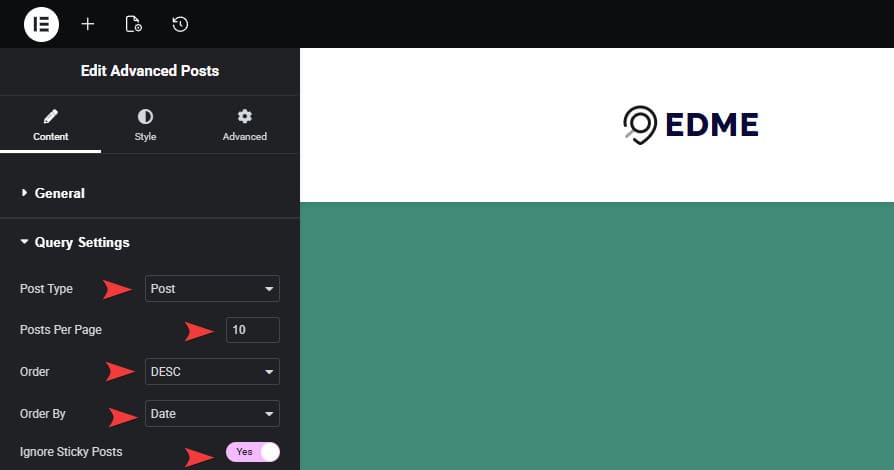 The Advanced Posts widget by Stratum allows you to further customize the look of your blog page based on your query settings, especially if you want to learn how to use query ID in the Elementor posts widget. The settings include:
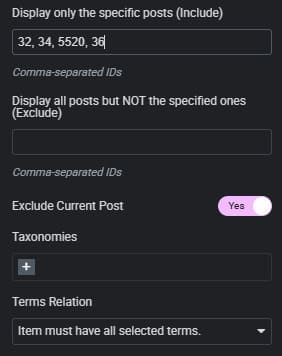 These are only some of the options provided by Stratum with its Advanced Posts widget. As you see, they help with post order management a lot, allowing you to avoid moving or hiding posts manually. This also works if you plan to use other themes such as Astra or Hello Elementor. Still, this widget has some extra options you can use to fully control the content you display, such as:
The offered widget also has other settings that you may find useful when configuring your blog page with Stratum. They are native to Elementor and won’t be new to you if you have worked with this page builder. These settings are multiple, and they are grouped into two main sections:
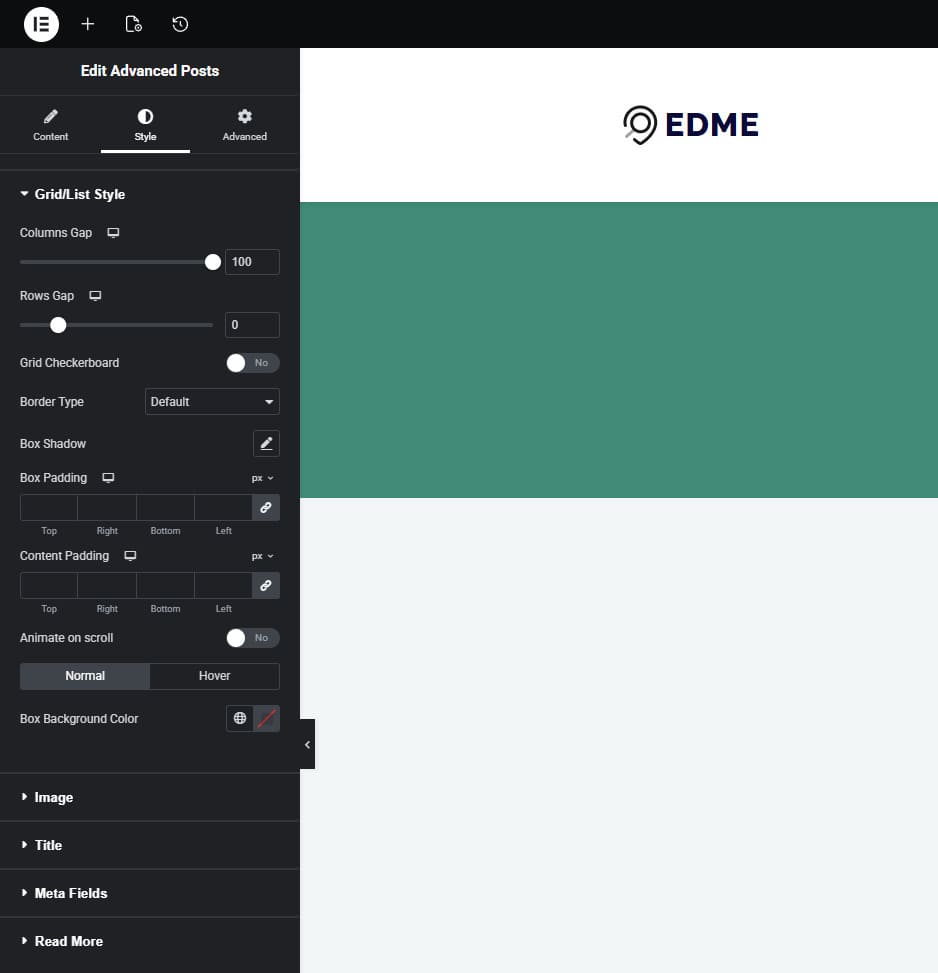
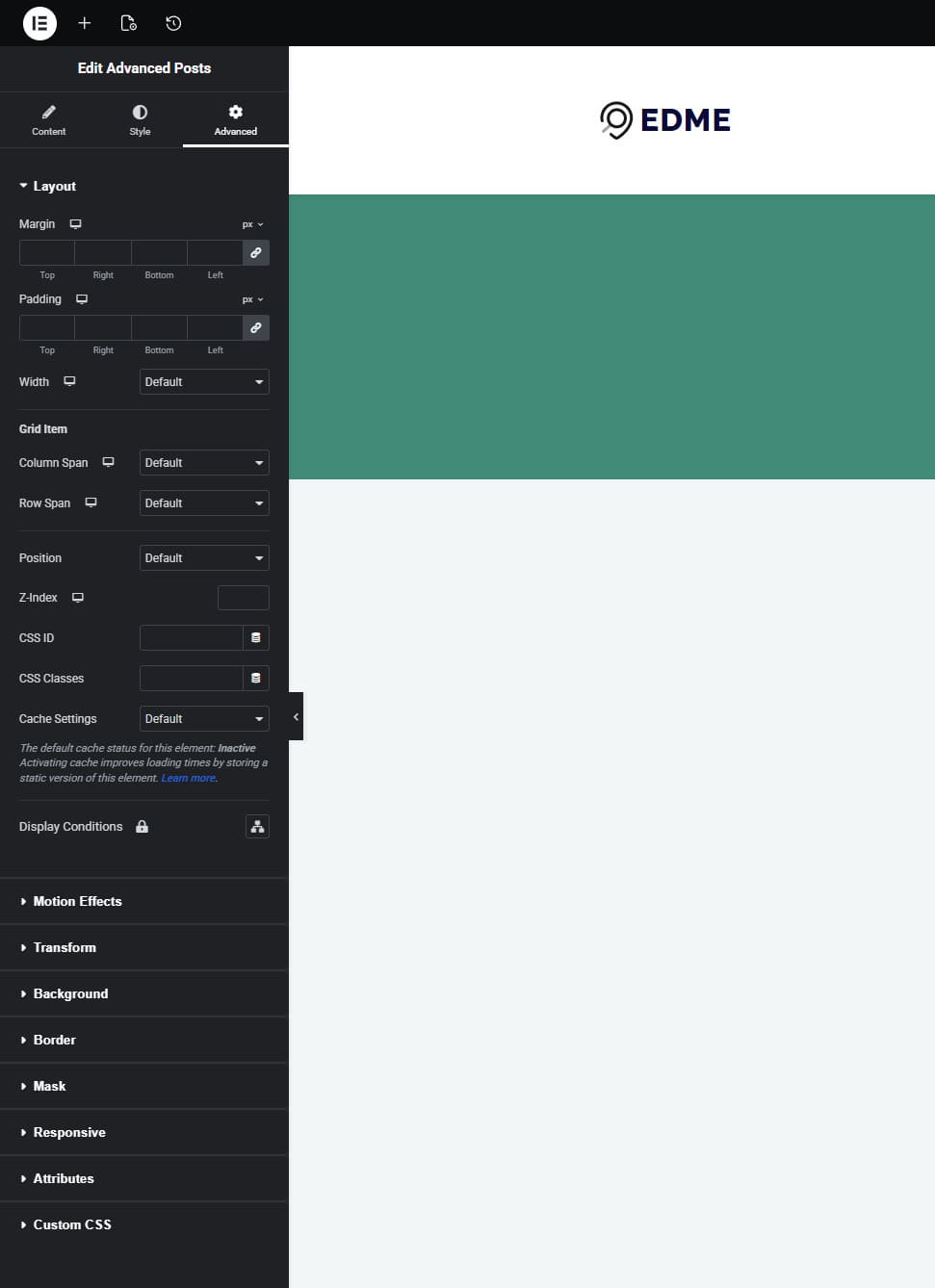
 We hope this short guide for using the Elementor blog posts grid widget by Stratum has helped you figure out how to make your blog posts more varied and easier to edit. From adding stunning images to using Elementor posts widget custom fields options, this solution and the whole collection of them provided with this add-on can drastically improve how your website looks and functions. Moreover, Elementor addons like Stratum have other benefits you may want to add to your site:
此内容由惯性聚合(RSS阅读器)自动聚合整理,仅供阅读参考。 原文来自 — 版权归原作者所有。