





Obsidian 0.13 introduces a brand new editor engine that comes with several enhancements to your editing experience. In this post, we’ll take a closer look at one of the biggest improvements in the latest release: Live Preview.
Live Preview is a new editor mode that lets you preview your notes in the same view that you’re writing them in. Live Preview delivers a cleaner writing experience by only displaying Markdown syntax around the cursor. Let’s see an example!
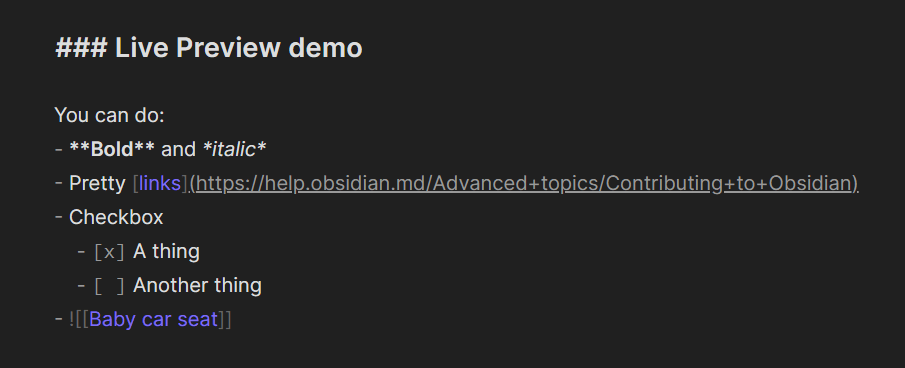
This is what your editing experience used to look like:
And here’s the same note using Live Preview:
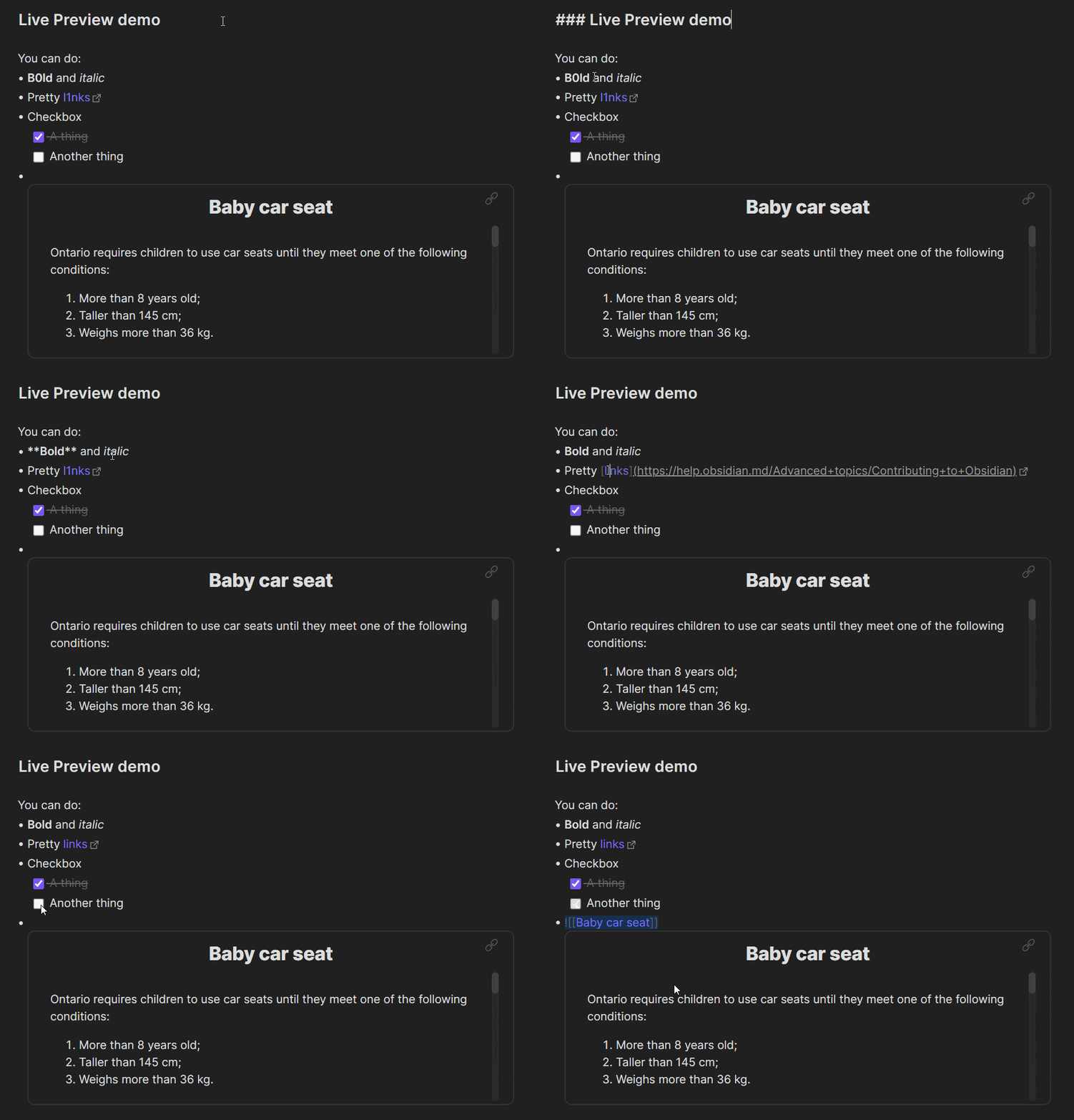
Live Preview gives you an improved editing experience that lets you see how your Markdown note will look like, without having to switch between Edit and Preview.
To enable Live Preview for an existing vault:
- Open Settings.
- In the sidebar, click Editor.
- Under General, disable Legacy Editor.
- Click on the Relaunch button for the change to take effect.
- After Obsidian restarts, open Settings.
- In the sidebar, click Editor.
- Under General, set Default editing mode to Live Preview.
When you open a new pane, it’ll use Live Preview by default. If you already have some panes open, they’ll be in Source mode.
Edit notes using Live Preview or Source mode
We think you’re going to love Live Preview. But if you want to keep your current editing experience, we’ve got you covered. You can keep editing your notes the same way as before by switching to the new Source mode.
To toggle between Live Preview and Source mode:
- In the upper right corner of the pane, click More options (the three dots).
- Select Toggle source/live preview mode.
You can also toggle the editing view by opening the Command palette and searching for the Toggle source/live preview mode command, or change it permanently by setting Default editing mode to Source mode.
Live Preview and Source mode are two ways to edit your Markdown notes in Obsidian. Try them out to see which one you prefer!
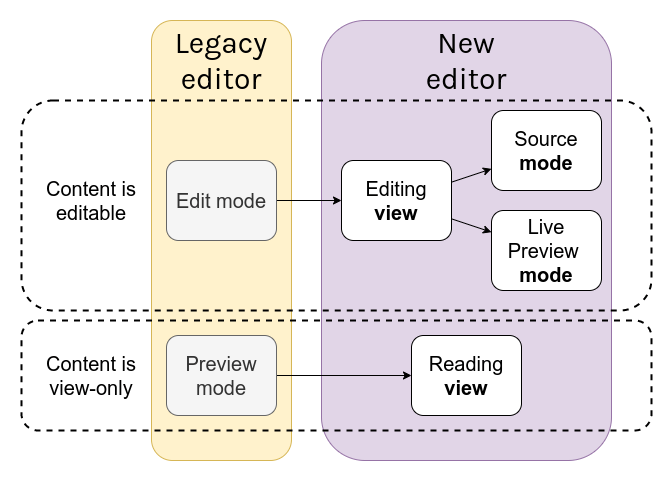
If you want to know how the terminology changes with the new features, here’s a handy chart by Argentum:
Wait, I’m not ready to switch!
Some plugins and themes may not be fully compatible with the new editor. If your favorite plugin doesn’t yet support the new editor, you can switch back to the old one by enabling the Legacy editor.
- Open Settings.
- In the sidebar, click Editor.
- Under General, enable Legacy Editor.
- Click on the Relaunch button for the change to take effect.
Use the legacy editor if you’re not ready to upgrade to the new editor. You’ll miss out some sweet features, but know that you can switch to the new editor at any time.