







Imagine being able to take a single photo and bring it to life with realistic motion, or seamlessly expanding a vertical phone video to cinematic widescreen format while intelligently filling in the missing background. What if you could swap any character in a video with someone completely different, all while maintaining perfect motion and lighting consistency?
This isn't science fiction. It's VACE (Video All-in-One Creation and Editing), and it's about to revolutionize how you create video content. Whether you're a content creator looking to repurpose existing footage, a marketer needing to adapt videos for different platforms, or a filmmaker exploring new creative possibilities, VACE offers unprecedented control over video generation and editing in a single, unified platform.
The best part? Thanks to Runpod's community-contributed templates, you can be up and running with VACE in minutes, not hours. Let's dive into how this game-changing technology works and how you can harness its power on Runpod's enterprise-grade GPU infrastructure.
VACE is Alibaba's groundbreaking open-source AI model that combines video generation and editing in a single unified platform. Instead of juggling multiple specialized tools, VACE lets you:
VACE supports everything from "Move-Anything" and "Swap-Anything" to "Reference-Anything" and "Animate-Anything", making it a true game-changer for content creators, marketers, and video professionals.
Here's what these powerful capabilities actually do:
The following community contributors have created these templates with VACE preconfigured:
The VACE Huggingface repo also has installation instructions if you'd prefer to do it manually. In the example here, we'll be using the template from hearmeman as ComfyUI will allow the greatest flexibility.
When you're ready to deploy the template, ensure that you select a pod with CUDA 12.8 set up, using the filter at the top.

Here's what you'll need in terms of memory to run the model:
| Model Size | Recommended GPU | VRAM | Use Case |
|---|---|---|---|
| VACE-1.3B | RTX 4090 | 24GB | Development, 480P videos |
| VACE-14B | A40 40GB | 40GB+ | Production, 720P videos |
| VACE-14B Multi-GPU | 2x A100 80GB | 160GB | High-resolution, complex scenes |
Since we'll be testing out what works best for us, we'll set up a pod that downloads both model types along with VACE itself by editing the environment variables on deploy to show the following, along with a large enough container to hold everything:

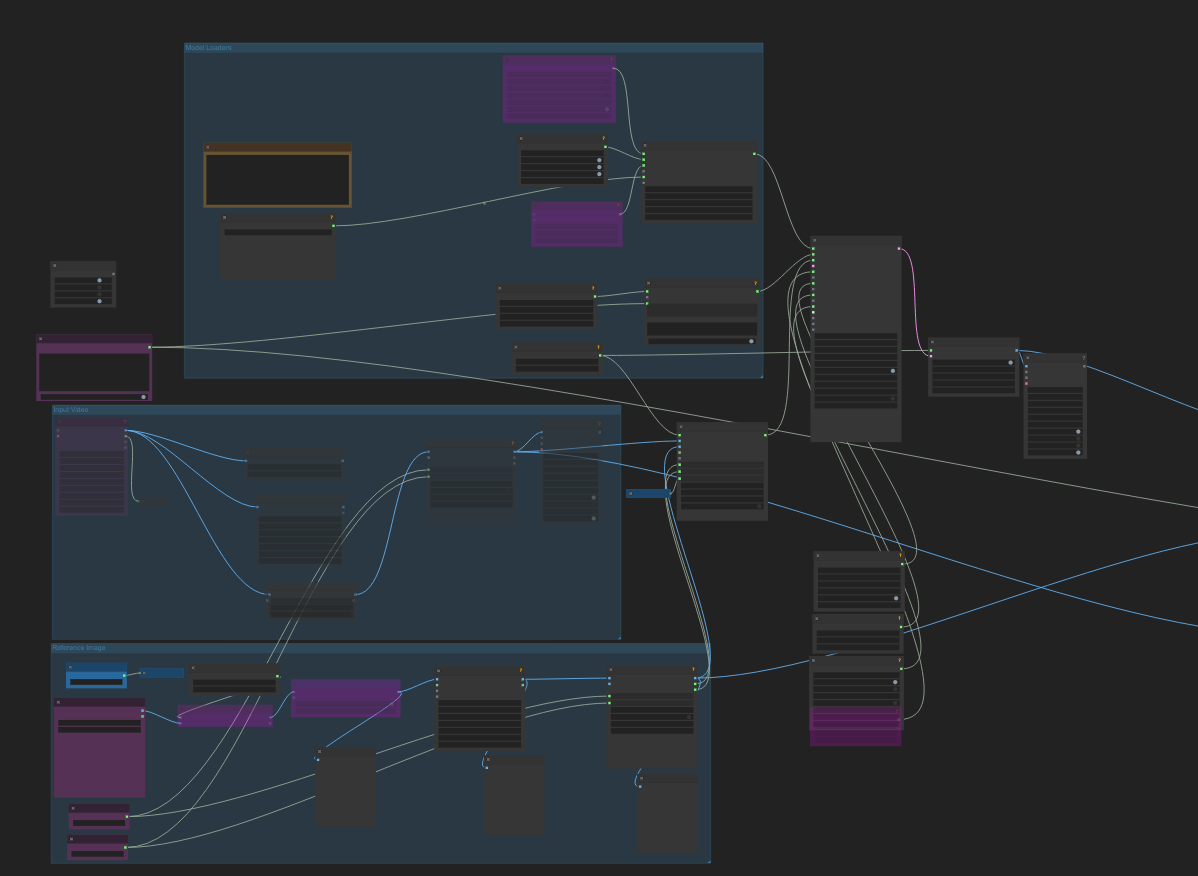
In addition to the pod, and to support the mission of "it just works" — this is the workflow that I used that has all of these features good to go from ArtOfficial. It looks intimidating, but don't worry, to complete most tasks it's just a matter of using the leftmost groups and prompting. Just download the .json file and drag it into your ComfyUI window. The most you have to do is just click the arrows in the model loaders to point them to the models that the pod downloaded automatically, same with any workflow.
Now that your pod is set up, here's some examples of what you can accomplish with VACE.
This allows you to use a still image of a person, scene, and so on and animate it using VACE. Normally, this would require training a LoRA on a person's likeness to reproduce them, but with VACE you can simply animate them without any training at all.
General workflow:
Animation Prompt:
Enter this in the "String Constant Multiline" node just below the muter. All prompting you do to alter the output for the above methods goes here. Some examples might be:
"Animate the portrait with natural breathing, subtle eye movements, and gentle hair motion""Bring the landscape to life with moving clouds, swaying trees, and flowing water"
Example image:

0:00
/0:05
1×
Prompt: "a woman holding flowers in her hand and walking through a field"
Replace objects/characters with references. This can be used, for example, to take the motion of a reference, supply a completely different photo reference, and have the photo reference imitate the video reference.
Update Prompt: Describe the reference photo, while uploading the reference video in the Input Video block. You can control the level of adherence in the Strength variable in WanVideo VACE Encode; e.g. if the subject in the video is wearing pants, but your reference photo is wearing a skirt, decreasing the strength in the WanVideo VACE Encode node will allow the output to "jump" to the skirt instead of the output having pants, bare legs, etc. A higher strength means that the output will more stringently adhere to the pixels in the reference video.
Reference video:
0:00
/0:24
1×
Speaker, talk, communication from Pixabay
0:00
/0:05
1×
Prompt: A single woman in an elegant, long flowing white dress and a wide brimmed sun hat, holding flowers walking through a grassy field.
Allows you to extrapolate and generate beyond the bounds of the original image.
You can use this to convert a video from portrait to landscape simply by swapping the height and width values without creating black bars, as it will automatically generate as needed to fill in the gaps instead of inserting letterboxing (note that the roof in the background visible is more visible here than in the source.)
0:00
/0:05
1×
VACE represents a fundamental shift in how we approach video creation and editing. What once required teams of specialists, expensive equipment, and weeks of production time can now be accomplished by a single creator with the right tools and knowledge. Reproducing a character's likeness used to require training a LoRA (a somewhat arcane process in its own right) but now you can get the same result with what is essentially a drag and drop solution.
Start up a Runpod VACE Pod Today
Start your Runpod instance today and begin exploring the infinite possibilities that VACE brings to your creative arsenal. Your audience is waiting to see what you'll create next.
Questions? Need support? Join the Runpod Discord community or check our comprehensive documentation for advanced configurations, troubleshooting guides, and the latest template updates. The future of video creation is collaborative, and it starts with you.
Author profile: Brendan McKeag
此内容由惯性聚合(RSS阅读器)自动聚合整理,仅供阅读参考。 原文来自 — 版权归原作者所有。