


惯性聚合 高效追踪和阅读你感兴趣的博客、新闻、科技资讯
阅读原文 在惯性聚合中打开

推荐订阅源

P
Proofpoint News Feed
Blog — PlanetScale
Blog — PlanetScale
GbyAI
GbyAI
C
Check Point Blog
腾讯CDC
Stack Overflow Blog
Stack Overflow Blog
Cyber Security Advisories - MS-ISAC
The GitHub Blog
The GitHub Blog
A
About on SuperTechFans
Recent Announcements
L
LangChain Blog
Microsoft Azure Blog
小众软件
小众软件
J
Java Code Geeks
博客园_首页
Jina AI
Jina AI
美团技术团队
H
Help Net Security
MyScale Blog
MyScale Blog
Engineering at Meta
Engineering at Meta
奇客Solidot–传递最新科技情报
奇客Solidot–传递最新科技情报
人人都是产品经理
人人都是产品经理
Y
Y Combinator Blog
S
SegmentFault 最新的问题

Runpod Blog.

New Runpod datacenter now live: AP-IN-1 Track GPU spend across your team with Cost Centers The GPU supply supercycle is here. Here’s what AI builders need to know. Community Spotlight: One-click AI image and video generation on Runpod with SwarmUI | Runpod Blog Community Spotlight: LoRA Pilot Data Prep to Inference Introducing the Runpod Assistant: Manage Your Cloud GPU Resources with Natural Language OpenAI's Parameter Golf: Train the Best Language Model That Fits in 16MB on Runpod LLM inference optimization: techniques that actually reduce latency and cost Pruna P-Video and Vidu Q3 public endpoints now available on Runpod Runpod brand spelling guide Quickstart - Runpod Documentation The AI market looks nothing like the narrative Training StyleGAN3 with Vision-Aided GAN on Runpod KoboldAI – The Other Roleplay Front End, And Why You May Want to Use It How to Connect Cursor to LLM Pods on Runpod for Seamless AI Dev Community Spotlight: How AnonAI Scaled Its Private Chatbot Platform with Runpod Prompt Scheduling with Disco Diffusion on Runpod Runpod's Latest Innovation: Dockerless CLI for Streamlined AI Development Run Your Own AI from Your iPhone Using Runpod Introducing Flash: Run GPU workloads on Runpod Serverless: No Docker required Use Claude Code with your own model on Runpod: No Anthropic account required Avoid Errors by Selecting the Proper Resources for Your Pod What hackers built on Runpod at TreeHacks 2026 Easily Back Up and Restore Your Pod with Cloud Sync + Backblaze B2 The Complete Guide to GPU Requirements for LLM Fine-Tuning AI Guides, Tutorials & GPU Infrastructure Insights | Runpod Your first Claude Code project within Runpod: a complete setup guide 10 billion Serverless requests and counting Building for resilience: Runpod’s response to the AWS us-east-1 outage How to Connect Google Colab to Runpod
Connect Google Colab to Runpod for Custom GPU Power
Zhen Lu · 2022-06-26 · via Runpod Blog.

It looks like some of you are used to Google Colab's interface and would prefer to use that over the command line or JupyterLab's interface. Well, good news, you can connect Colab to use your own custom compute instead of the GPU that they assign to you! Unfortunately, Google won't let you connect directly to a remote instance, but with a few simple steps, you can get around it by using your local machine to forward the remote port. Sound complicated? It's not too bad! We can get this going together in a few minutes :)

First thing's first, start a Runpod instance. For this guide, I'm going to use the Runpod pytorch launch template, but you can use any template that you want. Warning, custom images may require more dependency installs to make it work! Make sure that your instance has "SSH Terminal Access" checked. If you want to deploy on community cloud, you need to find a TCP enabled instance through the "Browse" menu.
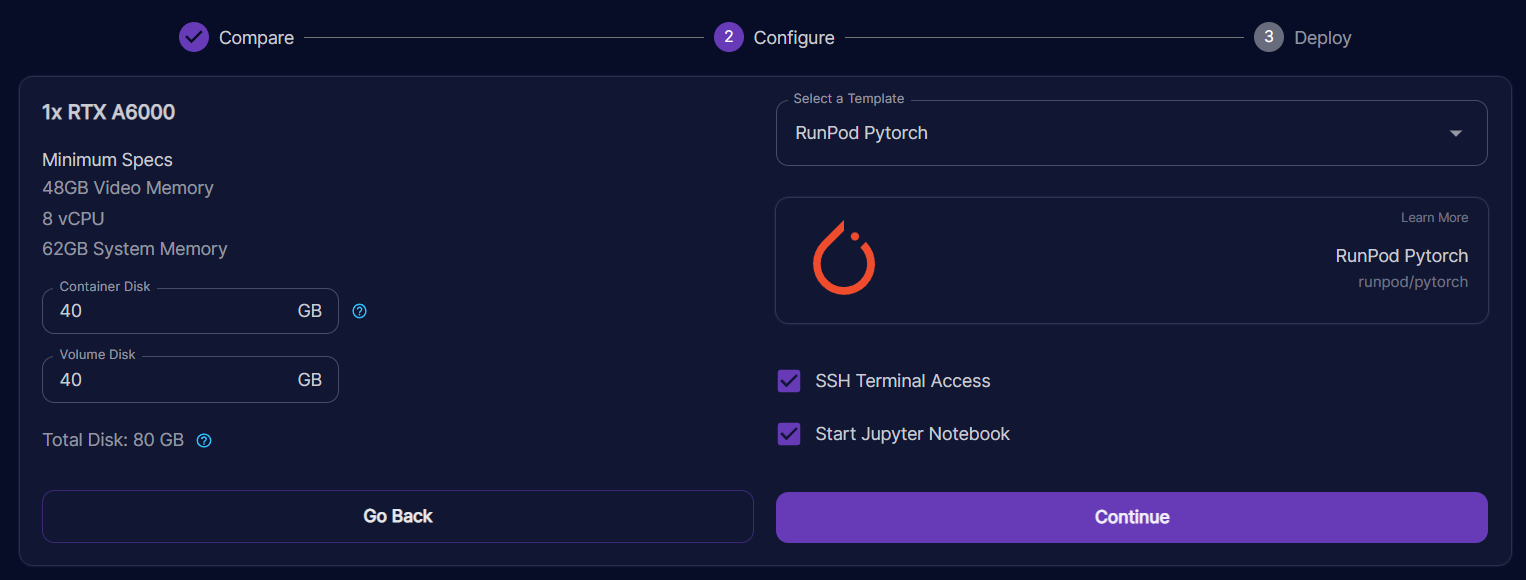
Runpod pod configure step for an RTX A6000 with PyTorch template, SSH and Jupyter Notebook options enabled

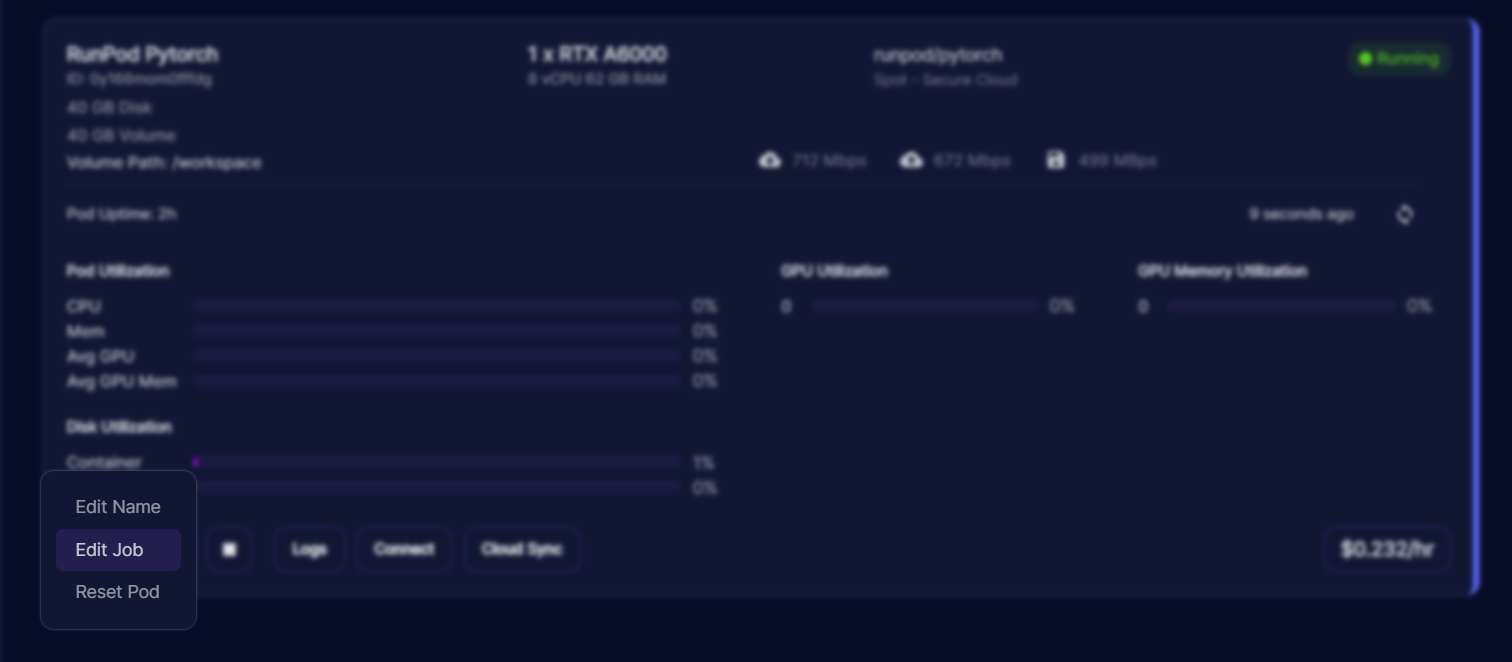
Runpod pod management menu with Edit Job highlighted on a running PyTorch pod card

Put the following into your "Docker Command" field. While you are here, copy the JUPYTER_PASSWORD env variable value (in this case it's 51as1vrmd5ne4jmwjwha). We'll need this password later to authenticate. Hit Save to start your instance with the new command.
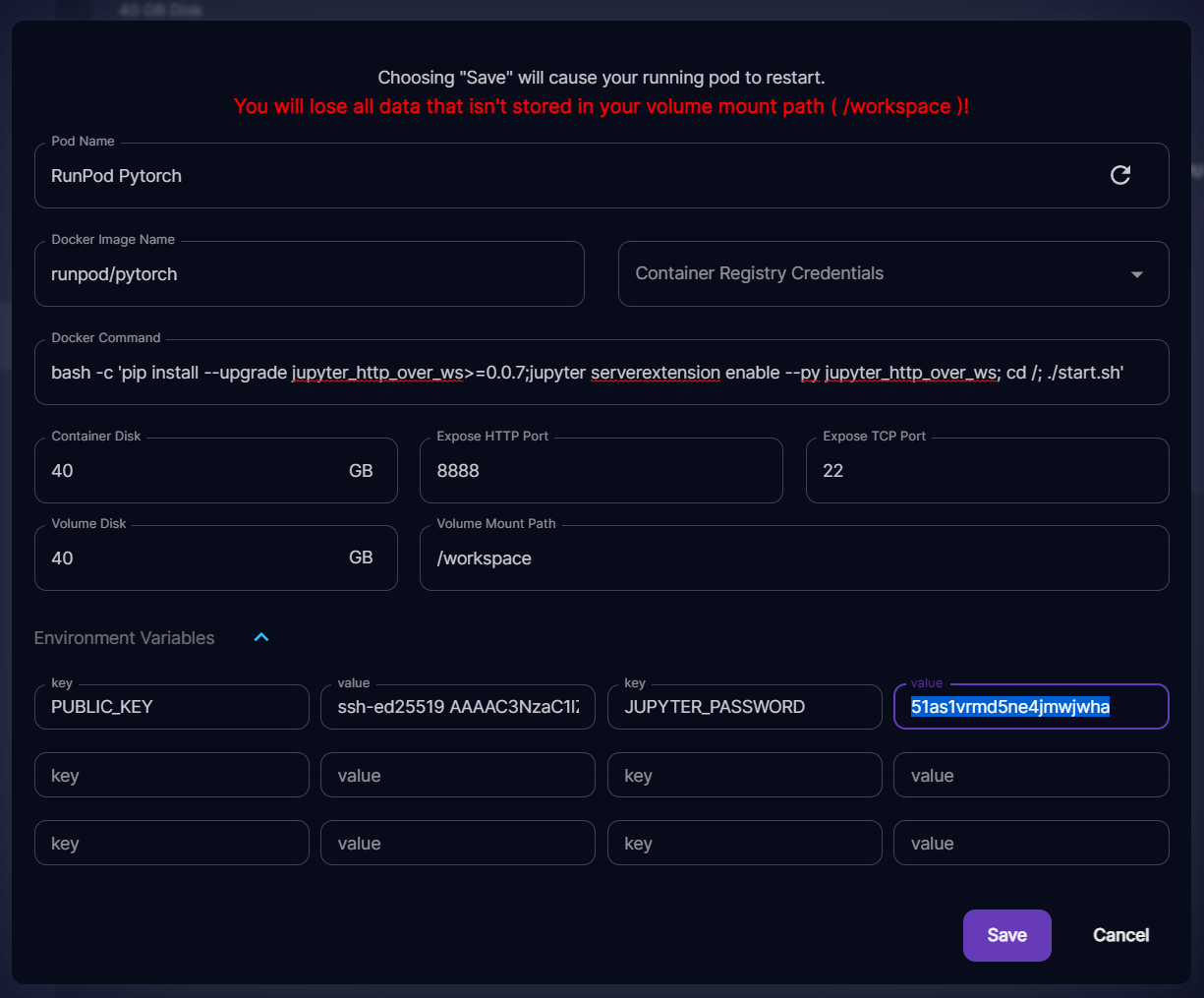
Runpod edit pod dialog with a Docker command enabling jupyter_http_over_ws and environment variables set

This should work for any Runpod standard template. All it does is enable the Jupyter extension that enables http over websockets before starting Jupyter Lab.

Once your instance starts, start an SSH tunnel with port forwarding. You can do this by copying the last command in your "Connect" menu and then appending -L 8888:localhost:8888.
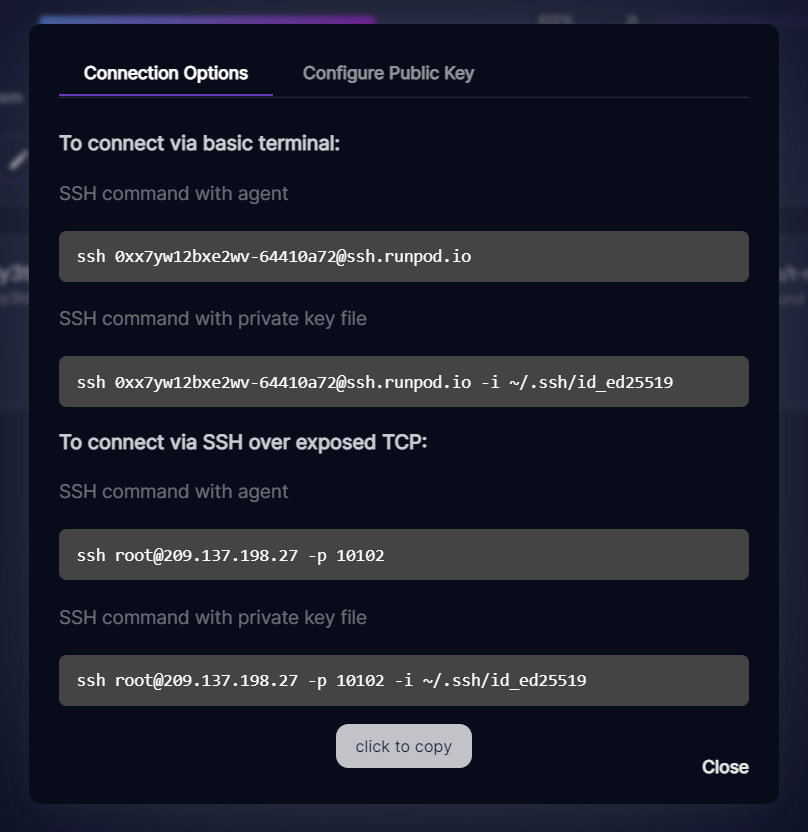
Runpod connection options modal listing SSH commands for basic terminal and SSH over exposed TCP

In this case the full connection command you want to run is:

This connects you to the pod and forwards 8888 within the pod to 8888 on your local machine. Google Colab needs this to connect to the pod, as it connects through your machine to do so.

Open up your favorite notebook in Google Colab. You will see a "Connect" button/dropdown in the top right corner.

Google Colab notebook toolbar showing the Connect button for attaching a runtime

Click on it and select "Connect to a local runtime". This will present you with a field to fill in the address of the local runtime. This is where that JUPYTER_PASSWORD you copied earlier comes in handy. Put the password you copied after the ?token= and then hit connect. If you forgot where you put that password, you can always go back to the "Edit Job" menu and find it there. Be sure to hit Cancel instead of saving, as it will reboot your pod if you save it!

This is what it looks like for this specific pod. Remember to replace this with your own password!
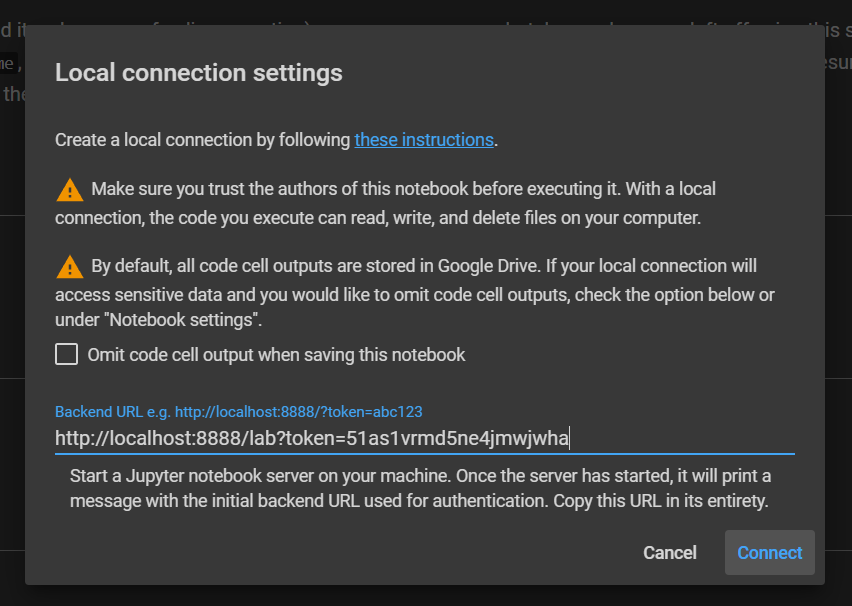
Google Colab local connection settings dialog with a Jupyter backend URL and token entered

If all goes well, then you should now be connected to your pod through Colab! You should see a Connected(local) in green in the top right corner.

I hope that this helps anyone that wanted the power of Runpod with the familiar UI/UX that Google Colab provides. Happy exploring!

Author profile: Zhen Lu