





Text-to-video generation is a space where open source has lagged behind for some time, due to the difficulty and cost involved in training and evaluating video as opposed to text and images. Offerings such as Sora, while impressive, beg for open-source alternatives where you can create videos of any kind with security and privacy. While Stable Video Diffusion and other alternatives help closed the gap somewhat, the newly released Mochi 1 by Genmo shoves the open source field that much closer and already appears to be the new state of the art in text-to-video inference.
According to their release, Mochi can can create videos following a text prompt with the following capabilities:
We'll go through some examples of what Mochi can do, along with a quickstart guide so you can see for yourself.
The team behind Mochi advises that four H100s are required to use the system to its fullest capability. Fortunately, the workflow also scales just fine with smaller video requirements and you will be able to scale down your requirements to smaller hardware specs if necessary. Generations can be expected to take several minutes each at the model's maximum capacity, especially at high frame and step counts.
Fortunately, Camenduru has a ComfyUI workflow available that lets you experiment. As ComfyUI does not support GPU parallelism out of the box, you'll be limited to a single device, so you'll want to use the highest GPU spec available on a single card for this. For now, using the 94GB H100 NVL will let you eke out a bit more than the standard spec. Once the H200 launches with its 141 GB, that will likely become the ideal single GPU spec for this workflow.
As one GPU would just not normally be enough for this kind of work, the workflow uses VAE tiling to stitch together multiple generations to produce a final result. This approach addresses memory constraints and improves processing efficiency while maintaining image quality and coherence. Of course, this does come with some image quality tradeoffs along with potential frame skipping, but the workflow also opens up these parameters for adjustment. Nevertheless, it does enable you to generate videos at the full length with just one GPU, which should be a significant time savings as you explore how well it will fit for your use case.
prompt: "a boxer shadow boxing, punching the air quickly in preparation for a fight" (VAE tiling on)
prompt: "a boxer shadow boxing, punching the air quickly in preparation for a fight" (VAE tiling on)
You can disable enable_vae_tiling in the workflow to get around this, though you'll be pretty limited in the number of frames you can generate on a single H100 (realistically, to about 25 frames or so.) Again, the H200 will make this a bit more flexible once it launches for single-GPU use; I'd expect you to be able to get at least 2.5 seconds or so out of a single generation with tiling off.
prompt: a boxer shadow boxing, punching the air quickly in preparation for a fight (VAE tiling off)
You can see that disabling tiling greatly decreases the amount of artifacting. So the ideal workflow would be to leave tiling on while in the exploration phase of your use case, but seeing if disabling it is feasible when you are ready to go into production.
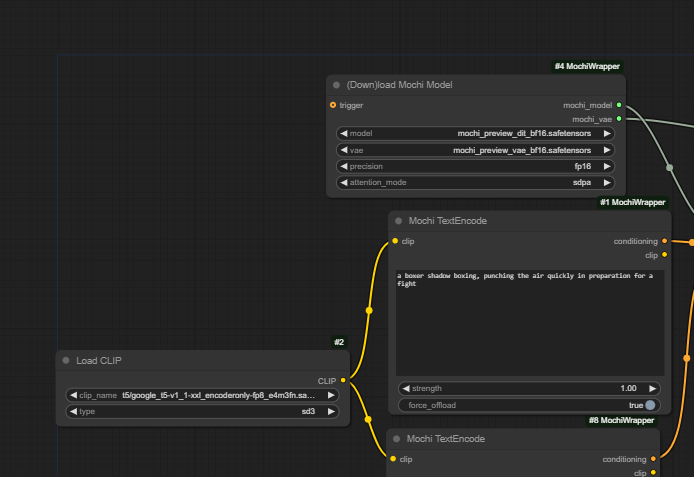
Although the test prompt above was fairly shallow and still demonstrated good results, you can in fact get much more detailed with your prompts.
prompt: a side view of a boxer forcefully punching a heavy bag in preparation for a fight, in a dusty old gym with large windows that let the sunlight filter through, illuminating both the boxer and the bag with a theatric flair (VAE tiling off)
prompt: a side view of a boxer forcefully punching a heavy bag in preparation for a fight, in a dusty old gym with large windows that let the sunlight filter through, illuminating both the boxer and the bag with a theatric flair (VAE tiling off)
You've got other options to run Mochi on Runpod, of course. If you want to see it at its full level of capability, you can spin up a 4xh100 pod and create videos through the CLI or through Gradio as listed on the Github repo:
We are also working on a Better Mochi launcher to go along with our Better Forge/A1111/ComfyUI, to be launched shortly, watch this blog space for updates!
Spin Up a Mochi 1 Pod on Runpod
We're really excited to see what you create with Mochi 1! This is the fastest and easiest way to start creating videos on the service with just a simple text button and a few button clicks. Feel free to hop on our Discord to ask questions and show off your creations!
Author profile: Brendan McKeag
此内容由惯性聚合(RSS阅读器)自动聚合整理,仅供阅读参考。 原文来自 — 版权归原作者所有。